Memory and a slow Mac
Fixes for a slow Mac and memory problems, such as memory pressure, swap, freeing up memory and how much RAM you need.
5 articles · Last updated November 3, 2026
-
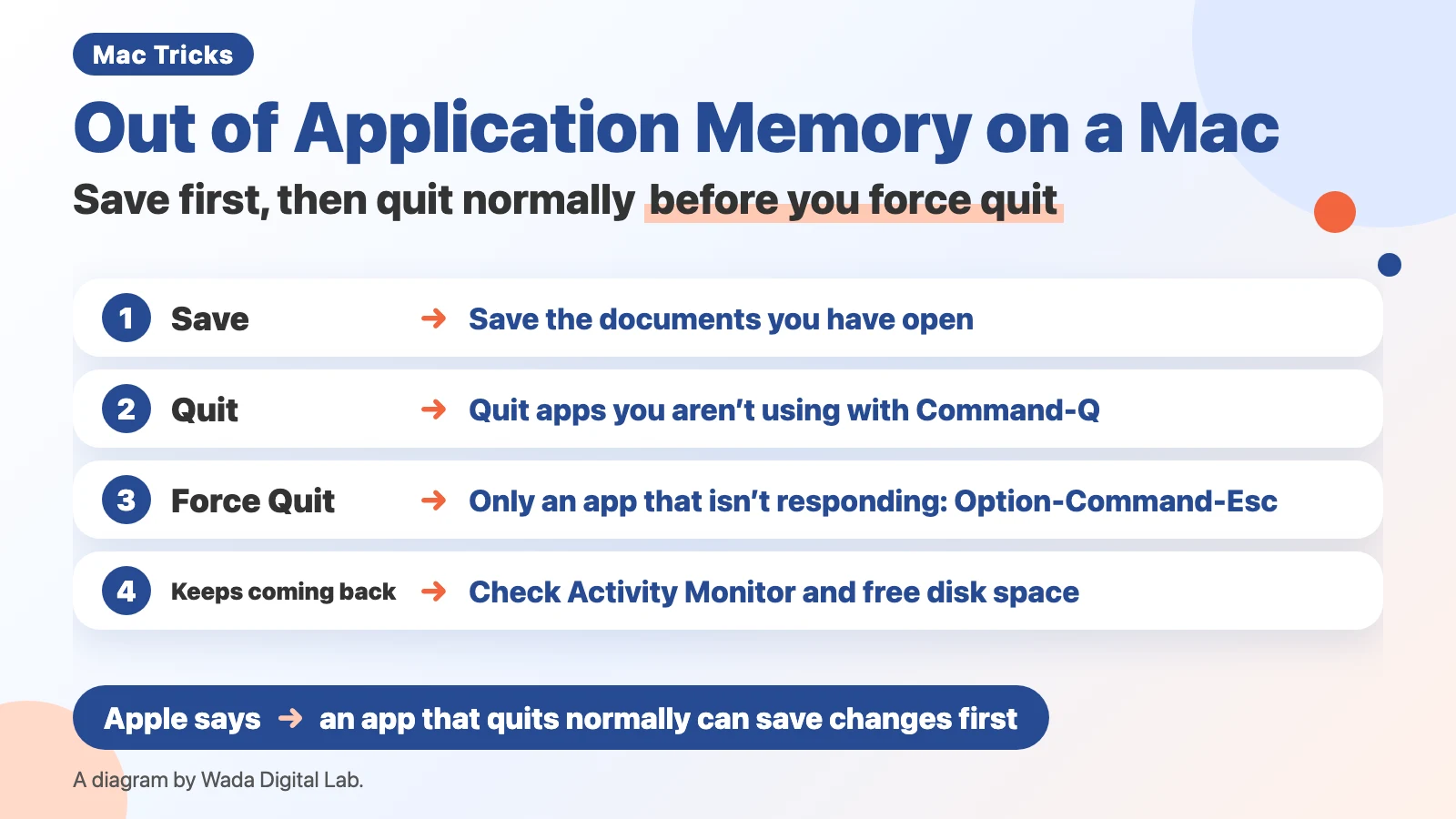 “Your System Has Run Out of Application Memory” on a Mac — Save First, Then Quit Normally Before You Force Quit
Mac says it has run out of application memory? Save, quit unused apps with Command-Q, and force quit only frozen apps.
-
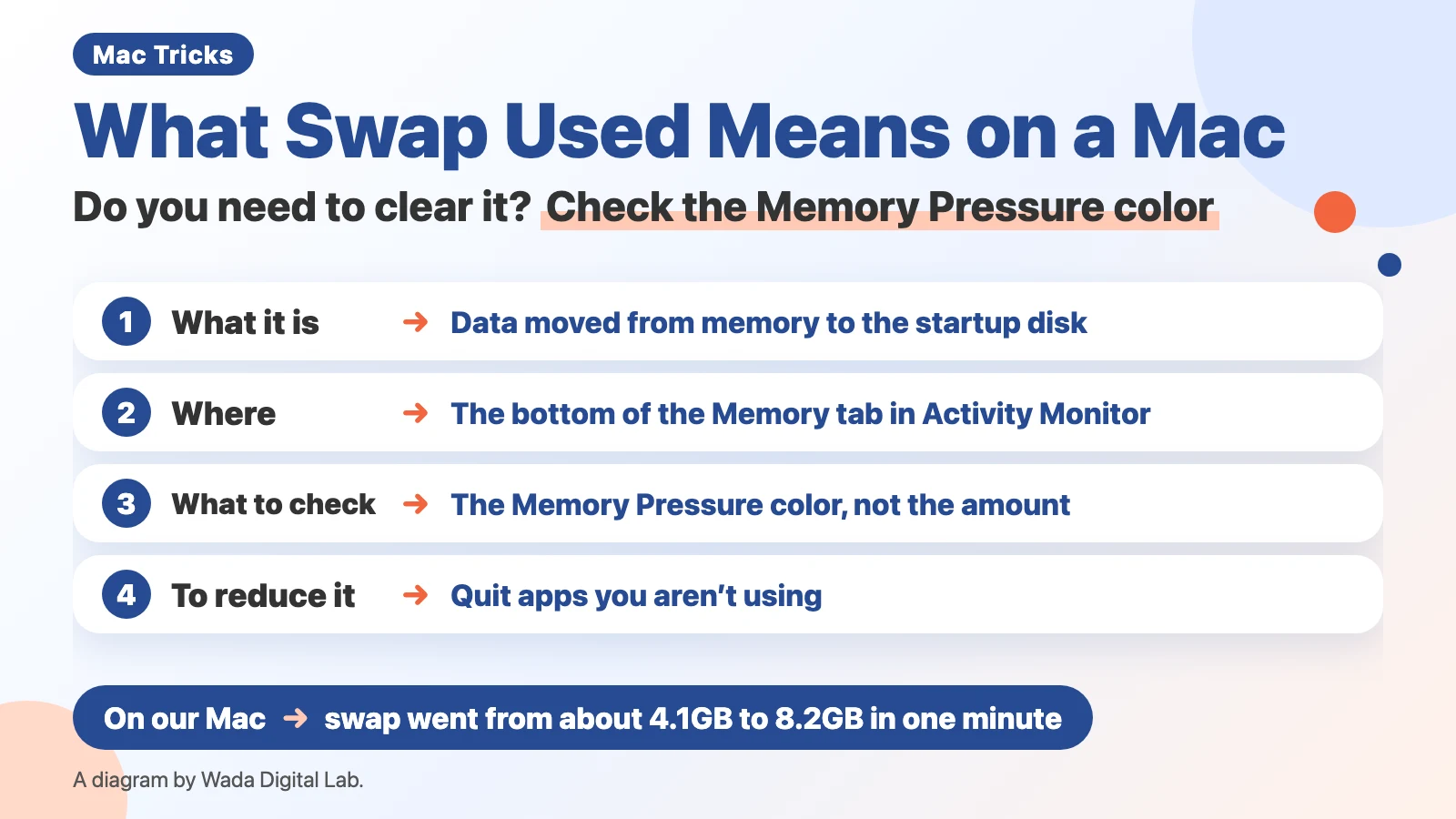 What Swap Used Means on a Mac — Do You Need to Clear It? Check the Memory Pressure Color
Swap Used on a Mac is data moved from memory to the startup disk. If Memory Pressure is green, a few GB is fine.
-
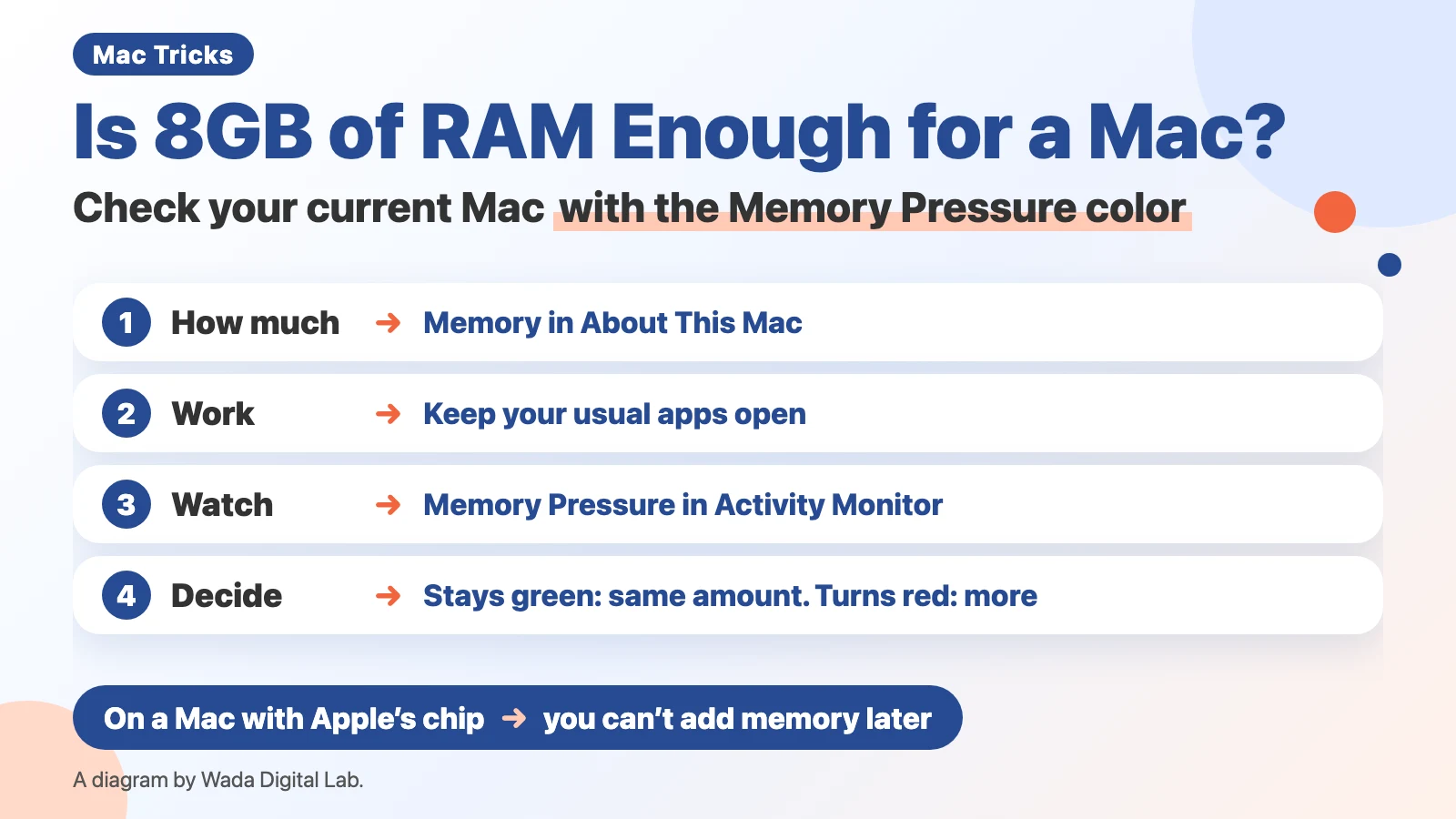 Is 8GB of RAM Enough for a Mac? — Check Your Current Mac with the Memory Pressure Color
Is 8GB of RAM enough for a Mac? On an 8GB Mac, watch Memory Pressure while you work: green is enough, red means more.
-
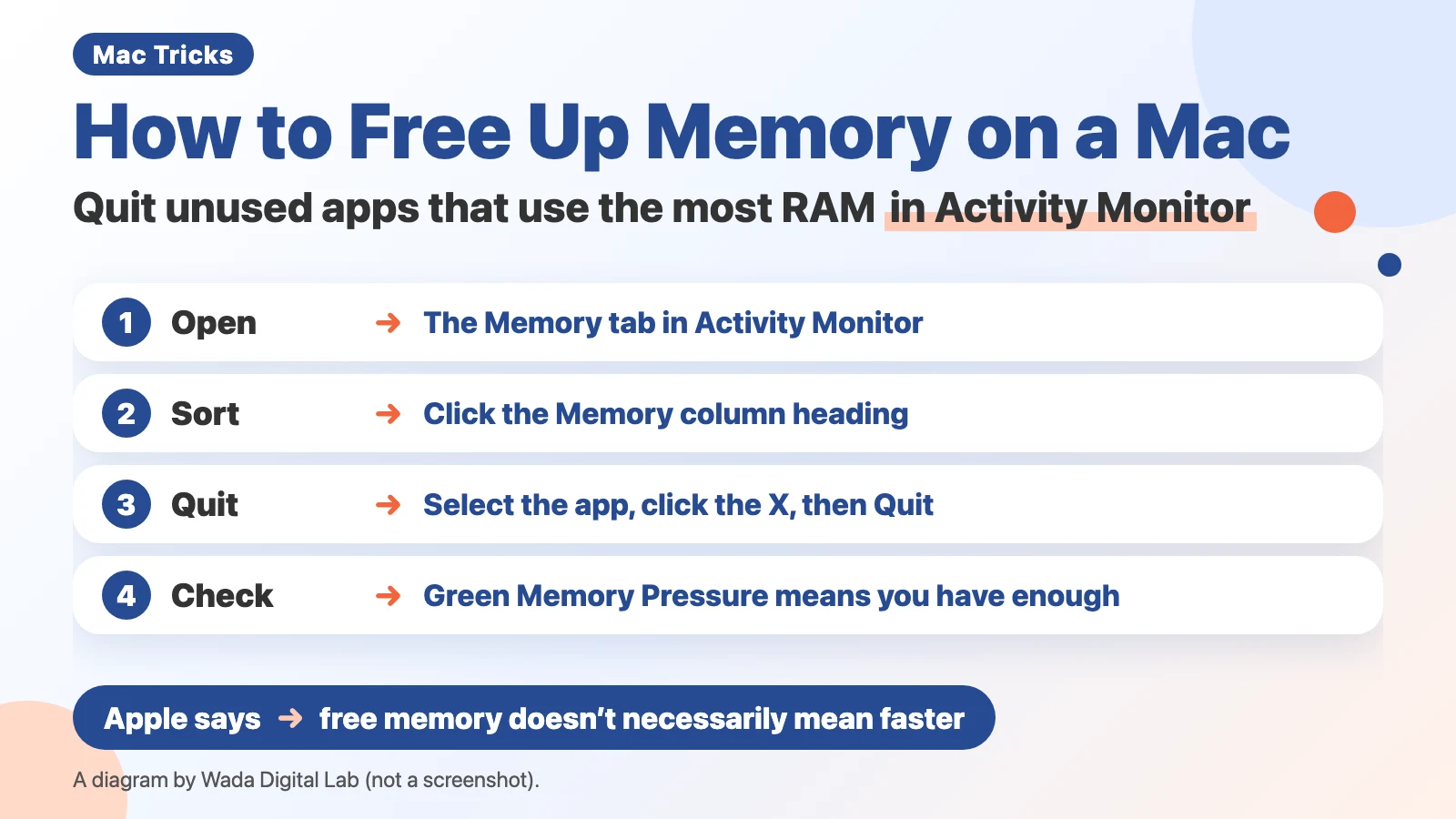 How to Free Up Memory on a Mac — Quit Unused Apps That Use the Most RAM, and What Apple Says About Clearing It
Free up memory on a Mac: sort by Memory in Activity Monitor, then quit apps with the Stop button. Apple’s view on RAM.
-
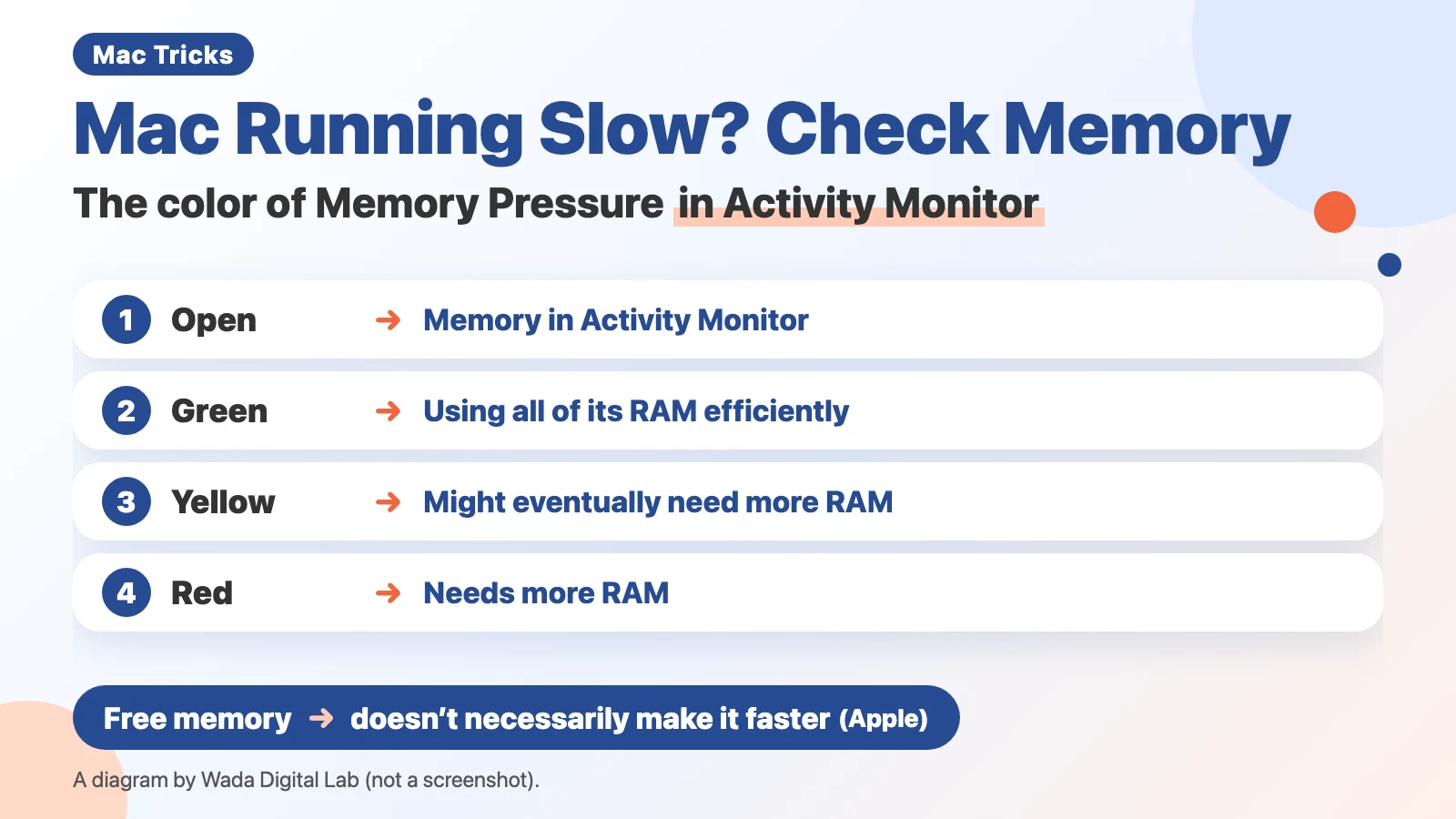 Mac Running Slow? How to Check Memory Pressure — What the Colors Mean in Activity Monitor
Slow Mac? Check the color of Memory Pressure in Activity Monitor: what green, yellow, and red mean, and what to do.
Other topics
Mac Troubleshooting DictionaryLook up the problem, find the fix
About Wada Digital LabHow we write and check our articles
All browser toolsImages, PDFs and audio, on one page
HEIC to JPG ConverterTurn iPhone photos into JPGs, many at once
Compress ImagesMake photos smaller, many at once
Resize ImagesChange the size of photos, many at once
Blur ScreenshotsHide personal details, point things out
Convert to MP3Recordings and video audio, many at once
PNG to JPG ConverterJPG to PNG too, many at once
WebP to JPG ConverterPNG too, many at once
Merge PDF FilesCombine PDFs and images into one
Split PDFOne PDF per page, or by page range
Compress PDFMake PDFs smaller, many at once
Image to TextExtract text from photos and screenshots (OCR)