Compress PDF — Make PDFs smaller, many at once
This page in Japanese: 日本語
Make PDF files smaller right on this page. The photos and images inside are reduced, so the text and lines stay as they are and you can still search the text. You can set a size limit, like “2 MB or less.” It’s completely free for as many PDFs as you like, as often as you like. No sign-up, no ads, and no app to install.
Make PDFs smaller
Getting ready…
How to use it
- Choose how much smaller. If you’re not sure, “Automatic” is fine. If a form says “2 MB or less,” pick that number under “Size limit.” Do this before you add your PDFs.
- Click “Choose PDFs,” or drag PDFs into the box on this page. You can add as many as you like.
- When “Compressing…” finishes, click “Save” next to the file. For several files, click “Save all as ZIP.”
Each compressed PDF is saved as a new file, with “-small” added to the end of its name. Your original PDFs don’t change.
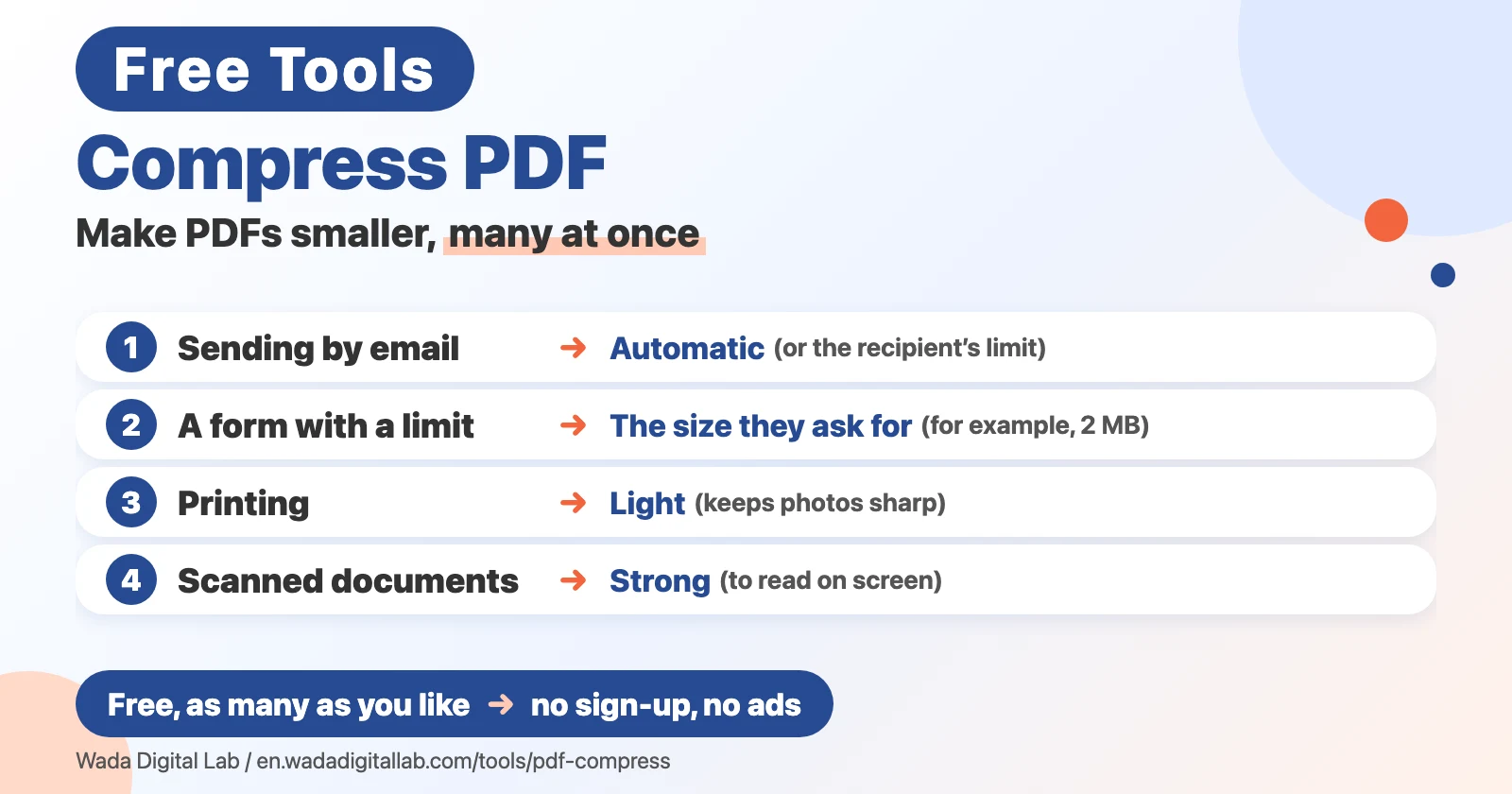
Which setting to choose
- Sending by email: Automatic. If you know the recipient’s limit, pick that size
- Attaching a file to a form that has a limit: the size they ask for (for example, 2 MB or less)
- Printing, or keeping photos sharp: Light
- Scanned documents you only need to read on screen: Strong
It works on PDFs that contain images
This page reduces the photos and images inside a PDF (a scanned page is an image too) to about 1,600 pixels on the long side (2,400 for “Light,” 1,200 for “Strong”) and re-saves them as JPG. With a size limit, it may go down to 800 pixels until the file fits. Text, lines, bookmarks and links stay as they are. A PDF made only of text, or one whose images are already small, won’t get much smaller. In that case the page tells you it didn’t get smaller.
On a Mac or an iPhone, Preview can reduce PDFs too
In Preview on a Mac
- Open the PDF in Preview and choose File > Export.
- In the Quartz Filter pop-up menu, choose Reduce File Size, then click Save.
Reduce File Size makes images quite rough, so scanned documents can become hard to read. If that happens, try “Light” or “Automatic” on this page.
In Preview on an iPhone (iOS 26 and later)
- Open the PDF in the Preview app on your iPhone.
- Tap the button next to the file name, then tap Export.
- Choose PDF as the format, turn on “Optimize images for screen” and “Save images as JPEG,” then save.
These steps are checked against Apple’s guides (Reduce the size of a PDF in Preview on Mac and Export or compress PDFs and images in Preview on iPhone). When you need a size limit like “2 MB or less,” or on a Windows PC, this page is the easier way.
Frequently asked questions
- Is it really free?
- Yes. It’s free for as many PDFs as you like, as often as you like. No sign-up and no ads.
- Will the quality drop?
- The images inside get a little rougher the smaller you go. With “Automatic,” you’ll hardly notice when reading on screen. Text and lines don’t change. For printing, choose “Light.”
- What if it won’t fit the size limit?
- If it still won’t fit after reducing the images strongly, the page tells you and gives you the smallest PDF it could make. A text-only PDF doesn’t get smaller by reducing images.
- How do you count “1 MB”?
- We count 1 MB as 1,000,000 bytes. Some computers, and this page, may show a slightly smaller number (for example, “977 KB” for “1 MB or less”). The file still fits the limit.
- Can I add a password-protected PDF?
- No. A PDF that needs a password to open, or one with printing or editing restrictions, can’t be used here, and the page tells you so. Remove the password or the restrictions first, then add it.
- Will I lose the text?
- No. Only the images are reduced. Text, lines, bookmarks, links and form fields stay as they are. A digitally signed PDF loses its signature, because the file is rewritten.
- I only need some of the pages
- Use Split PDF to extract just the pages you need first. Then compress the result for an even smaller file.
More tools and “Mac Tricks”
- All browser tools: images, PDFs and audio, on one page.
- Merge PDF Files: combine PDFs and images into one.
- Split PDF: one PDF per page, or by page range.
- Compress Images: make photos smaller, many at once.
- All articles on “Mac Tricks”: everyday problems on the Mac, and how to fix them.
We also make Mac apps. For example, KoeShot lets you take screenshots and screen recordings on your Mac with your voice.
Software used in this tool
To read and write PDF files, this tool uses pdf-lib (MIT License), without any changes (pdf-lib). The license and where to get it are in the full license list.