Compress Images — Make photos smaller, many at once
This page in Japanese: 日本語
Make your photos and images smaller right on this page. It’s completely free for as many images as you like, as often as you like. No sign-up, no ads, and no app to install. You can also shrink PNGs and keep their transparent parts. You can add iPhone photos (HEIC) as they are.
Make your images smaller
Getting the converter ready…
How to use it
- Click “Choose Photos,” or drag your photos into the box on this page.
- Choose a format and how small, before you add your photos. If you’re not sure, leave them on “JPG” and “Automatic.” For images with transparent parts, like logos and illustrations, choose “PNG.” If a form says something like “2 MB or less,” choose that size. Choosing a “Longest side” resizes the image to make it even smaller.
- Click “Save” next to a compressed image. If you have many, click “Save all as ZIP.”
Compressed images are saved in the format you choose (JPG or PNG). Your original photos don’t change. The compressed images don’t keep the date and time a photo was taken, or where it was taken (location data).
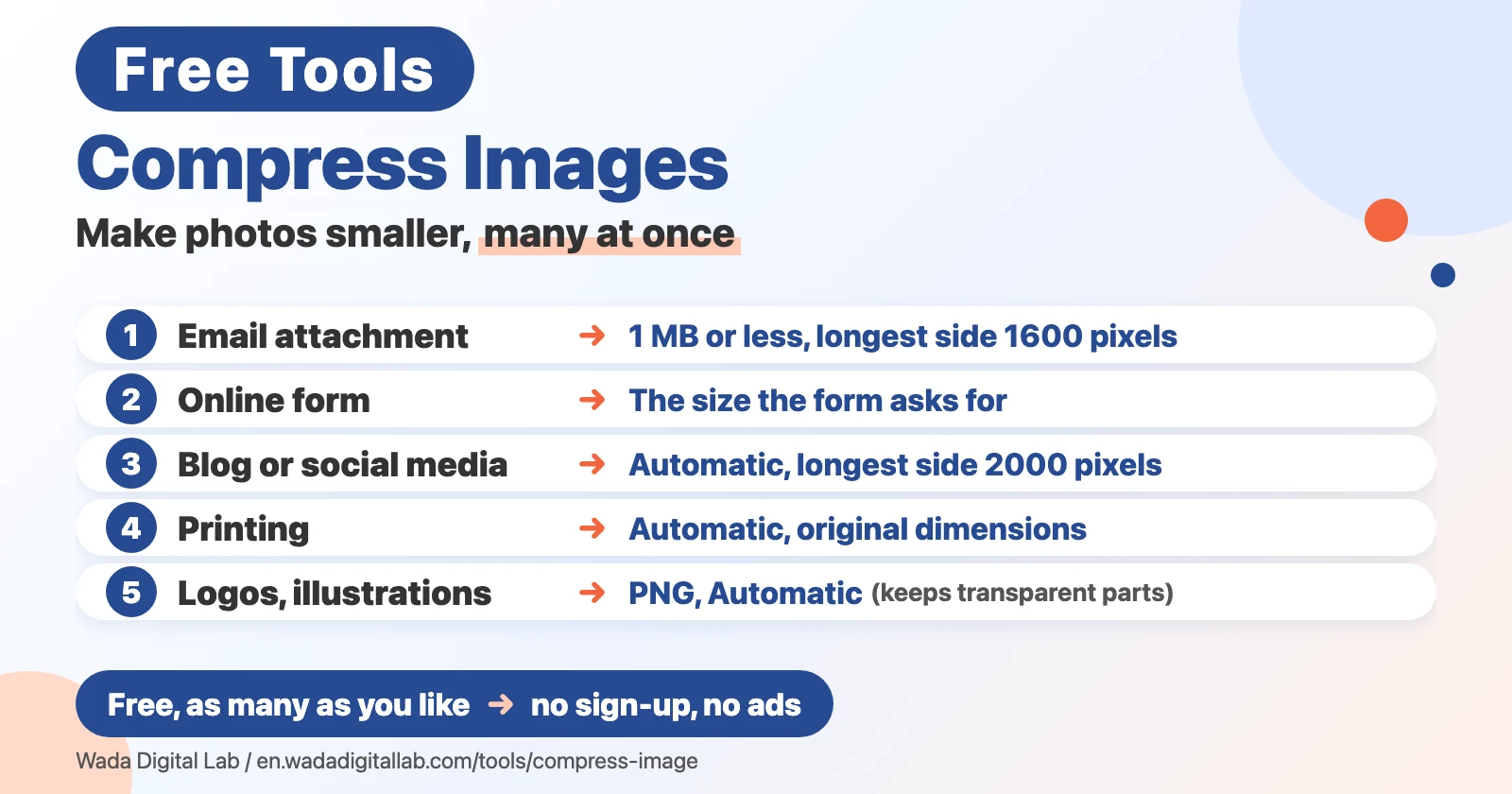
Which settings to choose
- Attaching to an email: 1 MB or less, longest side 1600 pixels
- Sending it through an online form: the size the form asks for (for example, 2 MB or less), original dimensions
- Posting on a blog or social media: Automatic, longest side 2000 pixels
- Printing: Automatic, original dimensions
- Logos and illustrations with transparent parts: PNG, Automatic
On a Mac or iPhone, you can do it without this page
Your Mac and iPhone can already make images smaller.
In Preview on a Mac
- Open the image in Preview. To keep the original, first choose File > Duplicate and work on the copy.
- Choose Tools > Adjust Size, then select “Resample image.”
- Enter a smaller value in the Resolution field. The new size is shown at the bottom.
In Preview on an iPhone (iOS 26 or later)
- Open the image in the Preview app on your iPhone.
- Tap the button next to the file name, then tap Export.
- Choose JPEG as the format, then drag the Size slider to the left to make the file smaller.
We checked these steps against Apple’s own guides: Crop, resize, or rotate an image in Preview on Mac and Export or compress PDFs and images in Preview on iPhone.
Frequently asked questions
- Is it really free?
- Yes. It’s free for as many images as you like, as often as you like. No sign-up and no ads.
- Will the images lose quality?
- The smaller you go, the more detail is lost. With “Automatic,” you’ll hardly see a difference. When you set a size limit, the tool picks the best quality that still fits.
- What if an image won’t fit the size limit?
- For a very large photo and a small limit, the tool also makes the image a little smaller in width and height. If it still won’t fit, it tells you and gives you the smallest version it could make.
- How do you count “1 MB”?
- We count 1 MB as 1,000,000 bytes. Some computers, and this page, may show a slightly smaller number (for example, “976 KB” for “1 MB or less”). The file still fits the limit.
- Will my original photos change?
- No. Each compressed image is saved as a new file, with “-small” added to the end of its name.
- What happens to transparent parts of a PNG?
- If you choose “PNG (keeps transparent parts),” they stay transparent. If you choose “JPG,” they turn white.
- How do you make PNGs smaller?
- By reducing the number of colors to 256 or fewer. Logos, illustrations and screenshots look almost the same. In photos with many colors, you may see bands where colors change. For photos, choose “JPG.” With a size limit, the tool uses the most colors that still fit (256, 128 or 64). If it still won’t fit, it makes the image smaller in width and height.
- Can I add iPhone photos (HEIC)?
- Yes. They’re converted to the format you choose (JPG or PNG) and made smaller at the same time. If you only want to change the format, try our HEIC to JPG Converter.
More tools and “Mac Tricks”
- All browser tools: images, PDFs and audio, on one page.
- HEIC to JPG Converter: turn iPhone photos into JPGs, many at once.
- PNG to JPG Converter: JPG to PNG too, many at once.
- WebP to JPG Converter: turn WebP images into JPGs or PNGs.
- Merge PDF Files, Split PDF, Compress PDF: combine, split and shrink PDFs.
- All articles on “Mac Tricks”: everyday problems on the Mac, and how to fix them.
We also make Mac apps. For example, KoeShot lets you take screenshots and screen recordings on your Mac with your voice.
Software used in this tool
To read iPhone photos (HEIC), this tool uses libheif and libde265 (both under the GNU LGPL v3.0), without any changes. The licenses and where to get the source code are in the full license list (libheif, libde265, libheif-js).
To make PNGs smaller, it uses UPNG.js (MIT License) and pako (MIT License and zlib License), without any changes (UPNG.js, pako). Their licenses are in the same list.