Merge PDF Files — Combine PDFs and images into one PDF, in any order
This page in Japanese: 日本語
Combine several PDFs into one, in any order you like. Photos and scanned images (JPG, PNG) can go in as pages too. It’s completely free for as many files as you like, as often as you like. No sign-up, no ads, and no app to install.
Merge PDFs into one
Getting ready…
How to use it
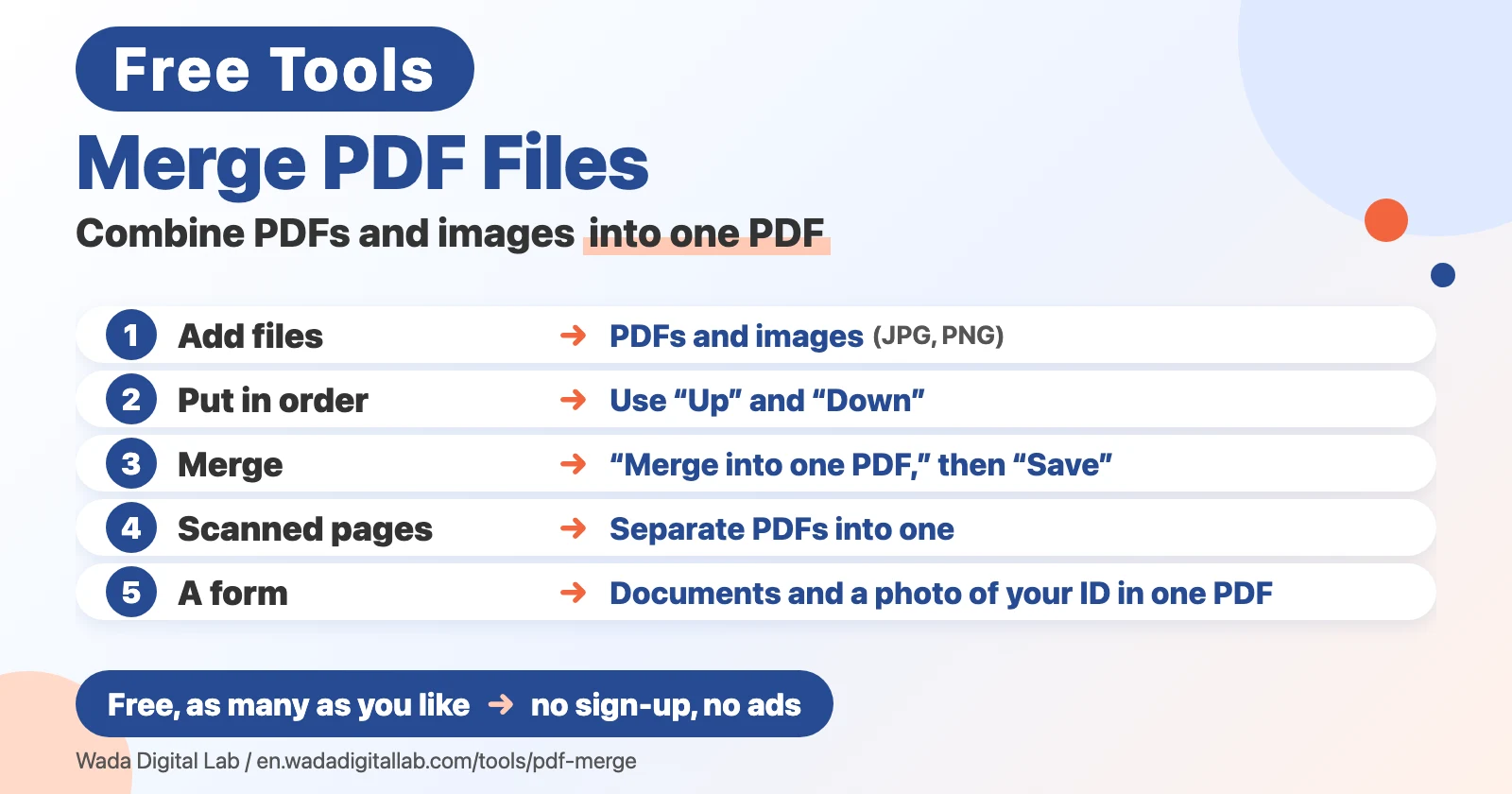
- Click “Choose Files,” or drag PDFs and images into the box on this page. You can add as many as you like.
- Use “Up” and “Down” to put them in order. They’re merged from top to bottom. Use “Remove” to take one out of the list.
- Click “Merge into one PDF.” Then click “Save” next to the new PDF.
The new PDF takes the name of the first file in the list, with “-merged” added to the end. Your original files don’t change. Photos and images are placed on A4-size pages (a wide image gets a landscape page). If a file couldn’t be read, the page tells you and merges the rest.
When this comes in handy
- A scanner saved every page as a separate PDF: add them all, put them in order, and merge
- A form only accepts one PDF: put your documents and a photo of your ID (JPG) into a single PDF
- You photographed documents with an iPhone: convert the photos to JPG first if they’re HEIC (HEIC to JPG Converter), then add them
- Invoices and receipts by month: sort them by date and merge
On a Mac, Preview can combine PDFs too
Preview on the Mac lets you combine PDFs by dragging page thumbnails. If you want to keep the original PDFs, choose File > Duplicate first, because changes in Preview are saved automatically.
- Open the PDFs you want to combine in Preview.
- In each PDF, choose View > Thumbnails to show the pages in the sidebar.
- Drag the thumbnails you want from one PDF’s sidebar into the other’s. To add a whole PDF, drag its icon from the Finder into the sidebar.
These steps are checked against Apple’s guide (Combine PDFs in Preview on Mac). On an iPhone or a Windows PC, this page is the easier way.
Frequently asked questions
- Is it really free?
- Yes. It’s free for as many files as you like, as often as you like. No sign-up and no ads.
- How many files, and how large?
- Up to 200 files at a time. Each file can be up to 500 MB on a computer, or 200 MB on a phone. The merged PDF is held in your device’s memory, so adding many very large PDFs can make the browser slow.
- Can I add a password-protected PDF?
- No. A PDF that needs a password to open, or one with printing or editing restrictions, can’t be used here, and the page tells you so. Remove the password or the restrictions first, then add it.
- What page size do images get?
- Each image is placed on an A4-size page so that it fits. A wide image gets a landscape page. JPG and PNG files go in as they are. WebP, GIF and JPGs with an orientation tag (photos taken upright) are redrawn as JPG.
- Can I add iPhone photos (HEIC)?
- In Safari, yes. Chrome and Windows can’t read HEIC, so convert them to JPG first with the HEIC to JPG Converter.
- Can I still select text in the merged PDF?
- Yes. Pages are copied as they are, so text stays text and you can search it. Bookmarks (the table of contents) and links that jump to other pages aren’t carried over (links to websites are kept).
- I want to split the merged PDF, or make it smaller
- Use Split PDF to separate pages or page ranges, and Compress PDF to reduce the file size.
More tools and “Mac Tricks”
- All browser tools: images, PDFs and audio, on one page.
- Split PDF: one PDF per page, or by page range.
- Compress PDF: make PDFs smaller, many at once.
- HEIC to JPG Converter: turn iPhone photos into JPGs, many at once.
- Compress Images: make photos smaller, many at once.
- All articles on “Mac Tricks”: everyday problems on the Mac, and how to fix them.
We also make Mac apps. For example, KoeShot lets you take screenshots and screen recordings on your Mac with your voice.
Software used in this tool
To read and write PDF files, this tool uses pdf-lib (MIT License), without any changes (pdf-lib). The license and where to get it are in the full license list.