HEIC to JPG Converter — Turn iPhone photos into JPGs, many at once
This page in Japanese: 日本語
Convert photos from your iPhone (.HEIC) to JPG right on this page. It’s completely free for as many photos as you like, as often as you like. No sign-up, no ads, and no app to install.
Convert your photos
Getting the converter ready…
How to use it
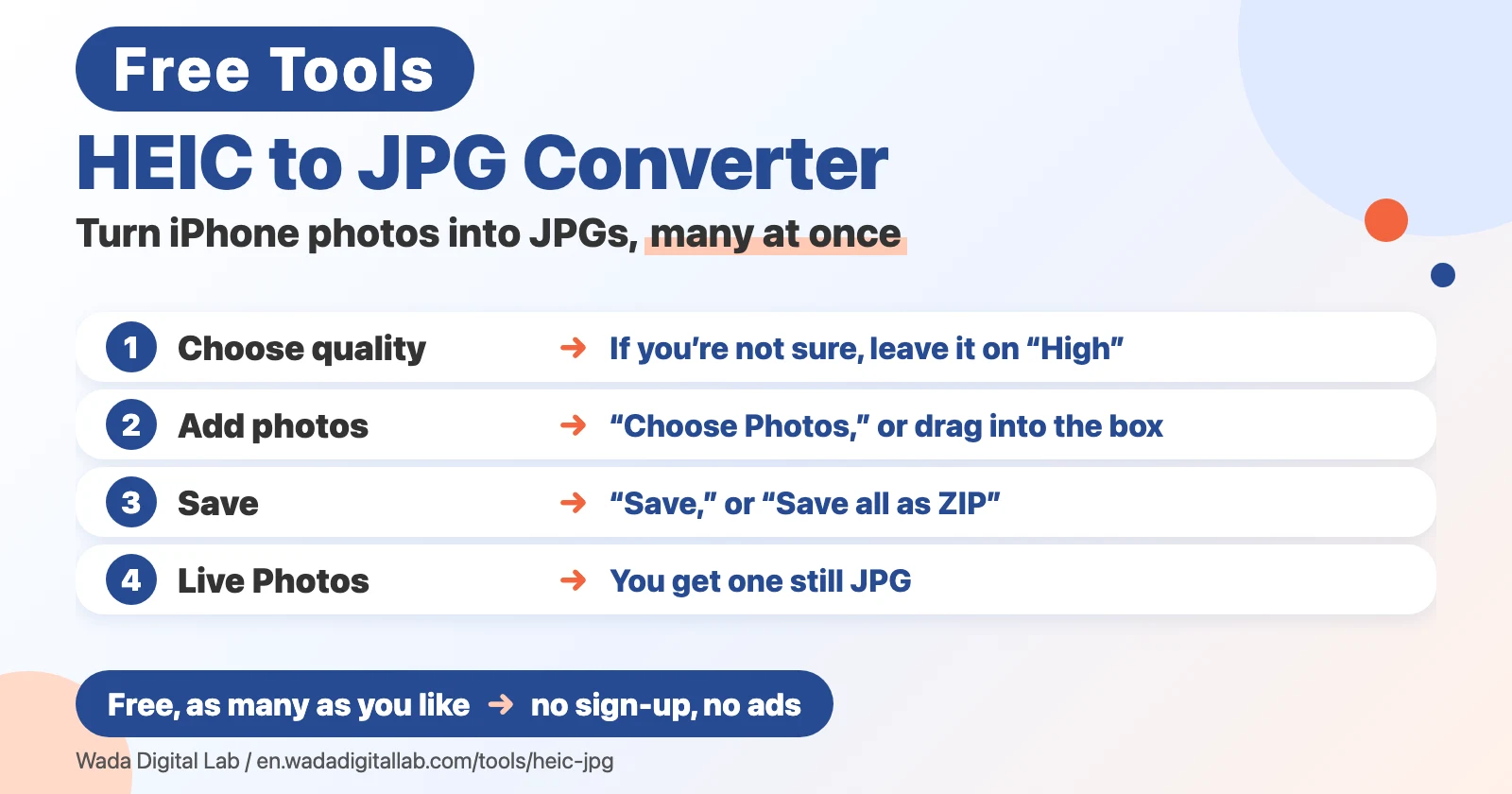
- Click “Choose Photos,” or drag your photos into the box on this page.
- Choose the quality first, before you add your photos. If you’re not sure, leave it on “High.”
- Click “Save” next to a converted photo. If you have many photos, click “Save all as ZIP” to save them together in one file.
The JPGs don’t keep the date and time a photo was taken, or where it was taken (location data). Only the picture itself is copied. That’s handy when you send photos to other people, because they can’t see where you took them. Because the date and time aren’t kept, a converted photo may show up under the day you converted it when you add it to a photo app.
If you also need smaller files (for example, “2 MB or less”), use Compress Images to convert and shrink them at the same time. For PNG and WebP images, use our PNG to JPG Converter or WebP to JPG Converter.
On a Mac, you can convert without this page
Your Mac can already turn HEIC photos into JPGs. These built-in features are handy when you have only a few photos, or when you convert photos often.
In the Finder (many photos at once)
- In the Finder, select the photos you want to convert. You can select as many as you like.
- Control-click the photos, then choose Quick Actions.
- Choose More, then choose Convert Image.
- Choose JPEG as the format, then convert. The JPGs are saved in the same folder.
In Preview (one at a time, choosing the quality)
- Open the photo in Preview.
- Choose File > Export.
- Click the Format pop-up menu and choose JPEG. Set the quality, then click Save.
Take new photos as JPGs from the start (iPhone)
On your iPhone, open Settings, tap Camera, tap Formats, then tap Most Compatible. New photos will be saved as JPGs. To go back, choose High Efficiency. Keep in mind that JPGs take up more space than HEIC photos.
We checked these steps against Apple’s own guides: Perform quick actions in the Finder on Mac, Convert image file types using Preview on Mac, and Using HEIF or HEVC media on Apple devices.
Frequently asked questions
- Will the photos lose quality?
- JPG makes files smaller by giving up a little detail. If you choose “High,” you’ll hardly see a difference.
- How many photos can I convert?
- There’s no set limit. The photos are converted one at a time. On a phone, about 20 photos at a time is a safe amount. If you have more, convert them in a few rounds.
- Which browsers can I use?
- Recent versions of Chrome, Safari and Edge. It works on Windows PCs, too.
- What happens to Live Photos?
- The motion isn’t kept. You get one still JPG.
More Mac fixes on “Mac Tricks”
Wada Digital Lab writes about everyday problems on the Mac, and how to fix them, on our blog “Mac Tricks.” If your Mac saves screenshots as .heic instead of .png, the reason and the fix are in the FAQ of How to Screenshot on a Mac.
- Merge PDF Files: combine your converted JPGs of documents into one PDF (we also have Split PDF and Compress PDF).
- All browser tools: images, PDFs and audio, on one page.
- All articles on “Mac Tricks”
We also make Mac apps. For example, KoeShot lets you take screenshots and screen recordings on your Mac with your voice.
Software used in this tool
To read photos, this tool uses libheif and libde265 (both under the GNU LGPL v3.0), without any changes. The licenses and where to get the source code are in the full license list (libheif, libde265, libheif-js).