How to Screenshot on a Mac — 4 Keyboard Shortcuts and Where Your Screenshots Go
Published October 18, 2026 (updated October 22, 2026)
Steps checked October 18, 2026 (MacBook Air (M2), macOS Golden Gate 27.0.1)
By Wada Digital Lab
You can take a screenshot on a Mac with four keyboard shortcuts. Shift-Command-3 captures the entire screen, Shift-Command-4 captures an area you select, Shift-Command-4 followed by the Space bar captures a window, and Shift-Command-5 opens the Screenshot tools. By default, screenshots are saved to your desktop with a name that begins with “Screenshot.” You can change where they go with “Save to” in the Options menu of Shift-Command-5.
Key points
- Entire screen: Shift-Command-3. An area: Shift-Command-4. A window: Shift-Command-4, then the Space bar.
- Shift-Command-5 opens the Screenshot panel, where you choose a timer and “Save to.”
- By default, screenshots go to your desktop. The file name is “Screenshot” followed by the date and time.
- Add the Control key to the three capture shortcuts (3, 4, and 4 then Space) to copy the screenshot instead of saving a file. Then paste it with Command-V.
- For long pages, hiding names, or copying text, the table below points you to a separate article for each.
The diagram below sums up the four shortcuts and where your screenshots go (it is not a screenshot).
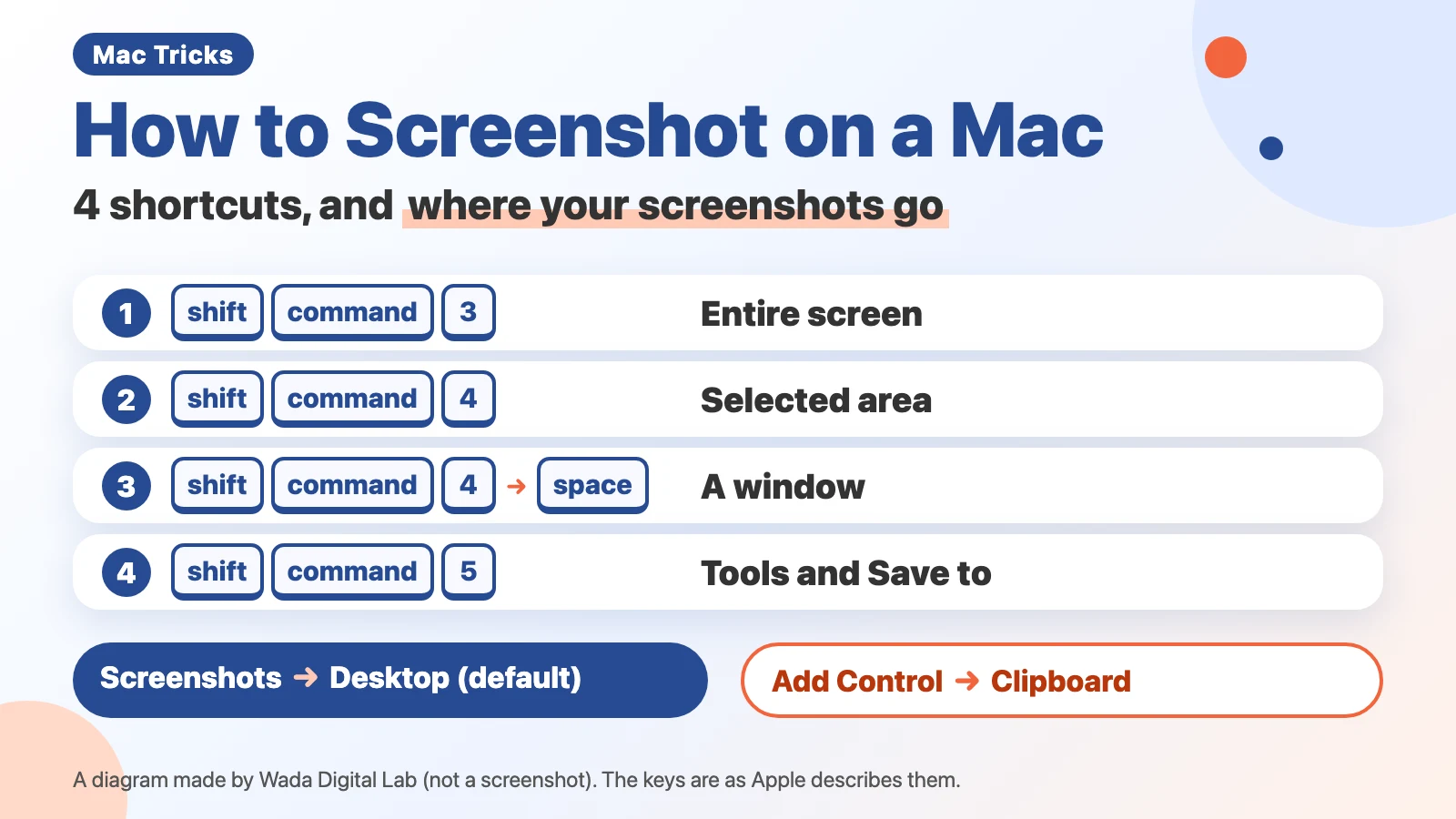
The four screenshot shortcuts: entire screen, an area, a window, and the panel
A screenshot is a picture of what is on your screen right now. On a Mac, you hold Shift and Command and add a number key. Press the keys together, then let go.
| What to capture | Keys | Then |
|---|---|---|
| Entire screen | Shift-Command-3 | It is captured right away |
| An area you select | Shift-Command-4 | Drag over the area with the crosshair |
| A window | Shift-Command-4, then the Space bar | Click the window with the camera pointer |
| Choose from a panel | Shift-Command-5 | The Screenshot panel opens |
Entire screen: Shift-Command-3
The whole screen is captured as soon as you press the keys. If Show Floating Thumbnail is checked, a small preview, which Apple calls the thumbnail, appears in the bottom-right corner of the screen. If you wait, the screenshot is saved to your desktop. On our MacBook Air (M2), the file appeared on the desktop 5 to 11 seconds after the time in its name (October 18, 2026, macOS 27.0.1, Japanese-language screen).
A full-screen picture is bigger than you might think. On our MacBook Air (M4, 15-inch), we captured the entire screen with the screencapture command on macOS 27.0.1 on October 18, 2026. The built-in display came out at 2,880 × 1,864 pixels and about 1.4 MB, and the 4K display we have connected came out at 3,840 × 2,160 pixels and about 1.8 MB (the size also depends on what is on screen). Take dozens a day, and that many files pile up on your desktop.
An area you select: Shift-Command-4
- Press Shift-Command-4 (the pointer turns into a crosshair)
- Start at one corner of the area and drag while holding the mouse or trackpad button
- Let go of the button to take the screenshot
Apple says that if you hold the Space bar while dragging, you can move the area without changing its size. To cancel, press Esc.
A window: Shift-Command-4, then the Space bar
Press and release Shift-Command-4, then press the Space bar. The pointer turns into a camera. Click the window you want. It works the same way for an open menu.
A window captured this way comes with a shadow around it. Apple says: “To exclude the window's shadow from the screenshot, press and hold the Option key while you click.” If the shadow gets in the way in a document, use the Option key.
When we captured the same window twice on our MacBook Air (M2), the picture with the shadow was 2,064 × 1,096 pixels and the one taken with Option held down was 1,840 × 872 pixels. The shadow adds 224 pixels to both the width and the height (October 18, 2026, macOS 27.0.1).
Choose from a panel: Shift-Command-5
Shift-Command-5 opens the Screenshot panel at the bottom of the screen. Buttons let you choose the entire screen, a window, or a selected area. Screen recording also starts here. Even if you forget the other keys, you can take a screenshot from this panel. Opening Screenshot from the Utilities folder inside the Applications folder shows the same panel.
In the panel’s Options menu, you can choose a delay before the capture (Timer: 5 Seconds or 10 Seconds), whether to show the mouse pointer, and where the screenshot is saved (“Save to”). The picture below shows that Options menu open.
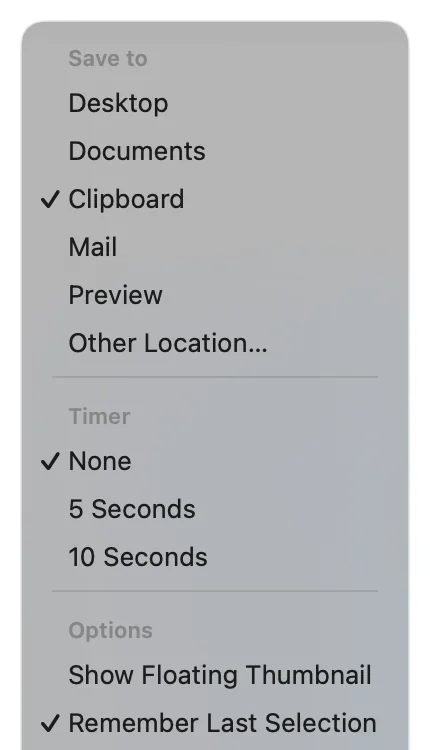
Where do screenshots go on a Mac?
By default, screenshots are saved to your desktop. Apple’s Mac User Guide says screenshots are saved as .png files, and the file names begin with “Screenshot” and include the date and time. (If you set Capture Format to HDR, the format changes; see the questions at the end.)
Where a screenshot goes depends on how you take it. The first item below assumes “Save to” is still set to the default (Desktop).
- The usual keys: a file appears on your desktop (to paste it, you find the file and add it)
- Add the Control key: no file is made, and the picture goes to the clipboard (where things you copy are held for a while)
- Change “Save to” first: the file goes to the place you chose (choose Clipboard and no file is made)
The diagram below compares the usual keys with the default setting and the same keys with Control added.
The usual keys
Goes to A file appears on your desktop
To paste it
Find the file and add it
Add the Control key
With the Control key
Goes to No file is made, and the picture goes to the clipboard
To paste it
Just press Command-V
We have had screenshots pile up on our desktop until it was a mess, and when we tried to tidy up later, we were not sure whether it was safe to delete them all. How to change where screenshots go, and how to clear out the ones already there, is in our article on a desktop full of screenshots.
The small preview in the corner is ready to use
The small preview that appears right after you take a screenshot is saved and disappears after a few seconds. Before it goes, Apple says you can:
- Click it to mark up the screenshot with lines or text
- Drag it straight into a document, an email, a note, or a Finder window
- Swipe right to save it right away and make it disappear
- Control-click it to get a menu that lets you choose where to save it
The picture below shows the menu from the last item, when you Control-click the preview.
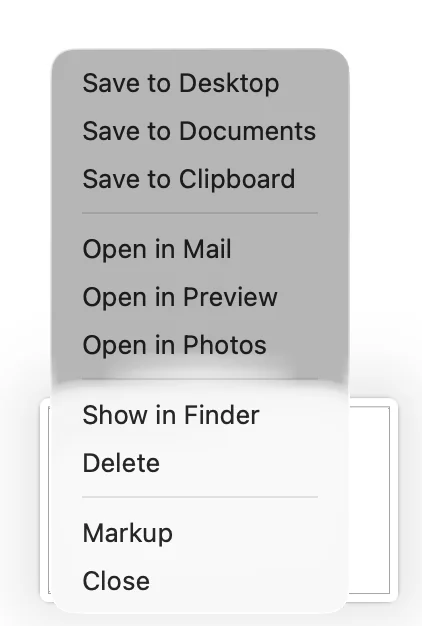
Apple also says that if you hold the pointer over the preview, it stays on screen until you do something with it or move the pointer away. If you would rather not see the preview, turn off Show Floating Thumbnail in the Options menu of Shift-Command-5.
To paste right away, add the Control key
If you only want to paste a screenshot into a chat or a document, you do not need a file. Add the Control key to the three capture shortcuts (Shift-Command-3, Shift-Command-4, and Shift-Command-4 then Space) and the screenshot goes to the clipboard instead of becoming a file. For example, Control-Shift-Command-3 for the entire screen, or Control-Shift-Command-4 for an area. Then press Command-V where you want it. If you take the screenshot from the Shift-Command-5 panel, choose Clipboard under “Save to” in Options.
We never memorized this four-key combination with Control in the first place. Pressing four keys at once is awkward. If you find the keys hard to remember, you can set “Save to” to Clipboard instead. All three ways are compared in our article on screenshots that will not paste.
What you want to do, the way to do it, and where to read more
What you want to do with a screenshot decides which feature to use. For example, a page too long for the screen can be made into one PDF with Export as PDF in Safari, and exported as a PNG from Preview if you want a picture. Text in a picture can be selected and copied with Live Text in Preview. A name or an email address can be hidden by covering it with a box in Preview. If the keys do nothing, check Screenshots in Keyboard Shortcuts in System Settings. A how-to guide uses one picture and one line for each step. We cover each one in its own article.
| What you want | How | Read more |
|---|---|---|
| Stop screenshots piling up on the desktop | “Save to” in the Options menu of Shift-Command-5 | A desktop full of screenshots |
| Paste a screenshot right away | Add the Control key | Screenshots that will not paste |
| The keys do nothing | Check Screenshots in Keyboard Shortcuts | When screenshots do not work |
| Make a long page into one picture | Export as PDF in Safari (for a picture, export it as a PNG from Preview) | A scrolling screenshot in one picture |
| Hide a name or an email address | Cover it with a box in Preview | Blur or hide parts of a screenshot, or Blur Screenshots (free tool) |
| Copy text from a picture | Live Text in Preview | Copy text from an image |
| Make a how-to guide with screenshots | One picture and one line for each step | A step-by-step guide with screenshots |
| Record the screen with sound | Screen recording from Shift-Command-5 (Apple describes recording the Mac’s own sound from macOS 27) | Record audio with a screen recording |
To make it easier: take screenshots by voice and paste them right away (KoeShot)
Everything so far uses features built into the Mac. If key combinations are not your thing, or you take many screenshots a day, there is another way. We make and sell a multi-function screenshot app for the Mac that you can run with your voice. It is called KoeShot for Mac.
Press Option + S and say “Take a screenshot of the whole screen,” “Let me select an area,” or “Take a screenshot of this app.” Option + S is the only key combination you need to remember. The screenshot also goes to the clipboard, so you can paste it straight into a chat or a document with Command-V. By default, the file goes to the KoeShot folder inside Pictures instead of your desktop, with a name made of the date and time, followed by the name of the app you captured. Where you can’t speak out loud, you can type the same command instead.
The long-page, hiding, text-copying, how-to-guide and recording-with-sound jobs in the table above can also be done in KoeShot by asking. Each article above explains how at the end.
Since we started asking AI for help with all sorts of things, the number of screenshots we take each day has gone up a lot, and a screenshot app made that much easier. If you only take a few screenshots a day, though, the four shortcuts and the Control key in this article are enough.
System requirements: a Mac with Apple silicon (M1 or later) / macOS 26 or later. Intel-based Macs and macOS 15 (Sequoia) or earlier are not supported. macOS running inside a virtual machine (Parallels Desktop, UTM and the like) is not supported.
See the KoeShot for Mac product page
Frequently asked questions
My screenshot is a .heic file, not a .png
That happens when you choose HDR under Capture Format in the Options menu of Shift-Command-5. Apple Support (Take a screenshot on Mac) says that on supported Mac models with macOS Tahoe 26 or later, “SDR (Most Compatible)” captures in the PNG format and “HDR” captures in the HEIF format. You can only see the extra brightness of HDR on an HDR display. If you are sending screenshots to other people, SDR (Most Compatible) opens more easily on any device. If you already have .heic screenshots, you can turn them into JPGs with our HEIC to JPG Converter (a tool we made that works in your browser).
Can I take a screenshot with a timer?
Yes. In the Options menu of Shift-Command-5, choose 5 Seconds or 10 Seconds under Timer, then click Capture. This is also handy when you want to capture an open menu.
What does Shift-Command-6 do?
Apple’s Mac User Guide says it captures the Touch Bar on Macs that have one. Apple Support also says that on macOS 27 with Siri AI (Beta) turned on, Command-Shift-6 lets you ask Siri about a portion of the screen. We have not tried this key.
Can I change the shortcuts?
Yes. Choose Apple menu > System Settings, click Keyboard, click Keyboard Shortcuts, then click Screenshots in the sidebar. Check here too if another app is using the same keys and your screenshots stop working. There is more in our article on screenshots not working.
What we tested on, and Apple’s pages
The two screen pictures in this article were taken on this Mac:
- Model: MacBook Air (M4)
- macOS: macOS Tahoe 26.6.2
- Date: October 6, 2026 (in a separate user account on the same Mac, made for recording and set to English)
We pressed the four shortcuts on the keyboard on this Mac (the site owner pressed them):
- Model: MacBook Air (M2)
- macOS: macOS Golden Gate 27.0.1
- Date: October 18, 2026 (in a separate user account made for recording, with the screen in Japanese)
The keys pressed were Shift-Command-3, Shift-Command-4 (an area), Shift-Command-4 then the Space bar (a window, with and without Option), Shift-Command-5, and Control-Shift-Command-4. PNG files appeared on the desktop, each named with the date and time it was taken (on the Japanese-language screen the name begins with the Japanese word for “Screenshot”), and the full-screen one was 3,420 × 2,214 pixels. The picture taken with Control-Shift-Command-4 did not become a file and pasted into Notes with Command-V. Shift-Command-6, the HDR Capture Format, dragging and swiping the thumbnail, and the timer come from Apple (we did not try them).
For the M4 numbers, we measured the size of full-screen pictures on October 18, 2026, with the screencapture command on our MacBook Air (M4) running macOS 27.0.1. On October 16, 2026, on a MacBook Air (M2) running macOS Golden Gate 27.0.1, we checked on the Japanese-language screen that the names and order of “Save to” and Show Floating Thumbnail in the Options menu were the same as in macOS 26. We also checked the macOS 27 names (such as “Save to” and Capture Format) against the list of on-screen text built into macOS on this Mac. What the keys do and how files are named come from the Apple pages below. We checked the quoted Apple sentence against the page, character by character, on October 18, 2026.