Screenshots piling up on your Mac desktop — change where they go, or take them without saving a file
Published September 23, 2026 (updated October 3, 2026)
Steps checked October 16, 2026 (MacBook Air (M2), macOS Golden Gate 27.0.1)
By Wada Digital Lab
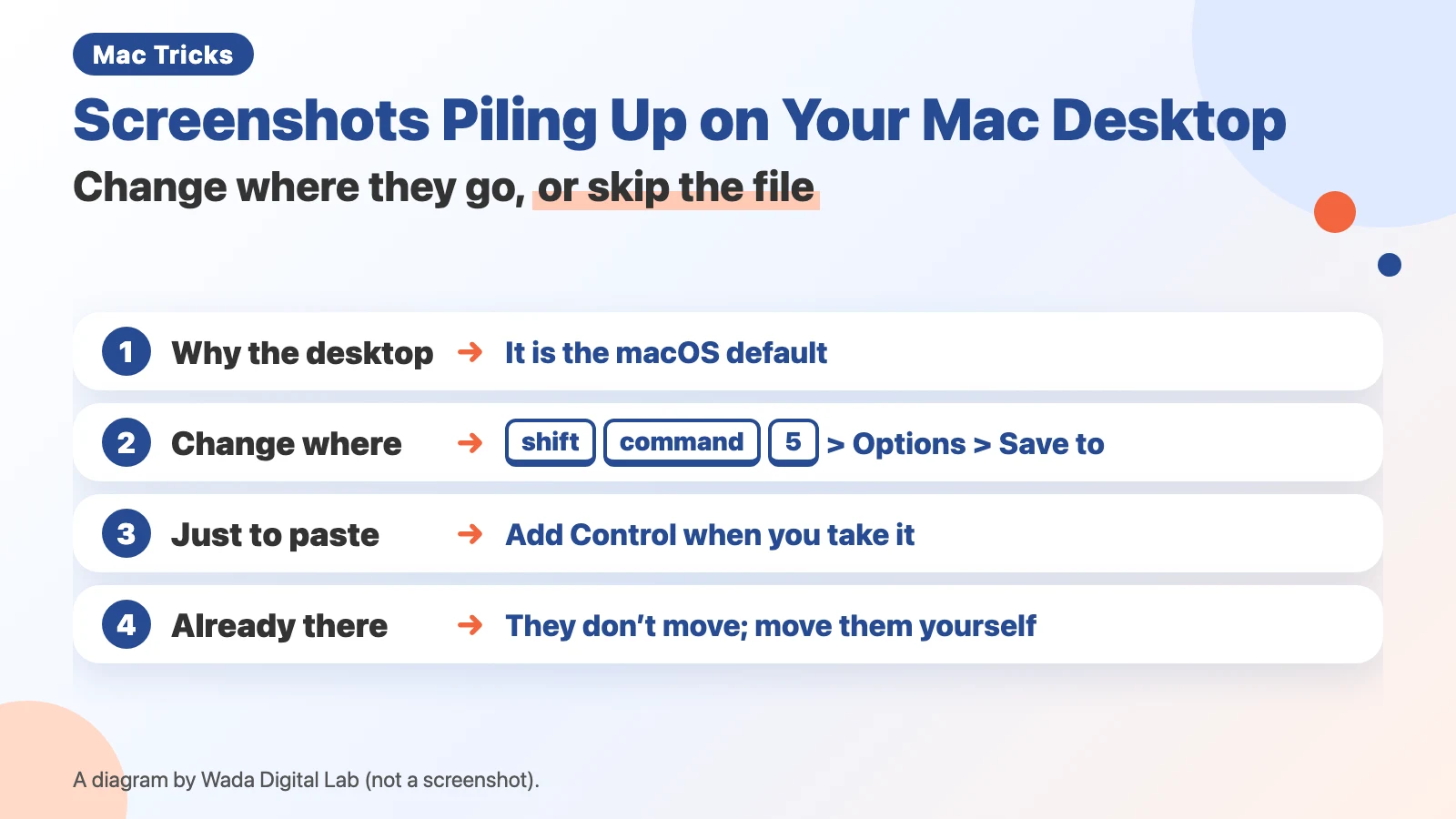
Screenshots pile up on your Mac desktop because macOS saves them there by default. Nothing is broken. To send new screenshots somewhere else, press Shift-Command-5, click Options, and choose a place under Save to. If you only want to paste a screenshot, add the Control key when you take it: it goes to the clipboard (where things you copy are held for a moment), and no file is made.
Key points
- Screenshots go to the desktop because that is the default in macOS. Apple’s own page says they save to your desktop “By default”.
- To change where new screenshots go, press Shift-Command-5, click Options, and choose a place under Save to.
- If you only need to paste it, add Control when you take it (for example, Control-Shift-Command-3). It goes to the clipboard, and no file is made.
- Screenshots already on your desktop do not move when you change the setting. Move them to a folder yourself.
- We checked the Options menu and the Control shortcut on a MacBook Air (M4) with macOS Tahoe 26.6.2 (September 5, 2026).
The diagram below sums up how to change where screenshots go, and how to take one without saving a file (not a screenshot).
The next comic shows why screenshots fill the desktop, and how adding Control takes one without making a file.
Swipe sideways to see the next panel.
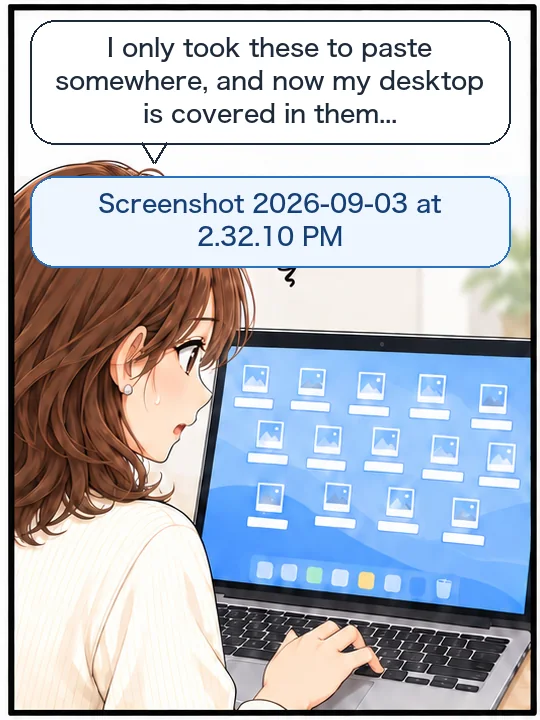
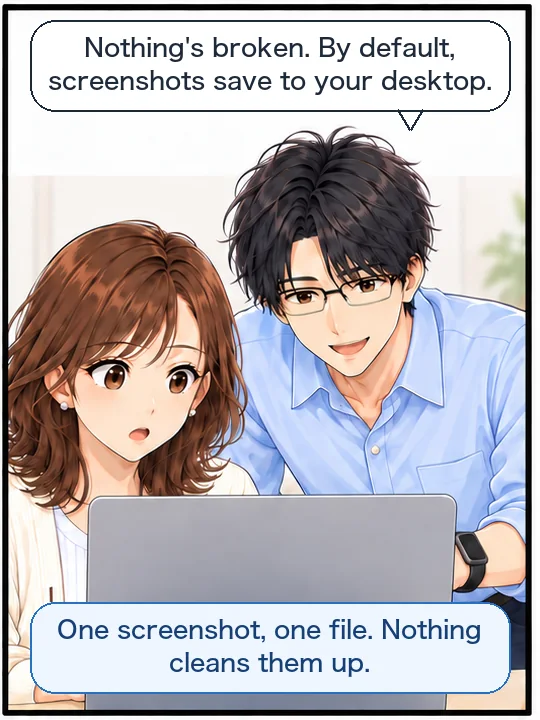
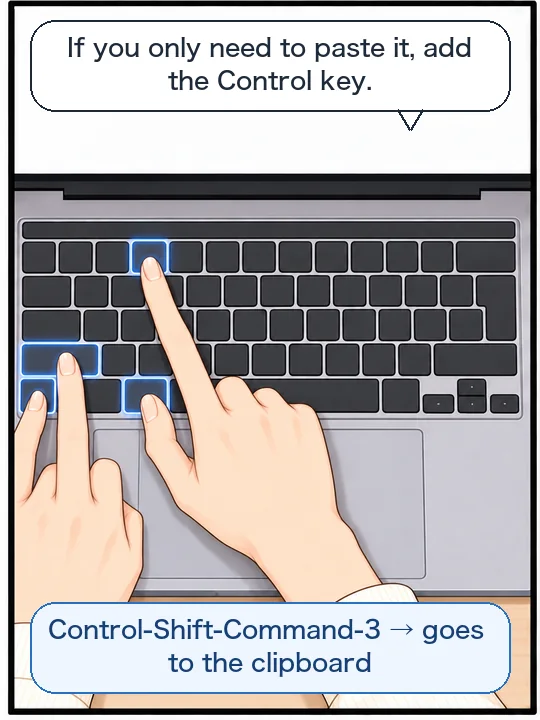
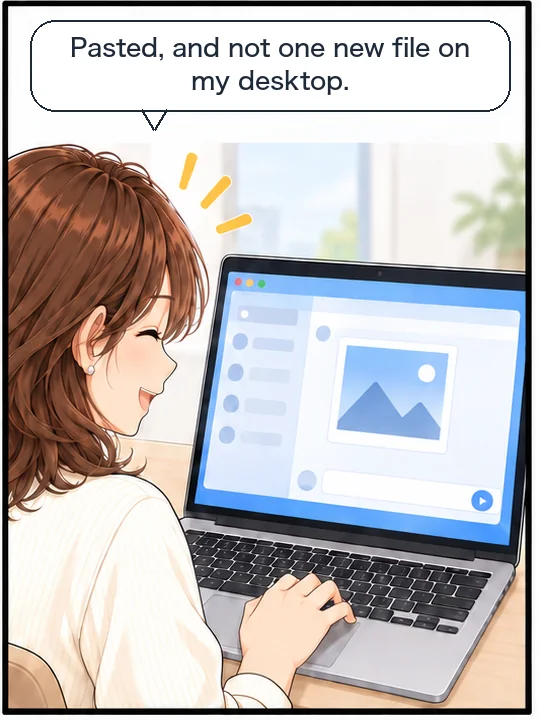
Every screenshot adds one more file to your desktop
Files with names like “Screenshot 2026-09-03 at 2.32.10 PM” keep coming back, no matter how many you delete. You only took them to paste somewhere, yet they are still there after you have pasted them.
Apple’s support page Take a screenshot on Mac puts it plainly: “By default, screenshots save to your desktop with the name…” One screenshot, one file.
Apple’s page gives that name as “Screen Shot”, two words, followed by the date and time. On macOS Tahoe 26.6.2, the English name starts with “Screenshot” as one word, followed by the date, “at” and the time. We checked this against the English text built into macOS on our Mac.
For all four shortcuts and where each kind of screenshot goes, see our article on how to screenshot on a Mac.
The important part is that nothing cleans them up. A screenshot you took just to paste somewhere does not go away once you are done with it. Your desktop is not messy on its own. It is simply where screenshots are set to go.
Where a screenshot goes depends on how you take it
Where a screenshot goes depends on the keys you press. With the usual way, pressing Shift, Command and 3, it goes to your desktop by default. The file stays there after you paste it, so even the shots you only took to paste somewhere pile up.
Add the Control key, and it goes somewhere else. Apple’s page says: “Or press Control in addition to the other keys you press to take the screenshot. For example, instead of pressing Shift-Command-3, press Control-Shift-Command-3.” With Control added, the screenshot only goes to the clipboard. To paste it, click where you want it in another app and press Command-V. No file is left on your desktop after you paste it, so there is nothing to clean up later.
The next diagram compares the two ways: where the screenshot goes, and what is left after you paste it.
The usual way
Goes to Desktop
After you paste it
The file stays
Add the Control key
With Control added
Goes to Clipboard
After you paste it
No file is left
Send new screenshots somewhere else (one setting to change)
If you would rather they did not land on your desktop, there is one setting to change. Apple’s page says: “You can change the default save location in the Options menu of the Screenshot app.” The same page tells you how to open that app: “To open the app, press Shift-Command-5.”
- Press Shift, Command and 5 together (a small bar of controls appears near the bottom of the screen)
- Click Options in that bar
- Under Save to, choose where you want new screenshots to go
When we checked on September 5, 2026 (macOS Tahoe 26.6.2), six places were listed under Save to: Desktop, Documents, Clipboard, Mail, Preview and Other Location…. To use a folder of your own, choose Other Location….
If the small image that appears in the corner after each screenshot gets in your way, choose Show Floating Thumbnail in the same menu so that the checkmark disappears. The small image will then stop appearing (we did not try this step when recording).
The places listed under Save to can differ with your version of macOS. Choose from the ones you see on your own screen. Apple’s page says this panel (the Screenshot app) is available “In macOS Mojave 10.14 or later”.
Screenshots you take after that go to the place you chose. The ones already on your desktop do not move. There is more on this below.
Which setting fixes which screenshot problem (at a glance)
“My screenshots are a mess” can mean several different problems, and each one is fixed in a different place. The table below puts each problem next to its fix.
| The problem | Where to fix it |
|---|---|
| Screenshots keep piling up on your desktop | Press Shift-Command-5, click Options, and under Save to pick somewhere other than Desktop |
| You only need to paste it, not keep a file | Add Control when you take it (for example, Control-Shift-Command-3) |
| You want just this one saved somewhere else | Right after you take it, a small copy appears in the corner of the screen (Apple calls this the thumbnail). Drag and drop it into the folder you want |
| The small image in the corner gets in your way | Press Shift-Command-5, click Options, and choose Show Floating Thumbnail so that the checkmark disappears |
| Screenshots that are already on your desktop | No setting moves these. Make a folder and move them yourself |
For the thumbnail, Apple’s page says the same: “Instead of waiting for the screenshot to be saved to your desktop, you can drag the thumbnail that appears in the corner of your screen, then drop it in another location.” For the last row, screenshots already on your desktop, you can make the desktop look tidy before you move them by using Stacks, which group your files by kind.
Do not change everything at once. Change one thing, use your Mac for a while, and see whether the problem has gone. If it has not, change it back and try the next one. You will get there faster that way.
Three things a new save location will not fix: old files, the clipboard and file names
First, screenshots you have already taken will not move. Save to only applies to screenshots you take from now on. You will have to move the ones piled up on your desktop to a folder yourself.
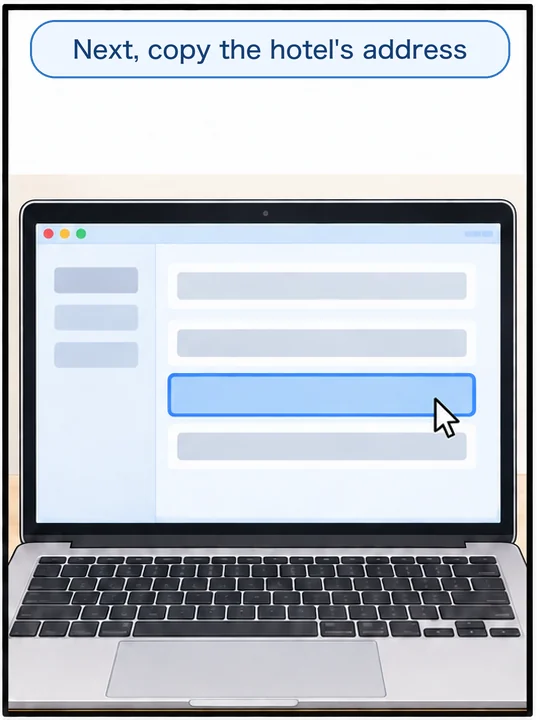
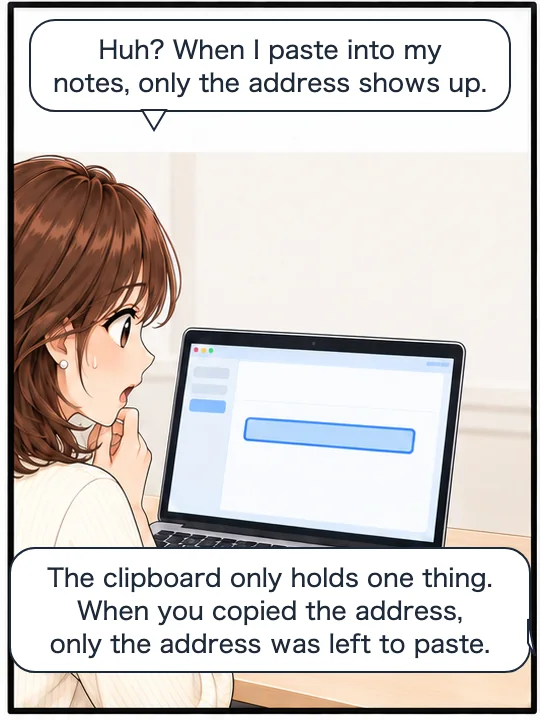
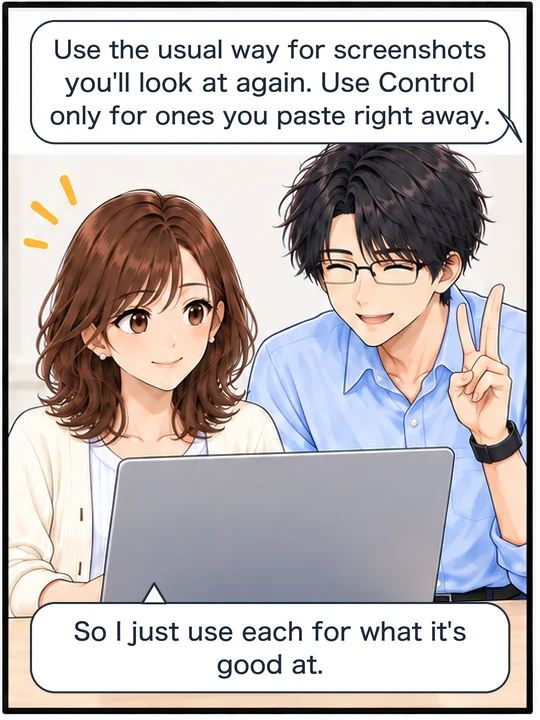
Second, Command-V pastes only the last thing you copied. As soon as you copy something else, you can no longer paste the screenshot. If you use the Control key for a screenshot you want to look at later, you lose the chance to paste it the moment you copy something else. Keep the ones you want to look at again as files, and send the ones you are only pasting to the clipboard. That is the safe way to split them. On macOS Tahoe 26, Spotlight can also search your clipboard history, but we have not checked whether screenshots appear there.
Third, the file name still starts with “Screenshot” followed by the date and time. Moving the files does not change their names. So the name does not tell you what is in the picture. When you look for one later, you have to guess the day you took it and look at the pictures.
The next comic shows what happens when you copy something else after taking a screenshot with Control.
Swipe sideways to see the next panel.
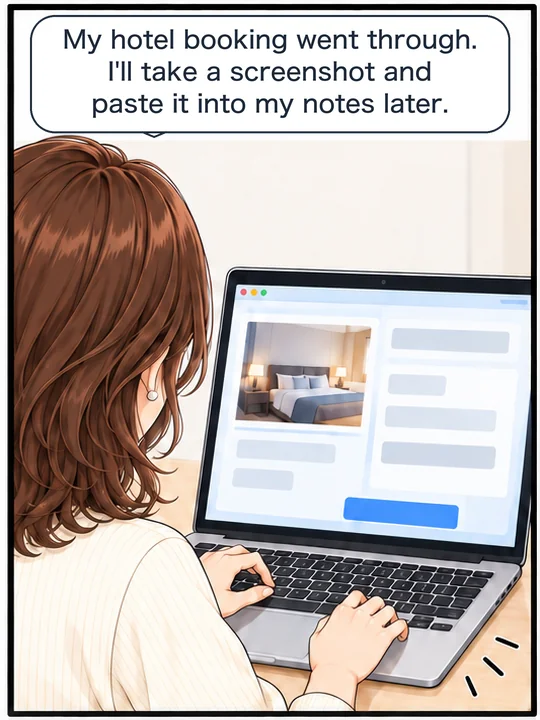
If you cannot paste a screenshot right after you take it, see three ways to paste a screenshot right away. Even after you have taken it, the small image in the bottom-right corner still gives you a way to paste it.
To save a long page that does not fit on the screen as one image, see how to save a full page as one PDF or image.
An app that decides where a screenshot goes and what it is called (KoeShot)
So far this has all been about macOS settings. There is another way: decide where a screenshot goes and what it is called at the moment you take it. We make and sell a multi-function screenshot app for the Mac that you can run with your voice. It is called KoeShot for Mac. Press Option + S on your keyboard, say “Take a screenshot of Safari,” and it is taken right away. The screenshot also goes to the clipboard, so you can paste it straight into a chat or a document with Command + V. The file does not go to your desktop. It goes to the KoeShot folder inside Pictures, with a name like “2026-09-03_14.33.05_Safari.png”: the date and time, followed by the name of the app you captured. KoeShot works in English and Japanese, and it follows your Mac’s language.
System requirements: a Mac with Apple silicon (M1 or later) / macOS 26 or later. Intel-based Macs and macOS 15 (Sequoia) or earlier are not supported. macOS running inside a virtual machine (Parallels Desktop, UTM and the like) is not supported.
What we tested on, and Apple’s pages
We checked the Options menu shown in this article on this Mac:
- Model: MacBook Air (M4)
- macOS: macOS Tahoe 26.6.2
- Date: September 5, 2026 (while recording a video about screenshots)
On that day we opened the Options menu and saw the six places under Save to, with a checkmark next to Show Floating Thumbnail. We also chose Clipboard under Save to, and took a screenshot with Control added and saw that it went to the clipboard without making a file. We did not try dragging the thumbnail to another place, or turning off Show Floating Thumbnail; those come from Apple’s page and the menu items. That Mac was set to Japanese. On October 3, 2026, we checked the English names (Options, Save to, Show Floating Thumbnail, Other Location…) against the English text built into macOS on the same Mac, without opening the screen.
On October 16, 2026, we also checked on a MacBook Air (M2) running macOS Golden Gate 27.0.1, using a separate user account made for recording, with the Mac set to Japanese. When we opened Options from Shift-Command-5, the six places under Save to, the three Timer choices, Show Floating Thumbnail, Remember Last Selection and Show Mouse Pointer had the same names, in the same order, as on macOS 26. Apple’s guide for macOS 27 still names Save to and Show Floating Thumbnail. We did not take pictures of the menu on macOS 27, did not look at which items had checkmarks, and did not change any choice. We did not try adding Control on macOS 27, and we did not look at it with the Mac set to English.
The quotes come from the first Apple page below. We checked them word for word against the current page on October 3, 2026. We read the macOS 27 page on October 16, 2026.
- Take a screenshot on Mac (Apple Support)
- Take screenshots or screen recordings on Mac (Mac User Guide, macOS 27)
October 3, 2026: Added the key points, the table, the places listed under Save to, the system requirements for KoeShot, and the details of what we tested on. Fixed one quote from Apple’s page so that it matches the current page word for word.