Can't paste a screenshot on your Mac — three ways to paste it right away
Published October 6, 2026 (updated October 12, 2026)
Steps checked October 16, 2026 (MacBook Air (M2), macOS Golden Gate 27.0.1)
By Wada Digital Lab
When you take a screenshot on your Mac the usual way (Shift-Command-3, for example), it is saved as a file. It does not go to the clipboard, the place where things you copy are held for a moment. That is why pressing Command-V right after taking a screenshot does not paste it. To paste a screenshot right away, add the Control key when you take it, choose “Save to Clipboard” from the small image in the corner after you take it, or change “Save to” to “Clipboard”.
Key points
- The usual way saves a screenshot as a file (on your desktop by default). It does not go to the clipboard, so you cannot paste it as it is.
- Way 1: Add the Control key when you take the screenshot (for example, Control-Shift-Command-3). It goes to the clipboard instead of becoming a file.
- Way 2: Even after you have taken it, Control-click the small image that appears in the corner of the screen and choose “Save to Clipboard”.
- Way 3: To do this every time, press Shift-Command-5, click Options, and choose Clipboard under Save to.
- Command-V pastes only the last thing you copied. If you copy some text after taking a screenshot, you can no longer paste the screenshot.
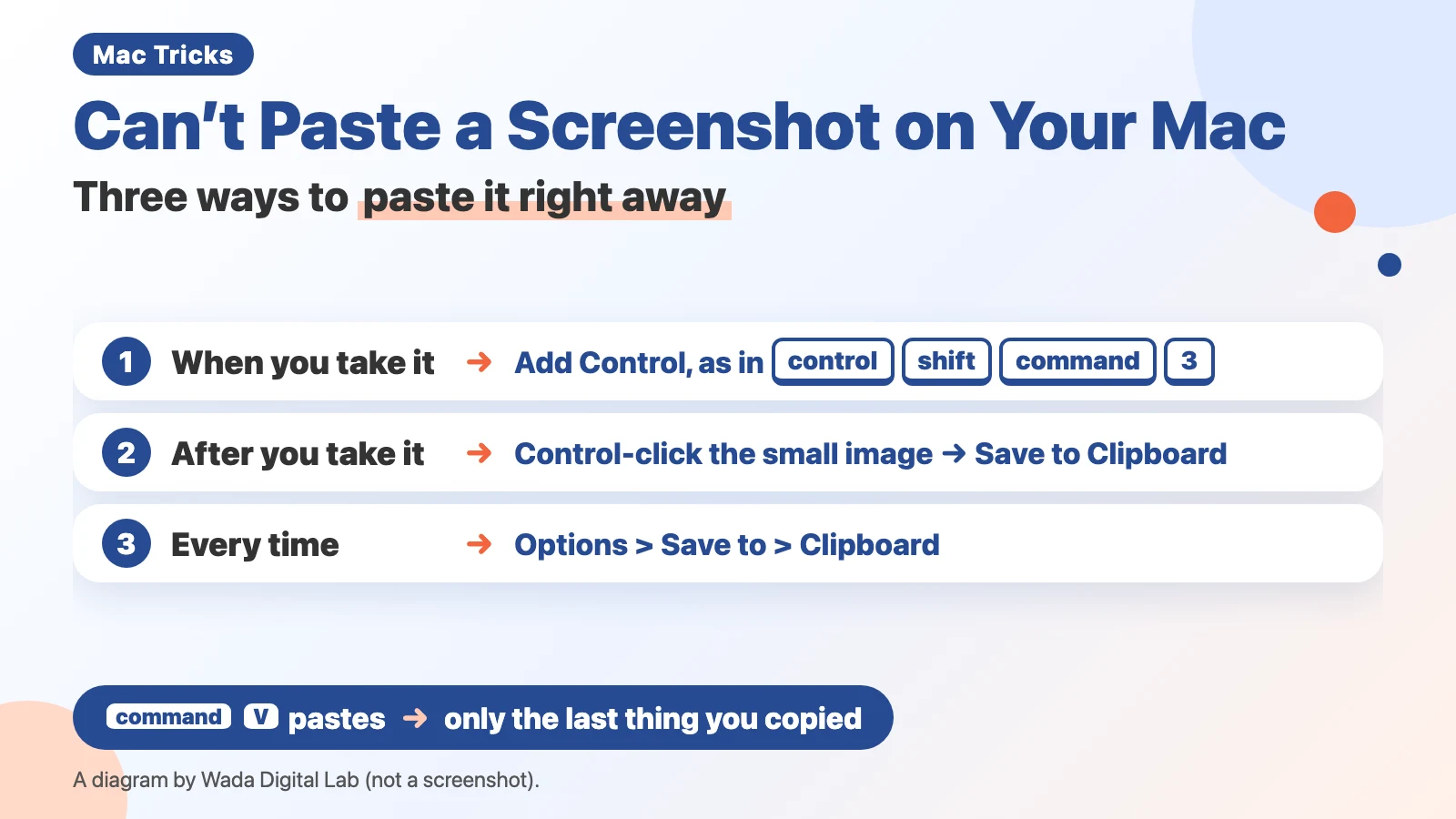
The diagram below sums up three ways to paste a screenshot right away (not a screenshot).
At Wada Digital Lab, our desktop used to fill up with files every time we took a screenshot. It was a mess. When we tried to clean it up later, we were never sure whether we could delete them all. If you take a screenshot only to paste it, you can avoid the pile by not making a file in the first place. For files that have already piled up, our article on cleaning up your desktop with Stacks shows how to group them by kind.
Why it won’t paste: the usual way does not put the screenshot on the clipboard
With the usual way, your screenshot is saved as a file and does not go to the clipboard. Apple’s page says: “By default, screenshots save to your desktop” (you can change where in Options). Command-V pastes whatever is on the clipboard. So if you press Command-V right after taking a screenshot, the screenshot does not appear. If you had copied some text earlier, that text is pasted instead.
The next diagram sorts the three ways to paste a screenshot right away by when you use them.
Way 1
When you take it Add the Control key
Way 2
After you take it “Save to Clipboard”
Way 3
Every time Clipboard under Save to
Way 1: Add the Control key when you take the screenshot
Just add the Control key to the keys you usually press. Apple’s page says: “Or press Control in addition to the other keys you press to take the screenshot.”
- To capture the whole screen, press Control-Shift-Command-3
- To capture part of the screen, press Control-Shift-Command-4, then drag around the area you want
- Click where you want to paste it, then press Command-V
The screenshot goes to the clipboard and does not become a file. Nothing is left on your desktop.
Pressing four keys at once takes some getting used to, though. At Wada Digital Lab, we did not remember these four keys at first either. If they are hard to remember, use Way 2 or Way 3 below.
Way 2: After you take it, choose “Save to Clipboard” from the small image in the corner
Even if you have already taken the screenshot the usual way, it is not too late. After you take a screenshot, a small image of it appears in the corner of the screen for a few moments. Apple calls this the thumbnail. You can use it to put the screenshot on the clipboard. Apple’s page says: “To save a screenshot to the Clipboard instead of your desktop, Control-click the screenshot thumbnail that appears in the corner of your screen, then choose Save to Clipboard from the shortcut menu that appears.”
- While the small image is still in the corner, hold down the Control key and click it
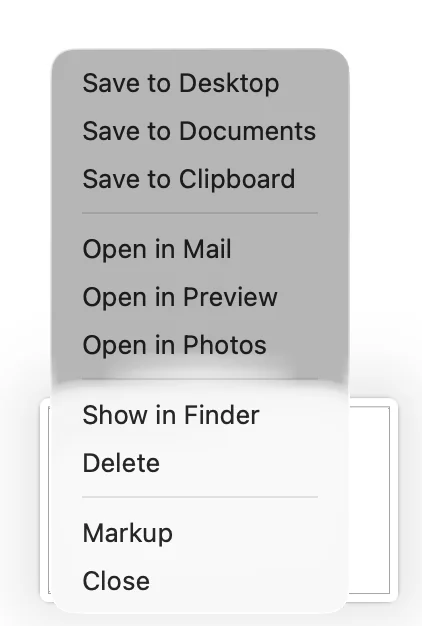
- Choose “Save to Clipboard” from the menu that appears
- Click where you want to paste it, then press Command-V
The next picture shows the small image being Control-clicked on the Mac we used for recording.
You do not have to rush. Apple’s page says: “If you hold your mouse pointer over the screenshot thumbnail, the thumbnail remains onscreen until you act on the thumbnail or move the pointer away.”
If no small image appears after you take a screenshot, this way will not work. Use Way 1 or Way 3 instead. (Whether the small image appears is set by “Show Floating Thumbnail”, in the same Options menu as Way 3.)
Way 3: To do this every time, change “Save to” to “Clipboard”
If you want every screenshot to go to the clipboard, change the setting.
- Press Shift-Command-5 (a long panel for choosing how to capture appears near the bottom of the screen)
- Click Options in that panel
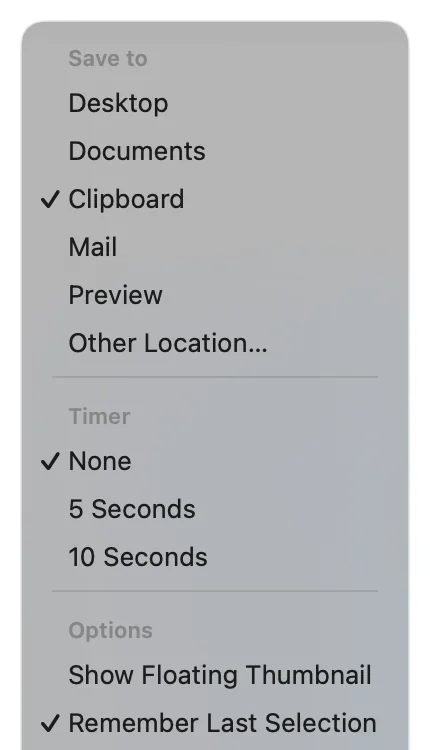
- Under Save to, choose Clipboard
The next picture shows the Options menu on the Mac we used for recording, with Save to set to Clipboard.
After that, even the usual Shift-Command-3 puts the screenshot on the clipboard without making a file. To go back, choose Desktop in the same place. To save screenshots to a folder other than the desktop, see our article on changing where screenshots are saved.
One thing to watch: you can only paste the last thing you copied
Command-V pastes only the last thing that went to the clipboard. If you copy some other text after taking a screenshot, you can no longer paste the screenshot.
At Wada Digital Lab, we sometimes tried to paste a screenshot, only to find we had copied something else in between. We could not paste several screenshots in a row, either, and had to take them again. These days we use a clipboard app that keeps a history of what we copy, so this no longer gets in our way.
On macOS Tahoe 26, Spotlight can also search your clipboard history. Apple’s page says: “On your Mac, press Command-Space bar to open Spotlight.” Then click the Clipboard button to the right of the search field, or press Command-4. The first time, you may be asked to click Enable in Spotlight. On macOS 27, Apple’s page describes this step differently: “When you first search your Clipboard, you may be asked if you want to allow search results from the Clipboard. Click Allow.” We have not checked this on a Mac running macOS 27 yet. Apple’s page also warns: “Sensitive information may appear on the Clipboard.” We have not yet checked whether screenshots appear in this history. For screenshots you want to look at again later, keep them as files, as before.
An app that takes a screenshot by voice and lets you paste it straight away (KoeShot)
So far, this has all been about what macOS can do. There is another way: KoeShot for Mac, a multi-function screenshot app that we make and sell. You can take screenshots with your voice. Press Option + S on your keyboard, say “Take a screenshot of Safari,” and it is taken right away. The screenshot also goes to the clipboard, so you can paste it straight into a chat or a document with Command + V. The file goes to the KoeShot folder inside Pictures, with a name made of the date and time, followed by the name of the app you captured. KoeShot works in English and Japanese, and it follows your Mac’s language.
At Wada Digital Lab, we started asking AI about all kinds of things, and the number of screenshots we take each day went way up. Using an app to take screenshots has made that much easier.
System requirements: a Mac with Apple silicon (M1 or later) / macOS 26 or later. Intel-based Macs and macOS 15 (Sequoia) or earlier are not supported. macOS running inside a virtual machine (Parallels Desktop, UTM and the like) is not supported.
The three ways side by side (at a glance)
The table below puts the three ways side by side, with when to use each one and what to press.
| Way | When to use it | What to press or choose |
|---|---|---|
| 1. Add the Control key | You already know you want to paste it | Control-Shift-Command-3 (or 4 for part of the screen) |
| 2. From the small image in the corner | You already took it the usual way | Control-click the small image, then choose “Save to Clipboard” |
| 3. Change “Save to” | You only ever take screenshots to paste them | Shift-Command-5, then Options, then Clipboard under Save to |
These three methods only capture what is on your screen right now. If the page is longer than your screen, see our article on saving a full page as one image.
Frequently asked questions
No small image appears in the corner after I take a screenshot
Press Shift-Command-5, click Options, and check whether “Show Floating Thumbnail” has a checkmark. If it does not, as in the picture above, choose it to add the checkmark. Without the checkmark, you cannot save from the small image in the corner (Way 2).
If I set “Save to” to “Clipboard”, will my Mac stop making files?
Yes. While “Save to” is set to “Clipboard”, screenshots are not saved as files. Before taking a screenshot you want to look at again later, set “Save to” back to Desktop or another place.
What we tested on, and Apple’s pages
The pictures in this article were taken on this Mac:
- Model: MacBook Air (M4)
- macOS: macOS Tahoe 26.6.2
- Dates: September 5, 2026 (we tried all three ways with the Mac set to Japanese, while recording our video) and October 6, 2026 (we took the pictures of the two menus again with the Mac set to English)
On September 5, we tried all three ways on this Mac and saw that each one put the screenshot on the clipboard. On that day, Show Floating Thumbnail had a checkmark. On October 6, we used a separate user account on the same Mac, made for recording and set to English. We Control-clicked the small image in the corner to open its menu, and chose Clipboard under Save to in Options. We did not try pasting on that day. In that account, Show Floating Thumbnail had no checkmark. We have not tried the Spotlight clipboard history; that part comes from Apple’s page.
The names of the menu items in the pictures (Save to Clipboard, Options, Save to, Clipboard, Show Floating Thumbnail) are the same in US and UK English. We checked them against both the US and the UK English text built into macOS on this Mac.
On October 16, 2026, we also checked on a MacBook Air (M2) running macOS Golden Gate 27.0.1, using a separate user account made for recording, with the Mac set to Japanese. When we opened Options from Shift-Command-5, the six places under Save to, including Clipboard, and Show Floating Thumbnail had the same names, in the same order, as on macOS 26. Apple’s guide for macOS 27 still says that adding Control copies the screenshot, and still names Save to and Show Floating Thumbnail. We did not take pictures of the menus on macOS 27, and we did not change the choice under Save to. We did not try the menu on the small image in the corner, or adding Control, on macOS 27, and we did not look at it with the Mac set to English.
The steps and quotes come from these pages. We checked the quotes word for word against the current pages on October 6, 2026. The macOS 27 quote was checked on October 12, 2026, and we read the macOS 27 screenshot page on October 16, 2026.
- Take a screenshot on Mac (Apple Support)
- Take screenshots or screen recordings on Mac (Mac User Guide, macOS 27)
- Search your Clipboard history in Spotlight on Mac (Mac User Guide, macOS Tahoe 26)
- Search your Clipboard history in Spotlight on Mac (Mac User Guide, macOS 27)
October 12, 2026: Added how Apple’s macOS 27 page describes the first Clipboard search prompt.