Scrolling Screenshot on Mac — Save a Full Page as One Image
Published October 5, 2026 (updated October 12, 2026)
Steps checked October 15, 2026 (MacBook Air (M2), macOS Golden Gate 27.0.1)
By Wada Digital Lab
A screenshot on a Mac only captures what is on the screen right now. To save a long web page as one piece, open it in Safari and choose Export as PDF… from the File menu. The whole page, from top to bottom, becomes a single PDF with no page breaks. If you need an image, open that PDF in Preview and use Export… to save it as a PNG.
There is also a video that shows the same steps on a Mac: Scrolling Screenshot on Mac (YouTube, 4:20).
Key points
- A Mac screenshot (Shift-Command-5) can capture the entire screen, a window, or part of the screen. All three only capture what you can see right now.
- In Safari, File > Export as PDF… turns the whole page, top to bottom, into one PDF with no page breaks. A PDF made from Print… in the same menu is split into pages the size of a sheet of paper.
- Before you export, scroll slowly to the very bottom of the page. On the page we used (an article on the Wada Digital Lab blog), skipping this left the pictures in the second half blank.
- To get an image, open the PDF in Preview, choose File > Export…, and set Format to PNG.
- On a MacBook Air (M4) with macOS Tahoe 26.6.2, we confirmed that both the PDF and the PNG came out as one tall page.
The diagram below shows the steps for saving a long page as one image (not a screenshot).
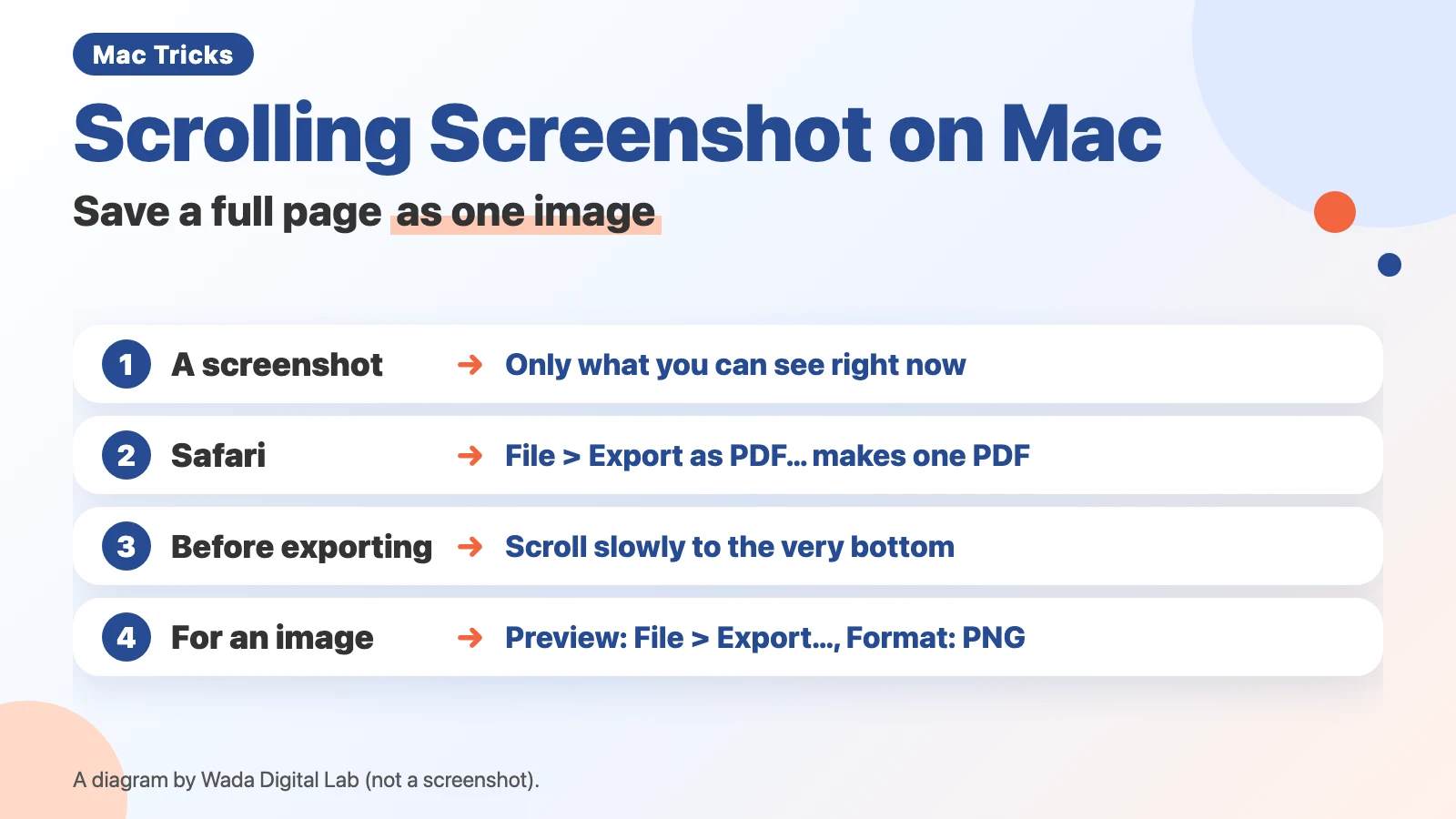
At Wada Digital Lab, we used to take several screenshots whenever we wanted to keep an Amazon order page. Splitting it up meant saving several separate files, and keeping them in our notes was a chore.
A Mac screenshot only captures what you can see
Press Shift, Command and 5 together, and buttons for choosing how to take the screenshot appear at the bottom of the screen. Apple says of screenshots: “You can capture the entire screen, a window, or just a portion of the screen.” Whichever you choose, what it captures is only what is on the screen right now. The rest of the page, hidden below, is not included. A long page splits into many images, and you have to scroll and capture, over and over. Apple’s page does not describe a way to capture while scrolling.
The next diagram shows how three ways of saving a long page compare.
A screenshot
What it captures Only what you can see
A long page
Splits into many images
A PDF made from Print…
Page breaks The size of a sheet of paper
On the page we used
8 A4 pages
Export as PDF…
What you get One PDF with no page breaks
On the page we used
One page, top to bottom
In Safari, Export as PDF… makes it one piece
Safari, which comes with every Mac, can save the page as one piece on its own.
- Open the page you want to keep in Safari
- Scroll slowly to the very bottom of the page (watching the pictures appear along the way)
- Click File at the top of the screen
- Choose Export as PDF…
- Choose where to save it, then click Save
Open the PDF. If it runs all the way to the bottom of the page, it worked. On the Mac we used, we got a PDF that was one page from top to bottom, with no page breaks.
Scroll to the very bottom first (on our page, pictures in the second half came out blank)
Step 2 is not in Apple’s instructions. When we recorded, we first exported the page right after opening it. Four comic pictures in the second half of the page came out blank in the PDF. After we scrolled slowly to the very bottom and exported again from there, all four were in. The number of images inside the PDF went up from 42 to 46.
The page we used was an article on the Wada Digital Lab blog. That page is built to load pictures only when they come close to the screen. We think the pictures in the second half had not loaded yet because we had not scrolled to them. Looking through the whole page before you export prevents missing pictures.
A PDF made from Print… is split at the paper size
The same File menu also has Print…. Apple’s page says: “To create a PDF of the webpage, click PDF at the bottom of the dialog, then choose what you want to do with the PDF.” A PDF made from Print… is split into pages the size of a sheet of paper. For the page we used, the Print… dialog showed 8 pages at A4 size. Our Mac used A4 paper; with US Letter paper, the number of pages may be different.
At Wada Digital Lab, we have had PDFs made by printing that broke off in awkward places and were hard to read. If you want the page as one piece, choose Export as PDF…, not Print….
Need an image? Export a PNG from Preview
If you want to send the page to someone, or paste it somewhere that only accepts images, turn the PDF into an image. You can do it in Preview, which comes with every Mac.
- Open the PDF in Preview
- Click File at the top of the screen, then choose Export…
- Choose PNG from the Format pop-up menu
- Choose where to save it, then click Save
Apple’s steps are “Choose File > Export.” and “Select a file type from the Format pop-up menu.” On the Mac we used, we got one tall image, 1,440 pixels wide by 7,368 pixels high. Opened at full size, the text was still easy to read.
The exported PNG gets taller with the length of the page. When you need a smaller picture, for an email attachment for example, our free page Resize Images shrinks it to the longest side you choose.
The next diagram shows how the page in Safari becomes one image by way of a PDF.
Safari
A long page
Scroll to the
very bottom first
Export as PDF…
One page No page breaks
Export… in Preview
Image
PNG One tall image
Using Chrome? Open the page again in Safari
Chrome’s File menu has no Export as PDF (we checked in Chrome on the Mac we used). Open the same page address in Safari, then export it with the steps above.
Chrome does have a way to capture a whole page, in its tools for developers. Google’s page says: “To capture a screenshot of the whole page including the content that isn’t visible in the viewport, select Capture a full size screenshot from the same menu.” But you have to open the developer tools first, so it takes more steps.
Or just ask for it out loud (KoeShot)
If you want an easier way, there is also KoeShot for Mac, a multi-function screenshot app we make and sell. It lets you take screenshots with your voice. Press Option + S on your keyboard and say “Scroll and capture this window,” and it captures the page as it scrolls and joins it into one tall image. When we tried it on the same page (speaking Japanese), we got one image 2,880 pixels wide by 14,736 pixels high. KoeShot works in English and Japanese, and it follows your Mac’s language. You speak to KoeShot in the language it is set to.
The same phrase also works in apps other than browsers: it captures the scrolling part of the front window. That needs Accessibility permission. At Wada Digital Lab, we use it when we ask an AI for help. We can now send a Terminal window or a web page as a single file, just as it is on screen, which has made things much easier.
System requirements: a Mac with Apple silicon (M1 or later) / macOS 26 or later. Intel-based Macs and macOS 15 (Sequoia) or earlier are not supported. macOS running inside a virtual machine (Parallels Desktop, UTM and the like) is not supported. Capturing a whole web page works in Safari and Chrome-based browsers. The first time, you have to turn on a setting in the browser. Depending on how the page is built, it may capture only what is on screen. Very long pages are cut off where the capture ends.
Which way to use (at a glance)
Choose by the browser you use and whether you want a PDF or an image.
| Way | What you get | Good for |
|---|---|---|
| A screenshot (Shift-Command-5) | An image of only what you can see | When it fits on one screen |
| Safari: File > Export as PDF… | One PDF with no page breaks | Keeping a long page whole |
| Safari: File > Print…, then PDF | A PDF split at the paper size | Keeping it the way it would print on paper |
| Preview: File > Export… (PNG) | One tall image | Sending or pasting it as an image |
| KoeShot (“Scroll and capture this window”) | One tall image | Capturing by voice, or capturing apps other than browsers as one image |
If what you need fits on one screen and you want to paste it without saving a file, see our article on three ways to paste a screenshot right away.
Frequently asked questions
Pictures in the second half of my PDF are blank
Before you export, scroll slowly to the very bottom of the page, then choose Export as PDF… again. On the page we used, that brought back the four pictures in the second half.
Won’t the text be too small to read once it is an image?
On the Mac we used, the text in the PNG was readable at full size. Because the image is so tall, it looks small when you shrink it to fit the screen. Zoom in to read it.
Watch the same steps on a Mac (video)
This video shows the steps above in order on a Mac screen.
If screenshots keep piling up on your desktop, see our article on changing where screenshots are saved.
What we tested on, and the source pages
We checked the steps in this article on this Mac:
- Model: MacBook Air (M4)
- macOS: macOS Tahoe 26.6.2
- Date: September 25, 2026 (while recording the video)
We actually tried Export as PDF…, Print… and Export…, and exporting a PNG from Preview, on this Mac. That Mac was set to Japanese. We checked the English names of the menu items (Export as PDF…, Print…, Export…) against the English text built into Safari and Preview on the same Mac. Apple’s pages do not describe the Export as PDF… menu item.
On October 15, 2026, we checked again on a MacBook Air (M2) with macOS Golden Gate 27.0.1, using a recording account set to Japanese. In Japanese, the names of Export as PDF… and Print… in Safari’s File menu, the window for saving the PDF, and the Format list in Preview’s Export… window were the same as on macOS Tahoe 26.6.2. A long test page we made came out as one PDF page with no breaks.
The steps and quotes come from these pages. We checked the quotes word for word against the current pages on October 5, 2026.
- Take a screenshot on Mac (Apple Support)
- Take screenshots or screen recordings on Mac (Mac User Guide)
- Print or create a PDF of a webpage in Safari on Mac (Safari User Guide, the Safari 18 version)
- Export PDFs and images in Preview on Mac (Preview User Guide)
- Simulate mobile devices with device mode (Chrome DevTools, Google)