Mac screenshot not working — check your keyboard shortcuts, or take one from the Screenshot app
Published October 17, 2026
Steps checked October 17, 2026 (MacBook Air (M2), macOS Golden Gate 27.0.1)
By Wada Digital Lab
If the screenshot keys on your Mac do nothing, open System Settings > Keyboard > Keyboard Shortcuts > Screenshots and check that the shortcut you use is turned on and has not been changed. If you need a screenshot right now, open the Screenshot app in the Utilities folder instead.
Key points
- The first place to look is Keyboard Shortcuts > Screenshots in Keyboard settings.
- If a shortcut is unchecked, check it again. If its keys have changed, set them back.
- Another app that uses the same keys can take over before the Mac’s own screenshot does.
- In a hurry? Open Applications > Utilities > Screenshot.
- If you would rather not remember key combinations at all, there is an app that takes screenshots by voice (at the end of this article).
The diagram below shows where to look when the screenshot keys stop working, and what to do in a hurry (not a screenshot).
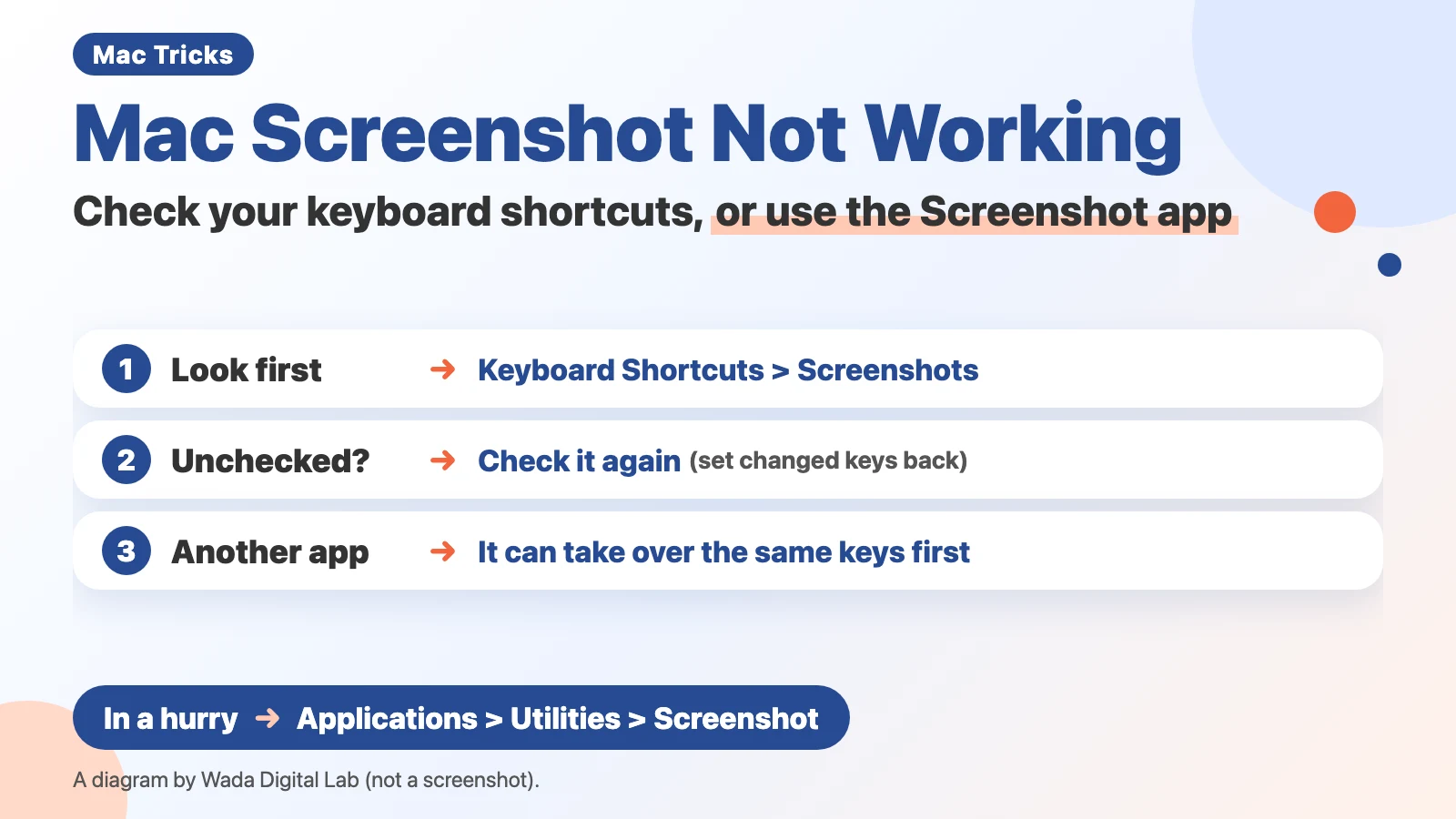
The figure below shows where the shortcuts live: Keyboard Shortcuts > Screenshots.
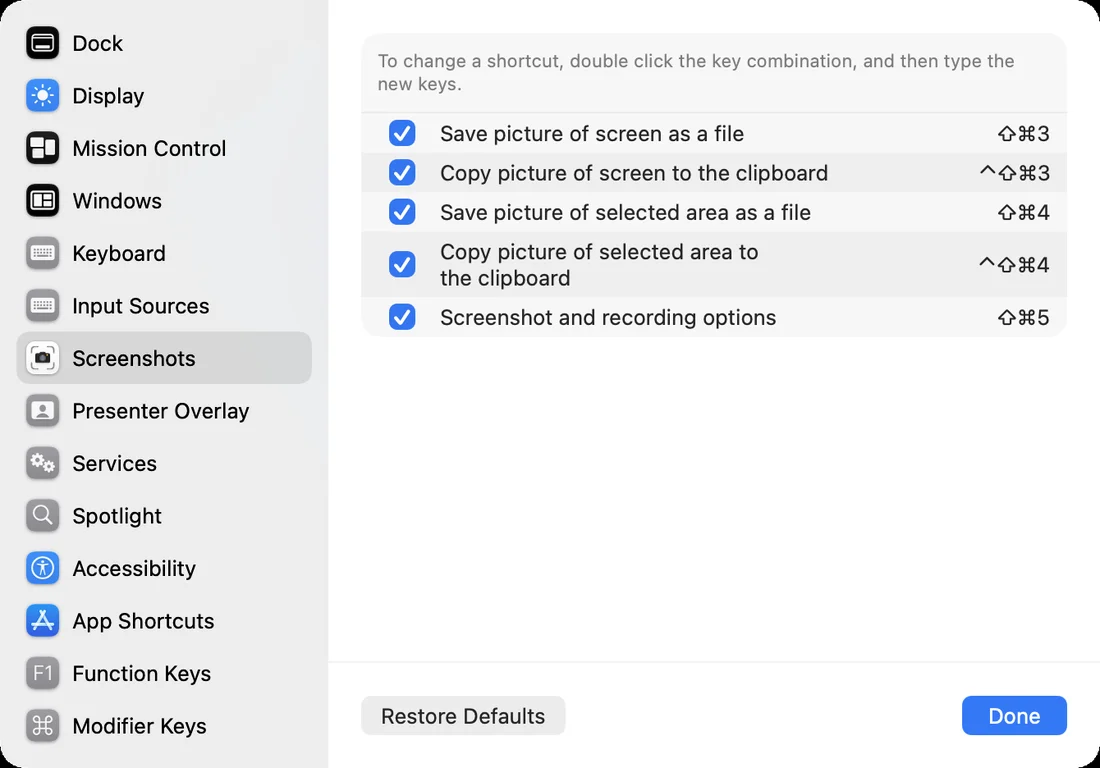
First, check the keys (five screenshot shortcuts)
Before anything else, make sure you are pressing the right keys. These are the Mac’s screenshot shortcuts, from Apple’s table.
| What to capture | Keys |
|---|---|
| The whole screen | Shift-Command-3 |
| Part of the screen | Shift-Command-4, then drag over the area |
| One window | Shift-Command-4, then the Space bar, then click the window |
| An open menu | Open the menu, press Shift-Command-4, then drag over it |
| Open the Screenshot toolbar | Shift-Command-5 |
For the basics step by step (the four shortcuts, where screenshots are saved, and the Control key), see our article on how to screenshot on a Mac.
Keys do nothing? Look at Keyboard Shortcuts
If the right keys still do nothing, look at the shortcut settings. Apple says: “You can customize these keyboard shortcuts in Keyboard settings.” Because shortcuts can be unchecked or changed here, check that nothing was left changed by you or by an app.
- Choose Apple menu > System Settings
- Click Keyboard in the sidebar (you may need to scroll down)
- Click Keyboard Shortcuts
- Click Screenshots in the sidebar
- Check that the shortcut you use is turned on and that its keys are the original ones
On macOS 27.0.1 the list has five items: Save picture of screen as a file, Copy picture of screen to the clipboard, Save picture of selected area as a file, Copy picture of selected area to the clipboard, and Screenshot and recording options. If the keys look wrong, the Restore Defaults button at the bottom puts them back.
Is another app using the same keys?
Some apps, such as other screenshot apps, let you assign the screenshot keys to their own features. While one of them is running, its capture may run instead of the Mac’s. If this started after you installed an app, check that app’s settings too.
In a hurry: open the Screenshot app
- In the Finder, open the Applications folder
- Open the Utilities folder
- Open Screenshot (the same toolbar as Shift-Command-5 appears)
- In the toolbar, choose whether to capture the entire screen, a window or a portion, and take the shot (for a window, click the window you want)
On the Mac we wrote this on (MacBook Air (M4), macOS 27.0.1), the Screenshot app was in the Utilities folder. Apple notes: “Some apps, such as the Apple TV app, might not let you take screenshots of their windows.” The toolbar’s Options menu is also where you choose where screenshots are saved.
The figure below puts the two ways side by side: with the keys, and with the app.
With the keys
Setting to check the Screenshots list in Keyboard Shortcuts
If a shortcut is unchecked
pressing it does nothing
If that fails
With the app
App to open Screenshot in Utilities
The key settings
are not needed
Where to look, by symptom
| Symptom | Where to look |
|---|---|
| Pressing the keys does nothing | Keyboard Shortcuts > Screenshots: is it checked? |
| Keys that used to work suddenly stopped | An app you installed recently may use the same keys |
| The screenshot is not on the desktop | Shift-Command-5 > Options > Save to (changing where screenshots go) |
| The screenshot will not paste | when a screenshot won’t paste |
| You just need one screenshot now | Open the Screenshot app in Utilities |
To make it easier: take screenshots by voice, no key combinations (KoeShot)
Everything so far has been about fixing the keys. If you would rather not remember key combinations at all, there is another way. We make and sell a multi-function screenshot app for the Mac that you can run with your voice. It is called KoeShot for Mac.
Press Option + S and say “Take a screenshot of this app,” “Take a screenshot of the whole screen,” or “Let me select an area.” Option + S is the only key combination you need to remember. The screenshot also goes to the clipboard, so you can paste it straight into a chat or a document with Command-V. Where you can’t speak out loud, you can type the same command instead.
KoeShot captures the screen in its own way, separate from the Mac’s screenshot shortcuts, so the settings above do not affect it. It needs two permissions: the microphone, to hear you, and Privacy & Security > Screen & System Audio Recording (the name on macOS 27.0.1), to capture the screen. After allowing screen recording, quit KoeShot and open it again.
KoeShot is paid for once. For 14 days after you install it you can use the app on its own, with no license key, before you buy. Nothing is charged before you buy.
System requirements: a Mac with Apple silicon (M1 or later) / macOS 26 or later. Intel-based Macs and macOS 15 (Sequoia) or earlier are not supported. macOS running inside a virtual machine (Parallels Desktop, UTM and the like) is not supported.
Frequently asked questions
Are the keys the same on a MacBook keyboard?
Yes. Shift-Command-3 and the others are the same on a MacBook and on a keyboard you plug into a Mac.
Can I change the screenshot keys?
Yes. The screen itself says: “To change a shortcut, double click the key combination, and then type the new keys.” Pick keys that no other app uses.
What we tested on, and Apple’s pages
We took the photo of the Screenshots list on this Mac:
- Model: MacBook Air (M2)
- macOS: macOS Golden Gate 27.0.1
- Date: October 17, 2026 (in a separate user account used only for screenshots)
The photo confirms the five items under Keyboard Shortcuts > Screenshots, the note above them, the Restore Defaults button, and the name Screen & System Audio Recording under Privacy & Security. We did not try unchecking or changing a shortcut. We checked that the Screenshot app is in the Utilities folder on another Mac (MacBook Air (M4), macOS 27.0.1).
The shortcuts and the settings come from these Apple pages. We checked the quote and the table on October 17, 2026.