How to copy text from an image or screenshot on a Mac — Live Text in Preview
Published October 17, 2026
Official documentation reviewed October 17, 2026 (some steps not tested)
By Wada Digital Lab
On a Mac, you can copy text from an image or a screenshot with Live Text in Preview. Open the image in Preview, drag to select the text, Control-click your selection, and choose Copy Text. If you can’t select text, choose Tools > Text Selection.
Key points
- Live Text in Preview copies text out of images. No extra app is needed.
- The steps: open the image → drag over the text → Control-click → Copy Text.
- If you can’t select text, choose Tools > Text Selection (Apple’s instructions).
- To copy text that is on your screen right now with the steps in this article, you first take a screenshot, open it, and select.
- There is an app that copies the text on your screen without saving a screenshot (at the end of this article).
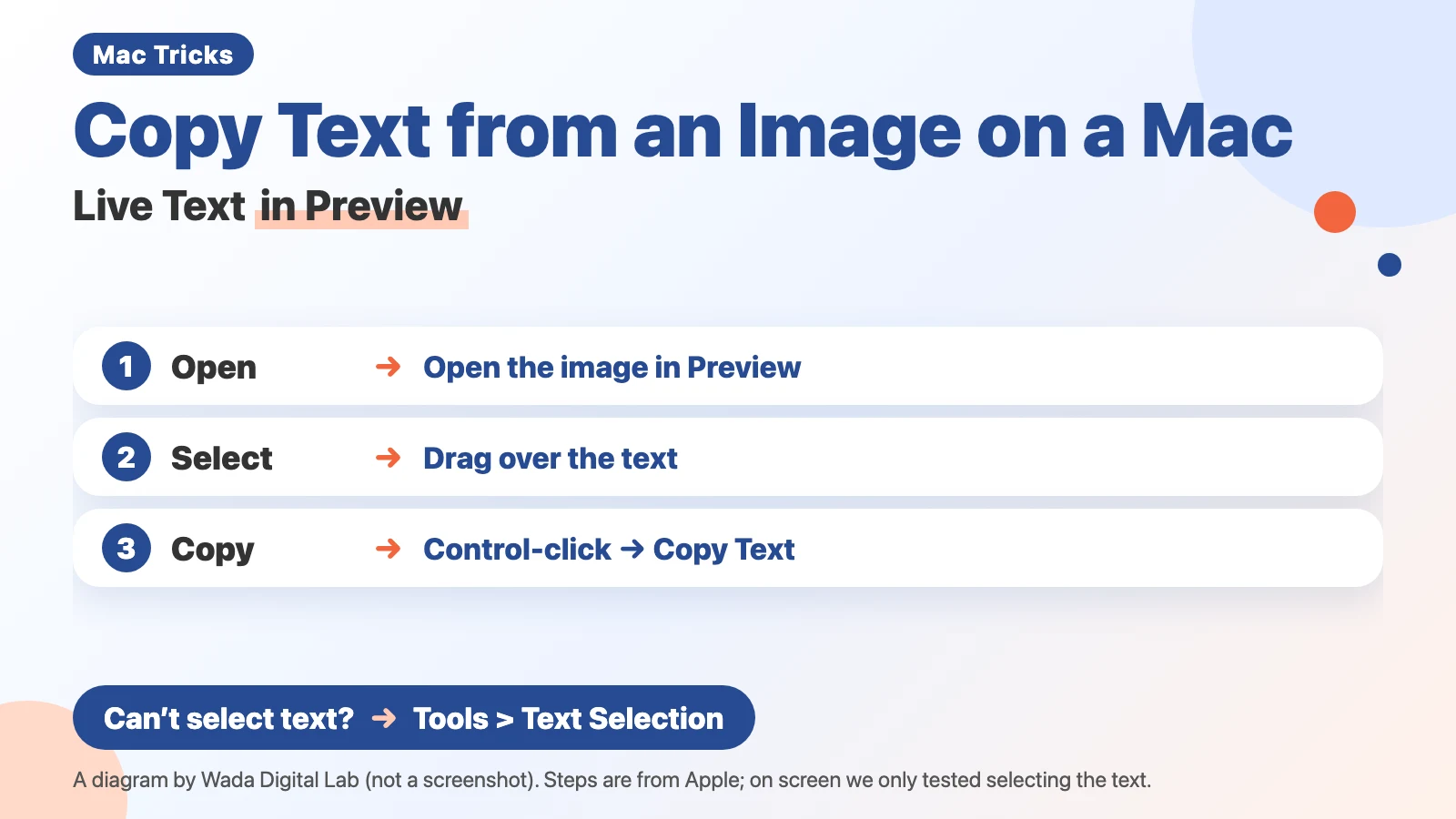
The diagram below shows the steps for copying text out of an image with Live Text in Preview (not a screenshot).
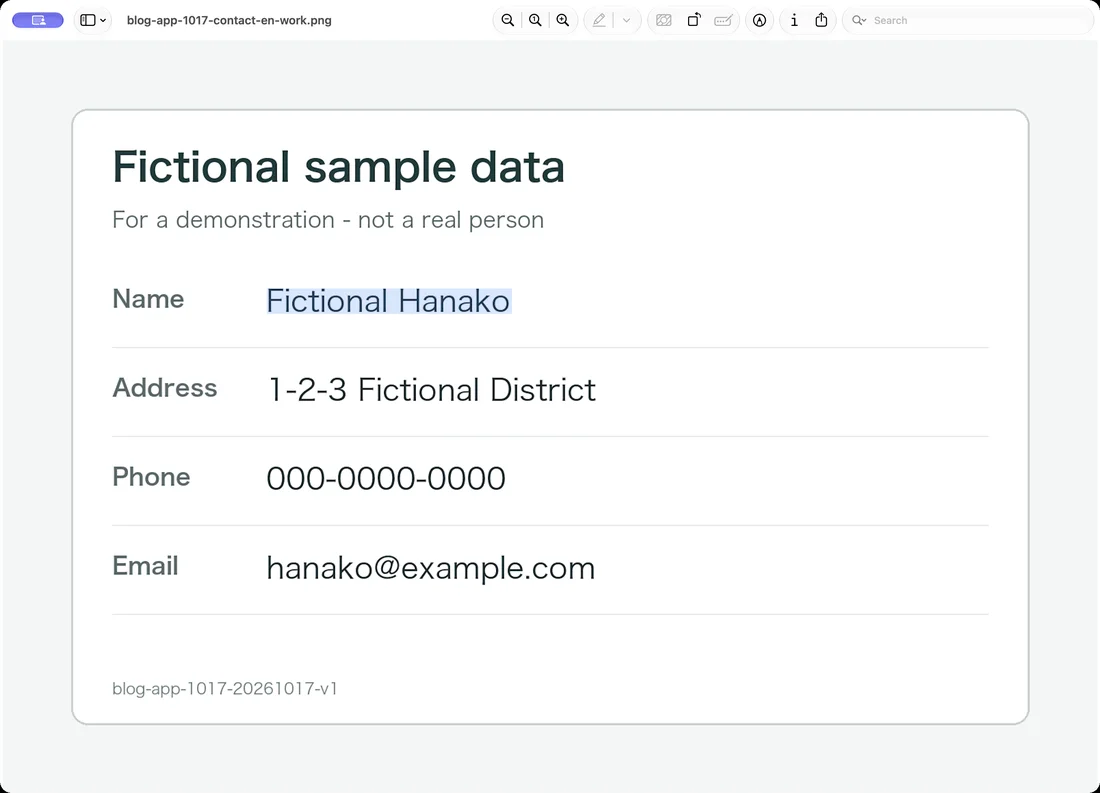
The photo below shows an image of a fictional card opened in Preview on a Mac set to English, with only the name selected by Live Text.
Live Text in Preview copies text from images
Live Text is a Mac feature that reads the text in a photo or image so you can select it like ordinary text. Apple says: “In Preview, you can use Live Text to copy and use the text that appears in a photo.” A screenshot is an image file too, so the same steps should apply. For this article, we only selected a name in a prepared image; we did not copy the text or test a screenshot.
How to copy text from an image in Preview
- Open the image (a screenshot, for example) in Preview
- Hold the pointer over the text and drag to select it
- Control-click your selection (hold down the Control key and click)
- Choose Copy Text
- Paste it where you want with Command-V
In Apple’s words: “Copy text: Drag to select text, Control-click your selection, then choose Copy Text.” The same menu lets you look up a word, search the web, or translate (Apple notes that translation isn’t available in all languages and may not be available in some countries or regions). If the image shows a phone number or an email address, you can call or start an email from it.
The diagram below shows the steps from opening the image to Copy Text (it is not a screenshot).
Open the image
App Preview
Text
Select the text by dragging
Control-click
Copy Text
Menu item Copy Text
If you can’t select the text
Apple says: “If you can’t select text, choose Tools > Text Selection to turn on the Text Selection tool.”
Apple also notes that Live Text isn’t available in all regions or languages. To see where it is available, check Apple’s macOS feature availability page.
| Symptom | What to check |
|---|---|
| You can’t select text | Turn on Tools > Text Selection |
| Copy Text is not in the menu | Select the text first, then Control-click the selection |
| The feature seems to be missing | Live Text isn’t available in all regions or languages (see Apple’s feature availability page) |
With the method in this article, screen text means “capture, open, select”
Sometimes you want text that is on your screen right now, such as a button label or an error message you can’t select. With the method in this article, you take a screenshot, open it in Preview, and select the text as above. Apple says screenshots are saved to your desktop by default, so you will also want to delete them later.
If you don’t want to keep an image, add Control when you take the screenshot, and it goes to the clipboard (where copied things wait to be pasted) instead of a file (Apple’s screenshot page). To select text from it, open it in Preview with File > New from Clipboard. Apple describes that menu for a part of an image you copy in Preview; we have not tried it with a screenshot.
To make it easier: copy the text on your screen without a screenshot (KoeShot)
So far, every method has meant opening an image and selecting text. There is another way: skip the screenshot and copy the text on your screen directly. We make and sell a multi-function screenshot app for the Mac that you can run with your voice. It is called KoeShot for Mac.
Press Option + S and say “Copy the text on the screen.” KoeShot reads the text in the front window on your Mac and puts it on the clipboard. It can also read the whole screen, or just an area you drag over. No image file is created. When it is done, it tells you “Copied” with the number of characters, and you paste with Command-V. If no text is found, it says “No text was found” and leaves the clipboard as it was.
KoeShot is paid for once. For 14 days after you install it you can use the app on its own, with no license key, before you buy. Nothing is charged before you buy.
System requirements: a Mac with Apple silicon (M1 or later) / macOS 26 or later. Intel-based Macs and macOS 15 (Sequoia) or earlier are not supported. macOS running inside a virtual machine (Parallels Desktop, UTM and the like) is not supported.
Frequently asked questions
Does this work in the Photos app too?
For this article, the only thing we did on screen was select a name in an image in Preview, on a Mac set to English. We have not checked the Photos app.
What if I can’t select text in a PDF?
PDFs are a different case. In a scanned PDF, the text often isn’t there as text at all. See can’t copy text from a scanned PDF.
What we tested on, and Apple’s pages
We did one thing on screen. In Preview, we selected the name Fictional Hanako on a fictional English card and checked that it was highlighted in blue (the photo at the top). The Mac had an Apple M2 chip (model identifier Mac14,15) and ran macOS 27.0.1 (26A434), set to English (US) with the region set to the United States. We used a macOS user account set up only for taking screenshots. The name was selected with the Mac’s accessibility controls, not by dragging. We did not copy the text or read the clipboard.
Copy Text, Tools > Text Selection, adding Control to a screenshot, where screenshots are saved, and File > New from Clipboard come from the Apple pages below. We did not try them on screen for this article. We checked every quote against these pages word for word on October 17, 2026.