How to hide info in a Mac screenshot — cover it in Preview, and redact PDFs instead
Published October 17, 2026 (updated October 19, 2026)
Official documentation reviewed October 17, 2026 (some steps not tested)
By Wada Digital Lab
Preview on the Mac has no blur or pixelate tool for screenshots. To hide a name or an email address, open Markup, add a rectangle from Shapes, and set its Fill Color to black. Once you save an image, the rectangle alone can’t be moved or deleted, so duplicate the original first.
Key points
- Preview, the app that comes with every Mac, has no blur or pixelate tool. You hide things by covering them with a filled shape.
- The steps: show the Markup toolbar if it isn’t showing, draw a rectangle from Shapes over the name, then set its Fill Color to black.
- Apple says that after you save an image, you can’t edit, move, or delete its annotations. Duplicate the original before you cover anything.
- PDFs are different. In our test with a small program (not in Preview), black rectangle annotations on PDF text left the text readable. For PDFs, use Redact. In a separate macOS user account we made for recording, a name we redacted could no longer be read out of the saved PDF.
- If hiding things by hand every time is a chore, there is an app that finds personal details as it takes the screenshot (at the end of this article).
The diagram below compares how you hide things in an image and in a PDF (it is not a screenshot).
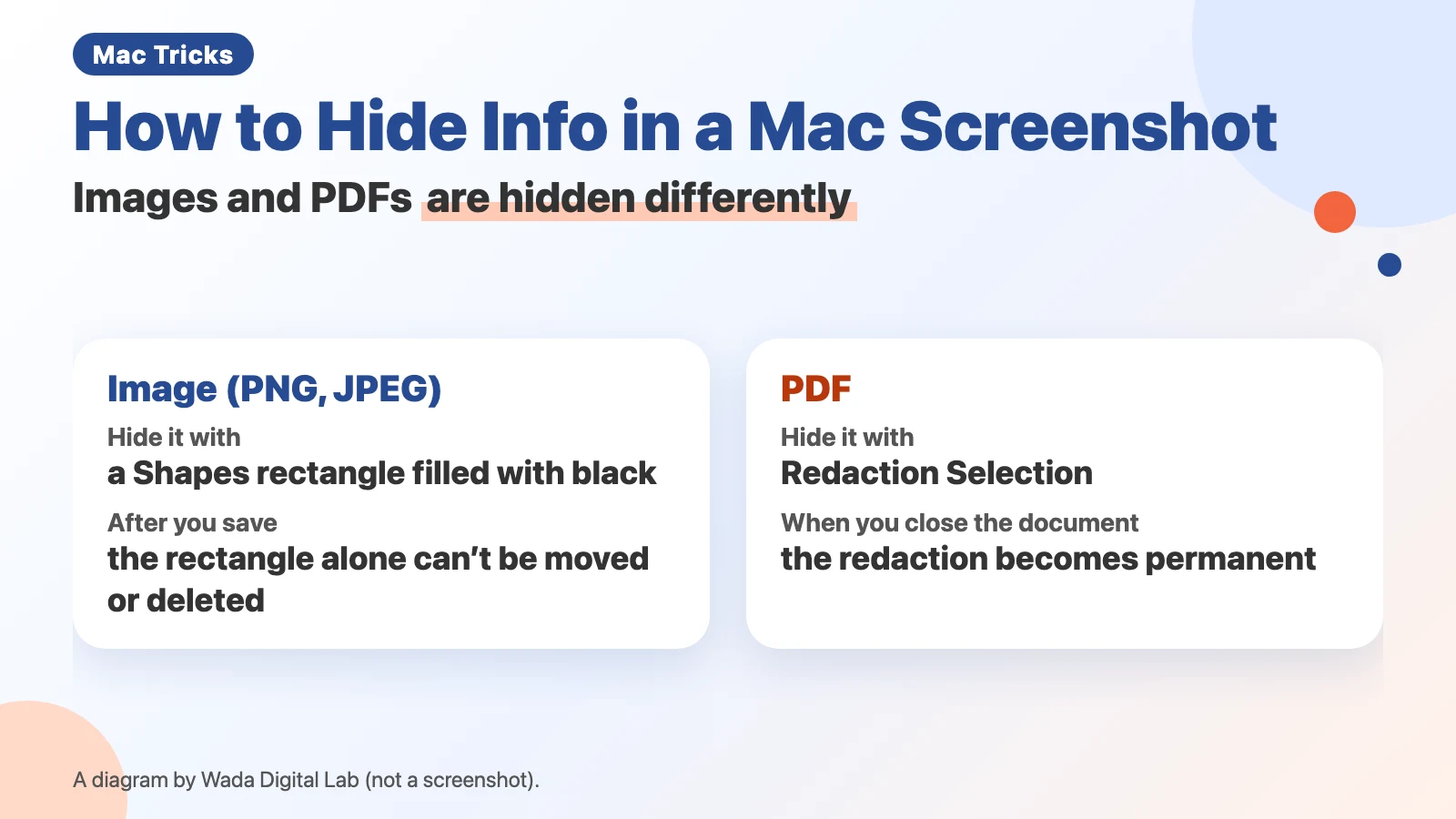
Here is the same diagram as text (it is not a screenshot). In an image (PNG, JPEG), you hide things with a Shapes rectangle filled with black, and after you save, the rectangle alone can’t be moved or deleted. For a PDF, you use Redaction Selection, and when you close the document, the redaction becomes permanent.
Image (PNG, JPEG)
How to hide A Shapes rectangle filled with black
After you save
The rectangle alone can’t be moved or deleted
For a PDF
How to hide Redaction Selection
When you close the document
The redaction becomes permanent
Preview has no blur tool on the Mac
You take a screenshot, see a name or an email address in it, and want to hide it before you send it. Open it in Preview and you will not find a blur or pixelate button. With the apps that come with the Mac, you hide things by covering them with a filled shape, not by blurring them.
Preview is the app that opens images and PDFs on every Mac. Its drawing tools are under Markup. The tools Apple lists include selection, Sketch, Draw, Shapes, Text, Sign and Adjust Color. None of them blurs or pixelates.
If you do want a real blur, our free page Blur Screenshots does it in your browser. Open the image, drag over the part you want to hide, and it is pixelated. You can add arrows and boxes too.
How to cover a name or an email address in Preview (five steps)
- In the Finder, select the screenshot and press Command-D to duplicate it (so you keep the original)
- Open the duplicate in Preview
- If the Markup toolbar isn’t showing, click the Show Markup Toolbar button
- From Shapes, choose a rectangle, drag it over the name, and resize it with its handles so it covers the whole name
- From Fill Color, choose black
Apple describes the two tools like this. Shapes: “Click a shape, then drag it where you want.” Fill Color: “Change the color that’s used inside a shape.” A rectangle you have just placed may be only an outline that you can see through. Check that it is filled before you save.
Once you save, the rectangle alone can’t be moved or deleted (keep a copy)
A rectangle added to an image (PNG or JPEG) becomes part of the image when you save it. Apple says: “If you annotate an image file, you can’t edit, move, or delete the annotations after you save the image.” If you covered the wrong place, you can’t just move the rectangle. Preview can revert to an earlier version (File > Revert To), but the duplicate you made in step 1 is the simplest way to start again.
Don’t cover PDF text with a shape
PDFs work differently. A black rectangle on top of PDF text does not remove the text. The rectangle is an annotation, a separate layer on top of the page.
We made a PDF with a made-up Japanese name and the email address hanako@example.com, covered both with a black rectangle annotation, and saved it. When we read the text back out of the saved PDF, the name and the email address were still there (October 17, 2026, MacBook Air (M4), macOS 27.0.1, we made and read the PDF with a small test program that uses PDFKit, the PDF framework built into the Mac. We have not yet tried copying the text in Preview).
For PDFs, Preview has Redaction Selection. Apple describes it as: “Select text to remove it from view. You can change the redaction as you edit, but once you close the document, the redaction becomes permanent.” Apple also notes: “If the PDF has a table of contents, entries in it that link to redacted text aren’t removed.” Apple’s steps for it are on the page about annotating a PDF, listed at the end of this article.
On the macOS 27.0.1 screen, this tool was called Tools > Redact in the menu bar (we checked the English name against the text built into Preview; our test screen was in Japanese). In that account we opened a copy of a PDF with a made-up Japanese name and an email address. Choosing Redact first showed the note “Redacted content is permanently removed.” After closing it, double-clicking the given name covered it with a black mark with an X pattern. We saved it under a new name, opened it again and pulled the text out of the PDF: the family name came out, but the given name was gone. The email address, which we did not redact, was still there (October 19, 2026, MacBook Air (M2), macOS 27.0.1).
What to use for what you want to hide
| What to hide | How | Watch out for |
|---|---|---|
| A name or email in a screenshot | Preview: Markup → Shapes → rectangle → Fill Color | After saving, the rectangle alone can’t be moved or deleted. Duplicate first |
| Text in a PDF | Preview: Tools > Redact (Apple calls it Redaction Selection) | A shape on top leaves the text underneath |
| Part of the screen you never want in the picture | Capture only an area: Shift-Command-4, then drag | Nothing outside the area is captured, but check what is inside it |
The third row hides things by not capturing them. Apple’s steps: press Shift-Command-4, and the pointer changes to a crosshair. Drag to select the area you want, then release the mouse or trackpad button to take the screenshot. Names or email addresses outside the area are not captured, but anything inside the area is, so check the screenshot afterwards.
To make it easier: find personal details as you take the screenshot (KoeShot)
Everything so far has been about covering things by hand after the fact. There is another way: find personal details and blur them at the moment you take the screenshot. We make and sell a multi-function screenshot app for the Mac that you can run with your voice. It is called KoeShot for Mac.
Press Option + S and say “Blur personal information and take a screenshot.” KoeShot reads the text on your Mac and blurs lines that look like email addresses, phone numbers, card numbers, street addresses, or names followed by a Japanese honorific (such as “sama”). Before anything is saved, the “Review Blurs” window appears. Click a blur to remove it; drag around anything else you want hidden. You can also choose not to save the image at all.
It finds things automatically, so it is not perfect. It can miss things, and it can cover things that did not need covering. It cannot find ID numbers (such as a driver’s license number), a bank account number, a face, a handwritten signature or a QR code. It looks for phone numbers written the way they are in Japan, the U.S., Canada, Australia, New Zealand, Singapore and Hong Kong, and it may miss some ways of writing an address that are used outside Japan and the U.S. Check the Review Blurs window yourself before you share the image.
KoeShot is paid for once. For 14 days after you install it you can use the app on its own, with no license key, before you buy. Nothing is charged before you buy.
System requirements: a Mac with Apple silicon (M1 or later) / macOS 26 or later. Intel-based Macs and macOS 15 (Sequoia) or earlier are not supported. macOS running inside a virtual machine (Parallels Desktop, UTM and the like) is not supported.
Frequently asked questions
Can I hide things while I take a screenshot with the Mac’s own tools?
Apple’s screenshot instructions don’t describe a way to hide things while you capture. Either capture only the area you want, or cover things afterwards in Preview.
Can I undo the rectangle after saving?
You can’t move or delete the rectangle alone after saving (Apple’s description). Preview’s File > Revert To may take you back to an earlier version, but a duplicate of the original is the sure way.
What we tested on, and Apple’s pages
We ran the PDF rectangle test on October 17, 2026, on a MacBook Air (M4) with macOS 27.0.1, using a small test program built on PDFKit.
The tests in Preview were done in a separate user account made for recording, with the screen in Japanese, on this Mac:
- Model: MacBook Air (M2)
- macOS: macOS Golden Gate 27.0.1
- Date: October 18–19, 2026
Tools > Redact was checked up to the redacted name being gone from the saved PDF, as described above. Placing a rectangle on an image (Rectangle from Shapes, and Tools > Annotate > Rectangle in the menu bar) worked on screen. The rectangle we placed was only an outline, and you could see through it. Choosing black with Fill Color did not fill it when our automated tool for operating the screen clicked it (not a person’s click), so that step is not confirmed, and the tool could not drag the rectangle over the name. The site owner captured an area with Shift-Command-4 on the keyboard of the same Mac (October 18, 2026). The steps and tool names come from the Apple pages below. What KoeShot does comes from the KoeShot product page and the descriptions in its settings. We did not take screenshots of KoeShot blurring an image for this article.
The tool names and descriptions come from these Apple pages. We checked every quote against them word for word on October 17, 2026.