Blur Screenshots — Hide personal details, point things out
This page in Japanese: 日本語
Hide names, addresses, faces and anything else you don’t want to show in a screenshot or photo, with a pixelated blur. Add arrows and boxes to say “click here” or “look at this.” Draw on this page, then save as PNG or JPG. It’s completely free, as often as you like. No sign-up, no ads, and no app to install.
Draw a blur, arrows and boxes on an image
You can also undo with Command-Z (Ctrl+Z on Windows).
How to use it
- Click “Choose Image,” or drag an image into the box on this page. Right after taking a screenshot, you can also press Command-V (Ctrl+V on Windows) on this page to paste it.
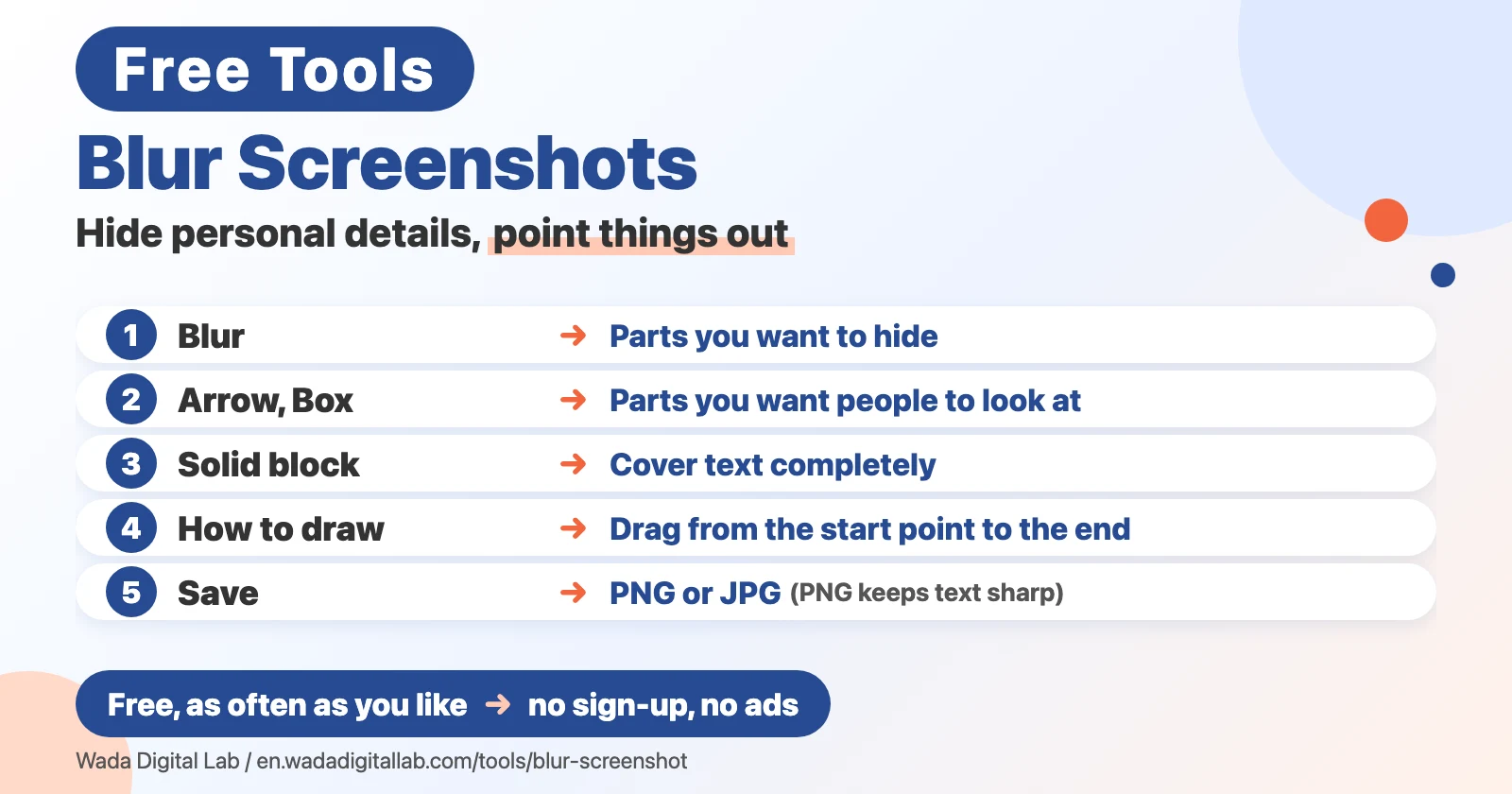
- Pick a tool. Use “Blur” for parts you want to hide, “Arrow” and “Box” for parts you want people to look at, and “Solid block” to cover text completely.
- Drag on the image from the start point to the end point. For an arrow, the arrowhead is where you let go.
- Click “Save as PNG” or “Save as JPG.” For screenshots, PNG keeps the text sharp.
The saved image is a new file, with “-edited” added to the end of its name. Your original image doesn’t change. The saved image doesn’t keep the date and time a photo was taken, or where it was taken (location data).
A note on blurring
The blur replaces each small square of pixels with its average color. The original text can’t be read from the saved image, but if the blurred area is small, people may guess what it says from the text around it. For names, account numbers and the like, blur a slightly larger area. To remove something for certain, use “Solid block.”
How this differs from Markup on a Mac or iPhone
Your Mac and iPhone already have Markup, which draws arrows and boxes on images. It has no tool for blurring, though. When there’s something you need to hide, this page does the job.
Frequently asked questions
- Is it really free?
- Yes. It’s free as often as you like. No sign-up and no ads.
- Can I undo a blur later?
- Before you save, click “Undo.” After saving, the blur can’t be removed from the saved image. Your original file doesn’t change, so you still have that.
- Can I add text?
- Not on this page. It has four tools: blur, arrow, box and solid block. To add text, use Markup in Preview on a Mac, for example.
- Can I add several images at once?
- One at a time. Save the first image, then add the next one.
- Can I add iPhone photos (HEIC)?
- Not on this page. First convert them with our HEIC to JPG Converter, then add the JPG.
- Will the image lose quality?
- With “Save as PNG,” everything outside your marks stays exactly the same. “Save as JPG” uses high quality (92%), but thin text may look slightly soft, and transparent parts turn white.
- Does it work on a phone?
- Yes. Draw with your finger on the image. Very large images are opened slightly smaller on phones.
More tools and “Mac Tricks”
- All browser tools: images, PDFs and audio, on one page.
- Compress Images: make photos smaller, many at once.
- Resize Images: change the size of photos, many at once.
- HEIC to JPG Converter: turn iPhone photos into JPGs, many at once.
- Merge PDF Files, Split PDF, Compress PDF: combine, split and shrink PDFs.
- All articles on “Mac Tricks”: everyday problems on the Mac, and how to fix them.
If you take a lot of screenshots on a Mac, you might like our app KoeShot. Say something like “capture Safari” and it takes the screenshot or screen recording for you.