How to record audio with a Mac screen recording — Include System Audio in macOS 27
Published October 17, 2026
Official documentation reviewed October 17, 2026 (some steps not tested)
By Wada Digital Lab
If your Mac screen recording is missing the Mac’s own sound, check your version of macOS and the Options menu. Apple’s steps for recording that sound (system audio) are for macOS 27 and later: choose Include System Audio under Options in the toolbar that Shift-Command-5 opens. Apple’s page does not describe a way for earlier versions. Your voice is set separately, by choosing a microphone in the same Options menu.
Key points
- Apple’s steps for recording the Mac’s own sound are for macOS 27 and later. Apple’s page does not describe a way for macOS 26 and earlier.
- In macOS 27, if you choose Options → Include System Audio, the Mac’s own sound is recorded as well (Apple’s instructions).
- Your voice comes from the microphone you choose under Options. If it says None, no voice is recorded.
- When you record a video call, tell the other people and get their agreement first.
- If you are on macOS 26 and want the Mac’s own sound, a recording app is another way (at the end of this article).
The diagram below compares what Apple’s page says about sound for each version of macOS (it is not a screenshot).
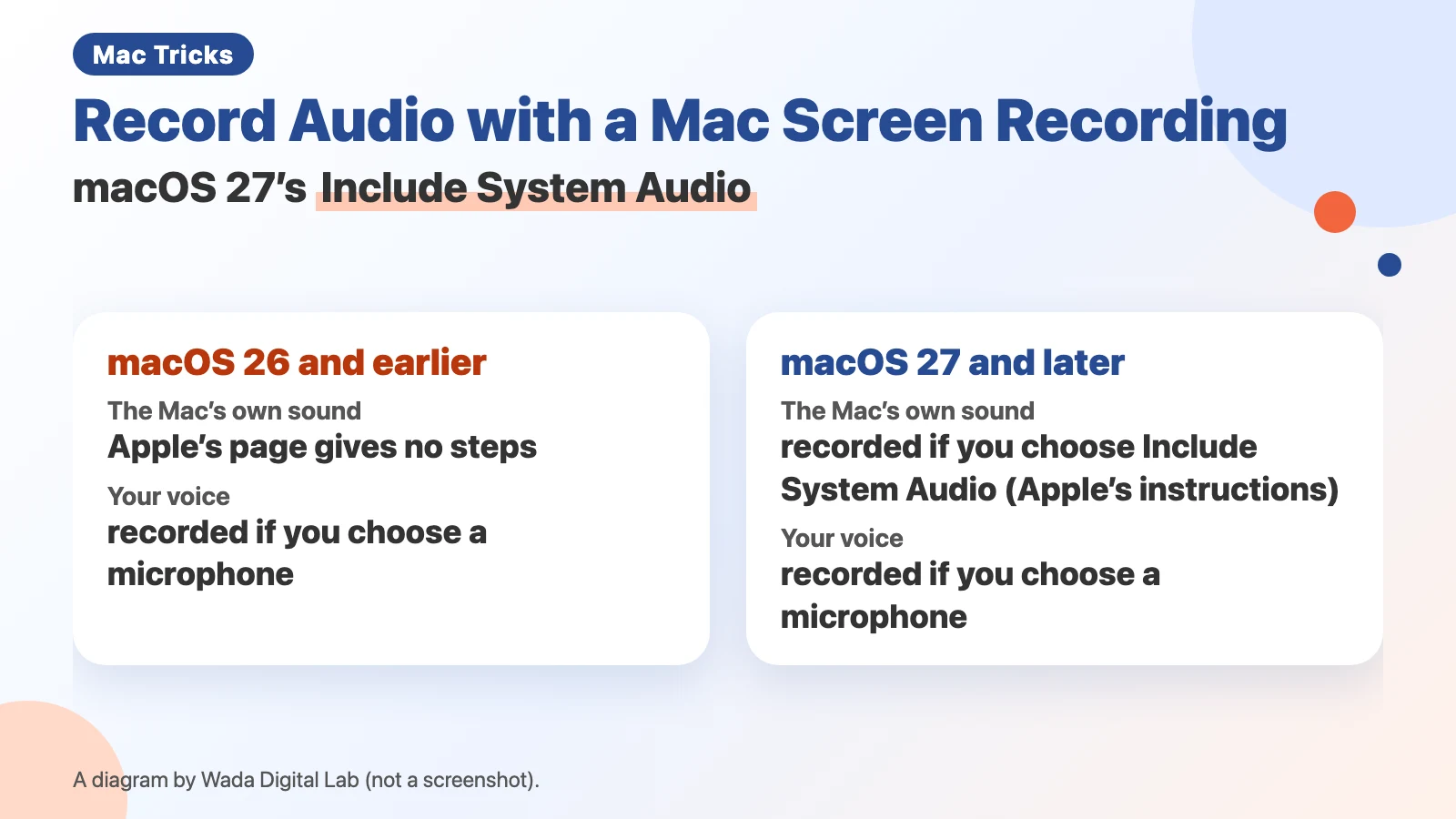
Here is the same diagram as text (it is not a screenshot). For macOS 26 and earlier, Apple’s page gives no steps for the Mac’s own sound. From macOS 27, the Mac’s own sound is recorded if you choose Include System Audio. In both, your voice is recorded if you choose a microphone.
macOS 26 and earlier
The Mac’s own sound Apple’s page gives no steps
Your voice
Recorded if you choose a microphone
From macOS 27
macOS 27 and later
The Mac’s own sound Recorded if you choose Include System Audio
Your voice
Recorded if you choose a microphone
Apple’s option for the Mac’s own sound is for macOS 27 and later
A screen recording can have two kinds of sound: what a microphone picks up (your voice), and what the Mac itself plays (a video, a notification). Apple calls the second one system audio. Which one is missing tells you where to look.
| Sound you want | macOS 26 and earlier (built-in screen recording) | macOS 27 and later (built-in screen recording) |
|---|---|---|
| Your voice (microphone) | Choose a microphone under Options | Choose a microphone under Options |
| The Mac’s own sound (system audio) | Apple’s page gives no steps | Choose Include System Audio |
| Both together | Apple’s page describes the microphone only | Choose a microphone and Include System Audio |
Apple puts it this way: “To record system audio with the screen recording in macOS 27 Golden Gate or later, choose Include System Audio.” This sentence is for macOS 27 and later. Apple’s page does not say how to record the Mac’s own sound in earlier versions. To see which version you have, choose Apple menu > About This Mac.
At Wada Digital Lab, too, screen recordings have come out without sound many times. We recorded without really knowing how it worked, and only noticed when we played the recording back. Video calls were where it went wrong most often.
How to record the Mac’s sound and your voice in macOS 27
- Press Shift-Command-5 (an onscreen toolbar appears)
- Choose Record Entire Screen or Record Selected Portion
- Click Options and choose a microphone (or None if you don’t want your voice)
- In the same menu, choose Include System Audio
- Click Record
- To stop, click the Stop button in the menu bar or press Command-Control-Esc
If you stay on macOS 26
Apple’s steps for recording the Mac’s own sound are for macOS 27 and later. If you want that sound on macOS 26, you have two options:
- Update to macOS 27 and follow the steps above. Check first that the apps and devices you rely on support it (how to update to macOS 27, and what to check first).
- Use a recording app that can capture the Mac’s sound. What each app records, and how you set it up, differs.
If you only need the sound from a recording (.mov) as an audio file, our free page Convert to MP3 turns the video’s audio into an MP3.
Recording a video call: ask first
Recording a video call records the other people’s voices and faces too. Tell them and get their agreement before you start. Your meeting app may also have its own recording feature (we have not tested those for this article).
To make it easier: start by voice and record the Mac’s sound and your voice (KoeShot)
Everything so far has been about the screen recording built into macOS. If you want the Mac’s sound on macOS 26, or want to start recording without remembering keys, there is another way. We make and sell a multi-function screenshot app for the Mac that you can run with your voice. It is called KoeShot for Mac.
In KoeShot’s settings, under Recording, turn on Include System Audio in Recordings (it is off to begin with) and the Mac’s sound goes into your recordings. To add your own voice, press Option + S and say “Record with narration.” The two are turned on and off separately. To stop, press Option + S again or use the menu.
KoeShot’s own settings note that with Include System Audio in Recordings turned on, stretches where nothing on the screen moves may be left out of the video. If you don’t need the Mac’s sound, leave that setting off.
KoeShot is paid for once. For 14 days after you install it you can use the app on its own, with no license key, before you buy. Nothing is charged before you buy.
System requirements: a Mac with Apple silicon (M1 or later) / macOS 26 or later. Intel-based Macs and macOS 15 (Sequoia) or earlier are not supported. macOS running inside a virtual machine (Parallels Desktop, UTM and the like) is not supported.
Frequently asked questions
My voice is missing from the recording.
Check that the microphone under Options is not set to None. Choose the microphone you want before you start recording.
Is it the same if I record with QuickTime Player?
Apple’s page says that if choosing File > New Screen Recording in QuickTime Player brings up the Screenshot app’s toolbar, you record with the Screenshot app. If it is the same toolbar, the sound options are the same too. If QuickTime Player’s own Screen Recording window appears instead, Apple says you can turn up the volume slider to hear the audio while you record, and suggests turning the volume down or using headphones with a microphone if you hear feedback (a loud squeal).
How do I stop a screen recording?
Press Command-Control-Esc, or click the Stop button in the menu bar.
What we tested on, and Apple’s pages
The steps and option names in this article come from the Apple pages below. We have not opened Options in the macOS 27 toolbar on screen, or made a recording to check the sound. We have not tested any earlier version of macOS either. What KoeShot does comes from the KoeShot product page and the descriptions in its settings.
The sound options (Include System Audio) and the QuickTime Player steps come from the first Apple page. The second covers the basic screenshot and screen recording steps, including choosing None for the microphone. We checked every quote against the first page word for word on October 17, 2026.