Convert to MP3 — Recordings and video audio, many at once
This page in Japanese: 日本語
Turn iPhone voice memos (.m4a), .wav recordings and the audio of iPhone videos (.mov) or MP4 videos into MP3 files right on this page. You can choose the quality (bitrate). It’s completely free for as many files as you like, as often as you like. No sign-up, no ads, and no app to install.
Convert audio and video to MP3
Longer recordings take longer. An hour of audio takes a few minutes.
How to use it
- Choose the quality. For meetings, interviews and lectures, “64 kbps” and “mono” are plenty and keep files small. For music, choose “192 kbps” or “320 kbps.” Do this before you add your files.
- Click “Choose Files,” or drag recordings or videos into the box on this page. You can add many at once.
- When “Converting to MP3…” finishes, click “Save” next to the file.
The MP3 has the same name as the original file, ending in “.mp3.” Your original files don’t change. For a video, only the audio is converted (the picture isn’t included).
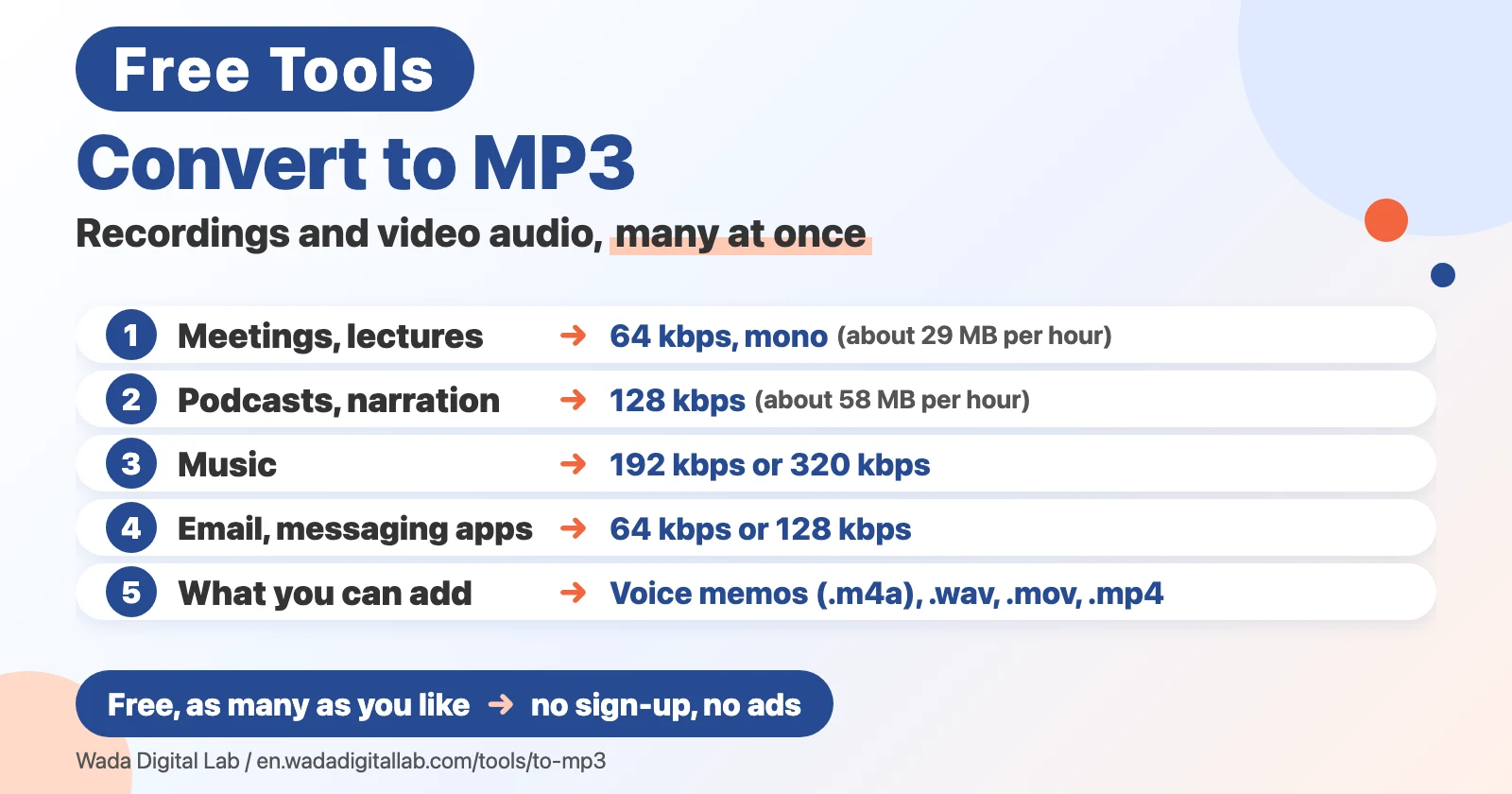
Which quality to choose
- Meetings, interviews and lectures: 64 kbps, mono (about 29 MB per hour)
- Podcasts and video narration: 128 kbps (about 58 MB per hour)
- Music: 192 kbps or 320 kbps (about 6 to 10 MB for a 4-minute song)
- Sending by email or messaging apps: 64 kbps or 128 kbps
On a Mac, the Music app can also make MP3s
The Music app on your Mac can convert songs and recordings in its library to MP3. Choose Music > Settings > Files > Import Settings and pick “MP3 Encoder,” then select the song and choose File > Convert > Create MP3 Version. For recordings you don’t want in your library, or on an iPhone or a Windows PC, this page is the easier way.
Frequently asked questions
- Is it really free?
- Yes. It’s free for as many files as you like, as often as you like. No sign-up and no ads.
- How long can a file be?
- Up to 2 hours per file (1 hour on a phone). Files can be up to 1 GB, but for .mp4, .mov and .m4a only the audio is read, so those can be larger than 1 GB. For longer recordings, split them into shorter parts first.
- Can I get the audio from a video?
- Yes. Add a .mov video from an iPhone, or an .mp4 video, and only its audio is turned into an MP3. Videos with no audio track, like a screen recording made without sound, can’t be converted.
- What happens if I add a file that’s already an MP3?
- It’s re-encoded at the quality you chose. For example, you can turn a 320 kbps MP3 into a 64 kbps one to make it about five times smaller.
- Will the sound quality drop?
- MP3 makes files smaller by leaving out sounds that are hard for people to hear. At 128 kbps or more, you won’t notice in normal listening. 64 kbps is fine for voices, but music can sound muffled.
- Will my original files change?
- No. The MP3 is saved as a new file.
- Some files can’t be read
- Safari may not read .ogg and .webm files. Try Chrome or Edge. Windows .wma files can’t be read in any browser.
More tools and “Mac Tricks”
- All browser tools: images, PDFs and audio, on one page.
- Compress Images: make photos smaller, many at once.
- HEIC to JPG Converter: turn iPhone photos into JPGs, many at once.
- Resize Images: change the size of photos, many at once.
- Merge PDF Files, Split PDF, Compress PDF: combine, split and shrink PDFs.
- All articles on “Mac Tricks”: everyday problems on the Mac, and how to fix them.
We also make Mac apps. For example, KoeShot lets you take screenshots and screen recordings on your Mac with your voice.
Software used in this tool
To make MP3 files, this tool uses lamejs (the LAME MP3 encoder ported to JavaScript, under the GNU LGPL v3.0), without any changes. The license and where to get the source code are in the full license list (lamejs, @breezystack/lamejs, LAME).