How to make a step-by-step guide with screenshots on a Mac — one image and one line per step
Published October 17, 2026 (updated October 19, 2026)
Official documentation reviewed October 17, 2026 (some steps not tested)
By Wada Digital Lab
To make step-by-step instructions with screenshots on a Mac using the tools it comes with, capture each step and paste it into Notes (or the free Pages app) with a number and one line of text. Adding Control to the screenshot keys, as in Control-Shift-Command-4, sends the image to the clipboard (where copied things wait to be pasted) instead of a file, so you can paste it straight in. If you want every click captured for you, an app can do that.
Key points
- With built-in tools, a guide has one image and one line for each step, in the order you do them.
- Control-Shift-Command-4 puts the image on the clipboard, ready to paste (Apple’s rule: add Control to the screenshot keys).
- To put a box around what to click, use Shapes in Preview’s Markup toolbar.
- Preview has File > New from Clipboard, which makes a new file from what you copied (we checked that a screenshot taken with Control opens in a new window this way).
- For longer guides, there is an app that captures every click and builds the guide for you (at the end of this article).
The diagram below shows the shape of one step in a guide: one image and one line (it is not a screenshot).
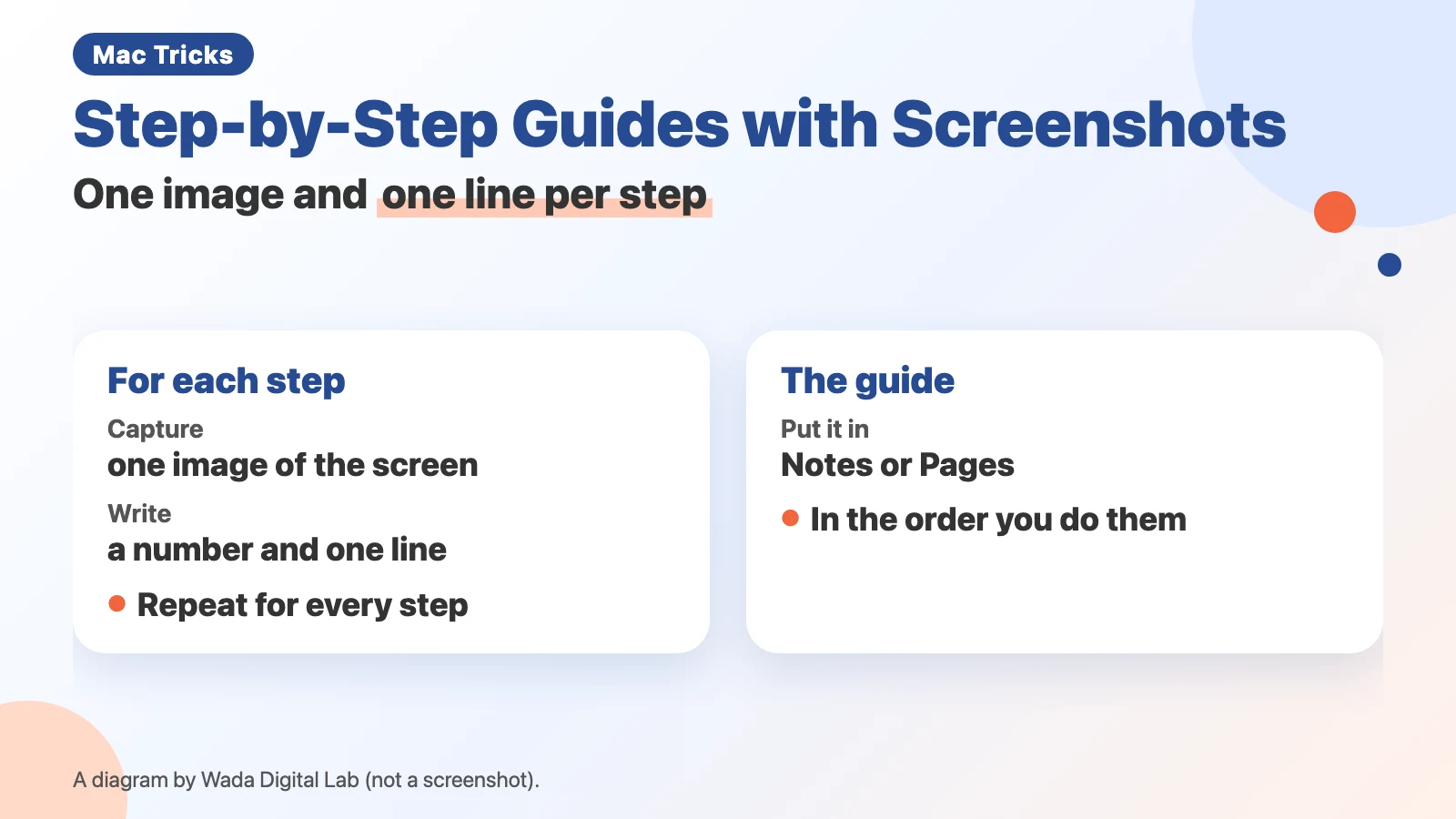
Here is the same diagram as text (it is not a screenshot).
For each step
Capture One image of the screen
Write
A number and one line
Repeat for every step
The guide
Where to put it Notes or Pages
Order
In the order you do them
The shape of a good guide: one step, one image, one line
Instructions are easiest to follow when each step has one picture of the screen and one line saying what to do: “Click Settings,” “Click Save.” Write the names of buttons exactly as they appear on screen.
At Wada Digital Lab, we once bought a paid screenshot app to make instructions. It was hard to use, and because we only needed it now and then, we kept forgetting how. It ended up making the job harder. Because instructions are something you make only now and then, choose a way that doesn’t make you remember complicated steps.
Building it with the Mac’s own tools (four actions, repeated)
Open Notes, or the free Pages app, and repeat these four actions for each step:
- Bring up the screen you want to show
- Press Control-Shift-Command-4 and drag over the part you want (the image goes to the clipboard)
- Go back to Notes or Pages and press Command-V
- Under the image, type the step number and one line (for example, “1. Click Settings”)
Apple explains adding Control like this: “Or press Control in addition to the other keys you press to take the screenshot. For example, instead of pressing Shift-Command-3, press Control-Shift-Command-3.” There is more in our article on screenshots filling up the desktop.
Putting a box around what to click (Shapes in Preview)
When it is not obvious where to click, put a box around it. Open the image in Preview, click the Show Markup Toolbar button if the Markup toolbar isn’t showing, choose a rectangle from Shapes, and drag it over the spot. Apple describes Shapes as: “Click a shape, then drag it where you want.” In a separate macOS user account we made for recording, choosing Rectangle from Shapes placed an outlined box on the image, and Tools > Annotate > Rectangle in the menu bar placed the same box (October 18–19, 2026, MacBook Air (M2), macOS 27.0.1, Japanese-language screen; we checked the English names against the text built into Preview). The automated tool we use to operate the screen could not drag the box to a new spot, so we have not tried that part.
If you also want arrows, or you have many pictures to mark up, our free page Blur Screenshots is quicker. Open the image in your browser and drag over the spot to draw a box or an arrow.
Preview can also make a new file from what you copied. Apple describes this for a part of an image you copy in Preview: you can “choose File > New from Clipboard to create a new file.” On our MacBook Air (M2), a screenshot taken with Control-Shift-Command-4 opened in a new window from this menu without being saved first (October 18, 2026, macOS 27.0.1). Draw the box on it, then copy it and paste it into Notes (we have not tried this part on screen).
Where the time goes when you build a guide by hand
| Task | With built-in tools | Where it takes time |
|---|---|---|
| Capturing the screen | Control-Shift-Command-4 for every step | Miss a capture, and you redo that step |
| Putting it in a document | Paste into Notes or Pages | Switching apps after every capture |
| Writing the steps | One line under each image | Copying button names from the screen |
| Showing where to click | Shapes in Preview | Opening each image in Preview first |
For a short guide, this is enough. The more steps there are, the more missed captures and app switching add up.
To make it easier: capture every click and get a finished guide (KoeShot)
So far, every image has been captured and placed by hand. There is another way: just do the task, and get a guide at the end. We make and sell a multi-function screenshot app for the Mac that you can run with your voice. It is called KoeShot for Mac.
Press Option + S and say “Make a step guide.” From then on, every click you make is captured, numbered and captioned. Captions are built from the name of what you clicked, in a fixed pattern such as “Click the ‘Save’ button.” To finish, press Option + S or choose “■ Finish and Save the Step Guide” in the menu. The exported guide.html holds the images inside it, so that one file is all you have to send.
Asking for blurring by voice does not blur a step guide, and the Review Blurs window does not appear for it. To blur one, turn on the setting “Always Blur Personal Information (Auto Blur)”. Look at the guide yourself before you hand it to anyone.
This is not a feature where an AI works out what you were doing. When KoeShot cannot read the name of what you clicked (it needs Accessibility permission for that), the caption becomes “Clicked.” A click that comes right after the last capture is not captured, so rapid clicks do not give you the same screen many times. Making a guide also needs Screen Recording permission.
KoeShot is paid for once. For 14 days after you install it you can use the app on its own, with no license key, before you buy. Nothing is charged before you buy.
System requirements: a Mac with Apple silicon (M1 or later) / macOS 26 or later. Intel-based Macs and macOS 15 (Sequoia) or earlier are not supported. macOS running inside a virtual machine (Parallels Desktop, UTM and the like) is not supported.
Frequently asked questions
Does the Mac have something like Windows Steps Recorder?
With the tools that come with the Mac, you either capture and arrange images as in this article, or record the screen as a video. If you want every click captured for you, use an app like the one above.
Images or video?
A guide with images and text lets people go at their own pace and look back. Video suits tasks with a lot of movement, or ones you want to talk through. To add sound to a screen recording, see how to record audio with a Mac screen recording.
What we tested on, and Apple’s pages
The four steps for building a guide (capture with Control-Shift-Command-4, paste into Notes, write one line under it) and File > New from Clipboard were tried on the keyboard by the site owner on this Mac:
- Model: MacBook Air (M2)
- macOS: macOS Golden Gate 27.0.1
- Date: October 18, 2026 (in a separate user account made for recording, with the screen in Japanese)
Placing a box with Rectangle from Shapes was checked in that recording account on the same Mac on October 18–19, 2026. Dragging the box to the spot to click, and copying the whole marked-up image into Notes, were not tried on screen. The capture method and Markup descriptions come from the Apple pages below. What KoeShot’s step guide does comes from the KoeShot product page and its source code. We did not take a screenshot of an exported guide.html for this article.
The capture method and Markup come from these Apple pages. We checked every quote against them on October 17, 2026.