How to Update to macOS 27 — Four Things to Check First and How Long It Took
Published October 14, 2026
Steps checked October 13, 2026 (MacBook Air (M4), macOS Tahoe 26.6.2)
By Wada Digital Lab
To update to macOS 27, open Software Update in System Settings and click “Upgrade Now”. Before you do, check four things: whether your Mac is supported, whether your apps and devices are ready, how much storage space you have, and your backup. Going back to an earlier version after the update isn’t easy. On the Mac we filmed, the download took about 22 minutes and preparing the update took about 13 minutes.
There is also a video that walks through the same steps on a Mac: How to Update to macOS 27 (YouTube, 4:44).
Key points
- Start the update in Apple menu > System Settings > General > Software Update, and click “Upgrade Now” next to macOS 27.
- If macOS 27 appears in Software Update, your Mac is supported. It doesn’t appear on a Mac that can’t run it.
- The size of the update depends on the Mac. The download on the Mac we filmed was 13.51 GB. Our other Mac showed 29.78 GB.
- If you reinstall macOS from macOS Recovery after updating, without erasing your Mac, you still get macOS 27. To go back to an earlier version, you erase your Mac and reinstall, so make a backup first.
- On the Mac we filmed (MacBook Air (M2), macOS Sequoia 15.4, in the Japanese recording), the download took about 22 minutes and preparing took about 13 minutes. That doesn’t include the restarts.
- We took the pictures on two Macs. The English screens are from a MacBook Air (M4) with macOS Tahoe 26.6.2, and the times were measured on the MacBook Air (M2). Both were updated to macOS 27.0.1.
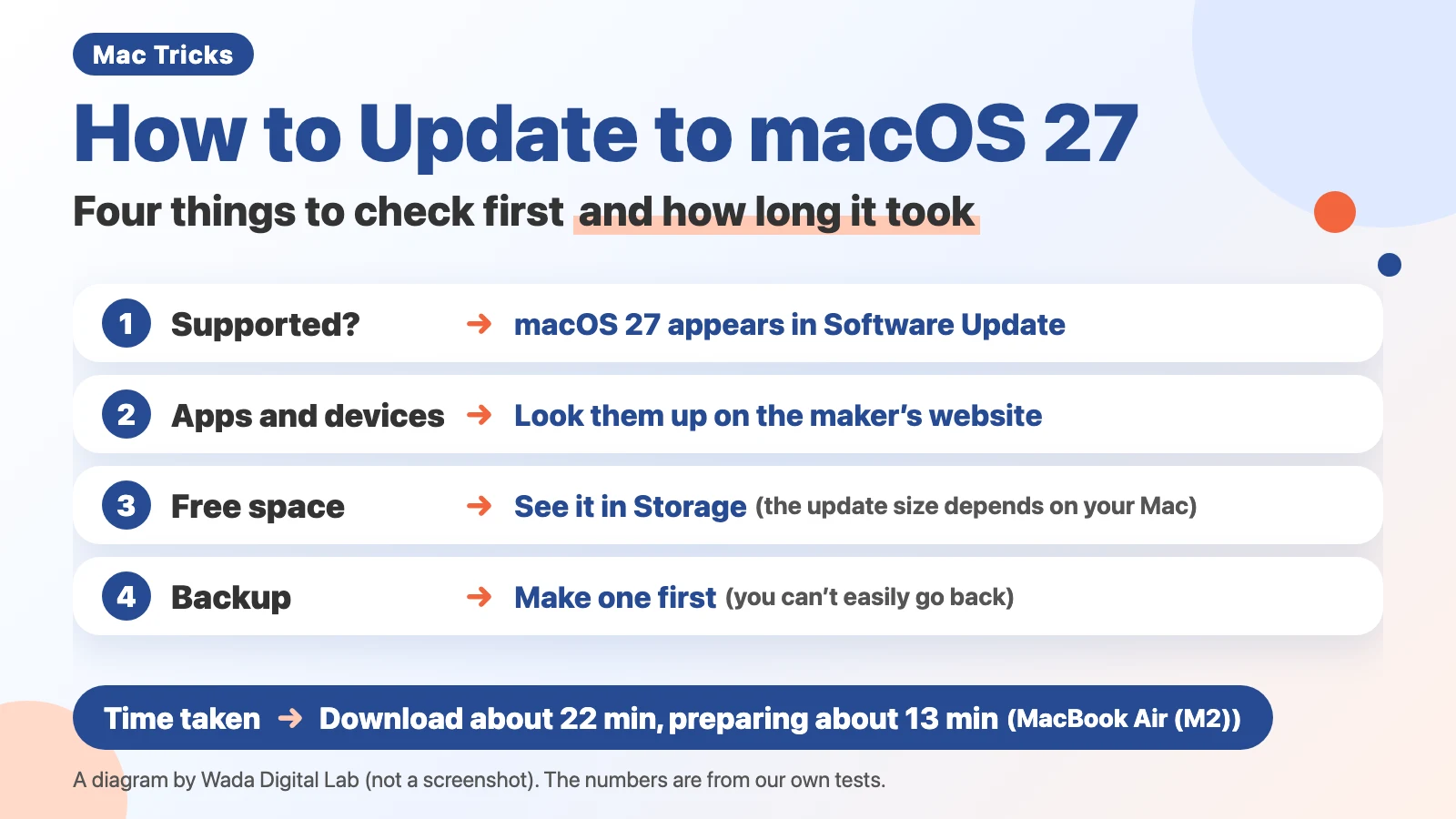
The diagram below sums up the four things to check before you update, and how long it took (not a screenshot).
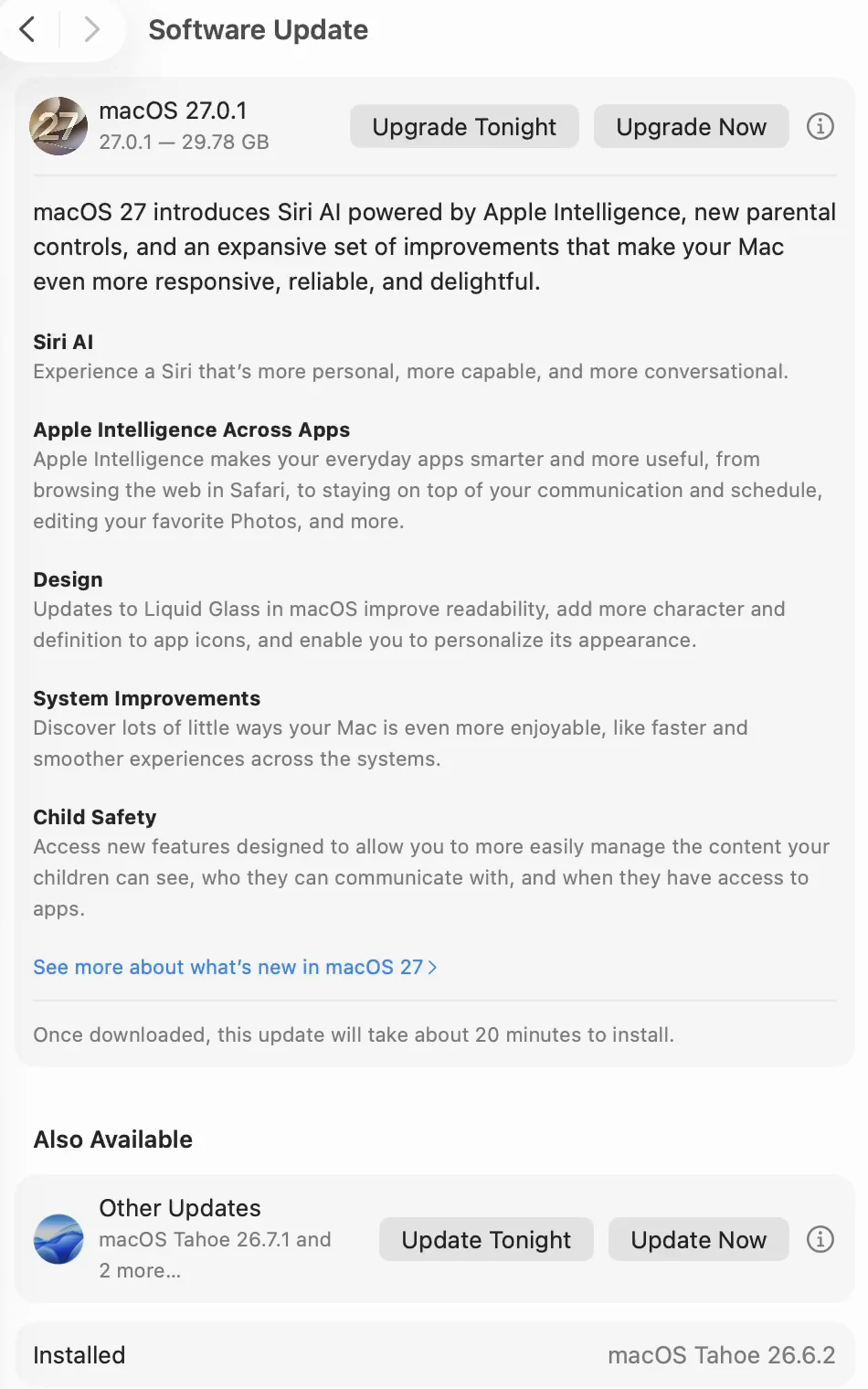
The next picture shows Software Update before the update, on our MacBook Air (M4) running macOS Tahoe 26.6.2 in English.
Check four things before you update
These are the four things to check. You can check each of them on your Mac, or on the website of the company that makes your app or device.
| What to check | Where to look | You’re ready when |
|---|---|---|
| Your Mac is supported | Software Update | macOS 27 appears |
| Your apps and devices | The website of the company that makes them | It says they support macOS 27 |
| Storage space | System Settings > General > Storage | You’ve compared your free space with the size shown in Software Update. If there isn’t enough, you see “More Storage Required” |
| Your backup | System Settings > General > Time Machine, or another backup | You have a backup made just before the update |
Check 1: Your Mac is supported if macOS 27 appears in Software Update
macOS 27 runs on Macs with a chip made by Apple, such as the M1 or the M4. Apple’s page says the supported Macs include “any Mac with an M-series chip or A-series chip.”
The easiest check is to open Software Update. Software Update is the setting that updates the macOS on your Mac to a newer version. Apple says, “Software Update shows only software that is compatible with your Mac model.” If macOS 27 appears, your Mac is supported. The full list of supported models is on Apple’s page “macOS 27 Golden Gate is compatible with these computers”.
Check 2: Look up your apps and devices on the maker’s website
Check whether the apps you use every day, and the devices you connect to your Mac, work with macOS 27. The place to look is the website of the company that makes them.
At Wada Digital Lab, we didn’t check this before updating. Later we learned that a scanner app we use all the time had a problem on newer versions of macOS: it got stuck on the processing screen after a scan. According to the maker’s page, the problem also happened on macOS Tahoe 26.7 and macOS Sequoia 15.8. A fixed version is already available. Even so, we were glad we hadn’t updated right away.
Waiting a little after a major update comes out is one way to approach it. We do that too, because we worry about something going wrong. While you wait, the previous major version (macOS Tahoe 26) still gets security updates. Apple says, “For those who need a little more time before upgrading after a major software upgrade is made available, Apple continues to offer security updates to the previous major operating system version for a period of time.” In the first picture, macOS Tahoe 26.7.1 is listed under “Also Available”, next to macOS 27.
Check 3: See your free space in Storage. The update size depends on your Mac
To see your free space, choose Apple menu > System Settings > General > Storage. The bar at the top shows how much of the disk is used.
The size of the update appears next to macOS 27 in Software Update. On the Mac we filmed in the Japanese recording (MacBook Air (M2), macOS Sequoia 15.4), the download was 13.51 GB. On our MacBook Air (M4) with macOS Tahoe 26.6.2, Software Update showed 29.78 GB. It’s the same macOS 27.0.1, but the size differs by more than twice. Look at the number on your own Mac.
If there isn’t enough space, Software Update shows “More Storage Required”. We took this wording from the English text built into macOS Tahoe 26.6.2. We didn’t see this message on either of our Macs.
Check 4: Make a backup first. You can’t easily go back after the update
After you update, reinstalling macOS from macOS Recovery without erasing your Mac still gives you macOS 27. macOS Recovery is the built-in system on your Mac for reinstalling macOS. For Macs with a chip made by Apple, Apple says, “Recovery installs the current version of the most recently installed macOS.”
The next figure compares the two ways to reinstall macOS after the update.
Reinstall from macOS Recovery
What’s on your Mac Stays on your Mac
You still get macOS 27
Erase your Mac and reinstall
What’s on your Mac Erased. You restore it from your backup
You might get the earlier macOS
About erasing, Apple says, “If you installed a macOS upgrade and then used Disk Utility to erase the disk, you might get the macOS that you were using before upgrading.” In other words, to go back to an earlier version, you erase your Mac and reinstall. That’s why you make a backup first, with Time Machine or another backup method.
Apple describes it this way: “Time Machine is the built-in backup feature of your Mac.” Connect an external drive and set it up as your backup disk, and it backs up your Mac automatically. You’ll find it in System Settings > General > Time Machine. How to set it up and bring back deleted files is in our article on how to use Time Machine on Mac.
At Wada Digital Lab, we keep a proper Time Machine backup of the Mac we use every day, because setting everything up again would be a lot of work. Before we updated that Mac (the M4) for this article, we made sure its backup had finished.
How to update: start with “Upgrade Now”
Once you’ve checked the four things, start the update.
- Choose Apple menu > System Settings
- Click General in the sidebar, then click Software Update on the right
- Click “Upgrade Now” next to macOS 27
- If you’re asked for a password, enter the one you use to log in to your Mac, then click OK
- If a software license agreement appears, read it before you agree
- Wait for the download and the preparation to finish
On our MacBook Air (M4) in English, clicking “Upgrade Now” brought up the password window first. In the Japanese recording on the M2, the license agreement came first and the password window came after it. The order was different, but what you do is the same.
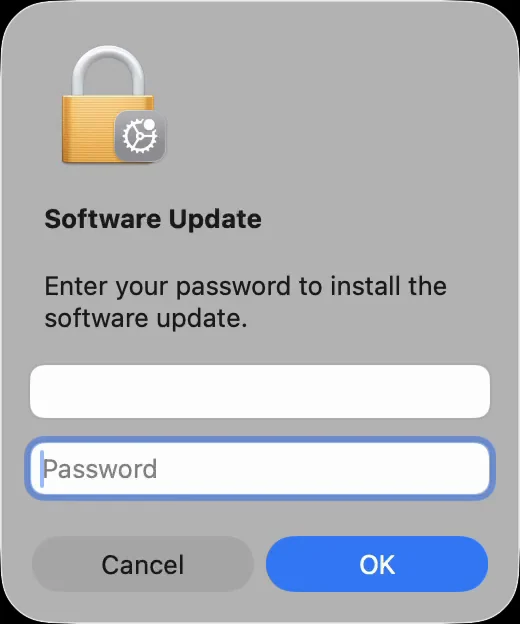
Apple says, “Before installation begins, you’re asked to enter your administrator password. It's the password you use to log in to your Mac.”
How long it took: about 22 minutes to download and 13 minutes to prepare
After you enter your password, Software Update shows that it’s downloading, and then that it’s preparing. We timed this in the Japanese recording on the M2. The download took about 22 minutes and preparing took about 13 minutes, about 35 minutes in all. That doesn’t include the restarts.
The next figure shows the times from the clock on that Mac’s screen.
About 12:43 to 1:05 a.m.
Downloading 13.51 GB
About 22 minutes
Next step
1:05 to 1:18 a.m.
Preparing At first it said about 30 minutes left
About 13 minutes
Next step
1:18 a.m.
Restart notification The Mac moves on to restart
Not included
The time left on the screen is only an estimate. While preparing, it first said about 30 minutes were left, but it finished in about 13 minutes. On the other hand, “about 5 minutes” stayed on the screen from 1:11 to 1:16. If the number seems stuck, just wait.
When preparation finishes, a notification says the computer will restart. After that, your Mac may restart several times. Apple says, “Allow installation to complete without putting your Mac to sleep or closing its lid. During installation, your Mac might restart and show a progress bar or blank screen several times.”
After the update: Software Update Complete
When the restarts are done, you see “Software Update Complete”. The next picture is a photo we took with an iPhone of our MacBook Air (M4) right after the update.
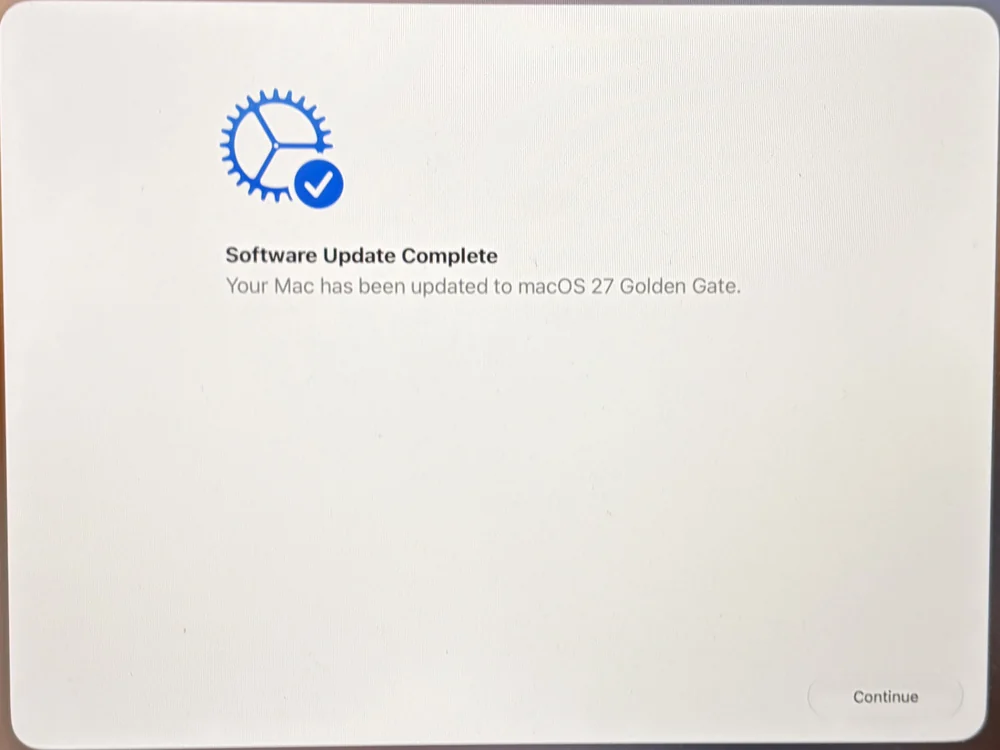
This screen wasn’t the same on both Macs. On the M4, there was only a “Continue” button. In the Japanese recording on the M2, the screen also said that future software updates would be downloaded and installed automatically, and it had a second button, “Only Download Automatically”. We took the English names from the text built into macOS. We didn’t test what happens after you choose either button. You can manage automatic updates later in Software Update settings.
Right after the update, the battery may seem to drain faster. Apple says, “Immediately after completing an update, particularly a major release, you might notice a temporary impact on battery life and thermal performance. This is normal.” In the background, your Mac is indexing data and files for search, downloading new assets, and updating apps, and it settles down after a while. For everyday battery settings, see our MacBook battery article.
If the wallpaper seems to move: slow-motion aerials are a screen saver feature
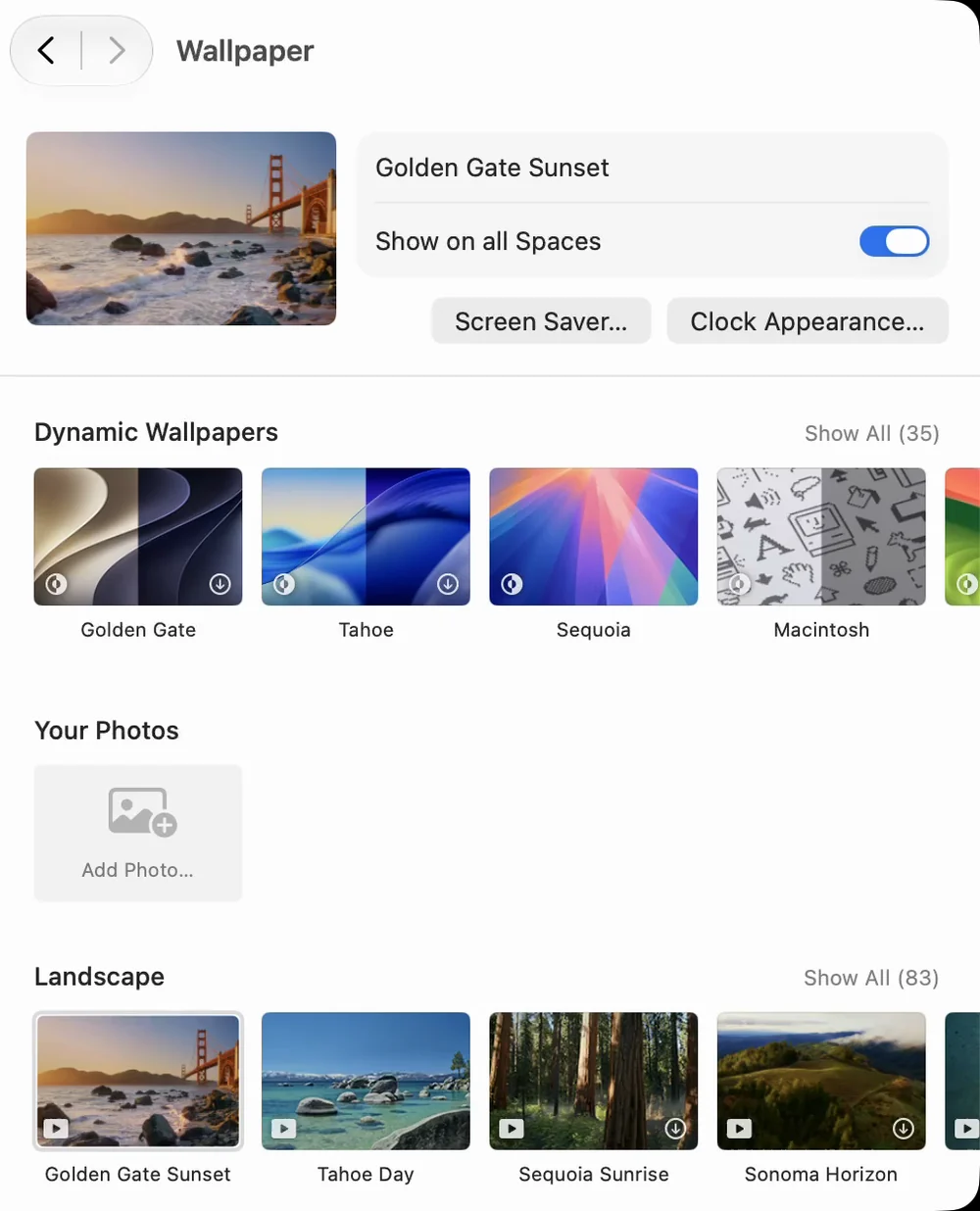
When our update finished, we were surprised to see the wallpaper moving. But it only moved at first. After that, it was a still picture.
We didn’t find out why it moved right after the update. On Apple’s pages, slow-motion aerials come up in the screen saver section. On Apple’s screen saver page, the Landscape, Cityscape, Underwater, and Earth aerials are described as “These slow-motion images show dramatic views.” One of the options is “Turn on an aerial for your wallpaper, using the slow-motion aerial as your screen saver.” You can choose a different wallpaper in System Settings > Wallpaper.
Check the result: the macOS version shows 27
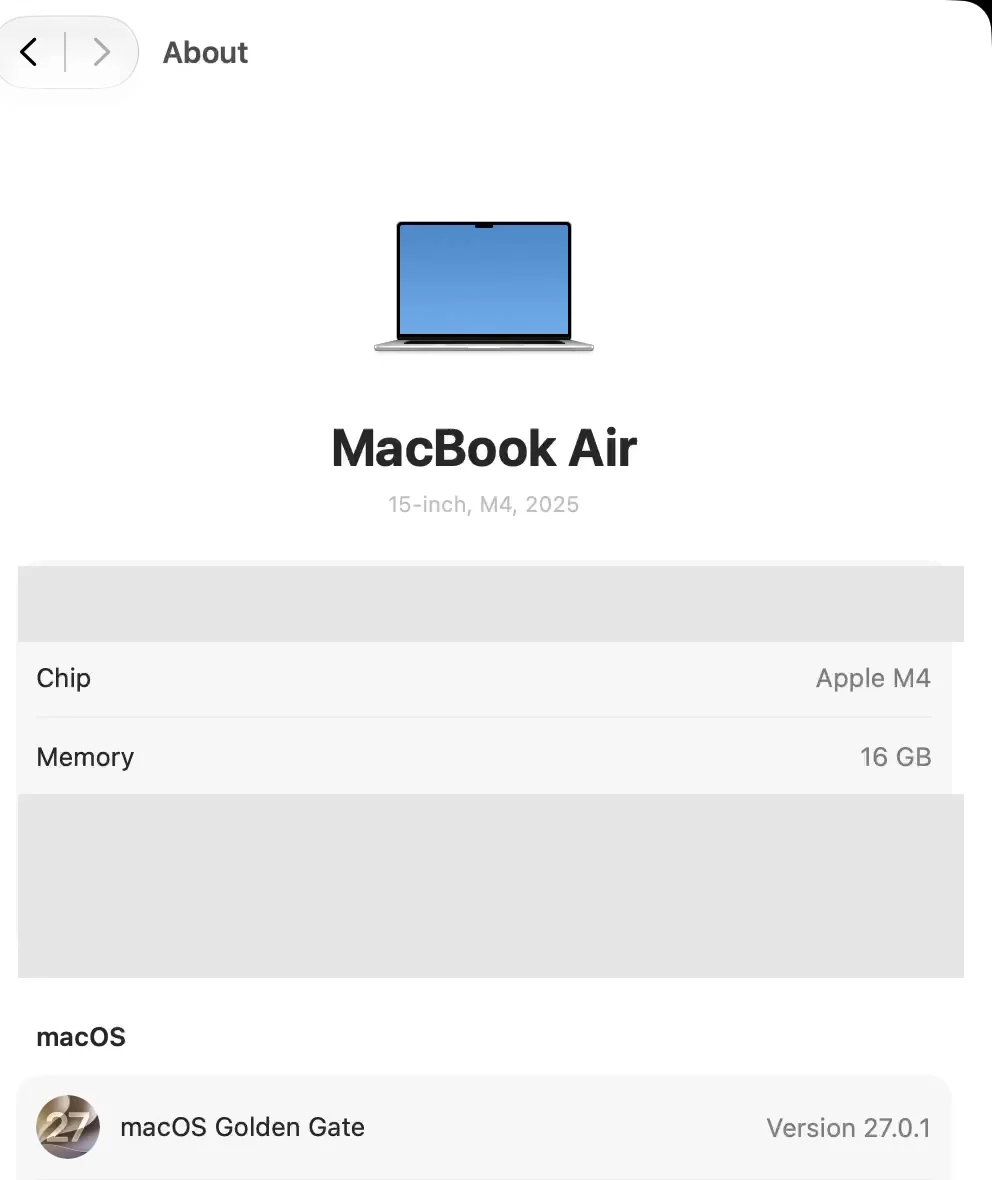
To check that the update is done, look at the macOS version. If it shows 27, the update is complete. On our M4, we opened System Settings > General > About.
Some new features are easy to miss after you update, because you only see them if you open them yourself, like the Liquid Glass slider in Appearance and divider lines in Notes. We explain how to use them in our macOS 27 new features you might miss article.
Frequently asked questions
What happens if I don’t update to macOS 27?
For a while, the previous major version (macOS Tahoe 26) still gets security updates. Apple says it offers them “for a period of time” and doesn’t say for how long.
Can I go back to an earlier version after updating?
Not easily. Reinstalling from macOS Recovery without erasing your Mac still gives you macOS 27. To go back, you erase your Mac, reinstall, and restore from your backup. That’s why you make a backup before updating.
macOS 27 doesn’t appear in Software Update
Your Mac may not support it. Apple says, “If your Mac doesn’t need or isn't compatible with an update, Software Update doesn't offer it to you and says that your Mac is up to date.” You can find the list of supported Macs on Apple’s page linked below.
How long does the update take?
It depends on your Mac and your internet connection. On the Mac we filmed, the download took about 22 minutes and preparing took about 13 minutes, before the restarts. Our other Mac said “about 20 minutes to install” once downloaded. That’s the estimate on the screen, not a time we measured.
Watch the same steps on a Mac (video)
This video goes through the same steps on a Mac, one at a time. If you’d rather watch than read, try this.

What we tested on, and Apple’s pages
The pictures in this article come from two Macs:
- Before and after the update, in English: MacBook Air (M4), macOS Tahoe 26.6.2 to macOS 27.0.1, October 13, 2026
- The license agreement, download, preparation, and restart, in Japanese: MacBook Air (M2), macOS Sequoia 15.4 to macOS 27.0.1, October 12, 2026
We used a separate user account made for recording on both Macs, and both were on the same home internet connection. The English pictures come from the M4. The download and preparation times and the license agreement come from the Japanese recording on the M2, so we describe them in words here.
We tried these:
- Updating the MacBook Air (M2) to macOS 27.0.1 from “Upgrade Now” (in the Japanese recording: license agreement, password, download, preparation, restart)
- Updating the MacBook Air (M4) from macOS Tahoe 26.6.2 to macOS 27.0.1 with the Mac set to English (the password window appeared first after “Upgrade Now”)
- Checking the macOS version after the update
On the M4 in English, we didn’t record the license agreement, the download, the preparation, or the restart notification. We also didn’t see “More Storage Required”, and we didn’t test what happens after choosing “Continue” or “Only Download Automatically”.
The steps and quotes come from these Apple pages. We checked the quotes word for word against the current pages on October 14, 2026.
- How to upgrade to macOS 27 Golden Gate (Apple Support)
- macOS 27 Golden Gate is compatible with these computers (Apple Support)
- Update macOS on Mac (Apple Support)
- How to back up your Mac (Apple Support)
- How to reinstall macOS (Apple Support)
- About Apple software updates (Apple Support)
- Use a screen saver on your Mac (Mac User Guide)