How to Make Text Bigger on a Mac — Everything on the Screen, Certain Apps, and Shortcuts
Published October 19, 2026
Official documentation reviewed October 19, 2026 (some steps not tested)
By Wada Digital Lab
How you make text bigger on a Mac depends on what you want to enlarge. To make everything on the screen bigger, go to Displays in System Settings and choose the Larger Text side of the resolution thumbnails. To make text bigger only in certain apps, such as Finder, Mail, and Notes, use “Text size” in Accessibility. For the page you are reading right now, press Command and the Plus Sign key.
Key points
- To make everything bigger, go to Displays in System Settings and choose the Larger Text side of the resolution thumbnails. The menu bar and every app get bigger, and less fits on the screen.
- To make text bigger only in the apps listed, such as Finder, Mail, and Notes, drag the “Text size” slider in Accessibility > Display to the right. The slider changes the apps in the list that are set to Use Preferred Reading Size. Apps that are not in the list do not change.
- For the page or email you are reading, press Command-Plus Sign (+) to make it bigger and Command-Minus Sign (–) to go back (in Calendar, Mail, Messages, Safari, and more).
- Two Apple pages describe the Safari keys the opposite way. The Safari User Guide says Command-Plus Sign zooms the whole page, and to make only the text bigger, you hold Option and choose View > Make Text Bigger.
- To enlarge small text just for a moment, turn on “Use keyboard shortcuts to zoom” in Zoom. Then Option-Command-Plus Sign magnifies the screen like a magnifying glass.
The diagram below shows where to go, depending on what you want to enlarge (it is not a screenshot).
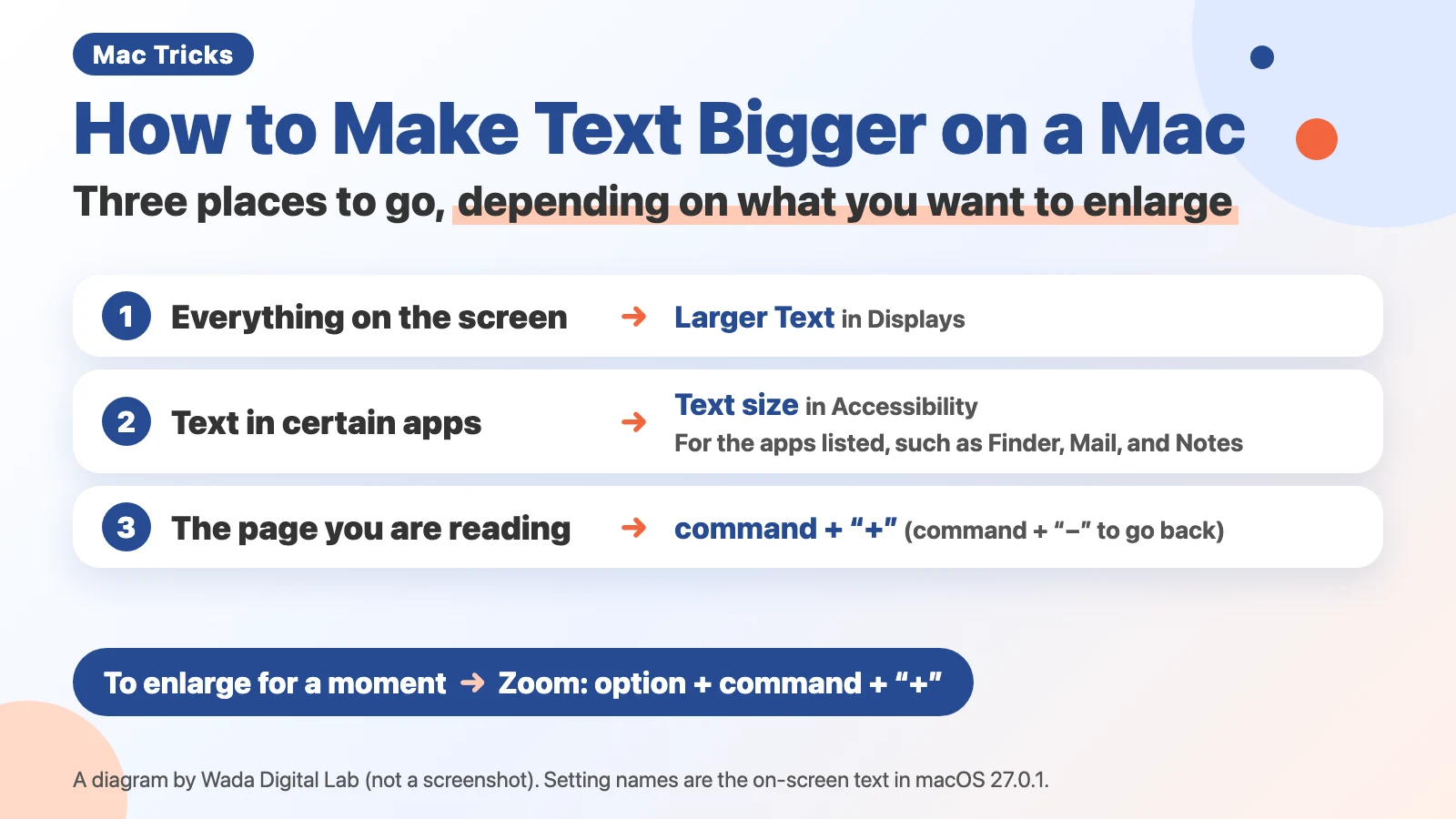
First, decide what you want to make bigger
A Mac has several settings that make text bigger. Which one to use depends on what is too small for you. This table sums up the three ways above, plus a way to enlarge the screen just for a moment.
| What to enlarge | Where to go | What changes |
|---|---|---|
| Everything on the screen (the menu bar and every app) | The Larger Text side in Displays in System Settings | Everything on the screen gets bigger, and less fits on the screen |
| Text in certain apps, such as Finder, Mail, and Notes | “Text size” in Accessibility > Display | Text on the desktop, in app sidebars, and in the apps listed |
| The page or email you are reading | Command and the Plus Sign key (Minus Sign to go back) | Only inside that app |
| Small text, just for a moment | Accessibility > Zoom | The screen is magnified like a magnifying glass. Your settings stay the same |
Make everything on the screen bigger: Larger Text in Displays
To make the menu bar and the text in every app bigger at once, change the resolution. The resolution is the setting that decides how big text and icons look on the screen. Apple’s page “Increase the size of what’s on the Mac screen” says:
“Your Mac automatically uses the best resolution for your display, but you can reduce the resolution to make everything on the screen appear larger.”
We split Apple’s steps so that each line is one action. There are four steps.
- Choose Apple menu > System Settings.
- Click Displays in the sidebar.
- If an external display is connected, choose the display you want from the pictures of the screens at the top.
- Choose the Larger Text side of the resolution thumbnails (the other end is More Space).
To go back, choose Default in the same place. Apple says that, depending on the resolution, some app windows may not fit entirely on the screen, and a scaled resolution may affect performance.
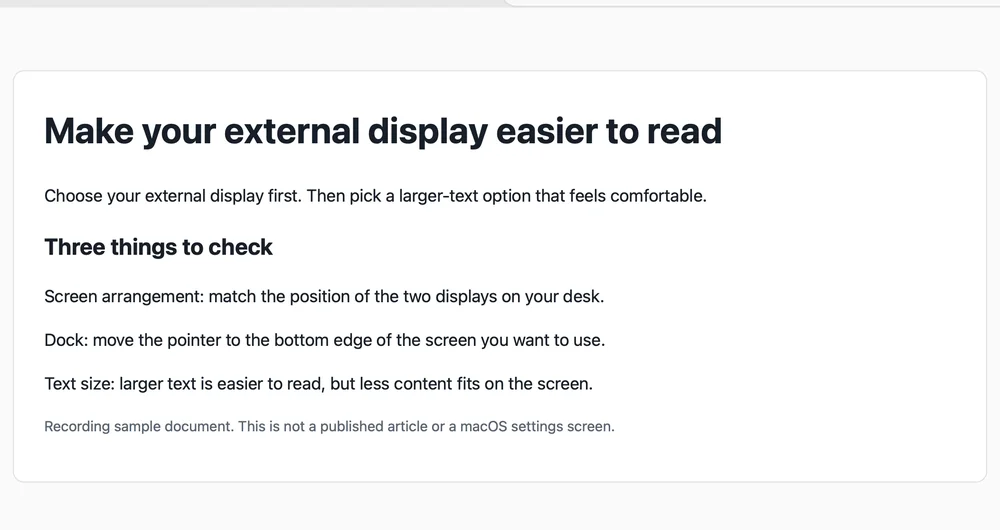
The two pictures below show an external display before and after choosing Larger Text. We took them on October 9, 2026, in a separate user account made for recording on our Mac, set to English (macOS Tahoe 26.6.2). The same heading became about 1.3 times wider.
A 4K display often makes text too small at first
We bought a 4K display, too. Used as it was, the text was so small that it was very hard to use. Our eyes have started to find small text hard to read with age, so we needed bigger text.
Both of the 4K displays now connected to our Mac are set to “looks like 1920 × 1080.” We read this on October 19, 2026, with system_profiler, a command that shows information about a Mac. The display still uses all 3840 × 2160 pixels, but text and buttons are as big as on a screen 1920 pixels wide. What to check when you connect an external display is in our dual display article: MacBook Dual Monitor Setup — 3 Things to Check After Connecting an External Display
Make text bigger only in certain apps: Text size
Maybe you don’t want less to fit on the screen, but you do want bigger text in Finder or Mail. Then use “Text size” in Accessibility. We split Apple’s steps so that each line is one action. There are five steps.
- Choose Apple menu > System Settings.
- Click Accessibility in the sidebar.
- Click Display, then scroll down to Text.
- Click “Text size.”
- Drag the slider to the right.
Apple says the slider makes text bigger on the desktop, in app sidebars, and in the apps listed. An app in the list follows the slider only when the pop-up menu next to it is set to Use Preferred Reading Size. You can also choose a different size for one app with the pop-up menu next to it. Apps that are not in the list do not change with this setting.
An app marked Customized in App has its own text size set in that app’s settings. If you change that app’s size in System Settings, it replaces the size you set in the app (Apple’s description).
When we read the settings file on our Mac, the list had entries for 12 apps: Finder, Mail, Notes, Messages, Calendar, Reminders, Books, Journal, Weather, Stocks, Magnifier, and Accessibility Reader. Safari and apps from other companies were not there (October 19, 2026, macOS 27.0.1; we did not count them on the settings screen). The slider was still at Default, and only Finder was set to Customized in App.
The diagram below shows what gets bigger with Text size and with Larger Text (it is not a screenshot). With Text size, what gets bigger is text in the apps listed, and sidebars. Apps that are not in the list do not change with Text size. For everything on the screen, use Larger Text.
Text size
What gets bigger Text in the apps listed, and sidebars
Apps that are not in the list
do not change
For everything on the screen
Larger Text
What gets bigger Everything on the screen
Apps that are not in the list
get bigger
For the menu bar: Menu bar size
The on-screen text for Accessibility in macOS 27.0.1 includes “Menu bar size,” in the same group as “Text size” under Display, with the choices Default and Large. Its note says, “Some apps or system features may need a log out for the changes to menu bar font size to take effect.” In the Japanese-language settings screen on our recording Mac (MacBook Air (M2), macOS 27.0.1), Menu bar size appeared right below Text size in the Text section of Accessibility > Display. If only the menu bar is hard to read, look there.
Make only the page you are reading bigger: Command and Plus Sign
To make only the email or page you are reading bigger, use the keys. Apple says that in these apps, Command-Plus Sign (+) makes things bigger and Command-Minus Sign (–) makes them smaller.
| App | How to make it bigger (Apple’s description) |
|---|---|
| Open an email, then press Command-Plus Sign | |
| Messages | Open a conversation, then press Command-Plus Sign |
| Calendar | In Day, Week, or Month view, press Command-Plus Sign |
| News | Open an article, then press Command-Plus Sign |
| Safari | Open a webpage, then press Command-Plus Sign (see the next section) |
| Finder | “Text size” in View > Show View Options (a menu, not keys; not in Gallery view) |
| Desktop | Control-click the desktop, choose Show View Options, then choose a Text size |
| App sidebars | “Sidebar icon size” in Appearance in System Settings |
Some places use a menu instead of keys. In Finder, choose View > Show View Options, then choose a Text size (you can’t change it in Gallery view). For the desktop, Control-click the desktop, choose Show View Options, then choose a Text size. For app sidebars, use “Sidebar icon size” in Appearance in System Settings (all from Apple’s description).
To change the size of the icons in the Dock, drag the Size slider in Desktop & Dock in System Settings (Apple’s description). How to hide the Dock to get more room on the screen is in our Dock article: Mac Dock Settings — Hide the Dock with Three Keys
Two Apple pages describe the Safari keys the opposite way
Apple’s pages don’t agree on which Safari keys do what. The Mac User Guide (Increase font size and icons on Mac) says Option-Command-Plus Sign adjusts “the size of everything on the page,” and Command-Plus Sign adjusts “the size of only the text.”
The Safari User Guide (Keyboard shortcuts and gestures in Safari on Mac) says the opposite. Command-Plus Sign zooms “website content.” To zoom only the text, you press and hold the Option key, then choose View > Make Text Bigger. Safari’s built-in menu text on our Mac also has the page zoom and Make Text Bigger as separate menu items (October 19, 2026; we did not press the keys to check).
If you are not sure, open Safari’s View menu. The current keys are shown to the right of each item.
To see every page bigger, you can set it once in Safari. The Safari User Guide says to choose Safari > Settings, click Websites, then click Page Zoom. Select all the websites listed below Configured Websites and click Remove, then choose a larger percentage in the “When visiting other websites” pop-up menu. Clearing the list also removes the zoom you set for each site. To keep those, change only the default and leave the list (the sites in the list keep their own zoom).
Enlarge small text for a moment: Zoom
To see small text bigger just for a moment, without changing your usual sizes, use Zoom. It magnifies the screen like a magnifying glass. We split Apple’s steps so that each line is one action. There are three steps.
- Choose Apple menu > System Settings, then click Accessibility in the sidebar.
- Click Zoom.
- Turn on “Use keyboard shortcuts to zoom.”
After that, press Option-Command-Plus Sign to zoom in and Option-Command-Minus Sign to zoom out. Option-Command-8 quickly switches between zoomed in and zoomed out (Apple’s description).
On a trackpad, turn on “Use trackpad gesture to zoom,” then double-tap with three fingers. To see only the text under the pointer bigger, turn on Hover Text in Accessibility, then hold down the Command key over the text (both are Apple’s descriptions).
Smart zoom, which enlarges a page when you double-tap the trackpad with two fingers, is in our trackpad article: How to Use Your Mac Trackpad — Basic Two-Finger Gestures
Frequently asked questions
How do I make all the text on my Mac bigger?
Go to Displays in System Settings and choose the Larger Text side of the resolution thumbnails. The menu bar and the text in every app get bigger. “Text size” in Accessibility changes only the apps listed and sidebars.
I made Text size bigger, but the text in Safari didn’t change.
Text size changes the text in the apps listed. In the settings file on our Mac, Safari was not in the list. In Safari, use Command-Plus Sign, or Page Zoom in Safari’s settings.
What is the keyboard shortcut to make text bigger?
In many apps, Command-Plus Sign makes things bigger and Command-Minus Sign makes them smaller (Apple names Calendar, Mail, Messages, News, and Safari). To magnify the whole screen for a moment, turn on “Use keyboard shortcuts to zoom” in Zoom and press Option-Command-Plus Sign.
The screen went black after I changed the resolution.
Apple says choosing an unsupported resolution can make the screen go black for a while. Wait 15 seconds to see if your Mac resets it on its own. If it doesn’t, press Esc to go back to the resolution you had before.
Can I make text bigger only on my external display?
Yes. In Displays, choose the external display from the pictures of the screens at the top, then choose the Larger Text side. The size on your MacBook’s built-in screen does not change.
What we tested on, and Apple’s pages
We wrote the steps in this article from Apple’s pages, which we read on October 19, 2026. We checked the setting names against the files of on-screen text built into macOS on this Mac. We did not open the System Settings window on our Mac.
- Model: MacBook Air (M4)
- macOS: macOS 27.0.1
- Date: October 19, 2026
On October 19, 2026, we also opened four of these settings screens in Japanese on a MacBook Air (M2) running macOS 27.0.1, in a separate user account made for recording, just to look (we did not change any values): Text size and Menu bar size, the Text size list, the resolution thumbnails, and “Use keyboard shortcuts to zoom.”
The only step we actually did on a Mac screen was choosing Larger Text for an external display (October 9, 2026, MacBook Air (M4), macOS Tahoe 26.6.2, in a separate user account made for recording and set to English; the two pictures above). We did not try the Text size slider, Menu bar size, the keys that make text bigger, or Zoom on the screen. The list of apps and how our 4K displays look come from reading the settings on our Mac.
The steps come from these pages:
- Increase the size of what’s on the Mac screen (Mac User Guide, macOS 27)
- Increase font size and icons on Mac (Mac User Guide, macOS 27)
- Change your Mac display’s resolution (Mac User Guide, macOS 27)
- Zoom in on your Mac screen (Mac User Guide, macOS 27)
- Hover to zoom in on text and colors on Mac (Mac User Guide, macOS 27)
- Keyboard shortcuts and gestures in Safari on Mac (Safari User Guide)
- Zoom in on webpages in Safari on Mac (Safari User Guide)