MacBook Dual Monitor Setup — 3 Things to Check After Connecting an External Display
Published October 12, 2026
Steps checked October 9, 2026 (MacBook Air (M4), macOS Tahoe 26.6.2)
By Wada Digital Lab
After you connect one external display to your MacBook, there are three things to check: the arrangement of the two screens in “Arrange…”, which screen the Dock shows up on, and the size of the text. If the text on the external display is too small, open Displays in System Settings and select the external display first. Then choose a resolution toward “Larger Text”, and the text becomes big enough to read.
There is also a video that walks through the same steps on a Mac: MacBook Dual Monitor Setup (YouTube, 3:41).
Key points
- If the text on the external display is small, select the external display from the pictures of the screens at the top of Displays. Then choose the resolution option at the left end, toward “Larger Text”.
- If you select the wrong screen, the text on your MacBook changes instead. A small triangle under the pictures of the screens shows which one is selected.
- To set how the screens sit next to each other, open “Arrange…” and drag the pictures into the same order as the displays on your desk. The pointer moves to the next screen across the edges where the pictures touch.
- With the original settings, the Dock appears on whichever screen you move the pointer to the very bottom of. To keep it on the main display only, turn off “Displays have separate Spaces”. This requires logging out, and Stage Manager and some other features stop working. At Wada Digital Lab we tried it and turned it back on (we did not switch it while recording).
- The pictures were taken on a MacBook Air (M4) with macOS Tahoe 26.6.2 and an EIZO EV2740X external display, with the Mac set to English.
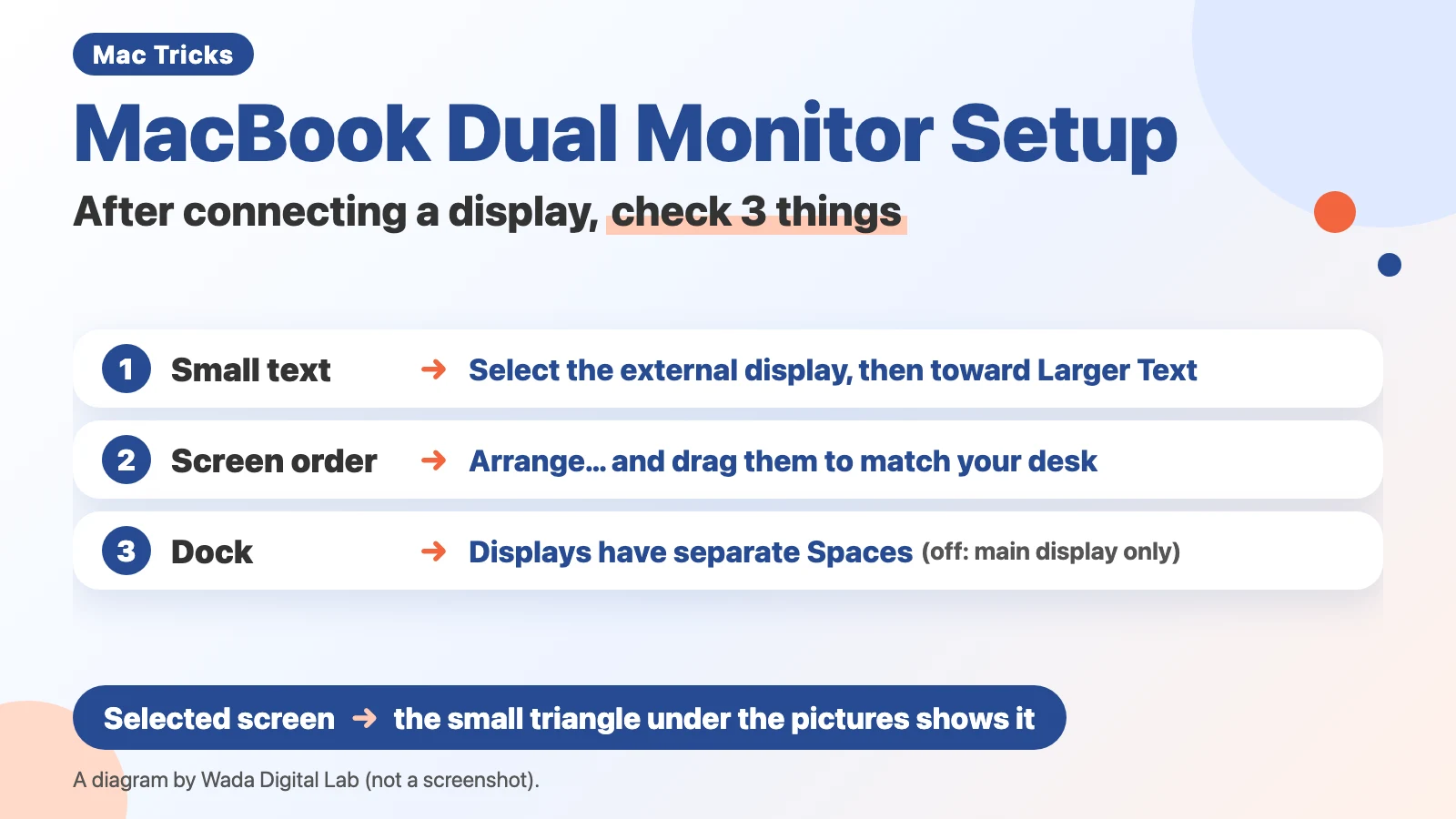
The diagram below sums up the three things to check after connecting an external display (not a screenshot).
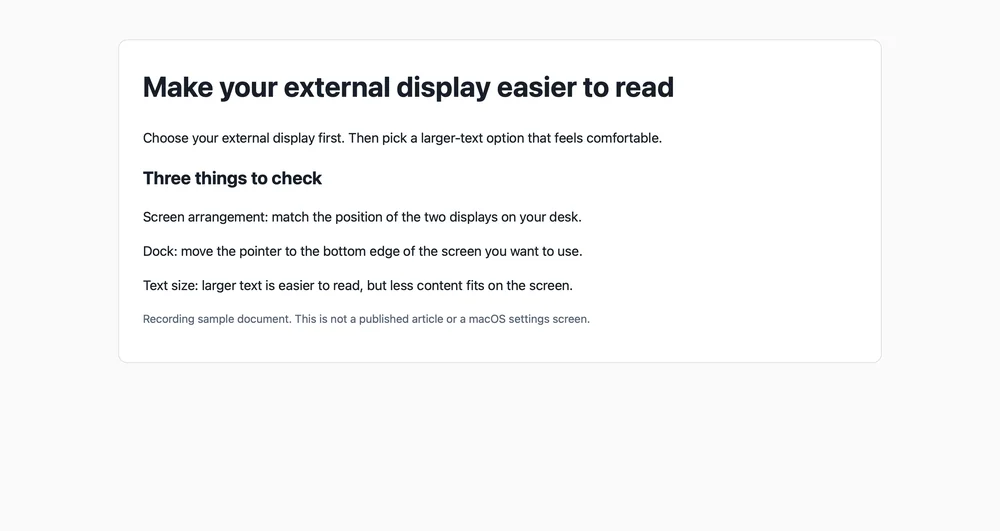
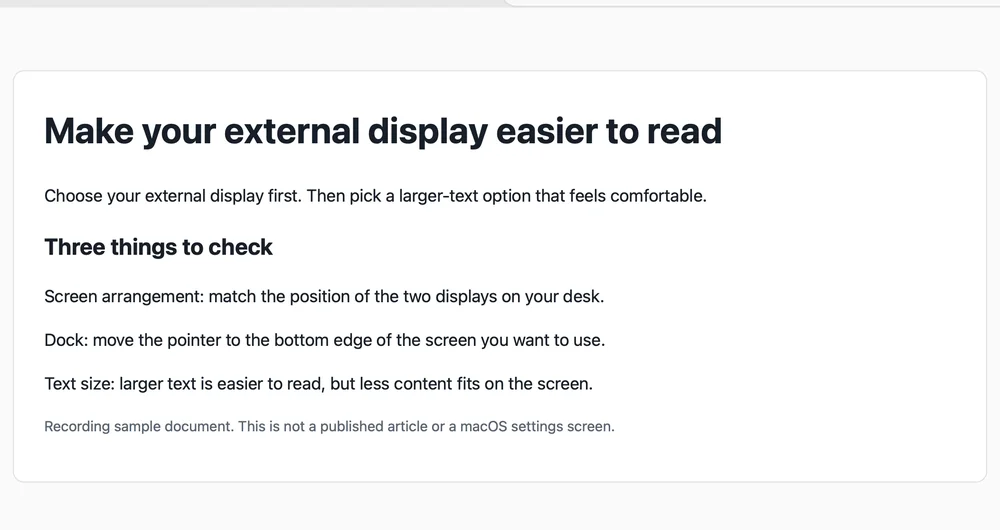
The next two pictures show the same part of the same external display, before and after choosing “Larger Text”.
After connecting an external display, check three things
Using an external display together with your MacBook, so that you have two screens, is called a dual display (or dual monitor) setup. Most problems after connecting one are in the table below. This article covers two screens: a MacBook and one external display.
| Problem | Where to look | What to do |
|---|---|---|
| Text on the external display is too small | The resolution options in Displays | Select the external display, then choose an option toward “Larger Text” |
| The pointer does not go to the screen you expect | “Arrange…” in Displays | Drag the pictures into the same order as on your desk |
| Both screens show the same thing | “Use as” in Displays | Choose “Extended display” |
| The Dock moves to the other screen | The bottom edge of the screen where you want the Dock | Move the pointer to the bottom edge to bring it there (with the Dock at the bottom of the screen). To keep it on the main display only, turn off “Displays have separate Spaces” (this requires logging out, and Stage Manager stops working) |
| Nothing shows up on the display | Your Mac’s specifications | Check how many external displays your Mac supports |
If the text on the external display is small, select the external display, then choose “Larger Text”
You change the size of text on an external display with its resolution. Wada Digital Lab bought a 4K external display too. Used as it came, the text was so small that it was really hard to use. With eyes that need reading glasses, we had to make the text bigger.
The resolution is the setting that decides how big text and icons look on the screen. Apple puts it this way: “Your display’s resolution determines the size of text and objects on your screen.”
Here are the steps:
- Choose Apple menu > System Settings
- Click Displays in the sidebar
- From the pictures of the screens at the top, click the external display (“EV2740X” in our recording)
- Under “Use as”, there are five options in a row. Click one near the left end, toward “Larger Text”
Apple’s steps say the same: “Select the display you want to adjust, then select the resolution you want to use.” On the screen, the row of five options did not have a heading that says “Resolution”. The option at the left end is labeled “Larger Text”, and the one at the right end is labeled “More Space”.
In our recording, we switched the external display from “Default” to “Larger Text”. We measured the same heading in the recording: it went from about 37% to about 47% of the screen’s width, about 1.3 times wider.
Bigger text means less fits on one screen. After we chose “Larger Text”, the line “Using a scaled resolution may affect performance.” appeared under the options. Apple’s page also says: “Depending on how you adjust the resolution, some app windows may not fit entirely on the screen. Using a scaled resolution may affect performance.”
To change it back, click “Default” in the same row. We set it back to “Default” after recording.
To make text bigger only in certain apps such as Finder and Mail, or only on the page you are reading, see How to Make Text Bigger on a Mac — Everything on the Screen, Certain Apps, and Shortcuts.
The small triangle under the pictures shows which screen is selected
The easy mistake is changing the text on your MacBook by accident. In the comments under another creator’s video on this topic, we found a viewer who thought they were changing the external display but had changed the MacBook’s resolution. The two of them went back and forth more than ten times.
A small triangle under the pictures of the screens shows which one is selected. The next two pictures come from the Mac we recorded on: one with the built-in display selected, and one with the external display selected.
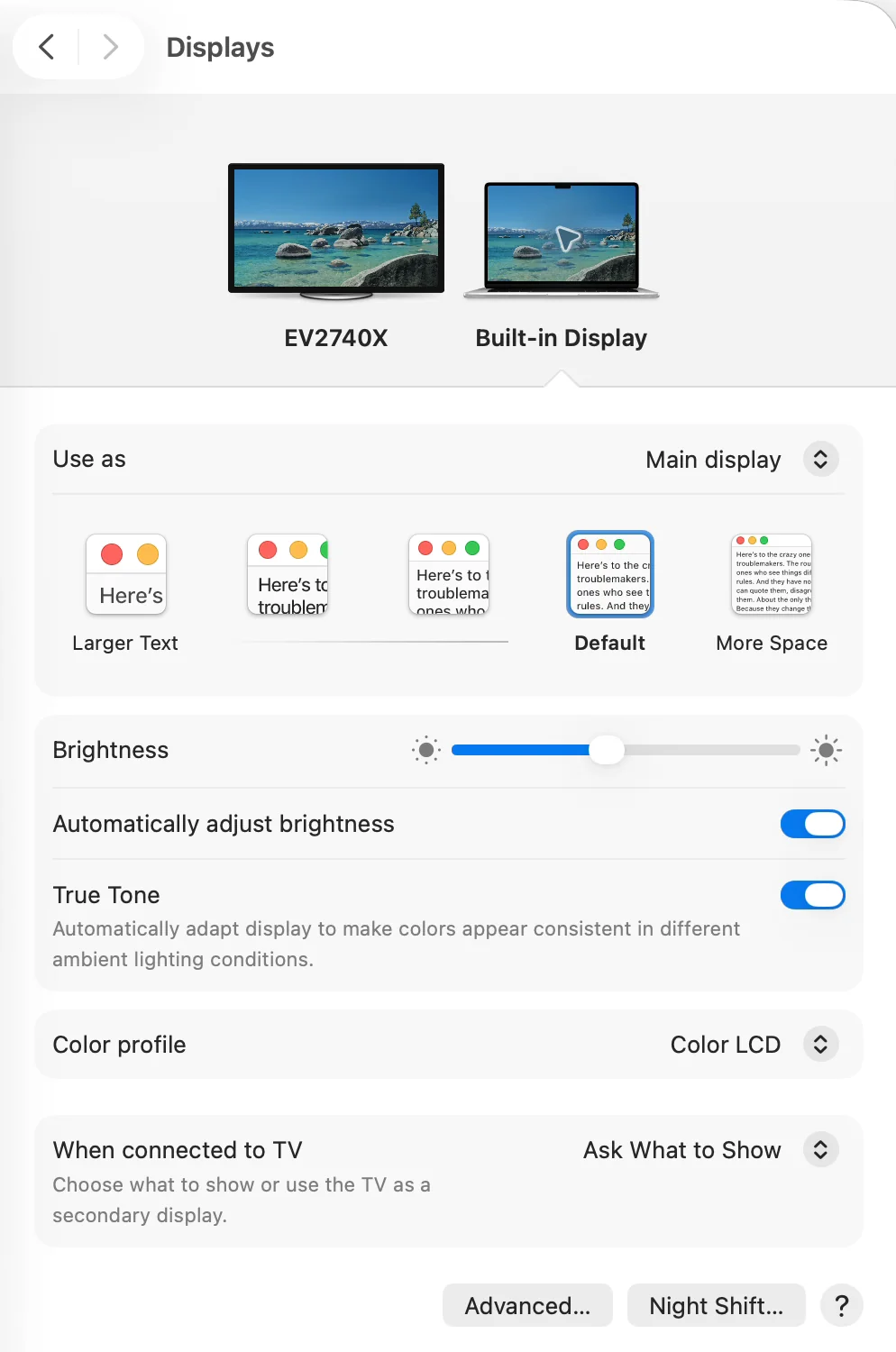
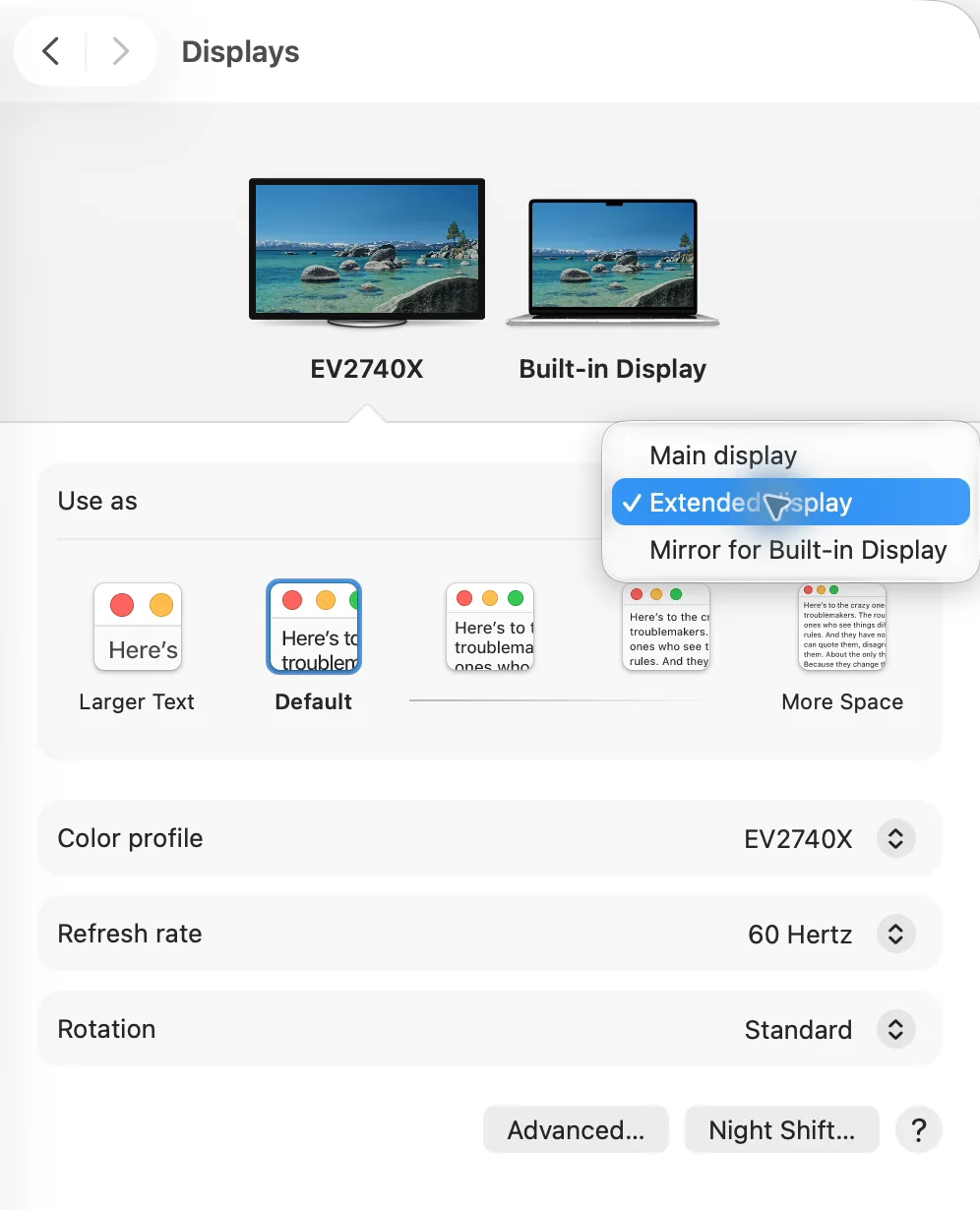
Compare the two pictures, and you will see that “Default” is in a different place. It was the fourth from the left on the built-in display and the second from the left on the external display. If you remember it as “the second one from the left”, you will pick different sizes on different screens. Go by the labels “Larger Text” and “Default” instead.
In “Arrange…”, put the pictures in the same order as the displays on your desk
“Arrange…” sets where the two screens sit in relation to each other. Apple describes Arrange as: “Arrange the position of the displays, mirror their content, or relocate the position of the menu bar.” The button appears only while an external display is connected. Apple says so too: “This option appears only when you have an external display connected to your Mac.”
- Choose Apple menu > System Settings, then click Displays in the sidebar
- Click “Arrange…” at the bottom right
- The two screens appear as rectangles
- Drag the pictures into the same order as the real displays on your desk
- Click “Done”
The next picture shows what appears when you click “Arrange…”.
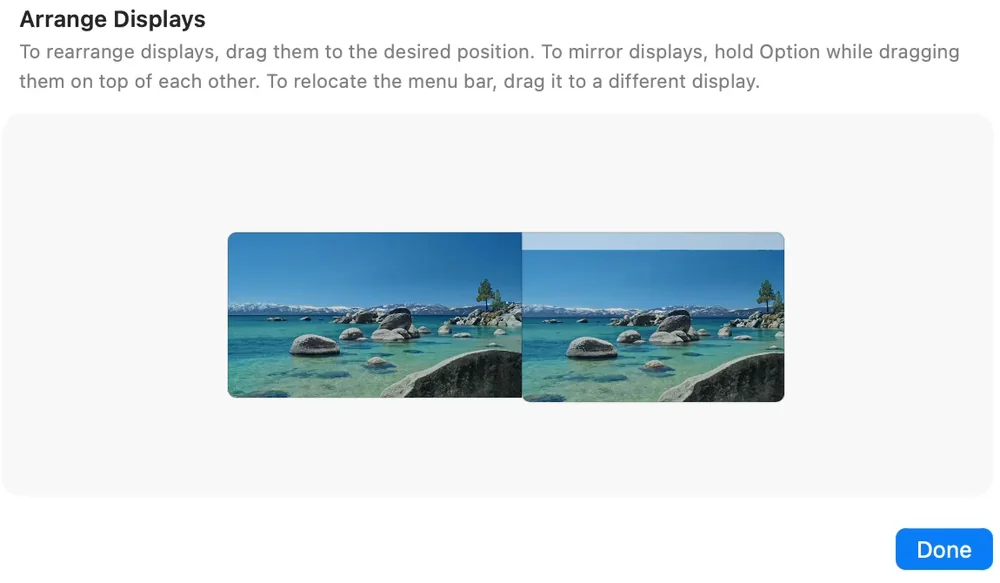
The pointer moves to the next screen across the edges where the pictures touch. If the external display is on the left of your desk, put its picture on the left too.
The next diagram shows how the order of the pictures changes where the pointer goes. On our desk, the external display is on the left and the MacBook is on the right.
Pictures in the same order as the desk
Move past the left edge of the MacBook The pointer comes out of the right edge of the external display
It goes to the screen you expect
Pictures in the opposite order
Move past the right edge of the MacBook The pointer comes out of the left edge of the external display
It does not go where you expect
While recording in Japanese, we put the pictures in the opposite order on purpose. On the desk, the external display was on the left and the MacBook on the right. With the pictures reversed, we moved the pointer past the right edge of the MacBook’s screen. The pointer came out of the left edge of the external display. We put the pictures back in the original order afterward.
At Wada Digital Lab, we keep the pictures in the same order as the screens on the desk, and we also line up their bottom edges. We found that easier to use.
If both screens show the same thing, set “Use as” to “Extended display”
If both screens show the same thing, they are mirroring. To use them as two separate screens, set “Use as” to “Extended display”.
- In Displays, click the picture of the external display
- Open the “Use as” menu and choose “Extended display”
Apple’s steps are: “Click the name of your display, click the “Use as” pop-up menu, then choose an option.” On the Mac we recorded on, “Use as” for the external display was already “Extended display”.
To change the main display, choose “Main display” in “Use as”
“Use as” is also where you choose which screen is the main display. The main display is the screen the Dock appears on when “Displays have separate Spaces” is turned off.
- If the “Arrange…” window is open, close it with “Done”
- From the pictures of the screens at the top, click the screen you want as the main display
- Open the “Use as” menu and choose “Main display”
Here, the instructions and what really happened did not match. The text in the “Arrange Displays” window says: “To relocate the menu bar, drag it to a different display.” While recording in Japanese, we dragged the thin strip at the top of a picture onto the other picture three times. The main display did not change. When a person tried it by hand, the strip would not move either. This happened on the Mac we recorded on, and we do not know why.
Choosing “Main display” in “Use as” did switch the main display. If dragging the strip does not work for you, use this instead. We switched it back after recording.
The Dock appears on the screen where you move the pointer to the very bottom
The Dock is the row of app icons along the bottom of the screen. With two screens, the Dock sometimes jumps to the other screen. With the original settings, the Dock moves to whichever screen you move the pointer to the very bottom of. Move the pointer to the bottom edge of the screen where you want it, and it appears there.
By “the original settings”, we mean the Dock is at the bottom of the screen and “Displays have separate Spaces” is on. You can also put the Dock on the left or right side of the screen, but we did not try that while recording.
While recording in Japanese, we started with the Dock at the bottom of the external display. When we moved the pointer to the very bottom of the MacBook’s screen, the Dock appeared on the MacBook and disappeared from the external display. When we moved the pointer to the very bottom of the external display, the Dock came back to the external display.
Apple’s Mac User Guide does not spell out this behavior. The page “Use the Dock on Mac” does not mention two screens. The page on Desktop & Dock settings goes only this far: “When this option is turned on, the Dock is available on all displays; when it’s turned off, the Dock appears only on the main display.”
To keep the Dock on the main display only, turn off “Displays have separate Spaces”
If you do not want the Dock to move, turn off “Displays have separate Spaces”. This setting is not near the Dock options. It is at the very bottom of Desktop & Dock.
- Choose Apple menu > System Settings
- Click Desktop & Dock in the sidebar
- Scroll down to Mission Control at the very bottom
- Turn off “Displays have separate Spaces”
The next picture shows the Mission Control section on the Mac we recorded on.
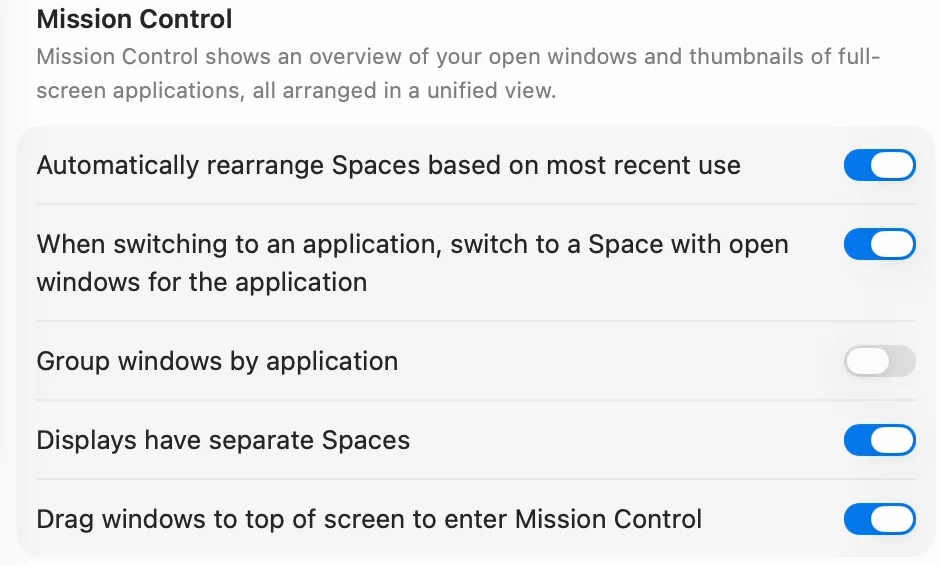
Turning it off means giving some things up. Apple says: “This option must be turned on if you want to use apps in Split View on your other displays or use Stage Manager.” Split View lets you use two apps side by side. Stage Manager gathers your open windows at the side of the screen so you can switch between them.
The text built into macOS adds two more things. One is “Window tiling requires “Displays have separate Spaces” to be enabled.” (Window tiling fills the screen with windows placed side by side.) The other is “Requires log out”, shown for changing the setting.
At Wada Digital Lab, we tried turning this setting off. The Dock then stayed on one screen. But while we were working on the other screen, we had to move the mouse all the way over to the screen with the Dock. That was too much trouble, so we turned it back on.
Here is how on and off compare:
| What changes | On | Off |
|---|---|---|
| Where the Dock appears | On the screen where you move the pointer to the very bottom (with the Dock at the bottom) | On the main display only |
| Stage Manager, and Split View on your other display | Available | Not available |
| When you work on the other screen | Bring up the Dock at the bottom edge of that screen | Move the pointer over to the main display |
Changing it requires logging out, so save the documents you are working on first. Which one is easier depends on how you use your screens.
If nothing shows up, check your Mac’s specifications for how many displays it supports
If the external display stays blank after you connect it, your Mac model may support only a certain number of displays. Apple says: “Next, you need to determine whether your Mac supports the number of displays you want to connect.”
- Choose Apple menu > System Settings
- Click Help in the menu bar, then choose “[your Mac’s name] Specifications” (“MacBook Air Specifications” on the Mac we recorded on)
- Scroll down to “Display Support” (or “Video Support”)
We looked at the specifications for the Mac we recorded on, too. The model is MacBook Air (15-inch, M4, 2025). The “Display Support” section says that, together with the built-in display, it supports “Up to two external displays with up to 6K resolution at 60Hz”.
Sometimes a display stays blank even though your Mac supports enough displays. Apple says that if you press and hold the Option key in Displays, a Detect Displays button appears in place of the Night Shift button. Click it, and your Mac looks again for the displays you connected. We did not try this while recording.
Check your work: if these three look right, you are done
Compare your Mac with the table below.
| What to check | You are done when |
|---|---|
| The pictures in “Arrange…” | They are in the same order as on your desk, and the pointer moves to the next screen across the edges where they touch |
| The Dock | With “Displays have separate Spaces” on and the Dock at the bottom of the screen, it appears on the screen where you move the pointer to the bottom edge. If you turned the option off, it appears on the main display only |
| Text on the external display | It is big enough to read easily, and the text on your MacBook has not changed |
Frequently asked questions
Can I make the text bigger on the external display only?
Yes. You choose the resolution for each screen separately. In Displays, select the picture of the external display, then choose an option toward “Larger Text”. Only the external display changes.
I can’t find the “Arrange…” button
“Arrange…” appears only while an external display is connected. If one is connected and you still can’t find it, look at the bottom right of the Displays window. On the Mac we recorded on, it was at the bottom right of the window, below “Advanced…” and “Night Shift…”.
The screen went black after I changed the resolution
Don’t panic; wait. Apple says: “Wait 15 seconds to see if your Mac resets the display resolution on its own. If it doesn’t, press Esc (Escape) to revert your display to the previously selected resolution.”
The resolutions appear as a list, not as pictures
The view has switched to a list. Apple says: “To switch back to the thumbnail view, Control-click the list view and choose Show Thumbnails.” Once you are back to the pictures, the “Larger Text” and “More Space” labels appear again.
If you want to change more Dock settings
To hide the Dock, make it smaller, or put back an icon you removed, see our article on Mac Dock settings. Hiding the Dock with three keys gives you more room on the screen.
Watch the same steps on a Mac (video)
This video goes through the settings above one at a time on a Mac screen. If you would rather watch than read, try this.

What we tested on, and Apple’s pages
The pictures in this article were taken on this Mac:
- Model: MacBook Air (M4)
- macOS: macOS Tahoe 26.6.2
- External display: EIZO EV2740X (4K)
- Dates: October 7 and 8, 2026 (we tried and recorded the steps with the Mac set to Japanese) and October 9, 2026 (we recorded them again with the Mac set to English)
We used a separate user account on this Mac made for recording, and the page open on the external display is a sample we made for the recording. Only one external display was connected while we recorded. The pictures in this article come from the October 9 recording in English.
We tried these on this Mac:
- Selecting the external display and switching its resolution from “Default” to “Larger Text” (set back afterward)
- Switching between the pictures of the built-in display and the external display
- Opening the “Use as” menu
- Reversing the pictures in “Arrange…” and watching where the pointer goes (in the Japanese recording; put back afterward)
- Dragging the strip at the top of a picture in the “Arrange Displays” window (in the Japanese recording; the main display did not change)
- Switching the main display with “Use as” (switched back afterward)
- Moving the pointer to the very bottom of a screen to bring up the Dock (in the Japanese recording)
- Reading “Display Support” in the specifications
We did not switch “Displays have separate Spaces” while recording. What happened when we turned it off is from the Mac we use every day at Wada Digital Lab. We did not try Detect Displays.
The steps and quotes come from these Apple pages. We checked the quotes word for word against the current pages on October 12, 2026. The instructions in the “Arrange Displays” window and the line “Using a scaled resolution may affect performance.” under the resolution options are what the screen showed in our English recording. The two lines about window tiling and logging out come from the English text built into macOS on the same Mac.
- Displays settings on Mac (Mac User Guide)
- Change your Mac display’s resolution (Mac User Guide)
- Extend or mirror your Mac desktop across multiple displays (Mac User Guide)
- Change Desktop & Dock settings on Mac (Mac User Guide)
- Connect one or more external displays with your Mac (Mac User Guide)
- Use the Dock on Mac (Mac User Guide)
- MacBook Air (15-inch, M4, 2025) - Tech Specs (Apple Support)