MacBook Battery: Make It Last Longer — Stop at 80% Even When Plugged In
Published October 6, 2026 (updated October 14, 2026)
Steps checked October 15, 2026 (MacBook Air (M2), macOS Golden Gate 27.0.1)
By Wada Digital Lab
You can make your MacBook stop charging at 80%. The setting is called Charge Limit. To find it, open System Settings, click Battery, then click the info button next to Charging. It arrived in macOS Tahoe 26.4. If you keep your Mac plugged in at your desk, it spends a long time fully charged. Cutting that time down reduces wear on the battery.
There is also a video that walks through the same settings on a Mac: MacBook Battery: Make It Last Longer (YouTube, 5:12).
Key points
- Charge Limit sets what your Mac considers a full charge (Apple’s description). Set it to 80%, and your Mac stops charging at around 80% even while plugged in (Apple says it charges “to within a few percentage points” of the limit).
- You find it in System Settings > Battery, behind the info button next to Charging. It works on a Mac with Apple silicon (such as M1 or M4) running macOS Tahoe 26.4 or later.
- Turn on Optimized Battery Charging in the same window, too.
- For days when you need one charge to last longer away from power, set Low Power Mode to Only on Battery, and use Options… to dim the display slightly.
- On a MacBook Air (M4) with macOS Tahoe 26.6.2, we checked the day after setting it: still plugged in, the battery had stopped at 80%.
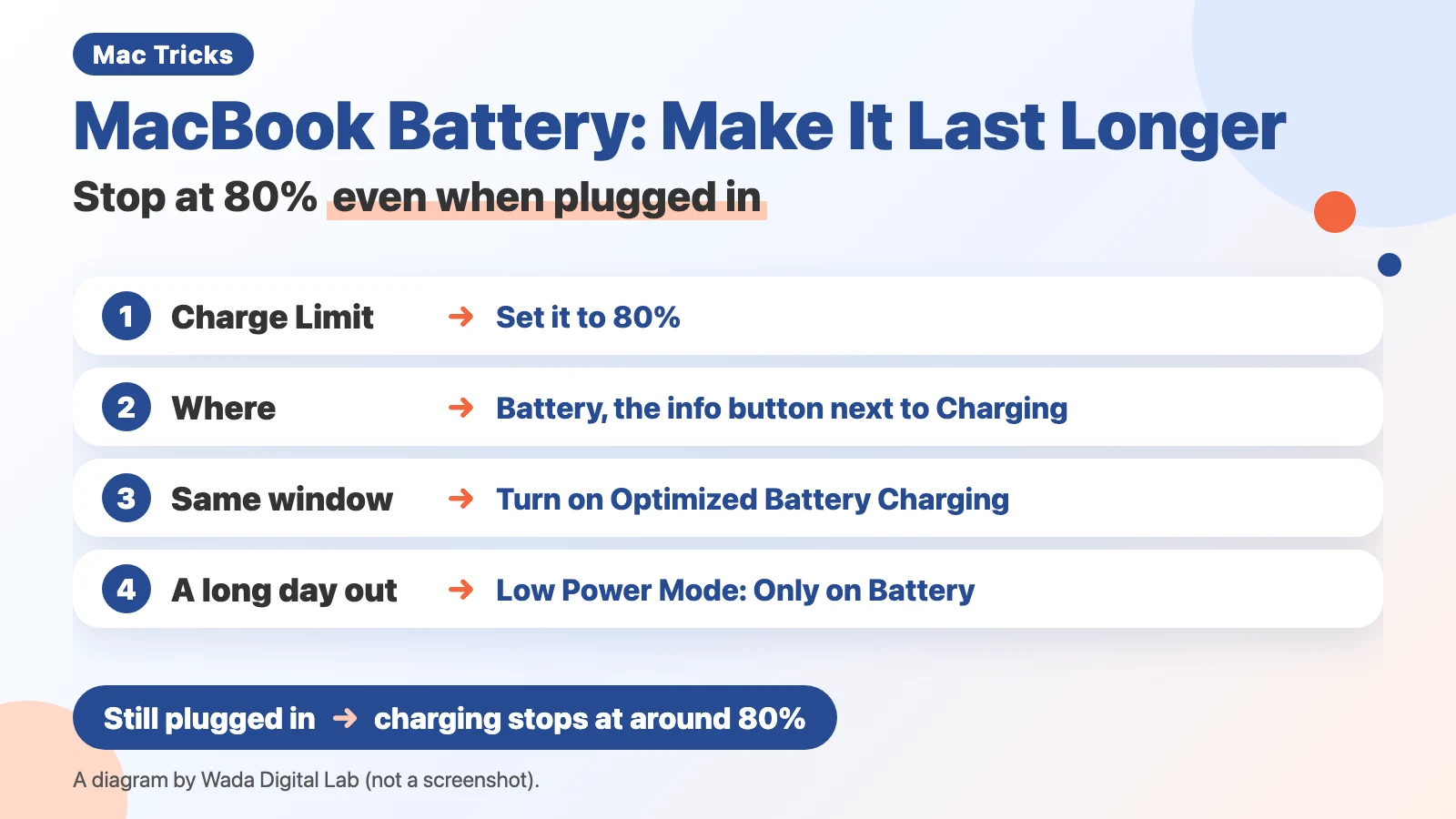
The diagram below sums up the settings that stop charging at 80% even when plugged in (not a screenshot).
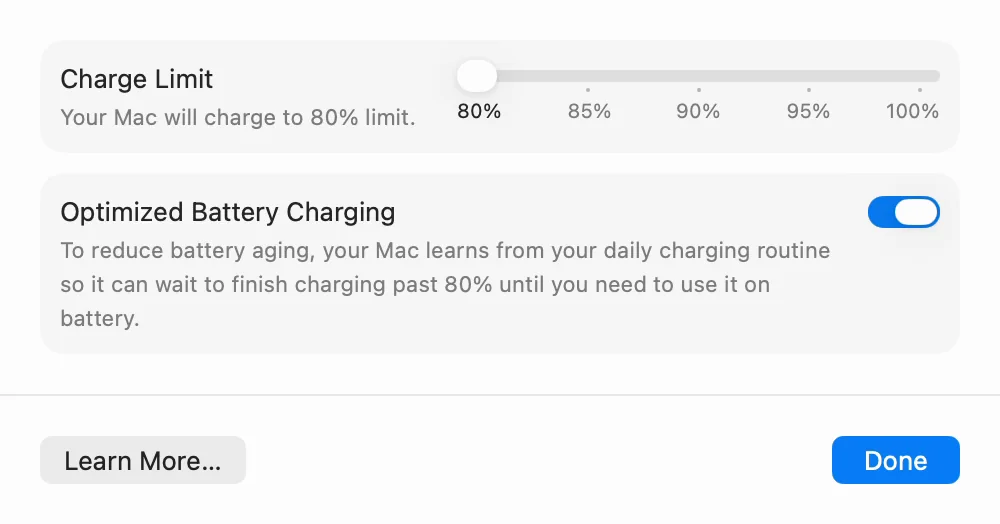
The next picture shows the screen after setting Charge Limit to 80%.
Apple splits making a battery “last longer” into two things. Apple’s battery page defines battery life as “the amount of time your device runs before it needs to be recharged”, and battery lifespan as “the amount of time your battery lasts until it needs to be replaced.” In short, battery lifespan is how many years until the battery needs replacing, and battery life is how many hours your Mac runs on one charge. The next diagram sorts the four settings in this article into these two.
Battery lifespan
How many years until the battery needs replacing
Settings
Charge Limit
Optimized Battery Charging
Battery life
How many hours your Mac runs on one charge
Settings
Low Power Mode
Slightly dim the display on battery
Set Charge Limit to 80% (if you keep your Mac plugged in)
If your Mac spends a lot of time plugged in, start with this setting. Apple’s page says to “Use Charge Limit to set a limit on what your Mac considers a full charge.” Set it to 80%, and your Mac treats 80% as full. Apple’s page goes on: “Your Mac will charge to within a few percentage points of the charge limit, then stop charging”.
Charge Limit needs a Mac with Apple silicon (such as M1 or M4) running macOS Tahoe 26.4 or later.
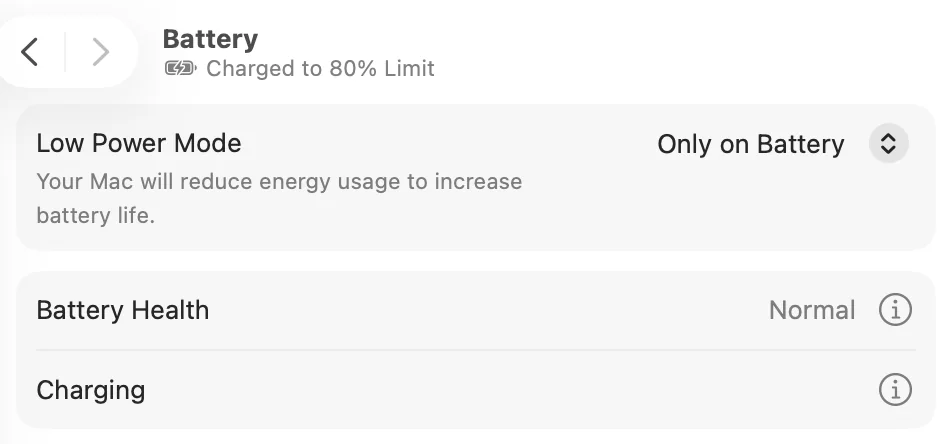
The next picture shows the top of the Battery screen. At the right end of the Charging row is a small “i” in a circle (Apple calls it the info button).
- Choose Apple menu > System Settings
- Click Battery in the sidebar
- Click the info button next to Charging (if there is no Charging row, click the one next to Battery Health)
- Move the Charge Limit slider all the way left to 80%
- Click Done
On the Mac we used for recording, Charge Limit was a slider with five marks: 80%, 85%, 90%, 95% and 100%. When we moved it, the line under the name changed from “Your Mac will charge to 100% limit.” to “Your Mac will charge to 80% limit.” That one line tells you the current limit.
If you often use your Mac away from power, 85% or 90% is fine too. You get more time out of each charge.
If you cannot find Charge Limit, at least turn on Optimized Battery Charging (next section). Charge Limit is not supported on Intel-based Macs, or on macOS versions earlier than Tahoe 26.4, such as macOS 15 (Sequoia). On a Mac with Apple silicon, updating macOS adds the setting. For the steps, and what to check before you update, see How to Update to macOS 27.
Turn on Optimized Battery Charging in the same window
This switch sits just below Charge Limit, in the same window (the one that opens when you click the info button next to Charging). If it is off, turn it on and click Done. If it is already on, leave it. On the Mac we used for recording, this switch was off at first. It is worth checking on your own Mac.
This feature learns your daily charging routine. Apple’s page says it can “delay charging past 80% in certain situations, such as when it predicts that your Mac will be connected to power for an extended period of time.” While charging is delayed, “Charging On Hold” appears when you click the battery icon in the menu bar. That is not a fault. It means the feature is working.
The next day, it had stopped at 80% while plugged in
The day after we set it (September 28, 2026), we checked the battery on the Mac we used for recording around noon. It was still plugged in, and the battery was at 80%. It was not charging. (We checked this by reading the battery status as text in Terminal, an app that comes with the Mac.)
Apple’s page says that once your Mac is charged to near the limit, it stops charging and shows “Charged to [%] Limit” in the battery status menu. The [%] is the limit you chose, so with 80% it reads “Charged to 80% Limit”. On October 6, 2026, the top of the Battery screen on the same Mac also said “Charged to 80% Limit” (the picture above).
On days you want 100%, choose “Charge to Full Now”
If you want a full 100% on a day you are going out, you do not have to change the setting back. Once the battery has charged to the limit, keep your Mac plugged in, click the battery icon in the menu bar, and choose “Charge to Full Now”. Apple’s page says to choose it from the battery status menu “If your Mac is charged to the limit but you need it to be charged to 100%”. When “Charging On Hold” is showing, the same item charges it to 100% sooner (Apple’s page).
Even with a limit set, your Mac sometimes charges to 100%. Apple explains why: it keeps the Mac’s estimate of how full the battery is correct. That is expected behavior.
Keep it out of places hotter than 95°F (35°C)
Besides the settings, watch the temperature where you leave your Mac. Apple’s battery page says: “MacBook works best at 50° to 95° F (10° to 35° C) ambient temperatures.” For all its devices, Apple adds: “It’s especially important to avoid exposing your device to ambient temperatures higher than 95° F (35° C)”. Think of a car in summer, or a sunny windowsill.
In the cold, on the other hand, the battery may run down faster. Apple’s page says this is temporary. Once the battery warms back up, it lasts as long as before.
Three settings to make one charge last longer away from power
From here on, it is about battery life: how long your Mac runs on one charge. These help on days when you are out without your charger.
Set Low Power Mode to “Only on Battery”
Low Power Mode is at the very top of the Battery screen in System Settings. From the pop-up menu on the right (a box that shows a list of choices when you click it), choose “Only on Battery”. As the text on the screen says, “Your Mac will reduce energy usage to increase battery life.” With this choice, it only works when your Mac is not plugged in.
On some MacBook Pro models, this row is called Energy Mode instead of Low Power Mode. If you see Energy Mode on your screen, use these steps instead. Energy Mode has two pop-up menus: “On battery” and “On power adapter”. Choose Low Power in the “On battery” menu.
Dim the display slightly with “Options…”
On the same Battery screen, there is an Options… button at the bottom right. The first item in the window it opens is “Slightly dim the display on battery”. If it is off, turn it on and click Done. On the Mac we used for recording, it was already on.
The next picture shows the window that opens when you click Options….
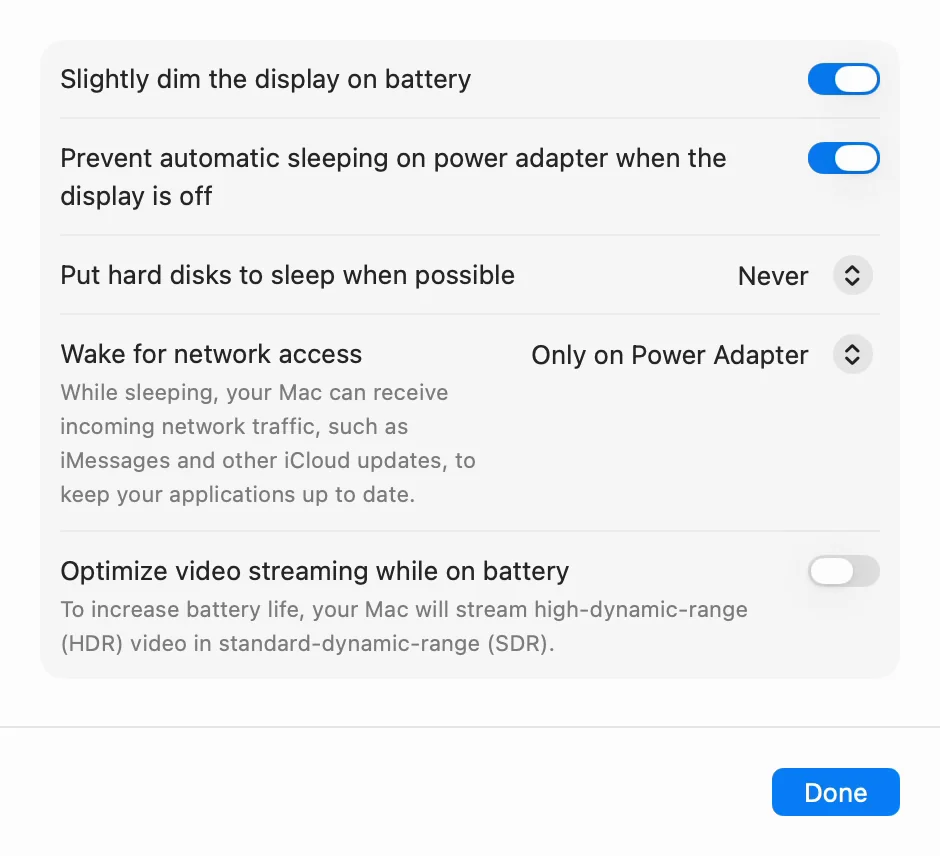
At the bottom of the same window is “Optimize video streaming while on battery”. Our video does not cover it. Apple’s page says it will “play high-dynamic-range (HDR) video in standard dynamic range (SDR), which requires less energy” while on battery power. In other words, videos made with a wider range of brightness (HDR) are played in the ordinary format (SDR), which uses less power. If you often watch videos away from power, you may want to turn it on (it was off on the Mac we used for recording).
Use the battery icon to see which apps use a lot of energy
The last one is not a setting but a place to look. When your Mac is not plugged in, click the battery icon in the menu bar. Apple’s page says this menu shows “Which apps, if any, are using a lot of energy.” If an app you are not using is listed, quit it.
On the day we recorded (September 27, with the Mac set to Japanese), we unplugged the MacBook Air and clicked the battery icon. The menu showed “Power Source: Battery”, then “Low Power” under “Energy Mode”, and the battery icon itself turned yellow. No apps were listed. Instead, it said “No Apps Using Significant Energy”. If you see that line, there is nothing to quit. (We saw this menu in Japanese. The English names here come from the English text built into macOS on this Mac.)
We noticed one more thing. On this MacBook Air, the setting in System Settings was called Low Power Mode. Yet the battery menu in the menu bar listed “Low Power” under “Energy Mode”. The names differ between the settings and the menu, but if the menu says “Low Power”, Low Power Mode is on.
Check your work: these four settings
Compare the Battery screen on your Mac with the table below. The first two help your battery last more years before it needs replacing (battery lifespan). The last two help your Mac run longer on one charge (battery life).
| Setting | Where | What to choose |
|---|---|---|
| Charge Limit | Battery, then the info button next to Charging | 80% |
| Optimized Battery Charging | The same window as Charge Limit | On |
| Low Power Mode (Energy Mode on some MacBook Pro models) | The top of the Battery screen | Only on Battery (with Energy Mode, Low Power under “On battery”) |
| Slightly dim the display on battery | Options… on the Battery screen | On |
If your Mac has no Charge Limit, the other three are all you need. On days you want 100%, wait until it has charged to the limit, keep it plugged in, and choose “Charge to Full Now” from the battery icon in the menu bar.
Watch the same settings on a Mac (video)
This video goes through each setting on a Mac screen. If you would rather watch than read, try this.
What we tested on, and Apple’s pages
The pictures in this article were taken on this Mac:
- Model: MacBook Air (M4)
- macOS: macOS Tahoe 26.6.2
- Dates: September 27, 2026 (we changed the settings and recorded them with the Mac set to Japanese), September 28 (we checked that it had stopped at 80%) and October 6 (we took the three pictures again with the Mac set to English (US))
We actually changed Charge Limit, Optimized Battery Charging and Low Power Mode on this Mac. We did not click “Charge to Full Now”. What the battery status menu shows for “Charged to [%] Limit”, “Charging On Hold” and “Charge to Full Now” comes from Apple’s page. The “Charged to 80% Limit” in our October 6 picture is at the top of the Battery screen in System Settings, not in the menu.
For the October 6 pictures, we used a separate user account on the same Mac, made for recording, set to English (US). We opened the Charging window and the Options window and checked the screens, without changing any settings. We have not yet taken a picture of the battery menu in the menu bar in English. The names in that part (Power Source: Battery, Energy Mode, Low Power, No Apps Using Significant Energy) come from the English text built into macOS on this Mac. We checked the other names the same way. Note the US spelling: US English says “Optimized Battery Charging” and “Optimize video streaming while on battery”, while UK English spells them “Optimised” and “Optimise”. All three pictures use the US spelling.
On October 15, 2026, we checked the screens again on a MacBook Air (M2) with macOS Golden Gate 27.0.1, using recording accounts. The Battery screen (in English (US)), and the Charge Limit window (marks at 80%, 85%, 90%, 95% and 100%) and the Options window (in Japanese), had the same names and order as on macOS Tahoe 26.6.2. We did not change any settings that day, so we did not test stopping at 80% again.
The steps and quotes come from these pages. We checked the quotes word for word against the current pages on October 6, 2026.
- About Optimized Battery Charging and Charge Limit on Mac (Apple Support)
- Change Battery settings on a Mac laptop (Mac User Guide, macOS Tahoe 26)
- What is the Battery Status menu on Mac? (Mac User Guide, macOS Tahoe 26)
- About Power Modes on your Mac (Apple Support)
- Maximizing Battery Life and Lifespan (Apple)
October 14, 2026: Added a link to the article on how to update macOS.