How to Use Time Machine on Mac — Back Up and Restore Deleted Files
Published October 20, 2026
Official documentation reviewed October 19, 2026 (some steps not tested)
By Wada Digital Lab
You can back up your Mac with Time Machine, which is built into macOS. Connect an external disk, open System Settings, go to General, then Time Machine, click Add Backup Disk, choose the disk, and click Set Up Disk. After that, your Mac makes a backup every hour on its own. If you delete a file by mistake, and there is a backup from before you deleted it, open Time Machine, go back to a time before you deleted it, and click Restore. The file goes back to where it was.
There is also a video that walks through the same steps on a Mac: How to Use Time Machine on Mac — Back Up and Restore Deleted Files (YouTube, 4:37).
Key points
- All you need is one external disk. Apple recommends a disk with at least twice the storage of your Mac.
- To set it up, choose Apple menu > System Settings > General > Time Machine, click Add Backup Disk, choose the disk, then click Set Up Disk.
- After that, a backup is made automatically every hour. To make one right away, choose Back Up Now from the Time Machine menu in the menu bar.
- On a MacBook, check “Back up on battery power” in Options. While it is off, hourly backups are not made when the power cable is unplugged.
- To get back a deleted file, open the folder it was in, open Time Machine, choose a time before you deleted it, and click Restore. The file returns to where it was. This works only if a backup was made before you deleted it.
The diagram below sums up how to set up Time Machine and how to get a deleted file back (not a screenshot).
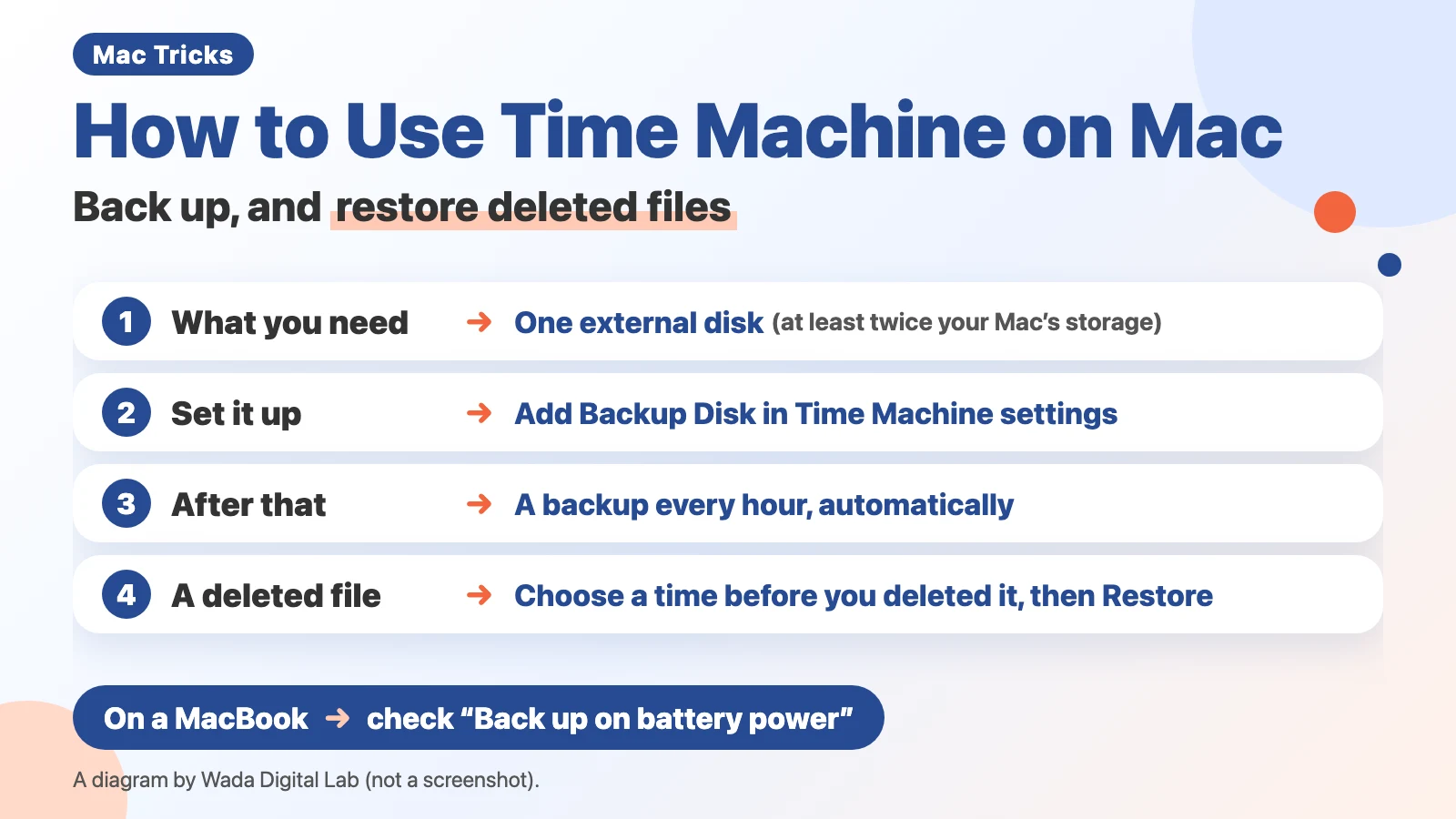
What you need: one external disk, at least twice the size of your Mac’s storage
Time Machine is the backup feature built into your Mac. You need one external disk, such as a USB drive, to hold the backups. About size, Apple’s page says: “Use a storage device with at least twice the storage capacity of your Mac.” If your Mac has 512 GB of storage, aim for 1 TB or more.
Apple also recommends using this disk only for Time Machine. Keep your other files on a different disk.
Disks come in two kinds: hard disks and SSDs (solid-state drives, which store data on chips instead of a spinning disk). At Wada Digital Lab, we used to back up to a hard disk. It took too long, so we switched to an SSD. SSDs cost more.
| Disk | Good point | Downside |
|---|---|---|
| Hard disk | Cheaper for the same size | At Wada Digital Lab, backups felt too slow |
| SSD | At Wada Digital Lab, we switched to one because the hard disk was too slow | Costs more for the same size |
Set it up in General in System Settings. Choose the disk and it starts
Here is the whole setup:
- Connect the external disk to your Mac.
- Choose Apple menu > System Settings, click General in the sidebar, then click Time Machine on the right.
- Click Add Backup Disk.
- Select the disk you connected, then click Set Up Disk.
- If a window with options such as encryption appears, set them, then click Done.
The picture below shows step 4. The disk we connected is selected, and Set Up Disk is in the bottom right.
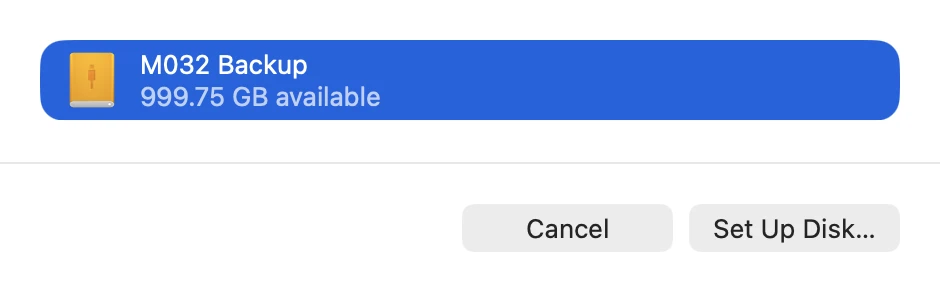
Your Mac may ask whether it can erase the disk. Apple’s page says: “Your Mac might ask if you want to erase the storage device so that it can be used for Time Machine.” If the disk has important files on it, stop here and use a different disk.
If you turn on Encrypt Backup, you are asked to choose a password. This keeps other people from reading your backup. About leaving it off, Apple’s page says: “If you back up to an external disk and don’t use disk encryption, any person who gains possession of that disk can read any data backed up to that disk.” In case the disk is lost or stolen, it is safer to turn it on.
About the password, Apple’s page says: “You will need it if you later attempt to restore files from the backup.” If you forget it, you cannot get your files back, so write it down. Our own Mac at Wada Digital Lab has encryption turned on.
When setup is done, the first backup starts right away. Apple’s page says: “The first backup might take longer than you expect, but you can continue using your Mac while a backup is underway.” After that, only the files that changed since the last backup are copied, so later backups are faster.
On the Mac we used for recording, we could not measure exactly how long it took from erasing the SSD and setting it up again until the first backup finished. Our record did not show when the backup started. The disk was an SSD. How long it takes varies a lot depending on your Mac, whether you use a hard drive or an SSD, and how much data is on your Mac.
The picture below is the Time Machine screen during that first backup. It shows how far the backup has gone. The add button (+) for a second disk and the Options button are also on this screen.
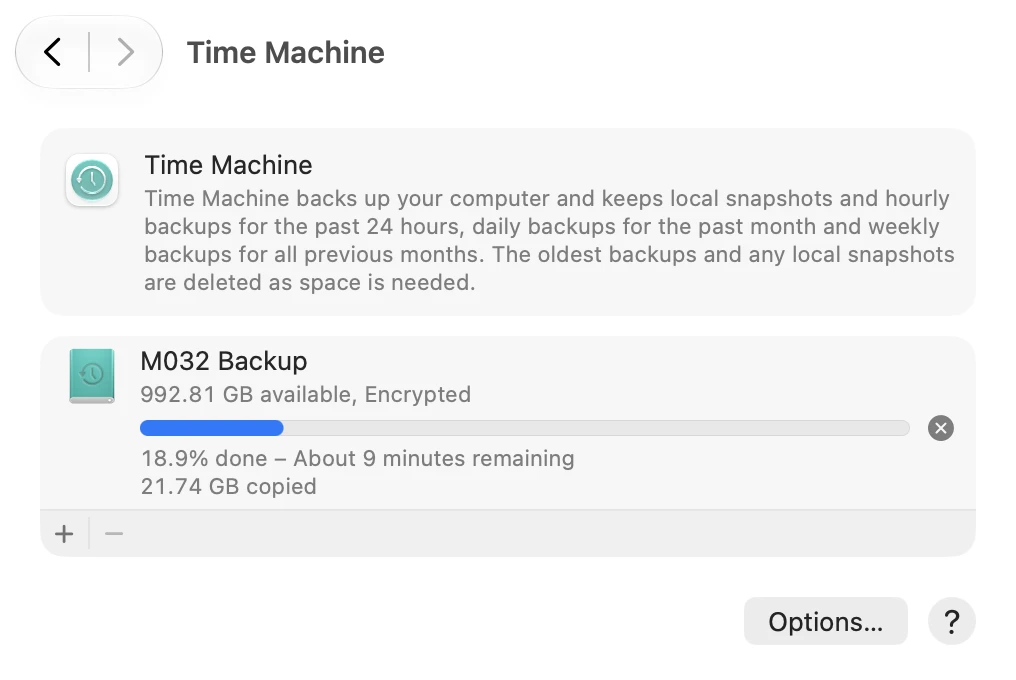
After that, every hour on its own. To back up right now, use Back Up Now
Once it is set up, your Mac makes backups by itself. You can choose how often in Backup Frequency in Options. The menu has these four choices:
- Automatically Every Hour (the Mac we used for recording was set to this)
- Automatically Every Day
- Automatically Every Week
- Manually (only when you choose to back up)
If you want a backup right away, for example just after making an important file, choose Back Up Now from the Time Machine menu in the menu bar. If the Time Machine icon is not in the menu bar, open System Settings, click Control Center in the sidebar, then choose “Show in Menu Bar” from the pop-up menu next to Time Machine.
Old backups are kept on a schedule too. Apple’s page says: “Time Machine automatically makes hourly backups for the past 24 hours, daily backups for the past month, and weekly backups for all previous months.” It also says: “The oldest backups are deleted when your backup disk is full.” You do not need to delete old backups yourself.
On a MacBook, check “Back up on battery power”
On a MacBook, there is one more place to check: “Back up on battery power” in Options on the Time Machine screen. While it is off, hourly backups are not made when the power cable is unplugged, even if the disk is connected. To make the battery itself last longer, see our article on MacBook battery settings.
About turning it on, Apple’s page says: “Turn on to create backups every hour even if your Mac is on battery power.” This option only appears on a Mac laptop, when an automatic backup schedule is selected.
The picture below is what you see after clicking “Options…”.
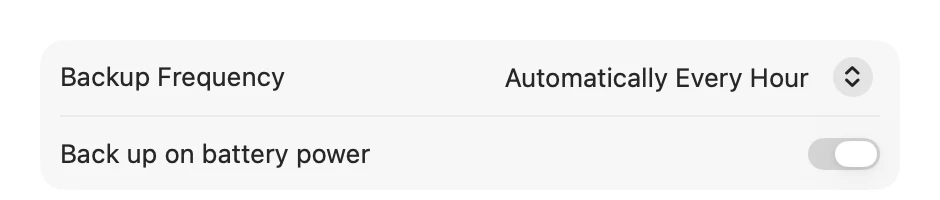
This setting was not the same on every Mac we checked. On our own MacBook Air (M4), it was off. On the recording Mac, it was on in both the English-language and the Japanese-language recording accounts. Open it once and see which it is on your Mac.
Whether to turn it on depends on how you use your Mac:
- You often use it on battery with the disk connected: turning it on is safer.
- You usually use it plugged in: leaving it off is fine.
We used to take our MacBook to coffee shops a lot. Now we keep it plugged in most of the time, so backups keep happening even with this off. Our first disk stays connected all the time.
When the disk is not connected, no backup is made to it. Apple’s page says: “If your Mac is in sleep mode or your backup disk isn’t available when it’s time for a scheduled backup, the backup isn’t performed.” In the meantime, on disks that use Apple File System (APFS), your Mac still makes a local snapshot every hour and keeps it for up to 24 hours, or until the disk needs the space. Apple’s page says you can use it “to recover previous versions of files, even if your backup disk is not attached.” But it is stored on the same disk as your files, so it does not help if the Mac itself breaks. Think of it as separate from a backup to your disk.
Get deleted files back by going back in time in Time Machine and clicking Restore
Here is how to get back a deleted file. Even after you empty the Trash, you can get it back if there is a backup from before you deleted it.
- In the Finder, open the folder the file was in. If it was on the desktop, you don’t need to open a window.
- Press Command and Space at the same time to open Spotlight, type “Time Machine” and open it.
- Use the arrows next to the window to go back to a time before you deleted the file. The time you are looking at is shown in red in the timeline on the right.
- Select the file you want back, then click Restore.
The picture below shows the buttons at the bottom of the Time Machine screen. Select the file first, then click Restore on the right.

About where the file goes, Apple’s page says: “Restored items return to their original location.” You can also select a whole folder and restore it.
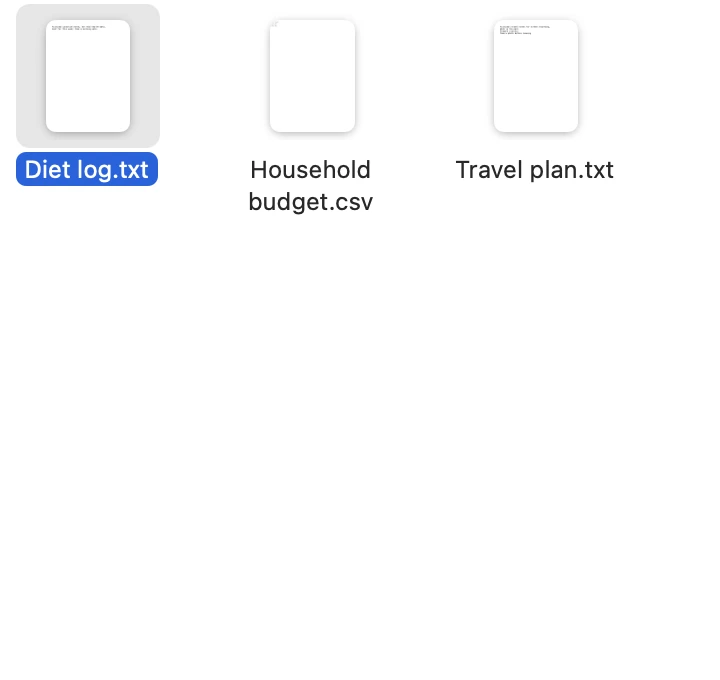
We tried it on the recording Mac with the English-language account. We moved a dummy file, “Diet log.txt”, to the Trash. After we clicked Restore, it was back in its original folder, and its contents were the same as before. On that Mac, we opened Time Machine from a shortcut in the Finder sidebar, not from Spotlight.
The picture below is the folder after the restore. The deleted file is back.
At Wada Digital Lab, we have backed up with Time Machine ever since we started using a Mac in November 2020. We have restored a single file, picked an older version to restore, and restored a whole Mac, many times. With the PC we used before, restoring from a backup failed several times. With Time Machine, we have been able to restore many times.
To restore your whole Mac, use Migration Assistant
If you want to restore everything, including apps and your user account, not just a few files, use Migration Assistant. Apple’s page says: “If you made a Time Machine backup of your Mac, Migration Assistant can use that backup to restore all of your personal files, including your apps and everything in your user account.” You can use it the same way to move to a new Mac. If your Mac does not start up and you need to reinstall macOS first, reinstall it, then use Migration Assistant.
Add a second disk in case the first one breaks
The backup disk itself can break too. Time Machine can use two or more disks. Apple’s page says: “Time Machine rotates the backup schedule among the disks.” To add a second disk, click the add button (+) on the Time Machine screen.
We worry about a disk breaking too, so we sometimes back up to a second disk with Time Machine. The first disk stays connected, and we connect the second one from time to time.
The diagram below sums up the steps in three parts. Just once: connect the disk, then choose it with Add Backup Disk. The first backup starts right away. After that, every day, backups are automatic every hour, so there is nothing to do. On a MacBook, check Options too. If you delete something, here is how to get it back: open Time Machine and restore from before you deleted it. It goes back where it was.
Just once
Connect the disk Choose it with Add Backup Disk
The first backup starts
After that
Every day
Automatic every hour On a MacBook, check Options too
Nothing to do
If you delete something
To get it back
Open Time Machine Restore from before you deleted it
It goes back where it was
What you want to do, and where to click
| What you want to do | Where | What to click |
|---|---|---|
| Start backing up | System Settings > General > Time Machine | Add Backup Disk → choose the disk → Set Up Disk |
| Back up right now | The Time Machine menu in the menu bar | Back Up Now |
| Change how often | Options on the Time Machine screen | Backup Frequency |
| Back up on battery on a MacBook | Options on the Time Machine screen | Turn on “Back up on battery power” |
| Get a deleted file back | Time Machine, opened from Spotlight | Go back with the arrows → Restore |
| Restore the whole Mac | Migration Assistant | Choose your Time Machine backup |
| Use two disks | System Settings > General > Time Machine | Add button (+) → choose the second disk |
Frequently asked questions
Can I back up to a USB flash drive?
Apple’s page mentions “an external storage device, such as a USB drive or Thunderbolt drive”. What matters is the size. You need at least twice your Mac’s storage, so a small flash drive is often not enough.
Can I use my Mac during a backup?
Yes. Apple’s page says about the first backup: “you can continue using your Mac while a backup is underway.”
Do backups stop if I unplug the disk?
While the disk is unplugged, no backup is made to it. When you plug it back in, backups start again on their own. Before unplugging it, eject the disk or shut down your Mac.
What if I forget the encryption password?
You need that password to restore files from the backup. If you forget it, you cannot get them back, so write it down when you choose it.
Watch it on video
This video goes through the same steps on a Mac, one at a time. If you’d rather watch than read, try this.
The Macs we checked, and Apple’s pages
- Our own Mac at Wada Digital Lab: MacBook Air (M4), macOS 27.0.1. On October 16, 2026, we checked in its settings that “Back up on battery power” was off, Backup Frequency was every hour, and encryption was on. This Mac is set to Japanese.
- A second Mac we used for recording, with a user account set to English: on October 18, 2026, we erased the SSD and set it up again as a backup disk with encryption, and recorded the first backup. We could not measure exactly how long the first backup took, because the record does not show when it started. On the same day, we moved a file to the Trash and got it back with Restore in Time Machine. In the Options window, “Back up on battery power” was on.
- The same recording Mac, with a user account set to Japanese: on October 18, 2026, we saw the four choices in Backup Frequency and the “Back up on battery power” switch turned on. The English names of the four choices come from the English text built into macOS.
What we have not tried on screen: restoring after emptying the Trash, opening Time Machine from Spotlight, and restoring a whole Mac with Migration Assistant. These three come from the steps on Apple’s pages.
Apple’s pages: