The PDF's paper size changed after OCR — check on your Mac whether the page was rebuilt
Published October 5, 2026 (updated October 17, 2026)
Steps checked August 23, 2026 (MacBook Air (M4), macOS Tahoe 26.5.2)
By Wada Digital Lab
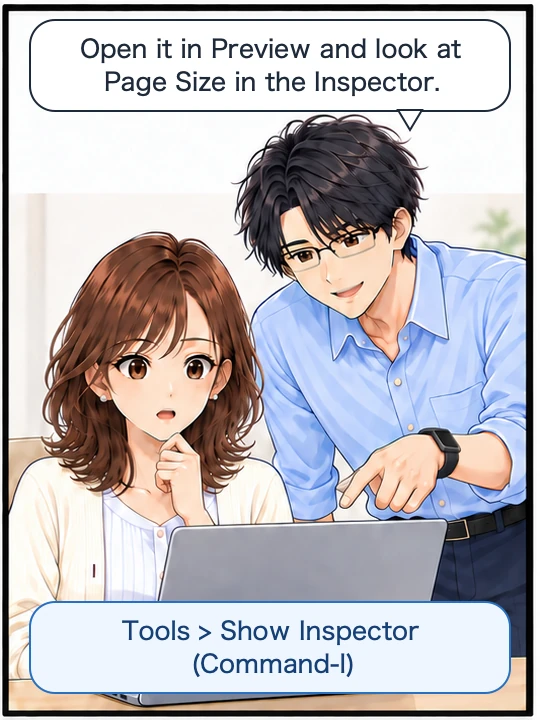
If the paper size of a scanned PDF changed after you ran text recognition on it (OCR: recognizing the text in an image of the page and turning it into text data), the most likely cause is that the method you used did not keep the original page. It rebuilt the page from the image it used for reading. If you saved over the original file without keeping a copy, you cannot get the original page back from the rebuilt one, so next time keep a separate copy of the original before you start. You can check the paper size of any PDF on your Mac: open it in Preview, choose Tools > Show Inspector, and look at the Page Size line in the window that appears (a window that shows information about the PDF).
Key points
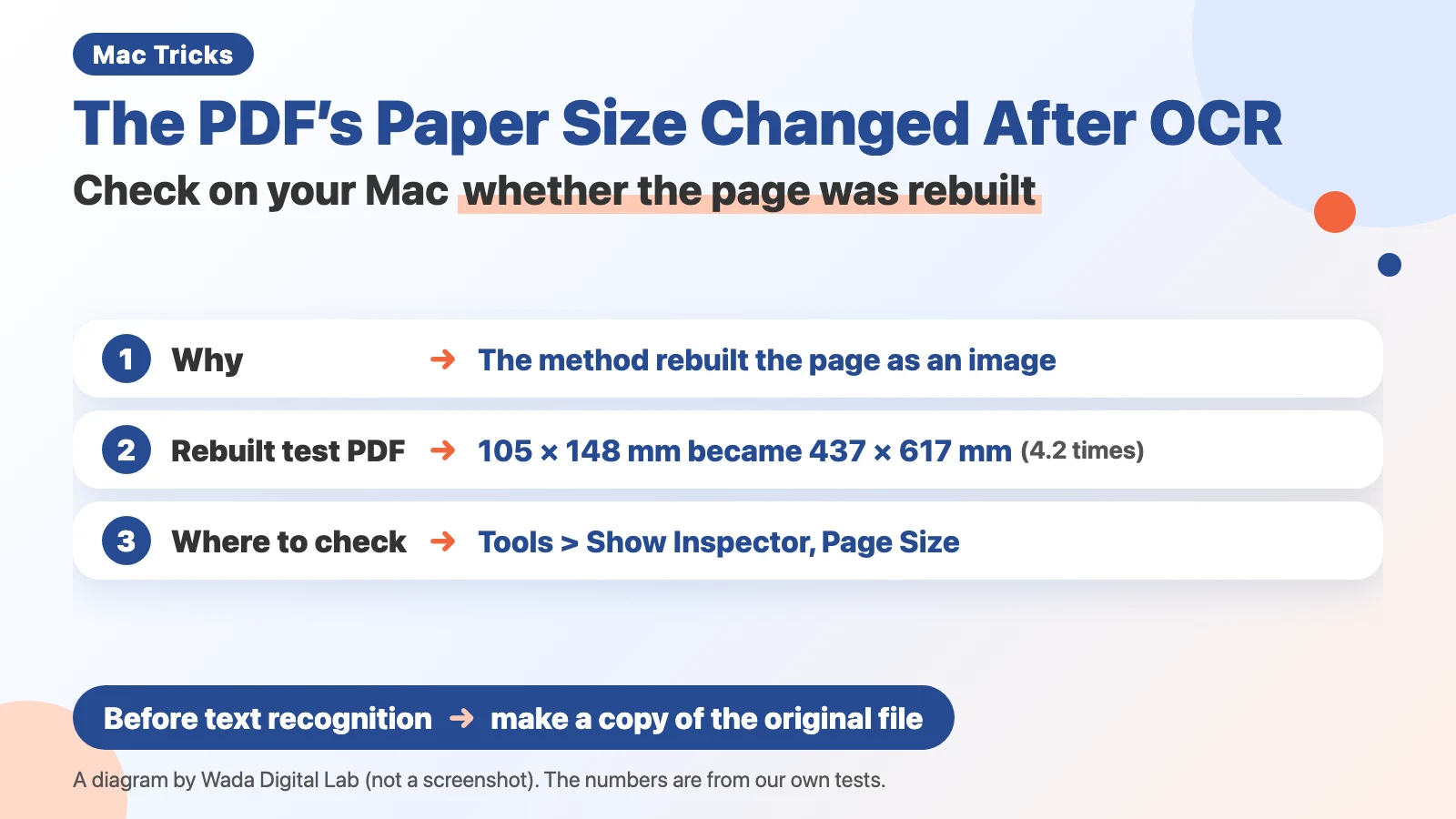
- The paper size changes after text recognition when the method rebuilds the page as an image. There is another method that keeps the original page and only lays the text on top.
- In a test PDF we made, a 105 × 148 mm page (about 4.1 × 5.8 inches), about the size of a postcard, became 437 × 617 mm (about 17.2 × 24.3 inches; 4.2 times wider and taller). The image of the page inside stayed at 1240 × 1748 pixels.
- To see the paper size in Preview, choose Tools > Show Inspector and look at the Page Size line. On the Mac we used, it was shown in centimeters.
- If a postcard-sized document fills the screen when you choose View > Actual Size, that is a sign the paper size has changed (as long as you have not changed “Define 100% scale as” in Preview’s settings). To be sure, look at the Page Size numbers.
- If you save over the original file without keeping a copy, you cannot get the original page back from the rebuilt one. Make a copy of the original file before you run text recognition.
The diagram below sums up why the paper size changes and where to check it (not a screenshot).
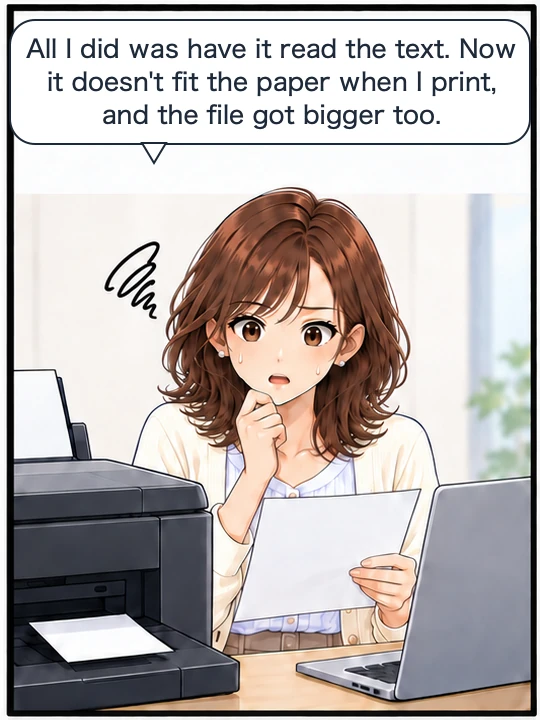
You can now select and copy the text. But the file is larger than before. When you try to print it, the paper setting is wrong. Even the size it appears on screen seems to have changed. All you did was add text, yet this can happen.
The next comic shows someone trying to print a PDF after text recognition, only to find the paper size no longer fits.
Swipe sideways to see the next panel.
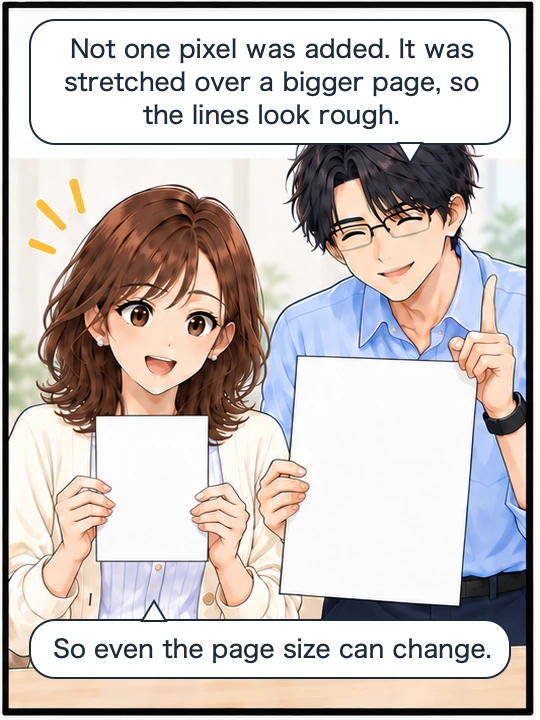
The paper size changes when the method rebuilds the page as an image
Recognizing the text always starts the same way, whatever the method: the page is first looked at as an image. The difference comes after that.
- Keep the original page as it is, and lay the recognized text on top as an invisible layer
- Rebuild the page from the image used for reading, and put the text on that
A PDF made the second way no longer has the original page. The paper size and the fineness of the image move together. The file size may change too, but the file size alone does not tell you which method was used.
A postcard-sized page turned into an A2 poster
Here is how we tested it. We set the text of Rashômon, a short story by Ryûnosuke Akutagawa, in vertical Japanese and made a test PDF in the same form as a scanned page (a PDF containing only an image of the page). We did not print it on paper and scan it. We made, from the text, an image the same size as a paperback page scanned at 300 dpi (300 dots per inch). The author died more than 70 years ago, and the story is published on Aozora Bunko, a Japanese online library of public-domain works.
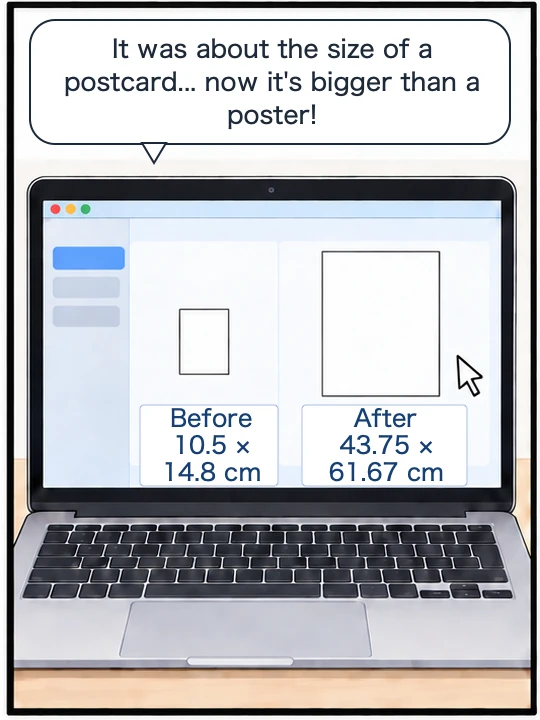
The paper size of this original PDF was 105 × 148 mm (about 4.1 × 5.8 inches), almost exactly the size of a postcard. The image of the page inside was 1240 × 1748 pixels.
What happens when you rebuild the page as an image? If the method takes the number of pixels in the image as the size of the paper, you get the following. The next diagram puts the paper size and the image of the page side by side, for the original PDF and the rebuilt PDF.
Original PDF
105 × 148 mm About the size of a postcard
Image of the page
1240 × 1748 pixels
As it was
Rebuild the page as an image
Rebuilt PDF
437 × 617 mm A little bigger than an A2 poster
Image of the page
1240 × 1748 pixels
About 4.2 times
The paper size of the rebuilt PDF became 437 × 617 mm (about 17.2 × 24.3 inches). That is a little bigger than an A2 poster (about 16.5 × 23.4 inches), about 4.2 times wider and taller, or about 17 times the area. The text set on it is exactly the same as what fitted on the postcard-sized page, which stays as it was in the original PDF.
These numbers come from measuring the single PDF above. They change with the size of the original paper and how finely it was scanned.
Check your PDF’s paper size with Page Size in Preview
You do not need to buy anything; the Mac you already have can check it. It takes three steps.
- Open the PDF in Preview
- In the menu bar, choose Tools > Show Inspector (Command-I)
- Look at Page Size in the window that appears on the right
On the Mac we used, Preview showed the size in centimeters: 105 × 148 mm appeared as “10.5 × 14.8 cm”, and 437 × 617 mm as “43.75 × 61.67 cm”. If you still have the file from before text recognition, open it the same way and compare the numbers. When we compared our two test PDFs, which were the same three-page document made from the same page, the only line in the Inspector that differed was Page Size.
To check how large the file is, select it in the Finder and use Get Info. Apple’s list of keyboard shortcuts says that Command-I in the Finder will “Show the Get Info window for a selected file.”
Apple’s page also says: “You can view information about a document or image, such as file size, the author name, and the image resolution, in the Inspector window.” But it does not say that a PDF’s Page Size can change after text recognition. This line is useful when you have a before and an after file to compare.
The paper size can also differ from page to page. In a document scanned in several batches, only some pages in the middle may have a different paper size. Do not judge from the first page alone; check pages in the middle and at the end too.
No earlier file? Actual Size can still show the change
Maybe you no longer have the file from before text recognition. You can still tell from how it looks on screen. Open it in Preview and choose View > Actual Size in the menu bar. This shows the page on screen at the same size as the paper would be if it were in front of you. Apple says: “By default, PDFs in Preview appear at the same size on screens and in printouts, regardless of the display resolution”.
If you have changed “Define 100% scale as” in Preview’s settings, it will look different (Apple’s instructions).
If a document about the size of a postcard spreads across the whole screen, it is the paper size that has changed.
When we put our two test PDFs side by side at the same zoom, the text, the number of lines and the layout were the same, but the rebuilt one was more than four times as wide and as tall. That difference carries straight through to the paper setting when you print.
Where to check, at a glance
This table lists what changes and where to check it on your Mac.
| What changes | Where to check on your Mac |
|---|---|
| Paper size | In Preview, choose Tools > Show Inspector and look at the Page Size line |
| Size on screen | In Preview, choose View > Actual Size and see whether it appears at paper size (a rough guide, if you have not changed “Define 100% scale as”) |
| File size | Select the file in the Finder and use Get Info |
| Whether the page was rebuilt | Compare Page Size with the file from before text recognition. If it differs, the paper size changed, and a rebuilt page is the likely cause. Even if it is the same, the image may not be the original |
A changed paper size causes trouble with printing, storage and detail
- Printing and submitting. The paper size is the part of the PDF that says what size of document it is. If it changes, printing it as is will not give you the original size. For documents printed on a set paper size, or submissions with fixed dimensions, the layout will not hold.
- Storage. Rebuilding the page can make the file larger. One document will not matter, but hundreds will.
- The more finely you scanned, the more you lose. The resolution used when rebuilding may be fixed in advance. If it is lower than the resolution of the scan, a roughly scanned page just gets padded out, but a finely scanned page gets brought down to that lower resolution. At the size of body text you will not notice by looking, but it matters for fine details such as small print, thin lines and pictures, and when you want to zoom in and read later.
A PDF that has grown large can be made smaller afterwards. Our browser-based Compress PDF page shrinks only the images inside, and leaves the text and the paper size as they are.
Once you save over it, you cannot get the original page back from the rebuilt one
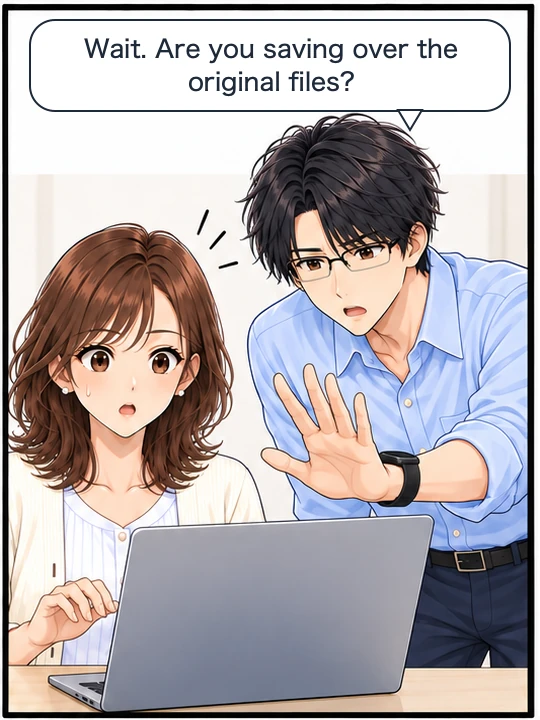
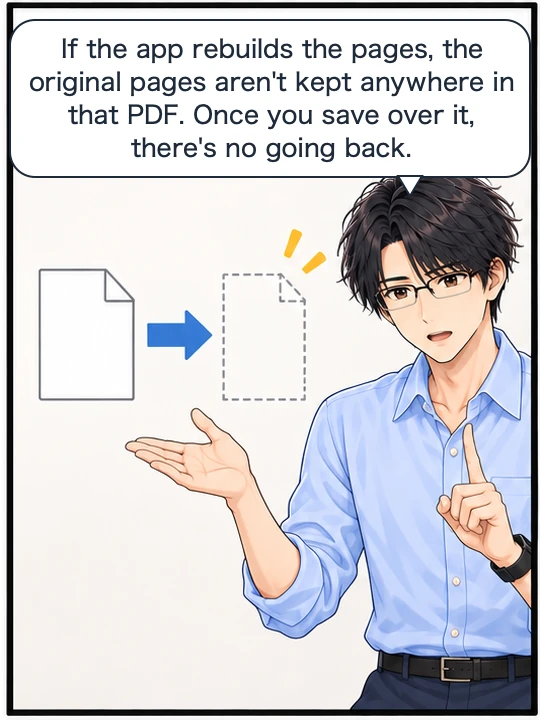
This is the most important point in this article. If you save over the original file without keeping a copy, the original page is not kept anywhere in that PDF. Preview can go back to earlier versions; Apple says: “You can view the file as it appeared in the past and revert to a previous version.” But we have not checked in this article whether earlier versions remain for a file that another app saved over.
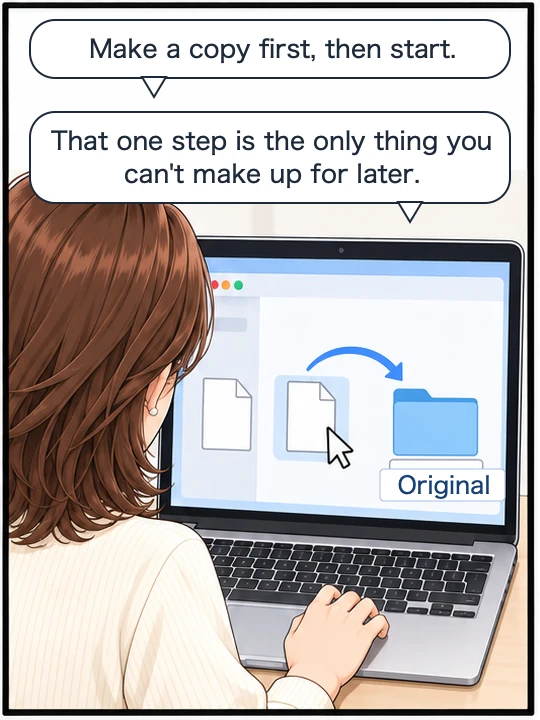
So when you run text recognition, keep a separate copy of the original file first. Making one copy is all it takes. That one step is the only thing you cannot make up for later.
The next comic shows making a copy of the original file before running text recognition.
Swipe sideways to see the next panel.
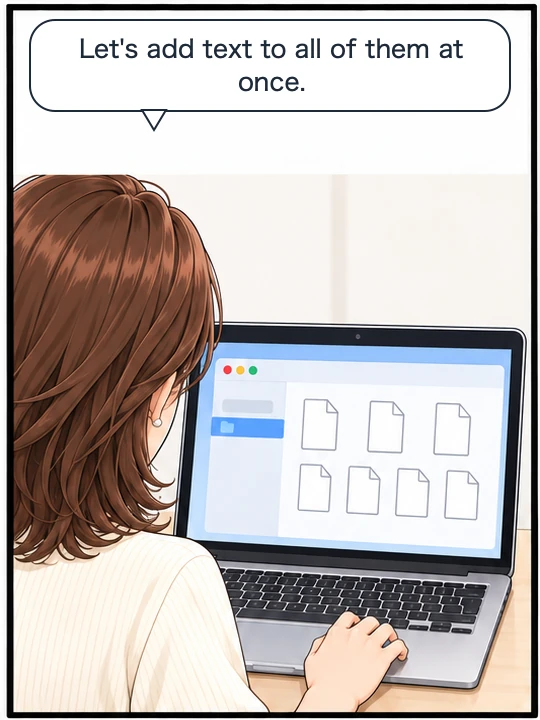
There is also a method that keeps the original page
There is more than one method. A method that leaves the image of the page untouched and only lays the recognized text on top as an invisible layer keeps both the paper size and the page as they were.
This comes with one condition: it applies to scanned PDFs. A PDF that was made on a computer to begin with (for example, exported from a word processor) usually already has the correct text in it and does not need text recognition.
We also measured a PDF made this way. The embedded image stayed identical to the original, byte for byte, and the paper size did not change. Adding only the text without changing how the page looks is the point of this method.
Preview on your Mac can also add text to a PDF. Choose File > Export and select Embed Text, and Preview exports the PDF with the text added (the option only appears for a PDF that has no text in it yet). On October 17, 2026, we tried it on two one-page test PDFs (A4 size) that we made up for a screenshot session. In both, the exported PDF kept the A4 paper size. The files grew by about 10 percent. We did not check whether the image of the page inside stayed the same as the original.
If you still cannot select the text after text recognition, see our article on why you cannot copy the text in a scanned PDF.
What we tested on, and Apple’s pages
We checked the screens for the steps in this article on this Mac:
- Model: MacBook Air (M4)
- macOS: macOS Tahoe 26.5.2
- Date: August 23, 2026
On that day we opened the Inspector in Preview, and saw on the real screen that Page Size was shown in centimeters. That Mac was set to Japanese. We checked the macOS version against the Mac’s update history (macOS Tahoe 26.5.2 from July 12 to September 1, 2026). The paper sizes (105 × 148 mm and 437 × 617 mm) come from measuring the two test PDFs we made from the text of Rashômon on the same day. Neither was printed on paper and scanned. We made the rebuilt PDF ourselves, by reproducing a method that takes the number of pixels in the image as the size of the paper.
On October 5, 2026, we checked the English names of the menu items and the line (Tools, Show Inspector, View, Actual Size, Page Size, Get Info) against the English menu text stored in macOS on this Mac (macOS Tahoe 26.6.2), without switching the screen to English. Apple’s pages below do not mention Show Inspector or Actual Size by name. We checked the quotes word for word against the current Apple pages on the same day.
We tried Preview’s Embed Text on October 17, 2026, on the Mac we use for screenshots (macOS 27.0.1, set to Japanese). We compared the paper size of each PDF before and after by reading the files on Wada Digital Lab’s Mac.
- View information about PDFs and images in Preview on Mac (Preview User Guide, macOS Tahoe 26)
- If PDFs or images aren’t the correct size in Preview on Mac (Preview User Guide, macOS Tahoe 26)
- Revert changes to PDFs and images in Preview on Mac (Preview User Guide, macOS Tahoe 26)
- Embed text in a PDF in Preview on Mac (Preview User Guide, macOS 27)
- Mac keyboard shortcuts (Apple Support)