Can't copy text from a scanned PDF — why it happens, and how to fix it
Published October 5, 2026 (updated October 17, 2026)
By Wada Digital Lab
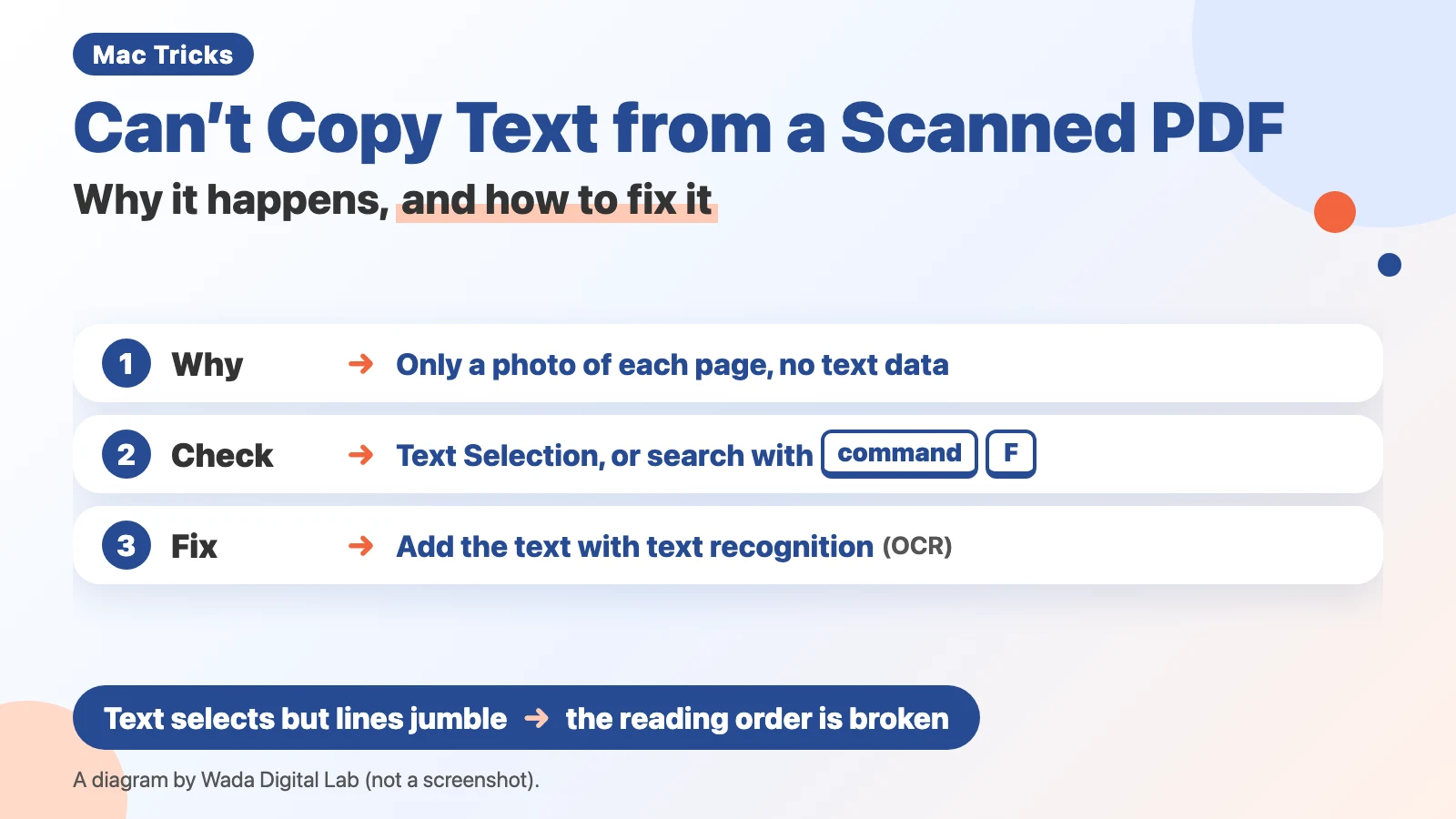
If you cannot select the text in a scanned PDF, and searching does not find it, the PDF was saved without text recognition (OCR), so it only contains a photo of each page. To find out which kind of PDF you have, open it in Preview on your Mac, choose Tools > Text Selection, and try dragging across the text, or search for a word you can see on the page (if the PDF asks for a password, enter it first). The text can still be added later, even after you have thrown away the paper, by reading it again from the photo of the page inside the PDF.
Key points
- A scanned PDF saved without text recognition contains only a photo of each page and no text data. That is why you cannot select, copy or search the text.
- In Preview, choose Tools > Text Selection and try dragging across the text, or press Command-F and search for a word on the page. If neither works, and the PDF does not ask for a password, the PDF has no text in it.
- Apple’s page for when you can’t select or copy text lists two causes: the Text Selection tool, and a password. A scanned page with no text in it is not on that list.
- If you can select the text but the lines come out jumbled when you paste it, that is a different problem: the text is there, but its reading order is broken.
- The text can be added even after you have thrown away the paper, by running text recognition (OCR) on the photo of the page inside the PDF. How accurately the text is read depends on the condition of that photo.
- If the PDF has no text in it at all, Preview can add it: choose File > Export and select Embed Text (according to Apple).
The diagram below sums up why you can’t copy text from a scanned PDF, how to check, and how to fix it (not a screenshot).
The next comic shows why you cannot select the text in a scanned PDF, by separating the photo of the page from the text data.
Swipe sideways to see the next panel.
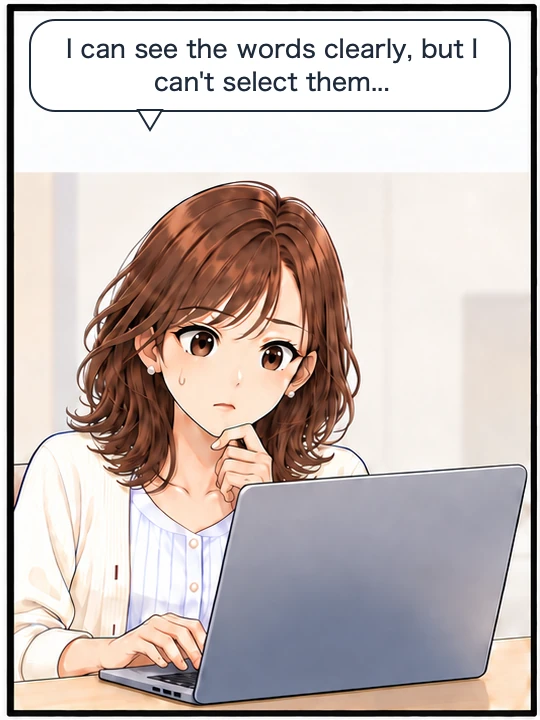
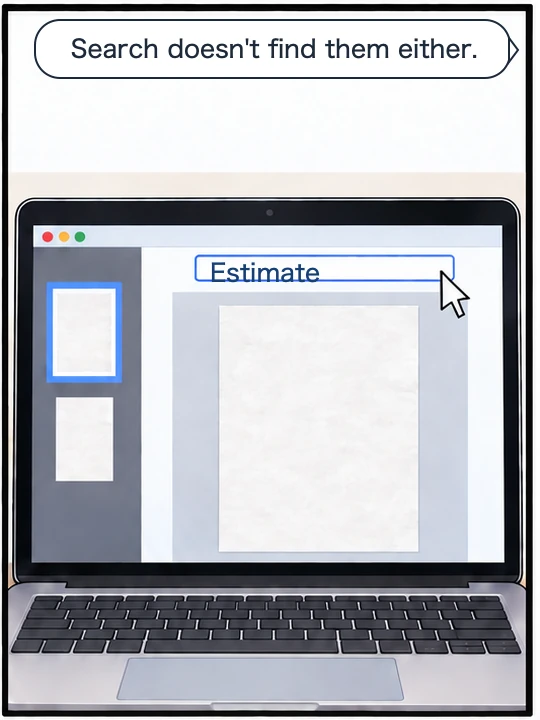
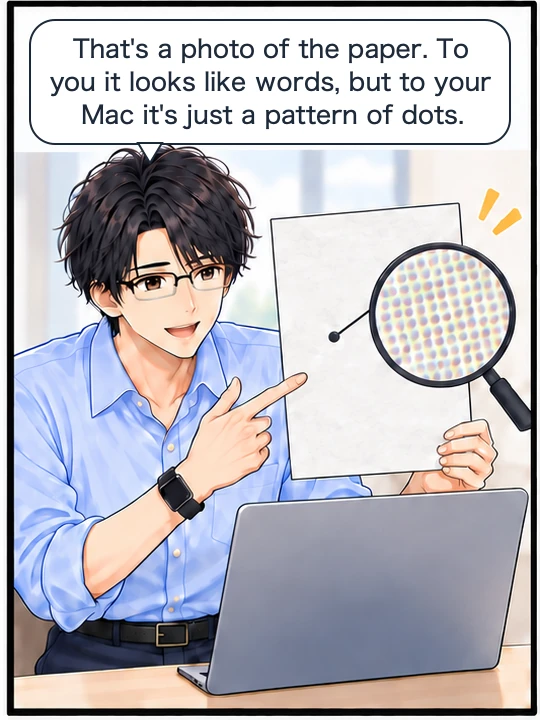
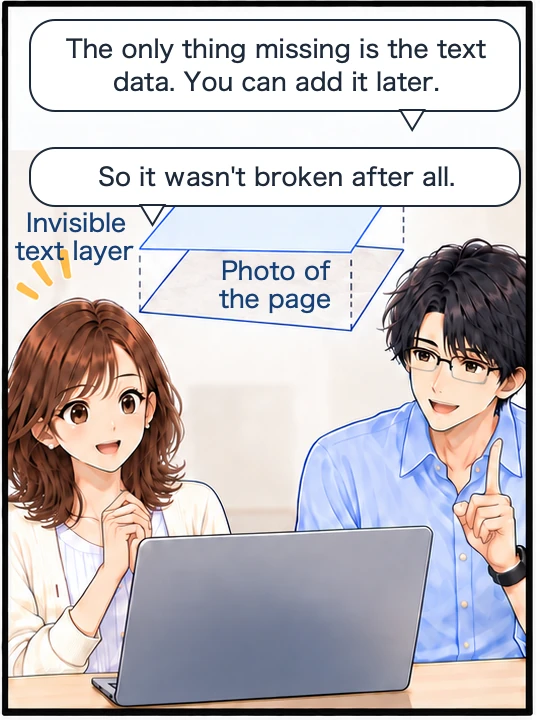
You cannot select it because the PDF only holds a photo of the page
What is inside a PDF falls into two main parts:
- The photo of the page (the image the scanner captured)
- The text data (information about which characters are where)
A scanned PDF saved without text recognition contains only the first of these, the photo (some scanners run text recognition as they scan). To your eyes it looks like text, but to the computer it is just a pattern of darker and lighter areas. You cannot select it, copy it or find it by searching because there is no text data there.
The next diagram compares what is inside a scanned PDF straight from the scanner with a PDF with text added later. The text data (invisible to the eye) goes on top of the photo of the page.
A scanned PDF
No text data
The photo of the page
Cannot select
Add it later
A PDF with text added
The text data (invisible to the eye)
The photo of the page
Can select
The photo of the page is safely inside the PDF. As for the text, you can add it later.
Two quick tests show whether your PDF has text in it
You do not need to buy anything; the Mac you already have can tell you. Open the PDF in Preview, choose Tools > Text Selection in the menu bar, then try these two things:
- Drag across the body text and see whether you can select it
- Press Command-F and search for a word you can clearly see on that page
If neither works, and the PDF does not ask for a password, the PDF has no text data in it. If you can select the text and the search finds the word, the text is there. Apple’s list of keyboard shortcuts describes Command-F as “Find items in a document or open a Find window.” You can also type the word into the search field in the Preview toolbar. Apple notes that “you may need to resize the window to see it”.
Apple has a page called “If you can’t select or copy text in a PDF in Preview on Mac”. It lists only two things. One is “The Text Selection tool may not be selected”. The other is “The PDF may require a password before you can select or copy text”. The first is fixed by choosing Tools > Text Selection, as in the steps above. That page does not cover a scanned page that has no text in it at all. If you have checked both and still cannot select the text, suspect that there is no text data.
Here is the same thing as a table.
| What is happening | The cause, and where to fix it |
|---|---|
| You cannot select, copy or search the text | There is no text data. Use text recognition (OCR) to read the photo of the page again and add the text |
| You cannot select it because the Text Selection tool is not chosen | Choose Tools > Text Selection in the menu bar (Apple’s instructions) |
| You cannot select the text in a password-protected PDF | You need to enter the password first (Apple’s instructions) |
| You can select and search it, but the lines come out jumbled when you paste | The text is there, but its reading order is broken. The order needs to be put back |
| The first pages can be selected, but later pages cannot | Only some pages have text. Run text recognition on the pages without it |
Whether you can select and search the text can differ from page to page. For example, a document scanned in several batches may have text only in its first pages. Do not judge from the first page alone; check pages in the middle and at the end too.
When the text is there, but lines come out jumbled when you paste
You can select the text and search it, but when you copy and paste it, the lines come out mixed up and unreadable. That is a different problem.
Text data holds not only the characters themselves but also the reading order. On pages with columns, vertical text (as in Japanese), figures or tables, that order is not always stored the way your eyes read the page. When searching for a single word works but you cannot get the text out as readable sentences, this is usually what has happened.
This can also matter when you give a PDF to an AI and its answers do not make sense. An AI that reads the text stored in the PDF receives it in whatever order it is stored, jumbled or not.
The text can be added later
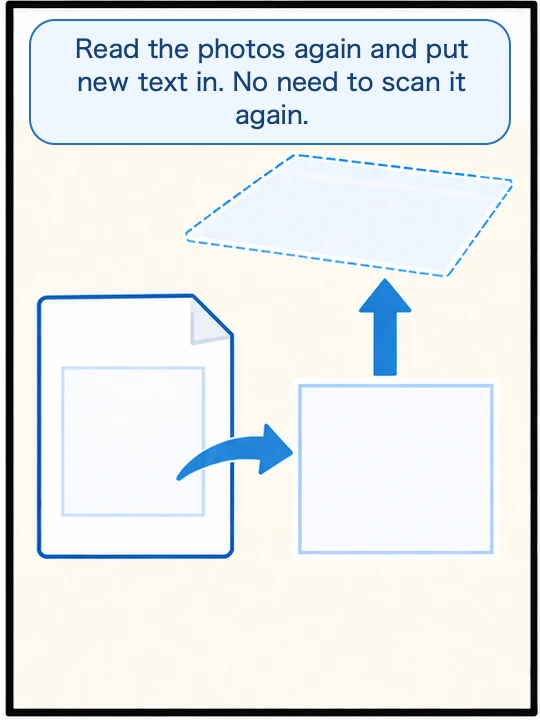
Text recognition (OCR) means recognizing the characters in the photo of the page and adding them back as text data.
What the features built into your Mac can do
macOS has a built-in feature called Live Text that reads text in images. Apple says: “In Preview, you can use Live Text to copy and use the text that appears in a photo.” You open the photo or image, drag across the text, Control-click it and choose Copy Text. If you only need a few lines, this may be enough. Apple also says: “Live Text isn’t available in all regions or languages.” We have not checked in this article whether it works directly on a scanned PDF.
Preview can also put the text into the PDF itself. Apple says: “Preview can recognize text in an image-based PDF (like a scan or a picture of a document) and embed the text in the document.” The steps are:
- Open the scanned PDF in Preview
- Choose File > Export in the menu bar
- Select Embed Text, then export
Apple adds: “This option only appears if no text was previously recognized in the document.” In other words, you see it for a PDF that has no text in it at all.
When you want the text in the PDF itself
If you have one or two PDFs with no text in them, try Embed Text above first. A PDF where the recognized text is laid over the original page as an invisible layer is often called a searchable PDF. The page looks the same, and you can now search and copy it.
In these cases, an app that redoes the text inside the PDF can help:
- When the PDF already has text in it, and you want it read again. For example, the scanner ran text recognition when it saved the file, and the text it added is full of mistakes. Embed Text does not appear for a PDF like this.
- When the page has columns, vertical text or figures. If the app rebuilds the reading order as well, the problem of jumbled lines when you paste is fixed too.
- When you have many files to fix.
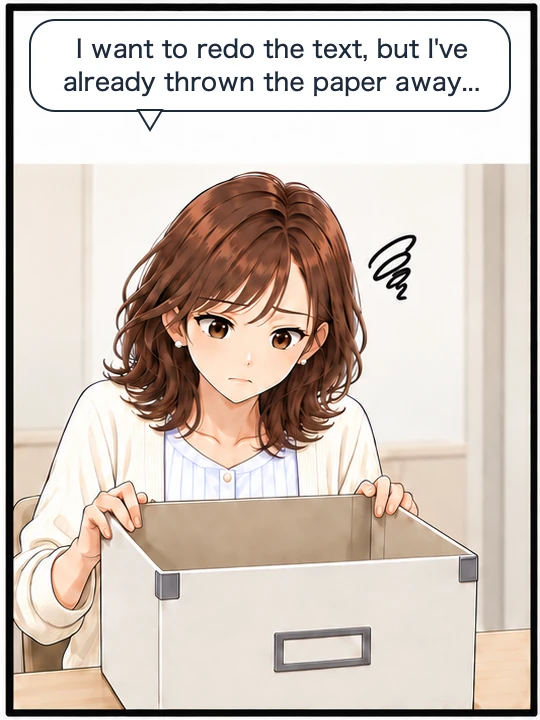
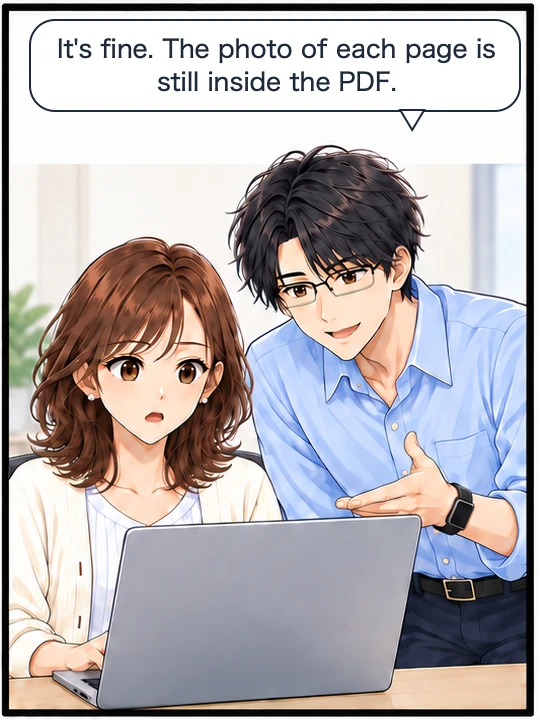
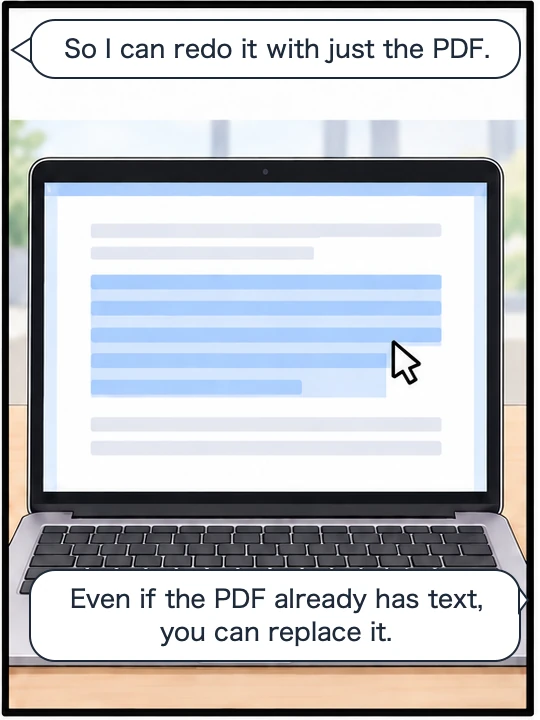
Even after you throw away the paper, the PDF is all you need
Even if you cannot scan the paper again, the PDF alone is enough to start over. The photo of the page is still inside the PDF, so the text can be read again from it. Even a PDF that has already been through text recognition can have its text data replaced. (Preview’s Embed Text only appears for a PDF with no text in it, so to replace the text you need an app that can read the page again.) However, how accurately the text is read depends on the condition of the photo of the page when it was scanned (faint print, tilt, and how fine the scan was).
Note that some ways of running text recognition rebuild the page, which can change the paper size or the file size. It is safer to keep the original file before you start. We cover this in our article on PDFs whose paper size changed after OCR.
The next comic shows that, even after the original paper is gone, you can put the text back using just the PDF.
Swipe sideways to see the next panel.
What we tested on, and Apple’s pages
This article was written on Wada Digital Lab’s Mac, a MacBook Air (M4). When the Japanese version was published on August 13, 2026, this Mac was running macOS Tahoe 26.5.2 (we checked the Mac’s update history).
We checked the step of dragging across the body text in Preview on the screen of the same Mac (macOS Tahoe 26.5.2) on August 27, 2026, while recording a video. That Mac was set to Japanese. We did not check the Command-F search or Live Text on screen; those parts come from Apple’s pages. On October 5, 2026, we checked the English names of the menu items (Tools, Text Selection, Copy Text) against the English text built into macOS on this Mac (macOS Tahoe 26.6.2). We did not try File > Export > Embed Text on screen either; that part comes from Apple’s page. On October 17, 2026, we checked the name Embed Text against the text built into macOS on this Mac (macOS 27.0.1).
The quotes come from these Apple pages. We checked them word for word against the current pages on October 5, 2026 (the Embed Text page on October 17, 2026).
- If you can’t select or copy text in a PDF in Preview on Mac (Preview User Guide, macOS Tahoe 26)
- Find text in PDFs in Preview on Mac (Preview User Guide, macOS Tahoe 26)
- Interact with text in a photo using Live Text in Preview on Mac (Preview User Guide, macOS Tahoe 26)
- Embed text in a PDF in Preview on Mac (Preview User Guide, macOS 27)
- Mac keyboard shortcuts (Apple Support)