Mac Dock Settings — Hide the Dock with Three Keys
Published October 5, 2026 (updated October 12, 2026)
Steps checked October 16, 2026 (MacBook Air (M2), macOS Golden Gate 27.0.1)
By Wada Digital Lab
If the Dock on your Mac is taking up too much of your screen, press three keys, Option-Command-D, to hide it. Press the same keys again to bring it back. While it is hidden, you can still use it: move the pointer to the very bottom of the screen (or to the side where you keep the Dock) and the Dock appears. If you would rather not hide it, drag the separator line in the Dock downward to make the Dock smaller.
There is also a video that walks through the same steps on a Mac: Mac Dock Settings (YouTube, 4:06).
Key points
- Press Option-Command-D to hide the Dock. Press it again to show it.
- To make the Dock smaller, drag the separator line near the right end of the Dock downward.
- To find out what an unfamiliar icon is, hold the pointer over it to see its name. Command-click it to see where the app is in the Finder.
- Removing an icon from the Dock does not remove the app; the app stays on your Mac. To put the icon back, open the app, Control-click its icon (hold down Control and click), and choose Options > Keep in Dock.
- If the Dock keeps moving to another display, Apple says that turning off “Displays have separate Spaces” makes the Dock appear only on the main display, and that features such as Stage Manager need the option turned on. The settings in macOS also say that changing it requires logging out. We tried it later and turned it back on (we did not switch it while recording).
- We tried everything else on a MacBook Air (M4) with macOS Tahoe 26.6.2.
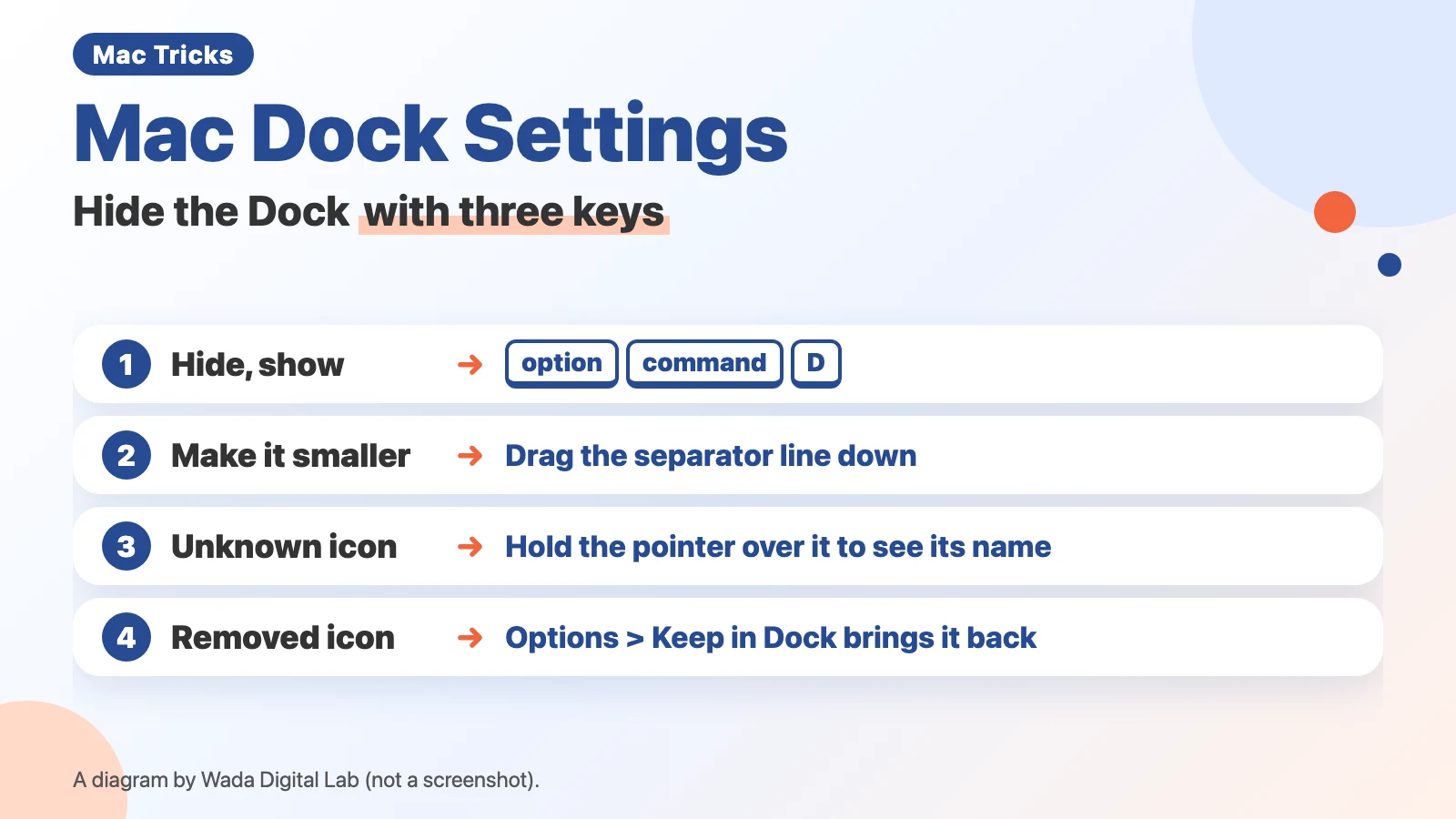
The diagram below sums up how to hide the Dock, make it smaller, and bring an icon back (not a screenshot).
The next two pictures show the same screen before and after hiding the Dock.


The Dock is the row of app icons along the bottom of your screen
The Dock is the row of app and folder icons along the bottom of the Mac screen. Apple describes it like this: “The Dock on the Mac desktop is a convenient place to access apps and features that you’re likely to use every day—for example, Safari and the Trash.”
It is handy, but it always takes up part of the bottom of the screen. On a small screen, such as a laptop’s, that leaves less room to see your windows and documents.
Here are the common Dock problems and where to fix each one.
| The problem | Where to fix it |
|---|---|
| The Dock takes up too much of the screen | Hide it with Option-Command-D |
| Hiding it is awkward, so you want a smaller Dock | Drag the separator line in the Dock downward |
| There is an icon you do not recognize | Hold the pointer over it to see its name. Command-click it to see where it is |
| You quit an app, but its icon stays near the right end | Turn off “Show suggested and recent apps in Dock” |
| You removed an icon by mistake | Open the app, Control-click its icon, and choose Options > Keep in Dock |
| With external displays, the Dock moves to another screen | Turn off “Displays have separate Spaces” (you have to log out, and some features stop working) |
Hide the Dock with three keys (Option-Command-D)
You can hide the Dock by pressing just three keys.
- Hold down Option and Command, then press D
- The Dock hides
- To bring it back, press Option-Command-D again
Apple’s list of keyboard shortcuts describes this key combination as “Option-Command-D: Show or hide the Dock.”
You can still use the Dock while it is hidden. Move the pointer to the very bottom of the screen and the Dock appears (if you keep the Dock on the left or right side of the screen, move the pointer to that edge instead). Move the pointer away and it hides again. That is exactly what happened when we recorded it.
The same setting is also in System Settings, under Desktop & Dock: “Automatically hide and show the Dock.” Apple describes it this way: “Hide the Dock when you’re not using it. To show the hidden Dock, move the pointer to the edge of the screen where the Dock is located.”
When we recorded, a window that filled the whole screen stayed the same size before and after we hid the Dock. Its bottom edge already reached the bottom of the screen. Hiding the Dock simply revealed the part of the window that had been behind it.
Don’t want to hide it? Make the Dock smaller with the separator line
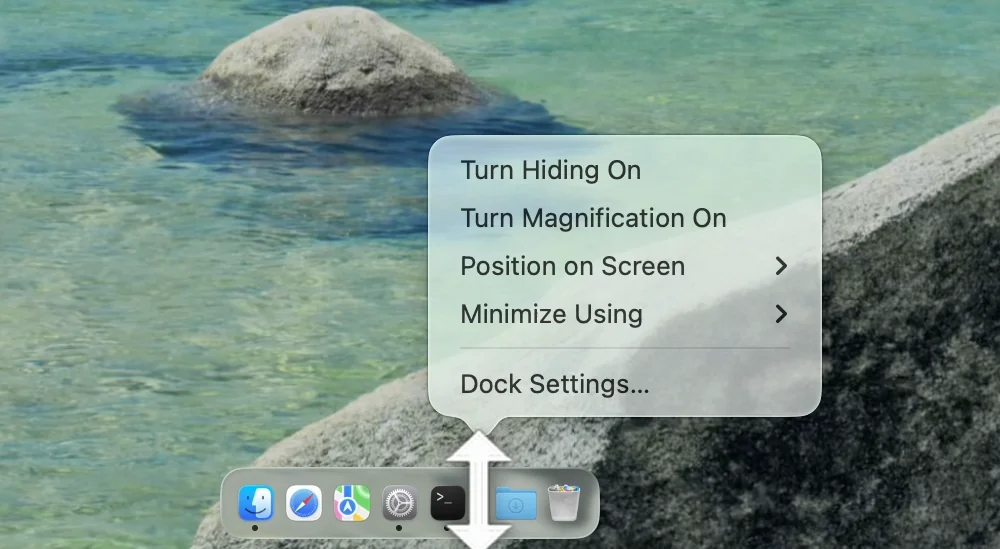
If you find a Dock that keeps appearing and disappearing distracting, you can make it smaller instead. Use the separator line near the right end of the Dock (the short vertical line between icons).
- Move the pointer over the separator line in the Dock
- When the pointer turns into an up-and-down arrow, drag down (dragging up makes the Dock bigger)
- Stop dragging when the Dock is the size you want
Apple’s instructions say: “To quickly adjust the Dock’s size, move the pointer over the separator line in the Dock until a double arrow appears, then click and drag the pointer down or up.” When we recorded, the pointer did turn into an up-and-down arrow over the separator line.
Control-click the separator line (or click it with two fingers on a trackpad) and a menu of Dock settings appears. We explain the two-finger click in our article on using the Mac trackpad. The next picture shows that menu.
Find out what an unfamiliar icon is: its name, and where it is in the Finder
If you see an icon in the Dock that you do not recognize, start by holding the pointer over it. The app’s name appears above the icon.
At Wada Digital Lab, ever since we started handing work to AI agents (tools that let an AI operate the computer for you), we often find icons in the Dock for apps we did not open ourselves. We did give permission for them to open, but because we were not the ones using them, an unfamiliar icon still gives us a start.
If the name alone does not tell you enough, look at where the app is on your Mac.
- Hold down Command and click the icon in the Dock
- A Finder window opens with that app selected
Apple puts it this way: “Show an item in the Finder: Command-click the item’s icon.” When we recorded, we tried it with the Maps icon. Command-clicking it opened the Applications folder in the Finder with Maps selected.
A small dot under an icon means the app is open. Apple describes the “Show indicators for open applications” option as: “Show a small dot below an app’s icon in the Dock when the app is open.” If you are not using the app, Control-click its icon and choose Quit.
Icons that stay near the right end after you quit are “recent apps”
Sometimes an icon stays near the right end of the Dock even after you quit the app. These are recently used apps. Apple says: “The Dock can show up to three recently used apps that aren’t already in it”. On the Mac we use every day, there were three of them lined up on the right.
If you would rather not see them, turn them off like this:
- Choose Apple menu > System Settings
- Click Desktop & Dock in the sidebar
- Turn off “Show suggested and recent apps in Dock”
When we recorded, turning it off made the three icons on the right side of the Dock disappear.
Put back an icon you removed with “Keep in Dock”
When you remove an icon from the Dock, only the icon goes away. The app stays on your Mac.
At Wada Digital Lab, we still sometimes remove an icon from the Dock by accident with a slip of the mouse. At first, we did not know how to get it back.
An icon is removed when you drag it out of the Dock. Apple’s instructions say: “Remove an item from the Dock: Drag the item out of the Dock until Remove is shown. Only the alias is removed; the actual item remains on your Mac.” An alias is a small pointer that opens the real app. When we recorded, the icon of an app that was not open disappeared when we let go. The icon of an app that was open stayed in the Dock after we dragged it out and let go, until we quit the app.
The next diagram shows what changes when an icon is dragged out of the Dock, and after putting it back.
Dragged out of the Dock
The app Still on your Mac
The icon in the Dock
Goes away
Keep in Dock
After putting it back
The app Still on your Mac
The icon in the Dock
Comes back
To put it back, follow these steps:
- Open the Applications folder in the Finder, and double-click the app to open it
- Control-click the icon that appears in the Dock
- Choose Options
- Choose Keep in Dock
Now the icon stays in the Dock even after you quit the app. Apple’s page describes the same steps: “Open the app to make its icon appear again in the Dock. Control-click the app’s icon, then choose Options > Keep in Dock.” The next picture shows the Options menu open during our recording.
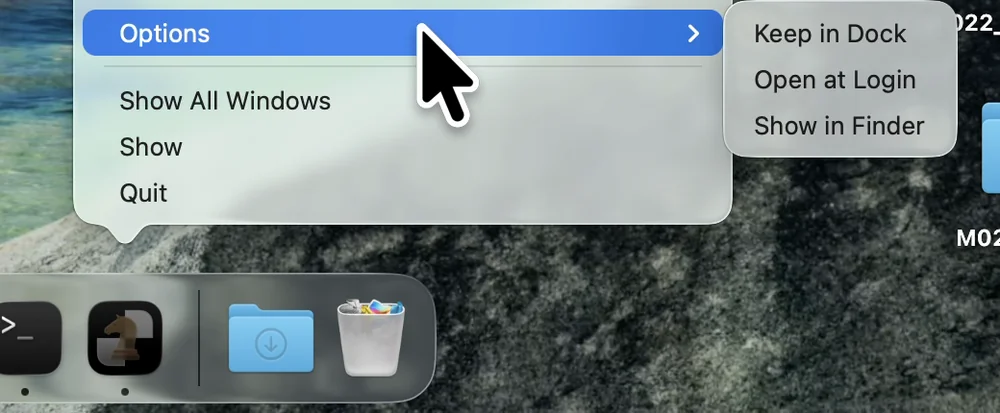
The same Options menu also has Show in Finder. When you want to find out where an unfamiliar app is, you can choose this instead of Command-clicking.
Drop a file on an app icon in the Dock to open it in that app
Icons in the Dock also work as a way to open files. Drag a file onto an app’s icon in the Dock and let go, and the file opens in that app. Apple’s page “Use the Dock on Mac” says: “Open a file in an app: Drag the file over an app’s icon.” When we recorded, we dropped a picture file on the Preview icon in the Dock and it opened in Preview.
This does not change which app normally opens that kind of file. Apple lists it as one way to “Open a file once with a specific app”, so it is handy when you want to use a different app just this once. If the app cannot open that kind of file, dropping it on the icon will not open it. Apple says that in that case, “the file may be damaged or may not be recognized by that app.”
If the Dock jumps between displays: “Displays have separate Spaces”
With external displays connected, the Dock sometimes appears on a different screen. At Wada Digital Lab we use three displays. For years the Dock has kept turning up on the middle screen one moment and the left screen the next. We have tried changing all sorts of settings, but we have not found a good fix.
According to Apple, the “Displays have separate Spaces” setting changes which screen the Dock appears on. Apple describes the option as: “Set up separate spaces for each display (if you use Spaces and have multiple displays).” About the Dock, it says: “When this option is turned on, the Dock is available on all displays; when it’s turned off, the Dock appears only on the main display.”
This setting is not near the Dock settings. It is in the Mission Control section at the very bottom of Desktop & Dock. At Wada Digital Lab, we opened Desktop & Dock to look for it and could not find it at first. The next picture shows the Mission Control section.
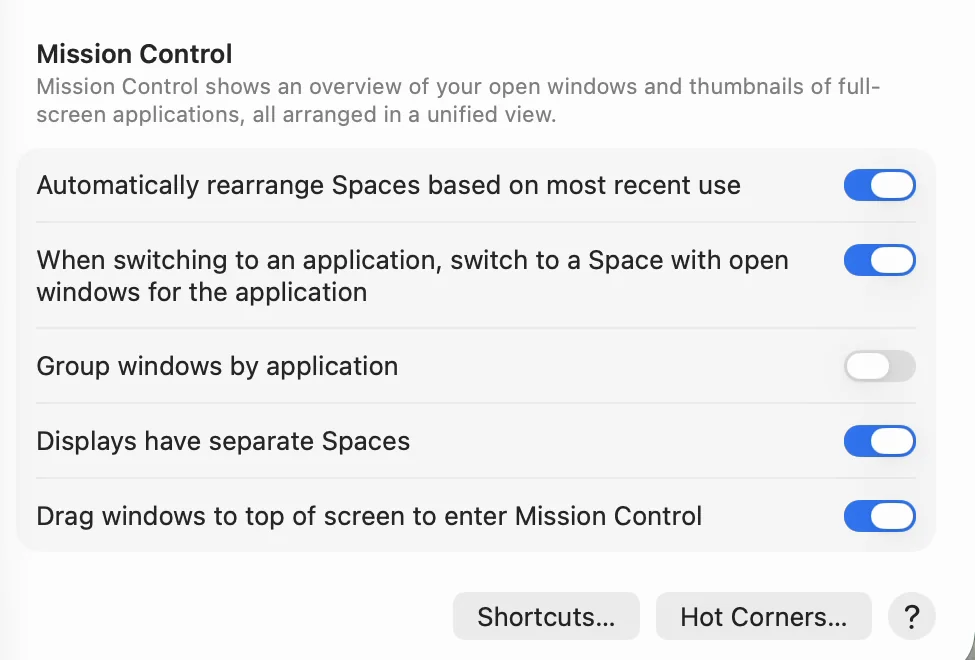
Here are the steps:
- Choose Apple menu > System Settings
- Click Desktop & Dock in the sidebar
- Scroll down to the Mission Control section at the bottom
- Turn off “Displays have separate Spaces”
Turning it off has a cost. Apple says the option “must be turned on if you want to use apps in Split View on your other displays or use Stage Manager.” Split View puts two apps side by side, and Stage Manager gathers your open windows at the side of the screen so you can switch between them. Apple’s page does not mention two more things, but the text in macOS’s own settings does. First, window tiling (arranging windows side by side to fill the screen) also needs this option turned on. Second, the setting is marked “Requires log out”, so changing it means logging out. We did not change it while recording, so we have not seen the log out prompt. If you change it, save the documents you are working on first.
The screen that gets the Dock (the main display) is chosen in Displays settings. In System Settings, click Displays, select a display, and set “Use as” to “Main display”.
The next picture shows Displays settings.
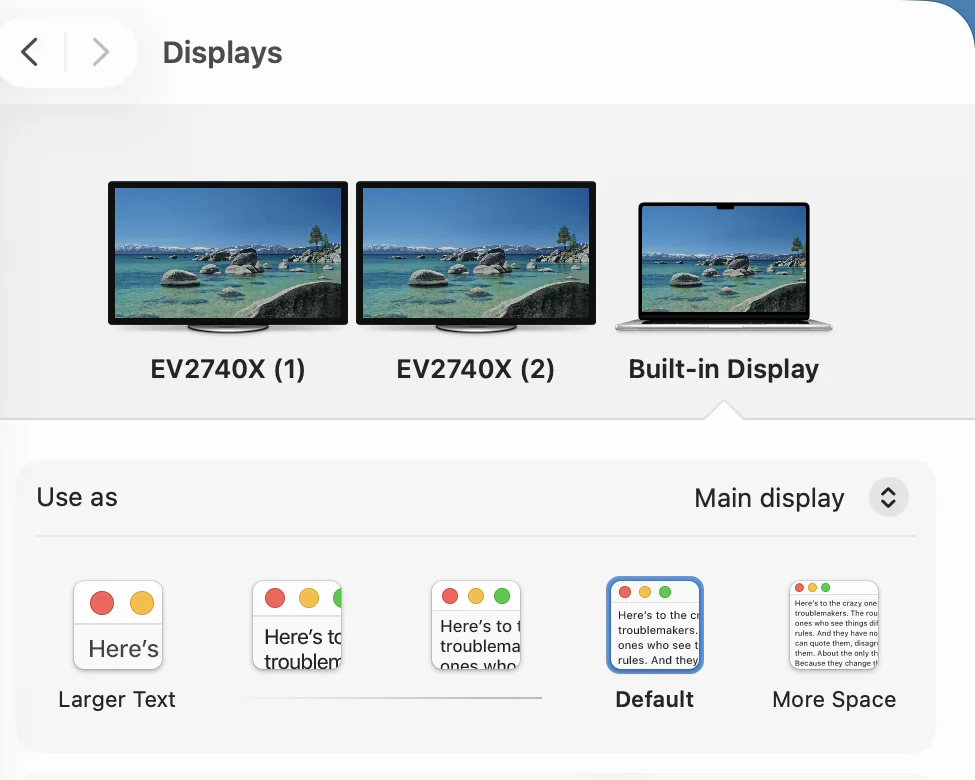
Later, at Wada Digital Lab, we tried turning off “Displays have separate Spaces”. The Dock then stayed on one screen. But while we were working on another screen, we had to move the pointer all the way over to the screen with the Dock. That was too much trouble, so we turned the option back on. When we recorded, we only captured the setting while it was on; we did not switch it. To bring the Dock to the screen you want while keeping the option on, see our article on MacBook dual monitor setup.
Check your work: three things to try
Compare the Dock on your own Mac with this table.
| What to do | You are done when |
|---|---|
| Press Option-Command-D | The Dock hides, and comes back when you press it again |
| Command-click an icon in the Dock | A Finder window opens with that app selected |
| Open the app whose icon you removed, then choose Options > Keep in Dock | The icon stays in the Dock even after you quit the app |
Frequently asked questions
My Dock suddenly disappeared
First, move the pointer to the very bottom of the screen (or to the left or right edge, if you keep the Dock there) and see whether the Dock appears. If it does, the setting that hides the Dock is turned on. Press Option-Command-D once to turn hiding off, and the Dock will stay on screen.
If I remove an icon from the Dock, is the app deleted?
No. Only the icon in the Dock goes away; the app stays on your Mac. Open it from the Applications folder in the Finder and you can use it as usual.
I dragged an icon out of the Dock, but it did not go away
If you dragged it until Remove appeared and let go, and it still stayed, that is because the app is open. When we recorded, the icon of an open app stayed in the Dock until we quit the app. A small dot under the icon means the app is open. Quit the app and the icon goes away. If it still stays near the right end after you quit, it is showing as a recent app. Turn off “Show suggested and recent apps in Dock” to stop that.
If your desktop is covered in files
If what is cluttering your screen is the files on your desktop, macOS can pile them up by kind with a feature called Stacks. We cover it in our article on tidying desktop files with Stacks.
Watch the same steps on a Mac (video)
This video goes through the steps above one at a time on a Mac screen. If you would rather watch than read, try this.

What we tested on, and Apple’s pages
We checked the steps in this article on this Mac:
- Model: MacBook Air (M4)
- macOS: macOS Tahoe 26.6.2
- Dates: September 30, 2026 (we read the Dock settings on the Mac we use every day), October 1, 2026 (we tried and recorded the steps with the Mac set to Japanese) and October 2, 2026 (we recorded the same steps again with the Mac set to English)
We used a separate user account on this Mac made for recording, and the files on the desktop are sample files. Two external displays were connected while we recorded. The pictures in this article come from the October 2 recording in English.
We tried these on this Mac:
- Hiding and showing the Dock with Option-Command-D
- Moving the pointer to the very bottom of the screen to bring back the hidden Dock
- Dragging the separator line to make the Dock smaller
- Holding the pointer over an icon to see its name, and Command-clicking it
- Turning off “Show suggested and recent apps in Dock”
- Dragging icons out of the Dock (for an app that was open and one that was not)
- Putting an icon back with Keep in Dock
- Dropping a file on an app icon in the Dock to open it
We did not change “Displays have separate Spaces” while recording (what happened when we tried it afterward is in the section above).
On October 16, 2026, we also checked Desktop & Dock in System Settings on a MacBook Air (M2) running macOS Golden Gate 27.0.1, using a separate user account made for recording. We looked at the screen with the Mac set to Japanese. The row that hides and shows the Dock automatically was there with the same name as on macOS 26, and it was turned on, and the Mission Control section with the separate Spaces option was in the same place with the same name. We saw nothing different from the macOS 26 pictures in this article. We have not recorded the Dock separator menu or the icon right-click menu again on macOS 27, we did not look at it with the Mac set to English, and we did not connect external displays.
The steps and quotes come from these Apple pages. We checked the quotes word for word against the current pages on October 5, 2026. The two lines about window tiling and logging out come from the English text built into macOS on the same Mac.
- Mac keyboard shortcuts (Apple Support)
- Use the Dock on Mac (Mac User Guide)
- Change Desktop & Dock settings on Mac (Mac User Guide)
- Choose an app to open a file on Mac (Mac User Guide)
October 12, 2026: Added what happened when we turned off “Displays have separate Spaces”.