macOS 27 New Features You Might Miss — The Liquid Glass Slider, Notes Dividers, and Photo Ratings
Published October 18, 2026 (updated October 21, 2026)
Official documentation reviewed October 18, 2026 (some steps not tested)
By Wada Digital Lab
Five of the new features in macOS 27 are easy to miss after you update: the Liquid Glass slider in Appearance settings, swipe down to refresh, Insert Divider Line and Link to Section in Notes, star ratings in Photos, and Suggest File Names in Finder. You only notice them if you open the right setting or try the right action. Here is where to find each one and how to use it, with screenshots from a real Mac.
There is also a video that shows the same five features on a Mac: macOS 27 New Features (YouTube, 3:45).
Key points
- Change how clear or tinted Liquid Glass looks with the slider in Apple menu > System Settings > Appearance. In our recording, turning on Reduce Transparency moved the slider all the way to the right, and a notice appeared under it.
- In Safari, Mail, News, Podcasts, Calendar, and other apps, you can swipe down to get the latest information (Apple’s description. We did not try it in our recordings).
- In Notes, choose Edit > Insert Divider Line to add a line. Choose Edit > Add Link and use Link to Section to jump to a heading in the same note.
- In Photos, you can give photos one to five stars. Then use the Filter button in the toolbar to show only photos with a certain number of stars.
- Suggest File Names in Finder is an Apple Intelligence feature. Apple says to turn it on in Finder > Settings. In our English recording, the setting did not appear there. In our Japanese-language recording, we could not confirm a suggested name.
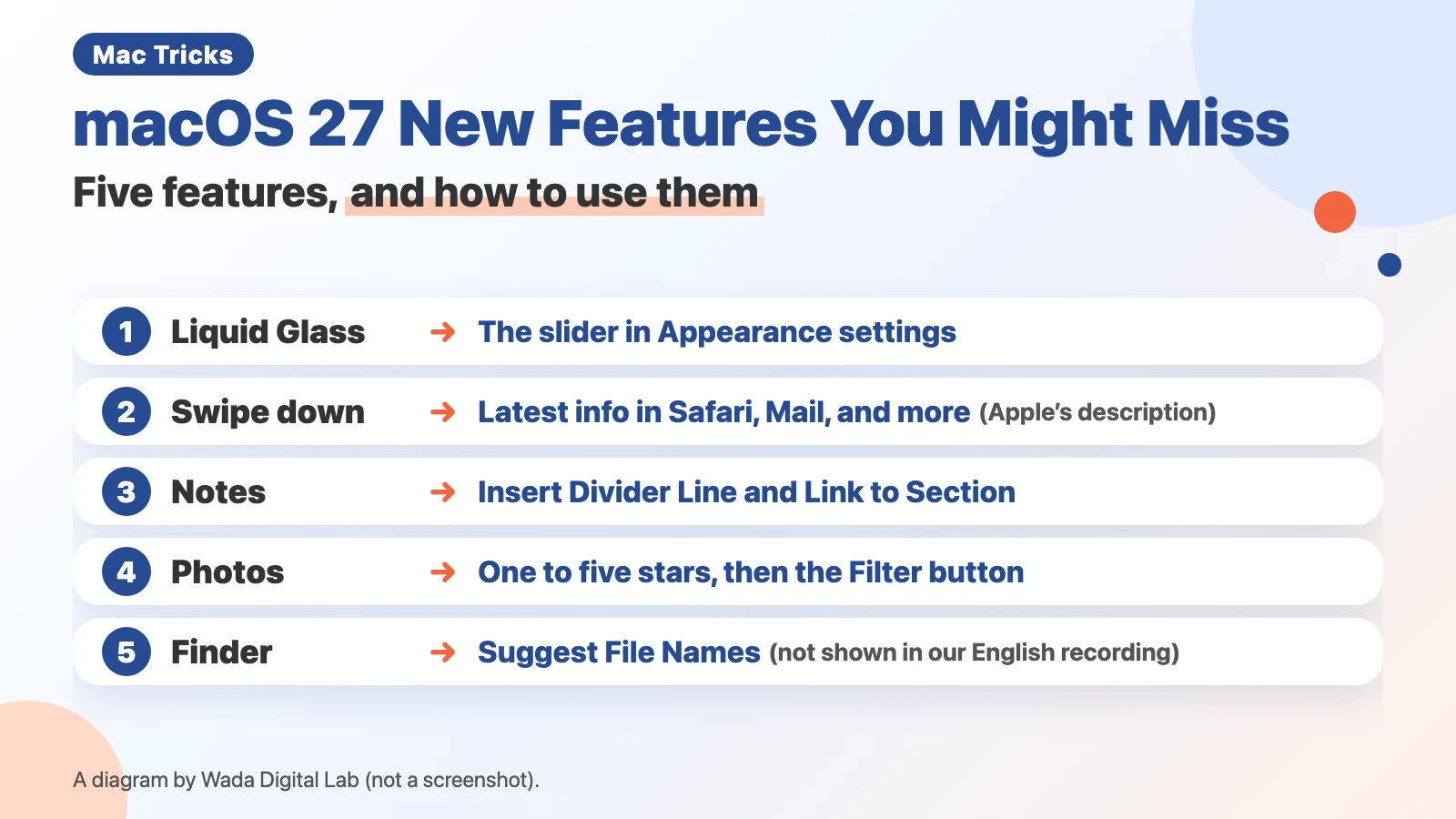
The diagram below lists the five macOS 27 features in this article (not a screenshot).
What’s new in macOS 27? 5 new features that are easy to miss
The big new features in macOS 27 include the new Siri AI and changes to Safari. Apple lists them on its What’s new in the updates for macOS 27 Golden Gate page. This article covers five smaller features that you only notice if you open them yourself.
The table below shows where to find each feature and whether we checked it in our screen recordings. We recorded on a MacBook Air (M2) running macOS 27.0.1, with the screen set to English.
| Feature | Where to find it | Checked in our recordings? |
|---|---|---|
| Liquid Glass slider | System Settings > Appearance | We recorded the slider, and the notice that appears when Reduce Transparency is on |
| Swipe down to refresh | Safari, Mail, News, Podcasts, Calendar, and more | Not recorded |
| Divider lines and Link to Section | The Edit menu in Notes | We recorded a divider line, and clicking a link to jump to a heading |
| Star ratings and filtering | The Star button and the Filter button in Photos | We recorded giving a photo five stars, and filtering to five-star photos |
| Suggest File Names | Finder > Settings | The setting did not appear in our English recording. We could not confirm a suggested name |
We also compared Apple’s user guides for macOS Tahoe 26 and macOS 27. Insert Divider Line and Link to Section in Notes, Show Rating Controls in Photos, and Suggest File Names in Finder appear only in the macOS 27 guides.
The figure below separates what we checked in our recordings from what we did not check.
Checked in our recordings
Appearance The Liquid Glass slider and the notice
Notes A divider line and a link to a heading
Photos Star ratings and filtering
Not checked in our recordings
Dock Changes as you move the slider
Swipe down An app updating to the latest information
Suggest File Names A suggested name appearing
Change Liquid Glass with the slider in Appearance settings
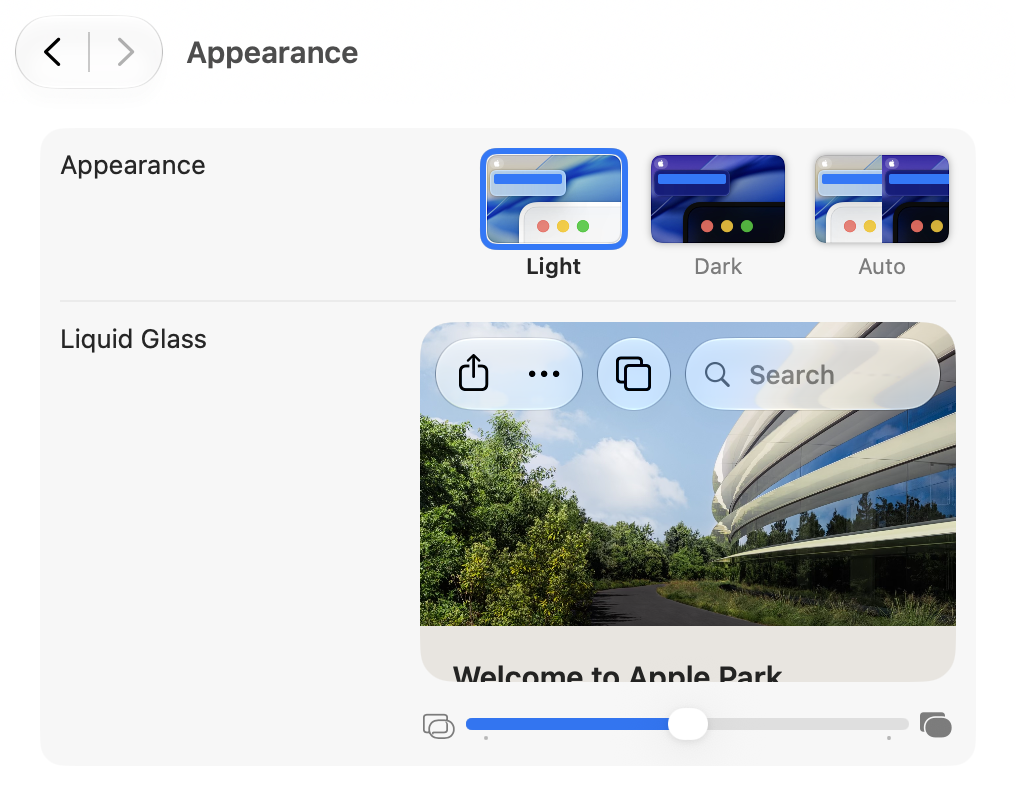
Liquid Glass is the macOS design that makes the Dock and menus look like see-through glass. In macOS 27, you can choose how clear or tinted it looks. Apple’s macOS product page says, “And a new slider lets you easily customize how Liquid Glass looks, from ultraclear to fully tinted.”
To find the slider, follow these steps. If you use Reduce Transparency, read about the notice later in this section before you move the slider. The screen says that adjusting Liquid Glass may turn Reduce Transparency off.
- Choose Apple menu > System Settings.
- Click Appearance in the sidebar.
- Move the slider just below the Liquid Glass preview.
The screenshot below shows Appearance in our recording. The slider has no text label. There is just a small picture at each end. In the text strings inside macOS, the slider is named “Liquid Glass Tint Amount.”
If you use Reduce Transparency, there is one thing to watch. Reduce Transparency is an Accessibility setting that makes see-through areas less clear, so text is easier to read. In our recording, we turned it on and went back to Appearance. The slider had moved all the way to the right. Under the slider was this notice: “When Reduce Transparency is on, adjusting Liquid Glass may turn this setting off.”
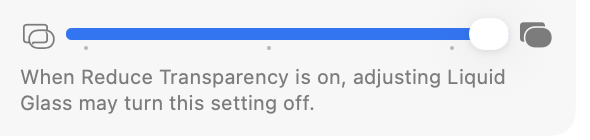
In our Japanese-language recording, on the same Mac, we then turned Reduce Transparency off again. The slider stayed at the far right and did not go back to the middle. We moved it back to the middle by hand. After you turn Reduce Transparency on or off, check where the Appearance slider is. We did not test whether moving the slider really turns Reduce Transparency off, as the notice says.
We also tried the Liquid Glass settings in Appearance on our own Mac. Ordinary apps did not look very different. The Dock did become more see-through. This is what we saw on our own Mac, not a side-by-side comparison in our recordings. To hide the Dock when you are not using it and get more room on screen, see our Mac Dock settings article.
Swipe down to refresh Safari, Mail, and other apps
In macOS 27, you can swipe down in apps like Safari, Mail, News, Podcasts, and Calendar to refresh them. The same product page says, “Swipe down in apps like Safari, Mail, News, Podcasts, and Calendar to get up-to-date information in your apps.”
We did not try this in our recordings. Apple’s page does not say how many fingers to use on the trackpad. For the basic trackpad gestures, see our Mac trackpad gestures article.
Notes: split a note with Insert Divider Line, and jump to a heading with Link to Section
In Notes, you can now draw a line between topics. Choose Edit > Insert Divider Line. Apple’s Notes guide says, “Add a divider line: Choose Edit > Insert Divider Line.” On the keyboard, “Press Command-L to insert a divider line.”
The other new option is Link to Section. A section is the part of a note under a heading. Put a link near the top of a long note, and one click takes you to that heading.
First, add headings to the note. Headings and other paragraph styles depend on where the note is stored. Apple’s guide says, “To use paragraph styles and specify the paragraph style that’s used when you create a new note, you must be using iCloud notes or notes stored on your Mac.”
- Select the text you want to make a heading.
- Click the Format button.
- Choose Heading or Subheading.
Next, make the link to a heading.
- In Notes, choose Edit > Add Link.
- Choose a heading from the menu next to Link to Section.
- Click OK.
Apple’s guide says, “Click the menu next to Link to Section, then select a section.” So there are three steps. Step 1: Add headings. Step 2: Make the link. Step 3: Click the link. The figure below shows them in order.
Step 1: Add headings
Headings Headings split the note into sections
Next
Step 2: Make the link
Add Link Choose a heading with Link to Section
Next
Step 3: Click the link
Jump to a heading The heading in the same note comes into view
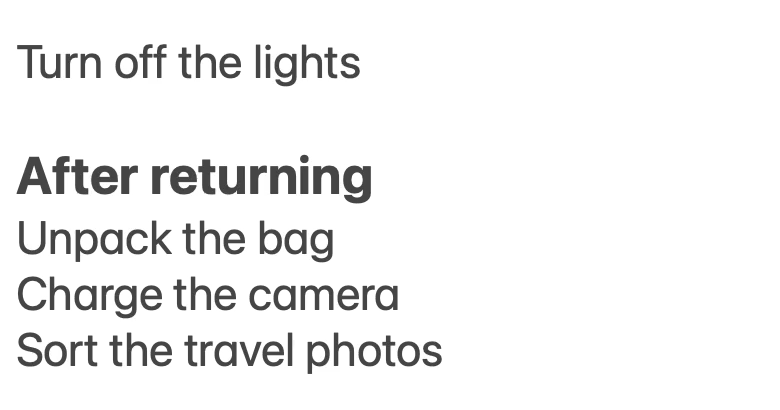
The next two screenshots are from our recording. The first shows a note with a divider line and a link to a heading. The second shows the note after we clicked the link.
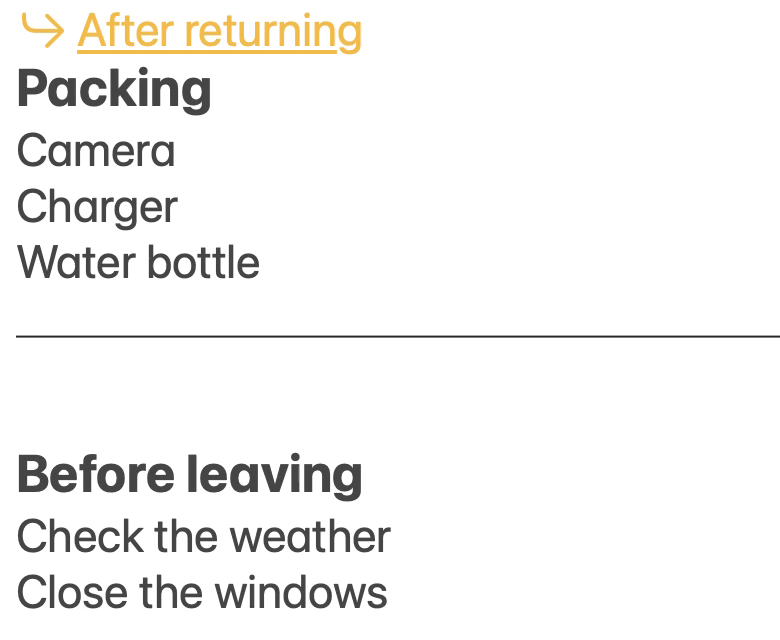
Also check where your notes are stored. Notes can be stored in iCloud, and also in other accounts, such as an email account. Apple’s guide says, “All Notes features described in this guide are available when using iCloud notes. Some features aren’t available when using accounts from other providers.” It also says, “Notes that contain links to other notes may not be visible on devices with previous versions of macOS.” That warning is about links to other notes, not links to a heading in the same note.
Photos: rate photos with one to five stars, then filter by rating
In Photos, you can give photos and videos a rating from one to five stars. To rate a photo:
- Double-click the photo you want to rate.
- Click the Star button in the toolbar.
- Choose the number of stars.
If you don’t see the Star button, change a setting first. Apple’s Photos guide says, “If you don’t see the Star button in the toolbar, choose Photos > Settings, click General, then select Show Rating Controls.”
After you rate your photos, you can filter by the number of stars.
- Click Library in the sidebar.
- Click All Photos.
- Click the Filter button in the toolbar.
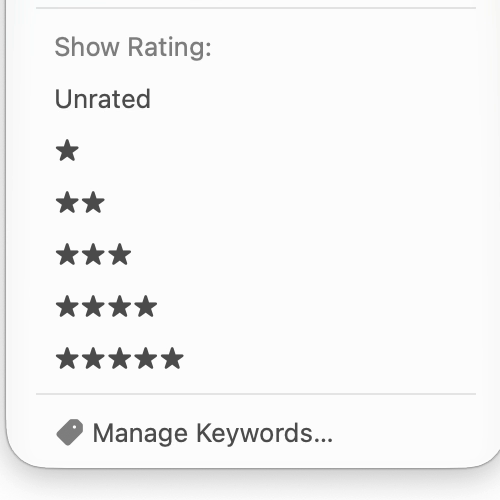
- Under Show Rating, choose the number of stars.
Apple’s guide says, “For example, you can show all items with a five-star rating applied.” In our recording, we changed a photo from four stars to five stars, then filtered the library to five-star photos. If you take several shots of the same moment, give the best one five stars, and it is easy to find later.
The next two screenshots are from our recording. The first is the Filter menu. The second is the library after filtering to five stars.

Finder: Suggest File Names uses Apple Intelligence to suggest names
In macOS 27, Finder can suggest a name for a file. Apple Intelligence is the set of AI features that Apple builds into the Mac. Apple’s Mac User Guide says, “With Apple Intelligence, Finder can suggest filenames when creating or renaming documents.”
To turn it on:
- Click Finder in the Dock.
- Choose Finder > Settings.
- Turn on Suggest File Names.
Because it uses Apple Intelligence, there are conditions. Apple’s Get started with Apple Intelligence on your Mac page says, “Apple Intelligence on macOS 27 is not available in all languages or regions.” The page does not say which languages Suggest File Names works in.
In our English recording, Suggest File Names did not appear on the General or Advanced tab of Finder Settings. We did not turn on Apple Intelligence for that account, and we did not find out why the item was missing. In our Japanese-language recording, we tried renaming an empty text file twice. Both times, we could not confirm a suggested name. We don’t know whether no name was suggested, or whether our recording setup could not see it.
Frequently asked questions
After updating, Liquid Glass looks almost the same to me
On our own Mac, ordinary apps did not look very different either. The Dock did become more see-through. To change the look, use the slider in System Settings > Appearance. If Reduce Transparency is on, the slider moves to the far right.
I can’t find the Star button in Photos
Choose Photos > Settings, click General, then select Show Rating Controls. The Star button then appears in the toolbar when you double-click a photo.
I don’t see Suggest File Names in Finder
First, open Finder > Settings and check whether Suggest File Names is there and turned on. If it is missing or does not work, check the Apple Intelligence conditions. One is the language setting. Apple’s page says, “Apple Intelligence is available with Siri and device language set to” one of the supported languages, such as English or Japanese. It also says, “Check the Apple Intelligence website for more information about features, supported devices, and languages.” See Apple’s Get started with Apple Intelligence on your Mac page for the conditions.
I haven’t updated to macOS 27 yet
Before you update, check your Mac, your apps, your free space, and your backup. The steps are in our How to update to macOS 27 article.
See the same five features on a Mac (video)
This video shows the five features in this article on a Mac screen and in drawings, one at a time. If you’d rather watch than read, try this.

What we tested on, and Apple’s pages
- Mac: MacBook Air (M2)
- macOS: macOS Golden Gate 27.0.1
- Recorded: October 16, 2026
The screenshots are cut from recordings made on a user account set up for recording, with the screen set to English. In the English recordings, we checked the following:
- System Settings > Appearance has the Liquid Glass slider
- Turning on Reduce Transparency moved the slider to the far right, and the notice appeared
- A divider line appears in a note, and clicking a Link to Section link jumps to a heading in the same note
- A photo can be changed from four to five stars, and the library can be filtered to five-star photos
Two things come from our Japanese-language recording on the same Mac: the slider staying at the far right after Reduce Transparency was turned off, and the two tries at renaming a file. We did not check how the Dock changes as you move the slider, swiping down to refresh, or a suggested name in Finder. For these, we relied on Apple’s pages. The Dock becoming more see-through is what we saw on our own Mac. The slider name “Liquid Glass Tint Amount” comes from the text strings in macOS 27.0.1 on a MacBook Air (M4), and the same name was reported for the slider in our English recording.
We checked the text on Apple’s pages as they read on October 18, 2026. We compared the macOS Tahoe 26 guides on the same day. The steps and descriptions come from these Apple pages:
- macOS 27 Golden Gate (Apple)
- What’s new in the updates for macOS 27 Golden Gate (Apple Support)
- Format notes on Mac (Notes User Guide, macOS 27)
- Add links in Notes on Mac (Notes User Guide, macOS 27)
- Add titles, captions, and more to photos and videos on Mac (Photos User Guide, macOS 27)
- Filter your photo library to show specific items on Mac (Photos User Guide, macOS 27)
- Rename files, folders, and disks on Mac (Mac User Guide, macOS 27)
- Get started with Apple Intelligence on your Mac (Mac User Guide, macOS 27)