Clean Up Your Mac Desktop Instantly — Group Your Files with Stacks
Published October 5, 2026
Steps checked October 16, 2026 (MacBook Air (M2), macOS Golden Gate 27.0.1)
By Wada Digital Lab
If your Mac desktop is covered in files, a feature built into macOS called Stacks can make it look tidy in an instant. Click the desktop, then press three keys: Control-Command-0. Your files pile up into groups. Grouped by kind, images go with images and PDFs go with PDFs. The files stay on your desktop, so nothing is deleted or moved anywhere else.
There is also a video that walks through the same steps on a Mac: Clean Up Your Mac Desktop Instantly with Stacks (YouTube, 3:06).
Key points
- Stacks is a macOS feature that piles up the files on your desktop into groups, such as by kind. Only the way they look changes; the files stay where they are.
- To turn it on, click the desktop and press Control-Command-0. Or, instead of the keys, choose View > Use Stacks from the menu bar. Press the keys again to go back to the usual layout.
- Folders do not go into stacks. They stay on the desktop one by one. Only files are grouped.
- To change how files are grouped, choose View > Group Stacks By. You can group by kind, by date or by tag. This item only appears in the View menu after you turn on Stacks.
- We checked this on a MacBook Air (M4) with macOS Tahoe 26.6.2.
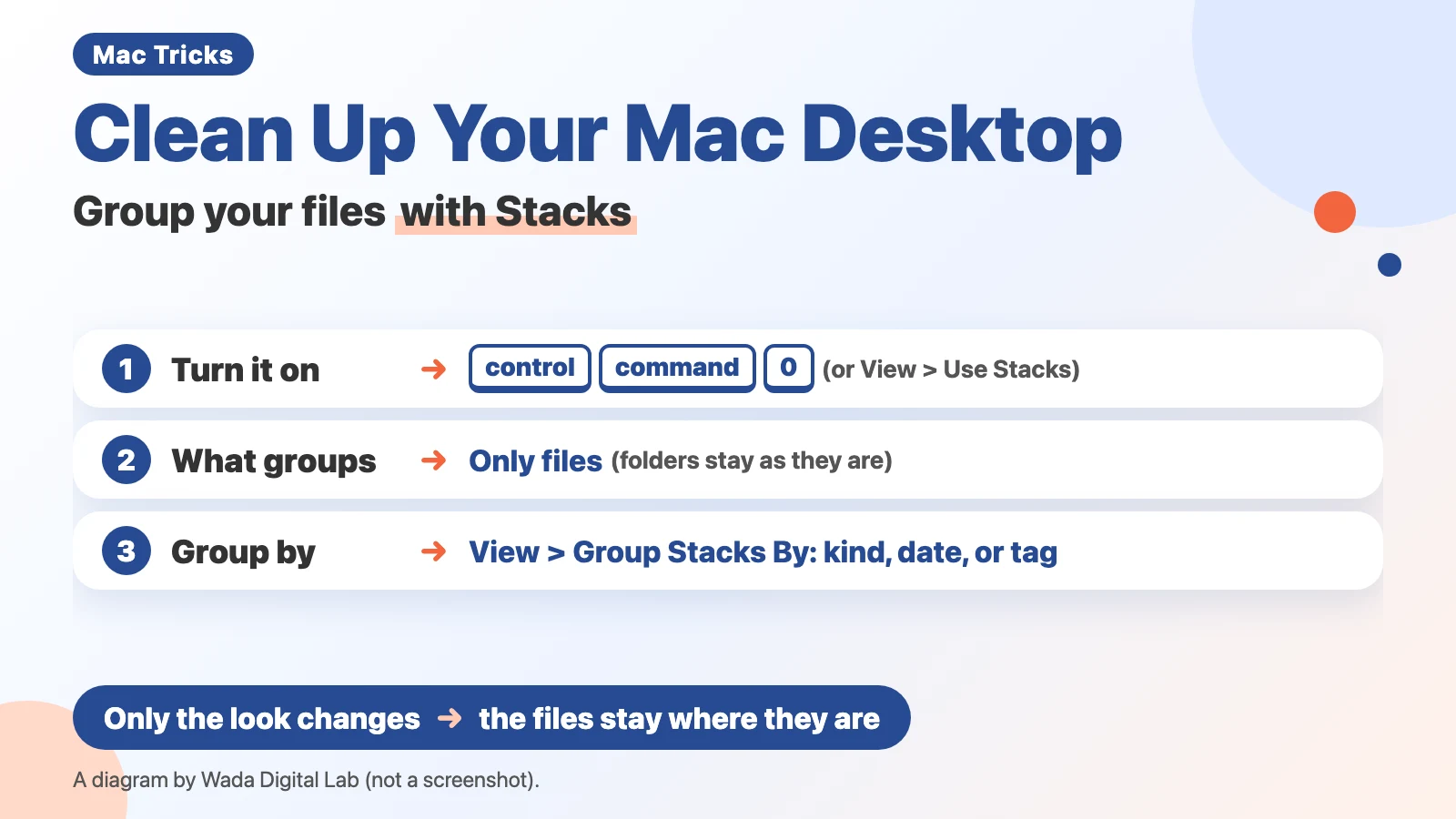
The diagram below sums up how to turn on Stacks, what gets grouped, and how to change the grouping (not a screenshot).
The next two pictures show the same desktop before and after using Stacks.
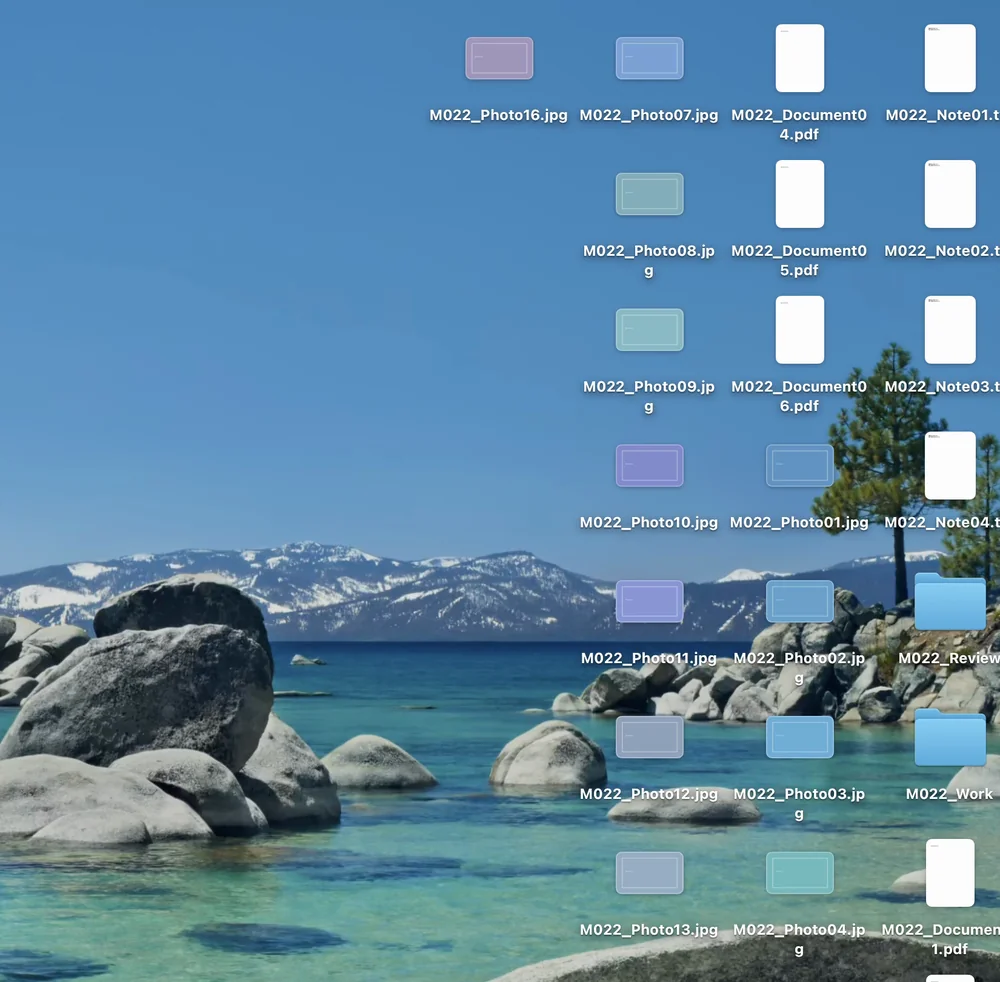
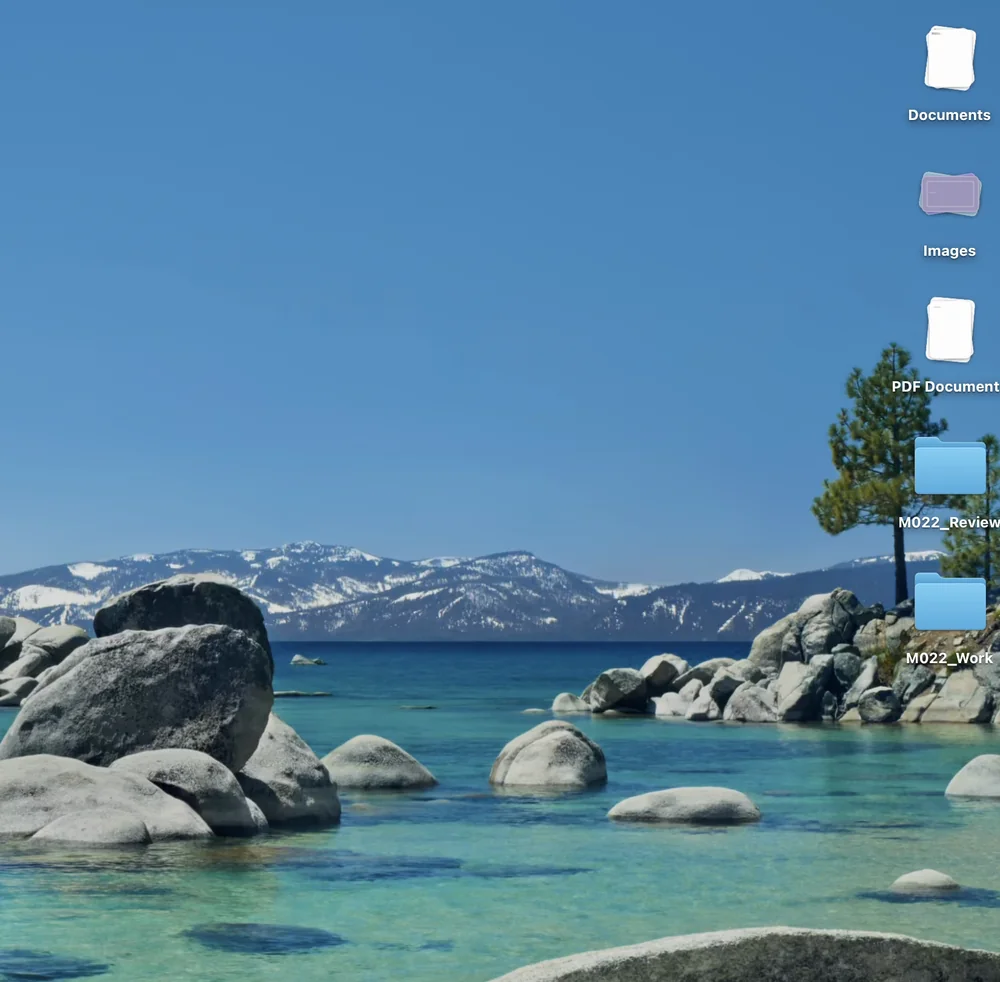
Stacks pile up your files by kind
Stacks is a macOS feature that sorts the files on your desktop into groups, such as by kind, and piles each group up in one place. Apple says: “Desktop stacks on your Mac neatly organize files on your desktop into groups.” Files you save to the desktop after turning on Stacks are also sorted for you: “When you save a file to the desktop, it’s automatically added to the appropriate stack” (the same Apple page).
Stacks only change how things look. The files are still on the desktop. On the Mac we use every day, we counted the files on the desktop with Stacks turned on. There were still 28.
The next diagram compares the desktop without Stacks and with Stacks: where the files are, and how they look.
Without Stacks
Where the files are On the desktop
How they look
One by one
Control-Command-0
With Stacks
Where the files are Still on the desktop
How they look
Piled up by kind
At Wada Digital Lab, before Stacks existed, files used to fill the whole desktop. There were so many that they spilled off the screen. When we showed our Mac screen to someone, we were sometimes embarrassed by how messy it looked. Since we started using Stacks, things have become much easier. We have not actually cleaned anything up, but because the files are piled up by kind, the clutter no longer bothers us. When we do clean up later, we can go through one stack at a time.
Turn it on with three keys (Control-Command-0)
The quickest way is the keyboard.
- Click an empty spot on the desktop
- Hold down Control and Command, then press 0 (zero)
Press the same three keys again to go back to the usual layout. Remember to click the desktop before pressing the keys. Apple’s steps also begin this way: “On your Mac, click the desktop, then choose View > Use Stacks or press Control-Command-0.” When we recorded, we clicked the desktop first too.
On the user account we made for recording, the files were grouped by Kind from the moment we turned Stacks on. If your files are not grouped by kind, choose Kind as described in the section on changing how stacks are grouped, below.
Press these three keys before you show someone your screen, and your desktop will look neat.
Turn it on from the menu (View > Use Stacks)
If you cannot remember the keys, you can do the same thing from the menu.
- Click an empty spot on the desktop
- In the menu bar at the very top of the screen, click View
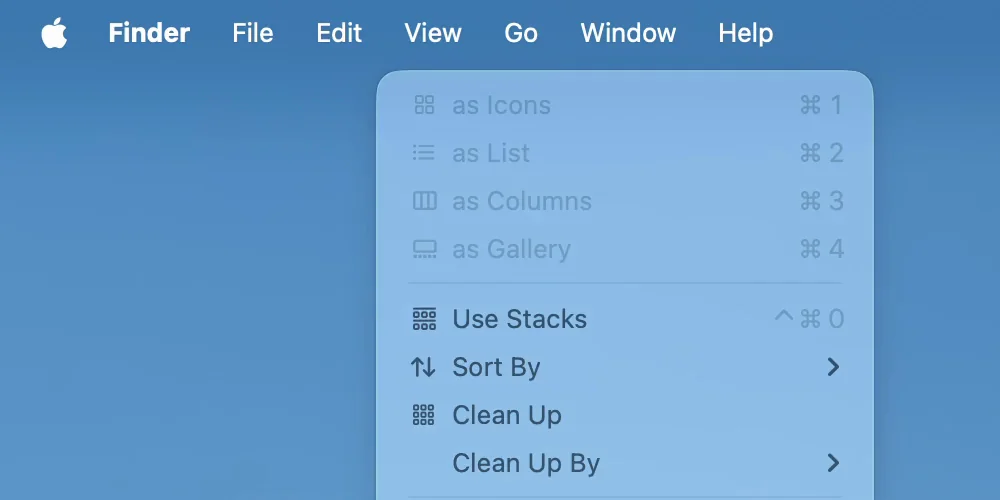
- Choose Use Stacks
Use Stacks is also in the menu you get when you Control-click the desktop. Apple says: “You can also Control-click the desktop, then choose Use Stacks.”
The next picture shows the View menu after clicking the desktop.
Folders stay out of stacks
Only files are grouped into stacks. Folders stayed on the desktop one by one even with Stacks turned on. In the “after” picture above, the two folders are still shown on their own.
The same was true on the Mac we use every day. Four folders and the four external drives we had connected stayed on the desktop on their own, outside the stacks.
Open a stack, close it, or look inside without opening it
Click a stack and the files inside spread out across the desktop. To open a file, double-click it as usual. To close the stack, click the down arrow that appears on the stack’s icon (Apple calls it the “Down Arrow icon”).
You can also look inside a stack without opening it. Apple says: “On your Mac, swipe left or right on the stack using two fingers on the trackpad, or one finger on a Magic Mouse.” When we tried it, the stack’s icon changed to show a picture of each file inside, one after another. We cover the basic two-finger gestures in our article on using the Mac trackpad.
Change how files are grouped (View > Group Stacks By)
You can change how stacks are grouped at any time. Click the desktop, then choose from View > Group Stacks By.
Group Stacks By only appears after you turn on Stacks. On the Mac we recorded with, when Stacks was off, the same spot in the View menu said Sort By. When we turned Stacks on, it changed to Group Stacks By. If you cannot find it, turn on Stacks first.
The next picture shows Group Stacks By open.
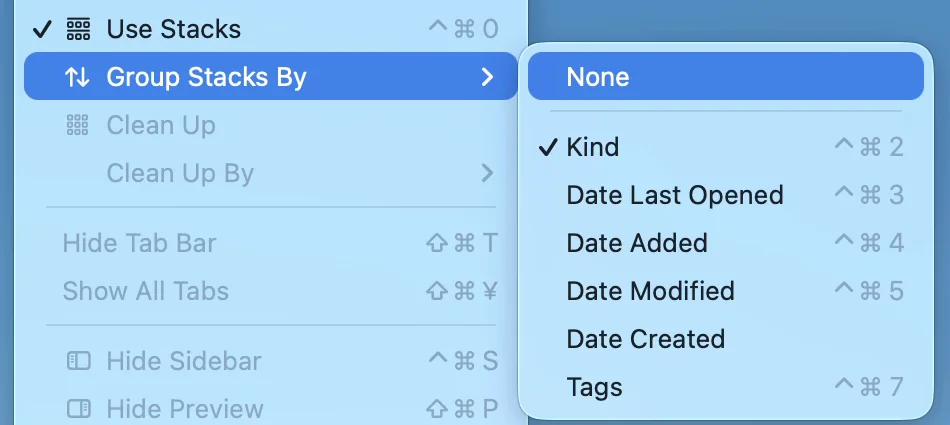
Here is what you can choose besides None, and how each one groups your files. We did not check what the desktop looks like with None. The menu also showed a keyboard shortcut for each choice (for example, Control-Command-2 for Kind and Control-Command-7 for Tags). The keys in the table are copied from those symbols.
| Choice | How files are grouped | Keys shown in the menu |
|---|---|---|
| Kind | By kind of file, such as images, PDFs and documents | Control-Command-2 |
| Date Last Opened | By the day each file was last opened | Control-Command-3 |
| Date Added | By the day each file was put on the desktop | Control-Command-4 |
| Date Modified | By the day each file was last changed | Control-Command-5 |
| Date Created | By the day each file was made | None shown |
| Tags | By Finder tag | Control-Command-7 |
The desktop on the Mac we use every day was also grouped by Kind. When we recorded in English, we also tried Date Added, and the files we had put on the desktop the day before were grouped into a stack named Yesterday. We did not press the keys in the table while recording.
Show how many files are in each stack
You can also show how many files are in a stack, under its icon.
- Click an empty spot on the desktop
- Choose View > Show View Options
- Select “Show item info”
Apple’s page mentions this option too: you can “show more information (such as how many files are in a stack)”. The next picture shows the window that Show View Options opens.
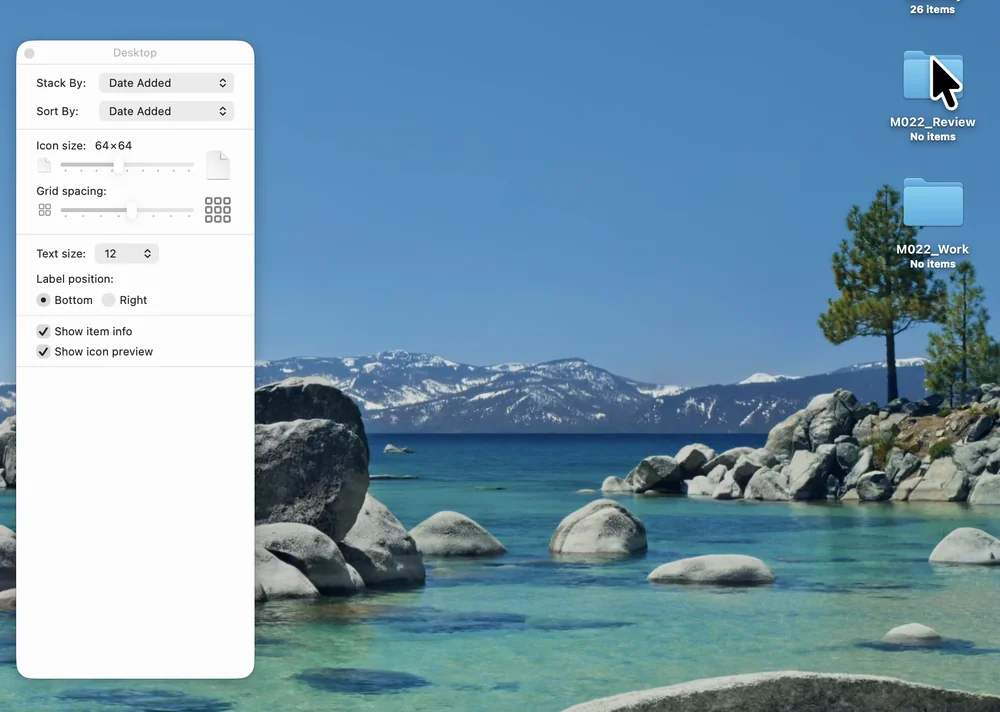
On the Mac we use every day, one stack had as many as 25 files in it. With the counts showing, you can see which stack to clean up first.
Images once ended up in the Other stack
On the desktop of the Mac we use every day, images (12 PNG files) and videos (9 MP4 and MOV files) went into the Other stack instead of the Images stack. At the time, 27 of the 28 files were in iCloud Drive (Apple’s online storage), and their contents had not been downloaded to this Mac yet.
With the sample files we made for recording, whose contents were on the Mac, images went into the Images stack and PDFs went into the PDF Documents stack. We have not yet confirmed why those files went into Other.
Check your work: three things to look for
Compare your own Mac with this table.
| Where to look | You are done when |
|---|---|
| Use Stacks in the View menu | It has a checkmark |
| Group Stacks By in the View menu | Kind has a checkmark |
| Your desktop | Your files are in stacks by kind |
Frequently asked questions
Do Stacks move my files somewhere?
No. The files stay on your desktop; only the way they look changes. On the Mac we used, when we counted the files on the desktop after turning on Stacks, there were still 28.
I can’t find Group Stacks By
Turn on Stacks first. On the Mac we recorded with, when Stacks was off, the same spot in the View menu said Sort By.
How do I go back to the usual layout?
Click the desktop, then press Control-Command-0 again. Choosing Use Stacks in the View menu again also takes you back.
If your desktop is filling up with screenshots
At Wada Digital Lab, every screenshot we took used to add another file to the desktop, and it got cluttered. When we tried to sort them out later, we were never sure whether it was safe to delete them all.
If most of the files piling up are screenshots, you can change where new screenshots are saved. We cover it in our article on changing where screenshots are saved. If you take screenshots only to paste them, you can also paste them right away without making a file.
If the Dock along the bottom of the screen leaves you short of space, you can hide the Dock with three keys. We cover it in our article on hiding the Dock to get more screen space.
Watch the same steps on a Mac (video)
This video goes through the steps above one at a time on a Mac screen. If you would rather watch than read, try this.

What we tested on, and Apple’s pages
We checked the steps in this article on this Mac:
- Model: MacBook Air (M4)
- macOS: macOS Tahoe 26.6.2
- Dates: September 28, 2026 (the stacks and file counts on the desktop we use every day), September 29, 2026 (we tried and recorded the steps with the Mac set to Japanese) and September 30, 2026 (we recorded the steps again with the Mac set to English)
We used a separate user account on this Mac made for recording, and the files on the desktop are sample files. The pictures in this article come from the September 30 recording in English.
On this Mac we actually switched Use Stacks on and off, chose Kind and Date Added under Group Stacks By, and turned on Show item info. To look inside a stack without opening it, we scrolled sideways instead of swiping with two fingers on a trackpad. We did not press the keys listed under Group Stacks By (such as Control-Command-2).
On October 16, 2026, we also checked on a MacBook Air (M2) running macOS Golden Gate 27.0.1, using a separate user account made for recording, with the Mac set to Japanese. We put five sample files on the desktop and chose Use Stacks, and they gathered into two stacks, one for documents and one for images. Group Stacks By and the seven choices in it had the same names as on macOS 26. Apple’s guide for macOS 27 still says Control-Command-0 and Group Stacks By. We did not take pictures of the menus on macOS 27, we did not press Control-Command-0 there, and we did not look at it with the Mac set to English.
The steps and quotes come from the first Apple page below. We checked the quotes word for word against the current page on October 5, 2026. We read the macOS 27 page on October 16, 2026. The English names of the stacks (Documents, Images, PDF Documents, Other and Yesterday) come from the screen in English and the English text built into macOS on the same Mac.