How to Use Your Mac Trackpad — Basic Two-Finger Gestures
Published October 5, 2026 (updated October 12, 2026)
Steps checked October 15, 2026 (MacBook Air (M2), macOS Golden Gate 27.0.1)
By Wada Digital Lab
With two fingers on your Mac’s trackpad, you can scroll, right-click, zoom in and go back to the previous page. Move two fingers up or down and the page scrolls. Click with two fingers and the right-click menu appears. Swipe two fingers to the right and you go back to the previous page. If the direction feels backwards, or a gesture does not work, you can fix it in Trackpad settings in System Settings. Only when scrolling does not work at all do you need to look in Accessibility settings.
There is also a video that walks through the same gestures on a Mac: How to Use Your Mac Trackpad (YouTube, 2:53).
Key points
- Move two fingers up or down to scroll. If the direction feels backwards, switch “Natural scrolling” in Scroll & Zoom, and it goes the other way.
- Click with two fingers and the right-click menu appears. The setting is called “Secondary click”.
- Spread two fingers to zoom in, and pinch them to zoom out. With “Smart zoom”, a light double-tap with two fingers, the text on our test page became about 2.6 times as big.
- Swipe two fingers to the right to go to the previous page, and to the left to go to the next page. The setting is called “Swipe between pages”.
- Swipe left with two fingers from the right edge of the trackpad, and Notification Center appears.
- We tried each gesture on a MacBook Air (M4) with macOS Tahoe 26.6.2.
The diagram below lists the basic two-finger gestures and the names of their settings (not a screenshot).
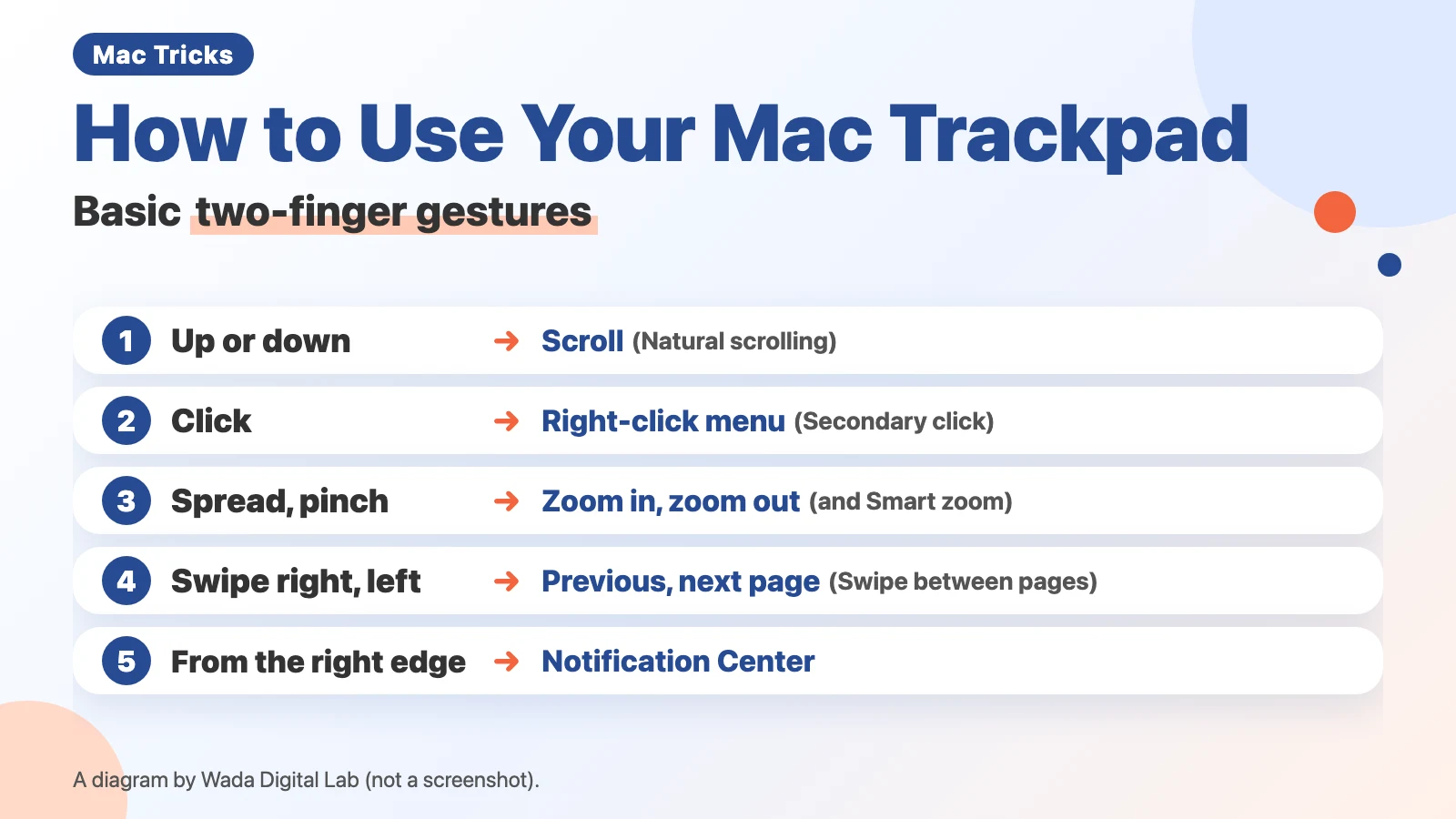
Two-finger gestures are in Trackpad settings (turning scrolling on or off is in Accessibility)
You can control your Mac with how many fingers you put on the trackpad and how you move them. Apple calls these “Multi-Touch gestures”. A gesture is a combination of how many fingers you put on the trackpad and how you move them.
You can turn these gestures off or change how they work in Trackpad settings in System Settings (only scrolling itself is in Accessibility settings). Apple’s support article says of this settings screen: “There you can turn a gesture off, change the type of gesture, and learn which gestures work with your Mac.”
Here are the gestures in this article and where their settings are. The settings are listed by the names of the three tabs across the top of Trackpad settings (Point & Click, Scroll & Zoom and More Gestures).
| What you want to do | How to move two fingers | Where the setting is, and its name |
|---|---|---|
| Scroll | Move two fingers up or down | The direction is “Natural scrolling” in Scroll & Zoom |
| Right-click | Click with two fingers | “Secondary click” in Point & Click |
| Zoom in and out | Spread or pinch two fingers | “Zoom in or out” in Scroll & Zoom |
| Enlarge the part you want to read | Lightly double-tap with two fingers | “Smart zoom” in Scroll & Zoom |
| Previous page and next page | Swipe two fingers right or left | “Swipe between pages” in More Gestures |
| Show Notification Center | Swipe left with two fingers from the right edge of the trackpad | “Notification Center” in More Gestures |
To open the settings, choose Apple menu > System Settings, then click Trackpad in the sidebar (you may need to scroll down the sidebar).
Move two fingers up or down to scroll; if it feels backwards, switch “Natural scrolling”
To move a page up or down, put two fingers on the trackpad and move them up or down. Apple’s description is: “Slide two fingers up or down to scroll.”
Sometimes the direction the page moves feels the opposite of what you expected. When Wada Digital Lab switched to the Mac, the scrolling direction was the opposite of the mouse on the computer we used before. It took us quite a while to get used to it.
The direction is set by a setting called “Natural scrolling”. Natural scrolling means the contents of the page move in the same direction as your fingers. Apple describes it as: “Move the contents of a window in the same direction as your fingers.” On the settings screen, the line under the setting says “Content tracks finger movement”.
The next diagram shows which way the page contents move when you move two fingers up, with “Natural scrolling” on and off.
Natural scrolling on
Move two fingers up The page contents move up too
Same direction as your fingers
Natural scrolling off
Move two fingers up The page contents move down
Opposite direction to your fingers
Here is how to change the direction:
- Choose Apple menu > System Settings
- Click Trackpad in the sidebar
- Click the Scroll & Zoom tab at the top
- Switch “Natural scrolling” (off if it is on, on if it is off)
The next picture shows Scroll & Zoom on the Mac we recorded with.
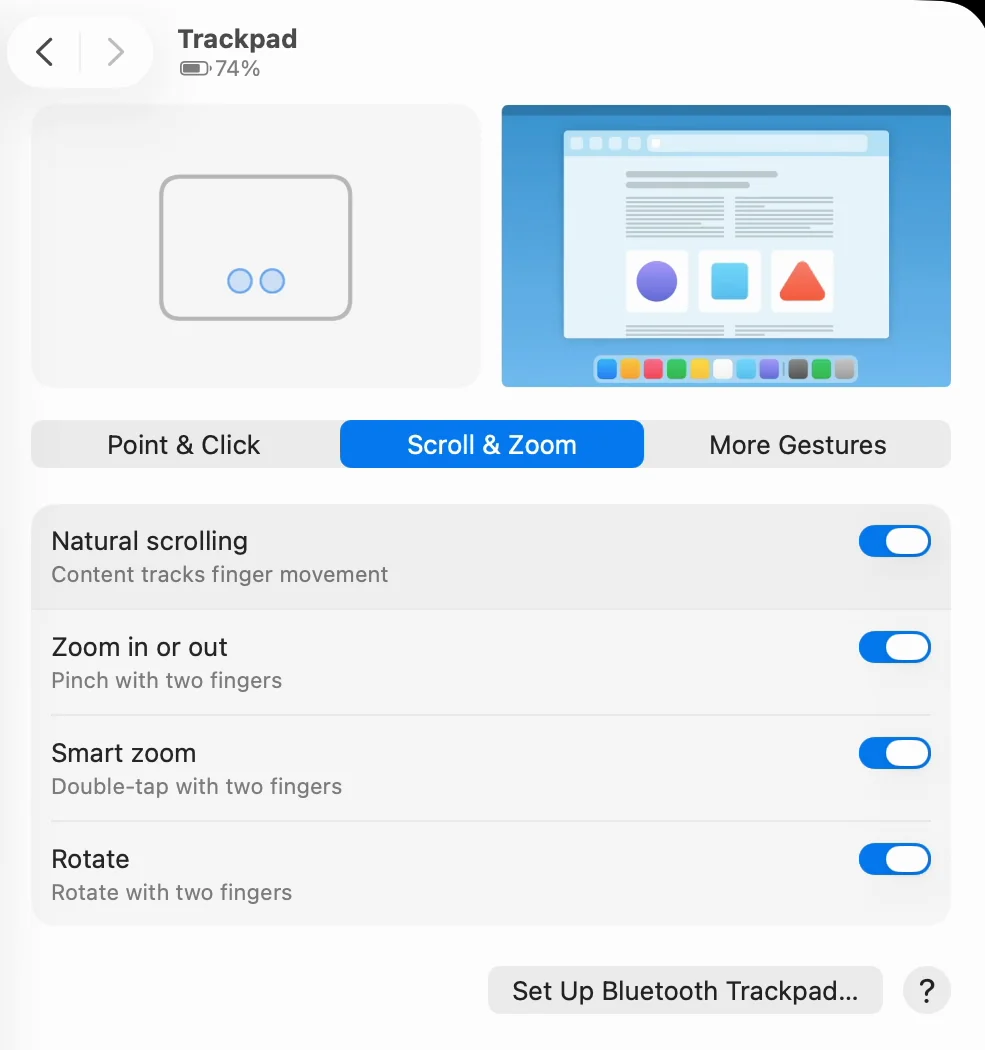
When we recorded, we turned “Natural scrolling” off and moved our fingers the same way. The page moved in the opposite direction from when it was on. After recording, we turned it back on. Neither direction is the right one; choose the one you are used to.
Click with two fingers to right-click (the setting is called “Secondary click”)
To bring up the right-click menu, keep two fingers on the trackpad and press down to click. Apple’s description of a secondary click is: “Click or tap with two fingers.” Do this on a file, and a menu of things you can do with that file appears.
When we clicked a file in the Finder with two fingers, the menu listed items such as Open, Get Info, Rename and Copy.
At Wada Digital Lab, the two-finger right-click is such a basic gesture that we knew it from the start. We got used to it straight away, and now we use it without thinking.
In settings, this gesture is called “Secondary click”. Apple says a secondary click is “also called Control-click on Mac or right-click on Windows”. Holding down Control while you click brings up the same menu. Dock icons also show a menu when you click them with two fingers. We cover how to use the Dock’s menus in our article on hiding the Dock to get more screen space.
If a light touch does not bring up the right-click menu, check “Tap to click”
Apple’s description says “click or tap”, but the screen on the Mac we recorded with was different. In Point & Click, “Secondary click” was set to “Click with Two Fingers”. “Tap to click”, just below it, was off. The next picture shows that screen.
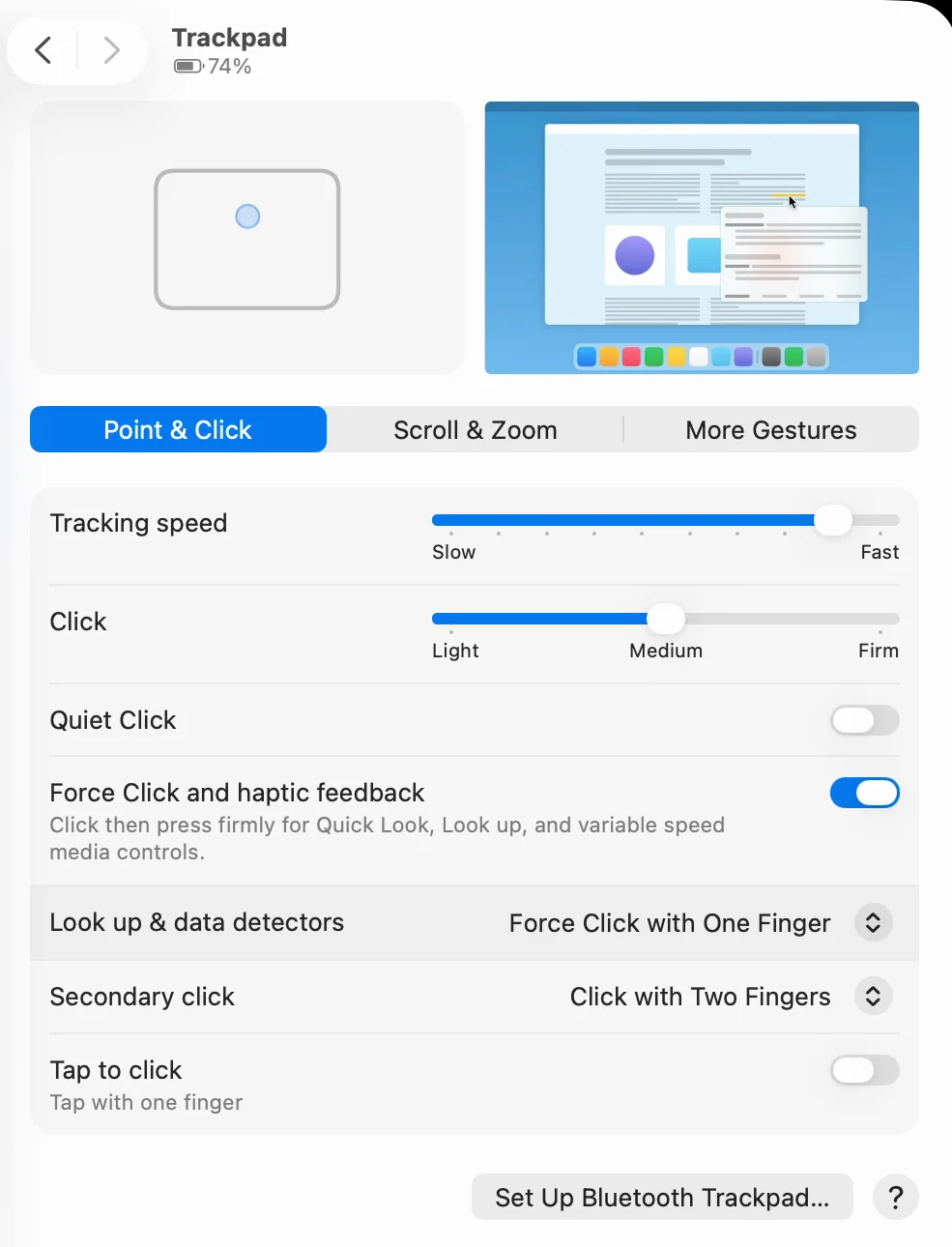
The description of this gesture built into macOS says: “To open an item’s shortcut menu, place two fingers on the trackpad and click. If ‘Tap to Click’ is selected, just tap two fingers on the trackpad.” In other words, if you want the menu to appear with just a light two-finger touch, turn on “Tap to click”. We did not switch “Tap to click” while recording, so we have not tried whether a light touch brings up the menu.
Spread two fingers to enlarge text and pictures on a web page; pinch to make them smaller
When the text or pictures on a web page are small, put two fingers on the trackpad and spread them apart. To make things smaller, bring your fingers together as if pinching. Apple’s description is: “Pinch with two fingers to zoom in or out.” The setting is called “Zoom in or out”.
When we recorded, we tried it on a diagram on a web page. Spreading two fingers made the diagram bigger, and pinching made it smaller again. At Wada Digital Lab, too, we usually spread our fingers when we want bigger text.
Apple’s Trackpad settings page in English describes this the other way round: “Pinch two fingers closed to zoom in, or spread two fingers to zoom out.” When we tried it, spreading made things bigger and pinching made them smaller, as described above.
Lightly double-tap with two fingers to enlarge what you want to read with “Smart zoom”
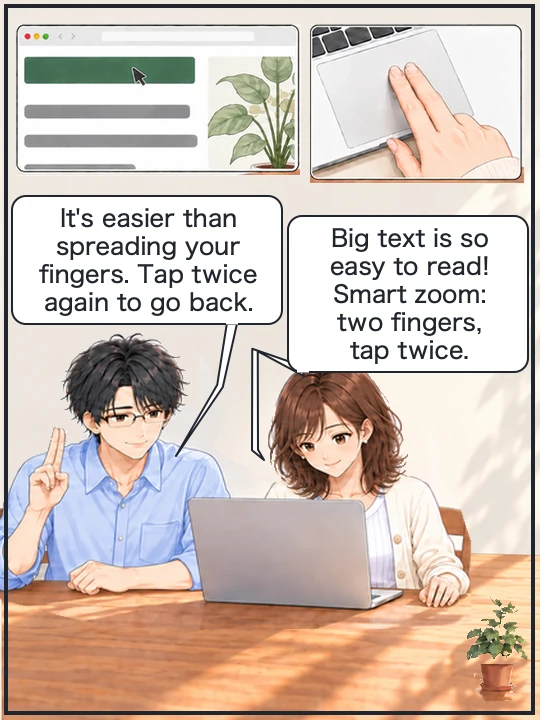
An even simpler gesture is “Smart zoom”. Smart zoom is a feature that enlarges a web page or similar when you lightly tap the trackpad twice with two fingers. Tap twice again, and it goes back to its original size. Apple’s description is: “Double-tap with two fingers to zoom in and back out of a webpage or PDF.”
The next two pictures show a web page we made for the recording, before and after using Smart zoom.
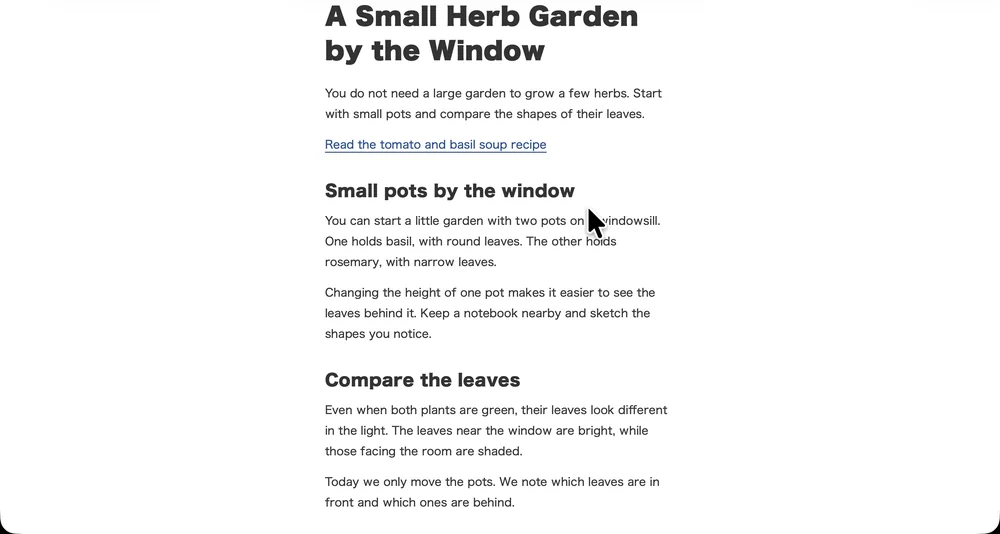
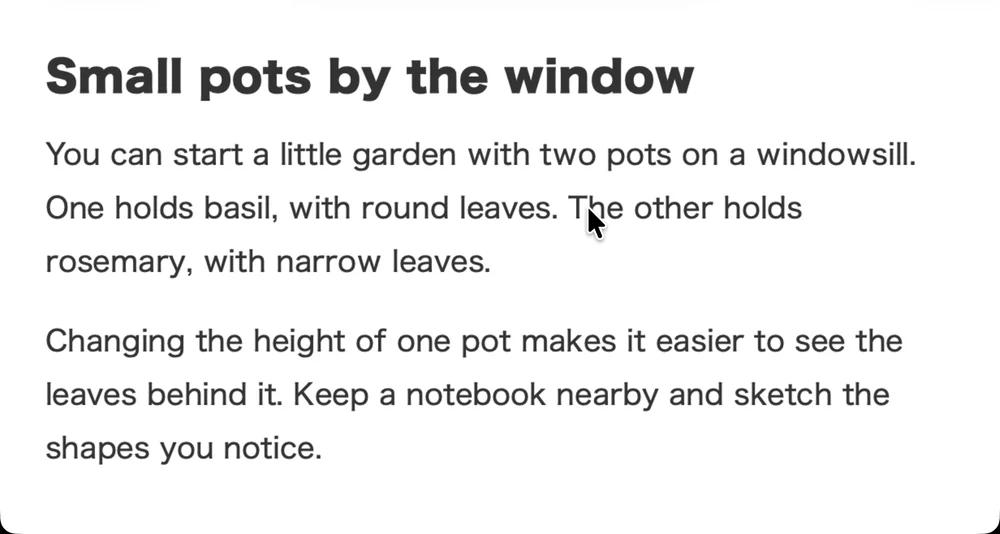
We measured how much bigger it got in the recordings. In the English recording, the heading “Small pots by the window” went from 248 to 647 pixels wide in the two frames above, about 2.6 times. In the Japanese recording on October 3, the same three characters of a heading went from 33 to 85 pixels tall, also about 2.6 times. This is the value on our test page; it will differ from page to page. Tapping twice again brought it back to its original size.
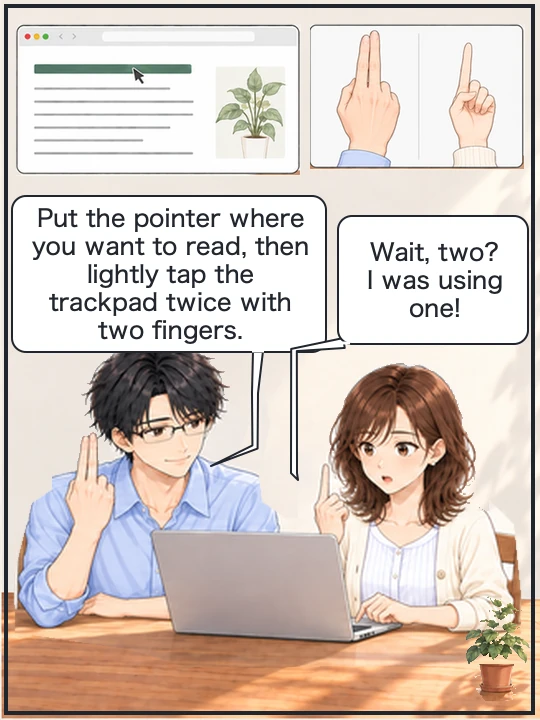
We had one failed attempt while recording. On the first try, we were tapping with one finger. In 60 seconds of recording, the text did not get bigger once. On the second try, with two fingers, it got bigger as in the pictures above. If it does not get bigger, check that you are using two fingers.
At Wada Digital Lab, we do know about Smart zoom. But unless someone reminds us now and then, we forget about it and stop using it.
The next comic shows text that did not get bigger with one finger getting bigger with two.
Swipe sideways to see the next panel.


There are other ways to make text bigger on a Mac, depending on whether you want to enlarge the whole screen, certain apps, or just the page you are reading. We compare them, shortcuts included, in How to Make Text Bigger on a Mac — Everything on the Screen, Certain Apps, and Shortcuts.
Swipe two fingers to the right to go back a page (“Swipe between pages”)
When you have opened a link on a web page and want to go back to the previous page, swipe two fingers to the right. To go forward to the next page, swipe to the left. Apple’s description is: “Swipe left or right with two fingers to show the previous or next page.” The setting is called “Swipe between pages”.
Apple’s description does not say which direction takes you back. When we recorded, swiping two fingers to the right in Safari took us back to the previous page. The next picture is a frame from partway through going back. The page you are looking at slides to the right, and the left side of the screen opens up.

At Wada Digital Lab, we use this gesture too. When you are browsing web pages, not knowing this “back” gesture is a real nuisance. You end up having to use the browser’s Back button instead.
Swiping left and right with two fingers works in other places too. For example, swipe left and right with two fingers on a desktop “stack”, and you can look through the files inside one at a time without opening it. We cover stacks in our article on tidying desktop files with Stacks.
Swipe left with two fingers from the right edge of the trackpad to show Notification Center
Notification Center is the area on the right side of the screen where your notifications and widgets appear. Widgets are small panels that show things like your schedule or the weather. To bring it up, put two fingers at the right edge of the trackpad and swipe left. Apple’s description is: “Swipe left from the right edge with two fingers to show Notification Center.”
The next diagram shows how to bring up Notification Center.
The trackpad
The right edge Put two fingers down and swipe left
The screen
The right side Notification Center appears
To close it, click anywhere on the desktop. According to Apple, you can also “swipe right with two fingers toward the right edge of the trackpad” to close it. When we recorded, we opened and closed it twice.
Add the Batteries widget to see how much charge your devices have left
At Wada Digital Lab, we keep the Batteries widget in Notification Center. It also shows how much charge is left in the trackpad and AirPods, which is handy. The description of this widget built into macOS is: “View the status of your Mac and connected Bluetooth accessories.”
According to Apple, here is how to add a widget to Notification Center:
- Bring up Notification Center
- Click Edit Widgets at the bottom of Notification Center
- In the widget gallery (the list of widgets you can add), find the widget you want and click it
- Click Done at the bottom-right corner of the widget gallery
Apple’s wording is “At the bottom of Notification Center, click Edit Widgets.” and “When you’re finished adding widgets, click Done at the bottom-right corner of the widget gallery.” We did not add a widget while recording, so this article does not show the Batteries widget.
Check your work: if these four work, you have the basics
Try the four things in the next table on your own Mac.
| What to do | You are done when |
|---|---|
| Move two fingers up or down | The page moves up or down |
| Click a file with two fingers | The right-click menu appears |
| Lightly double-tap with two fingers on a web page | The area around the pointer gets bigger, and tapping twice again takes it back |
| After opening a link, swipe two fingers to the right | You go back to the previous page |
If any of them does not work, check in Trackpad settings in System Settings that the gesture is turned on. Only scrolling is in Accessibility settings (where to find it is in the questions below).
Frequently asked questions
I double-tap with two fingers, but the web page text does not get bigger
First, check that you are using two fingers. On our first try while recording, we were using one finger, so nothing got bigger. Next, check that “Smart zoom” is on in Scroll & Zoom. Apple’s description covers “a webpage or PDF”, so trying it on a web page first is the surest way.
The right-click menu does not appear when I touch with two fingers
Instead of just touching lightly, keep two fingers on the trackpad and press down to click. When “Tap to click” is off, the description in macOS says you click with two fingers. If you want the menu with just a touch, turn on “Tap to click” in Point & Click.
Moving two fingers does not scroll
Turning scrolling itself on or off is not in Trackpad settings but in Accessibility settings. Apple’s support article says: “You can turn off trackpad scrolling in Accessibility settings.” According to Apple, here is where to find it:
- Choose Apple menu > System Settings
- Click Accessibility in the sidebar, then click Pointer Control
- Open Trackpad Options
- Check that “Use trackpad for scrolling” is on
Apple describes this option as: “Turn scrolling on or off.” At Wada Digital Lab, we have not opened and tried this setting.
Are there gestures with three or four fingers?
Yes. Apple’s support article also lists gestures such as dragging with three fingers and opening Mission Control, which shows all your open windows at once. According to Apple, you open Mission Control with four fingers, but in some versions of macOS the gesture uses three. This article sticks to the everyday basics, so it covers only one- and two-finger gestures.
Watch the same gestures on a Mac (video)
This video goes through the gestures above one at a time on a Mac screen. If you would rather watch than read, try this.
What we tested on, and Apple’s pages
The pictures in this article were taken on this Mac:
- Model: MacBook Air (M4)
- macOS: macOS Tahoe 26.6.2
- Dates: October 3, 2026 (we tried and recorded the gestures with the Mac set to Japanese) and October 4, 2026 (we recorded them again with the Mac set to English)
We used a separate user account on this Mac made for recording, and the web pages and files are ones we made for the recording. The pictures in this article come from the October 4 recording in English. The recording does not show fingers, so the number of fingers comes from the report of the person operating the Mac.
On October 15, 2026, we checked the screens again on a MacBook Air (M2) with macOS Golden Gate 27.0.1, using a recording account set to English (US). The names in Scroll & Zoom and Point & Click were the same as on macOS Tahoe 26.6.2. That day we only looked at the settings. We did not try the gestures again.
We actually tried these on this Mac:
- Scrolling by moving two fingers up and down
- Turning “Natural scrolling” off to compare the direction, then turning it back on
- Clicking a file in the Finder with two fingers to bring up the menu
- Spreading and pinching two fingers on a web page
- Lightly double-tapping with two fingers to zoom in, then double-tapping again to go back (including the failed attempt with one finger, on October 3)
- In Safari, swiping two fingers to the right to go back a page, and to the left to go forward
- Swiping left with two fingers from the right edge of the trackpad to open Notification Center, then closing it
We did not switch “Tap to click” or the scrolling setting in Accessibility. We did not add the Batteries widget while recording. The two descriptions built into macOS (for Secondary click and for the Batteries widget) come from the English text in macOS on the same Mac.
The steps and quotes come from these Apple pages. We checked the quotes word for word against the current pages on October 5, 2026.