PNG to JPG Converter — JPG to PNG too, many at once
This page in Japanese: 日本語
Convert PNG images to JPG right on this page. You can also convert JPG to PNG. It’s completely free for as many images as you like, as often as you like. No sign-up, no ads, and no app to install.
Convert your images
How to use it
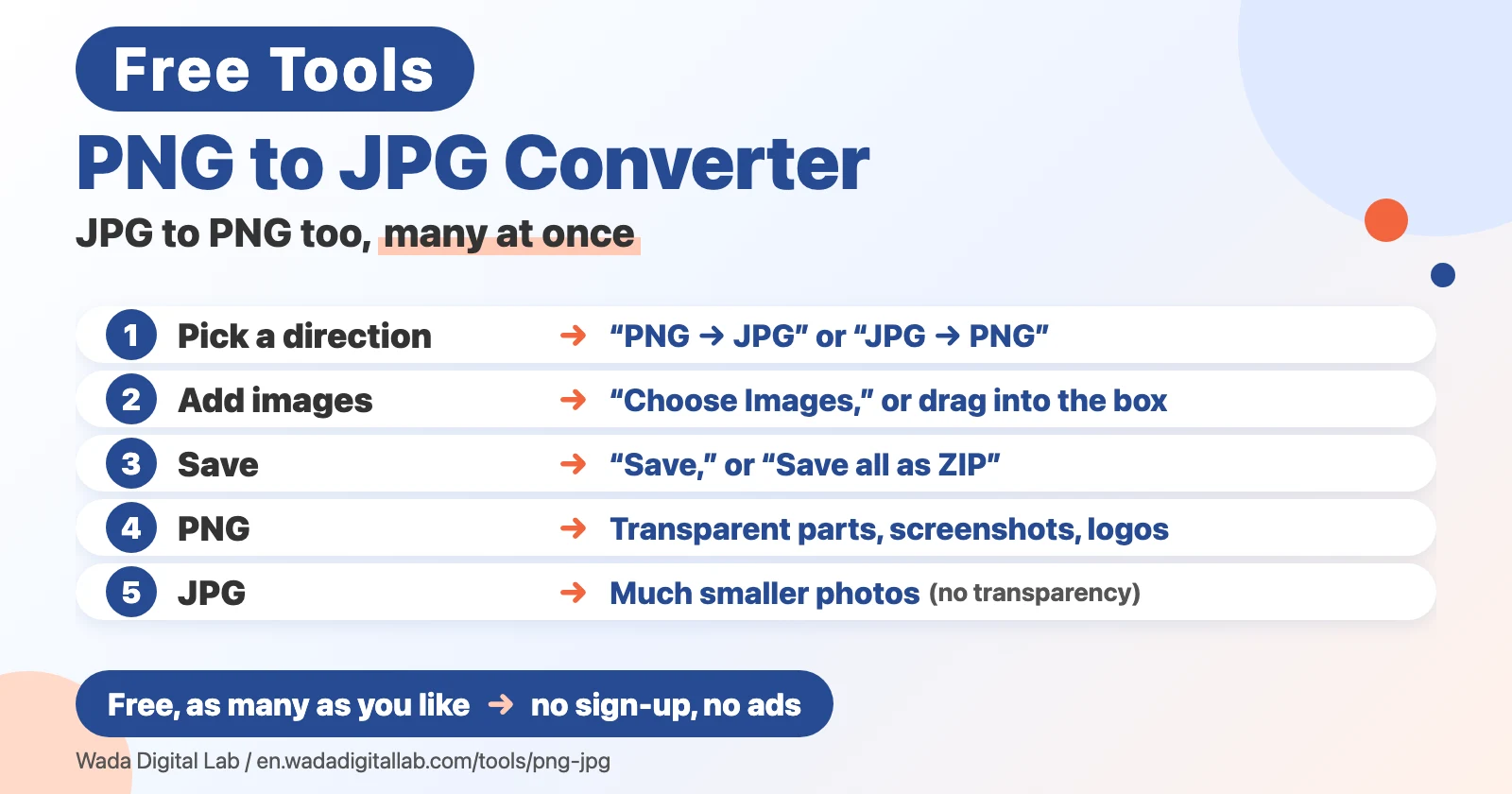
- Choose which way to convert, before you add your images: “PNG → JPG” or “JPG → PNG.”
- Click “Choose Images,” or drag your images into the box on this page.
- Click “Save” next to a converted image. If you have many, click “Save all as ZIP.”
Your original images don’t change. The converted images don’t keep the date and time a photo was taken, or where it was taken (location data).
PNG or JPG?
- PNG: can have transparent parts, and keeps text and lines sharp. But photos saved as PNG are large. Good for screenshots, logos and illustrations.
- JPG: makes photos much smaller, but can’t have transparent parts. Good for photos, and almost every app and website accepts it.
For example, convert to JPG when a PNG photo is too large to email, or when an online form only accepts JPG. Convert JPG to PNG when someone asks you for a PNG file.
On a Mac or iPhone, you can do it without this page
Your Mac and iPhone can already change an image’s format.
In the Finder on a Mac (many at once)
- In the Finder, select the images you want to convert. You can select as many as you like.
- Control-click them, then choose Quick Actions.
- Choose More, then choose Convert Image.
- Choose JPEG or PNG as the format, then convert. The new images are saved in the same folder.
In Preview on a Mac (one at a time)
- Open the image in Preview.
- Choose File > Export.
- Click the Format pop-up menu and choose JPEG or PNG, then click Save.
In Preview on an iPhone (iOS 26 or later)
- Open the image in the Preview app on your iPhone.
- Tap the button next to the file name, then tap Export.
- Choose JPEG or PNG as the format, choose where to save it, then tap Save.
We checked these steps against Apple’s own guides: Perform quick actions in the Finder on Mac, Convert image file types using Preview on Mac, and Export or compress PDFs and images in Preview on iPhone.
Frequently asked questions
- Is it really free?
- Yes. It’s free for as many images as you like, as often as you like. No sign-up and no ads.
- What happens to transparent parts of a PNG?
- JPG files can’t have transparent parts, so they turn white. To keep them and still make the file smaller, choose “PNG” on our Compress Images page.
- Will the images lose quality?
- PNG to JPG uses high quality, so you’ll hardly see a difference. JPG to PNG loses no more quality, but any blur from the JPG stays in the PNG.
- Will the file size change?
- A photo usually gets smaller when you turn a PNG into a JPG. A JPG usually gets larger as a PNG, sometimes several times larger. If you need a set size, like “2 MB or less,” use Compress Images.
- Will my original images change?
- No. Each converted image is saved as a new file.
- How many images can I convert?
- There’s no set limit. The images are converted one at a time. On a phone, about 20 at a time is a safe amount.
- Can I convert WebP images or iPhone photos (HEIC)?
- WebP images work on this page, too, or you can use our WebP to JPG Converter. For iPhone photos (HEIC), use our HEIC to JPG Converter.
More tools and “Mac Tricks”
- All browser tools: images, PDFs and audio, on one page.
- Compress Images: make photos smaller, many at once.
- WebP to JPG Converter: turn WebP images into JPGs or PNGs.
- HEIC to JPG Converter: turn iPhone photos into JPGs, many at once.
- Merge PDF Files, Split PDF, Compress PDF: combine, split and shrink PDFs.
- All articles on “Mac Tricks”: everyday problems on the Mac, and how to fix them.
We also make Mac apps. For example, KoeShot lets you take screenshots and screen recordings on your Mac with your voice.