What Swap Used Means on a Mac — Do You Need to Clear It? Check the Memory Pressure Color
Published November 3, 2026
Official documentation reviewed November 3, 2026 (some steps not tested)
By Wada Digital Lab
Swap Used on a Mac is the amount of data macOS has moved out of memory and onto the startup disk (the internal storage) for a while. You see it at the bottom of the Memory tab in Activity Monitor. A few gigabytes of swap doesn’t mean you are out of memory. Apple says to check the color of the Memory Pressure graph instead. To bring swap down, quit apps you aren’t using. Apple’s user guide has no setting for changing the size of swap.
Key points
- Apple describes Swap Used as “The amount of space being used on your startup disk to swap unused files to and from RAM.”
- On our Mac (M4, 16GB of memory, macOS 27.0.1), swap used went from about 4.1GB to about 8.2GB in one minute, then dropped to about 7.5GB. The number moves minute by minute.
- Whether you have enough memory shows in the color of Memory Pressure, not in the amount of swap. On our recording Mac, the graph was green with 3.85GB of Swap Used.
- To reduce swap, quit apps you aren’t using. macOS moves data in and out by itself, and Apple’s user guide doesn’t describe a setting for its size.
- If you want to keep an eye on memory all the time, our free app Memory Watch shows the color in the menu bar, and swap in its Mac Status window (we make it).
The diagram below sums up how to read Swap Used.
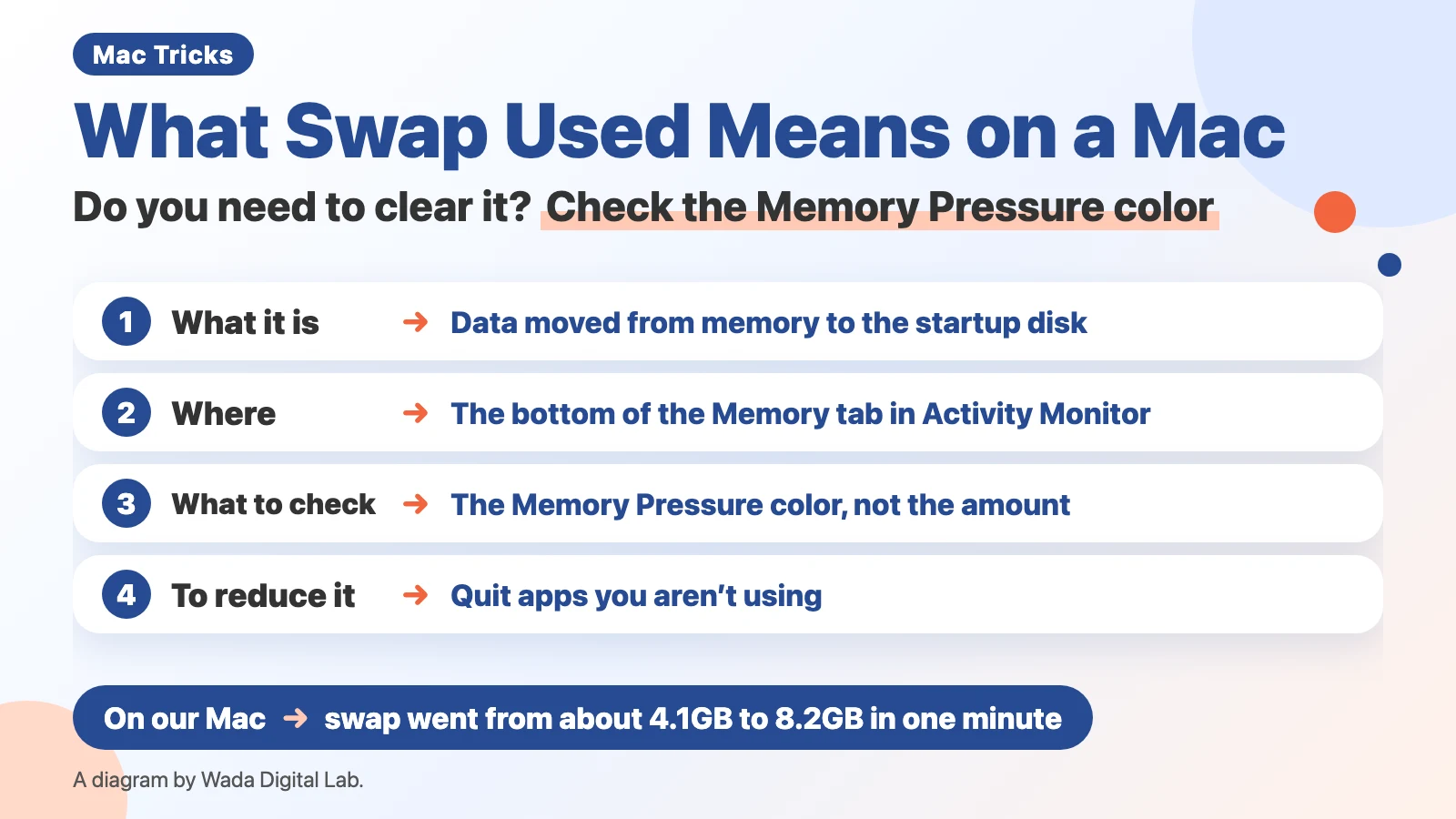
What Swap Used means: data moved from memory to the startup disk
Swap Used is the amount of data that macOS has moved out of memory (RAM) and onto the startup disk for a while, because it didn’t fit in memory. Memory is where your Mac keeps apps and documents while it is running. When memory runs short, macOS first compresses what is in memory, and if that isn’t enough, it moves the rest to the startup disk and keeps going. Apple’s page “View memory usage in Activity Monitor on Mac” says:
“The amount of space being used on your startup disk to swap unused files to and from RAM.”
To see it, open Activity Monitor from Applications > Utilities in the Finder and click Memory at the top of the window. Swap Used appears at the bottom of the window.

You can also read it in Terminal. Type “sysctl vm.swapusage” and press Return to see three numbers. Total is the space currently set aside for swap, used is how much of it is in use, and free is the part not yet used.
Is a lot of swap bad? Check the color of Memory Pressure, not the amount
A few gigabytes of Swap Used doesn’t, on its own, mean you are out of memory. Apple says Memory Pressure, which shows whether you have enough memory, isn’t decided by the amount of swap. Apple’s page “View memory usage in Activity Monitor on Mac” says:
“Memory pressure is determined by the amount of free memory, swap rate, wired memory, and file cached memory.”
What counts is the swap rate (how often data moves in and out), not the amount that has built up. On the Mac in the picture above, Swap Used was 3.85GB, but the graph was green. On the same Mac on another day, the graph was green with 14.37GB of Swap Used, though it had been yellow a moment earlier (in our article on freeing up memory).
The colors are explained on a different page, Apple’s “Check if your Mac needs more RAM in Activity Monitor.” The first two columns of the table below come from that page.
| Memory Pressure color | What Apple says | If swap is high |
|---|---|---|
| Green | Your computer is using all of its RAM efficiently | Leave it as it is |
| Yellow | Your computer might eventually need more RAM | Quit apps you aren’t using |
| Red | Your computer needs more RAM | Run fewer apps. If it stays red, consider a Mac with more memory |
If it stays red, and quitting apps you aren’t using doesn’t bring it back, our view is that you have too little memory for the way you use your Mac. You can’t add memory later to a Mac with a chip made by Apple, so consider a Mac with more memory next time you buy.
On our Mac, swap grew by about 4GB in one minute: the number moves all the time
On the morning of November 3, 2026, we read the numbers in Terminal on our MacBook Air (M4, 16GB of memory, macOS 27.0.1). It had been running for 21 hours, with other work (several AI apps) running in parallel. Along with swap, we read the memory level macOS reports (the value you can read with “sysctl kern.memorystatus_vm_pressure_level” in Terminal). We didn’t look at the color of the Activity Monitor graph at that time. GB here means 1,024MB, the same way Activity Monitor counts.
- 9:26 a.m.: the total swap size was 5,120MB, with about 4.1GB used. The memory level was one step above normal.
- 9:27 a.m. (one minute later): the total was 9,216MB, with about 8.2GB used. The memory level was still one step above normal. In that minute, about 5.3GB was written from memory to the startup disk and about 1.3GB was read back.
- 9:28 a.m.: about 7.5GB used, down about 0.7GB in a minute.
We also looked at where swap is kept. In a place named VM on the internal storage (where the swap files are kept), there were swap files of 1GB each: 5 at 9:26 and 9 at 9:28. macOS adds files as it needs them.
The diagram below puts that minute side by side. At 9:26, swap used was about 4.1GB (total 5,120MB), with 5 swap files (1GB each). At 9:27, swap used was about 8.2GB (total 9,216MB), and the number of swap files was 9 (counted at 9:28).
9:26
Swap used about 4.1GB (total 5,120MB)
Swap files (1GB each)
5
one minute later
9:27
Swap used about 8.2GB (total 9,216MB)
Swap files (1GB each)
9 (counted at 9:28)
We measured only once, so it doesn’t prove much. But it does show that the swap number can move by several gigabytes in a minute. Apple’s description points you to the color instead: watch whether it stays yellow or red, rather than worrying about one number at one moment. The memory level macOS reports is a value it gives to apps, and it isn’t the same thing as the color of the graph in Activity Monitor.
How to clear swap: quit the apps you aren’t using
What you can do to reduce swap is quit the apps that use a lot of memory. When an app quits, the memory it used comes back. Our view is that the data moved out for that app is no longer needed either (we didn’t measure how much swap drops before and after quitting). There are 3 steps.
- In the Memory tab of Activity Monitor, click the Memory column heading to sort, biggest first (if the biggest numbers aren’t at the top, Apple says to click the arrow in the selected column heading)
- From the top, select an app you aren’t using
- Click the Stop button (the X) at the upper left of the window, then choose Quit
For the full steps, and how to spot the parts of a browser (Helper and Renderer), see How to Free Up Memory on a Mac. A restart quits every app, so swap probably starts over too (we didn’t measure swap before and after a restart).
Some articles suggest the Terminal command “purge” to increase free memory. We don’t recommend it. Apple’s user guide doesn’t describe it for users, and Apple says “When you have free or unused memory, your computer performance does not necessarily improve.”
Can you increase or set swap? macOS decides it automatically
Apple’s Activity Monitor User Guide doesn’t describe a setting for the size of swap. On our Mac, macOS added swap files 1GB at a time as it needed them. Our view is that it isn’t something you increase or decrease yourself.
Swap lives on the startup disk, so if the startup disk is nearly full, there is less room for swap. For how to make room, see How to Reduce System Data on Mac.
An easier way: the color in the menu bar, swap in the Mac Status window (Memory Watch)
With the steps so far, you open Activity Monitor or Terminal every time you want a number. And because the number moves minute by minute, the moment you look may not tell you much.
We (Wada Digital Lab) make a free Mac app that shows how much memory headroom you have as the color and stars of a menu bar icon. It’s called Memory Watch. The color is based on the memory pressure level macOS reports (what Apple calls Memory Pressure), measured every 5 seconds. When memory is about to run short, it sends a notification. Its Mac Status window shows swap and the free space on the internal storage next to memory.
Memory Watch doesn’t free up memory or swap, and it doesn’t quit other apps. Besides memory, the icon color also changes when, for example, free space on the internal storage drops below 10GB. There is no sign-up, no ads, and no in-app purchase. It works on a Mac with a chip made by Apple (such as M1 or M4) and macOS 14 Sonoma or a newer macOS. It does not work on Intel-based Macs or on macOS 13 or older.
Frequently asked questions
Swap Used is over 10GB. Is that dangerous?
The amount alone doesn’t tell you. Look at the Memory Pressure graph in Activity Monitor. If it is green, Apple says your computer is using all of its RAM efficiently. If it stays yellow or red and your Mac feels slow, quit apps you aren’t using.
Does a lot of swap wear out the internal storage (SSD)?
We haven’t measured how swap relates to the life of the internal storage, and Apple’s Activity Monitor User Guide doesn’t say. If you are concerned, quit apps you aren’t using to cut down on swapping.
Is it a problem that Swap Used never goes to zero?
No. Both our own Mac and our recording Mac had a few gigabytes of swap. macOS can leave data it hasn’t used for a while on the startup disk. Check the color to see whether you have enough memory.
What we checked, and Apple’s pages
We read the swap numbers, the memory level, and the number of swap files in Terminal on our Mac.
- Model: MacBook Air (M4, 16GB of memory)
- macOS: macOS 27.0.1 (Japanese screen)
- Checked on: November 3, 2026 (9:26 to 9:28 a.m.)
We didn’t test swap before and after a restart, the purge command, or how swap relates to the life of the internal storage. We didn’t look at the color of the Activity Monitor graph at that time. The Activity Monitor picture was taken in a user account made for screenshots (MacBook Air (M2), macOS 27.2, English screen), and is the same picture as in our article on checking memory pressure.
Before writing, we searched Google for “swap used mac” and read the titles of the top results (November 3, 2026): mostly forum threads asking whether their swap was normal. This article puts Apple’s own description first, and shows how the numbers move in one minute and where swap is kept on macOS 27.0.1.
Sources (Activity Monitor User Guide):