How to Free Up Memory on a Mac — Quit Unused Apps That Use the Most RAM, and What Apple Says About Clearing It
Published October 31, 2026
Official documentation reviewed October 31, 2026 (some steps not tested)
By Wada Digital Lab
To free up memory on a Mac, open Activity Monitor, click Memory, click the Memory column heading to sort by the biggest users, select an app you aren’t using, and quit it with the Stop button (the X) in the toolbar. You don’t need a memory cleaner app or a Terminal command. Apple says free memory doesn’t necessarily make your Mac faster, because macOS gets its performance by using all of your memory.
Key points
- A sure way to free up memory is to quit the apps you aren’t using. In the Memory tab of Activity Monitor, click the Memory column heading and the biggest users come first (if the order is reversed, click the arrow in the selected column heading, as Apple describes).
- To quit, select the app, click the Stop button (the X) in the toolbar, and choose Quit. Use Force Quit only for an app that isn’t responding (Apple says you may lose data in files it has open).
- On our recording Mac (16GB), the biggest user was a helper process that draws a chat app’s screen (Claude Helper (Renderer), 1.06GB). Browsers work the same way, with helper processes listed under a different name from the app.
- You don’t need a big free memory number. Apple says free or unused memory doesn’t necessarily improve performance. What matters is the color of the Memory Pressure graph.
- Free space and memory are different things. To free up storage, see How to Reduce System Data on Mac.
The diagram below sums up the steps for freeing up memory (not a screenshot).
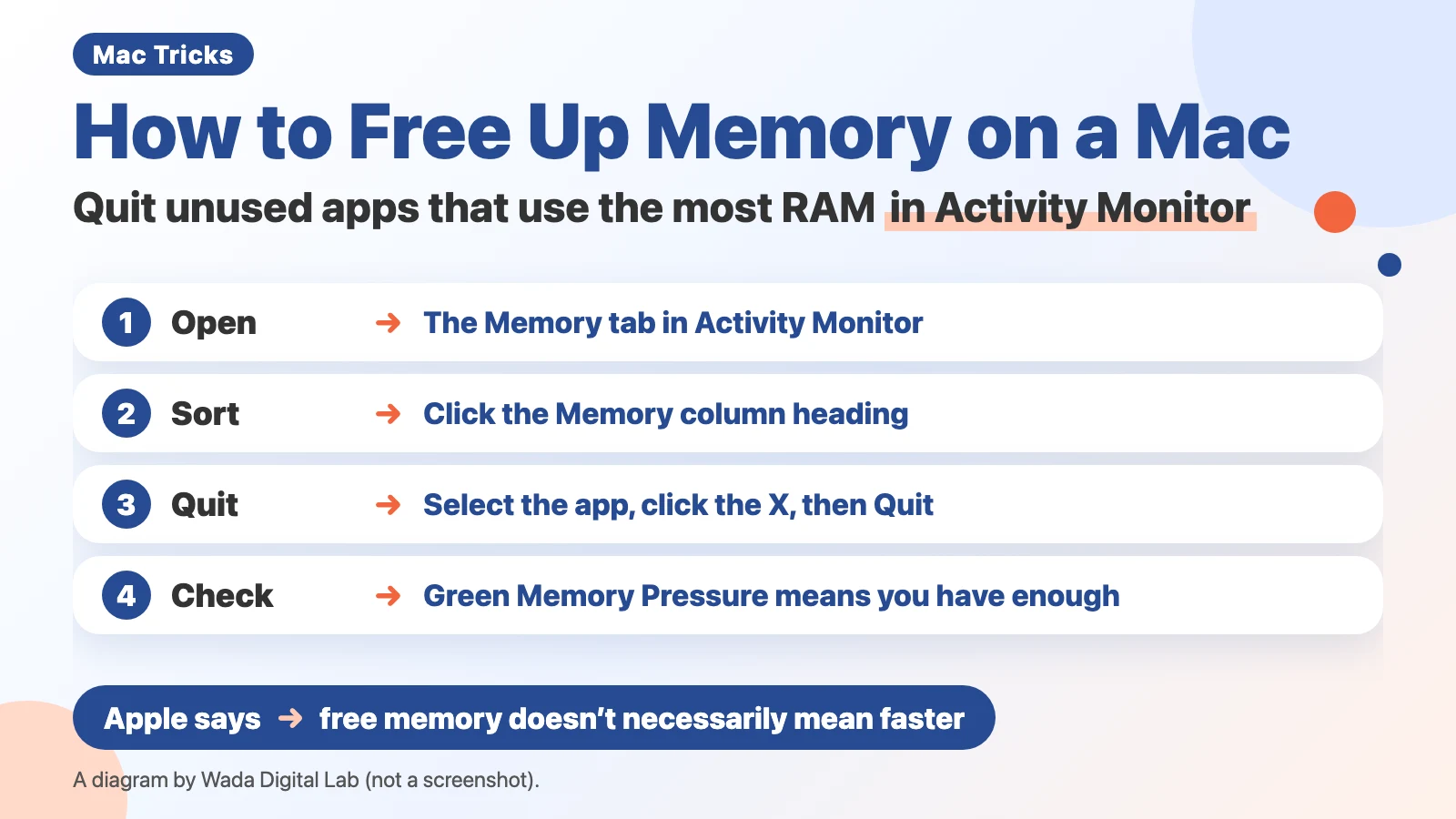
Freeing up memory means quitting the apps you aren’t using
Memory (RAM) is where your Mac keeps running apps and open documents while it is on. When it runs short, macOS compresses what is in memory and moves some of it to internal storage for a while (swap) to keep going. When even that isn’t enough, the Mac slows down.
A sure way to free memory is to quit apps you aren’t using. The memory an app was using comes back when it quits. Some people look for a memory cleaner app or a Terminal command that forces memory free. Apple’s page “Check if your Mac needs more RAM in Activity Monitor” says this:
“When you have free or unused memory, your computer performance does not necessarily improve. macOS obtains the best performance by efficiently using and managing all of your computer’s memory.”
In other words, Apple says a bigger free memory number doesn’t necessarily make the Mac faster. What we suggest looking at is the color of the Memory Pressure graph, which shows whether memory is keeping up. How to read the colors is in Mac Running Slow? How to Check Memory Pressure.
| What you want | How | Does it help? |
|---|---|---|
| Get a heavy app’s memory back | Sort by Memory in Activity Monitor and Quit it | Yes (the app’s share comes back) |
| Trim browser tabs | Close tabs and windows you aren’t using | Yes (tabs and windows are usually split into helper processes, each using memory) |
| Restart | Apple menu > Restart | Every app quits, so memory comes back (we didn’t measure how much) |
| Make the free memory number bigger | A cleaner app or a command | Apple says free memory doesn’t necessarily make your Mac faster |
Find the apps using the most memory in Activity Monitor
Activity Monitor is an app that comes with every Mac. It lists what is running and how much each item uses. We split Apple’s instructions into one action per line. There are 4 steps.
- Open Activity Monitor from Applications > Utilities in the Finder (or type Activity Monitor in Spotlight)
- Click Memory at the top of the window
- Click the Memory column heading above the list (the biggest users come first; if the order is reversed, click the arrow in the selected column heading, as Apple describes; we didn’t try this on our Mac)
- Look down the list for apps you aren’t using
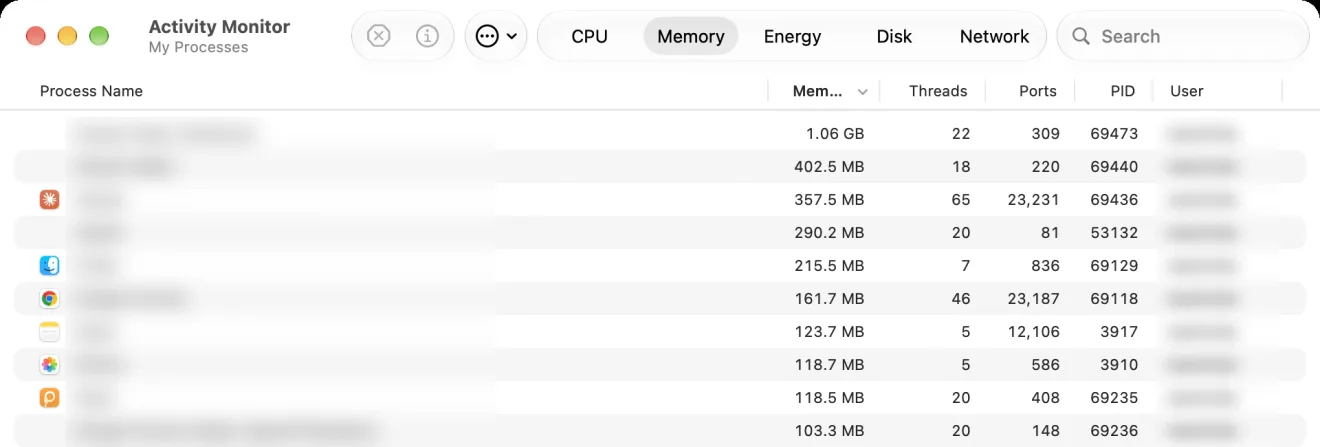
On our recording Mac (a MacBook Air (M2) with 16GB of memory), the top row was “Claude Helper (Renderer)” at 1.06GB, with “Claude Helper” and “Claude” next. Those are the parts of a chat app that draw its windows. Browsers should look the same (we didn’t check Chrome or Safari on our Mac): Google Chrome and Safari show helper processes such as “Google Chrome Helper” next to the app itself, several of them depending on how many tabs and windows are open (not always one per tab). Close the tabs and windows you aren’t using and their share should come back. If you can’t find an app by its name, look for rows with Helper or Renderer in them.

Quit the app: the Stop button, then Quit
Usually it is enough to switch to the app and press Command-Q. For an app that isn’t responding, or a helper process (a part of an app that runs as its own program, such as Helper or Renderer) with no window of its own, quit it from Activity Monitor. We split Apple’s page “Quit an app or process in Activity Monitor on Mac” into one action per line. There are 3 steps.
- In the Process Name list, select the app you want to quit (an unresponsive process is marked “(Not Responding)” and shown in red)
- Click the Stop button (the X) at the upper left of the window
- Click Quit (choose Force Quit only when the app isn’t responding)
Afterwards, check that the Memory Pressure graph at the bottom of the window has gone back to green. If it stays yellow or red and the Mac still feels slow, look for the next biggest app.
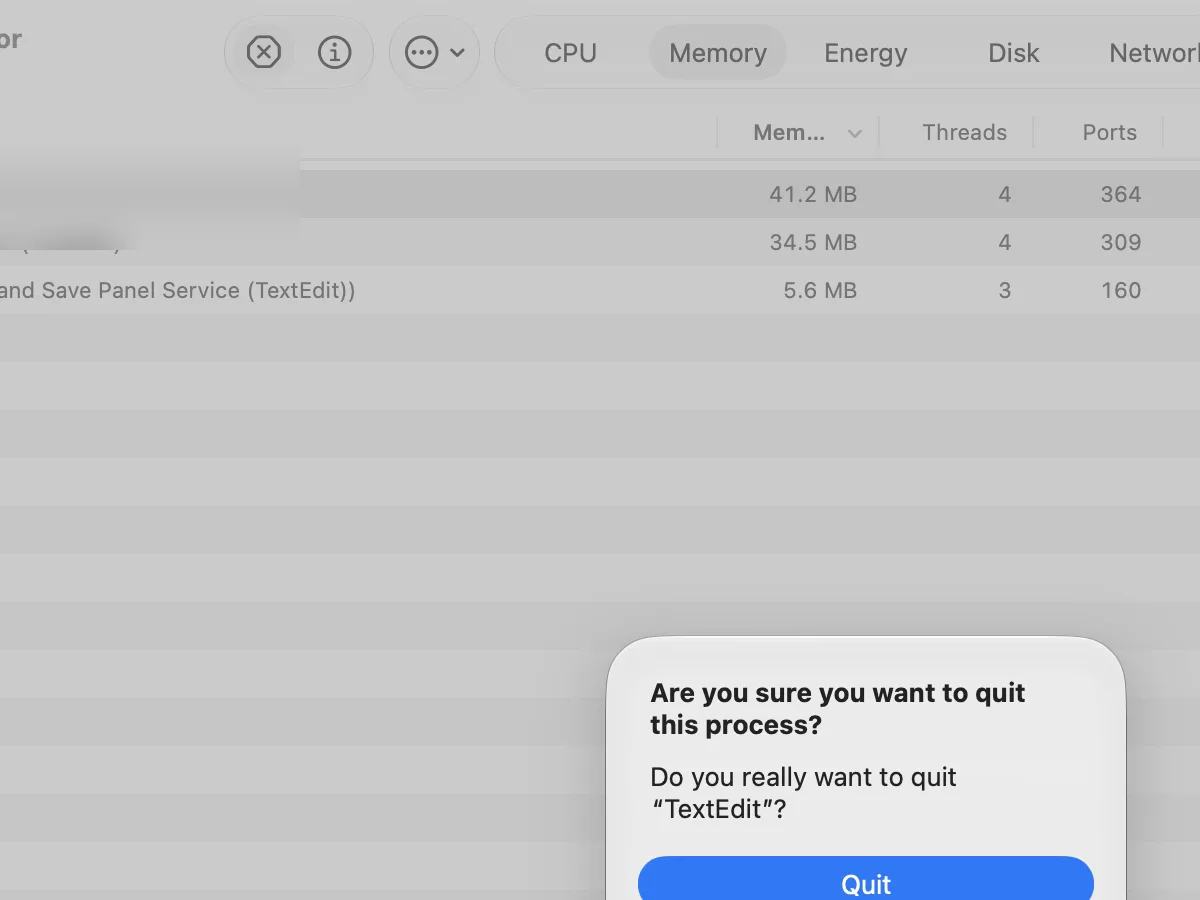
Apple says Quit “is the same as choosing File > Quit within an app,” and the process quits when it’s safe to do so. Force Quit ends the process immediately, and if it has files open, you may lose data. If other apps or processes are using it, Apple says they could experience problems too. Don’t quit processes you don’t recognize. Some of them are run by macOS in the background.
A restart is worth trying. Memory cleaner apps and commands aren’t
Restarting quits every app and rebuilds what is in memory. If your Mac has been asleep and awake for days and feels slow, a restart is worth trying first (we didn’t measure memory before and after a restart).
We don’t recommend memory cleaner apps, or Terminal commands that push the free memory number up. As Apple’s description above says, free memory doesn’t necessarily make your Mac faster. macOS keeps files you used recently in memory as Cached Files so they open faster next time. Clearing that space only means reading them again later.
Running out of space and running out of memory are different problems
Some people searching for how to free up memory actually want more free space on the internal disk. In Google’s search suggestions for “free up memory on mac,” counted with our tool, the word “space” came up 128 times, more than any other word. Memory is the working area that empties when the Mac is turned off. Storage is where your files live. For freeing up storage, see How to Reduce System Data on Mac.
Side by side: memory (RAM) is where running apps live, and it empties when the Mac is off. To free it up, quit the apps you aren’t using. Storage (internal disk) is where your files live, and it stays when the Mac is off. To free it up, delete files and apps you don’t need. They are different things, with different fixes. The diagram below puts the two side by side (not a screenshot).
Memory (RAM)
Where running apps live Empties when the Mac is off
To free it up
Quit the apps you aren’t using
Different things
Storage (internal disk)
Where your files live Stays when the Mac is off
To free it up
Delete files and apps you don’t need
If you’d rather not open Activity Monitor each time: a menu bar color (Memory Watch)
Everything above starts with opening Activity Monitor when the Mac feels slow. Reading the list each time takes effort.
We (Wada Digital Lab) make a free Mac app called Memory Watch that keeps an eye on memory headroom and shows it through the color and stars of a menu bar icon. The color is based on the memory pressure level that macOS reports, the same thing Apple shows as the Memory Pressure graph, and the app sends a notification when memory may run short. Its Mac Status window lists apps by how much memory each one uses.
Memory Watch doesn’t free memory and doesn’t quit other apps. When you find a heavy app, choose Open Activity Monitor in its menu and quit the app with the steps in this article. There is no account, no ads, and no in-app purchase. It works on a Mac with a chip made by Apple (such as M1 or M4) and macOS 14 Sonoma or a newer macOS. It does not work on Intel-based Macs or on macOS 13 or older.
See the Memory Watch (for Mac) page
Frequently asked questions
Is it OK to use the purge command in Terminal?
We don’t recommend it. Apple’s user guides don’t describe it for everyday use. It is said to raise the free memory number (we didn’t try it), but Apple says free memory doesn’t necessarily make your Mac faster.
Swap Used is many gigabytes. Am I out of memory?
Apple’s page “View memory usage in Activity Monitor on Mac” says memory pressure is determined by the amount of free memory, the swap rate (how often data moves to and from the disk), wired memory (memory macOS itself needs), and file cached memory (files kept in memory so they open faster next time). The amount of swap alone doesn’t decide it. On our recording Mac, the graph was green with 14.37GB of Swap Used.
Can I add memory to my Mac?
On Macs with a chip made by Apple, the memory is built in and can’t be added later. Check the model and the amount of memory in About This Mac, and choose more memory when you next buy a Mac.
What we checked, and Apple’s pages
The pictures in this article were taken in a user account made for screenshots. We clicked the Memory column heading in the Memory tab of Activity Monitor to sort the list, selected TextEdit (opened as a dummy), clicked the Stop button, and clicked Cancel in the confirmation.
- Model: MacBook Air (M2, 16GB of memory)
- macOS: macOS 27.2 (English screen)
- Pictures taken on: October 31, 2026
We didn’t click Quit to the end, didn’t measure memory before and after a restart, and didn’t try memory cleaner apps or commands. We read the process names at the top of the list before blurring the picture. The User column was blurred by our recording Mac’s operator. The same screens were photographed on the Japanese screen of the same Mac on the same day, where Swap Used was 2.98GB with a green graph.
Before writing, we searched Google for “how to free up memory on mac” and read the titles of the top results (October 31, 2026). Apart from Apple’s page about storage and two forum threads, they were pages from companies that sell cleaner apps. This article puts Apple’s own description of free memory first, and shows the quit steps and the confirmation on a real macOS 27.2 screen.
The steps come from these pages (Activity Monitor User Guide).