How to Uninstall Apps on a Mac — When There’s No X, and How to Delete an App Completely
Published October 31, 2026
Official documentation reviewed October 21, 2026 (some steps not tested)
By Wada Digital Lab
To uninstall an app on a Mac, drag it from the Applications folder in the Finder to the Trash, then empty the Trash. If the app came from the App Store, you can also click and hold its icon in Apps in the Dock until an X appears, then click the X (Apple’s description for macOS 26). Our Mac with macOS 27 has no Launchpad, so if you are looking for the X in Launchpad, you won’t find it.
Key points
- An app you installed yourself can be removed by dragging it from the Applications folder in the Finder to the Trash and emptying the Trash. If the app came with an uninstaller app, use that instead.
- The X only works for apps from the App Store, and the steps come from Apple’s guide for macOS 26. You click and hold the icon in Apps in the Dock until the X appears. On our Mac with macOS 27.2, no X appeared.
- Apps that come with macOS, such as Mail, Music, and Chess, can’t be deleted.
- Deleting an app doesn’t cancel subscriptions you bought in it. Subscriptions from Apple, and subscriptions bought in apps from the App Store, are canceled by you in Account Settings in the App Store.
- When you are short of storage, you can find the biggest apps under Storage in System Settings. An app deleted there doesn’t go to the Trash. It is deleted right away.
The diagram below sums up how to delete an app (not a screenshot).
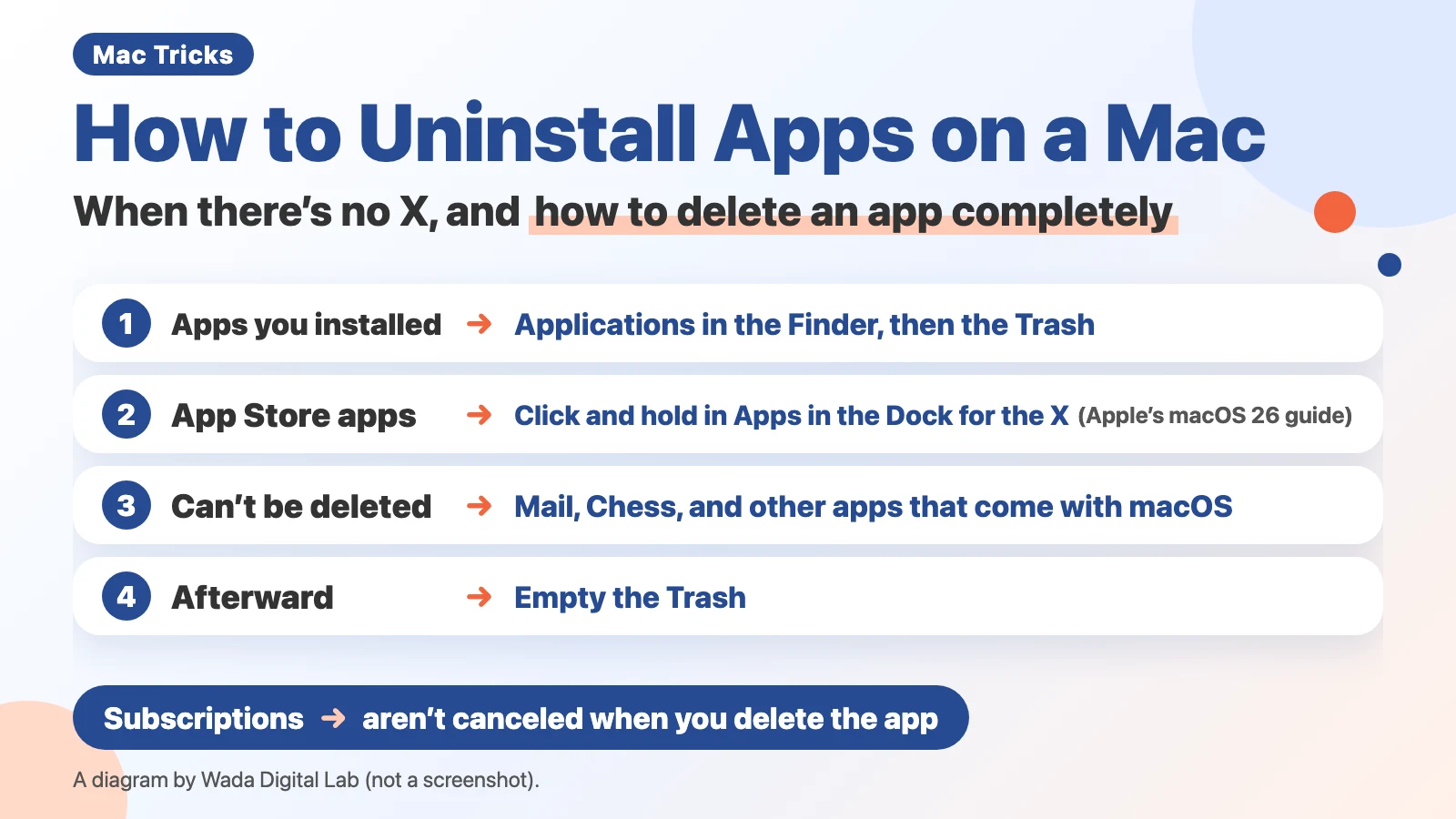
There are two ways to delete an app, depending on where it came from
How you delete an app depends on where you got it. Dragging it to the Trash from the Finder works for any app you installed yourself. The X works only for apps from the App Store. Apps that come with macOS can’t be deleted at all.
| App | How to delete it | Watch out for |
|---|---|---|
| An app from the App Store | Click and hold the icon in Apps in the Dock, then click the X (Apple’s guide for macOS 26). Dragging it to the Trash from the Finder also works | Its subscriptions aren’t canceled |
| An app downloaded from a website | Use the uninstaller or the app’s own remove feature if it has one. Otherwise, drag it to the Trash from the Finder | No X appears |
| An app that comes with macOS (Mail, Chess, and so on) | Can’t be deleted | It lives in the System folder |
On our Mac (a MacBook Air (M4) with macOS 27.0.1), we counted 110 apps in the Applications folder. 31 of them came from the App Store. That leaves 79 apps that the X can’t delete.
The basic way: move the app to the Trash in the Finder, then empty the Trash
An app you installed yourself can be deleted from the Finder. We split Apple’s page “Delete or uninstall apps on Mac” into one action per line. There are 5 steps.
- If the app is open, quit it
- In the sidebar of a Finder window, click Applications
- Look for an app named Uninstall or Uninstaller in the same folder as the app, or for a remove or uninstall item in the app’s own menus or settings. If there is one, use it and follow the instructions on the screen (you are done)
- If there is neither, drag the app to the Trash in the Dock (or select the app and choose File > Move to Trash in the menu bar)
- In the Finder menu bar, choose Finder > Empty Trash
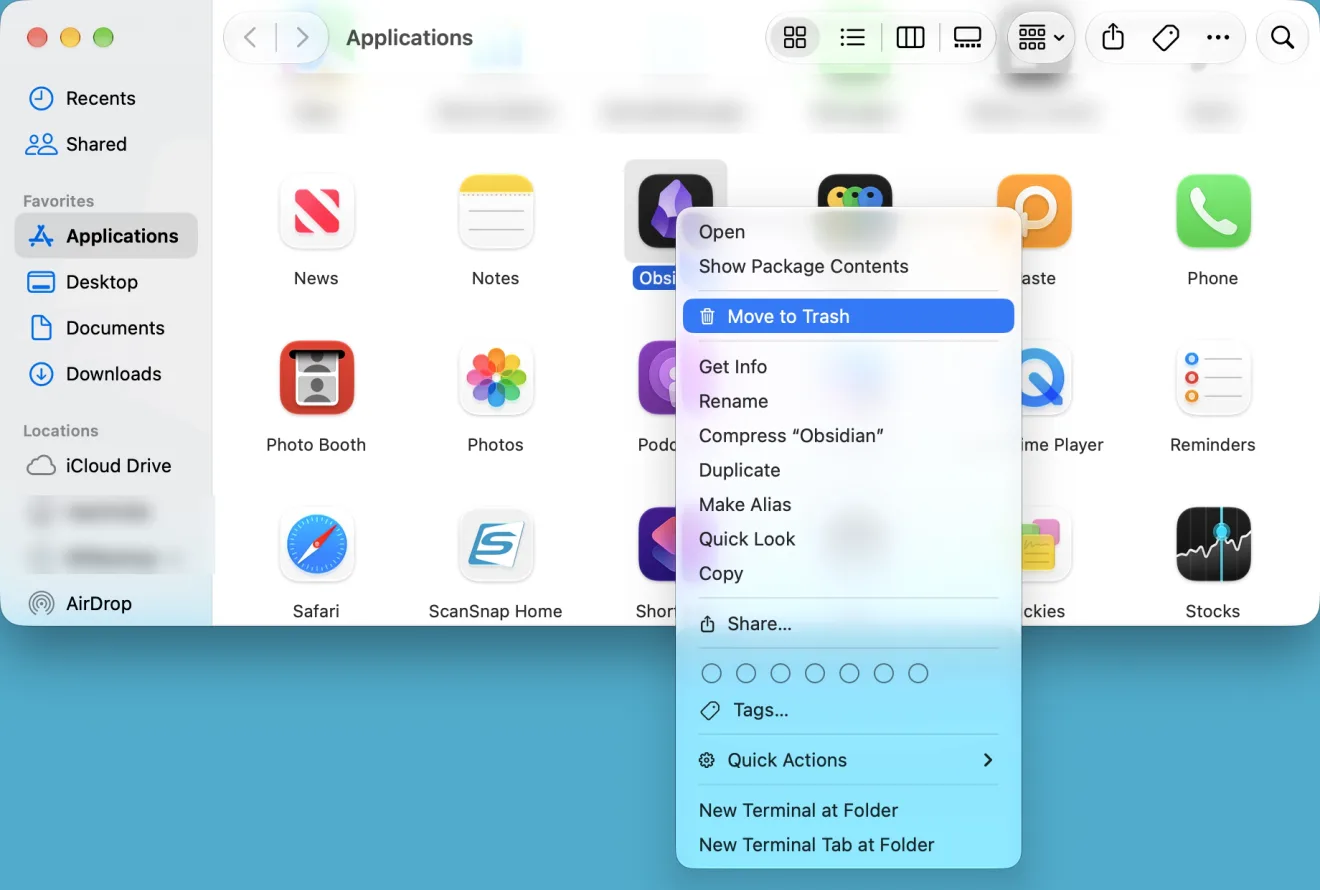
If you are asked for a name and password, enter the name and password of an administrator account on your Mac. Usually that is the name and password you use to log in. If you can’t find the app in the Applications folder, search for it with Spotlight, then press and hold the Command key while you double-click the app in the results. The Finder shows where the app is.
Until you empty the Trash, you can get the app back. The Mac User Guide has this warning:
“The app is permanently removed from your Mac the next time you or the Finder empties the Trash.”
To get it back, open the Trash, select the app, then choose File > Put Back.
This is how we have always deleted apps. When we moved from Windows, it felt too easy, and we wondered whether the app was really gone and whether anything was left behind, because on Windows we had always used a dedicated uninstall screen. We come back to that worry below, under “Does dragging to the Trash leave other files behind?”
Why is there no X? Launchpad is gone, and the X is only for App Store apps
There are two reasons an X might not appear. Either the app didn’t come from the App Store, or you are looking for the X in Launchpad.
In earlier versions of macOS, you clicked and held an icon in Launchpad until the icons jiggled and an X appeared. Our Mac with macOS 27.0.1 has no Launchpad. In its place there is an app called Apps. Apple’s App Store User Guide for macOS 15 describes Launchpad, while the guide for macOS 26 describes Apps in the Dock. Here is the macOS 26 version, for an app bought from the App Store. We split Apple’s two steps into one action per line, so there are 3 steps:
- Click Apps in the Dock
- Click the icon of the app you want to delete, and keep holding
- When the icon starts to jiggle, click its X
Apple’s words are to hold the icon “until it begins to jiggle,” then click the X. An app downloaded from a website never shows an X. Delete it from the Finder as described under “The basic way” above. On October 29, 2026, we clicked and held an icon in Apps on the Mac we use for screenshots (macOS 27.2). No X appeared. The app simply opened. When no X appears, move the app to the Trash from the Finder instead.
When Move to Trash isn’t there, or your Mac says the app is in use
If you can’t move an app to the Trash, either the app is open or your Mac needs it. For an open app, Apple says:
“If you can't delete an app because your Mac says that it's in use, make sure that the app isn't open.”
If you have quit the app and still can’t delete it, Apple suggests restarting your Mac, or starting up in safe mode (a way of starting with only the minimum) and trying again.
Apps that are installed with macOS, such as Mail, Music, Books, Notes, and Maps, can’t be deleted. The Mac User Guide puts it this way:
“You can’t remove apps that are required by your Mac. This includes many apps that are installed by macOS, such as Mail, Music, Books, Notes, Podcasts, Maps, News, and Stocks.”
On our Mac, Chess and Mail were not in the Applications folder at all. They were in the System folder (/System/Applications).
Does dragging to the Trash leave other files behind?
Moving an app to the Trash doesn’t delete the documents you made with it. Data such as the app’s settings may also stay on your Mac. The “Before you begin” section of Apple’s support page says:
“Deleting or uninstalling an app doesn't remove any documents or other files that you created with the app.”
Apple says to use the uninstaller when an app comes with one. An uninstaller also removes things the app put elsewhere, such as login items (things that open when your Mac starts up) and extensions (parts that add features to other apps). For an app without an uninstaller, dragging it to the Trash is fine.
We also counted something on our Mac that is often mistaken for leftover data. In Containers (the place inside Library in your home folder where apps keep their own data), there was about 34GB in all. 52 of the folders had names that didn’t match any app in the Applications folder, which suggests they belonged to deleted apps. Together they came to about 3.6MB. We only checked that the names didn’t match, so not all 52 are necessarily from deleted apps. We counted this one place only, and no other locations.
Because of that worry about leftover files, we once bought a separate app whose job is to remove apps. Whether we really needed it is still not clear to us. At least on our Mac, the unmatched folders in Containers were far too small to give back any noticeable space.
Deleting an app doesn’t stop its subscriptions
Subscriptions you signed up for inside an app keep running after you delete the app. The same Apple support page says so plainly: deleting or uninstalling an app doesn’t cancel any subscriptions you purchased with the app.
We have been charged a few times for apps we had already deleted. Before you delete an app, look at your list of subscriptions. We split Apple’s steps for canceling in the App Store into one action per line. There are 7 steps.
- Open the App Store and click your name in the bottom-left corner
- Make sure you are signed in with the Apple Account you used to buy the subscriptions
- Click Account Settings at the top of the window (sign in again if asked)
- In the Manage section, click Manage next to Subscriptions
- If you have several subscriptions, click Edit
- Click Cancel Subscription
- Confirm the cancellation, then click Done
Apple says this screen covers subscriptions from Apple and subscriptions you bought in apps from the App Store.
Short of storage and in a hurry? Find the biggest apps under Storage
We usually delete apps when the Mac runs out of free space. The more of a hurry we are in, the harder it is to tell which big apps we no longer use. You can find the biggest apps under Storage in System Settings.
- Choose Apple menu > System Settings, then click General in the sidebar
- Click Storage
- Click the round “i” button (Apple calls it the More Info button) next to Applications
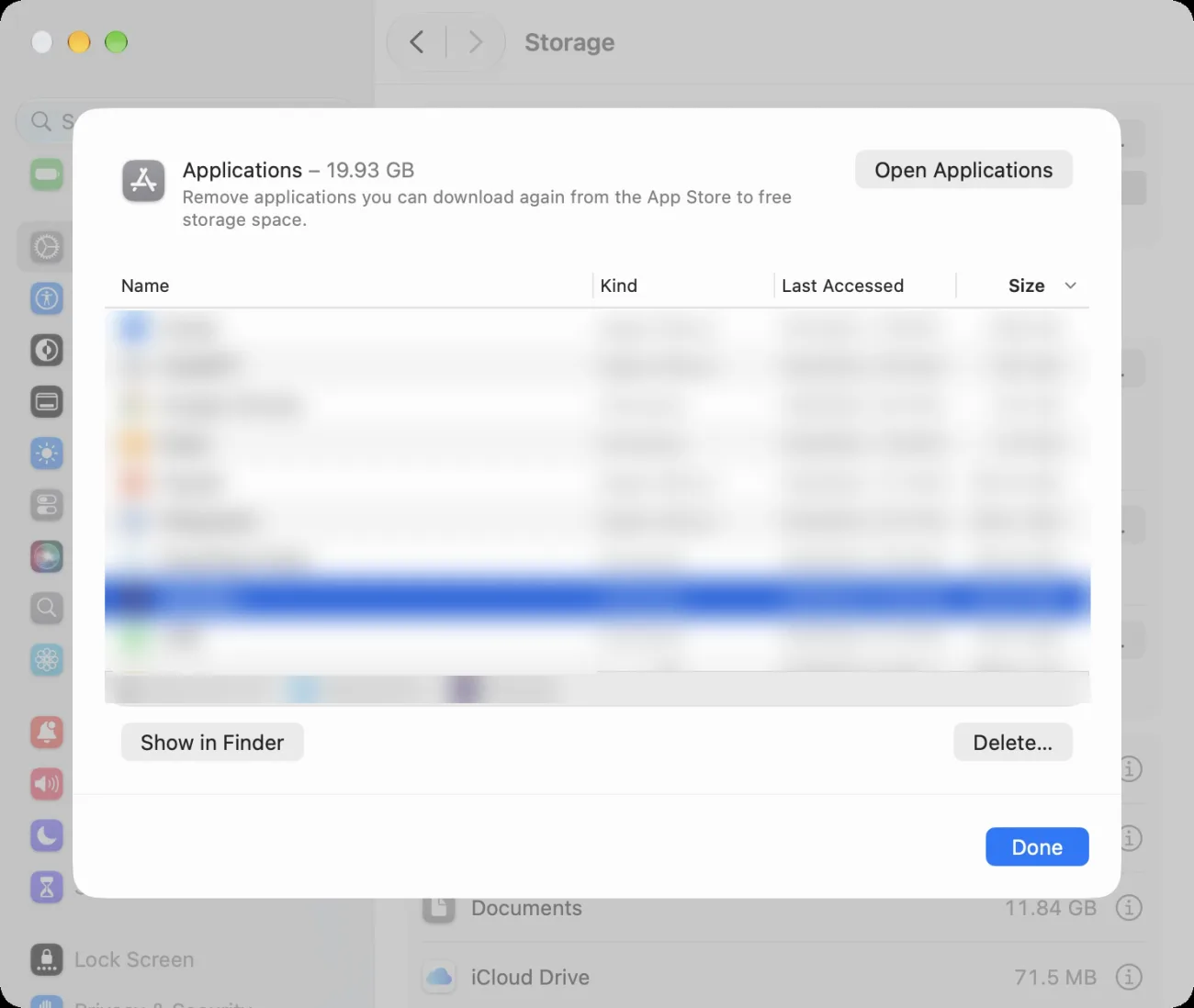
Apple’s page “How to free up storage space on Mac” says about this button: “This is particularly useful for the Applications, Documents, Messages, Music Creation, Podcasts, Trash, and TV categories.” On the English screen of our recording Mac, the list had the columns Name, Kind, Last Accessed, and Size, and the note at the top read “Remove applications you can download again from the App Store to free storage space.” You can sort by size and by the last time you used each app to decide what to delete.
One caution: an app deleted with Delete… in this list doesn’t go to the Trash. It is deleted right away. In the text files for the Storage pane inside our Mac, the confirmation that appears first reads: “The item will be deleted immediately. You can’t undo this action.” (we didn’t click Delete… to see it). If you aren’t sure about an app, don’t delete it here. Move it to the Trash from the Finder instead. For the order in which to free up space, see How to Reduce System Data on Mac.
The order to follow when you delete an app
Deleting an app goes in 4 steps. First, check Account Settings in the App Store for subscriptions. Deleting the app doesn’t stop them. Second, quit the app. An open app can’t be deleted. This way your Mac won’t say it’s in use. Third, move the app to the Trash from Applications in the Finder. If there is an uninstaller, use that instead. Last, empty the Trash. The app is really deleted at that point. Your free space goes up.
The diagram below shows these 4 steps.
First
Subscriptions Check Account Settings in the App Store
Deleting the app doesn’t stop them
Second
Second
Quit the app An open app can’t be deleted
Your Mac won’t say it’s in use
Third
Third
Move it to the Trash From Applications in the Finder
If there is an uninstaller, use that instead
Last
Last
Empty the Trash The app is really deleted at that point
Your free space goes up
Frequently asked questions
Can I get Launchpad back?
We couldn’t find a way to bring Launchpad back in macOS 27 on Apple’s pages. In macOS 27, Apps in the Dock is the list of installed apps. For how to update to macOS 27, see How to Update to macOS 27.
Can I reinstall an app I deleted?
An app you bought from the App Store can be installed again. In Apple’s words, click your name in the bottom-left corner of the App Store, then find the app in your purchases. An app downloaded from a website is downloaded again from that website.
I use iPhone apps on my Mac. Do I delete them the same way?
Yes. iPhone and iPad apps running on a Mac come from the App Store, so you can delete them with the X in Apps in the Dock or from the Trash in the Finder. Our Mac had 4 iPhone and iPad apps in its Applications folder.
What we checked, and Apple’s pages
We wrote the steps in this article from Apple’s pages (read on October 21, 2026, and read again in English on October 31, 2026). The number of apps, where they are kept, the number and size of the container folders whose names matched no app, and the text of the Storage pane were counted and read on the Mac below.
- Model: MacBook Air (M4)
- macOS: macOS 27.0.1 (set to Japanese)
- Checked on: October 21, 2026
What we counted were the number and size of files and folders. We didn’t try the steps on the screen. On October 29, 2026, in a separate user account made for screenshots on a MacBook Air (M2) with macOS 27.2 (Japanese screen), we opened the Move to Trash menu in the Finder and the list of applications under Storage, and took pictures without deleting anything. On the same Mac, clicking and holding an icon in Apps didn’t show an X. We didn’t empty the Trash, delete anything from the Storage pane, or open the subscriptions screen. The confirmation text for Delete… comes from the text files inside macOS, not from a dialog we opened. On October 31, 2026, the two pictures in this article were taken on the English screen of the same MacBook Air (M2) with macOS 27.2: the Move to Trash menu in the Finder, and the list of applications under Storage (view only, nothing deleted). The other English screen names in this article come from Apple’s US pages and the English strings inside macOS.
Before writing, we searched Google for “how to uninstall apps on mac” and read the top results (October 31, 2026). Besides Apple’s two pages, the top results were questions on forums and a video. The forum questions asked the same thing we once wondered: whether dragging to the Trash leaves files behind.
The steps come from these pages.
- Delete or uninstall apps on Mac (Apple Support)
- Install and uninstall apps from the internet or a disc on Mac (Mac User Guide)
- Install and uninstall purchases from the App Store on Mac (App Store User Guide, macOS 26)
- Cancel, change, or share subscriptions in the App Store on Mac (App Store User Guide, macOS 26)
- How to free up storage space on Mac (Apple Support)
- Install and uninstall purchases from the App Store on Mac (App Store User Guide, macOS 15)