How to Turn On Siri AI on a Mac — macOS 27: Requirements, the Waitlist, and When It Doesn’t Work
Published October 31, 2026
Official documentation reviewed October 31, 2026 (some steps not tested)
By Wada Digital Lab
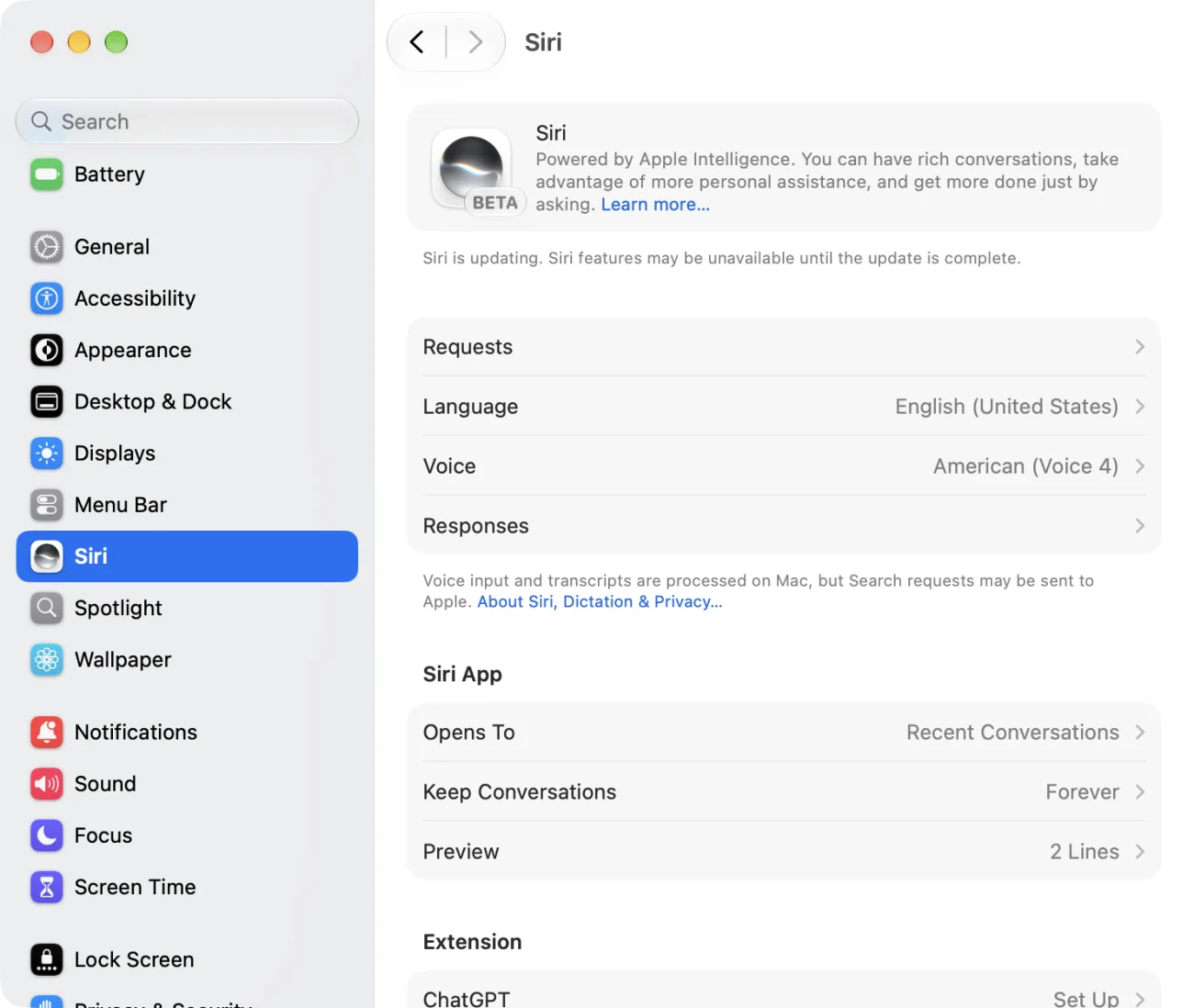
To turn on Siri AI on a Mac, open System Settings, click Siri in the sidebar, and click Turn On Siri (or, if Siri is already on, Try Siri AI (Beta)). Siri AI is the new Siri built on Apple Intelligence, and it runs on macOS 27 on a MacBook Neo (A18 Pro) or any Mac with an M1 chip or newer, when your Mac and Siri are set to the same language. On our recording Mac with macOS 27.2, Siri turned into Siri AI as soon as we set the Siri language to match the Mac’s language, with no Try Siri AI button at all. The Siri settings said “Siri is updating,” and about 17 minutes later it answered its first question. We never saw a waitlist, in either of the two user accounts we tried on that Mac.
Key points
- Siri AI needs macOS 27 (macOS 27.2 adds French, Japanese, Korean, Portuguese, and Spanish, and lets Siri recall past conversations) on a MacBook Neo (A18 Pro) or a Mac with an M1 chip or newer, with Siri and the Mac set to the same language.
- To turn it on: System Settings > Siri, then Turn On Siri and Try Siri AI (Beta). On our recording Mac, set to English (United States), the Try Siri AI button never appeared. Changing the Siri language to English (United States) was enough, and the settings showed “Siri is updating.”
- While “Siri is updating” is showing, wait. On our English screen, Siri AI answered its first question about 17 minutes after the language change (we didn’t note the moment the line disappeared). In a Japanese user account on the same Mac, it took about 5 and a half minutes.
- Apple says turning on Siri AI adds you to a waitlist. We didn’t see a waitlist screen in either user account. Give it time after the “updating” line appears.
- If it doesn’t work, check the Mac model, the macOS version, whether the Siri language and the Mac language match, free storage (Apple Intelligence uses up to 8GB, or up to 14GB on an M3 or newer Mac with 12GB of memory or more, and it can temporarily use more during and shortly after an update), and the daily usage limit (Siri AI is a beta).
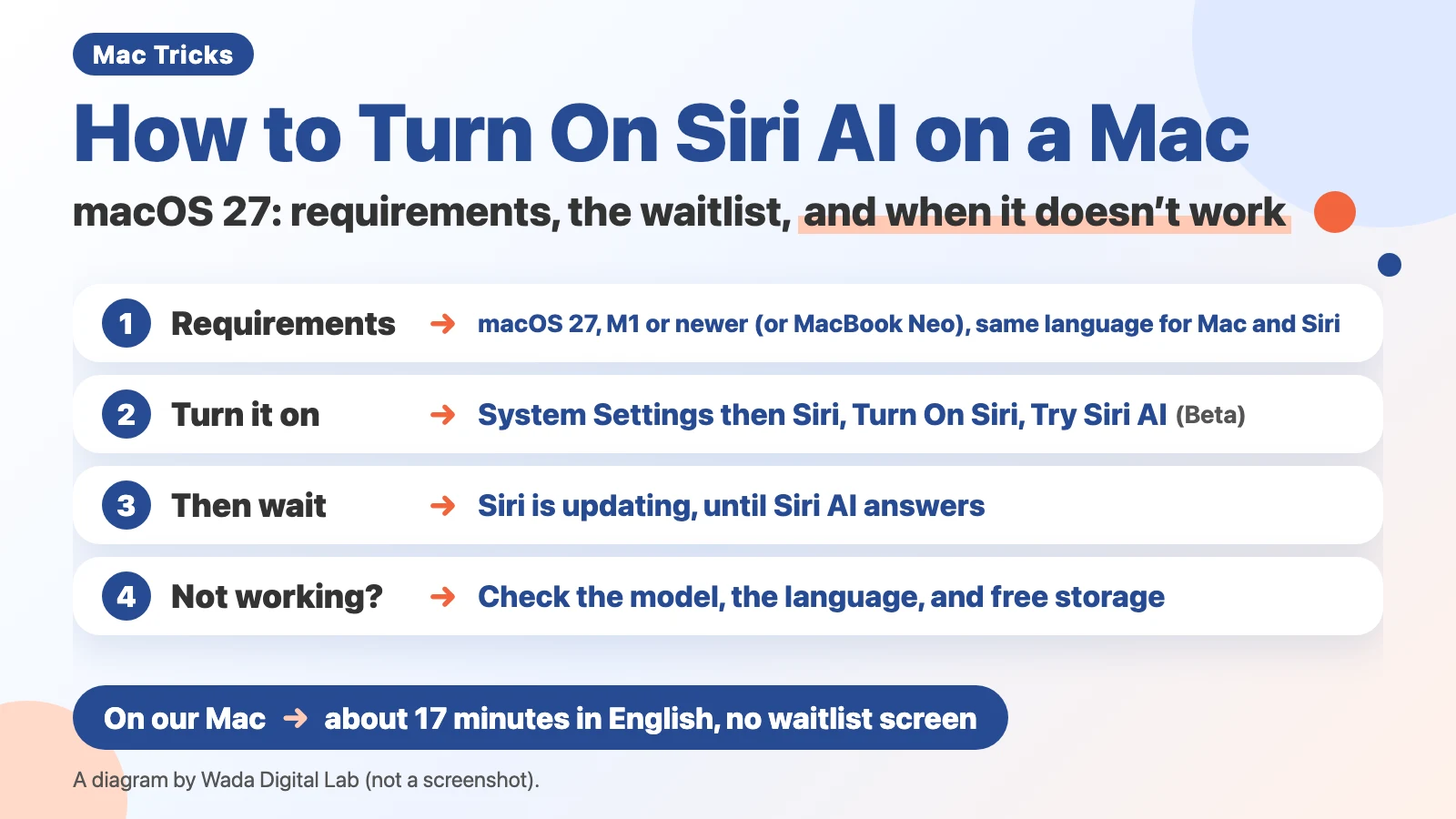
The diagram below sums up the steps from turning Siri AI on to the moment you can use it (not a screenshot).
What Siri AI is, and which Macs can run it
Siri AI is a new version of Siri that runs on Apple Intelligence, the AI built into macOS. It can keep a conversation going, search your mail, messages, calendar, and photos for an answer, and answer questions about what is on your screen. Apple calls it a beta (a version still being tested) and says usage limits may apply. The Mac User Guide puts the conditions this way:
“Siri AI is available in beta on macOS 27 or later on an Apple Intelligence-enabled MacBook Neo (A18 Pro) or Mac model with M1 or later with Siri and device language set to a supported language.”
In plain words: Intel-based Macs are not supported, whatever macOS they run (an Intel Mac on macOS 15 Sequoia or macOS 26 stays on the old Siri). A Mac with an M1 chip or newer, or a MacBook Neo, also needs macOS 27 or later.
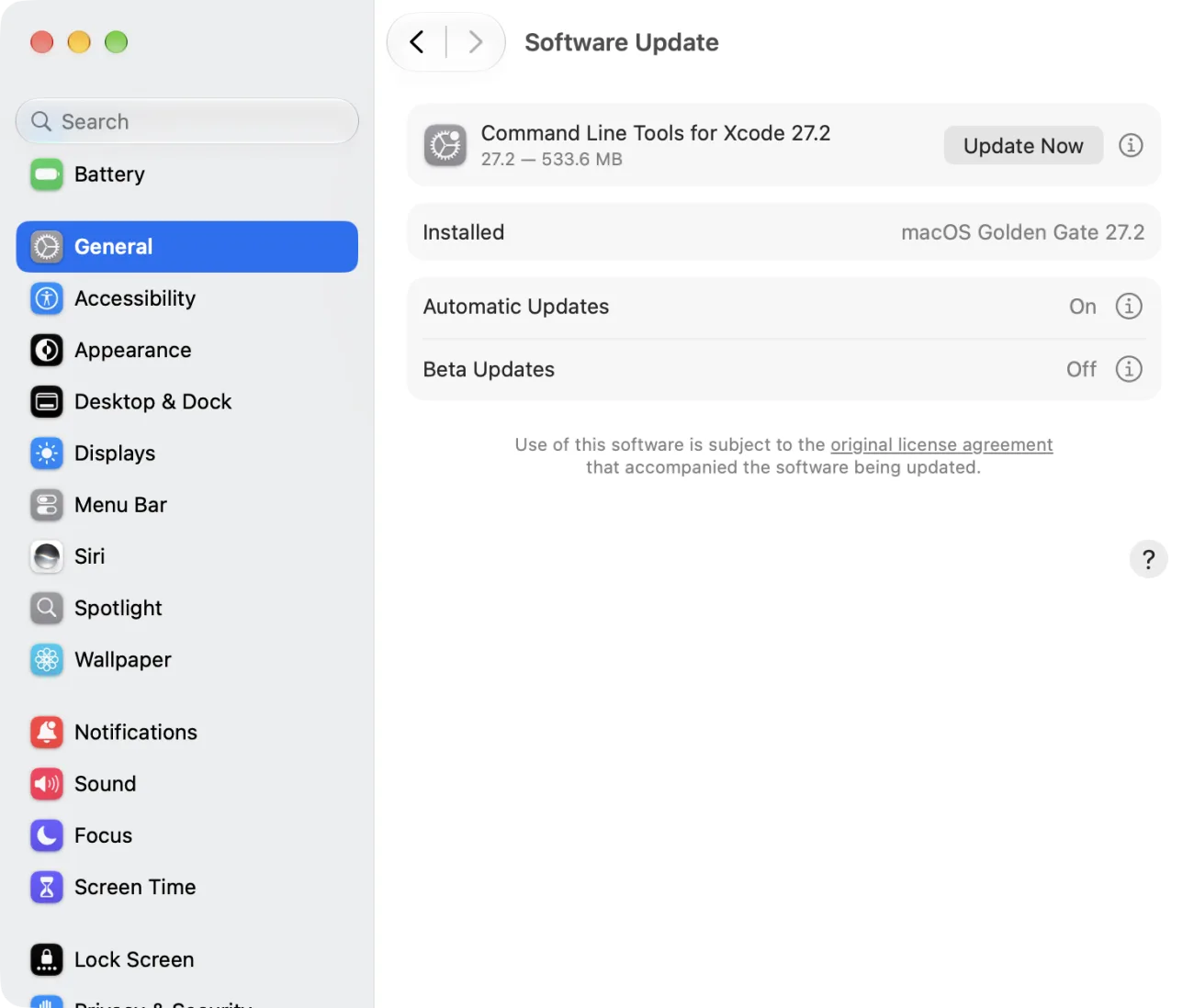
macOS 27.2, released on October 26, 2026, made Siri AI bigger in two ways. Apple’s page “What's new in the updates for macOS 27 Golden Gate” says Siri AI “is available in more languages, with support for French, Japanese, Korean, Portuguese, and Spanish,” and that it can recall your past conversations, so you can ask about something it told you before. If your Mac is still on macOS 27.0 or 27.1 and you want those, update first. The update is in System Settings > General > Software Update. For how long it took and what to check first, see How to Update to macOS 27.
| What to check | What Apple requires |
|---|---|
| Mac model | MacBook Neo (A18 Pro), or a Mac with an M1 chip or newer |
| macOS | macOS 27 or later. The five new languages and conversation memory need macOS 27.2 |
| Language | The Siri language and the Mac’s language must be the same supported language. English, French, Japanese, Korean, Portuguese, and Spanish to start |
| Free storage | Up to 8GB for Apple Intelligence. Up to 14GB on a Mac with an M3 chip or newer and at least 12GB of memory. It can temporarily exceed this during and shortly after an update |
| Region and age | Not available in mainland China, or on a Mac bought in mainland China. Not available for users under 13. In the EU, available on macOS 27 when the Mac and Siri are both set to English |
| Usage | Daily usage limits may apply |
How to turn on Siri AI: System Settings > Siri
First make sure your Mac and Siri use the same language. The Mac’s language is under System Settings > General > Language & Region, and the Siri language is under System Settings > Siri > Language. Then follow Apple’s steps from the Mac User Guide. There are 4 steps.
- Open System Settings and click Siri in the sidebar (you may need to scroll down)
- If Siri is off, click Turn On Siri
- Click Try Siri AI (Beta)
- Follow the instructions on the screen (pick a voice, and review the privacy settings)
Apple’s support page “How to get Siri AI” adds: “This will add you to a waitlist, and wait times can vary. Siri AI will begin to download automatically when your wait is complete.”
What happened on our Mac: no Try Siri AI button, just a language change
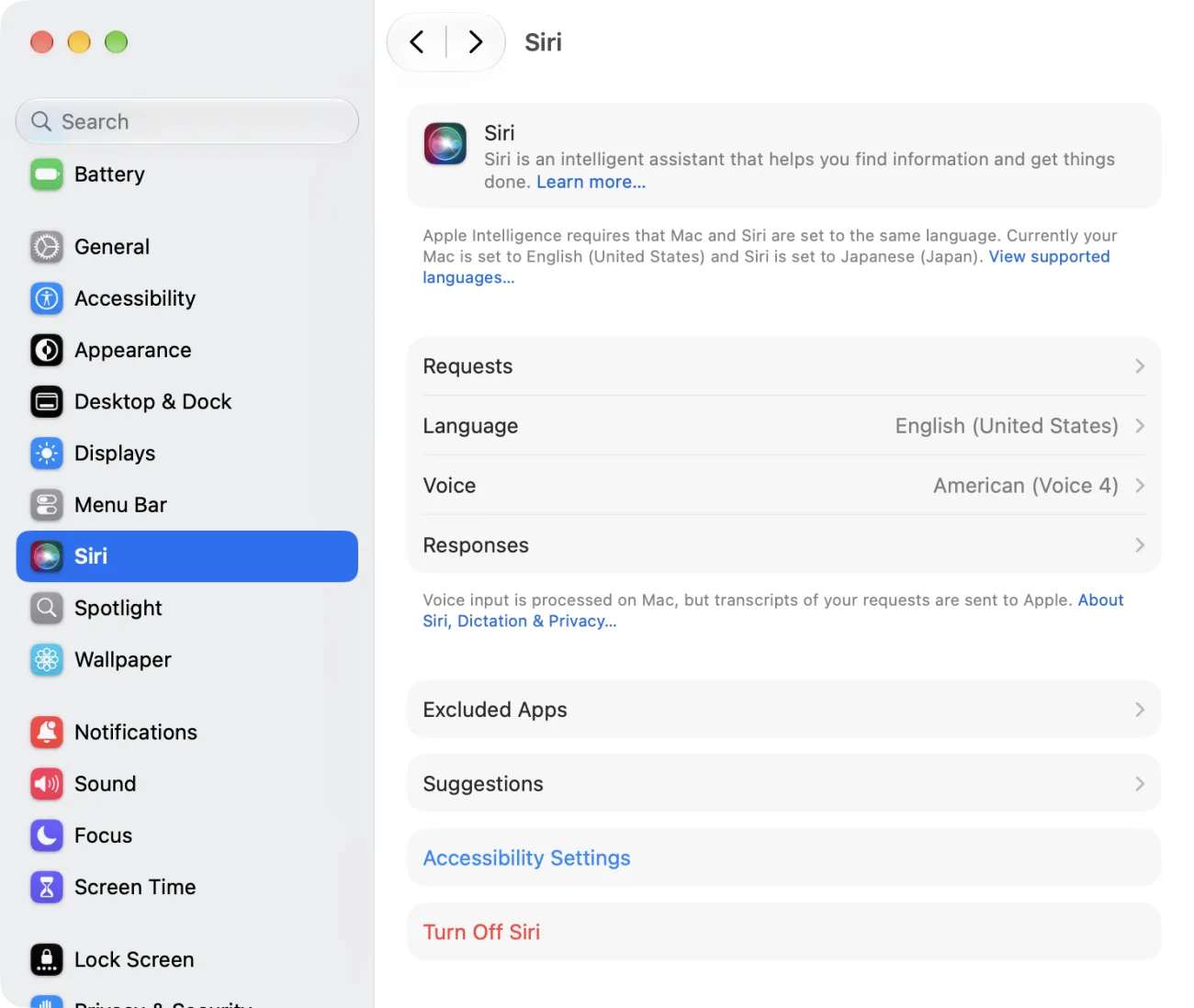
On October 31, 2026, we turned on Siri AI in a user account set to English (United States) on our recording Mac (a MacBook Air (M2) with macOS 27.2). Siri was already on, but its language was still Japanese, and the Siri settings showed this notice at the top: “Apple Intelligence requires that Mac and Siri are set to the same language. Currently your Mac is set to English (United States) and Siri is set to Japanese (Japan).”
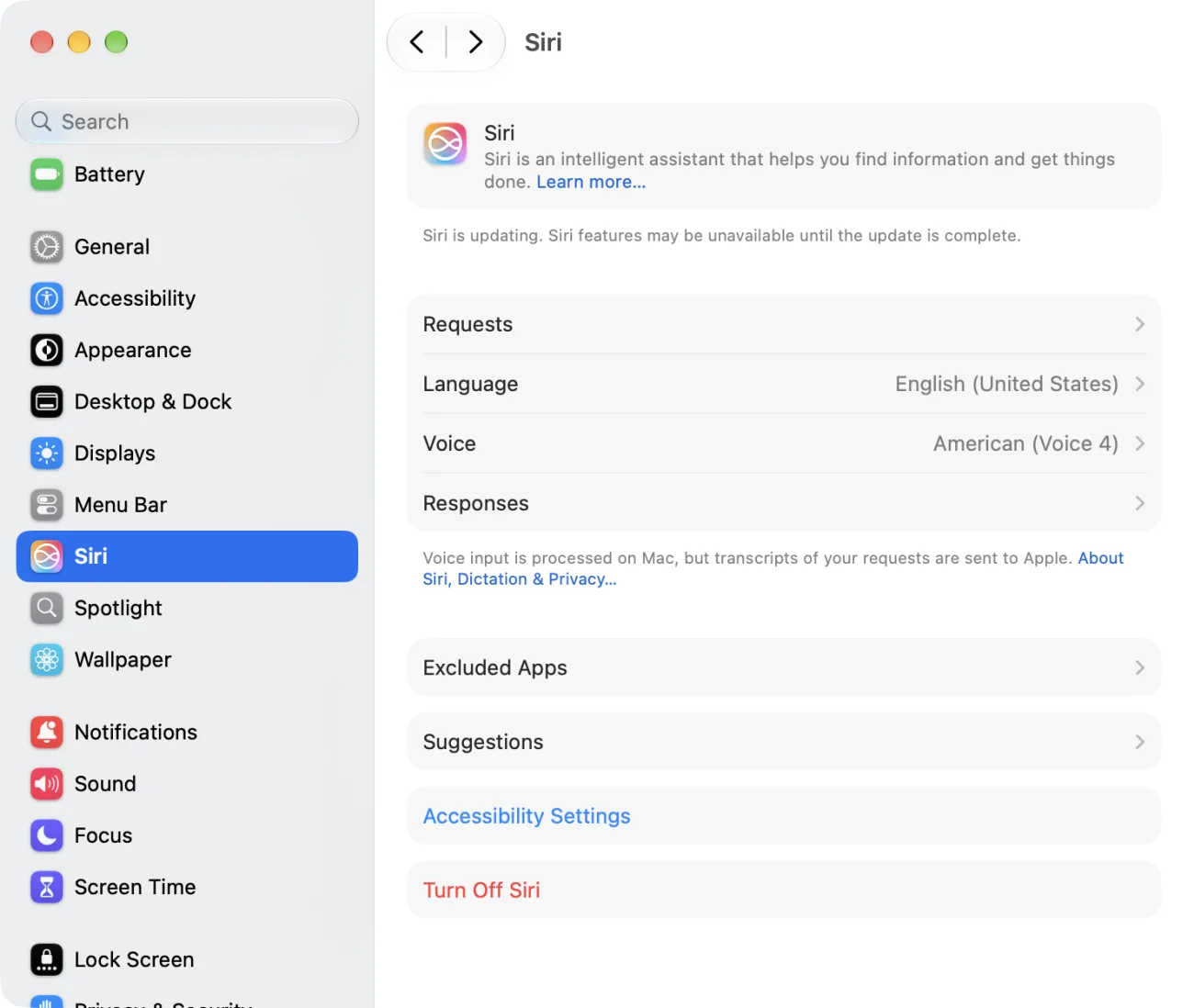
We changed Language to English (United States). That was all: change the Siri language to match the Mac. The notice changed to “Siri is updating. Siri features may be unavailable until the update is complete.” No Try Siri AI (Beta) button ever appeared, and no waitlist screen appeared either.
About 17 minutes after the language change, Siri AI answered its first question (shown below). By then the top of the Siri settings read “Powered by Apple Intelligence” with a BETA badge on the icon. We didn’t note the exact moment the “Siri is updating” line went away. From then on, Siri AI answers. On the same Mac, in a Japanese user account on October 29, the path was different: there Siri was off, Turn On Siri showed a screen with a Try Siri AI button, and Siri AI was usable about 5 and a half minutes after we clicked it. So the button Apple describes does exist, but you may not see it when Siri is already on. If your Mac and Siri languages don’t match, fixing the language may be the only step you need.
The diagram below puts the two things we saw side by side (not a screenshot).
Before
Notice at the top of Siri settings Mac and Siri must use the same language
No Try Siri AI button on the pane
Change the Siri language to match the Mac
About 17 minutes on our Mac
After
Siri is updating Powered by Apple Intelligence
The wait is different for everyone
Siri AI answers
How to call Siri AI: the microphone key, the menu bar, or typing
Apple’s page “Turn on and activate Siri on Mac” lists these ways to get Siri’s attention.
| What you want | What to do |
|---|---|
| Ask by voice | Press and hold the microphone key in the row of function keys, or click the Siri icon in the menu bar |
| Ask by typing | Press Command-Space bar and type your question in Spotlight (the search field for finding things on your Mac) |
| Ask about something you selected | Control-click the selected text or item, then choose Ask Siri |
| Ask about a window | Press Command-Shift-Space bar, select the window, then type your question in the Ask Siri field that appears |
| Ask about part of the screen | Press Command-Shift-6, select the area, then type your question in the Ask Siri field that appears |
| Continue an earlier conversation | Open the Siri app and choose a conversation on the left |
Saying “Siri” out loud works only when that option is available and turned on in Siri settings. Siri needs an internet connection. Command-Shift-6 looks like the screenshot shortcut Command-Shift-4, but instead of saving a picture it lets you ask Siri about the part of the screen you selected. For ordinary screenshots, see How to Screenshot on a Mac.
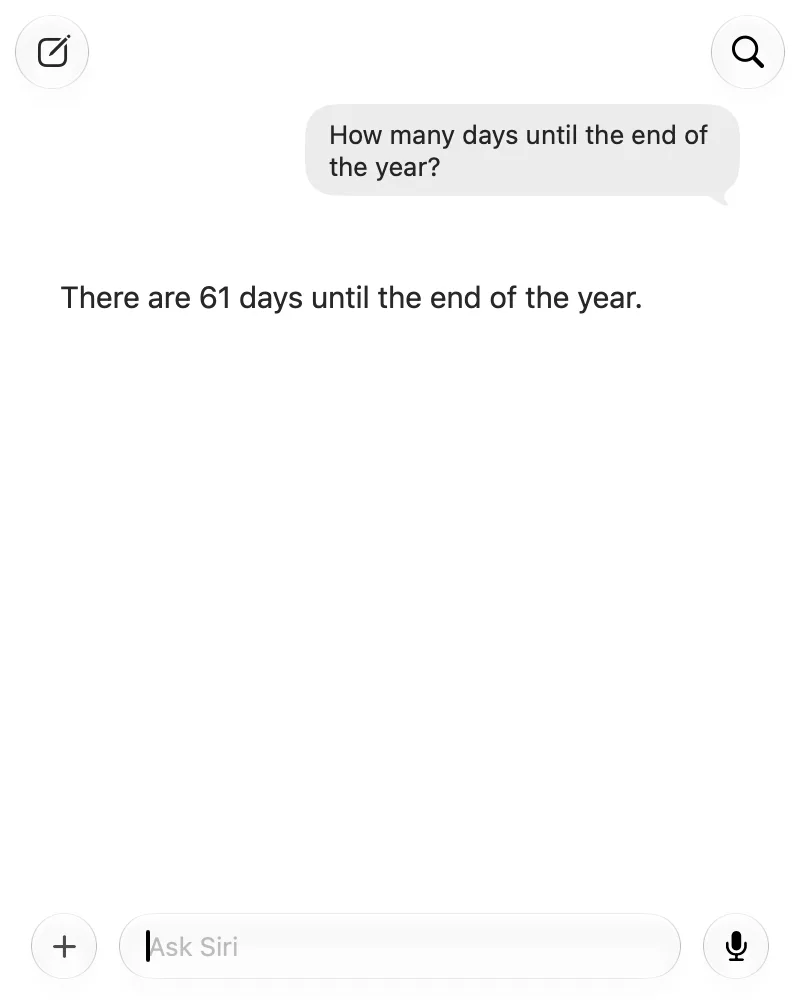
What we asked: “How many days until the end of the year?”
In the Siri app on our recording Mac, we typed a question into the Ask Siri field. The answer came back in a sentence.
In the Japanese user account on the same Mac, we asked three questions by typing on October 29, 2026. For “What were the order numbers of last month’s purchases?”, Siri AI listed the order numbers from two emails we had placed in Mail for the recording (made-up shops), and the answer took about 1 minute. “What was my most recent order number?” and “What’s on my calendar tomorrow?” were each answered in about 15 seconds. None of the questions were refused. We didn’t ask anything by voice.
Apps you don’t want Siri to use go in Excluded Apps
System Settings > Siri > Excluded Apps lets you pick apps that Siri shouldn’t look into. Apple says apps on that list aren’t available to Siri, search, or suggestions. We didn’t add any apps there.
When Siri AI doesn’t work: model, language, storage, and the daily limit
If Try Siri AI doesn’t appear, or you turned it on but nothing changes, check these in order. The conditions come from the Mac User Guide and Apple’s page “Get started with the next generation of Apple Intelligence.”
| Where to look | What it must be (Apple’s description) |
|---|---|
| Mac model | MacBook Neo (A18 Pro), or a Mac with an M1 chip or newer |
| macOS version | macOS 27 or later. Check it under System Settings > General > Software Update, or in Apple menu > About This Mac |
| Language | The Siri language and the Mac’s language are the same supported language. On our Mac, a notice at the top of Siri settings said so when they didn’t match |
| Free storage | Up to 8GB, or up to 14GB on an M3 or newer Mac with 12GB of memory or more. It can temporarily use more during and shortly after an update. See System Settings > General > Storage. To free space, see How to Reduce System Data on Mac |
| The update | The “Siri is updating” line at the top of Siri settings has disappeared (if you were put on a waitlist, your turn has come) |
| Region and age | 13 or older. Not available when the Apple Account region is mainland China, or on a Mac bought in mainland China |
| Usage | The daily usage limit hasn’t been reached |
Right after changing a language, Apple Intelligence may stop for a while
Apple says that if you change the Siri language, Apple Intelligence may become unavailable until the new Siri language has fully downloaded and matches the device language. On our Mac, that wait was the 17 minutes of “Siri is updating” described above.
A Mac from work or school may have Siri turned off by the administrator
The text files for the Siri settings on our Mac include the sentence “The organization managing this Mac has turned off Siri & Dictation features.” If Siri won’t turn on at all on a Mac you were given by a company or a school, ask the person who manages it.
Going back to the old Siri: Use Siri Classic
If you want the previous Siri back, the Mac User Guide gives these steps. There are 2.
- In System Settings > Siri, click Turn Off Siri
- Click Turn On Siri, then select Use Siri Classic
Apple’s words are: “If you have Siri AI but want to use the previous version of Siri, click Turn On Siri, then select Use Siri Classic.” We saw the Use Siri Classic button on the screen that offered Try Siri AI in the Japanese account, but we didn’t try turning Siri off and back on.
Frequently asked questions
Does updating to macOS 27.2 turn Siri AI on by itself?
No. Siri AI is turned on in System Settings > Siri. On our English screen, Siri switched to Siri AI after we set the Siri language to match the Mac, with no button to click. Whether an update alone switches it over, with the languages already matching, we didn’t test.
I don’t see Try Siri AI.
First check the Mac model and the macOS version. Then check that the Siri language and the Mac language match. On our Mac the button didn’t appear while the languages were different, and once we changed the Siri language, Siri AI started updating without any button.
Does Siri AI cost anything?
Apple says features that run on its servers, including Siri AI, have daily usage limits, and that expanded access will be available for a fee in the future. As of October 31, 2026, Apple’s pages don’t give an amount.
Apple’s page says Siri AI is available in English only. Is that right?
Apple’s support page “How to get Siri AI,” published on October 22, 2026, before macOS 27.2, says “Siri AI is currently available in English.” The newer “What's new in the updates for macOS 27 Golden Gate” page and the Mac User Guide list French, Japanese, Korean, Portuguese, and Spanish as well, and on October 29 we used Siri AI in Japanese on our recording Mac. Read the older page’s language line as out of date.
Can I use Siri AI in the EU?
Apple’s page “How to get Siri AI” says Siri AI is available for macOS 27 Golden Gate if your Apple Account region is in the EU and your device language and Siri language are both set to English. It isn’t available for iOS, iPadOS, or watchOS in the EU.
What we checked, and Apple’s pages
Turning on Siri AI on the English screen, the two notices at the top of Siri settings, the Software Update pane, and the one typed question were checked on the Mac below, in a user account made for screenshots.
- Model: MacBook Air (15-inch, M2, 2023, 16GB of memory)
- macOS: macOS 27.2
- Checked on: October 31, 2026 (English screen)
The Try Siri AI button, the three typed questions about mail and the calendar, and the 5 and a half minute wait were checked on October 29, 2026, in a Japanese user account on the same Mac, right after it was updated from macOS 27.0.1 to macOS 27.2. The mail and calendar entries were made up for the recording. We didn’t ask Siri anything by voice, didn’t add apps to Excluded Apps, and didn’t switch back to Siri Classic. The conditions in the tables come from Apple’s pages (read on October 29 and read again in English on October 31, 2026). The sentence about Macs managed by an organization comes from the text files inside macOS on our MacBook Air (M4) with macOS 27.0.1.
Before writing, we searched Google for “siri ai mac” and read the top results (October 31, 2026). Besides Apple’s own pages, they were news articles about the macOS 27.2 release. None of them showed what the Siri settings look like while Siri AI is updating, or said what happens when the Try Siri AI button isn’t there.
The steps and conditions come from these pages.
- What's new in the updates for macOS 27 Golden Gate (Apple Support)
- Update macOS on Mac (Apple Support)
- Get started with Siri AI on Mac (Mac User Guide)
- Turn on and activate Siri on Mac (Mac User Guide)
- Siri AI: Learn about what’s on your Mac screen (Mac User Guide)
- Change the language your Mac uses (Mac User Guide)
- Customize Siri on Mac (Mac User Guide, Excluded Apps)
- Get started with the next generation of Apple Intelligence (Apple Support)
- How to get Siri AI (Apple Support)