Mac Running Slow? How to Check Memory Pressure — What the Colors Mean in Activity Monitor
Published October 26, 2026
Official documentation reviewed October 26, 2026 (some steps not tested)
By Wada Digital Lab
When your Mac is running slow, check the color of the Memory Pressure graph in the Memory tab of Activity Monitor. Apple says green means your Mac is using all of its RAM (its memory) efficiently, yellow means it might eventually need more RAM, and red means it needs more RAM. The amount of free memory alone doesn't tell you whether you have enough.
Key points
- Open Activity Monitor and click Memory at the top of the window. The Memory Pressure graph appears at the bottom of the window.
- In Apple’s words, green is “using all of its RAM efficiently,” yellow is “might eventually need more RAM,” and red is “needs more RAM.”
- Apple says free or unused memory doesn’t necessarily make your Mac faster. You don’t need to aim for a bigger free memory number.
- On the Mac we use for screenshots (16GB of memory), the graph was green with 2.67GB of Swap Used. On a MacBook Air (M4), the memory level reported by macOS, which we read in Terminal, was normal with 6.8GB of swap. The amount of swap alone doesn’t mean you are short of memory.
- If yellow or red keeps showing, sort by the Memory column and quit apps you aren’t using. If the graph is green but your Mac is still slow, look at the CPU tab.
The diagram below sums up where to look and what Apple says each color means (not a screenshot).
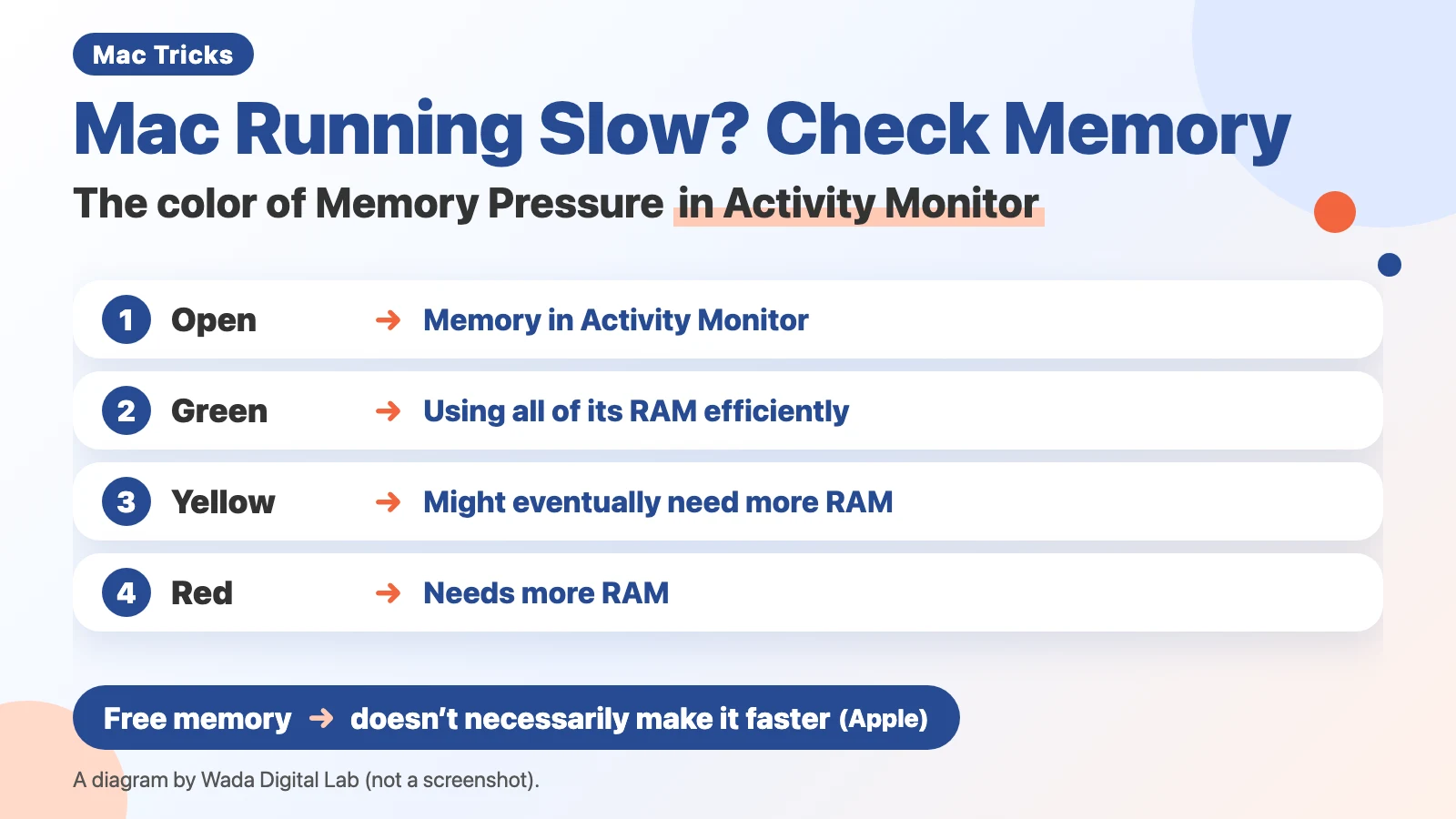
Check the color of the Memory Pressure graph
Memory pressure is a graph that shows, in green, yellow, or red, how comfortably your Mac’s memory is meeting its needs. Activity Monitor is an app that comes with every Mac. We split Apple’s instructions into one action per line. There are 3 steps.
- In Finder, open Activity Monitor in the Utilities folder inside Applications
- Click Memory at the top of the window
- Look at the color of the Memory Pressure graph at the bottom of the window
In the English version of macOS 27.0.1, the label above the graph is written in capital letters, MEMORY PRESSURE. We checked this in the text files inside Activity Monitor, not on an English screen.
Apple’s page “Check if your Mac needs more RAM in Activity Monitor” describes each color like this:
“Green memory pressure: Your computer is using all of its RAM efficiently.”
“Yellow memory pressure: Your computer might eventually need more RAM.”
“Red memory pressure: Your computer needs more RAM.”
The note that appears when you hold the pointer over the graph says: “Higher memory pressure indicates that the system is reaching its limits, and performance may degrade.” We read this in the text files inside Activity Monitor in macOS 27.0.1.
| Graph color | What Apple says | What to do first |
|---|---|---|
| Green | Using all of its RAM efficiently | Leave memory alone. If your Mac is slow, look at CPU |
| Yellow | Might eventually need more RAM | Quit apps you aren’t using, and see if the color goes back |
| Red | Needs more RAM | Quit apps you aren’t using. If it is always red, check in System Information whether you can add memory |
Low free memory isn’t always the reason your Mac is slow
When free memory is low, it looks like you are running out. Apple says otherwise. The same page begins:
“When you have free or unused memory, your computer performance does not necessarily improve. macOS obtains the best performance by efficiently using and managing all of your computer’s memory.”
macOS keeps files in memory that isn’t being used, so they open faster next time. Apple’s page “View memory usage in Activity Monitor on Mac” calls this Cached Files. So a small free memory number alone doesn’t mean you are short of memory. Look at the color of the graph.
A large swap number doesn’t mean you are short of memory
Swap means moving data that doesn’t fit in memory to your Mac’s internal storage for a while. Activity Monitor shows the amount on the Swap Used line. A big number there can be worrying, but it doesn’t decide the color by itself. Apple says “Memory pressure is determined by the amount of free memory, swap rate, wired memory, and file cached memory.” The list has the swap rate (how often your Mac swaps), not the amount of swap. Wired memory is memory the system needs to operate, which other apps can’t use.
On the Mac we use for screenshots (a MacBook Air (M2) with 16GB of memory, set to Japanese), Swap Used was 2.67GB and 11.81GB of the 16GB was in use. The graph was still green.
We also read the numbers in Terminal on a MacBook Air (M4) with 16GB of memory and macOS 27.0.1, on the evening of October 26, 2026. This is the memory level reported by macOS, not the color of the graph in Activity Monitor.
- First reading: Swap Used was about 6.8GB, and the level was normal.
- A few minutes later: Swap Used was about 7.4GB, and the level had gone up one step from normal. During those minutes, the Mac was running other work at the same time, such as installing parts for an app.
- In the minute of the second reading, about 430MB of data was read back from internal storage into memory.
The diagram below puts the two readings side by side (not a screenshot). With 6.8GB of swap, the level was normal. The level went up while the Mac kept moving data in and out of swap.
First reading
Swap Used About 6.8GB
Memory level reported by macOS
Normal
A few minutes later
Second reading
Swap Used About 7.4GB
Memory level reported by macOS
Up one step
Two readings aren’t enough to say how the amount of swap and the memory level are related. Still, not judging by the Swap Used number alone matches what Apple says.
If yellow or red keeps showing, quit apps you aren’t using
If yellow or red shows up often, see which apps use the most memory. Apple says you can click a column heading to sort the list, and click the arrow in the selected column heading to reverse the order.
- In the Memory tab of Activity Monitor, click the Memory column heading above the list
- If the largest numbers aren’t at the top, click the arrow in the Memory column heading to reverse the order
- Look at the apps that use the most memory, from the top
- If there is an app you aren’t using, save your work in it, then quit it
You can also quit from Activity Monitor. Apple says Quit “is the same as choosing File > Quit within an app.” Force Quit ends a process right away, and if the process has files open, you may lose data. Processes are programs running on your Mac. Besides apps, some of them are run by macOS in the background. Don’t quit processes you don’t recognize.
If it is always red, check whether you can add memory
Apple says System Information shows whether you can add memory. Press and hold the Option key, then choose Apple menu > System Information. Under Hardware on the left, click Memory. If the Memory Slots pane appears, go to Upgradeable Memory to see whether you can replace or install memory. If the Memory Slots pane doesn’t appear, you can’t add memory to that Mac.
On our MacBook Air (M4), we read the same information in Terminal with system_profiler (a command that prints the contents of System Information as text). The Memory section showed only items such as 16 GB and LPDDR5, with no memory slots. You can’t add memory to this Mac. If a Mac that can’t take more memory is always red, it doesn’t have enough memory for the way you use it.
If the graph is green but your Mac is still slow, look at CPU
If the graph stays green and your Mac is still slow, the cause may be something other than memory. The CPU is the part of your Mac that does the calculating. In the same Activity Monitor window, click CPU at the top. Apple says the System, User, and Idle percentages appear at the bottom of the window. Idle is the share of processing power that isn’t being used. If Idle stays low, sort by the % CPU column heading (reverse it with the arrow if the largest numbers aren’t at the top) to find the apps using the most.
Apple says that most of the time, your Mac uses only a small percentage of its processing power. It uses more when you run apps that need a lot of calculation.
See the color without opening anything: Memory Watch
Activity Monitor only shows the color when you open it and look. Opening it every time your Mac feels slow takes effort.
We (Wada Digital Lab) make a free app called Memory Watch that shows the same kind of information through the color of a menu bar icon. The color is based on the memory pressure level that macOS reports, and the app sends a notification when memory may run short. It uses 4 levels of its own (green, yellow, orange, and red), which aren’t the same as the 3 colors of the Activity Monitor graph. For example, it also shows its top level (red) when free internal storage falls below 10GB, whatever the memory is doing. It doesn’t free up memory or quit other apps. It works on a Mac with a chip made by Apple (such as M1 or M4) and macOS 14 Sonoma or a newer macOS. It does not work on Intel-based Macs or on macOS 13 or older.
See the Memory Watch (for Mac) page
Frequently asked questions
Do I need to do something right away when it turns yellow?
Apple says yellow means “Your computer might eventually need more RAM.” It doesn’t say you are short now. If yellow shows up often, quit apps you aren’t using and see whether the color goes back to green.
Will a memory cleaner app make my Mac faster?
Apple says that free or unused memory doesn’t necessarily improve performance. We haven’t tested memory cleaner apps. First look at the color of the Memory Pressure graph, and when it is yellow or red, quit apps you aren’t using.
Where is Activity Monitor?
It is in the Utilities folder inside the Applications folder in Finder. You can also open it by typing Activity Monitor in Spotlight.
What we tested, and Apple’s pages
We wrote the steps in this article from Apple’s pages (read on October 26, 2026). We checked the names on the screen and the note on the graph in the text files inside Activity Monitor on the Mac below. We read the memory level and the swap numbers in Terminal on the same Mac.
- Model: MacBook Air (M4, 16GB of memory)
- macOS: macOS 27.0.1
- Checked on: October 26, 2026
The Japanese-language Activity Monitor screen we describe was captured on the Mac we use for screenshots. We opened Activity Monitor, chose Memory, and only looked (we didn’t quit any apps).
- Model: MacBook Air (M2, 16GB of memory)
- macOS: macOS 27.0.1 (set to Japanese)
- Captured on: October 26, 2026 (in a separate user account made for screenshots)
The memory level we read in Terminal isn’t the color of the Activity Monitor graph itself. We didn’t test sorting by the Memory column, quitting apps, the CPU tab, or the System Information window (we read the same information as System Information in Terminal). We didn’t see an English Activity Monitor screen.
The steps come from these pages (Activity Monitor User Guide).