How to Use Migration Assistant on Mac — Choose What to Transfer to a New Mac
Published October 26, 2026
Official documentation reviewed October 26, 2026 (some steps not tested)
By Wada Digital Lab
To move your data to a new Mac, use Migration Assistant, which is built into every Mac. It doesn't have to move everything: anything you uncheck on the screen where you choose what to transfer stays behind. Before you start, decide whether to move everything over or start fresh, and update macOS on both Macs.
Key points
- Migration Assistant is a built-in Mac feature that moves your documents, apps, user accounts, and settings from an old Mac or a Time Machine backup to a new Mac. It doesn't erase anything on your old Mac.
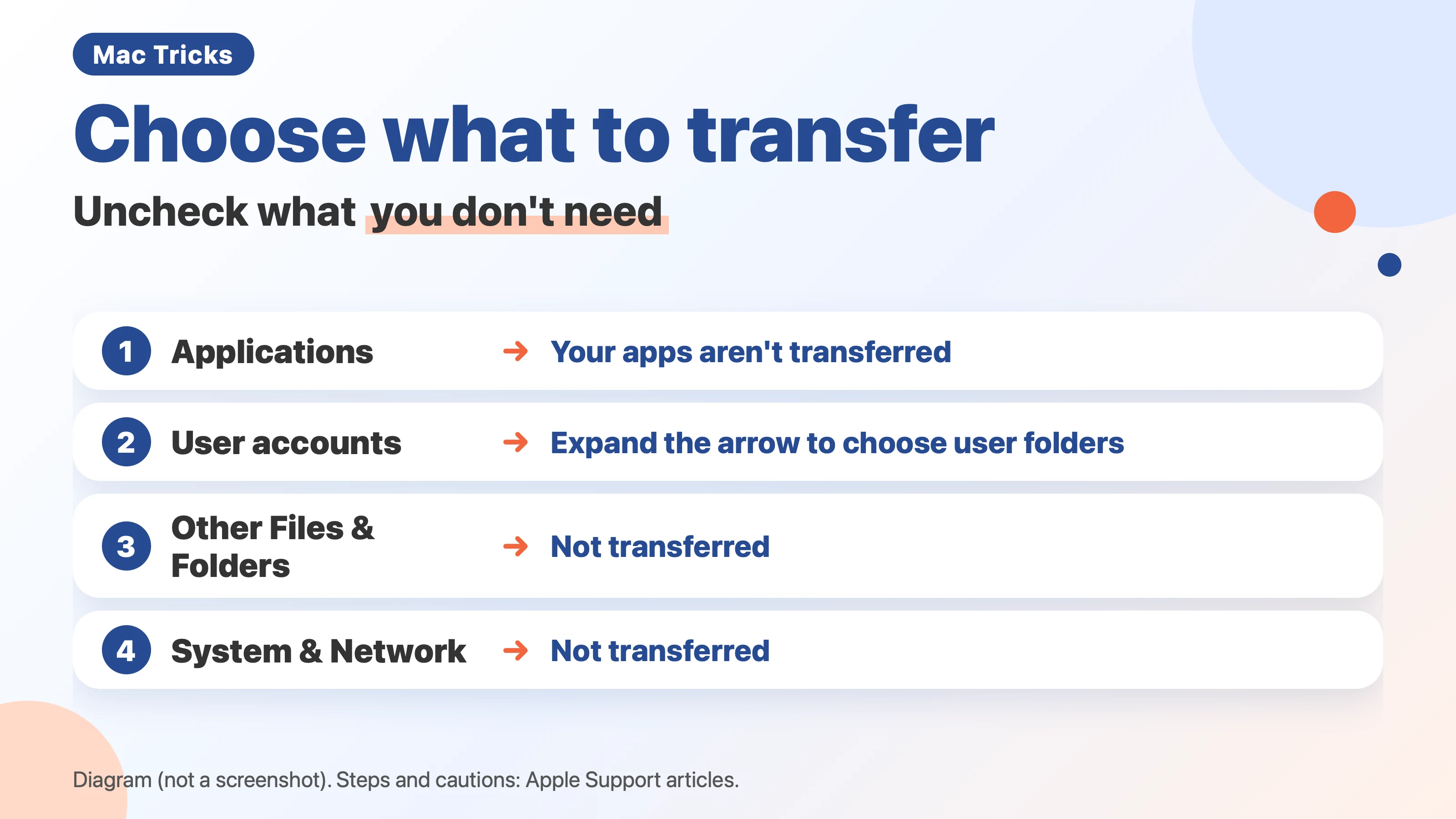
- On the screen where you choose what to transfer, uncheck items such as Applications, User accounts, Other Files & Folders, and System & Network, and those items won't be transferred.
- Get ready in three steps: update macOS on both Macs (they don't have to be the same version), plug your MacBook into power, and turn off antivirus, firewall, and VPN software until the transfer is finished.
- When you click Continue in Migration Assistant, all open apps quit. Save your work first.
- Menu wording was checked using the text built into macOS 27.0.1 on a MacBook Air (M4), on October 20, 2026. The transfer instructions are based on Apple Support articles. See the checks and untested steps at the end of this article.
Decide first: move everything over, or start fresh?
Pick your path before you open Migration Assistant.
| Path | Good for | Keep in mind |
|---|---|---|
| Use Migration Assistant (uncheck what you don't need) | People who want their usual setup on the new Mac | Uncheck anything you don't need on the screen where you choose what to transfer |
| Start fresh and reinstall your apps | People who want a clean Mac | Reinstalling your apps takes more time |
Some people say it's better not to use Migration Assistant, because old apps and years of cached data come along too. A cache is data that apps keep so they can open faster. With Migration Assistant, anything you uncheck stays behind.
The person who runs Wada Digital Lab has moved from an M1 Mac to an M2 Mac, and then to an M4 Mac, each time with Migration Assistant from a Time Machine backup. The time wasn't recorded, but it didn't take overnight, and nothing caused trouble after the move.
Get ready: update macOS on both Macs
Before you transfer:
- Update macOS on both Macs to the latest version. They don't have to be the same version.
- For a wireless transfer, turn on Wi-Fi on both Macs and keep them close together.
- Plug your MacBook into power.
- Turn off antivirus, firewall, and VPN software until the transfer is finished.
Migration Assistant copies your old Mac's data to the new Mac. Nothing on your old Mac is erased.
Open Migration Assistant: during setup, or from Utilities
- When you turn on a new Mac for the first time, Migration Assistant appears during the first setup. Just continue.
- After setup, open Migration Assistant in the Utilities folder inside Applications. You can also find it with Spotlight.
- You can also open it from System Settings → General → Transfer or Reset.
Save your work before you click Continue. Migration Assistant tells you that all open apps will quit when you continue.
Choose the source: From a Mac, Time Machine, or startup disk
On the screen where you choose how to transfer your information, choose From a Mac, Time Machine, or startup disk.
- Directly from your old Mac: open Migration Assistant on the old Mac too, and choose the option to transfer to another Mac. On the new Mac, select your old Mac. Make sure both screens show the same security code.
- From a Time Machine backup: connect the backup disk to the new Mac and select it.
After you choose the source, click Continue.
Choose what to transfer: uncheck what you don't need
Each item on the screen where you choose what to transfer has its own checkbox.
| Item | If you uncheck it | What to do next |
|---|---|---|
| Applications | Your apps aren't transferred | Reinstall them on the new Mac from the App Store or elsewhere |
| User accounts | Anything unchecked isn't transferred. Expand the arrow to choose user folders | Check that the folders you want are still selected |
| Other Files & Folders | Not transferred | Think about whether you need anything there before you uncheck it |
| System & Network | Not transferred | Think about whether you need anything there before you uncheck it |
If you don't want to bring old apps along, uncheck Applications and reinstall your apps on the new Mac.
Write down your passwords
For an administrator account, you set a password. For a standard account, a temporary password is shown. Write it down either way. You'll need it to log in on your new Mac.
If your new Mac already has an account with the same name
You'll see a screen asking what to do.
- Replace it: you can also keep the data from the account that was on the new Mac in a folder for deleted users.
- Keep both: rename the account you're transferring from your old Mac.
When you're done choosing, click Continue to start the transfer.
During the transfer: wait, even if it looks stuck
A large transfer can take several hours and may look like it has stopped. Give it time.
After the transfer: check your login, your documents, and what you left out
When the transfer is finished, quit Migration Assistant on both Macs. Log in to the transferred account on your new Mac. You may need to set up your email account again in the Mail app.
Check three things:
- You can log in to the transferred account.
- Your usual documents are in the same places.
- Anything you unchecked wasn't transferred.
If something doesn't match, look at the summary screen at the end of Migration Assistant before you start over. Anything that didn't transfer properly is listed there.
FAQ
Does Migration Assistant erase my old Mac?
No. It copies your old Mac's data to the new Mac. Apple says the information on your old Mac isn't deleted.
Do both Macs need the same version of macOS?
No. Update both to the latest version before you transfer.
What happens if I uncheck Applications?
Your apps aren't transferred. Reinstall them on the new Mac from the App Store or elsewhere.
What if the transfer looks stuck?
A large transfer can take several hours and may look stopped. Wait first. If something is missing afterward, check the summary screen at the end.
What we checked, and what we didn't test
- Mac: MacBook Air (M4) running macOS 27.0.1 (October 20, 2026).
- English item names: taken from the text built into macOS 27.0.1 (Setup Assistant, the migration framework, and the Transfer or Reset settings), not from English screenshots.
- Steps and cautions: checked against Apple Support articles and the macOS 27 User Guide (read on October 20, 2026).
- Personal experience: M1 to M2 to M4, each from a Time Machine backup.
We didn't test:
- Transferring directly between two Macs (the security code screens).
- The screen that appears when the new Mac already has an account with the same name.
- How long a transfer takes.
- Transferring with a cable.
- Starting fresh and reinstalling apps, as a comparison.
Sources
- Apple Support: Transfer to a new Mac with Migration Assistant https://support.apple.com/en-us/102613
- Apple Support: Transfer your information to Mac from another computer or device (macOS 27 User Guide) https://support.apple.com/guide/mac-help/mh27921/27/mac/27
- Apple Support: Restore your Mac from a backup (related) https://support.apple.com/en-us/102551
This site is not affiliated with Apple Inc. Mac, macOS, and Time Machine are trademarks of Apple Inc.