How to Reduce System Data on Mac — Should You Delete It, and Where to Free Up Space
Published October 26, 2026
Official documentation reviewed October 26, 2026 (some steps not tested)
By Wada Digital Lab
System Data on your Mac is a container for files that macOS itself uses, such as logs and caches. In System Settings > General > Storage, you can't select or delete the files inside it. When space is needed, macOS removes the caches and logs that are safe to delete. To free up space, leave System Data alone and start with Large Files in Documents, your iPhone backups, and the Trash on the same screen.
Key points
- System Data includes log files, caches, temporary files, and other files that macOS uses. Apple's page says you can't select and delete the files in this category.
- When space is needed, macOS removes caches and logs that are safe to delete. You don't need to open folders in the Library and delete them yourself.
- To make room, first check the Storage bar chart. Then delete files you don't need from Large Files and Downloads in Documents, delete old backups in iOS Files, and empty the Trash.
- On our Mac (MacBook Air (M4), macOS 27.0.1), the space that was empty right then was 38.4 GB. Including the space macOS can free when needed, it was 113.4 GB.
- If you need space fast, Apple's page describes starting up your Mac in safe mode. Apple's page says Time Machine local snapshots count as available space, so you usually don't need to delete them.
The diagram below sums up System Data and the items to check when you make space (not a screenshot).
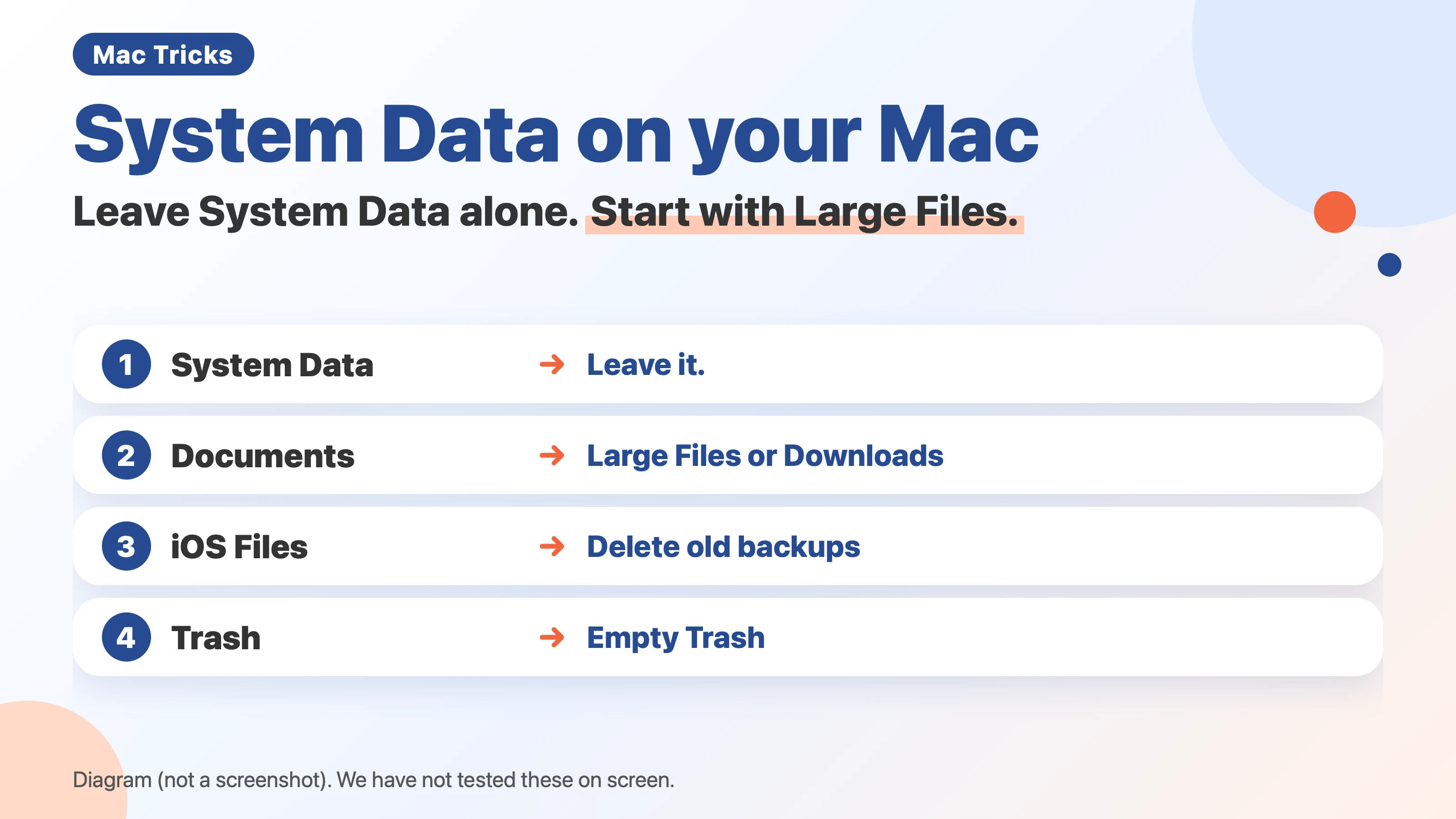
What is System Data? A container for logs, caches, and other files macOS uses
System Data is the category in Storage settings for files that don't belong to any other category. According to Apple's page, it mainly contains files and data used by the system, such as log files, caches, VM files, and other resources the system uses while it's running. Logs are records of what your Mac has done. Caches are copies that help things open faster next time. VM files hold the contents of memory for a while when memory runs short. System Data also includes temporary files, fonts, and files that apps need to run.
The size of System Data changes. Apple's page says you can't manage the contents of this category, that macOS manages them, and that the size depends on the current state of your Mac. The description text inside macOS also says this value changes with how the system is being used. That is why the number can go up or down even when you haven't deleted anything.
At Wada Digital Lab, we are often surprised by how big System Data gets. It grows while we use the Mac, and we only notice when free space is almost gone. We usually notice when a macOS update starts. The worst part is that a Mac with little free space starts to run poorly.
Should you delete System Data yourself? No. macOS clears caches and logs when space is needed
In Storage settings, System Data only shows its size. Apple's page says you can't select and delete the files in categories such as System Data. Unlike other items, it has no round i button to open it.
Instead, macOS clears space itself. Apple's page says that when your Mac needs space, macOS also removes caches and logs that are safe to delete. Apple lists examples such as temporary database files, interrupted downloads, staged macOS and app updates (updates downloaded and waiting to be installed), and Safari website data.
On October 19, 2026, we read four top-ranking Japanese-language articles from a Google search for the Japanese equivalent of 'reduce Mac System Data'. Three of the four explained how to delete Time Machine local snapshots with Terminal commands. Another explained how to open the Library folder in Finder and delete cache folders by hand. Which folders are safe to delete depends on the app. If you don't know what a folder contains, it's safer to leave it.
At Wada Digital Lab, we have used a paid storage-cleaning app from another company for a long time. Even so, sorting through folders by hand is a lot of work. Before you go there, there's a lot you can do in Storage settings, which is built into every Mac.
What we measured on our Mac: 38.4 GB free now, 113.4 GB including space macOS can free
There are two ways to count free space on a Mac: the space that is empty right now, and the space you'd have after macOS removes what it can when needed. On October 19, 2026, we measured both on a MacBook Air (M4) with macOS 27.0.1, using the interface macOS provides to apps.
| How it's counted | Our Mac |
|---|---|
| Whole disk | 994.7 GB |
| Empty right now | 38.4 GB |
| Free space including what macOS can free when needed | 113.4 GB |
The difference is about 75 GB. That's what macOS can remove when it needs space. This method doesn't show what that space is made of. On the same Mac, we also listed the Time Machine local snapshots. There were 25 of them, about one per hour, from 11:49 on October 18 to 11:02 on October 19, 2026 (Japan time).
Local snapshots are backups that Time Machine keeps on your Mac itself. Apple's page says Time Machine saves a snapshot of the startup disk about once an hour and keeps it for 24 hours. The count of 25 matched that description. Apple's page also says the space used by snapshots is counted as available space on your Mac, and that you don't need to worry about the storage they use.
We have not checked whether the 113.4 GB above matches the available space shown in the Storage bar chart.
Step 1: Check the Storage bar chart to see what's taking up space
First, see what is using your storage.
- Choose Apple menu > System Settings.
- Click General in the sidebar, then click Storage on the right.
- Read the bar chart at the top. Each color shows what is using space. If the chart is still calculating, wait until it finishes.
Below the bar chart, you'll find Recommendations, followed by items such as Documents, iOS Files, and the Trash, each with its size. If anything other than System Data is large, that's where you can make room.
Step 2: Delete files from Large Files and Downloads in Documents
Click the round i button (the info button) next to Documents to see the files inside. Apple's page says you can click the matching button to quickly see large files or downloads.
- Click the round i button next to Documents.
- Choose Large Files. Your large files are listed. You can change the order with the column headings at the top.
- Select a file you don't need, then click Delete….
- When the confirmation appears, check the file name once more, then confirm the deletion.
- Also check Downloads on the same screen. Files you downloaded and forgot about are listed there.
Files you delete here don't go to the Trash. The confirmation text inside macOS says the item will be deleted immediately and that this can't be undone. Check the name before you confirm, so you don't delete a file you need. If you want to keep a file on another disk, copy it there first.
Delete only old iPhone backups in iOS Files
If you back up your iPhone or iPad to your Mac, iOS Files can get large. Apple's page describes iOS Files as iOS backups and firmware. Firmware is the file used to reinstall software on an iPhone or similar device. Click the round i button next to iOS Files to see the list of backups, the same way as Documents. Apple's support article about freeing up storage on Mac also says that if you use your Mac to back up your iPhone or iPad, you can delete old backups.
At Wada Digital Lab, iPhone backups are the biggest storage problem. They take up a lot of space on the Mac. Not backing up feels risky, but we have never actually restored from one. Delete only the old backups, and keep the newest one so you're covered.
The Trash doesn't free up space until you empty it
Moving a file to the Trash doesn't give you more space. Apple's support article about freeing up storage says that moving files to the Trash doesn't free the storage they use until you empty the Trash.
- Click the Trash in the Dock.
- Click Empty at the top right of the window that opens.
- In the confirmation, click Empty Trash.
Once you empty the Trash, the items can't be restored. Apple's page says items erased from the Trash are permanently deleted and can no longer be used. Before you empty it, you can still restore items from the Trash.
Turn on only the Recommendations that suit you
The Recommendations section in Storage settings lists settings that make room. The three names are Store in iCloud, Optimize Storage, and Empty Trash Automatically.
| Recommendation | What it does | What to keep in mind |
|---|---|---|
| Store in iCloud | Keeps files from Desktop and Documents, photos, and messages in iCloud. When space is needed, only recently used files and smaller versions of photos stay on your Mac | Uses your iCloud storage. iCloud storage is shared with photos and iPhone backups |
| Optimize Storage | When space is needed, removes Apple TV movies and TV shows you've watched, and keeps only recent email attachments on your Mac | Removed items can be downloaded again later |
| Empty Trash Automatically | Erases items that have been in the Trash for more than 30 days | Items erased automatically can't be restored |
For Store in iCloud, Apple's page says it can optimize storage by keeping only files you opened recently on your Mac when space is needed. About iCloud storage, Apple's page says iCloud Drive shares iCloud storage with iCloud Photos, iPhone and iPad backups, iCloud Mail messages and attachments, and more. If your iCloud storage is small, every file you put there leaves less room for everything else.
Important: iCloud Drive syncs deletions too. Deleting a file from iCloud Drive removes it from your other devices signed in to the same Apple Account. On your iPhone, deleted files can be found in Recently Deleted in the Files app. See Apple's explanation of deleting and recovering files.
At Wada Digital Lab, our Desktop is set to be stored in iCloud. It lets us share files, and our files would remain even if the Mac broke, which helps a lot. We avoid keeping large files on the Desktop. If your iCloud storage is already full, start with Large Files and the Trash before Store in iCloud.
Optimize Storage removes Apple TV movies and TV shows you've already watched when space is needed. Apple's page says it saves space by automatically removing watched Apple TV movies and TV shows and keeping only recent email attachments on your Mac when storage space is needed. You can download removed items again later.
Empty Trash Automatically, according to Apple's page, erases items that have been in the Trash for more than 30 days.
Need space fast? Start up your Mac in safe mode
If a macOS update shows More Storage Required, free up space in the order above.
If you still need space quickly, you can start up your Mac in safe mode. Apple's support article about freeing up storage says that to temporarily make more storage available, you can start up in safe mode, and your Mac clears certain system caches and re-creates them automatically as needed. The steps differ depending on your Mac's chip, so follow Apple's page, Start up your Mac in safe mode. To leave safe mode, restart your Mac normally.
You usually don't need to delete Time Machine local snapshots
Many top-ranking articles explain how to delete Time Machine local snapshots with Terminal commands. Apple's page says the space used by snapshots is counted as available space, and that space you need for other work won't be taken up by them. Apple's page also says Time Machine deletes snapshots automatically when they get old or when space is needed for other things. So usually, you don't need to do anything.
If you still want to remove them yourself, Apple's page describes a way that doesn't use Terminal: turn off automatic Time Machine backups for a short time.
- Choose Apple menu > System Settings, click General in the sidebar, then click Time Machine on the right.
- Click Options….
- Choose Manually from the Backup Frequency pop-up menu, then click Done.
- Wait a few minutes, then set Backup Frequency back to the automatic setting you used before (such as Automatically Every Hour).
Apple's page says local snapshots are deleted after a few minutes, and that you should then turn automatic backups back on. Manually means Time Machine doesn't back up on its own. If you forget to switch it back, your Mac won't back up to your external disk automatically.
The order for freeing up space
Here are the four steps in order. Leave System Data alone and start by looking at Storage.
- Storage: check the bar chart to see what's large. Leave System Data alone.
- Large Files: delete files you don't need, and check Downloads too. Files deleted here are gone right away and can't be restored.
- iOS Files: delete old backups. Empty the Trash all the way.
- Recommendations: turn on only the ones that suit you. Each one makes room when its condition is met (see the Recommendations table).
How to free up space, item by item
| Item in Storage | How to free up space | What happens to deleted items |
|---|---|---|
| System Data | Leave it. When space is needed, macOS clears caches and logs | — |
| Documents | Round i button > Large Files or Downloads > Delete… | They skip the Trash and are deleted right away |
| iOS Files | Round i button > delete old backups | Keep the newest backup |
| Trash | Trash in the Dock > Empty at the top right > Empty Trash | Permanently deleted and can't be restored |
| Recommendations | Choose from Store in iCloud, Optimize Storage, and Empty Trash Automatically | Depends on the setting (see the table above) |
FAQ
Why does System Data keep growing?
Logs and caches build up every time you use your Mac. Apple's page says the size of System Data depends on the current state of your Mac. When space is needed, macOS removes the caches and logs that are safe to delete, so you don't need to delete them yourself.
Does restarting reduce System Data?
Apple's page doesn't say that restarting reduces it, and we haven't tested it. The way Apple suggests to temporarily make more space is to start up in safe mode.
Can I delete the Caches folder in the Library?
Apple's Storage settings guide doesn't describe deleting it by hand. When space is needed, macOS removes caches and logs that are safe to delete. For some apps, deleting caches means downloading things again. Leave folders you don't recognize, and check Large Files and the Trash first.
Can I delete Time Machine snapshots with Terminal commands?
Apple's page says snapshot space is counted as available space, so you don't need to worry about it. Usually, you don't need to delete them. If you want to, setting Backup Frequency to Manually in Time Machine settings removes them in a few minutes without Terminal. Afterward, remember to switch back to automatic backups.
Tested environment and Apple sources
- Our Mac: MacBook Air (M4), macOS 27.0.1. On October 19, 2026, we measured free space in two ways and listed the Time Machine local snapshots. Both were read-only; nothing was deleted. Free space was counted with the interface macOS provides to apps (the Foundation keys volumeAvailableCapacity and volumeAvailableCapacityForImportantUsage). Snapshots were listed with tmutil listlocalsnapshots / in Terminal.
- The English names on the Storage screen (Storage, System Data, Documents, Large Files, Downloads, iOS Files, Recommendations, Store in iCloud, Optimize Storage, Empty Trash Automatically, Delete…), the confirmation text for Delete… (The item will be deleted immediately. You can't undo this action.), and Empty Trash and More Storage Required come from the English text inside macOS 27.0.1, looked up on October 18, 2026. Empty (the button in the Trash window), Options…, Backup Frequency, Manually, Done, and Automatically Every Hour were looked up the same way on October 26, 2026. Our Mac is set to Japanese, so we have not seen these names on an English screen.
- We have not tested these on screen: deleting from Large Files, deleting iOS Files backups, turning on Recommendations, emptying the Trash, safe mode, and setting Time Machine to Manually to remove snapshots. These steps are written from Apple's pages.
The notes about top-ranking articles come from four Japanese-language articles we read on October 19, 2026, from a Google search for the Japanese equivalent of 'reduce Mac System Data'.
Apple pages:
- Change Storage settings on Mac
- Optimize storage space on your Mac
- Free up storage space on Mac
- Start up your Mac in safe mode
- About Time Machine local snapshots
- Delete files and folders on Mac
- Store files in iCloud Drive on Mac