Is 8GB of RAM Enough for a Mac? — Check Your Current Mac with the Memory Pressure Color
Published November 3, 2026
Official documentation reviewed November 3, 2026 (some steps not tested)
By Wada Digital Lab
Whether 8GB of memory is enough for a Mac depends on how you use it. The most reliable check is to look at the Memory Pressure graph in Activity Monitor while you do your usual work, and see if it stays green. Apple says green means your Mac is using all of its RAM efficiently, and red means it needs more RAM. On a Mac with a chip made by Apple, you can’t add memory later. Checking the color on your current Mac before you buy gives you a guide for how much to choose.
Key points
- Whether 8GB is enough shows in Memory Pressure (the graph whose color shows whether memory is enough) while you work. Apple says green means your computer is using all of its RAM (memory) efficiently, yellow means it might eventually need more RAM, and red means it needs more RAM.
- If your current Mac has 8GB, the color is your answer. If it has 16GB, a green graph doesn’t prove that 8GB would be enough for the same work.
- Free memory or the amount of swap alone doesn’t decide it. Apple says that free or unused memory doesn’t necessarily improve performance.
- Even on our Mac with 16GB, running several AI apps at once pushed swap (data moved from memory to the internal storage) from about 4.1GB to about 8.2GB within one minute. What matters is not 8GB versus 16GB but what the color does with the way you work.
- On a Mac with a chip made by Apple, you can’t add memory later. The entry-level MacBook Neo comes with 8GB of memory only (Apple’s specs page).
- If you want to watch the color for a few days, our free app Memory Watch shows it in the menu bar (we make it).
The diagram below shows how to check whether 8GB is enough.
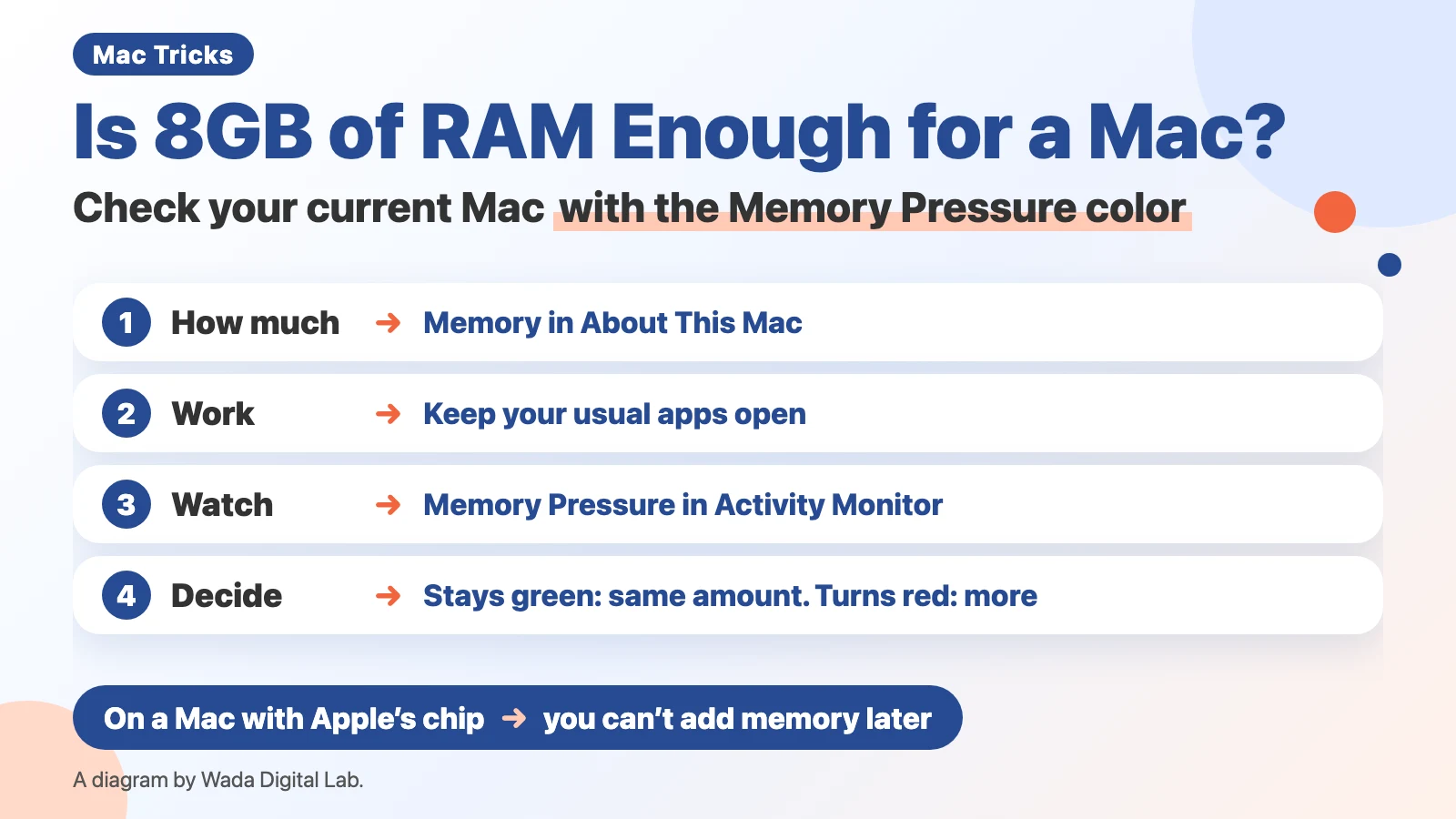
Decide by the color of Memory Pressure while you work
Memory Pressure is a graph whose color shows whether your Mac’s memory is enough for what you are doing right now. It appears at the bottom of the Memory tab in Activity Monitor. Memory (RAM) is where your Mac keeps apps and documents while it is running, and 8GB or 16GB is how big that space is.
Apple’s page “Check if your Mac needs more RAM in Activity Monitor” describes the colors like this:
| Color while you work | What Apple says | Is your memory enough? (our view) |
|---|---|---|
| Stays green | Your computer is using all of its RAM efficiently | For the way you use it, your current amount is enough |
| Turns yellow | Your computer might eventually need more RAM | Quit apps you aren’t using and see if it goes back to green. If it stays yellow, you have little headroom |
| Turns red | Your computer needs more RAM | Not enough for the way you use it. Get more in your next Mac |
This color tells you whether the memory your current Mac has is enough. If your current Mac has 8GB, the color is your answer to “is 8GB enough.” If your current Mac has 16GB and you are thinking about an 8GB Mac next, a green graph doesn’t prove that 8GB would be enough for the same work. In that case, also check whether Memory Used in Activity Monitor goes well over 8GB (a rough guide, and our own view).
A small free memory number doesn’t mean you are short on memory. The same Apple page says:
“When you have free or unused memory, your computer performance does not necessarily improve. macOS obtains the best performance by efficiently using and managing all of your computer’s memory.”
When there is room in memory, macOS keeps files there so they open faster next time (Apple calls these Cached Files). So even if free memory is low, a green graph means there is nothing to worry about.
Check on your current Mac: keep your usual apps open and watch the color
Checking on your current Mac before you buy gives you a guide for how much to choose next. There are 4 steps.
- Choose Apple menu > About This Mac and look at Memory
- Open the apps you usually use (browser tabs, documents, a video call app, and so on) and work as usual
- Open Activity Monitor from Applications > Utilities in the Finder, then click Memory at the top
- Watch whether the Memory Pressure graph at the bottom of the window stays green or turns yellow or red

One look only tells you about that moment. Check a few times while you do heavy work (exporting photos or video, many tabs, a video call). If you note which apps were open when it turned yellow or red, it is easier to decide how much to choose.
Even with 16GB, heavy work doubled swap in one minute: what we measured on our Mac
On the morning of November 3, 2026, we read the numbers in Terminal on our MacBook Air (M4, 16GB of memory, macOS 27.0.1), during heavier work than usual, with several AI apps running at once. We didn’t look at the color of the Activity Monitor graph at that time. GB here means 1,024MB, the same way Activity Monitor counts.
- 9:26 a.m.: swap used was about 4.1GB. The memory level macOS reports was one step above normal.
- 9:27 a.m. (one minute later): swap used had grown to about 8.2GB. The memory level was still one step above normal.
Even with 16GB, swapping to the internal storage can go up with some kinds of work. On the other hand, with just a browser and documents, the graph can stay green even with a few gigabytes of swap, as on our 16GB recording Mac. The answer to “8GB or 16GB” depends on how heavy your work is, not on which Mac it is. For how to read the swap number, see What Swap Used Means on a Mac. The memory level macOS reports isn’t the same thing as the color of the graph in Activity Monitor.
The diagram below shows how the same 8GB can give different colors depending on how you use it. On the left is light work: what is open is a few browser tabs and documents. On the right is heavy work: what is open is many tabs, a video export, and a video call. As the work gets heavier, the color can change. If it stays green, as on the left, your current amount is enough. If it turns red, as on the right, get more in your next Mac.
Light work
What is open a few browser tabs and documents
If it stays green
your current amount is enough
as the work gets heavier
Heavy work
What is open many tabs, a video export, and a video call
If it turns red
get more in your next Mac
Can you add memory later? Not on a Mac with a chip made by Apple
On a Mac with a chip made by Apple (such as M1 or M4), the memory is built in and can’t be added later. Apple’s specs page lists the entry-level MacBook Neo (A18 Pro chip) with 8GB of memory only, with no other option.
Apple also describes how to check whether you can add memory to your Mac. There are 3 steps.
- Press and hold the Option key, then choose Apple menu > System Information
- Under Hardware on the left, click Memory
- See whether the Memory Slots pane appears. If it does, look at Upgradeable Memory to find out whether you can replace or install memory (if the pane doesn’t appear, Apple says upgradeable memory isn’t available for your Mac)
On our MacBook Air (M4), we read the same information in Terminal (system_profiler). It showed only “Memory: 16 GB” and the type, with no slot entries (we didn’t open the System Information window). Because you can’t add memory, the amount you choose when you buy is the amount you have for as long as you use that Mac.
An easier way: watch the menu bar color for a few days (Memory Watch)
With the steps so far, you open Activity Monitor every time you want to see the color. Opening it again and again while you work is a chore, and you can miss the moment it turns yellow or red.
We (Wada Digital Lab) make a free Mac app that shows how much memory headroom you have as the color and stars of a menu bar icon. It’s called Memory Watch. The color is based on the memory pressure level macOS reports (what Apple calls Memory Pressure), measured every 5 seconds. When memory is about to run short, it sends a notification. Leave it running for a few days and you learn where your usual work runs low on memory, without stopping what you’re doing.
Note that the Memory Watch icon color also changes for reasons other than memory, for example when free space on the internal storage drops below 10GB (Memory Watch has four levels of its own). When the color changes, check the reason in the Mac Status window. When you decide how much memory to buy, also check the Memory Pressure graph in Activity Monitor.
Memory Watch doesn’t free up memory or quit other apps. There is no sign-up, no ads, and no in-app purchase. It works on a Mac with a chip made by Apple (such as M1 or M4) and macOS 14 Sonoma or a newer macOS. It does not work on Intel-based Macs or on macOS 13 or older. We haven’t yet checked whether it runs on the MacBook Neo (A18 Pro).
Frequently asked questions
What is the difference between 8GB and 16GB?
It is how many apps and documents your Mac can keep in memory at once. When 8GB isn’t enough, macOS compresses data or moves it to the internal storage (swap) to keep going. When that happens a lot, your Mac feels slow. Decide which you need by the color of Memory Pressure while you work.
My 8GB Mac feels short on memory. What can I do?
Close apps and browser tabs you aren’t using. In the Memory tab of Activity Monitor, click the Memory column heading to sort and see which apps use the most. The steps are in How to Free Up Memory on a Mac.
Where can I see how much memory my Mac has?
Choose Apple menu > About This Mac and look at Memory.
What we checked, and Apple’s pages
We read the swap numbers, the memory level, and the memory type in Terminal on our Mac. We read the MacBook Neo’s memory on Apple’s specs page.
- Model: MacBook Air (M4, 16GB of memory)
- macOS: macOS 27.0.1 (Japanese screen)
- Checked on: November 3, 2026
We don’t have an 8GB Mac, so we didn’t measure the color or the numbers on one. When we read swap on our 16GB Mac, we didn’t look at the graph color either. We didn’t test anything on a MacBook Neo, and we didn’t open About This Mac or the System Information window. The Activity Monitor picture was taken in a user account made for screenshots (MacBook Air (M2), macOS 27.2, English screen), and is the same picture as in our article on checking memory pressure.
Before writing, we searched Google for “is 8gb ram enough mac” and read the titles of the top results (November 3, 2026): mostly forum threads and opinion pieces. Instead of a table of uses, this article uses Apple’s description of Memory Pressure to show how to check on your own Mac.
Sources:
- Check if your Mac needs more RAM in Activity Monitor (Activity Monitor User Guide)
- View memory usage in Activity Monitor on Mac (Activity Monitor User Guide)
- MacBook Neo - Technical Specifications (Apple)