“Your System Has Run Out of Application Memory” on a Mac — Save First, Then Quit Normally Before You Force Quit
Published November 3, 2026
Official documentation reviewed November 3, 2026 (some steps not tested)
By Wada Digital Lab
If your Mac says “Your system has run out of application memory,” save what you can first, then quit the apps you aren’t using with Command-Q. Use Force Quit only for an app that isn’t responding. If the message keeps coming back, find the apps that use the most memory in Activity Monitor, and check the free space on your startup disk. Apple says an app that quits normally can do what it needs to do before quitting, such as save changes.
Key points
- The message is how macOS tells you it is out of memory and asks you to close apps. In the text files inside macOS 27.0.1, the title is “Your system has run out of application memory.” and the buttons are Force Quit and Resume.
- First save your documents, then quit apps you aren’t using with Command-Q. Apple says to try quitting an app normally before you force it to quit.
- Force quit only an app that isn’t responding, from the Force Quit window you open with Option-Command-Esc. Unsaved changes may be lost.
- If the message comes back, sort the Memory tab of Activity Monitor to find the apps that use the most memory. Swap (where macOS moves data that doesn’t fit in memory) lives on the startup disk, so if free space is low, make more room too.
- If you want to know before the message appears, our free app Memory Watch shows the memory level as a color in the menu bar (we make it).
The diagram below shows what to do when the message appears.
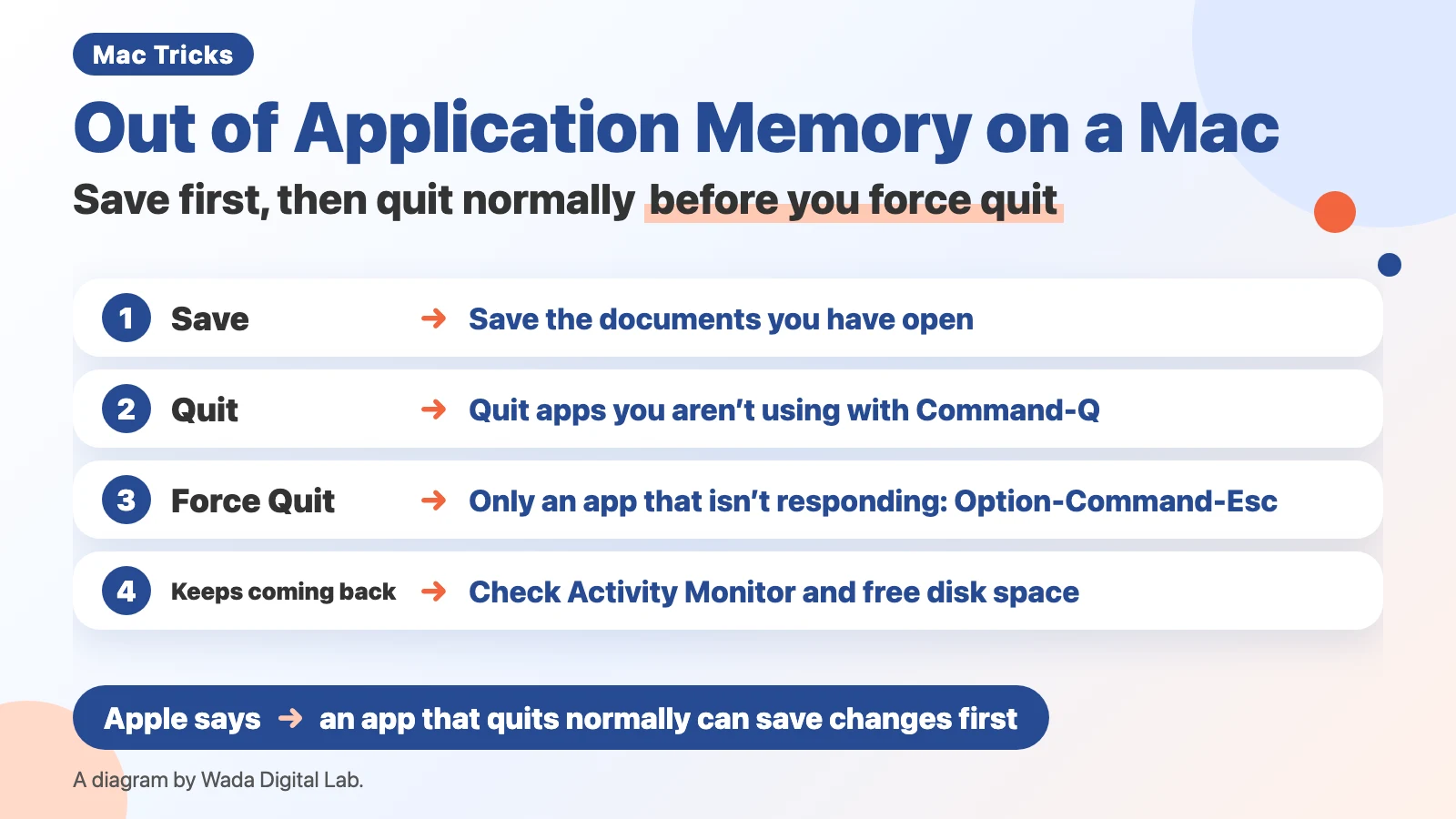
What “Your system has run out of application memory” means: macOS asks you to close apps
“Your system has run out of application memory” is a message macOS shows when your Mac’s memory (RAM) runs short. Memory is where your Mac keeps the apps and documents you have open while it is running.
We read the text file for this message inside our MacBook Air (M4, macOS 27.0.1). This is what the window contains.
- Window name: Force Quit Applications
- Title: “Your system has run out of application memory.”
- Message: “To avoid problems with your computer, quit any applications you are not using.”
- Buttons: Force Quit and Resume
We didn’t bring up the message on the screen ourselves (to do that, we would have had to use up all the memory on purpose).
| What you see | What to do | What Apple says |
|---|---|---|
| Apps still work | Save your documents, then quit apps you aren’t using with Command-Q | An app that quits normally can save changes before quitting |
| An app isn’t responding | Option-Command-Esc, then Force Quit | Select the unresponsive app, then click Force Quit |
| Force Quit doesn’t work either | Apple menu > Restart | If it won’t restart, hold the power button for up to 10 seconds |
| The message keeps coming back | Find the biggest apps in Activity Monitor and check the free space on your startup disk | Red memory pressure (the graph whose color shows whether memory is enough) means your computer needs more RAM |
First save, then quit the apps you aren’t using with Command-Q
If your apps still work when the message appears, you don’t need to rush to Force Quit. Apple’s article “How to force an app to quit on Mac” says:
“When an app quits normally, it can do what it needs to do before quitting, such as to save changes.”
Here is the order. There are 3 steps.
- Save the documents you have open (File > Save, or Command-S)
- Switch to an app you aren’t using and press Command-Q (or choose Quit from the app’s menu in the menu bar)
- In your browser, close the tabs and windows you aren’t using
If you don’t know which app to quit, sort the list in Activity Monitor by memory, as shown in the section “If it keeps coming back…” below.
Force quit only an app that isn’t responding: Option-Command-Esc
Force quit only when an app doesn’t respond and Command-Q doesn’t close it. We split Apple’s steps into one action per line. There are 3 steps.
- Press Option, Command, and Esc together (or choose Force Quit from the Apple menu)
- In the Force Quit window, select the app that isn’t responding
- Click Force Quit
Apple’s Activity Monitor guide says that if a process (a program running on your Mac) you force to quit has files open, you may lose data. Assume that unsaved changes can be lost. If Force Quit doesn’t work, choose Restart from the Apple menu. If the Mac still won’t restart, Apple says to press and hold the power button for up to 10 seconds, until the Mac turns off, then press and release the power button to turn it back on.
If it keeps coming back, find the apps that use the most memory in Activity Monitor
If the same message appears again and again, check whether some app is using a lot of memory. Activity Monitor is an app that comes with every Mac and shows what is running and how much memory and other resources it uses. There are 3 steps.
- Open Activity Monitor from Applications > Utilities in the Finder
- Click Memory at the top of the window
- Click the Memory column heading above the list to sort it, biggest first (if the order is reversed, Apple says to click the arrow in the selected column heading)
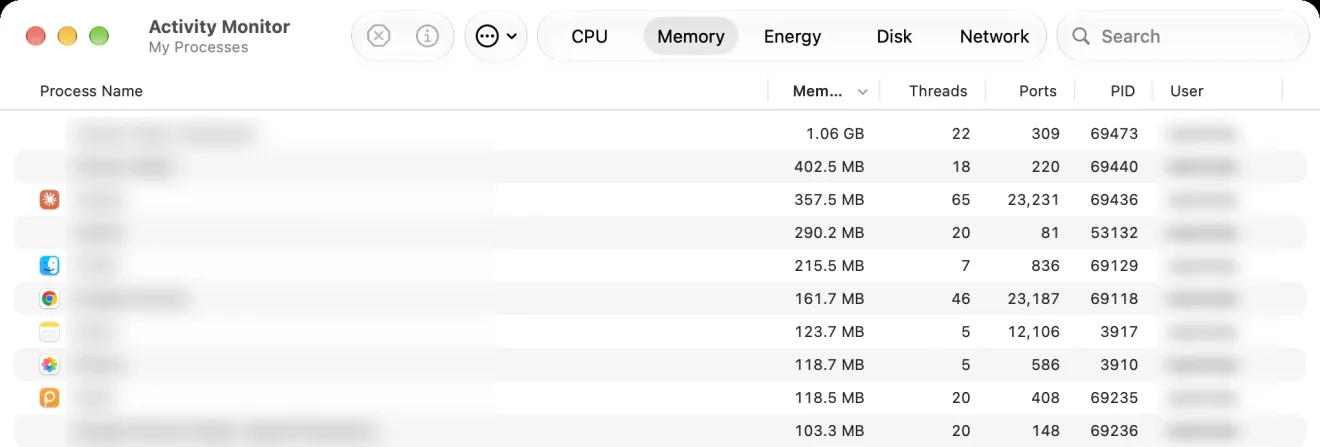
Select an app near the top that you aren’t using, click the Stop button (the X) at the upper left of the window, then choose Quit. A browser can show several parts with Helper or Renderer in their names next to the app itself. For the details, see How to Free Up Memory on a Mac.
Check the free space on your startup disk too: swap lives on the startup disk
When memory runs short, macOS moves some data to the startup disk (usually the Mac’s internal storage) for a while and keeps going. This is called swap. In Apple’s Activity Monitor guide, Swap Used is:
“The amount of space being used on your startup disk to swap unused files to and from RAM.”
On the morning of November 3, 2026, we read the numbers in Terminal on our MacBook Air (M4, 16GB of memory, macOS 27.0.1) while other work was running in parallel. In one minute, the total swap size grew from 5,120MB to 9,216MB, and the swap files (1GB each) went from 5 to 9. The swap files were in a place named VM on the internal storage. At that moment, the startup disk had 24GB free.
Swap can take up the startup disk that quickly. Our view is that if the startup disk is nearly full, there is less room for swap too (we didn’t test whether the message appears on a Mac with little free space). For how to make room, see How to Reduce System Data on Mac. For how to read the swap numbers, see What Swap Used Means on a Mac.
The diagram below splits the steps by whether your apps still respond. If they still work, once you save, quit apps you aren’t using with Command-Q. If you force quit, unsaved changes may be lost.
Apps still work
Save your documents Command-S
Once you save
Quit apps you aren’t using with Command-Q
If it won’t close
An app isn’t responding
The Force Quit window Option-Command-Esc
If you force quit
Unsaved changes may be lost
An easier way: see the memory level as a menu bar color before the message (Memory Watch)
“Your system has run out of application memory” appears after memory has already run out. If you notice earlier that memory is getting tight, you have time to save and close apps.
We (Wada Digital Lab) make a free Mac app that shows how much memory headroom you have as the color and stars of a menu bar icon. It’s called Memory Watch. The color is based on the memory pressure level macOS reports (what Apple calls Memory Pressure), and it sends a notification when memory is about to run short. It also tells you when the free space on the internal storage drops below 20GB. Besides memory, the icon color also changes when, for example, free space on the internal storage drops below 10GB. Its Mac Status window shows how much memory each app uses, and can check for apps that have stopped responding (that check needs the Accessibility permission, only when you use it).
Memory Watch doesn’t free up memory or quit other apps for you. You decide what to quit, using the steps in this article. There is no sign-up, no ads, and no in-app purchase. It works on a Mac with a chip made by Apple (such as M1 or M4) and macOS 14 Sonoma or a newer macOS. It does not work on Intel-based Macs or on macOS 13 or older.
Frequently asked questions
What happens to my documents if I click Force Quit?
Apple’s Activity Monitor guide says that if a process you force to quit has files open, you may lose data. Assume unsaved changes can be lost. That’s why you save first and quit normally.
The message keeps coming back. What now?
Check whether an app that uses a lot of memory is still running. In the Memory tab of Activity Monitor, click the Memory column heading to sort, and quit apps you aren’t using. If it still appears, restart your Mac, which quits every app. If the startup disk is nearly full, make more room too.
Will more memory stop the message?
Apple says red memory pressure in Activity Monitor means your computer needs more RAM. But on a Mac with a chip made by Apple, you can’t add memory later. For how much to choose, see Is 8GB of RAM Enough for a Mac?
What we checked, and Apple’s pages
We read the message’s text, in both Japanese and English, in the text files inside our Mac (a part of macOS called loginwindow). We read the swap numbers and the free space on the startup disk in Terminal.
- Model: MacBook Air (M4, 16GB of memory)
- macOS: macOS 27.0.1 (Japanese screen)
- Checked on: November 3, 2026
We didn’t test the message itself on the screen, what Resume does, the Force Quit window, or a startup disk with little free space. The Activity Monitor picture was taken in a user account made for screenshots (MacBook Air (M2), macOS 27.2, October 31, 2026), and is the same picture as in our article on freeing up memory.
Before writing, we searched Google for “your system has run out of application memory mac” and read the titles of the top results (November 3, 2026): mostly forum threads and quick-fix pages. This article puts Apple’s order first (quit normally before you force quit), and gives the exact text and button names of the message from macOS 27.0.1.
The steps come from these pages.