Image to Text — Extract text from photos and screenshots (OCR)
This page in Japanese: 日本語
Turn the text in a photo or screenshot (PNG, JPG, WebP) into text you can copy, right on this page. A photo of a printed page, a screenshot of a chat, a page of a book, a business card: the words come out as plain text. English and Japanese. It’s completely free for as many images as you like, as often as you like. No sign-up, no ads, and no app to install.
Extract text from images
The first image takes a little longer, because the reader loads about 6 MB to get ready. The rest go faster.
It sometimes misreads a letter (for example, “l” as “1”). Use the result as a draft and check it.
How to use it
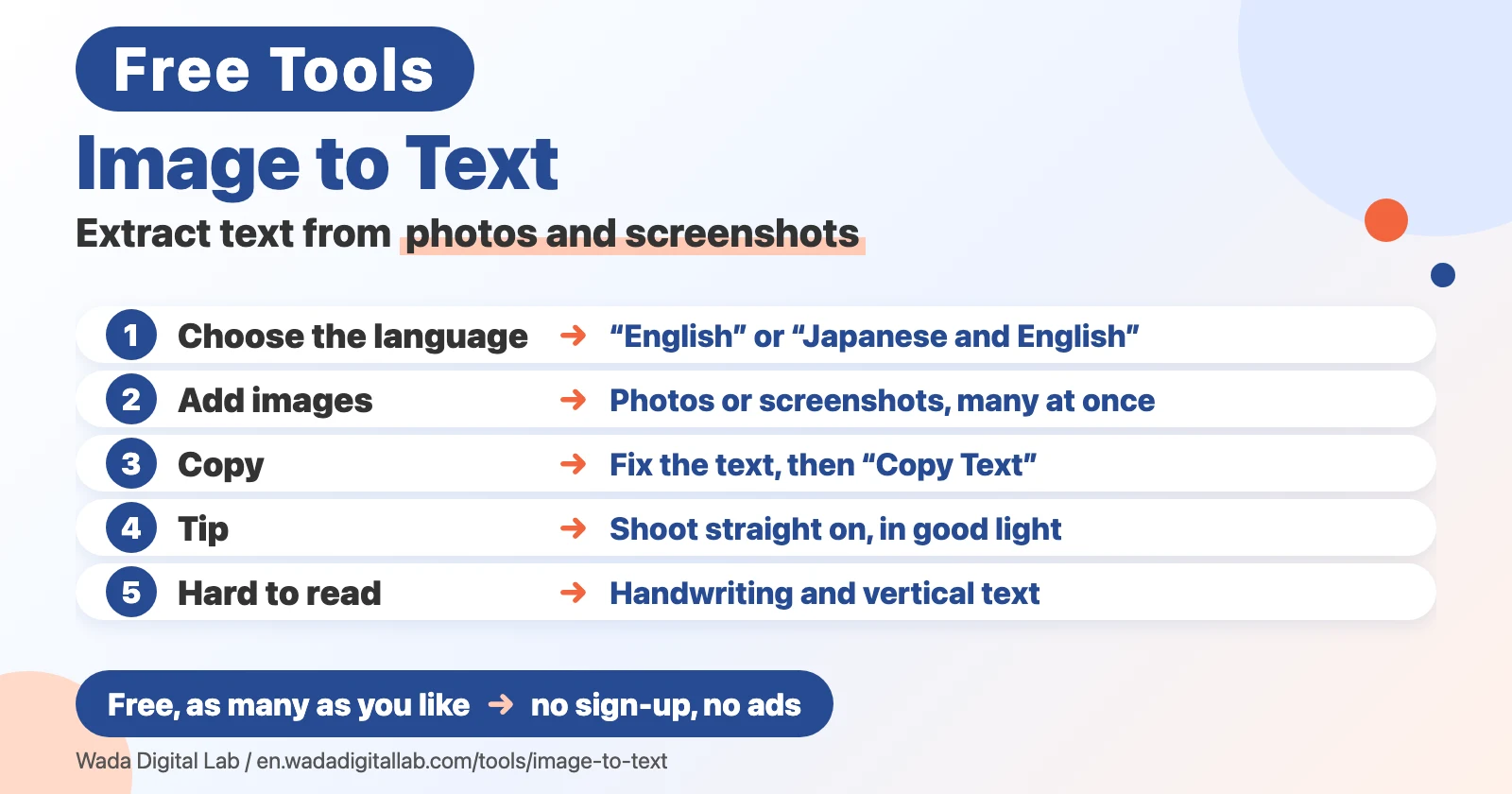
- Choose the language. Pick “Japanese and English” if the image has any Japanese in it. Choose before you add images.
- Click “Choose Images,” or drag photos or screenshots into the box. You can add many at once. Right after taking a screenshot, you can also press Command-V (Ctrl-V on Windows) on this page.
- When “Reading the text…” finishes, the text appears in a box. Fix anything you like, then click “Copy Text” or “Save as .txt.”
The text file has the same name as the image, ending in “.txt.” Your original images don’t change.
Tips for a clean result
- Shoot straight on, in good light: photos taken at an angle, or dark and blurry, cause more mistakes.
- Get close to the text: a photo of just the part you need reads better than a photo of the whole page.
- Use screenshots as they are: a screenshot at its original size reads best. Don’t shrink it first.
- Horizontal text works best: vertical Japanese text, as in books and newspapers, may come out scrambled.
- Handwriting is hard: this tool is for printed text and text on screens. Handwriting reads only partly, even when neat.
On a Mac, Photos can do it too (Live Text)
Open a photo that shows text in the Photos app on your Mac, position the pointer over the text, and you can drag to select it. Control-click your selection and choose “Copy Text,” or press Command-C, then paste the text into another document or app. We checked these steps against Apple’s own guide: Use Live Text to interact with text in a photo on Mac. For images that aren’t in Photos, for many images at once, or on a Windows PC, this page is the easier way.
Frequently asked questions
- Is it really free?
- Yes. It’s free for as many images as you like, as often as you like. No sign-up and no ads.
- Which images can it read?
- PNG, JPG, WebP, GIF and BMP images, up to 40 MB each. iPhone HEIC photos can’t be opened here, so turn them into JPGs first with our HEIC to JPG Converter.
- Can it read a PDF?
- This page reads images only. Take a screenshot of the PDF page you need, then add the screenshot. If the PDF already contains text, selecting and copying it in a PDF viewer is more accurate.
- Can it read handwriting?
- It’s made for printed text and text on screens. Neat handwriting reads only partly, and cursive hardly at all.
- Does it read vertical Japanese text?
- It’s made for horizontal text. Vertical text, as in Japanese books and newspapers, may come out scrambled or not at all.
- There are a lot of mistakes
- Photos taken at an angle, in poor light or out of focus cause more mistakes. Shoot straight on in good light, get close to the text, and add screenshots at their original size. You can fix the text in the box.
- It’s slow
- The first image takes a little longer, because the reader loads about 6 MB to get ready. The rest go faster. Large photos take longer, so cropping to the part with text speeds things up.
- Will my original images change?
- No. Only a new text file is made.
More tools and “Mac Tricks”
- All browser tools: images, PDFs and audio, on one page.
- Blur Screenshots: hide personal details, point things out.
- HEIC to JPG Converter: turn iPhone photos into JPGs, many at once.
- Compress Images: make photos smaller, many at once.
- Resize Images: change the size of photos, many at once.
- Convert to MP3: recordings and video audio, many at once.
- Merge PDF Files, Split PDF, Compress PDF: combine, split and shrink PDFs.
- All articles on “Mac Tricks”: everyday problems on the Mac, and how to fix them.
We also make Mac apps. For example, KoeShot lets you take screenshots and screen recordings on your Mac with your voice.
Software used in this tool
To read the text, this tool uses Tesseract.js 7.0.0 (the Tesseract OCR engine, built to run in a browser; Apache License 2.0) and its tessdata_fast language data for English (eng) and Japanese (jpn) (Apache License 2.0), without any changes. The licenses and where to get the source code are in the full license list (Tesseract.js, Tesseract OCR, tessdata_fast).