Editing and using screenshots
After you take a screenshot on a Mac: add arrows and text, hide details, copy the text out, or make a step guide.
4 articles · Last updated October 31, 2026
-
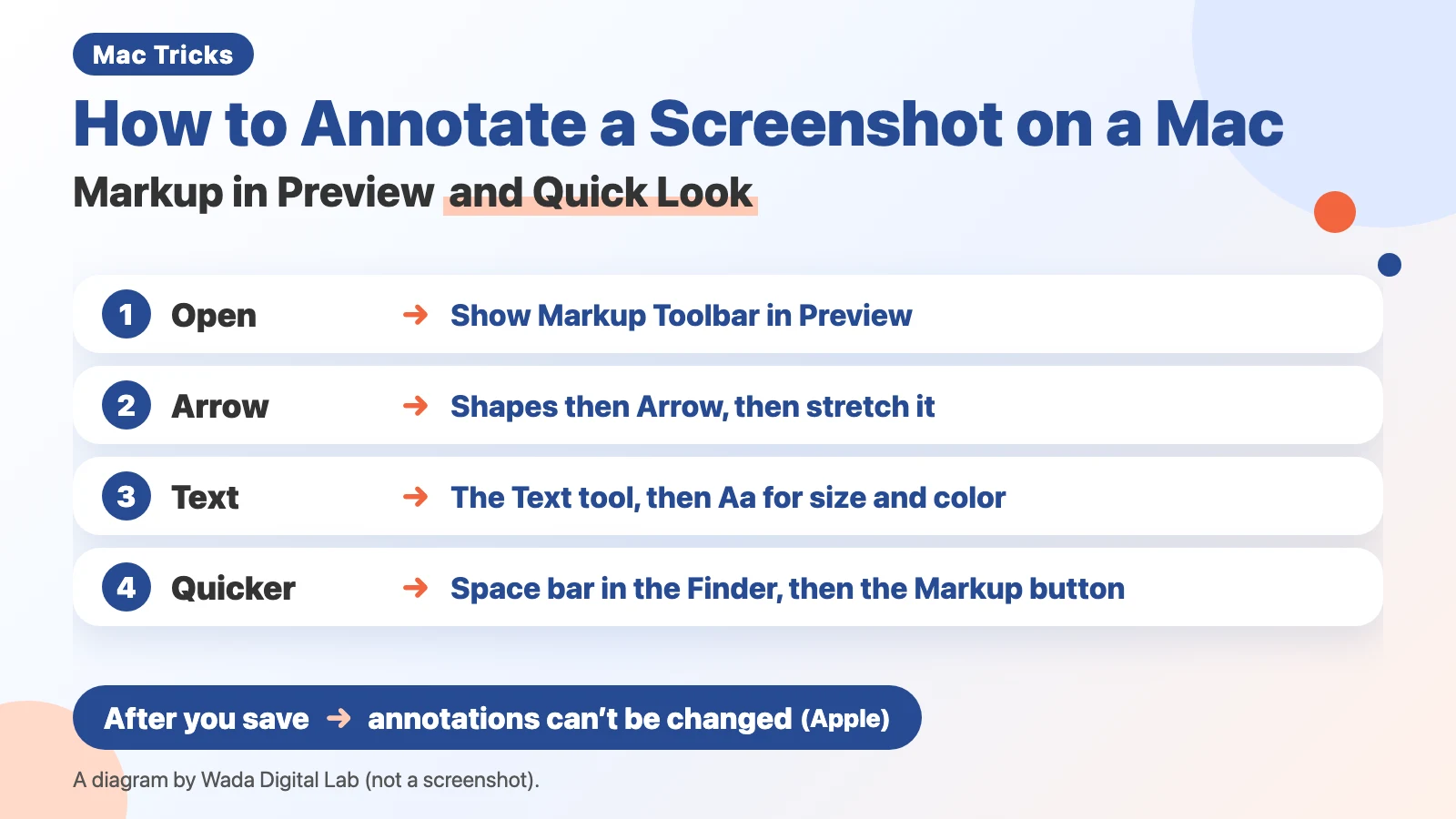 How to Annotate a Screenshot on a Mac — Arrows and Text with Markup in Preview and Quick Look
Annotate a screenshot on a Mac with Markup in Preview: Shapes then Arrow, and the Text tool. Plus Quick Look.
How to Annotate a Screenshot on a Mac — Arrows and Text with Markup in Preview and Quick Look
Annotate a screenshot on a Mac with Markup in Preview: Shapes then Arrow, and the Text tool. Plus Quick Look.
-
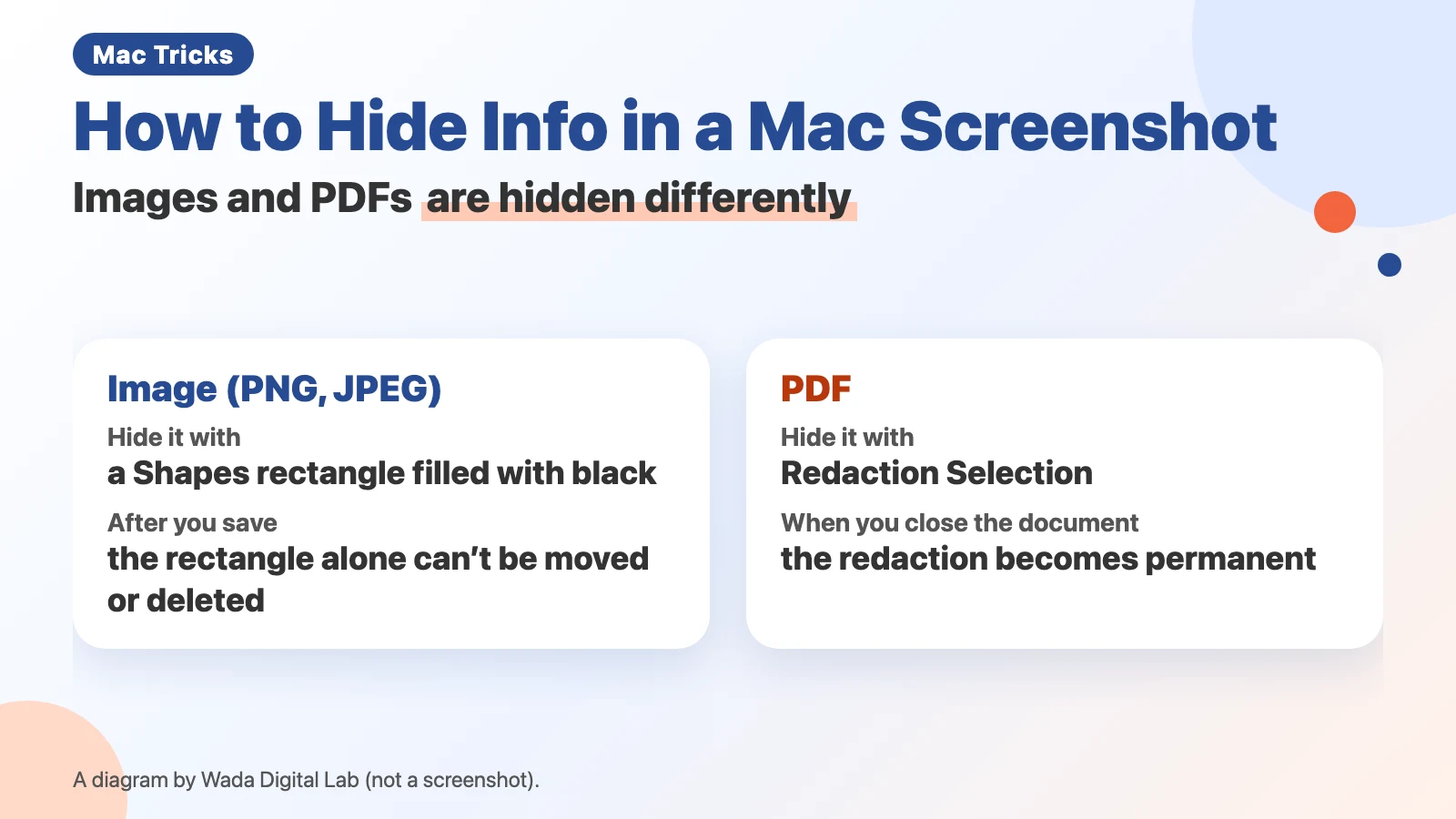 How to hide info in a Mac screenshot — cover it in Preview, and redact PDFs instead
Preview has no blur tool. Cover names with a filled rectangle from Shapes, and use Redaction Selection for PDFs.
How to hide info in a Mac screenshot — cover it in Preview, and redact PDFs instead
Preview has no blur tool. Cover names with a filled rectangle from Shapes, and use Redaction Selection for PDFs.
-
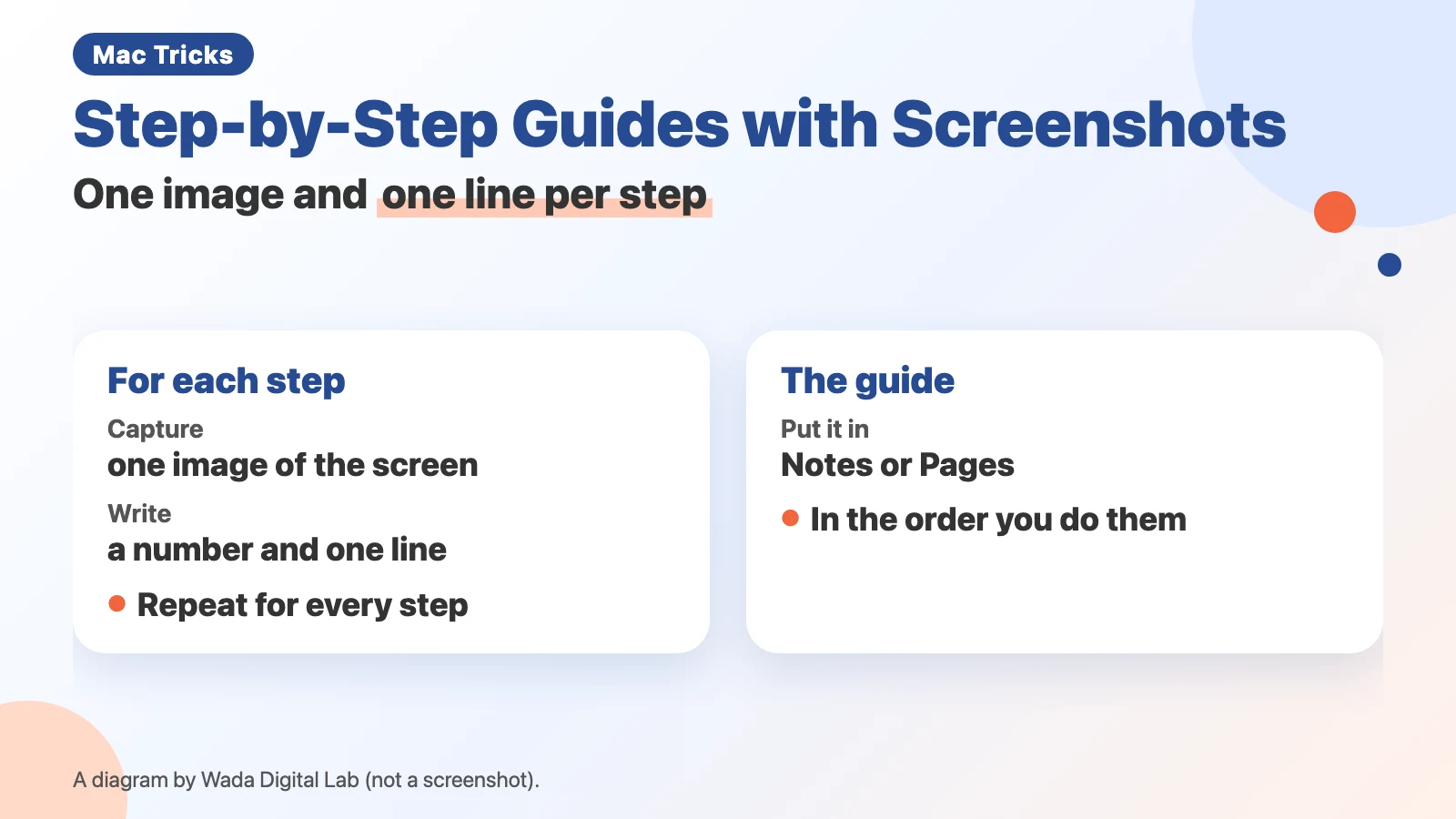 How to make a step-by-step guide with screenshots on a Mac — one image and one line per step
Build a guide with one image and one line per step. Add Control to the screenshot keys to paste straight into Notes.
How to make a step-by-step guide with screenshots on a Mac — one image and one line per step
Build a guide with one image and one line per step. Add Control to the screenshot keys to paste straight into Notes.
-
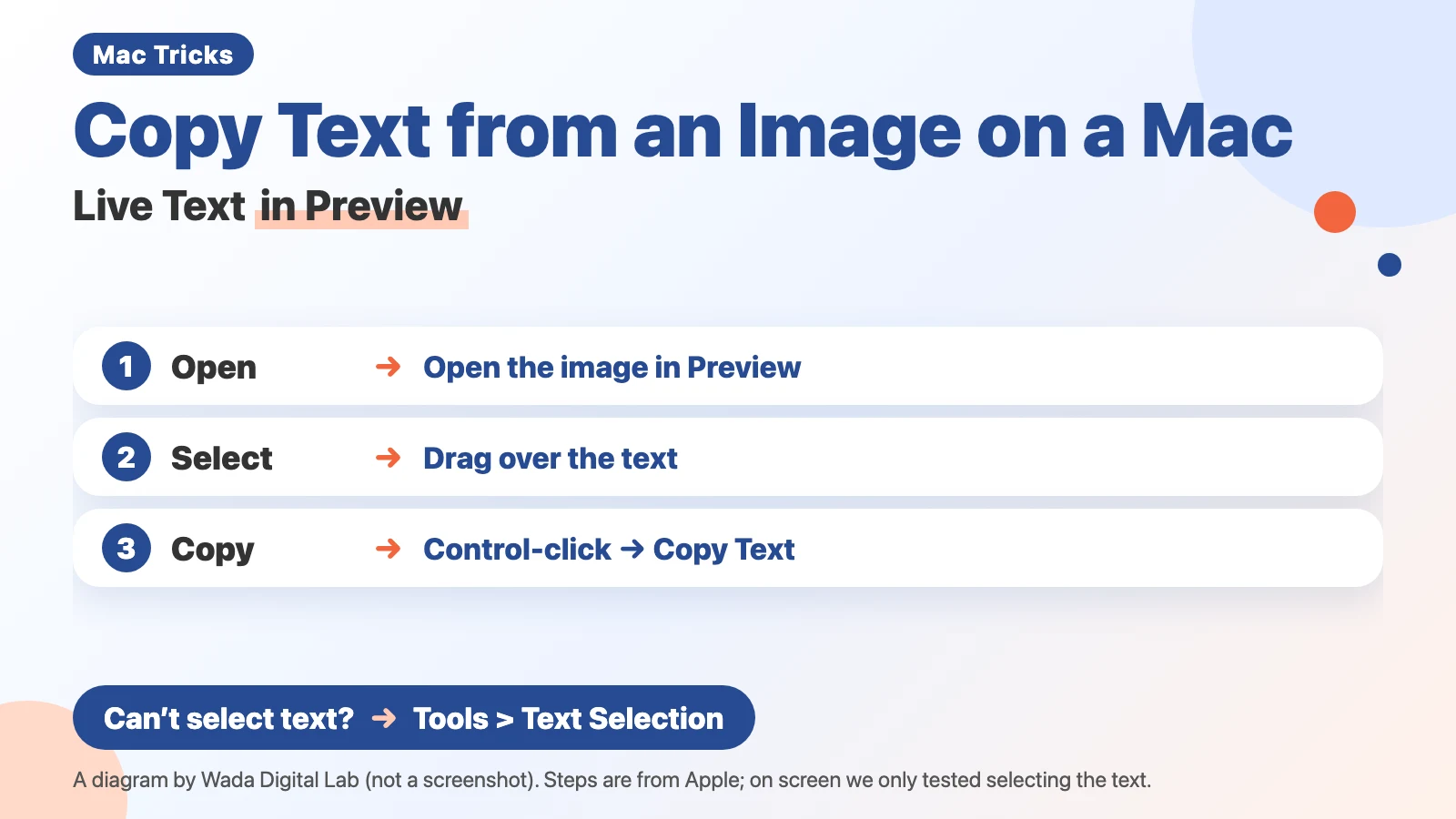 How to copy text from an image or screenshot on a Mac — Live Text in Preview
Open the image in Preview, drag over the text, Control-click, and choose Copy Text. Live Text does the reading.
How to copy text from an image or screenshot on a Mac — Live Text in Preview
Open the image in Preview, drag over the text, Control-click, and choose Copy Text. Live Text does the reading.
Other topics
Mac Troubleshooting DictionaryLook up the problem, find the fix
About Wada Digital LabHow we write and check our articles
All browser toolsImages, PDFs and audio, on one page
HEIC to JPG ConverterTurn iPhone photos into JPGs, many at once
Compress ImagesMake photos smaller, many at once
Resize ImagesChange the size of photos, many at once
Blur ScreenshotsHide personal details, point things out
Convert to MP3Recordings and video audio, many at once
PNG to JPG ConverterJPG to PNG too, many at once
WebP to JPG ConverterPNG too, many at once
Merge PDF FilesCombine PDFs and images into one
Split PDFOne PDF per page, or by page range
Compress PDFMake PDFs smaller, many at once
Image to TextExtract text from photos and screenshots (OCR)