How to Annotate a Screenshot on a Mac — Arrows and Text with Markup in Preview and Quick Look
Published October 31, 2026
Official documentation reviewed October 31, 2026 (some steps not tested)
By Wada Digital Lab
To annotate a screenshot on a Mac, open it in Preview, click Show Markup Toolbar, and use Shapes > Arrow for an arrow and Text for a label. Everything you need comes with macOS, and there is nothing to install. The same Markup button is in Quick Look, which opens when you select the screenshot in the Finder and press the Space bar.
Key points
- An arrow comes from Show Markup Toolbar > Shapes > Arrow in Preview. A label comes from Text, and the Aa button sets its size and color.
- Border Color changes the color of a line or arrow. Text color is set inside the Aa button. On our recording Mac we placed a red arrow and a red “Click here.”
- You don’t have to open Preview: select the screenshot in the Finder, press the Space bar, and click the Markup button at the top of Quick Look.
- Apple says that once you save an image, you can’t edit, move, or delete the annotations. If you might change them later, duplicate the file first (the original stays, but you redraw the arrows), or turn it into a PDF before marking it up (annotations on a PDF can still be edited, but you then export again to hand over an image).
- If you annotate several screenshots a day, there is also an app that takes the screenshot by voice and opens Markup right away (at the end of the article).
The diagram below shows where the tools for arrows and text are (not a screenshot).
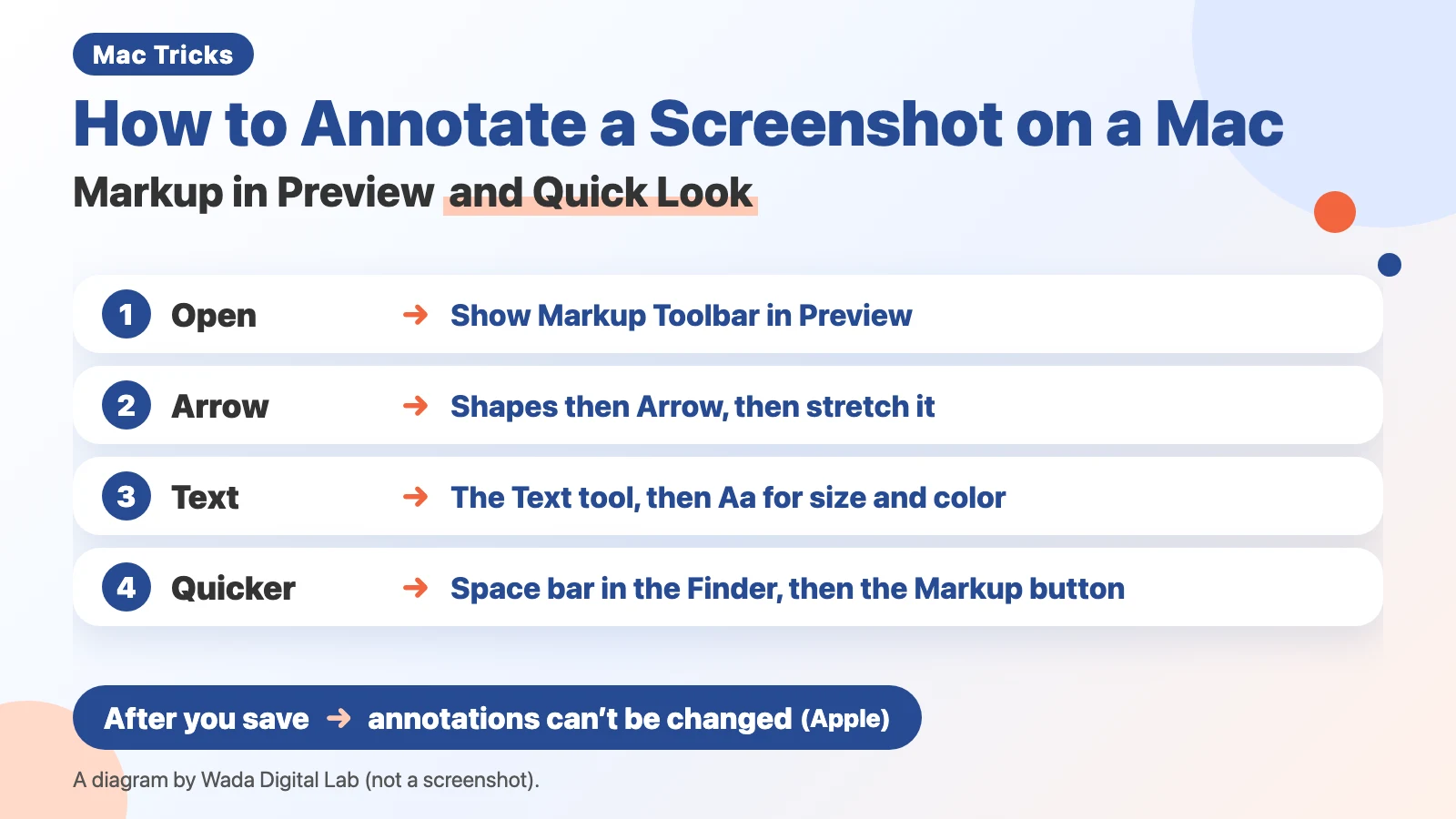
Where to annotate: Preview or Quick Look
Markup is the macOS feature for drawing lines and writing text on images and PDFs. Apple says it is also available in apps such as Mail, Notes, and Photos. For a screenshot, you open it in one of these two places. Right after taking the shot, you can also click the small picture at the bottom right of the screen (when Show Floating Thumbnail is selected under Options in the Shift-Command-5 toolbar, as Apple describes).
| What you want | Where | Good for |
|---|---|---|
| Place arrows, text, and boxes, and choose colors and line widths | Open it in Preview and click Show Markup Toolbar | Careful work, with cropping or resizing afterward |
| Add one arrow on the spot, without opening an app | Select it in the Finder, press the Space bar, then click the Markup button in Quick Look | A quick touch before you paste it into a chat |
| Annotate right after taking the screenshot | Click the small picture that appears at the bottom right of the screen (when Show Floating Thumbnail is on) | Adding an arrow before the file is saved (not tested in this article) |
Place an arrow in Preview: Shapes > Arrow
We split Apple’s pages “Mark up files on Mac” and “Annotate an image in Preview on Mac” into one action per line. There are 5 steps.
- Double-click the screenshot to open it in Preview
- Click the Show Markup Toolbar button (the round pen-tip button in the toolbar) if the Markup toolbar isn’t showing, as Apple puts it. A second row of tools appears
- Click the Shapes button, then choose Arrow (an arrow appears in the middle of the image)
- Drag the arrow to where you want it, and drag the blue handles at its ends to change its direction and length
- Click the Border Color button and choose a color (red stands out)
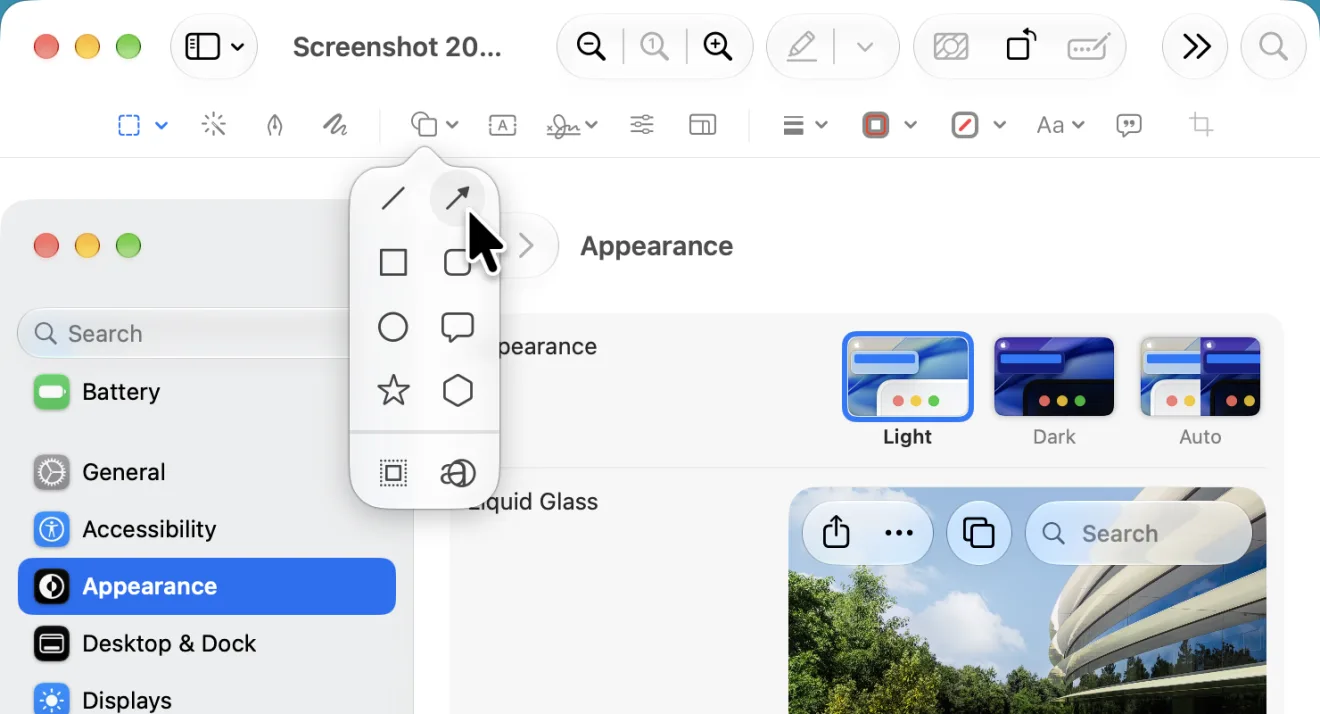
Apple says you resize a shape with its blue handles, and change its form with the green handles if it has any. Line thickness is under the Shape Style button. To duplicate a shape, Apple says to hold the Option key while you drag it (we didn’t try this).
Add a label: the Text tool and the Aa button
- In the Markup toolbar, click Text (the box with an A). A box that says Text appears
- Delete the placeholder and type your label
- Drag the box to where you want it
- Click the Aa button (Text Style) to set the size, bold, and color
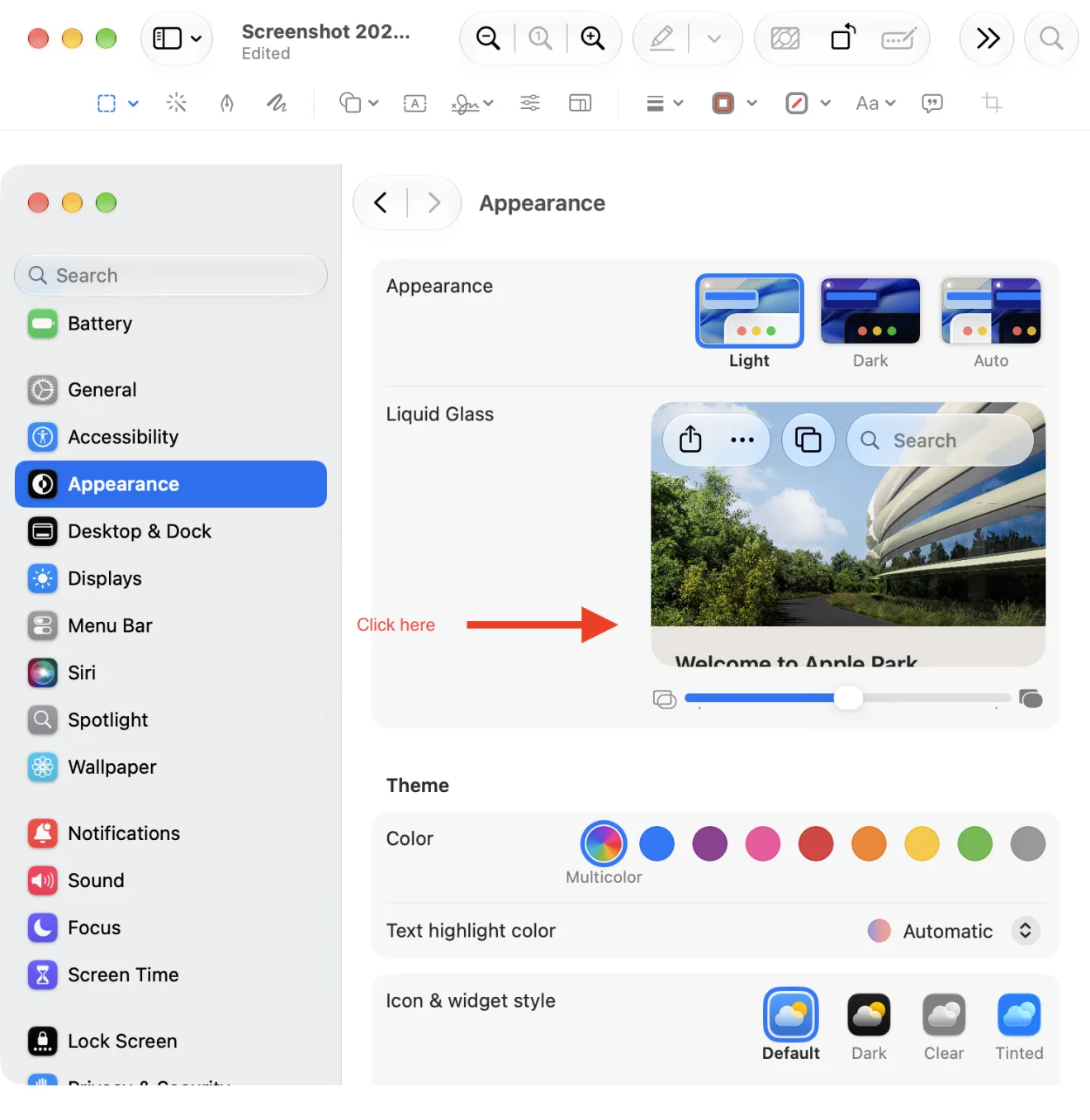
Preview saves your changes automatically (in our picture, the window title says Edited). Apple’s page “Annotate an image in Preview on Mac” carries this note: “If you annotate an image file, you can’t edit, move, or delete the annotations after you save the image.” If you might want to change the arrows later, duplicate the file in the Finder first (the original stays, but the arrows are redrawn), or, as the same page suggests, convert the image to a PDF and annotate the PDF, where annotations can still be edited (you export again to hand over an image).
Annotate without opening Preview: the Markup button in Quick Look
Select the screenshot in the Finder and press the Space bar, and Quick Look opens (a way of looking at a file without opening an app). In the row at the top there is the same round pen-tip Markup button as in Preview. Apple’s page “Mark up files on Mac” says to click that button when you are using Quick Look.
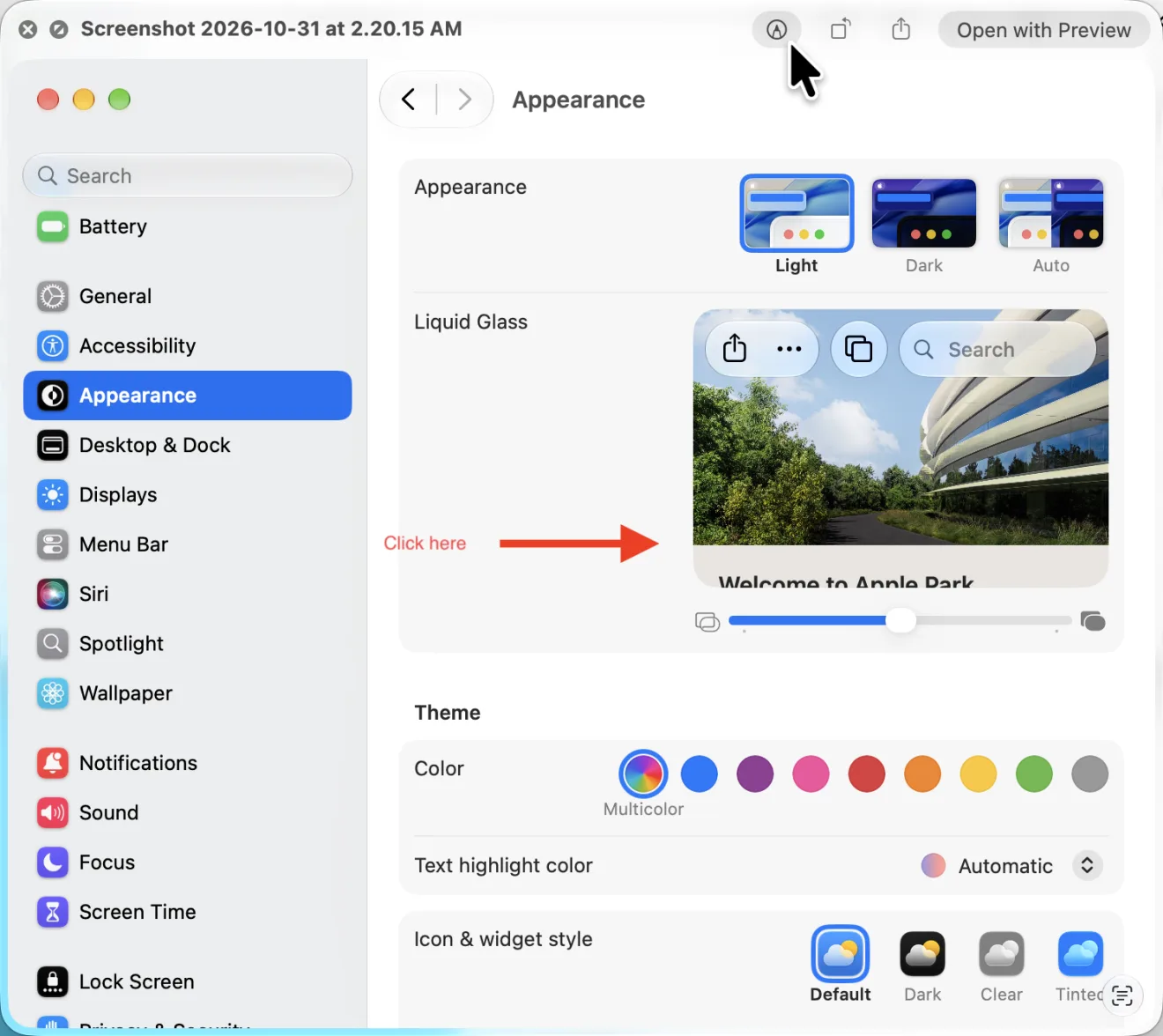
When a screenshot needs a single arrow before it goes into a chat, this is the shorter route, because you don’t open Preview at all. Click Done when you finish and the changes are saved into the image (for the picture above we only held the pointer over the button, and didn’t draw inside Quick Look).
The tools, in one table
These are the Markup tools you reach for most when annotating a screenshot. The names come from the English screen of our recording Mac and from Apple’s pages. Besides arrows and text: Sketch draws a freehand line, and if it is recognized as a shape, it is replaced by a clean one. Highlight keeps one area bright and dims the rest. The loupe (Apple calls this tool Zoom) uses the green handle for magnification and the blue handle for size. Crop is a frame you drag, then click Crop (all from Apple’s pages; we didn’t try these on screen).
| Tool | What it does | How to use it |
|---|---|---|
| Shapes | Arrows, lines, squares, circles, speech bubbles, and stars | Choose a shape, then resize it with the blue handles and reshape it with the green ones, if it has any |
| Text | A text label | Type in the box and drag it. Size, bold, and color are under Aa |
| Sketch | A freehand line | Draw in one stroke. If it is recognized as a shape, it is replaced by a clean one |
| Highlight (in Shapes) | Keeps one area bright and dims the rest | Drag the frame over the area |
| Loupe (in Shapes; Apple calls it Zoom) | Magnifies one area | Green handle for magnification, blue handle for size |
| Border Color, Fill Color, Shape Style | Line color, fill color, thickness and shadow | Select the shape first, then click |
| Crop | Cuts away what you don’t need | Drag a frame, then click Crop |
To hide a name or an address, use a rectangle from Shapes with Fill Color instead of an arrow. The steps and the cautions are in How to hide info in a Mac screenshot. For a numbered guide made of screenshots, see How to make a step-by-step guide with screenshots on a Mac.
In order, it goes like this. For the arrow, choose Shapes then Arrow, and the blue handles change direction and length. Color comes from Border Color. Next, for the label, place a box with Text, then type, then drag it into place. Size and color come from Aa. Last, for saving, the image is saved automatically, and annotations can’t be changed after saving, so duplicate first if you might change them. The diagram below shows this order (not a screenshot).
Arrow
Shapes then Arrow Blue handles change direction and length
Color comes from Border Color
Next
Label
Place a box with Text Type, then drag it into place
Size and color come from Aa
Last
Saving
Saved automatically Annotations can’t be changed after saving
Duplicate first if you might change them
If you do this every day: take the screenshot by voice and open Markup right away (KoeShot)
So far, every method starts after the screenshot exists: you find it, open it, and then annotate. If you add arrows to several screenshots a day for a manual or a blog, that is three steps repeated every time.
We (Wada Digital Lab) make and sell a multi-function screenshot app for the Mac that you run by voice. It is called KoeShot (for Mac). Press Option + S and say “Take a screenshot and mark it up,” and it captures the window that was in front just before and opens it in Markup straight away. With an iPad nearby that uses the same Apple Account (and meets Apple’s conditions for working together, such as Wi-Fi and Bluetooth turned on), it can send the shot to the iPad so you can draw on it with Apple Pencil. Because you say the app’s name, such as “Take a screenshot of Safari,” a menu you have opened stays open in the shot.
You pay once. For 14 days after you install it, you can use the app on its own with no license key, before you buy, and there is no payment method to register. It runs on a Mac with a chip made by Apple (such as M1 or M4) and macOS 26 or later. Intel-based Macs and macOS 15 or earlier are not supported, and it doesn’t run inside a virtual machine. The arrow and text tools themselves are the same Markup tools that come with macOS.
See the KoeShot (for Mac) page
Frequently asked questions
I want a red arrow, but it stays black.
Select the arrow, then click the Border Color button (the square outline) in the toolbar and choose red. Text color isn’t under Border Color; it is inside the Aa button.
Can I remove an arrow later?
Before you save, you should be able to click the arrow and press the Delete key (we didn’t try this). Apple says that after you save the image, you can’t edit, move, or delete the annotations. Duplicate the file before you annotate if you might want the original back.
How do I take the screenshot in the first place?
Shift-Command-4 captures an area, and Shift-Command-5 opens the panel for the whole screen or a window. The four shortcuts and where the files go are in How to Screenshot on a Mac.
What we checked, and Apple’s pages
The pictures in this article were taken in a user account made for screenshots. The sample is a screenshot of the Appearance pane of System Settings.
- Model: MacBook Air (M2)
- macOS: macOS 27.2 (English screen)
- Pictures taken on: October 31, 2026
In Preview we placed a red arrow with Shapes > Arrow and a red label with Text. In Quick Look we only held the pointer over the Markup button and didn’t draw. Option-drag duplication, Sketch, the highlight frame and loupe, annotating from the small picture right after a capture, and annotating a PDF were not tried on screen. The tool names come from the English screen and Apple’s US pages. The same screens were photographed on the Japanese screen of the same Mac on the same day.
Before writing, we searched Google for “how to annotate a screenshot on mac” and read the titles of the top results (October 31, 2026). Apart from Apple’s page and two forum threads, they were pages from companies that sell screenshot apps. This article sticks to what Preview and Quick Look, which come with every Mac, can do, with pictures from macOS 27.2.
The steps come from these pages (Mac User Guide and Preview User Guide).
- Mark up files on Mac
- Annotate an image in Preview on Mac
- Take screenshots or screen recordings on Mac (Show Floating Thumbnail)