Screenshot Apps for Mac — macOS, CleanShot X, Shottr, Xnapper, Snagit and KoeShot Compared
Published October 30, 2026
Official documentation reviewed October 30, 2026 (some steps not tested)
By Wada Digital Lab
Choose a screenshot app for your Mac by what you need it to do. To capture the whole screen, a window or an area, the Screenshot app built into macOS (Shift-Command-5, in macOS Mojave 10.14 or later) is enough. To get a long page into one image or to blur a name, add an app such as CleanShot X, Shottr, Xnapper or Snagit. If you would rather say what to capture than press keys, there is also KoeShot, which we make and sell. We checked how you pay and what each app does on each company’s official pages on October 30, 2026.
Key points
- The built-in Screenshot app captures the whole screen, a window or an area, and records the screen. You can add text and arrows with Markup.
- The built-in Screenshot app has no way to capture a long page as one image, and Markup has no blur tool. For long pages, Export as PDF in Safari is a workaround, but it takes several steps. Those two gaps are the usual reason to add an app.
- There are two ways to pay. You pay once for CleanShot X Basic, Shottr, Xnapper (except its team plan) and KoeShot. You keep paying for Snagit and CleanShot Pro.
- We found no mention of capturing by voice on the official pages of CleanShot X, Shottr, Xnapper or Snagit. Of the six, KoeShot (our app) is the one whose official page describes capturing by voice.
- We have not used the other companies’ apps. We compare them only by what their official pages say. Prices change, so we leave them out and point you to each company’s page.
The diagram below sorts out what macOS already does and what needs an app (it is not a screenshot).
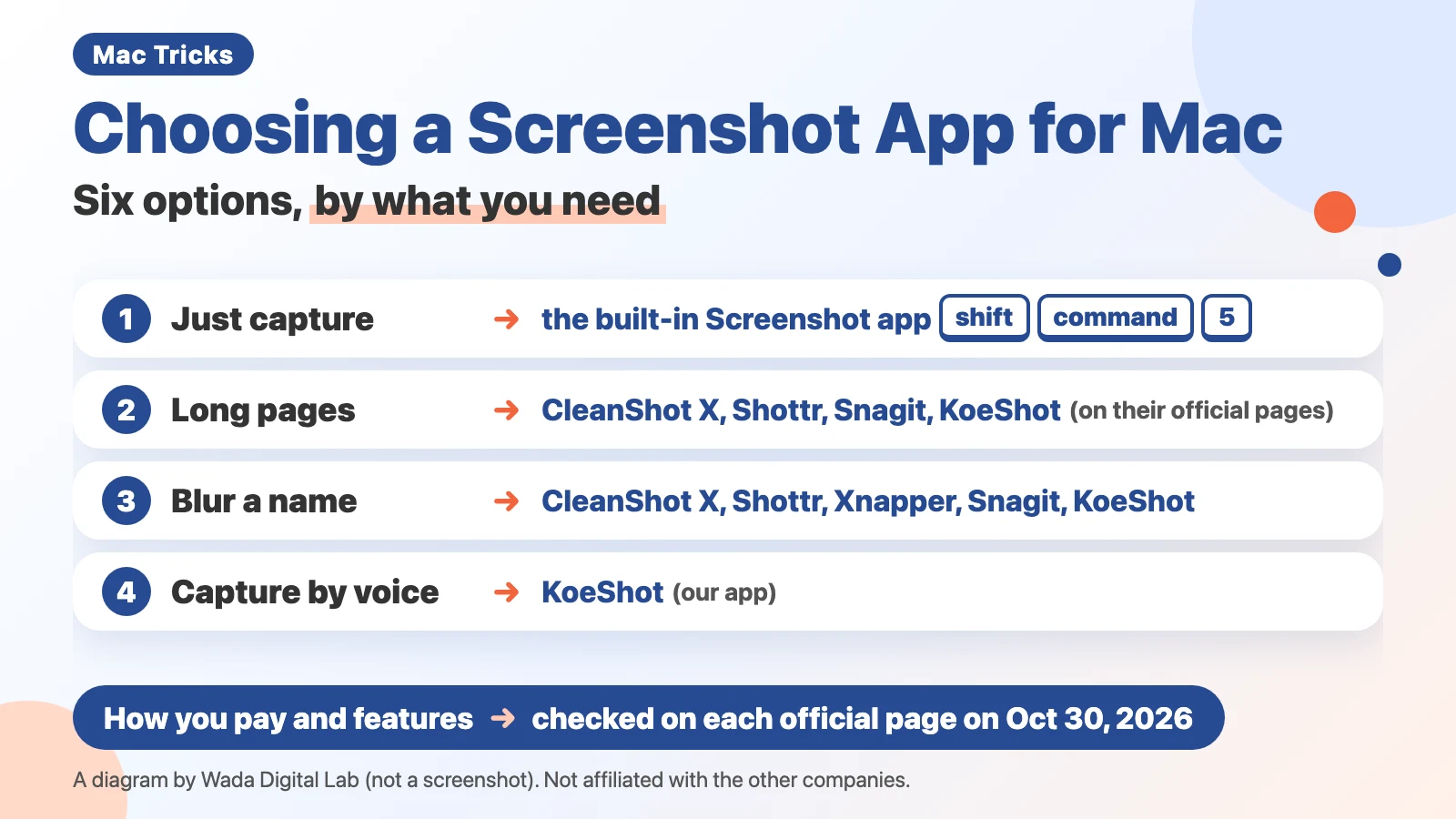
Here is the same idea as a diagram you can read as text (not a screenshot).
Built into macOS (no charge)
Captures the whole screen, a window, an area, a recording
Missing
a way to capture a long page in one image, a blur tool
If that is not enough
A screenshot app
Adds a way to capture a long page in one image, a blur tool
How to choose
how you pay, what it does, whether you can use your voice
What is a screenshot app? First, see whether macOS is enough
A screenshot app is an app that captures your Mac’s screen and makes it quicker to mark up, save and paste what you captured. But every Mac already has an app for this, called Screenshot. Before you add an app, decide what macOS can’t do for you. That keeps you from buying the wrong one.
Built into macOS, the Screenshot app takes screenshots of the whole screen, a window or an area, and it can also record the screen. In short, it captures the whole screen, a window, an area, a recording. Press Shift-Command-5 and a toolbar appears where you choose what to capture. The toolbar also has a microphone setting. Apple says, “To record your voice or other audio with the screen recording, choose a microphone.” After you take a screenshot, click the small floating thumbnail in the bottom-right corner to add text or arrows with Markup.
What it lacks is a way to capture a long page in one image and a blur tool. Missing: a way to capture a long page in one image, a blur tool. Apple’s screenshot page does not explain how to scroll and capture a long page as one image. Markup has no blur or pixelate tool either. We wrote up how to manage with macOS alone in two articles:
- Long pages: Scrolling Screenshot on Mac — Save a Full Page as One Image (save the page as one PDF from Safari, then turn it into an image)
- Hiding names: How to hide info in a Mac screenshot (cover it with a filled rectangle in Preview)
The Safari workaround turns the page into a PDF first and then exports it as an image, which gets tedious if you do it often. If that is not enough, a screenshot app adds a way to capture a long page in one image, a blur tool. From here on we compare six options: macOS itself, plus five apps, CleanShot X, Shottr, Xnapper, Snagit and KoeShot.
How you pay: once, or on an ongoing basis (October 30, 2026)
How you pay, updates, the number of Macs and system requirements all come from each company’s official pages. We leave out the amounts, because exchange rates, price changes and sales move them often. Before you buy, open each company’s pricing page from the “Sources” list at the end.
| App | How you pay (official page) | Updates to new versions | Number of Macs | System requirements (official page) |
|---|---|---|---|---|
| Built into macOS (Screenshot) | Comes with the Mac (nothing to pay) | Updated along with macOS | — | Shift-Command-5 has been there since macOS Mojave 10.14 (Apple) |
| CleanShot X (Basic) | Pay once | One year; after that, renewing updates is optional and yearly | Not stated in the pricing table | macOS 13.0 or newer |
| CleanShot X (Pro) | Keep paying, per user (monthly, or a year at a time) | Always up to date | Not stated in the pricing table | macOS 13.0 or newer |
| Shottr | Pay once. You can keep using it without buying. A license is required for commercial use | Not stated on the purchase page | One user, up to five computers | macOS Catalina 10.15 and up |
| Xnapper | Pay once. Without buying, images get a watermark. The team plan is billed yearly | One year; after that, renewing is optional | One to three (you choose when you buy) | macOS 10.15 or newer |
| Snagit | Pay every year, per user | Latest version while you keep paying | Not stated on the store page (cannot be passed to another person) | The store page says macOS 14 and up, but Snagit 2026 does not support macOS 14 Sonoma (TechSmith’s version history). Also on Windows 10 and 11 |
| KoeShot (our app) | Pay once | Version 1 updates at no extra charge (a rebuilt version 2 may be charged for; see the product page FAQ) | Up to three Macs | A Mac with Apple silicon (M1 or later) and macOS 26 or later |
There are two ways to pay. You pay once for CleanShot X Basic, Shottr, Xnapper (except its team plan) and KoeShot. You keep paying for Snagit and CleanShot X Pro. CleanShot X Pro can be paid monthly or a year at a time. Even when you pay once, CleanShot X Basic and Xnapper include one year of updates to new versions. After that, you pay again only if you want newer versions. Xnapper’s page says that if you don’t renew, you can keep using the last version you have.
As for the number of Macs, Shottr covers one user on up to five computers, Xnapper lets you choose one to three when you buy, and KoeShot covers up to three Macs. The pages we read for CleanShot X and Snagit did not state a number (Snagit’s personal plan cannot be passed to another person). As for macOS, from oldest: Shottr and Xnapper from macOS 10.15, CleanShot X from macOS 13.0, Snagit’s store page from macOS 14, and KoeShot from macOS 26. TechSmith’s version history, however, says, “Snagit version 2026 and beyond will not support macOS 14 Sonoma.”
CleanShot X Pro adds more cloud storage for sharing images and videos, and features for teams. Its page says, “Both plans include the full Mac app.”
What each app does: long pages, blur, recording and voice
We filled in this table from what each official page says. “Not mentioned” means we could not find it on the official page. It does not mean we confirmed the app can’t do it.
| App | A long page in one image (scrolling capture) | Mark up (arrows, text) | Blur or pixelate | Screen recording | Capture by voice |
|---|---|---|---|---|---|
| Built into macOS | No (you can use Export as PDF in Safari instead) | Yes (Markup) | No (cover it with a filled shape) | Yes (can include your microphone) | Not in Apple’s screenshot page |
| CleanShot X | Yes (vertical and horizontal, in every app) | Yes | Yes (you choose the area) | Yes (MP4, GIF, microphone, computer audio) | Not mentioned |
| Shottr | Yes (any app, any window) | Yes | Yes (you choose the area) | Not mentioned | Not mentioned |
| Xnapper | Not mentioned | Yes | Yes (hides emails, card numbers and more on its own) | Not mentioned | Not mentioned |
| Snagit | Yes (windows and web pages) | Yes | Yes (hides emails, phone numbers and card numbers on its own) | Yes (screen, camera and audio) | Not mentioned |
| KoeShot (our app) | Yes (Safari and Chrome-based browsers; in other apps, the scrolling part of the front window; needs a setting and a permission the first time) | With Markup on the Mac, or Apple Pencil on an iPad | Yes (looks for emails, phone numbers and more, and lets you check before saving) | Yes (your voice and the Mac’s own sound) | Yes (“Take a screenshot of Safari” and so on) |
A long page in one image: CleanShot X, Shottr, Snagit and KoeShot mention it
Capturing a page that only fits on screen when you scroll, as one image, is called a scrolling capture. Four official pages mention it: CleanShot X, Shottr, Snagit and KoeShot. CleanShot X says it “Works in every app and supports both vertical and horizontal scrolling.” Shottr says “Any app, any window.” Snagit says it can “Grab long, scrolling windows or webpages into a single image.” We could not find it on Xnapper’s official page.
With KoeShot, say “Scroll and capture this window.” In Safari and Chrome-based browsers (Google Chrome and other browsers built on Chrome) it scrolls the page as it captures. The first time, you have to turn on a setting in the browser. In apps other than browsers, the same phrase captures the scrolling part of the front window, which needs Accessibility permission. Depending on how a page is built, it may capture only what is on screen. Very long pages are cut off where the capture ends.
Blurring names and emails: you choose, or the app looks for them
All five apps mention a blur tool on their official pages. The difference is whether you choose what to hide, or the app looks for it. With CleanShot X and Shottr, you choose the area and blur or pixelate it.
Xnapper, Snagit and KoeShot describe finding things and hiding them for you. Xnapper says it hides emails, credit cards, IP addresses and more with one click. Snagit says its Smart Redact can blur or block emails, phone numbers and credit card details. KoeShot looks for personal details on your Mac when you say “Blur personal information and take a screenshot,” and shows you the result before anything is saved.
Finding things automatically is never perfect. KoeShot, for example, cannot find ID numbers, a face, a handwritten signature or a QR code. Look at the image yourself before you share it.
Recording the screen: macOS can do it, and Apple says the Mac’s own sound needs macOS 27 or later
macOS can record the screen too. Choose a recording in the Shift-Command-5 toolbar, and choose your microphone under Options. For sound playing on the Mac itself, such as a video, Apple says, “To record system audio with the screen recording in macOS 27 Golden Gate or later, choose Include System Audio.” There is more in How to record audio with a Mac screen recording.
Among the apps, CleanShot X lists recording as MP4 or GIF, the microphone, and “Record Computer Audio.” Snagit says it can record videos and audio (in the FAQ on its official page). KoeShot starts with “Record the whole screen,” and “Record with narration” adds your own voice. For the Mac’s own sound, turn on Include System Audio in Recordings in KoeShot’s settings (it is off at first). We could not find recording on the official pages of Shottr or Xnapper.
Capturing by voice, without remembering keys: KoeShot (our app)
We found no mention of capturing by voice on the official pages of CleanShot X, Shottr, Xnapper or Snagit. Apple’s screenshot page does not describe capturing by voice either.
macOS Voice Control does let you create your own commands (phrases that carry out a set action when you say them), though. Apple says that for an action you can choose Press Keyboard Shortcut: “For Press Keyboard Shortcut, you must press a keyboard key (you don’t need to also press a modifier key).” So you could make a command that presses Shift-Command-5 when you say something (we have not tried this setting). An action can also be Run Shortcut, which runs a shortcut you made in the Shortcuts app. Still, each command carries out one set action, and you make each command yourself. We have not tried whether you could set up commands that pick what to capture by name, as in “Take a screenshot of Safari.”
With KoeShot, press Option + S and say “Take a screenshot of Safari,” and it captures just the Safari window, even if it is behind another window. You say what to capture and how: “Let me select an area,” “Screenshot the error message,” “Take a screenshot in five seconds.” The image also goes to the clipboard (where whatever you copy is kept for pasting), so you can paste it right away with Command-V.
What changed for us once we started using a screenshot app
At Wada Digital Lab, we take far more screenshots a day since we started asking AI for help with all kinds of things. We never learned the four-key shortcuts such as Control-Shift-Command-3, which copy a screenshot so you can paste it without saving a file. Things got much easier once we installed an app for taking screenshots.
It went the other way when we bought a paid screen capture app from another company to explain steps to people. It was hard to use, and because we only used it now and then, we kept forgetting how. It ended up being more trouble. If you will only use it now and then, choose by whether you can remember how to use it, not by how many features it has. That is what worked for us.
What to pick for what you need
| What you need | Try first | Apps whose official page mentions it |
|---|---|---|
| Just capture the whole screen, a window or an area | macOS (Shift-Command-5) | All six |
| A long page in one image | Export as PDF in Safari (built in) | CleanShot X, Shottr, Snagit, KoeShot |
| Blur a name or an email | Cover it with a rectangle in Preview (built in) | CleanShot X, Shottr, Xnapper, Snagit, KoeShot (Xnapper, Snagit and KoeShot look for things on their own) |
| Record the screen | macOS (for the Mac’s own sound, choose Include System Audio in macOS 27 or later) | CleanShot X, Snagit, KoeShot |
| Avoid ongoing payments | — | Pay once: CleanShot X (Basic), Shottr, Xnapper (not the team plan), KoeShot |
| Capture by voice instead of keys | — | KoeShot |
To make it easier: say what to capture, then paste it (KoeShot)
We make and sell a multi-function screenshot app for the Mac that you can run with your voice. It is called KoeShot for Mac. Of the needs in this article, it suits people who don’t want to recall keys every time and people who want to name what to capture.
Press Option + S and say things like “Take a screenshot of this app,” “Let me select an area” or “Blur personal information and take a screenshot.” If you can’t speak out loud, you can type the same command instead. Speech recognition and the blur decisions run on your own Mac.
It is not for everyone. KoeShot has no markup editor of its own (it uses Markup on the Mac, or Apple Pencil on an iPad). If you draw a lot of arrows and numbered callouts, an app with its own markup tools will fit that work more closely. It also does not run on older Macs or older versions of macOS (see the requirements below).
KoeShot is paid for once. For 14 days after you install it you can use the app on its own, with no license key, before you buy. Nothing is charged before you buy.
System requirements: a Mac with Apple silicon (M1 or later) / macOS 26 or later. Intel-based Macs and macOS 15 (Sequoia) or earlier are not supported. macOS running inside a virtual machine (Parallels Desktop, UTM and the like) is not supported.
Frequently asked questions
Which screenshot app for Mac should I get?
It depends on what you need. To just take screenshots, macOS is enough. For a long page in one image or a blur tool, pick from the apps whose official page mentions it. To avoid ongoing payments, pick one you pay for once. To capture by voice, there is KoeShot. This article does not rank one app above the others.
Can I use a screenshot app without paying?
The Screenshot app built into macOS costs nothing. Shottr’s official page says you can keep using it without buying, and that after 30 days it starts asking you to consider buying (commercial use needs a license). Xnapper can be used without buying, but it puts a watermark on your images.
Paying once or paying on an ongoing basis: which is the right fit?
When you pay once, you can keep using that version for good. When you keep paying, you get new versions for as long as you pay. CleanShot X Basic and Xnapper include one year of updates when you pay once, and after that you choose whether to pay for more. Deciding whether you need a new version each time a new macOS comes out makes the choice easier.
Can I use the same app on Windows?
Of the six, Snagit is the one whose official page mentions Windows (Windows 10 and 11). CleanShot X, Shottr, Xnapper and KoeShot are Mac apps.
What we checked, and the source pages
We have not installed or used the four apps from other companies (CleanShot X, Shottr, Xnapper and Snagit). How you pay, the number of Macs, system requirements and features come only from what the official pages below said on October 30, 2026. We checked each English quote word for word against the page that day. These details may change later.
- CleanShot X pricing (cleanshot.com/pricing) and features (cleanshot.com/features)
- Shottr (shottr.cc) and purchase page (shottr.cc/purchase.html)
- Xnapper (xnapper.com) and pricing (xnapper.com/en/pricing)
- Snagit (techsmith.com/snagit), store page (techsmith.com/store/snagit) and Mac version history (TechSmith Support)
On October 30, 2026, Snagit’s official page called it “Camtasia Snagit.” We opened Snagit’s store page from Japan. What KoeShot does comes from the KoeShot product page. The name of the system audio setting comes from the text inside the KoeShot app (version 1.8.0).
The macOS features come from the Apple pages below, and we checked each Apple quote word for word against them on October 30, 2026. That the Options menu in the Shift-Command-5 toolbar lists a microphone and the system audio setting was checked on screen on October 29, 2026, in a separate user account we made for recording (MacBook Air (M2), macOS 27.2, Japanese screen; see the screen recording article). We have not tried making a Voice Control command.
- Take a screenshot on Mac (Apple Support)
- How to record the screen on Mac (Apple Support)
- Take screenshots or screen recordings on Mac (Mac User Guide, macOS 27)
- Customize Voice Control on Mac (Mac User Guide, macOS 27)
We are not affiliated with the other companies named in this article. CleanShot X, Shottr, Xnapper and Snagit are products of their respective companies.