How to Make a GIF on a Mac from a Screen Recording — The Make GIF Shortcut, Nothing to Install
Published October 31, 2026
Official documentation reviewed October 31, 2026 (some steps not tested)
By Wada Digital Lab
To make a GIF on a Mac from a screen recording, record the screen with Shift-Command-5 to get a .mov file, then run it through the Make GIF action (an action is a building block of a shortcut) in the Shortcuts app, which comes with every Mac. There is nothing to install. On our recording Mac (macOS 27.2), a 7-second recording (901 KB) became a 500×324-pixel, 17-frame GIF of about 3.5 seconds and 423 KB.
Key points
- Record the screen with the Screenshot toolbar that Shift-Command-5 opens. What you get is a .mov video.
- The Shortcuts app turns it into a GIF. Make a new shortcut, add the Make GIF action, set its input to Shortcut Input, and hand it the .mov.
- Make GIF has three options: Seconds Per Photo (0.2 to start), Loop Forever, and Auto Size.
- On our Mac, the first run showed a dialog asking whether to allow the shortcut to output one image. We chose Allow Once, and a 7-second .mov (901 KB) became a 423 KB GIF. In a Japanese user account on the same Mac, the same dialog appeared, and an 8-second .mov (626 KB) became a 31-frame, 398 KB GIF.
- A GIF has no sound. If your demo needs narration, keep the .mov.
The diagram below shows the path from a recording to a GIF (not a screenshot).
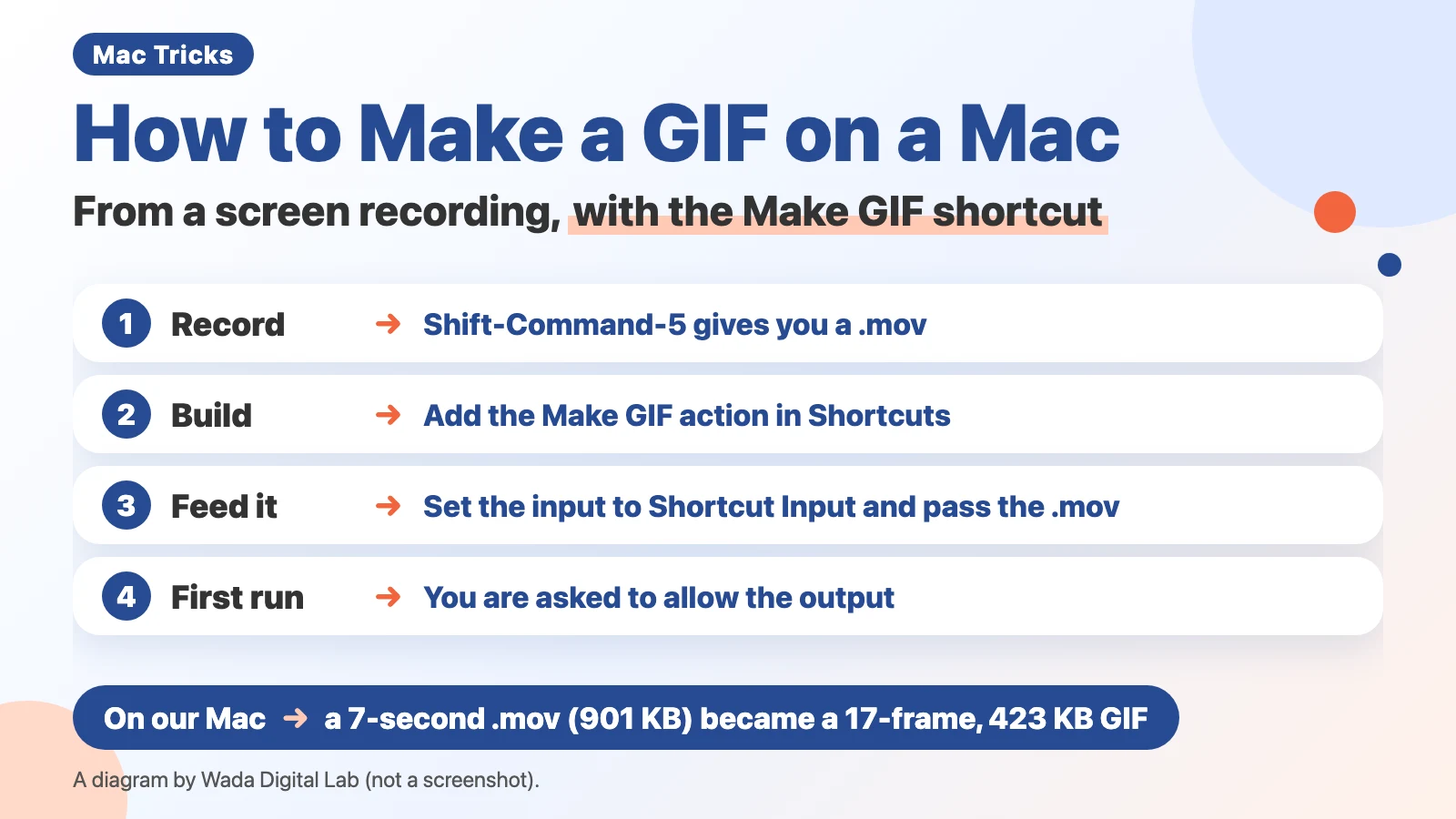
Before the GIF: record the screen as a .mov
A GIF is an image format that shows a series of pictures in turn, so it moves. It has no sound. In a chat or on a web page it plays without a video player, which makes it good for a short how-to. The screen recorder built into macOS saves a .mov video, so you record a .mov first and convert it afterward.
Recording works the way Apple’s page “How to record the screen on Mac” describes. Press Shift-Command-5 and a row of tools appears at the bottom of the screen. Choose Record Entire Screen or Record Selected Portion, then click Record. To stop, click the Stop button in the menu bar, or press Command-Control-Esc. The details, and how to include sound, are in How to record audio with a Mac screen recording.
| What you want | How | What you get |
|---|---|---|
| Record the screen | Shift-Command-5, then Record Entire Screen or Record Selected Portion | A .mov (sound can be included) |
| Turn a .mov into a GIF | The Make GIF action in Shortcuts | A .gif (no sound, loops forever) |
| Record straight to a GIF by voice | KoeShot (at the end of the article) | A .gif (a long recording keeps only the first seconds) |
Build a Make GIF shortcut in the Shortcuts app
Shortcuts is an app that comes with every Mac. It strings actions together so you can run them in one go, and the part that makes GIFs is already there. We split Apple’s page “Create a custom shortcut on Mac” into one action per line. There are 6 steps.
- Open the Shortcuts app (from the Applications folder, or type Shortcuts in Spotlight)
- Click the plus button in the toolbar (a new shortcut)
- In the search field on the right, type GIF, then double-click Make GIF, or drag it to the left (the search field isn’t in Apple’s steps; we confirmed it on our own screen. Apple’s steps pick a category in the right sidebar and double-click the action)
- Click Content in the action and choose Shortcut Input (a Receive block appears above it on its own)
- Click Shortcut Name at the top and give it a name (for example, Make GIF Demo)
- Close the window (the shortcut appears in your list)
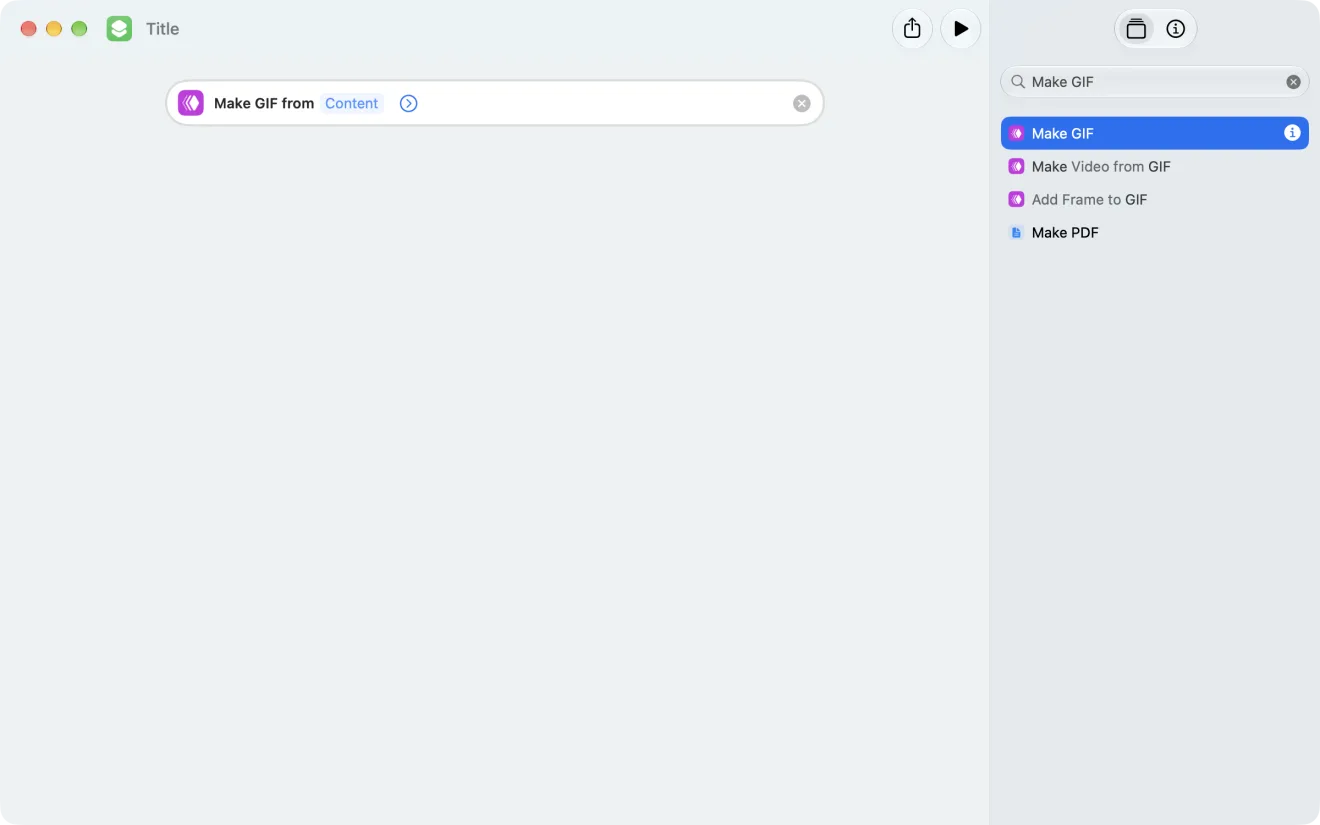
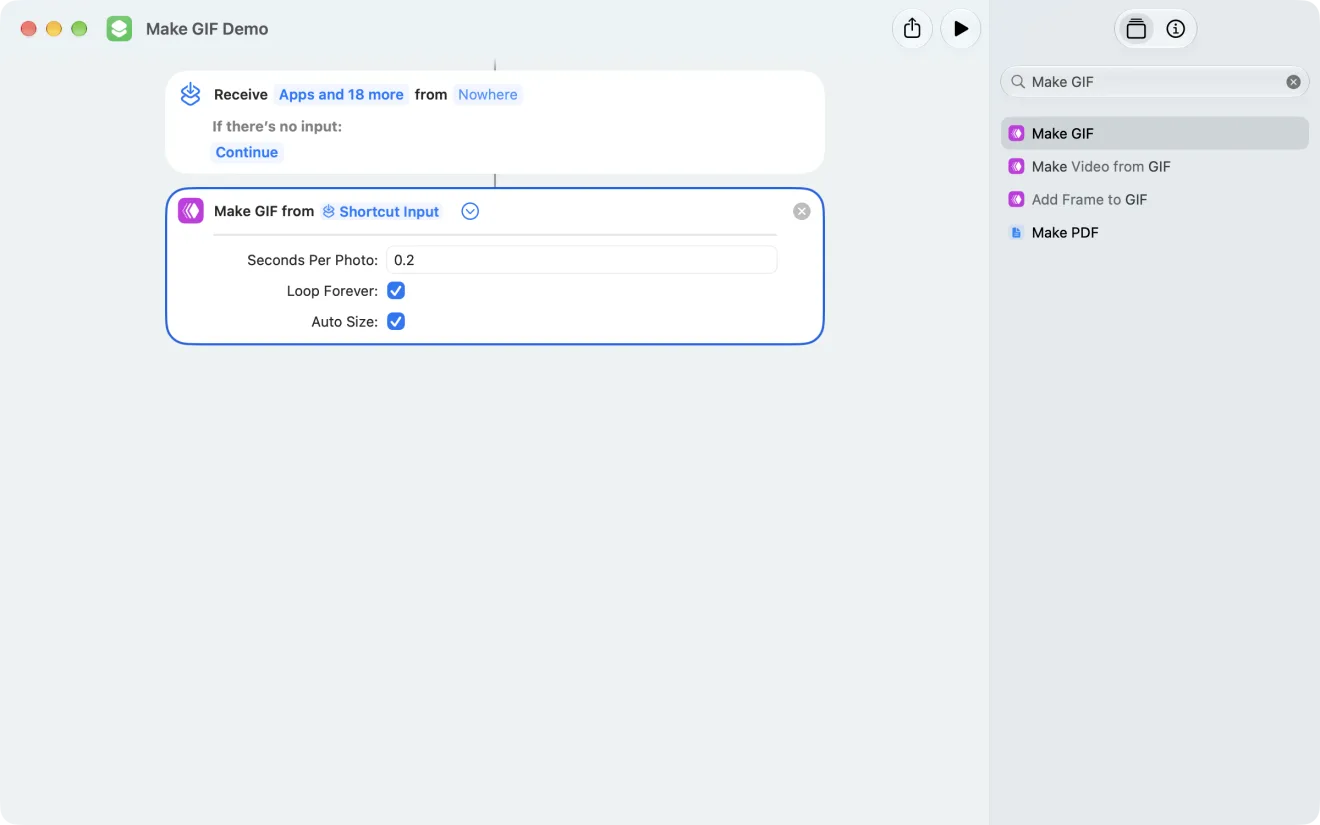
The search results also listed Make Video from GIF and Add Frame to GIF. To turn a GIF back into a video, use Make Video from GIF (we didn’t try it).
The three options: Seconds Per Photo, Loop Forever, Auto Size
| Option | Starting value | What it means |
|---|---|---|
| Seconds Per Photo | 0.2 | How long each frame shows (on our Mac a 7-second video became a 17-frame GIF of about 3.5 seconds; which part of the recording became frames wasn’t checked) |
| Loop Forever | On | Starts over when it reaches the end |
| Auto Size | On | Shrinks the image to keep the file small (on our Mac the recording became 500×324 pixels) |
We didn’t compare different values, and we didn’t check which part of the recording Seconds Per Photo turns into frames. Our guess, not measured: a smaller Seconds Per Photo (such as 0.1) if the motion looks choppy, a larger one (such as 0.5) if the file is too big.
Hand it the .mov and run it: the first run asks for permission
Apple’s page “Run a shortcut while working on your Mac” gives two ways to hand the shortcut your .mov. One: in the Shortcuts app, double-click the shortcut, click the ⓘ (details) button at the top right, and select Use as Quick Action. Then, in the Finder, Control-click the .mov and choose the shortcut’s name under Quick Actions (if it isn’t there, turn the shortcut on under System Settings, then Privacy & Security, then Extensions, then Finder). Two: select Finder under ⓘ instead, and run it from the Action pop-up menu in a Finder window, under Services. To keep the GIF as a file, add a Save File action after Make GIF and choose where it goes (Apple’s page about share actions). We didn’t try any of these three ourselves. On our recording Mac, the Japanese account passed the .mov with the shortcuts command in Terminal, and the English account passed the .mov, ran the shortcut, and found the GIF in a Finder folder.
On our Mac, the first run showed a dialog asking whether to allow the shortcut to output one image, with the choices Don’t Allow, Allow Once, and Always Allow. Apple’s page “Run a shortcut from the Shortcuts app on Mac” describes a different dialog: “If an action requires private data from your device, a dialog asks for permission to use your data.” We chose Allow Once and the GIF was made (we didn’t try Always Allow).
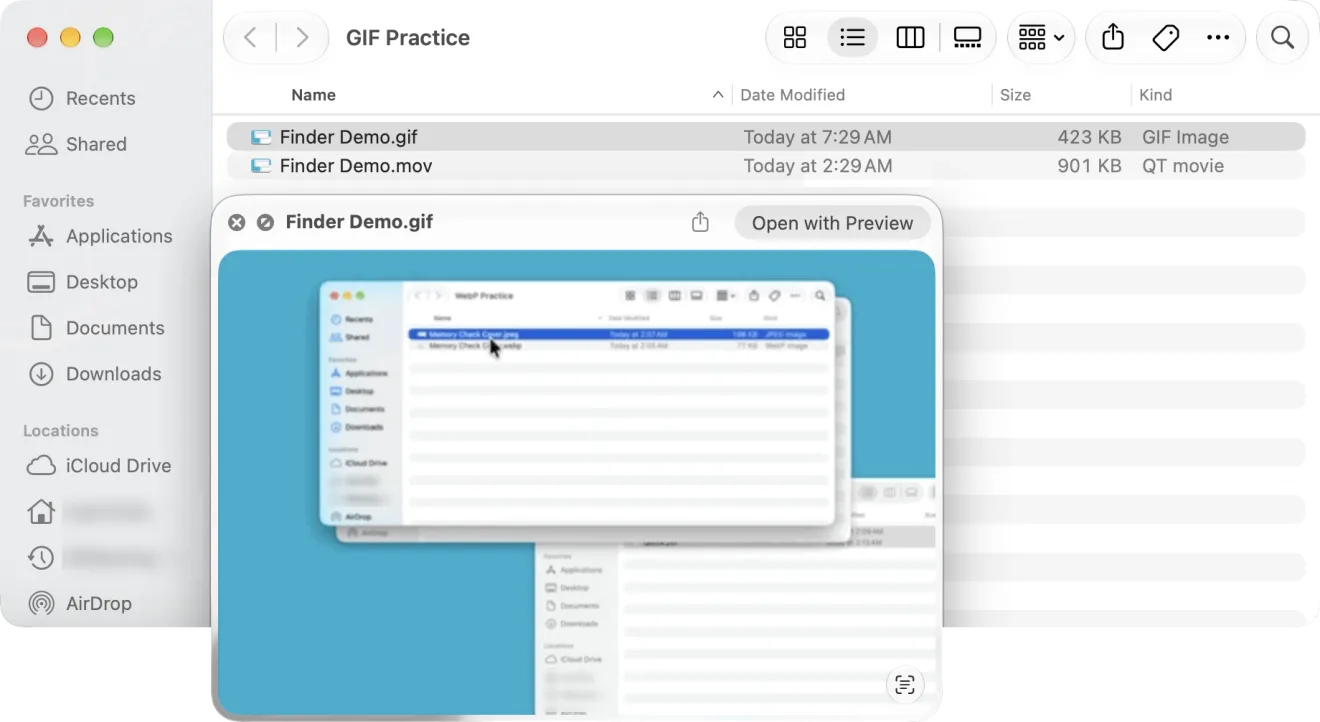
The GIF was 500×324 pixels, 17 frames, about 3.5 seconds. At 0.2 seconds per frame, 17 frames is about 3.4 seconds, which is shorter than the 7-second recording. Whether part of the recording was dropped or the whole thing plays faster, we don’t know: we didn’t compare the video and the GIF side by side. The file came out at less than half the .mov, but the motion is coarser. For fine movement, the .mov looks better.
The diagram below compares the .mov and the GIF (not a screenshot). The .mov (screen recording), Finder Demo.mov, is 7 seconds and 901 KB, with sound possible. Make GIF turns it into the .gif (made by the shortcut), Finder Demo.gif, which is 17 frames and 423 KB, with no sound. Where it plays differs too: the .mov needs a video player, while the GIF moves on its own in chats and web pages.
The .mov (screen recording)
Finder Demo.mov 7 seconds and 901 KB, with sound possible
Where it plays
Needs a video player
Make GIF
The .gif (made by the shortcut)
Finder Demo.gif 17 frames and 423 KB, with no sound
Where it plays
Moves on its own in chats and web pages
If you make these often: say “Record a GIF” (KoeShot)
Everything above is a two-stage job: record the .mov, then hand it to Shortcuts. If you make short how-to GIFs all the time, that is two stages for every recording.
We (Wada Digital Lab) make and sell a multi-function screenshot app for the Mac, run by voice, that also records the screen. It is called KoeShot (for Mac). Press Option + S and say “Record a GIF of the whole screen,” and it starts recording the whole screen. When you stop it, it saves the recording as a GIF right away. Say a number of seconds and it stops on its own. GIFs have no sound, so asking for narration does nothing for a GIF. A long recording keeps only its first seconds in the GIF, up to the limit in the app’s settings.
You pay once. For 14 days after you install it, you can use the app on its own with no license key, before you buy, and there is no payment method to register. It runs on a Mac with a chip made by Apple (such as M1 or M4) and macOS 26 or later. Intel-based Macs and macOS 15 or earlier are not supported.
See the KoeShot (for Mac) page
Frequently asked questions
Make GIF doesn’t show up in the search.
The search field is above the list of actions on the right. Typing just GIF brings up Make GIF, Make Video from GIF, and Add Frame to GIF. If it still doesn’t appear, check your macOS version. This article was checked on macOS 27.2.
How do I make the GIF smaller?
Leave Auto Size on. Raising Seconds Per Photo should mean fewer frames, but we didn’t measure it. Recording a shorter clip of a smaller area cuts both the frame count and the pixels. We didn’t compare file sizes at different settings.
Can I turn an iPhone screen recording into a GIF?
Shortcuts is on the iPhone too, with the same Make GIF action. We only tried it on a Mac for this article.
What we checked, and Apple’s pages
The pictures in this article were taken in a user account made for screenshots.
- Model: MacBook Air (M2)
- macOS: macOS 27.2 (English screen; the same shortcut was also run in a Japanese user account on the same Mac)
- Pictures taken on: October 31, 2026
We built the shortcut with the Make GIF action, set the input to Shortcut Input, opened the options, ran it on a 7-second .mov (901 KB), chose Allow Once in the output dialog, and got a 500×324-pixel, 17-frame, 423 KB GIF of about 3.5 seconds. We didn’t try Use as Quick Action or Save File. In a Japanese user account on the same Mac, the same shortcut was run on an 8-second .mov (626 KB). The dialog appeared and closed before we pressed a button (we don’t know which one closed it), and a 500×289-pixel, 31-frame, 398 KB GIF of about 5.7 seconds was made. We didn’t compare option values, didn’t try Make Video from GIF, and didn’t try it on an iPhone. KoeShot’s “Record a GIF” was checked in the app’s code and on its product page.
Before writing, we searched Google for “how to make a gif on mac” and read the titles of the top results (October 31, 2026). They were Apple’s Keynote page, GIF apps, and forum threads. This article adds the Shortcuts route that needs nothing installed, with the real size and file weight of the result.
The steps come from these pages.
- How to record the screen on Mac (Apple Support)
- Create a custom shortcut on Mac (Shortcuts User Guide)
- Run a shortcut while working on your Mac (Shortcuts User Guide; Quick Actions and the Finder)
- About share actions in Shortcuts on Mac (Shortcuts User Guide; Save File)
- Run a shortcut from the Shortcuts app on Mac (Shortcuts User Guide)