How to Add 2FA Codes to 1Password on Mac — Fill Them In at Sign-In, Plus the New Quick Access Shortcut
Published November 5, 2026 (updated November 10, 2026)
Steps checked November 6, 2026 (MacBook Air (M2), macOS Golden Gate 27.2)
By Wada Digital Lab
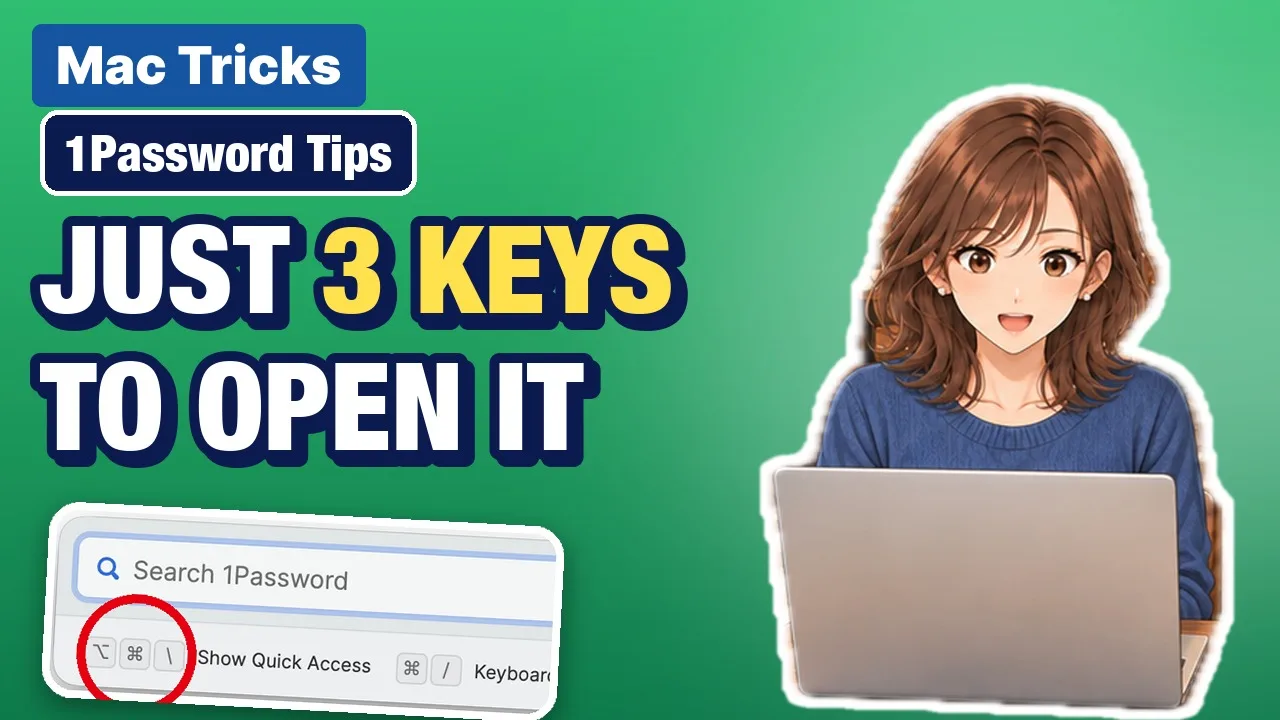
To have 1Password fill in your two-factor authentication (2FA) codes on a Mac, open the site’s item, click Edit, choose One-Time Password under add more, scan the QR code on your screen, and click Save. Enter the six-digit code from 1Password on the site to confirm it, and you are set. The next time you sign in with Safari, if macOS AutoFill is turned on in 1Password, “Verification code from 1Password” appears below the code field, and one click fills in the six-digit code. You no longer need to pick up your phone and read the number from an authenticator app. Also, on macOS 27 the Quick Access shortcut, which brings up 1Password without opening the app, is now Option-Command-Backslash (\). This article walks through saving a code and signing in with it, on the screens of the Mac we used for recording (macOS 27.2, 1Password 8.12.42).
There is also a video that walks through this on a Mac: 1Password Tips for Mac: Quick Access and 2FA Codes (YouTube, 4:44).
Key points
- Add a code: in 1Password, open the site’s item, click Edit, choose One-Time Password under add more, click the QR code button to scan the QR code on your screen, then click Save. Finally, enter the six-digit code from 1Password on the site to finish turning on 2FA.
- When we clicked the QR code button, the message “One-time password detected on screen.” appeared and the code was added. In our Japanese recording, macOS first asked whether 1Password could access the screen, and we clicked Allow.
- Sign in: after your user name and password are filled in, click the verification code field. “Verification code from 1Password” appears below it. Click it to fill in the code (Safari, without the browser extension).
- Don’t keep the code for your 1Password account itself in 1Password. 1Password’s support page also says to use a different authenticator app for it.
- Quick Access: on macOS 27 it opens with Option-Command-Backslash (on macOS 26 and earlier, Shift-Command-Space). Check or change the shortcut under Show Quick Access in 1Password’s Settings > General.
- Sites that support 2FA but don’t have a code in 1Password yet are listed under 2FA available in Watchtower.
The diagram below sums up how to save a 2FA code in 1Password and use it.
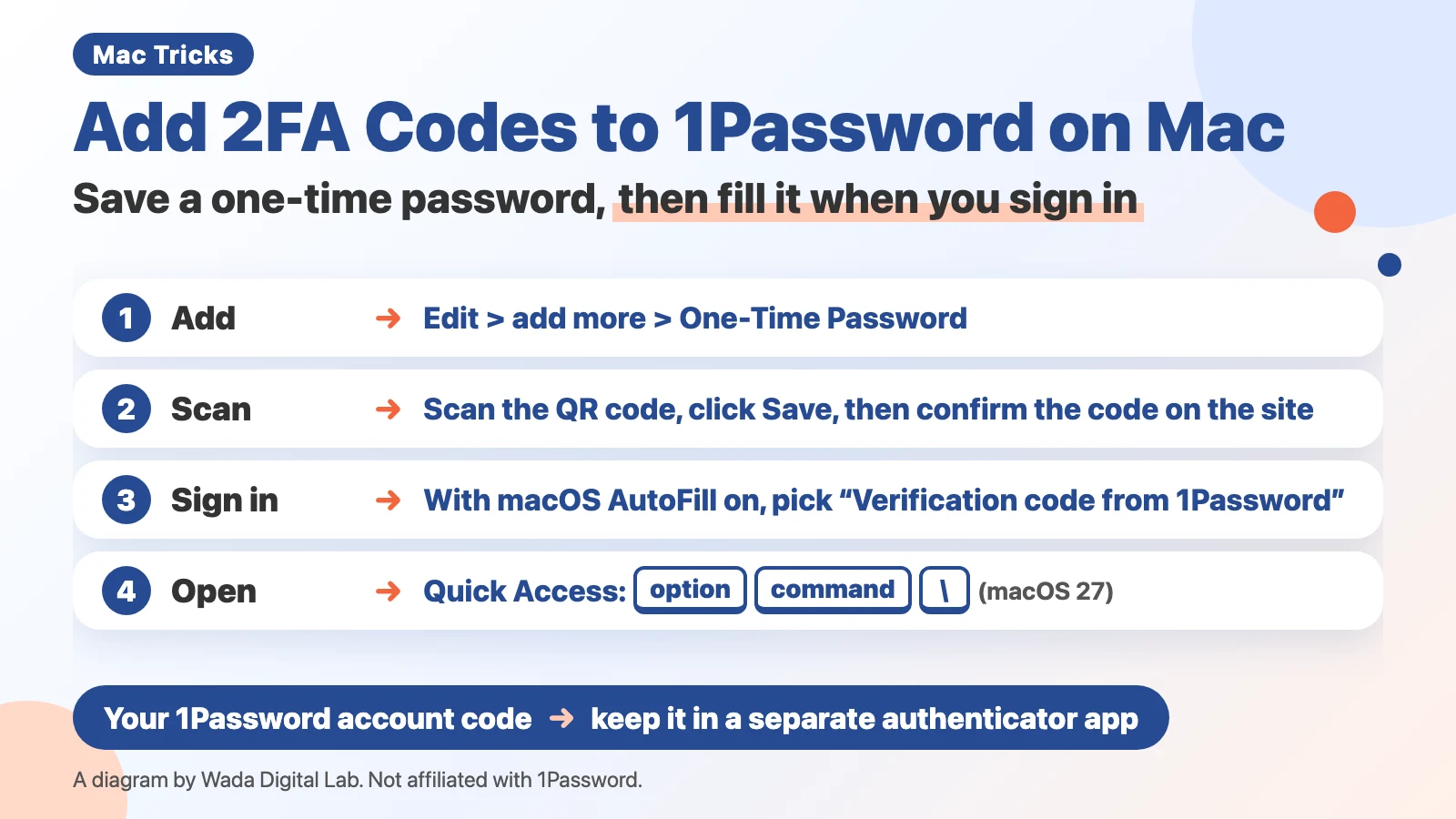
This article was written by Wada Digital Lab, which has no connection with 1Password (AgileBits Inc.) or Apple. It is not a paid promotion. 1Password is a paid app. Check its official website for prices.
What a 2FA code in 1Password is: 1Password makes the six-digit code and fills it in
A one-time password is a number you can use only once, entered along with your password when you sign in. This article covers the kind an authenticator app makes (called TOTP), which is usually a six-digit number that changes every 30 seconds. Sites where you turn on two-factor authentication (often called 2FA, though 1Password’s blog points out it isn’t a true second factor when your password and code come from the same device) ask for this number after your password. Usually you scan a QR code with an authenticator app on your phone (such as Google Authenticator), then read the number in the app and type it in.
1Password can take the place of that authenticator app. In 1Password, one saved entry with a site’s user name, password, and other details is called an item. When you scan a site’s QR code into that site’s item, 1Password keeps making the six-digit code and fills it in when you sign in.
At Wada Digital Lab, we used to use several different authenticator apps, and it was a hassle. We would look up the code on a phone, then type it in on the computer. Once we learned how to put the codes in 1Password, we started keeping them there.
This article is for people who already have the basics of 1Password set up. For getting started, see How to Install 1Password on Mac. For signing in from Safari’s suggestions (macOS AutoFill), see How to Use 1Password on Mac. The steps here assume that setting is on.
Add a 2FA code to 1Password: Edit, add more, One-Time Password, then scan the QR code
First, make sure 1Password already has a Login item for the site. If not, save your user name and password first. Then follow these steps.
- Turn on two-factor authentication in the site’s settings. When a QR code appears, leave it on the screen.
- In 1Password, select the site’s item and click Edit.
- Click add more near the bottom, then choose One-Time Password from the list.
- On the new one-time password field, click the QR code button on the right. 1Password scans the QR code on your screen.
- Click Save at the top.
- Enter the six-digit code shown in the 1Password item on the site to finish turning on 2FA.
The picture below shows step 3, the add more list in the item you are editing.
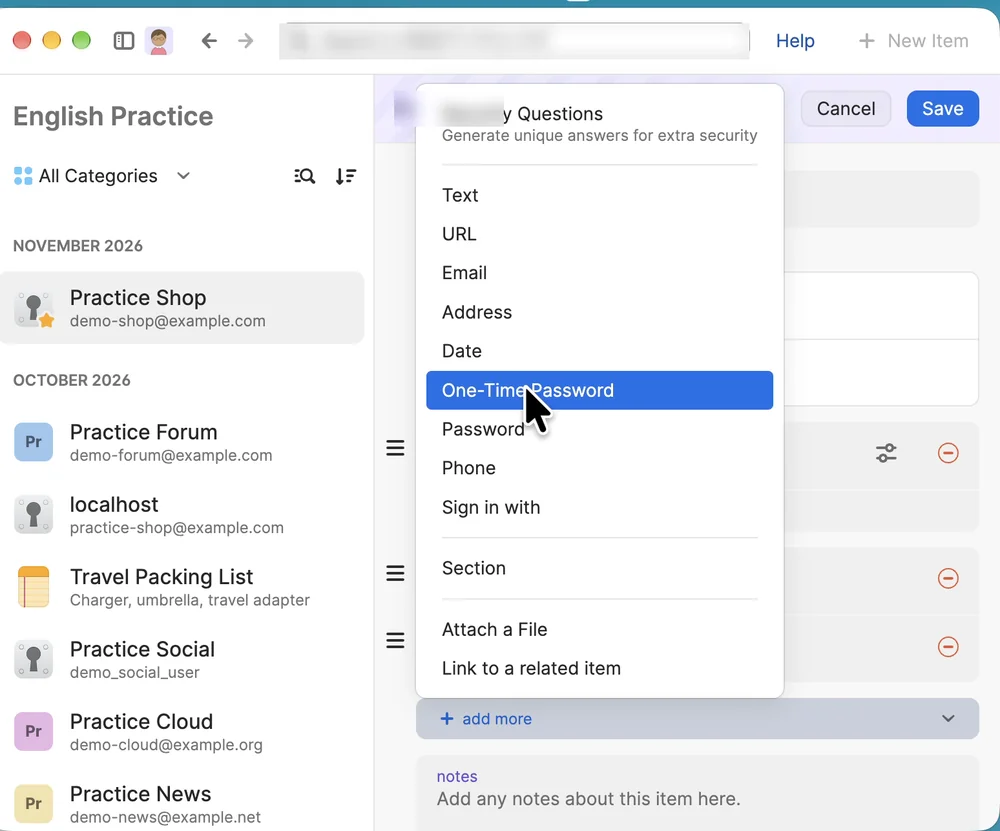
When you point to the QR code button, it says “Scan QR code from clipboard or screen.” Besides a QR code on the screen, it can also read a QR code image you have copied.
After we clicked the button, the message “One-time password detected on screen.” appeared at the bottom. After we clicked Save, the item’s one-time password showed six digits split into two groups of three, with a countdown of the seconds left. On the practice site, we entered that number as the verification code to finish the setup.
The first time, macOS may ask about screen access
In our Japanese recording on the same Mac, macOS showed a message the first time we clicked the QR code button. It asked whether 1Password could bypass the system private window picker and access the screen and audio directly, with Allow and Open System Settings buttons. This lets 1Password see the QR code on the screen, so we clicked Allow. 1Password’s support page does not mention this step, so it helps to know it may appear. In our English recording, this message did not appear.
If the QR code won’t scan, copy the text key
According to 1Password’s support page, if you can’t scan the QR code, most sites give you a string of characters you can copy instead (the practice site in our recording called it a setup key). Paste it into the one-time password field. On November 6, 2026, we copied the practice site’s setup key and pasted it into the one-time password field (it shows “one-time password code” until you fill it) with Command-V, and the key went in.
Fill in the code when you sign in: click “Verification code from 1Password” below the code field
When you sign in to a site where you saved a code, it goes like this.
- On the sign-in page, click the email field, pick the 1Password suggestion below it, and use Touch ID. Your user name and password are filled in.
- Click Sign in.
- On the next page, click the verification code field. “Verification code from 1Password” appears below it.
- Click it to fill in the six-digit code. On the practice site in our recording, this signed us in.
The picture below shows step 3, the suggestion below the code field.
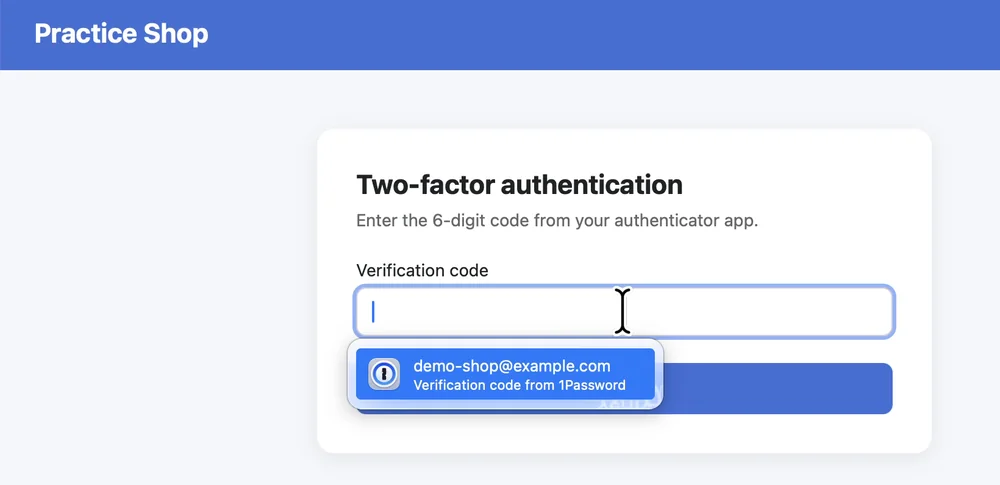
1Password’s support page says that when you fill your user name and password, 1Password automatically fills your one-time password. However, the link on “fill your username and password” there goes to “Save and fill passwords in your browser,” the steps for the 1Password browser extension. On the Mac we used (Safari, without the browser extension), the code did not appear in the field on its own. A suggestion appeared below the field, and clicking it filled in the code. That is one click. Compared with picking up your phone and typing six digits, it is much easier.
This suggestion appears in the same macOS list you use to pick passwords in Safari. If it doesn’t appear, check that macOS AutoFill shows Active in 1Password’s Settings > Autofill. The details are in How to Use 1Password on Mac. If password suggestions don’t appear at all, see Password AutoFill not working on your Mac.
In our Japanese recording on November 6, 2026, the site once said the code was wrong. Another vault (a place in 1Password that holds a group of items) had an item with the same user name, and both items had a one-time password, so the suggestion filled in the other item’s code. When we made the user names different, the suggestions were listed by item with their user names, and the right code signed us in. If a site says your code is wrong, check whether you have two items with the same user name.
Is it safe to keep passwords and codes in the same place? Keep your 1Password account code in a separate app
Two-step sign-in asks for one more check after your password, here a six-digit code. If the code is kept on a different device, someone who learns your password still can’t sign in without that device. If you put both in 1Password, the password and the code are in the same place.
1Password’s blog answers this question by saying that storing these codes in 1Password is safe, and faster and more convenient than a separate app. It also says you give up a small amount of security, so the right choice depends on you. According to the same post, a separate authenticator app helps in cases such as someone getting the contents of your 1Password without having control of your device. The same post adds that this is an unlikely case: someone who already has your email address, Secret Key (a long code only you have that protects your data), and account password is unlikely to find an authenticator app much of a barrier. It also says that if your password and code are both on the same device, you get the same level of protection whether the code is in 1Password or in an authenticator app on that device. From here on, this is our own view, not the blog’s. Our suggestion: if you are concerned, keep the codes for important sites, like your bank, in a separate authenticator app on your phone.
But don’t put the code for your 1Password account itself in 1Password. 1Password’s support page says it’s important to use a different authenticator app for your 1Password account, and that storing those codes in 1Password would be like putting the key to a safe inside the safe. If you can’t open 1Password, you can’t see the code either.
Bring up 1Password with Quick Access: Option-Command-Backslash on macOS 27
Quick Access is a feature that brings up a 1Password search field with a keyboard shortcut, whatever app you are using. You can find a saved item, open its site, or fill in your sign-in details without opening the 1Password app.
- While you are in another app, such as one where you are writing an email, press Option-Command-Backslash (\) at the same time. A search field appears in the middle of the screen.
- Type a site’s name. Your saved items appear.
- Select an item and click Open in Browser. The site opens in your browser.
- If the sign-in page is already open, open Quick Access there and click Autofill on the item. Your user name and password are filled in. (1Password’s support page says this uses Universal Autofill, which you allow in System Settings. On our recording Mac it was already allowed.)
The picture below shows Quick Access opened over another app.
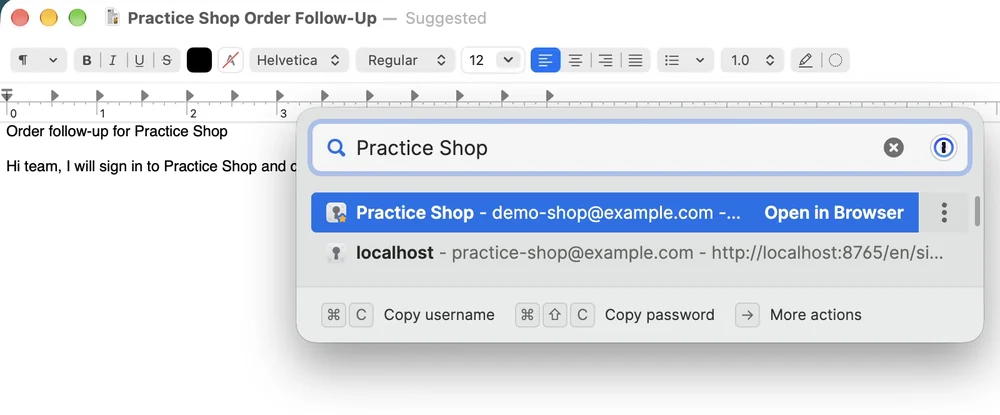
In our recordings, Open in Browser opened the sign-in page in Safari, but the user name and password fields were empty. 1Password’s support page says that selecting an item name opens the website and fills your user name and password. Because that did not happen in our recordings, we filled them in afterward, with Autofill in Quick Access or with Safari’s suggestion.
The old shortcut, Shift-Command-Space, opens Search or Ask on macOS 27
Some older videos and articles give Shift-Command-Space as the Quick Access shortcut. That is the shortcut for macOS 26 and earlier. According to 1Password’s support page and its community announcement, macOS 27 uses that shortcut itself, so starting with 1Password for Mac 8.12.38 the default Quick Access shortcut changed to Option-Command-Backslash.
On the Mac we used (macOS 27.2), pressing Shift-Command-Space opened the macOS Search or Ask field, not 1Password. 1Password’s announcement says the shortcut is used by Visual Intelligence, a feature for asking about what’s on your screen, so the name on the screen was different. If the old shortcut opens something else, 1Password is not broken.
If you’re not sure of the shortcut: Settings > General > Show Quick Access
Open 1Password, choose 1Password > Settings from the menu bar, then click General on the left. Under Keyboard Shortcuts near the bottom, you’ll see the shortcut for Show Quick Access. On the Mac we used, it was Option-Command-Backslash. If it is hard to press, you can change it here. In our recording, we clicked the Show Quick Access field, pressed a new key combination, and the shortcut changed. To change it back, click the same field and press the original keys.
In the same place, Autofill was Command-Backslash. That shortcut is for a different feature called Universal Autofill, which fills your user name and password in apps that aren’t web browsers. In our Japanese recording, it did not fill them in, so we don’t cover it in this article.
Find sites without a code yet: 2FA available in Watchtower
Watchtower is a screen where 1Password checks your saved items and groups the ones that need attention by category. Select Watchtower in 1Password’s sidebar, and you’ll see a score at the top and boxes for each category below it. In our recordings, Reused passwords, Passkeys available, and 2FA available each showed two items.
- Reused passwords: items that use the same password. Change the password on that site and replace it with a new password generated by 1Password. If you need the old password later, see View password history in How to Restore Deleted Items in 1Password on Mac.
- 2FA available: sites that support two-factor authentication but don’t have a code in 1Password. Add a code with the steps above. When we opened it, the right side said “Two-factor authentication” and “Get notified when a login has two-factor authentication available for setup.”
- Passkeys available: sites that support passkeys but don’t have a passkey saved in the item yet.
If a site in 2FA available already uses a different authenticator app for its code, you can leave it as it is. According to 1Password’s support page, you can also select Ignore for sites you manage in another app. On the Mac we used, an item in the 2FA available list showed “Use 1Password for 2FA” with Scan 2FA QR code and Ignore buttons. We did not click Ignore.
A passkey is a way to sign in without a password, for example with Touch ID. When you create a passkey on a site that supports it, 1Password offers to save it. In our recordings, the next sign-in only needed Continue on the sign-in screen and Touch ID. For using and deleting passkeys saved in 1Password, see How to Use Passkeys with 1Password on Mac. For passkeys in the Passwords app on a Mac, see How to Create, Use, and Delete a Passkey on Mac.
2FA codes and Quick Access at a glance
| What you want to do | Where | What to click or press |
|---|---|---|
| Add a 2FA code | The site’s item in 1Password | Edit > add more > One-Time Password > QR code button > Save > confirm the six-digit code on the site |
| Fill in the code when you sign in | The site’s verification code field in Safari (with macOS AutoFill turned on in 1Password) | “Verification code from 1Password” below the field |
| Bring up 1Password | Any app | Option-Command-Backslash (macOS 27) |
| Check the Quick Access shortcut | 1Password Settings > General | Show Quick Access under Keyboard Shortcuts |
| Find sites that support 2FA but have no code yet | Watchtower in 1Password’s sidebar | 2FA available |
Frequently asked questions
What if the QR code button doesn’t scan the code?
Make sure the whole QR code is on the screen. If it still doesn’t scan, copy the string of characters the site shows and paste it into the one-time password field. If macOS asked about screen access the first time and you didn’t click Allow, try the button again.
Can I keep the 2FA code for my 1Password account in 1Password?
No. 1Password’s support page says to keep the code for your 1Password account in a different authenticator app. If you can’t open 1Password, you can’t see the code either.
What if the code suggestion doesn’t appear?
Check that the site’s item has a one-time password. If it does and the suggestion still doesn’t appear, check that macOS AutoFill shows Active in 1Password’s Settings > Autofill. We used Safari without the browser extension. We have not tried other browsers.
What if Quick Access doesn’t open?
Check the current shortcut under Show Quick Access in 1Password’s Settings > General. On macOS 27, the old shortcut (Shift-Command-Space) opens a macOS screen instead.
Does 1Password cost money?
1Password is a paid app. Check its official website for prices. This article is not a paid promotion.
Watch the same steps on a Mac (video)
This video opens Quick Access and fills in a two-factor code, on a Mac screen. If you would rather watch than read, try this.
What we tested, and sources
- Mac used for recording: MacBook Air (M2), macOS Golden Gate 27.2, 1Password for Mac 8.12.42 and 8.12.44, Safari 27.2, TextEdit 1.21. We used a recording user, a recording 1Password account with only dummy data, and a practice website made for recording (not a real store) (recorded November 4, 2026).
- What we saw in the recordings: opening Quick Access with Option-Command-Backslash and clicking Open in Browser and Autofill. Shift-Command-Space opening Search or Ask. Keyboard Shortcuts in Settings > General. Edit, add more, and One-Time Password, scanning the QR code, clicking Save, and confirming the code on the site. Clicking “Verification code from 1Password” to fill in the code when signing in. Reused passwords, 2FA available, and Passkeys available in Watchtower. Creating a passkey and signing in with Continue. The macOS screen-access message appeared only in our Japanese recording.
- On November 6, 2026, on the same Mac with 1Password for Mac 8.12.44, we went through the numbered steps again on screen: adding the code, filling in the code when signing in, and Quick Access. We also pasted a setup key and changed the Quick Access shortcut and changed it back. Picking the saved login below the email field brought up “Touch ID to AutoFill your login information.” With Touch ID, the email and password were filled in, and after Sign In, the code suggestion signed us in.
Not yet tested on screen: selecting Ignore in Watchtower, the browser extension or browsers other than Safari, the iPhone screens, and 2FA on a real website. For these, we relied on 1Password’s support pages.
1Password support pages, blog, and community:
- Use 1Password as an authenticator for sites with two-factor authentication
- Turn on two-factor authentication for your 1Password account
- Get to know Quick Access
- Use Watchtower to find account details you need to change
- Use 1Password to sign in to apps and websites on your Mac
- 1Password and 2FA: Is it wrong to store passwords and one-time codes together?
- The Quick Access shortcut is Changing in macOS Golden Gate
November 6, 2026: We went through the steps again on screen and added what we found: a wrong code can be filled in when two items have the same user name, pasting a setup key, and changing the shortcut.
November 7, 2026: We added that the suggestion appears when macOS AutoFill is turned on, to the introduction, the diagram, and the table. We also reworded how we describe 2FA and added the caveat that follows our quote from 1Password’s blog.
1Password is a trademark of AgileBits Inc. Mac, macOS, Safari, and Touch ID are trademarks of Apple Inc. Google Authenticator is a trademark of Google LLC. Wada Digital Lab has no connection with these companies.