How to Create, Use, and Delete a Passkey on Mac — Saved in iCloud Keychain, Deleted in the Passwords App
Published October 17, 2026
Steps checked October 16, 2026 (MacBook Air (M2), macOS Golden Gate 27.0.1)
By Wada Digital Lab
A passkey lets you sign in without remembering a password. You prove it is you with Touch ID or another check. To create a passkey on a Mac, iCloud Keychain must be set up. The passkey is saved in iCloud Keychain, so you can use it on your devices signed in to the same Apple Account. You delete it in the Passwords app. Deleting it from your Mac does not delete your account on the website.
Key points
- To create a passkey on a Mac, iCloud Keychain must be set up. You create the passkey on the sign-up page of a website or app that supports passkeys.
- To sign in, you prove it is you with Touch ID on your Mac, or with a Magic Keyboard with Touch ID (it works with a Mac that has an Apple-made chip). You can also scan a QR code with an iPhone or iPad, or use an external security key.
- Passkeys are saved in iCloud Keychain and work on your devices signed in to the same Apple Account. You can see them in the Passwords app.
- To delete a passkey, click Edit in the Passwords app. Deleting it from your Mac does not delete your account on the website. For 30 days, you can get it back from Deleted.
- The steps in this article come from Apple’s pages for macOS Tahoe 26 and macOS 27. The pictures show our practice page after we created a passkey and signed in with it.
The diagram below shows where to create, use, see, and delete a passkey on a Mac (not a screenshot).
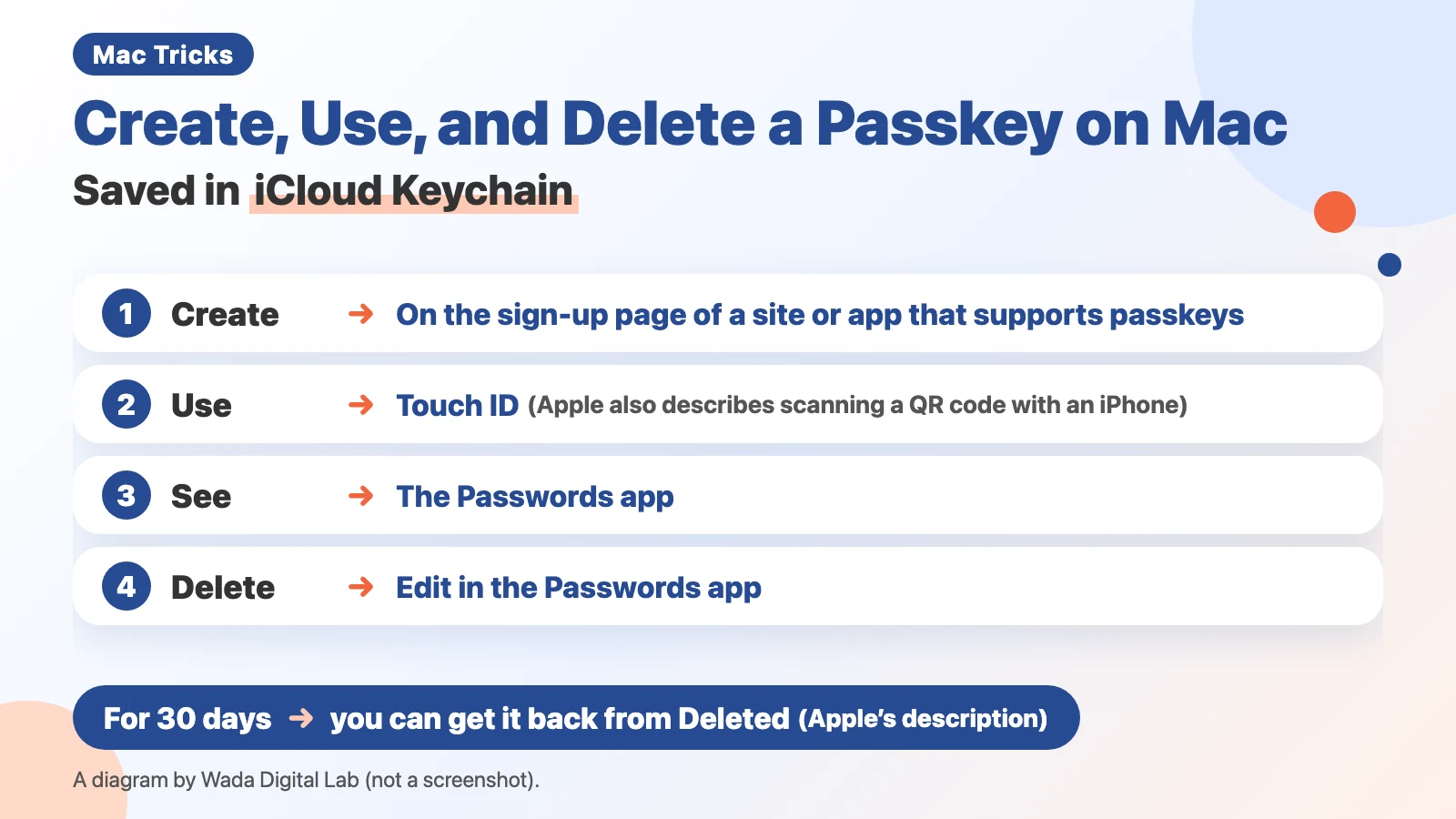
Websites such as banks and brokerages sometimes ask you to “add a passkey.” We have seen this message at Wada Digital Lab, too. We felt that adding one would make signing in easier and safer at the same time. Each website has its own steps, but what you do on the Mac is the same. To try it, we made a practice page for passkeys. On that page, we created one passkey on a Mac, signed in with it, and then deleted it.
What is a passkey? A way to sign in with Touch ID instead of a password
A passkey takes the place of a password when you sign in. Apple’s page explains it this way: “A passkey is a way to sign in to a website account or an app, without needing to create and remember a password.” You type only your account name. Touch ID or another check verifies your identity.
Apple also explains how passkeys differ from passwords. Passkeys “are resistant to phishing, are always strong, and are designed so that there are no shared secrets.” This is from Apple’s page “About the security of passkeys.” The same page explains that a passkey is a pair of keys. The website keeps only the public key, and “The server never learns what the private key is.”
To create a passkey on a Mac, set up iCloud Keychain first
You don’t create a passkey in the Mac’s settings. You create it on the sign-up page of a website or app that supports passkeys. Before that, set up iCloud Keychain on your Mac. Apple’s page says: “To create a passkey, iCloud Keychain must be set up on your Mac.”
iCloud Keychain keeps your passwords and other information the same on your Mac, iPhone, and iPad that use the same Apple Account. Apple’s page says: “iCloud Keychain keeps the website login information and credit card information that you use with autofill in Safari, and your Wi-Fi network information up to date across your Mac, iPhone, and iPad.” On a Mac, you turn it on here:
- Open the System Settings app from the Apple menu
- Click your name at the top of the sidebar
- Click iCloud, then click Passwords
- Turn on “Sync this Mac”
If two-factor authentication is not set up yet, follow the onscreen instructions. Apple’s page also says: “You must also set up your Mac to require a password before you can use iCloud Keychain.”
Then create the passkey on a website that supports passkeys:
- On the website’s sign-up page for a new account, enter an account name and submit it
- When you see the option to save a passkey, choose how you want to sign in
- If your Mac has Touch ID, place your finger on the Touch ID sensor
- To use a QR code with your iPhone or iPad, or an external security key, click Other Options
For an account you already have, you replace its password with a passkey, usually in the account settings on that website. When a bank or brokerage asks you to “add a passkey,” this is what it means. Apple’s page says that after you do this, “The passkey appears in Passwords.”
The next picture shows our practice page after we created a passkey.
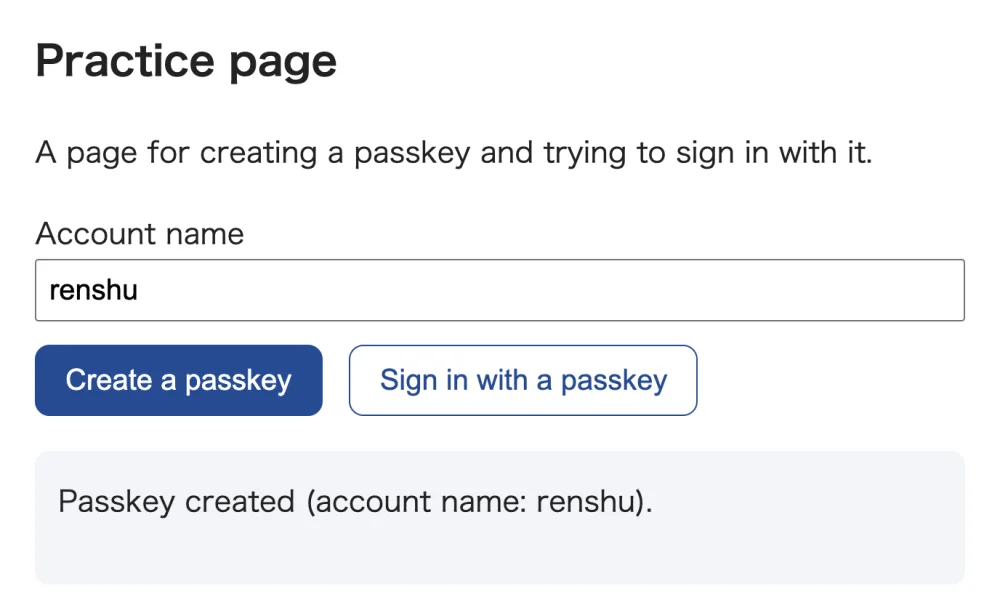
We did not take a picture of the window that asked to save the passkey. The English text built into macOS includes “Save a passkey?” and “To save a passkey, you need to enable iCloud Keychain.” We have not checked when each of these appears.
Sign in with a passkey: Touch ID, or a QR code on your iPhone
When you sign in, you don’t type a password. You choose your account name and prove it is you.
- On the website’s sign-in page, enter your account name, then click the account name field
- Click your account in the list of suggestions
- If your Mac has Touch ID, place your finger on the Touch ID sensor
If you don’t have Touch ID, you can use an iPhone or iPad. Click Other Options, click “Passkey from nearby device,” then click the QR code. Scan the QR code with your iPhone or iPad, and use Face ID to verify your identity. Bluetooth must be on for both your iPhone or iPad and your Mac. To use an external security key, click Other Options, then click “Security key.”
The next picture shows our practice page after we signed in with the passkey we created.
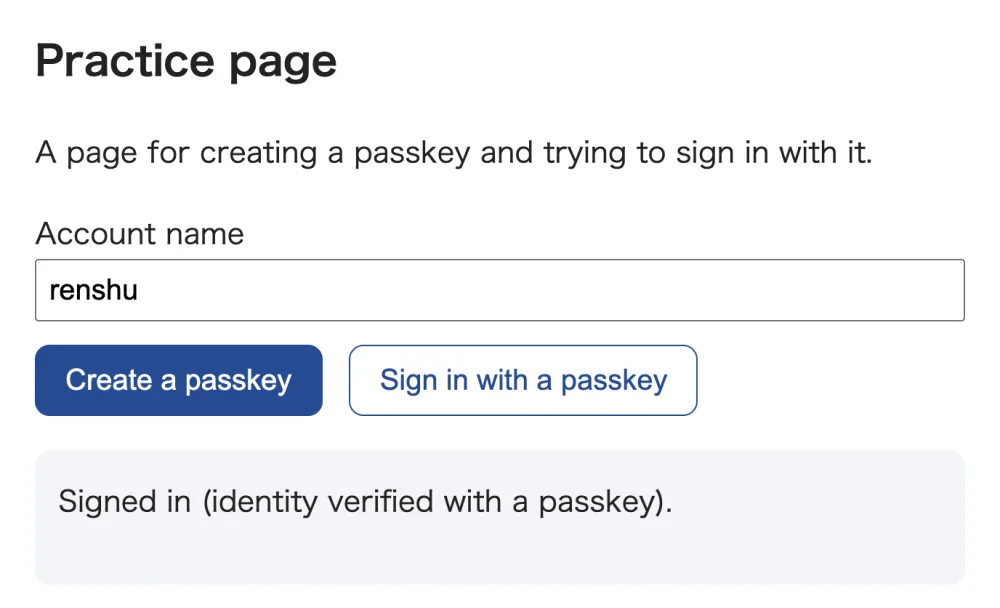
When we tried it on the Mac, we used Touch ID both to create the passkey and to sign in. At Wada Digital Lab, Touch ID on the Mac has never stopped reading our finger. The fingerprint readers on other computers we used before often stopped working within about six months, even after we replaced the computer.
We did not try signing in with an iPhone QR code or with an external security key. The steps for those come from Apple’s page.
Where is the passkey you created? In iCloud Keychain, on all your devices with the same Apple Account
A passkey you create on a Mac is saved in iCloud Keychain. Apple’s page says: “Each passkey is stored in iCloud Keychain, so they’re available on all your devices where you’re signed in to the same Apple Account.” This means a passkey you created on your Mac also lets you sign in from an iPhone with the same Apple Account.
You can see your saved passkeys in the Passwords app. Passwords is an app that comes with macOS. It shows your passwords and passkeys in one place. Click All in the sidebar, then look for the account for that website. If a password does not show up in AutoFill, see Password AutoFill not working on your Mac — five places to check.
Delete a passkey with Edit in the Passwords app
If you no longer use a passkey, delete it in the Passwords app. Apple’s steps are:
- Open the Passwords app
- Click All in the sidebar, then click the account for the passkey you want to delete
- Click Edit
- Click Delete Password, then click Delete Password again to confirm
The button says Password, but it deletes the passkey too. When we deleted our practice passkey on a Mac set to Japanese, we also clicked Delete Password. After that, we searched the Passwords app for the practice page (localhost), and it found nothing.
Deleting it from your Mac does not delete your account on the website
What you delete is the passkey in your Mac and in iCloud Keychain. Your account on the website stays. Apple’s page says: “This action doesn’t remove the password or passkey from the website or app where you created it. You can still sign in to the website or app, with one exception: accounts where you use Sign in with Apple.”
The next figure shows where the passkey is deleted and what stays when you delete it in the Passwords app.
This Mac
Passwords app Passkey is deleted
iCloud Keychain
Devices that use iCloud Keychain Passkey is deleted
Within 30 days
Can be recovered from Deleted
Website account
The website Account stays
Apple’s page is titled “Remove a password or passkey from your Mac and iCloud Keychain.” On an iPhone that uses iCloud Keychain with the same Apple Account, that passkey stops working too.
A device that does not use iCloud Keychain is different. Apple’s page says: “When you turn off iCloud Keychain, password, passkey, and credit card information is stored locally on your device.” If you sign out of iCloud on a device while iCloud Keychain is on, you are asked whether to keep that information. Apple’s page says that if you keep it, “your passwords and passkeys are stored locally on your device, but aren't deleted or updated when you make changes on other devices.”
If you deleted it by mistake, you can recover it from Deleted within 30 days
Apple’s page says: “If you delete a password or passkey from your Mac, you have 30 days to recover it before it’s permanently deleted.”
- Open the Passwords app, then click Deleted in the sidebar
- Select the account for the passkey you want back
- Click Recover
The passkey goes back to your Mac and iCloud Keychain.
Create, use, see, delete, recover (summary)
The table below shows where you create, use, see, delete, and recover a passkey, and what to keep in mind for each.
| What | Where | Keep in mind |
|---|---|---|
| Create | The sign-up page of a website or app that supports passkeys | iCloud Keychain must be set up on your Mac |
| Use (sign in) | The website’s sign-in page | Prove it is you with Touch ID, a QR code on your iPhone or iPad, or an external security key |
| See | All in the Passwords app | The same passkey works on your devices with the same Apple Account |
| Delete | Edit in the Passwords app | It is also deleted on devices that use iCloud Keychain. Your website account stays |
| Recover | Deleted in the Passwords app | Within 30 days after you delete it |
Frequently asked questions
Can I use passkeys on a Mac without Touch ID?
Yes, according to Apple’s pages. With a Magic Keyboard with Touch ID, you can use Touch ID to prove it is you. But Apple’s page says this keyboard needs a Mac with an Apple-made chip (such as M1 or M4), and a certain version of macOS that depends on the keyboard model. That means a Mac with an Intel chip can’t use it. Without one, you can scan a QR code with an iPhone or iPad, or use an external security key. To use a QR code, Bluetooth must be on for both your iPhone or iPad and your Mac.
If I delete a passkey on my Mac, can I still sign in to that website?
Your account on the website stays, so Apple’s page says: “You can still sign in to the website or app”. But you can’t sign in with the passkey you deleted. If the website has another way to sign in, such as a password, use that.
What we tested on, and Apple’s pages
We tried creating, using, and deleting a passkey on this Mac:
- Model: MacBook Air (M2)
- macOS: macOS Golden Gate 27.0.1
- Date: October 16, 2026
On that Mac, we used the Japanese version of our practice page (localhost), in Safari, with Touch ID. This page only asks the Mac to create a passkey and shows the answer it gets back when you sign in. Unlike a real website, it does not check the passkey on a server. We did not take pictures of the window that asks to save a passkey, the sign-in window, or the Passwords app. How to see and delete passkeys in the Passwords app comes from Apple’s pages and from when we deleted our practice passkey by hand. We did not check whether it was also gone from Deleted for good, or how it looked on other devices.
The pictures in this article show an English copy of the same practice page. Only the words are different; the code is the same. We took them on October 17, 2026, on a MacBook Air (M4) with macOS 27.0.1, in Google Chrome with its test authenticator turned on. The test authenticator is a tool for web developers that stands in for Touch ID. So the passkey in the pictures was made by that tool, and it was not saved in iCloud Keychain.
The macOS text quoted in this article comes from the English text file for the passkey windows built into macOS 27.0.1. We checked the quotes from Apple’s pages word for word against the current pages on October 17, 2026. The English pages for macOS Tahoe 26 and macOS 27 say the same thing.
The steps and explanations come from these Apple pages:
- Sign in to an account on your Mac with a passkey (Passwords User Guide, macOS 27)
- Sign in to an account on your Mac with a passkey (Passwords User Guide, macOS Tahoe 26)
- Remove a password or passkey from your Mac and iCloud Keychain (Passwords User Guide, macOS 27)
- Remove a password or passkey from your Mac and iCloud Keychain (Passwords User Guide, macOS Tahoe 26)
- Recover a recently deleted password or passkey on Mac (Passwords User Guide, macOS 27)
- See your website or app passwords and related info on Mac (Passwords User Guide, macOS 27)
- Set up iCloud Keychain to autofill information on Mac (Mac User Guide, macOS 27)
- Set up iCloud Keychain to autofill information on Mac (Mac User Guide, macOS Tahoe 26)
- Set up iCloud Keychain (Apple Support)
- If Touch ID isn’t working on Mac (Apple Support)
- About the security of passkeys (Apple Support)