Is it safe to dictate confidential or personal information? — Check on your Mac where your voice and text go
Published October 5, 2026
By Wada Digital Lab
To get a rough idea of whether dictation (a feature that turns your speech into typed text) sends your voice off your device, turn off Wi-Fi and say a few words. If your words still turn into text with no internet connection, the speech recognition is happening on that Mac or phone. For the Dictation feature built into your Mac, Apple says you can also check the text below Dictation in Keyboard settings.
Key points
- To get a rough idea of whether your voice is sent anywhere, turn off Wi-Fi (and unplug the network cable if you use one) and say a few words. You do not need to buy anything, and you can do it right now.
- If your words still turn into text without the internet, the recognition is happening on the device. If they do not, the tool may need the internet. But a microphone or a setting can also stop it working, so say the same words with the internet connected and compare.
- This test only tells you whether it stops working without the internet. To know what it sends while you are online, you have to read what its makers say.
- For Dictation built into the Mac, Apple says you can check in Keyboard settings whether general text dictation (such as composing messages and notes) is processed on your device.
- Besides your voice and your text, a dictation app may also go online to sync words you have taught it between devices, or to check your license.
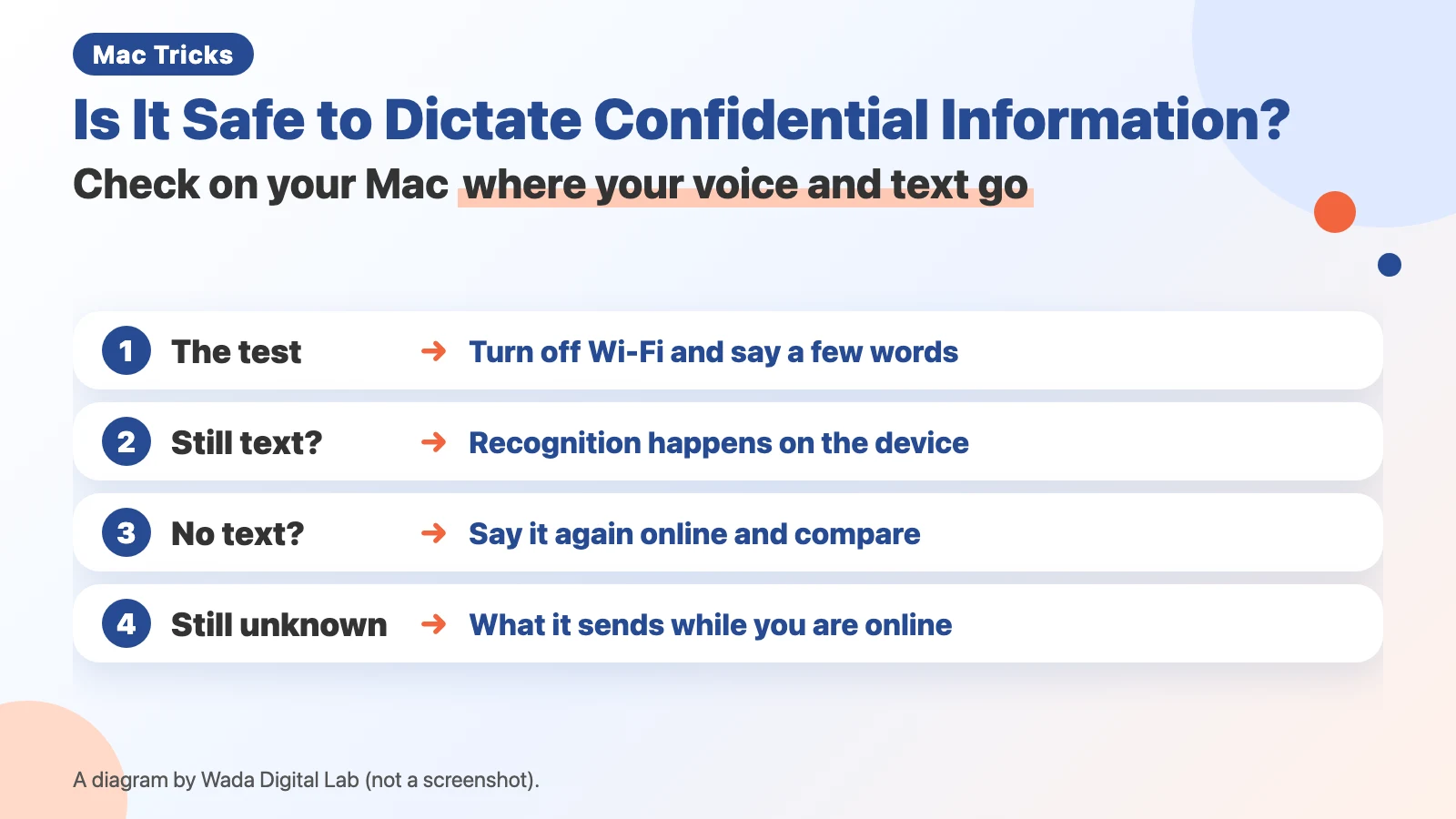
The diagram below sums up the Wi-Fi test and what it can and cannot tell you (not a screenshot).
This article is for people who use dictation in their personal life but not at work. If you do not know whether what you say is being sent somewhere, it is hard to use it for work.
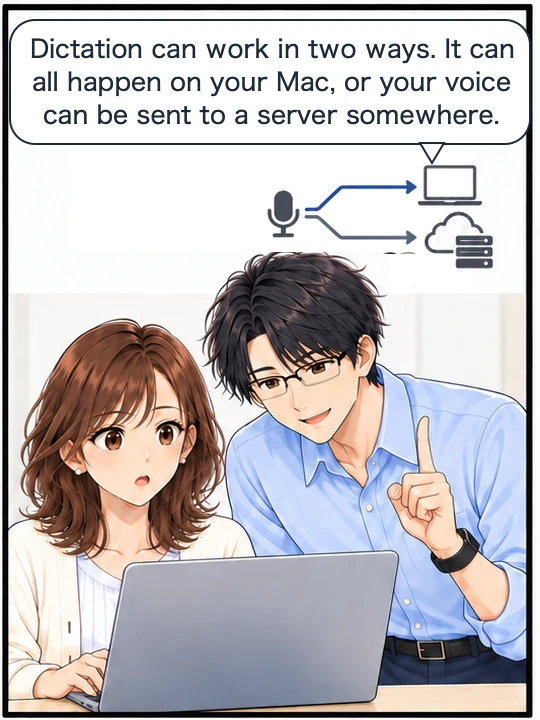
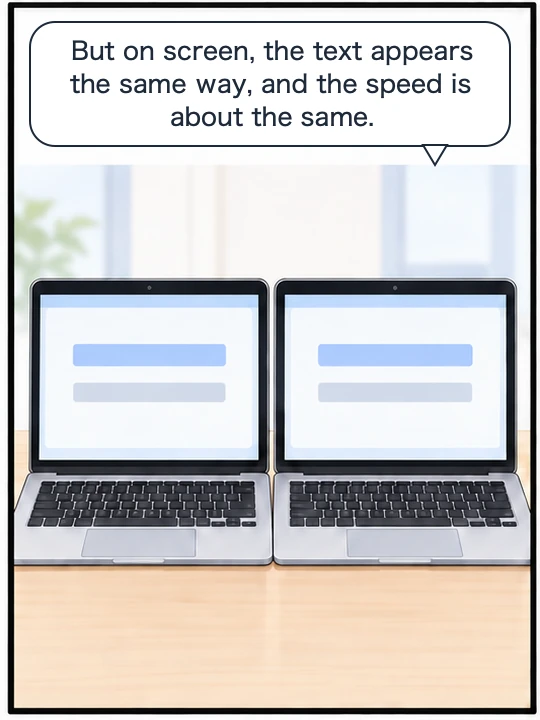
The next comic shows that, from the user’s side of the screen, you cannot tell the two ways dictation can work apart.
Swipe sideways to see the next panel.


Dictation works in one of two ways, and you cannot tell which on screen
There are two main ways to turn speech into text:
- Doing it all on the device itself (the Mac, phone or other device in front of you)
- Sending it to a server somewhere (a server being a computer on the internet, run by the company that makes the tool or someone else)
With the first way, both listening and turning speech into text happen on the device, so your voice does not leave the device. With the second, the device sends your voice and gets the text back, so your voice is sent outside the device.
The next diagram puts the two ways side by side, showing where your voice turns into text.
Doing it all on the device itself
The device itself Both listening and turning speech into text
Your voice does not leave the device
Sending it to a server somewhere
A server somewhere Sends your voice and gets the text back
Your voice is sent outside the device
From the user’s side, both look the same: you speak and text appears. Just watching the screen, you cannot tell which one you are using right now. That is what makes dictation hard to use at work. You cannot judge whether it is all right to say confidential material or a client’s name out loud.
This is not about one way being good and the other bad. Sending speech out has its reasons (it does not need the device’s own processing power, and the recognition system is easier to swap for a newer one, for example). The problem is using it without knowing which one it is.
Turn off Wi-Fi and say a few words (four steps)
The easy test is to cut off the internet. You do not need to buy anything, and you can do it right now.
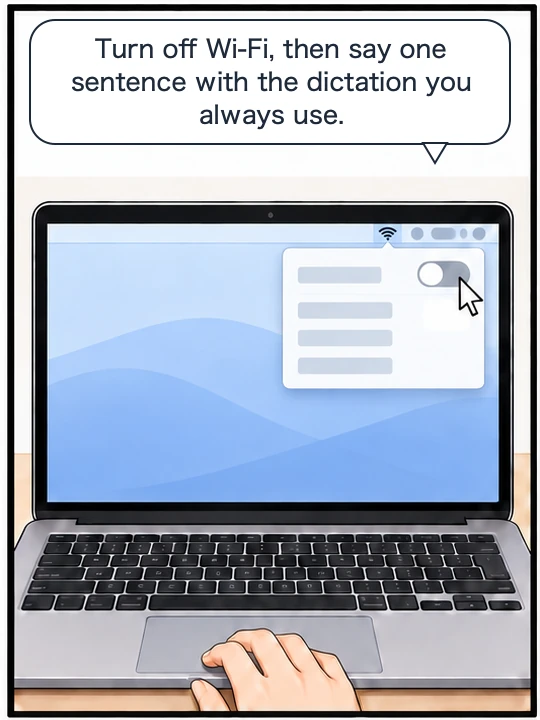
- Turn off Wi-Fi from the menu bar (if you use a network cable, unplug it too)
- Start dictation where you usually use it (for Dictation built into the Mac, click where you want the text to go, then choose Edit > Start Dictation, for example)
- Say a few short words
- Turn Wi-Fi back on (and plug the cable back in)
Here is how to read the result.
| What happened with Wi-Fi off | What it tells you |
|---|---|
| Your words turned into text as usual | The recognition happens on your device. Your voice did not leave it |
| Nothing appeared, it kept you waiting, or you got an error | The tool may need the internet. A microphone or a setting can also cause this, so say the same words with the internet connected and see whether they turn into text |
Apple also lists this, along with things like the microphone and the input volume, in its help for when Dictation on a Mac does not work: “You may need an internet connection.”
The next comic shows turning off Wi-Fi, saying a few words, and checking where the dictation goes.
Swipe sideways to see the next panel.

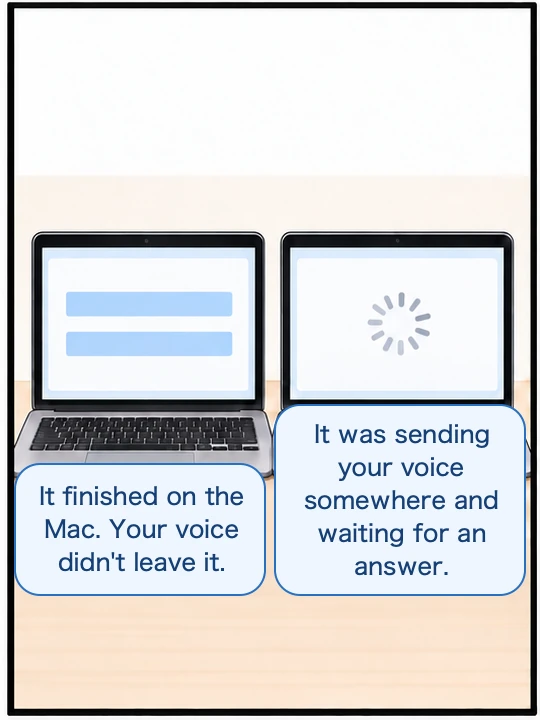
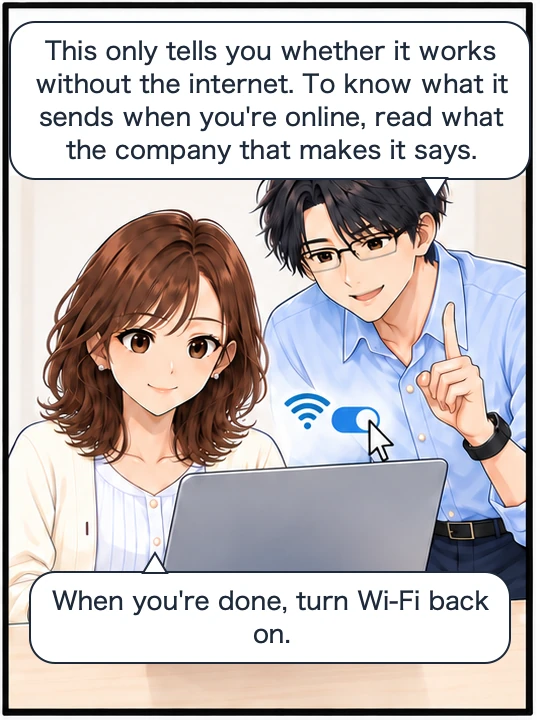
What the Wi-Fi test can and cannot tell you
To be honest about it, the test above only makes one thing clear: whether it stops working without the internet.
It does not tell you what the software sends, or where, while you are online. The recognition could happen on the device while the finished text is sent somewhere for another purpose. Beyond that point, you can only read what the makers say.
When you read it, look for these three things:
- What does not leave. Instead of “it’s safe”, does it name what does not leave the device (your voice, your text, or both)?
- When things do leave. If there is a separate path that sends things out, does it say which action turns that path on?
- Whether you can tell which one you are using as you go. Can you see it on screen, without having to remember your settings?
Dictation apps may also go online to sync words and check your license
Even when an app says dictation never leaves your device, that is about your voice and your text. The same app may also go online to sync words or check your license. If you use it for work, look at these too.
- Syncing the words you have taught it. Apps that let you register words with their spellings may have a feature that keeps that list the same across your devices. When you turn it on, the list leaves the device (usually to your own cloud storage). If you have registered company names or people’s names, those leave the device too.
- Checking your license. Paid software may contact its maker’s server to check that your license is still valid. See whether it says what it sends when it does.
None of these is bad in itself. Before you use the app for work, check in its makers’ explanation whether to turn on syncing, and what is sent when it checks your license.
You can start with the Dictation built into your Mac
macOS comes with Dictation built in. Try it first. The test above works as it is: cut off the internet, speak, and see whether your words turn into text. That is all.
Dictation on the Mac has one more way to check. Apple says: “You can check Keyboard settings to see whether your voice inputs and transcripts for general text Dictation (for example, composing messages and notes, but not dictating in a search box) are processed on your device and not sent to Siri servers.” Apple’s steps are to choose Apple menu > System Settings, click Keyboard in the sidebar (you may need to scroll down), then see the text below Dictation (Dictation must be turned on). Note that Apple says this about general text dictation and treats dictating in a search box separately. The same Apple page also covers a setting that decides whether to share recordings of your voice with Apple: choose Apple menu > System Settings, click Privacy & Security, “Go to Analytics & Improvements, then turn Improve Siri & Dictation on or off.”
What we tested on, and Apple’s pages
The Japanese version of this article was written on August 19, 2026, on Wada Digital Lab’s Mac (MacBook Air (M4), macOS Tahoe 26.5.2). We checked the macOS version against the Mac’s update history.
We have no record of trying the Wi-Fi test on this Mac when we wrote the article. The way to check in Keyboard settings was added on October 3, 2026, after rereading Apple’s page, and we have not tried it on screen either. On October 5, 2026, we checked the English names of the menu items and settings (Edit, Start Dictation, Keyboard, Dictation, Privacy & Security, Analytics & Improvements, Improve Siri & Dictation) against Apple’s English pages below, and checked the quotes word for word against the current pages.