Password AutoFill not working on your Mac — five places to check
Published October 6, 2026
Steps checked October 5, 2026 (MacBook Air (M4), macOS Tahoe 26.6.2)
By Wada Digital Lab
If a password you thought you saved does not show up in AutoFill on your Mac, check five places in order: (1) whether the password is saved at all, (2) the setting for the whole Mac, (3) the setting in Safari, (4) the list of websites you chose never to save, and (5) whether the website itself allows AutoFill. If the problem is in one of the first four, fixing it brings the suggestion back on websites that allow AutoFill. For a page that fails the fifth check, copy the password from the Passwords app and paste it in.
Key points
- AutoFill fills in passwords you have already saved (this article covers the Passwords app in macOS Sequoia or later, and Safari). First, search the Passwords app to see whether the website is saved.
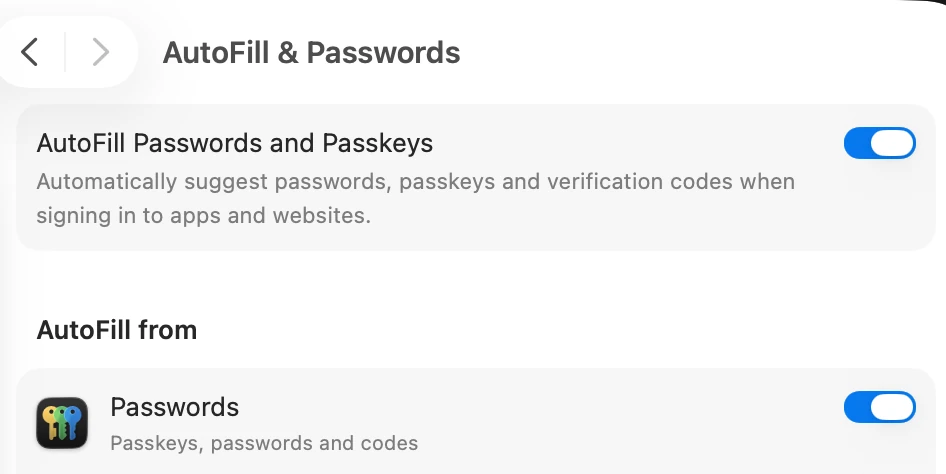
- If “AutoFill Passwords and Passkeys” is turned off in System Settings > General > AutoFill & Passwords, no website gets a suggestion.
- In Safari, choose Safari > Settings, click AutoFill, and make sure “User names and passwords” is selected.
- If you clicked “Never for This Website” when asked to save a password, that website goes on the Excluded Websites list, and you are not asked again. Remove it from the list, and you are asked again.
- If “Save passwords” in the Passwords app’s settings is set to “Do Not Ask When Signing In”, no website asks to save a password. Apple’s page about Passwords settings does not list this item.
The diagram below lists the five places to check when Password AutoFill isn’t working (not a screenshot).
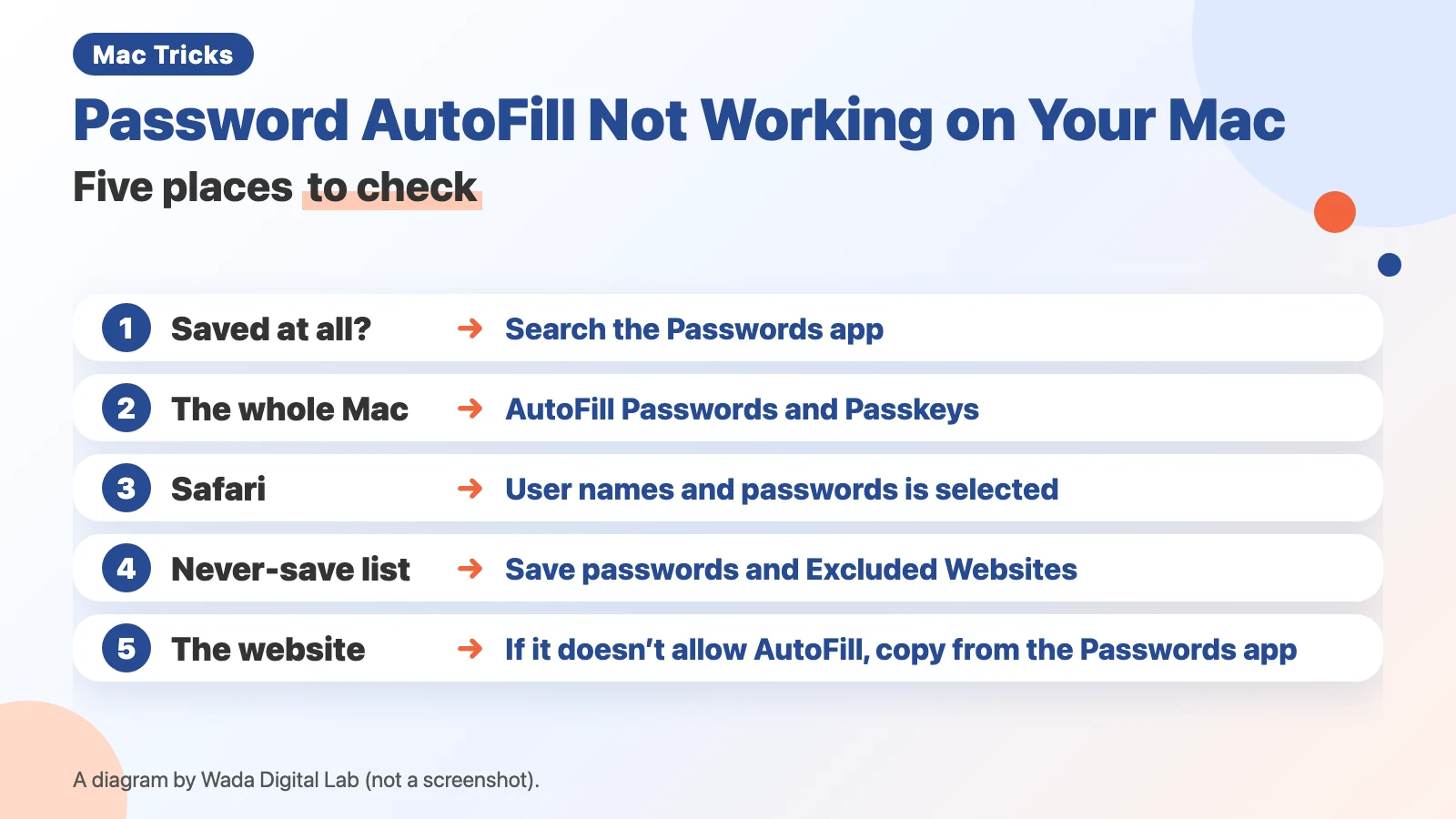
This once happened to us at Wada Digital Lab, too: a password stopped showing up in AutoFill. We tried one thing after another, but could not find the cause. In the end, we reset the password for that website. If we had checked these five places in order first, we might not have needed to reset it.
Step 1: Check whether the password is saved on your Mac
AutoFill fills in passwords you have already saved. If a password is not saved, nothing appears. To check, use the Passwords app. Passwords is an app that comes with macOS. It shows the passwords and passkeys you have saved in one place (a passkey lets you sign in without typing a password).
- Open the Passwords app (press Command-Space to open Spotlight search, then type “Passwords”)
- Type the name of the website in the search field at the top
- If it shows up, click it and check that it has a password (an entry can hold only a passkey)
If it does not show up, check three more things from Apple’s page before you decide it is not saved. Apple’s page says: “In the Passwords app, make sure to select All.” It also says to look in Deleted: “In the Passwords app, choose Deleted.” And if you saved the password on another Apple device, such as an iPhone: “If you have multiple Apple devices, make sure that iCloud Keychain is turned on.” iCloud Keychain is what keeps your passwords and passkeys up to date across your Apple devices. If it is still not there, it is not saved.
If it is not saved, choose “Save Password” the next time you sign in to that website and are asked. From then on, it shows up as a suggestion.
Step 2: Check that “AutoFill Passwords and Passkeys” is on for the whole Mac
If this is off, no website gets a suggestion.
- Choose Apple menu > System Settings
- Click General, then click AutoFill & Passwords
- Check that “AutoFill Passwords and Passkeys” is on. If it is off, turn it on
- Below it, under “AutoFill from”, check that Passwords is on, too
The next picture shows the AutoFill & Passwords screen on the Mac we used for recording.
Step 3: Check that “User names and passwords” is selected in Safari
Even when the setting for the whole Mac is on, Safari does not fill in passwords if its own setting is off. Apple’s page for when AutoFill doesn’t work in Safari starts with this setting: in Safari, choose Safari > Settings, click AutoFill, then make sure “User names and passwords” is selected.
- With Safari open, choose Safari > Settings in the menu bar at the top left of the screen
- Click AutoFill in the row of buttons at the top
- Check that “User names and passwords” is selected
In the AutoFill settings, “User names and passwords” is the second checkbox from the top, below “Using information from my contacts”. If it has a checkmark, this setting is fine.
Step 4: Check that the website is not on the list of websites you chose never to save
This is the easiest place to miss. If AutoFill stopped working even though you do not remember changing anything, suspect this one.
The three buttons in the save dialog lead to different results
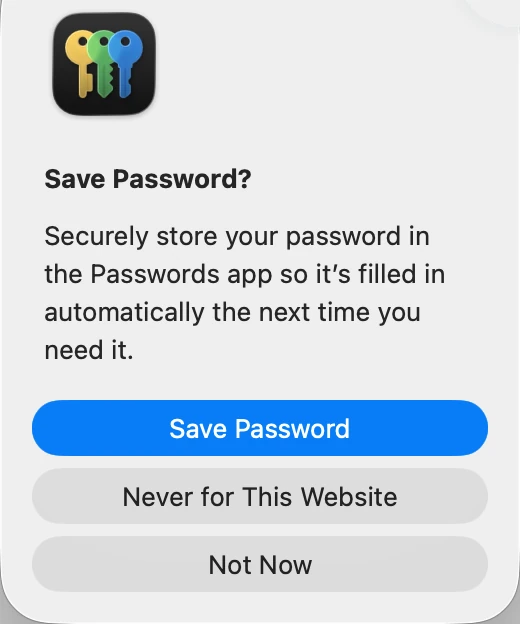
When you sign in, a “Save Password?” dialog appears with three buttons. The next picture shows the dialog that appeared on the Mac we used for recording.
The next diagram shows what happens the next time you sign in, after each of the three buttons.
“Save Password”
Next time you sign in It is suggested
“Never for This Website”
Next time you sign in You are not asked to save it
“Not Now”
Next time you sign in You are asked again
“Save Password” saves it, so the next time you sign in, it is suggested. Click “Never for This Website” once, and your Mac remembers it. The website goes on the Excluded Websites list, and the next time you sign in, you are not asked to save it. Since no password is saved, AutoFill has nothing to fill in. “Not Now” skips saving only this once, and you are asked again the next time you sign in.
Check that “Save passwords” is not set to “Do Not Ask When Signing In”
Before you look at the list of excluded websites, check “Save passwords” on the same settings screen. If it is set to “Do Not Ask When Signing In”, no website asks you to save a password.
- Open the Passwords app
- In the menu bar at the top of the screen, choose Passwords > Settings
- Check that “Save passwords” is set to “Ask When Signing In”
The next picture shows the Passwords Settings window.
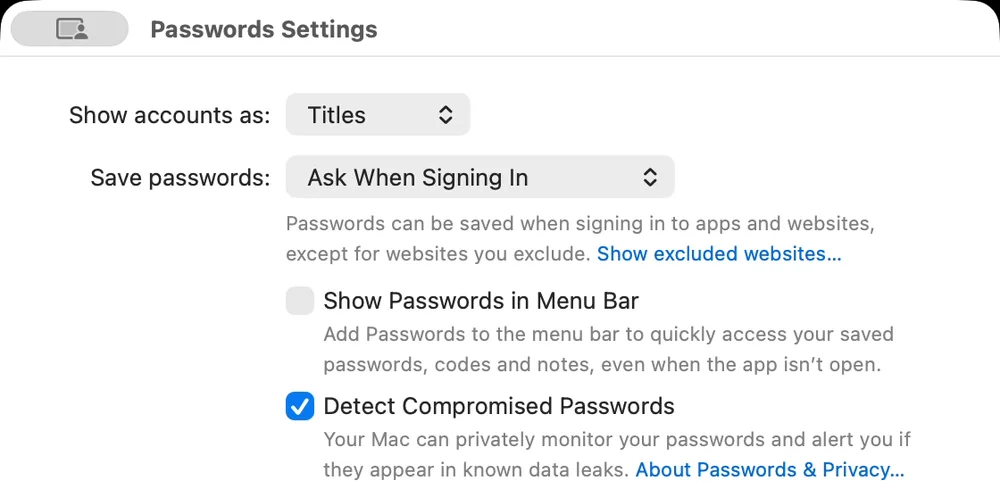
We found this item while preparing to record our video, when the save dialog would not appear no matter what we did. We suspected eight causes for the missing dialog, and seven were wrong. The eighth was this “Do Not Ask When Signing In”. Apple’s page about Passwords settings lists items such as “Show accounts as” and “Detect Compromised Passwords”, but not “Save passwords” (we checked the English page on October 5, 2026).
Remove the website from Excluded Websites
- On the same settings screen, click “Show excluded websites…”
- Look for the website in the Excluded Websites list that opens
- If it is there, select it, then click the minus button at the bottom left of the list
The next picture shows the Excluded Websites list.
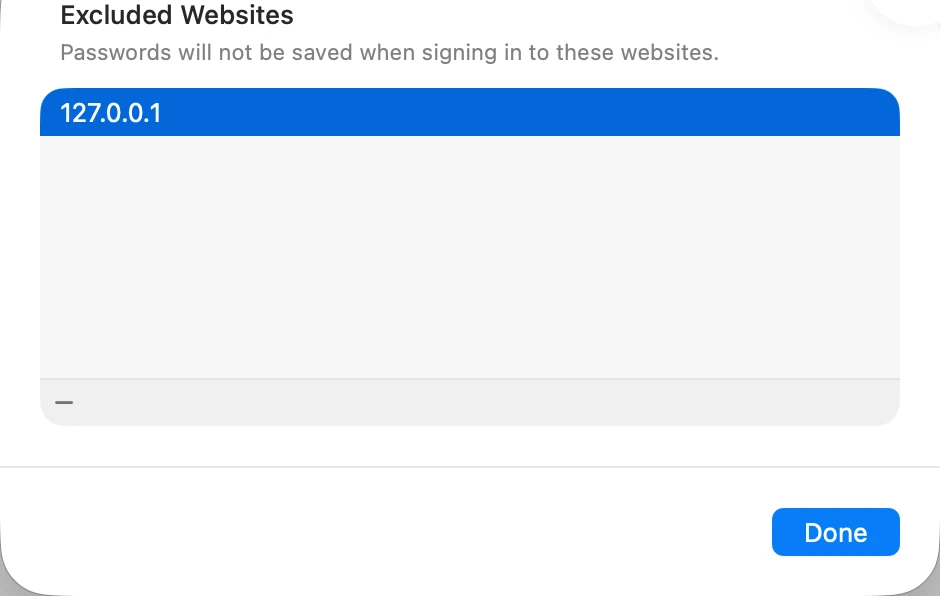
Apple’s page says that after you remove it, “The next time you enter your password for the website, you’ll be asked if you want the password saved and automatically entered in the future.”
Also, on the Mac we used for recording in Japanese on September 2, 2026, the “Show excluded websites…” link did not appear at all when no websites were excluded. If you cannot find this link, it is because no websites are excluded. That is not a bug.
Step 5: If AutoFill still does not appear with all four set, copy the password from the Passwords app
Even with all four settings above in order, some pages do not get a suggestion. Apple’s page says: “If AutoFill still doesn’t work, the website may not allow it.” It also says: “Safari may be unable to tell which fields are for user name and password, credit card number and expiration date, and so forth.” Both are about the page itself, so changing settings on your Mac may not help.
In that case, copy the password from the Passwords app and paste it in.
- Open the Passwords app and click the entry for that website
- Hold the pointer over the password, and the dots change to the actual characters
- Copy it, then paste it into the password field on the sign-in page
When we recorded in Japanese, we tried a practice page where the sign-in fields had unusual labels (a member number and a PIN). On that page, no suggestion appeared even with steps 1 to 4 all in order.
The five places to check (summary)
The next table sums up the five places to check.
| Step | Where to check | What to look for |
|---|---|---|
| 1 | Search in the Passwords app | Whether the website is saved |
| 2 | System Settings > General > AutoFill & Passwords | “AutoFill Passwords and Passkeys” is on, and Passwords under “AutoFill from” is on |
| 3 | Safari > Settings > AutoFill | “User names and passwords” is selected |
| 4 | Passwords > Settings in the Passwords app | “Save passwords” is set to “Ask When Signing In”, and the website is not on Excluded Websites |
| 5 | The website’s page | If nothing appears with all four set, copy the password from the Passwords app and paste it in |
Frequently asked questions
I got a warning that a password may have been leaked, and I am worried
At Wada Digital Lab, we once got a warning from Google that a password might have been leaked. We could not tell whether it was true, and it made us very uneasy.
The Passwords app on your Mac keeps the same kind of watch. It is the “Detect Compromised Passwords” setting. Apple’s page describes it as: “Receive alerts if any of your passwords appear in known data leaks.” On the Mac we used for recording, it was already selected.
If the warning came from Google, you can see which passwords were leaked with Google’s Password Checkup (passwords.google.com). Google’s help page says: “To keep your accounts more secure, you can change any compromised passwords.” Change any password you were warned about to a new one on that website.
I use the same password on many websites
At Wada Digital Lab, we used to keep track of our passwords ourselves, because we did not want to pay for an app. We reused almost the same password everywhere, which was very risky. Now we use the Passwords app, so we no longer reuse passwords.
If “Suggest Strong Passwords” is on in the Passwords app’s settings, Safari suggests a strong password that is not used anywhere else when you create a new one on a website that supports it. Apple’s page describes it as: “Get a suggestion for a strong password when creating or changing a password for a website in Safari.” Once you save it, AutoFill fills it in from then on.
What we tested on, and Apple’s pages
The pictures in this article were taken on this Mac:
- Model: MacBook Air (M4)
- macOS: macOS Tahoe 26.6.2
- Dates: September 2, 2026 (we tried and recorded each check with the Mac set to Japanese, for our video) and October 5, 2026 (we recorded the screens again with the Mac set to English)
We used a separate user account on this Mac made for recording, with no passwords saved in it. The only password we saved was one dummy password for a practice page on the Mac itself. No real websites or passwords appear in the pictures.
The Mac was set to English (UK) for the October 5 recording. The names of the settings in the pictures are the same in US English; we checked them against the English text built into macOS on this Mac. One name differs: in Safari’s AutoFill settings, US English says “User names and passwords”, while UK English says “Usernames and passwords”. That is why this article describes the Safari setting in words instead of showing a picture.
The steps and quotes come from these pages. We checked the quotes word for word against the current pages on October 5, 2026.
- If AutoFill doesn’t work in Safari on Mac (Safari User Guide)
- See the websites you excluded from automatically filling in passwords on Mac (Passwords User Guide)
- Change Passwords settings on Mac (Passwords User Guide)
- Find saved passwords and passkeys on your Mac (Apple Support)
- Use the Passwords app to create, manage, and share passwords and passkeys across Apple devices (Apple Support)
- Change compromised passwords in your Google Account (Google Account Help)