How to Restore Deleted Items in 1Password on Mac — Password History, Previous Versions, Archive, and Vaults
Published November 6, 2026 (updated November 9, 2026)
Steps checked November 6, 2026 (MacBook Air (M2), macOS Golden Gate 27.2)
By Wada Digital Lab
When you delete an item in 1Password, it is not gone right away. It stays in Recently Deleted in the sidebar for 30 days. Right-click it there and choose Restore Item, and it goes back to its list. 1Password also remembers the passwords you used before. Click the down arrow next to the password and choose View password history to see them. To roll back the whole item, open the Last edited date at the bottom and choose View previous versions. This article walks through these steps on the Mac we used for our recordings (macOS 27.2, 1Password for Mac 8.12.44). It also covers keeping items you rarely use in the Archive, and making a new vault to sort your items.
Key points
- Restore a deleted item: select Recently Deleted in the sidebar, right-click the item, and choose Restore Item. In our recording, the item went back to the vault it came from.
- You can restore an item for 30 days after you delete it. Items deleted more than 30 days ago, and items you removed with Destroy permanently, cannot be restored.
- See an old password: hover over the password, click the down arrow on the right, and choose View password history. This works only for Login and Password items.
- Roll back a whole item: click the Last edited date at the bottom, choose View previous versions, pick a date, and click Restore Item. If you have never changed the item, View previous versions does not appear.
- For items you want to keep but rarely use, choose Archive instead of deleting them. They stop showing up in regular search and in filling suggestions, but they stay in the Archive in the sidebar for as long as you like.
- When you have many items, click the plus button next to VAULTS in the sidebar to make a new vault, then drag items into it. To share a vault with your family, you need 1Password Families.
The diagram below sums up how to bring back deleted items and old passwords, and how to sort items with the Archive and vaults.
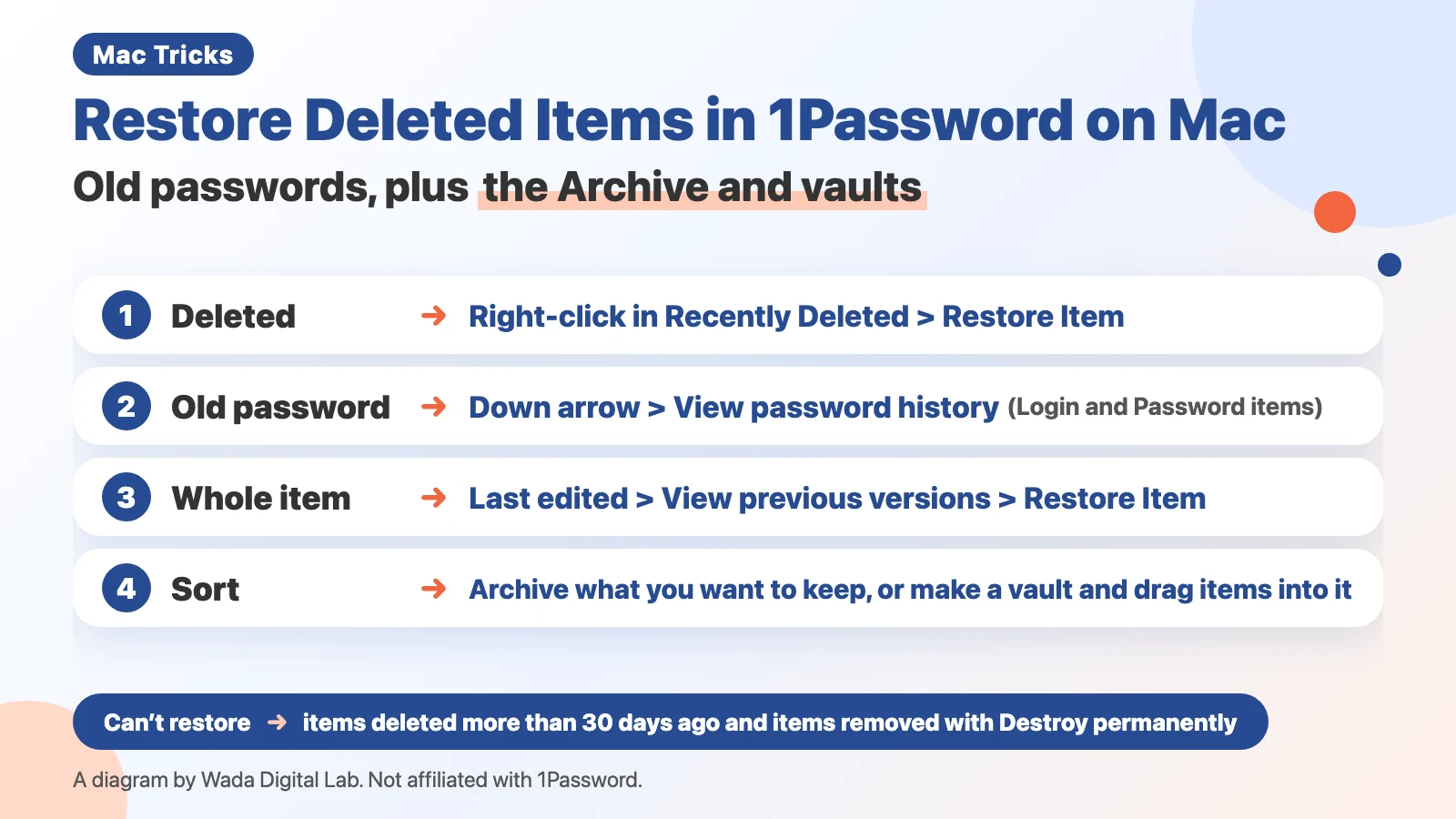
This article was written by Wada Digital Lab. We are not affiliated with 1Password (AgileBits Inc.) or Apple, and this is not a paid promotion. 1Password is a paid app. Check the 1Password website for pricing.
What is Recently Deleted in 1Password? It keeps deleted items for 30 days
Recently Deleted is the place where items go when you delete them in 1Password. In 1Password, one saved entry, such as the username and password for one website, is called an item. After you delete an item, you can still view it and restore it from Recently Deleted for 30 days.
When we deleted an item on our recording Mac, 1Password asked:
- Title: Are you sure you want to delete “Book Club Forum”?
- Text: Once deleted, you can view and restore deleted items for 30 days. You’ll find Recently Deleted on the Sidebar.
- Buttons: Delete Item and Cancel
This article is for people who already use 1Password every day and have a growing list of items. To get started, see How to Install 1Password on Mac. For everyday sign-ins, see How to Use 1Password on Mac.
Restore a deleted item: right-click it in Recently Deleted and choose Restore Item
- In 1Password, select Recently Deleted at the bottom of the sidebar. Your deleted items appear.
- Right-click the item you want back.
- Choose Restore Item from the menu.
The screenshot below shows the menu after right-clicking an item in Recently Deleted.
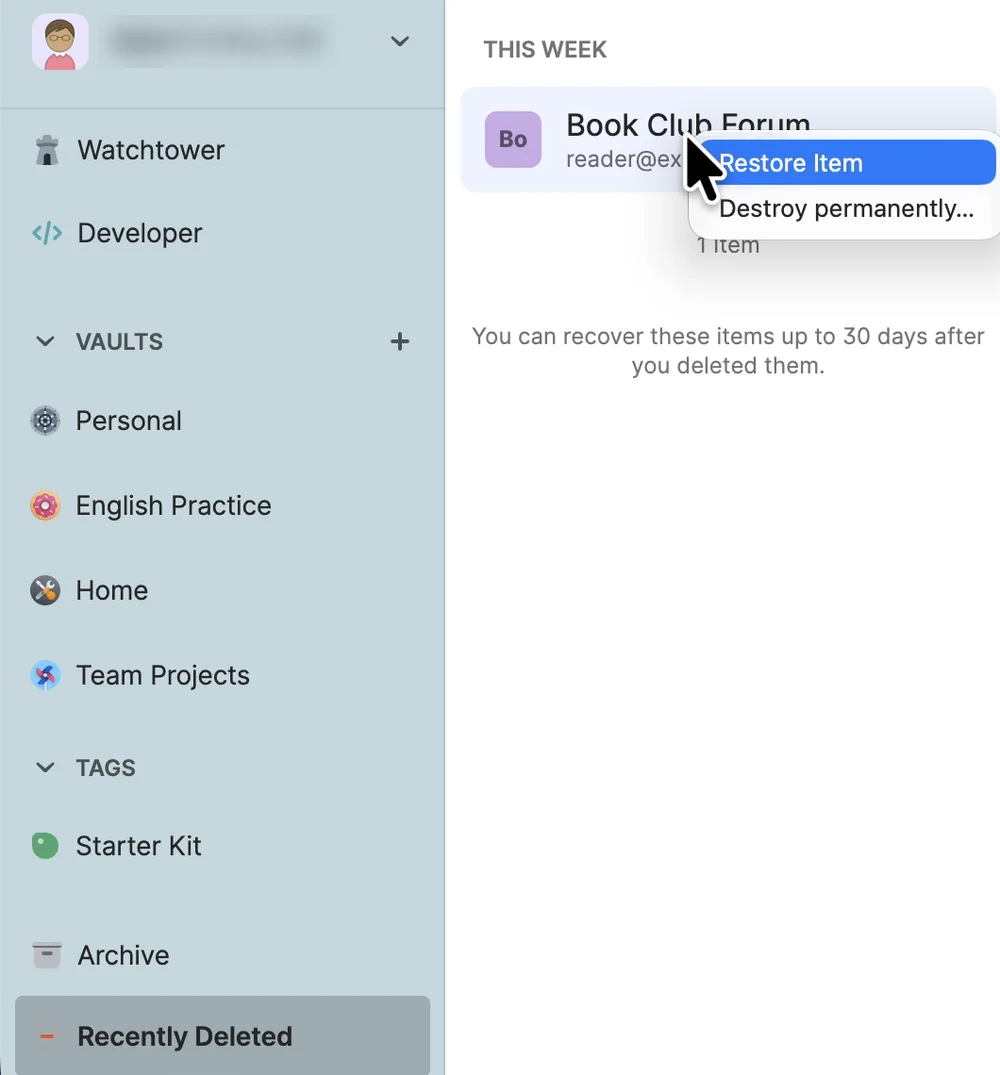
In our recording, after we clicked Restore Item, 1Password showed Restored “Book Club Forum”, and the item went back to its vault. Recently Deleted was then empty and said, “This is where you’ll find items you’ve deleted. After 30 days, they’ll be permanently removed.”
What you can’t restore: items deleted more than 30 days ago and items removed with Destroy permanently
The 1Password support page says you can view or restore an item from Recently Deleted for 30 days after you delete it. If you right-click an item there and choose Destroy permanently…, it is removed right away, without waiting 30 days. You can’t bring those items back.
The support page only says items stay available for 30 days. On our recording Mac, the empty Recently Deleted list added, “After 30 days, they’ll be permanently removed.” We did not wait 30 days to check this. If you delete something important by mistake, restore it soon.
See an old password: click the down arrow and choose View password history
Sometimes a password change goes wrong halfway. For example, 1Password saves the new password, but the website still has the old one. In that case, you can find the old password in 1Password.
- Select the item in 1Password, then hover over the password.
- Copy and a down arrow appear on the right. Click the down arrow.
- Choose View password history. A Password History window lists the passwords you used before, with a date and time.
- To see one, click the down arrow next to it and choose Reveal. Click Copy to copy it.
The screenshot below shows the menu that opens from the down arrow next to the password.
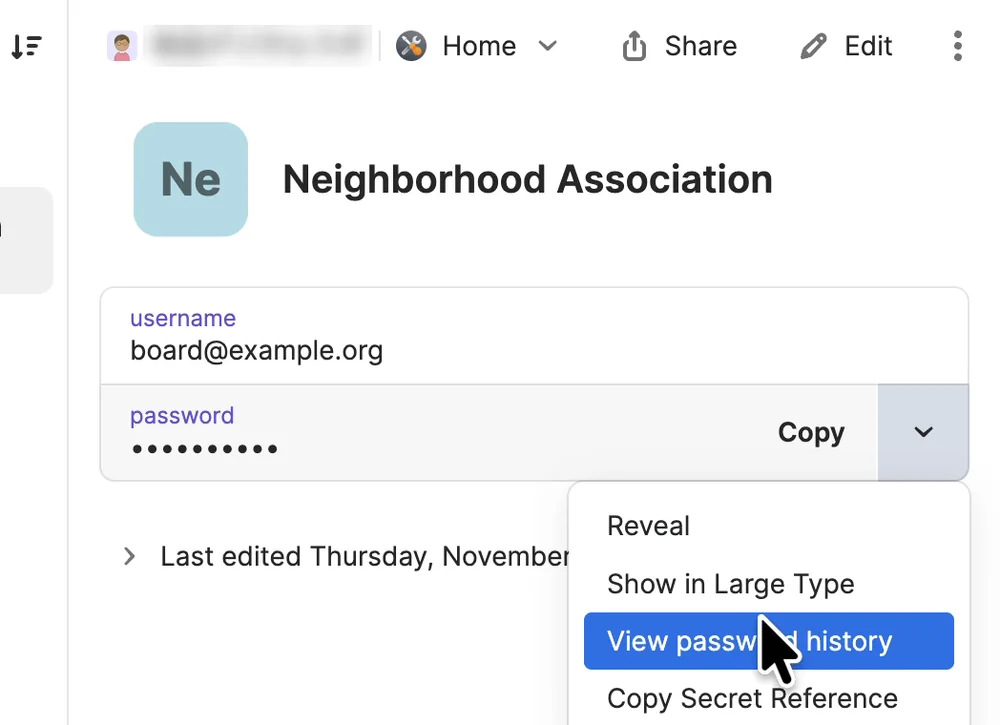
In our recording, the Password History window showed one hidden password dated “5 Nov 2026 at 12:47”, with a Copy button and a Done button. The item details used a different date format, such as “Thursday, November 5, 2026”.
According to the 1Password support page, password history is only available for Login and Password items. For other kinds of items, use View previous versions, below.
At Wada Digital Lab, we have needed an old password several times after changing it on a website. Password history helped us a lot.
The suggested account may be the wrong one: check the email address before you click
One more thing to watch: the account 1Password suggests when filling in may not be the one you want to sign in to. If you have several Google accounts, for example, it’s easy to just go with the suggested account. We have started to sign in with the suggested account, and sometimes it was a different one. Before you click a suggestion, check that the email address in it belongs to the account you want.
Roll back a whole item: open Last edited and choose View previous versions
You can also bring back an earlier version of the whole item, not just the password. This includes the username and notes.
- Select the item and click the Last edited date at the bottom. The Added date and View previous versions appear below it.
- Click View previous versions. The Item History window opens, with earlier versions listed by date on the left.
- Choose a date. The item as it was at that time appears on the right. Turn on Reveal Passwords to see the password from that version.
- Click Restore Item at the lower right.
The screenshot below shows the Item History window that opens from View previous versions.
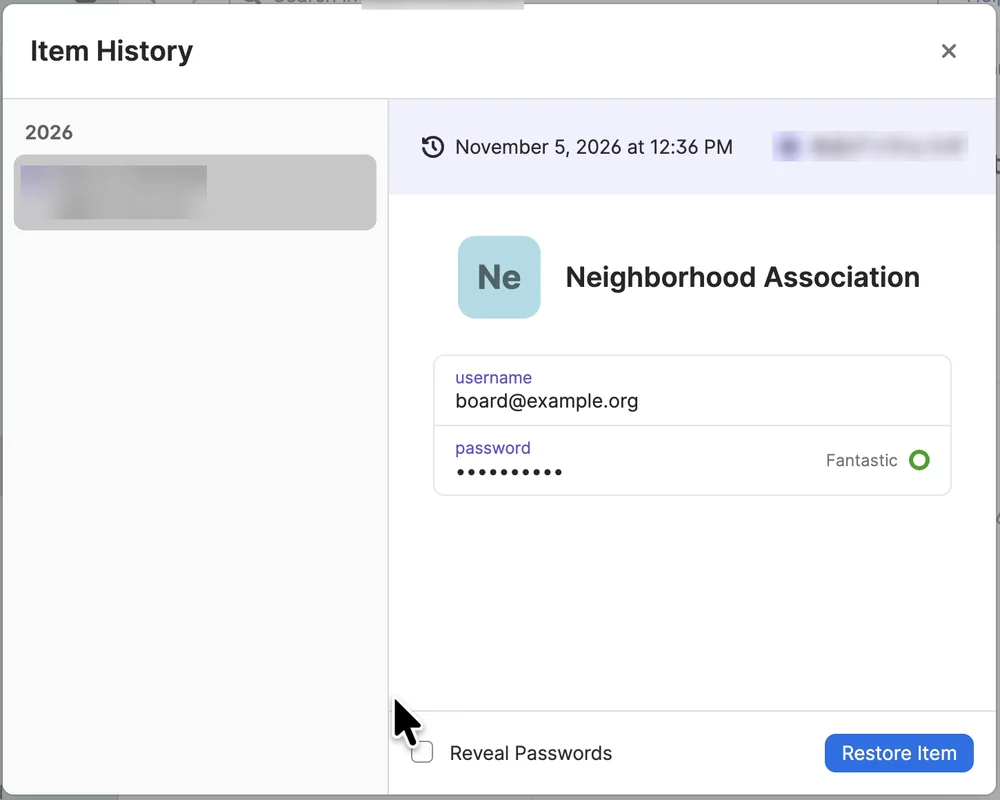
In our recording, we used Edit to make a new password for a practice item and saved it. Then we used these steps to go back to the earlier version. After restoring, the item had its old password again. The 1Password support page says that after you restore a previous version, you can still find other versions in the item’s history. So if you pick the wrong date, you can try again.
In a vault you share with family, not everyone can roll back an item. According to the same page, on a family plan only family members with the Allow Editing permission in that vault can restore items, and a family organizer can change that permission on 1Password.com: select Vaults, select the vault’s name, then the gear button next to the person’s name. Permissions can’t be changed in the built-in Personal, Private, and Shared vaults. We did not try this in a shared vault.
No View previous versions? You haven’t changed the item yet
In our Japanese recording, we opened Last edited on an item we had never changed. Only the Added date appeared. View previous versions did not. A previous version is a record from before a change, so an item you have never changed has nothing to go back to.
Keep items you rarely use in the Archive: they stop showing up in regular search and suggestions
The Archive is a place to move items you don’t use but want to keep. Unlike deleted items, archived items are not removed after 30 days. It works well for an account you closed but want to keep just in case.
- Select the item you want to archive.
- Click the button with three dots at the top right of the item.
- Choose Archive near the bottom of the menu.
- When asked, click Archive Item.
On our recording Mac, 1Password asked, “Are you sure you want to archive “Team Timesheet”?” and said, “Archived items won’t show up in filling suggestions for websites or in apps.” The buttons were Archive Item, Archive and Don’t Ask Again, and Cancel. The item then moved to the Archive in the sidebar. In our Japanese recording, a search for part of the archived item’s name found 0 results.
The 1Password support page says you can keep archived items as long as you like and restore them from the Archive at any time. The support page’s way is to select Archive in the sidebar, select the item, then select the button with three dots and choose Restore Item. In our recording on November 6, 2026, right-clicking the item in the Archive and choosing Restore Item also worked. The item went back to the vault it came from.
Archived items don’t show up in regular search, but you can still find them. The 1Password support page says that on a Mac, you select Archive in the sidebar, then choose Edit > Find (or press Option-Command-F) to search inside the Archive. We did not try this in our recording.
Sort items with vaults: click the plus button in the sidebar, then drag items in
A vault is like a box that holds a group of items. Your items start in one vault. As the list grows, work items and home items get mixed up and become hard to find. When you select a vault, you see only the items in that vault.
We haven’t split our own items into vaults yet. One vault is overflowing with passwords, and we plan to sort them into vaults when we have time.
Make a vault
- Click the plus button next to VAULTS in the sidebar. If you’re signed in to more than one 1Password account, click the plus button next to the name of the account where you want the vault (from 1Password’s support page; we tried this with one account).
- Type a name in Vault Name, such as Work. Description is optional.
- Click Create. The new vault appears under VAULTS in the sidebar.
Move an item to another vault
- Drag it: drag the item onto a vault in the sidebar. In our recording, 1Password showed Item moved to “Work”.
- Use the menu: select the item, then choose Edit > Move Item from the menu bar. In the Move this item to: window, choose a vault.
The screenshot below shows the new Work vault after we moved two items into it.
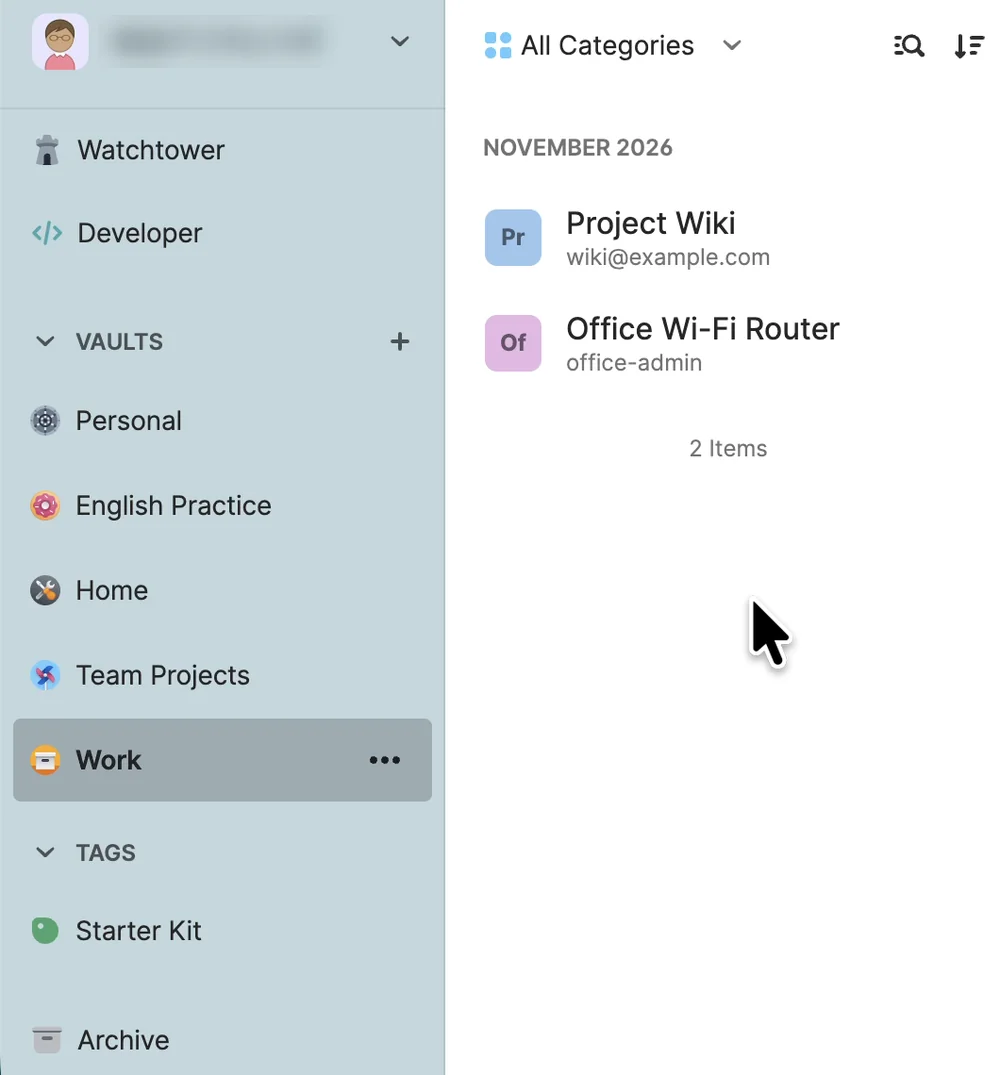
According to 1Password’s support page “Move or copy items,” when you move an item, it is copied to the new vault, then deleted from the original vault. A separate page, “Create and share vaults,” says that a vault you create appears on all your devices where you are signed in to the same account.
To share a vault with your family, you need 1Password Families
The 1Password support page says you need to upgrade to 1Password Families before you can share a vault with anyone. If you use 1Password alone, just sorting items into vaults for yourself already makes them easier to find.
Table: deleted items, old passwords, and sorting
| What you want | Where to look | What to click |
|---|---|---|
| Restore a deleted item (within 30 days) | Recently Deleted in the sidebar | Right-click the item > Restore Item |
| See an old password (Login and Password items) | The item’s password | Down arrow > View password history |
| Roll back a whole item | Last edited at the bottom of the item | View previous versions > pick a date > Restore Item |
| Keep an item you rarely use | The button with three dots on the item | Archive > Archive Item |
| Make a vault | Next to VAULTS in the sidebar | Plus button > type a Vault Name > Create |
| Move an item to another vault | A vault in the sidebar, or Edit in the menu bar | Drag it / Move Item |
FAQ
I can’t find Recently Deleted. Where is it?
Look at the very bottom of the 1Password sidebar. On our recording Mac, Recently Deleted was just below Archive.
Can I restore an item after 30 days?
The 1Password support page says you can restore an item from Recently Deleted for 30 days after you delete it. Our recording Mac also said deleted items are permanently removed after 30 days. We did not test anything after 30 days.
Should I archive or delete?
Delete items you no longer need. Archive items you want to keep but don’t use. Archived items stay as long as you like and stop showing up in regular search and filling suggestions. Deleted items can only be restored for 30 days.
What is the difference between View previous versions and View password history?
View password history only lets you see and copy old passwords. The item does not change. View previous versions can bring the whole item, including the username and notes, back to the version from the date you choose.
Does 1Password cost money?
1Password is a paid app. Check the 1Password website for pricing. This article is not a paid promotion.
What we tested, and sources
- Recording Mac: MacBook Air (M2), macOS Golden Gate 27.2, 1Password for Mac 8.12.44. We used a recording user account and a 1Password account with only dummy items (recorded November 5, 2026). We made one recording with English menus and one with Japanese menus.
- What we saw in the English recording: deleting an item, right-clicking it in Recently Deleted, and choosing Restore Item. Making a new password with Edit, then opening Last edited > View previous versions, choosing the earlier version, and clicking Restore Item. Opening View password history from the down arrow next to the password. Choosing Archive from the button with three dots. Making a vault named Work with the plus button, then moving items by dragging and with Edit > Move Item.
- On November 6, 2026, on the same Mac and version with English menus, we went through every numbered step in this article again, from top to bottom. We also restored an item from the Archive (right-click > Restore Item) and checked where Destroy permanently… appears in the menu (we did not click it).
- What we saw only in the Japanese recording: opening Last edited on an item we had never changed, and searching for an archived item and getting 0 results.
What we have not tried on screen: items deleted more than 30 days ago, what happens after Destroy permanently, sharing a vault, iPhone, and accounts shared with other people. For these, we followed the 1Password support pages.
1Password support pages:
- Archive and delete items
- View and restore previous versions of items
- Create and share vaults
- Move or copy items
November 7, 2026: From 1Password’s support pages, we added who can restore items in a shared vault, and where to make a vault when you use more than one account.
1Password is a trademark of AgileBits Inc. Mac and macOS are trademarks of Apple Inc. Wada Digital Lab is not affiliated with these companies.