
What is Proofcut?
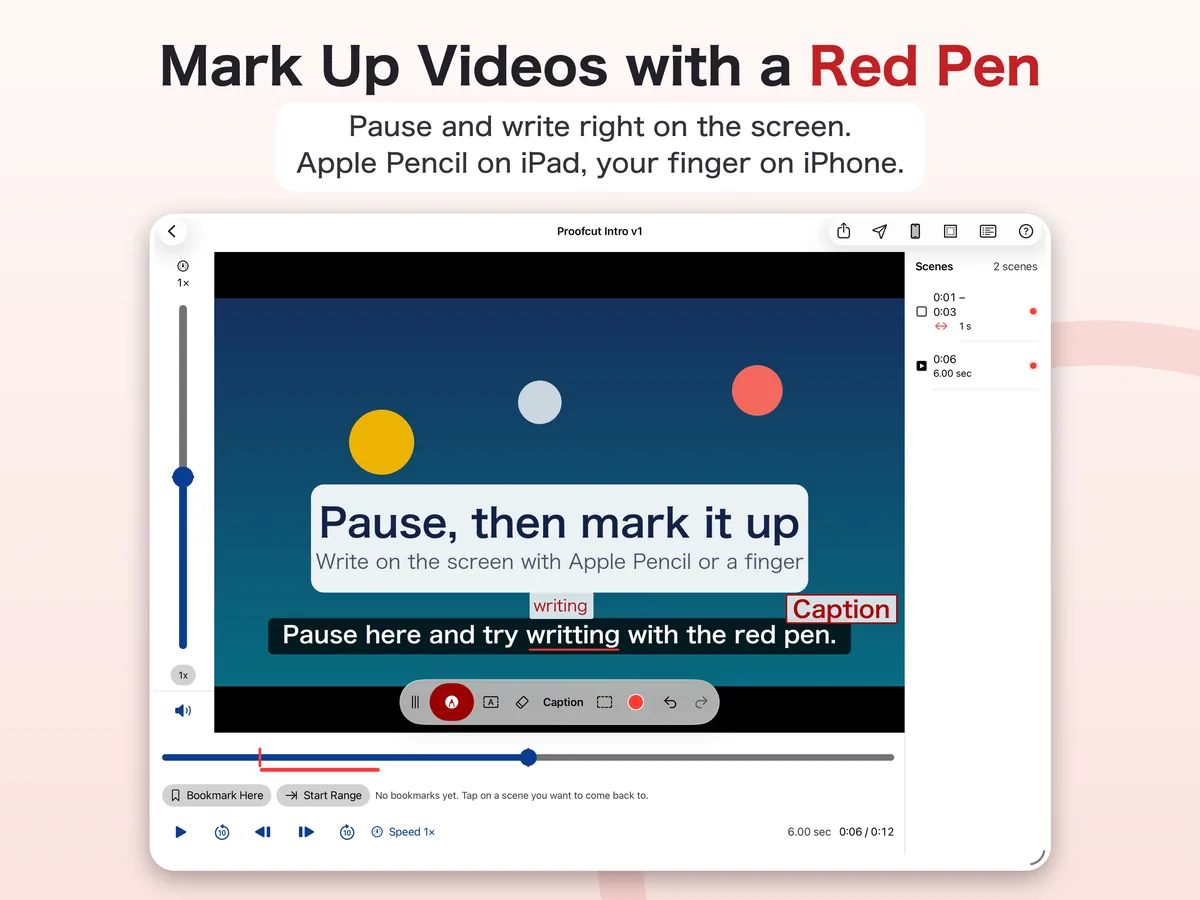
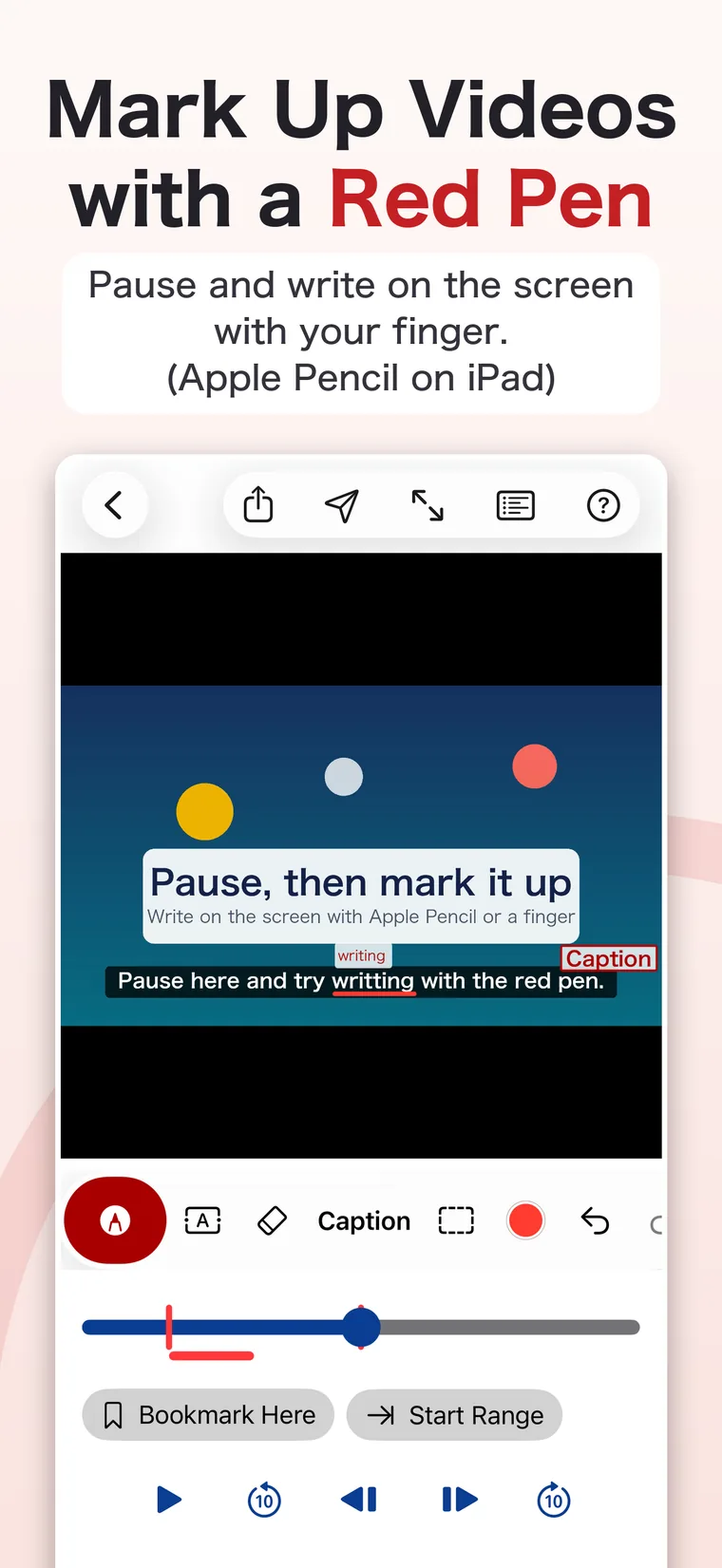
Pause the video and write on the screen with a red pen: Apple Pencil or a finger on iPad, a finger on iPhone. When you export, you get an image with the time stamped on it for each marked scene, and a list of what to fix and when. For example, a typo in the caption at 1:23 can be shown in one image instead of a long explanation.
1. Pause and mark it up in red
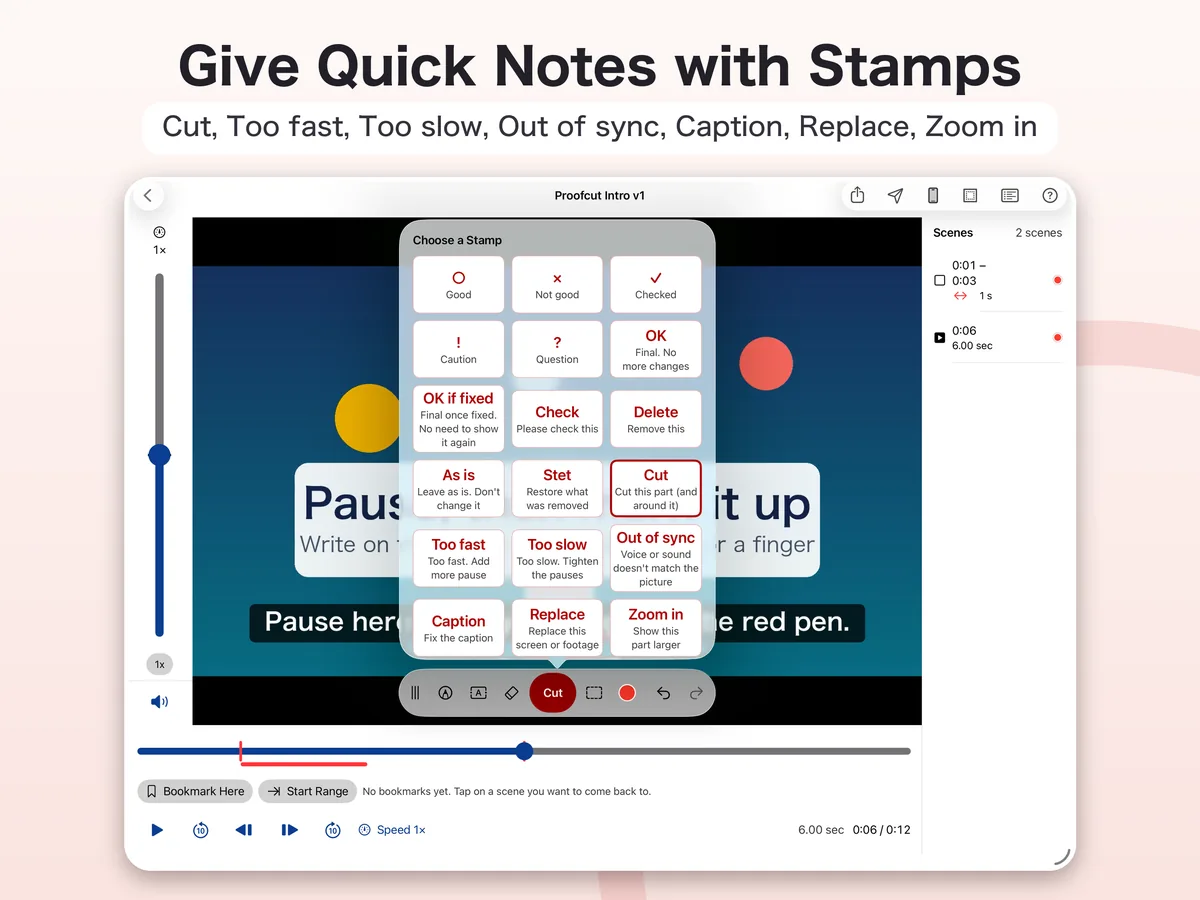
Pause where something needs fixing and write right on the screen. Use Apple Pencil or a finger on iPad, and a finger on iPhone. You can also type notes and add stamps.
2. Every fix gets a timestamp
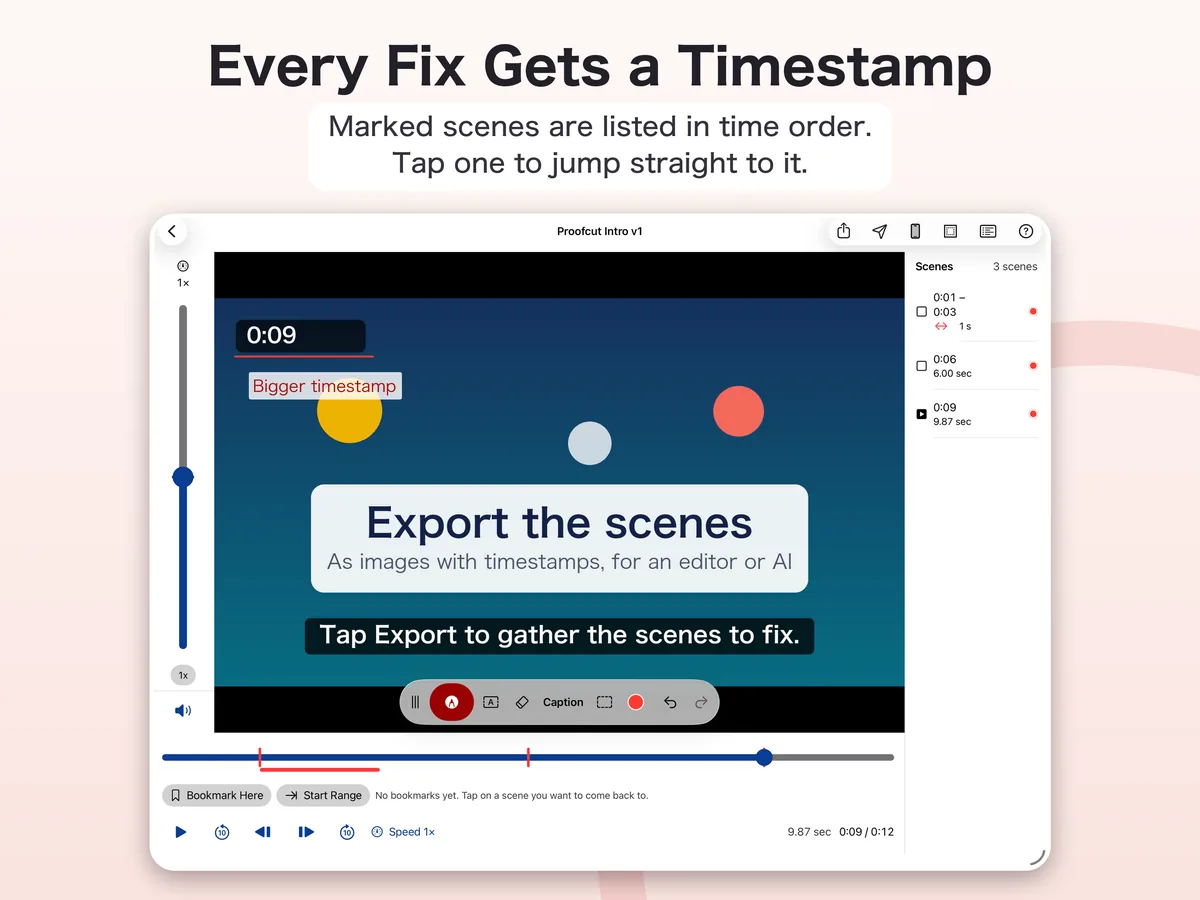
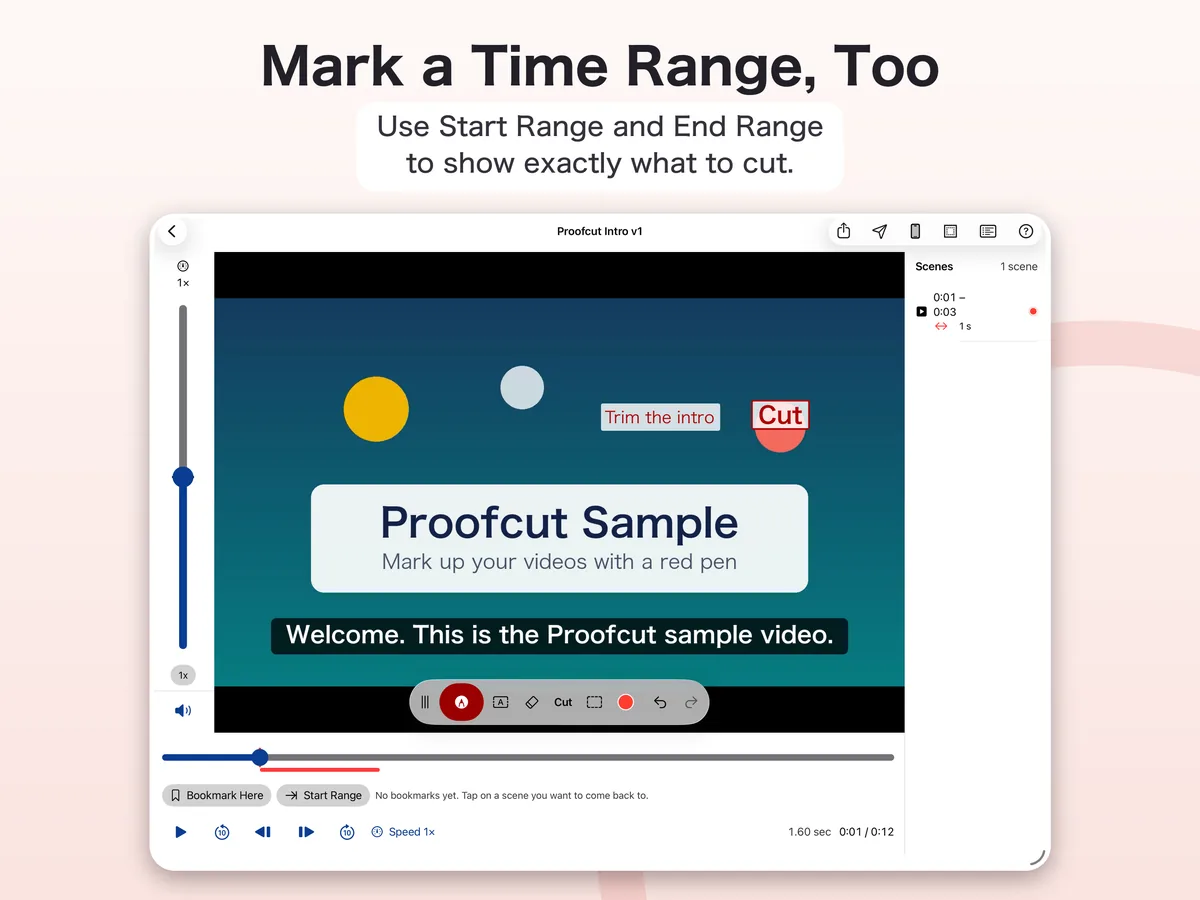
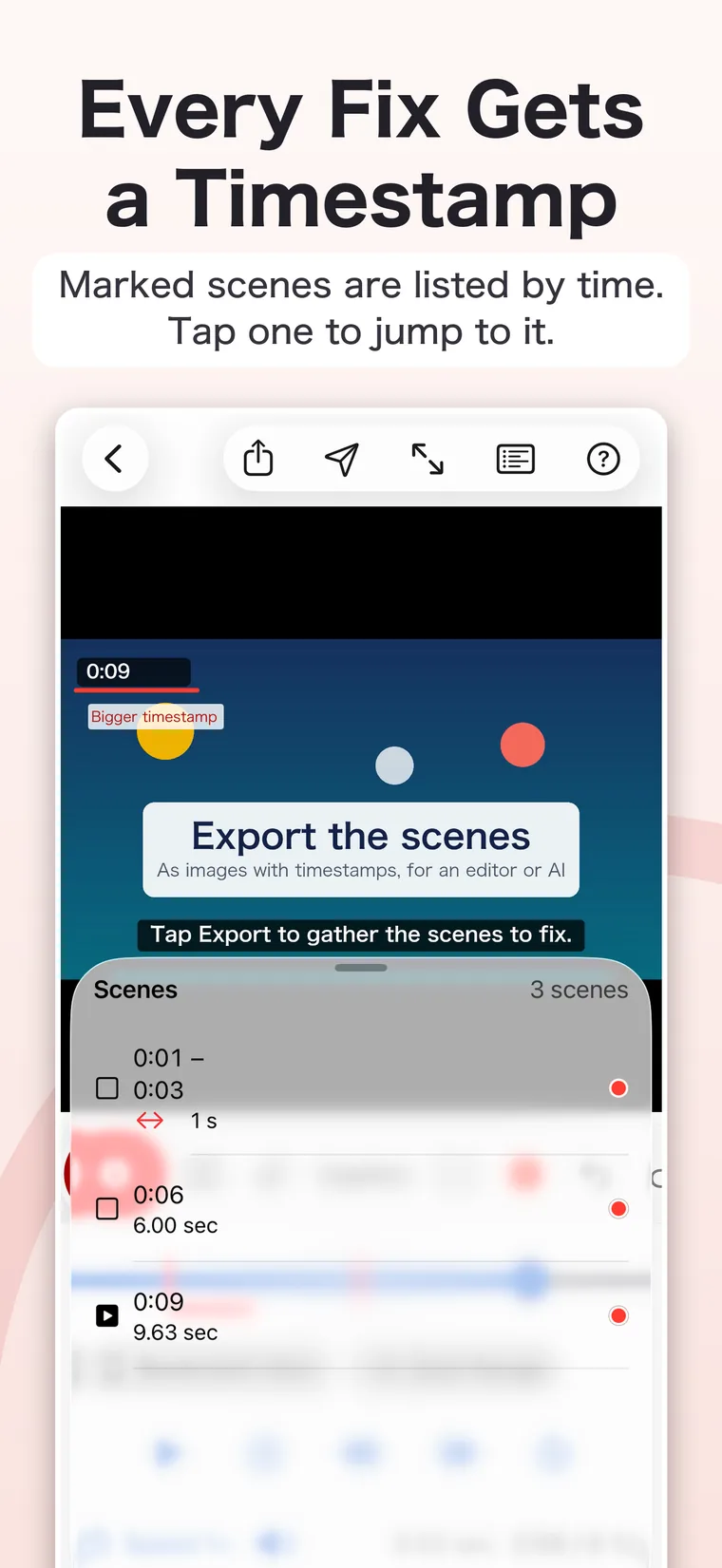
Marked scenes are listed in time order. Tap one to jump straight to it. With Start Range and End Range, you can also mark a stretch of time, such as a part to cut.
3. Export images and a summary
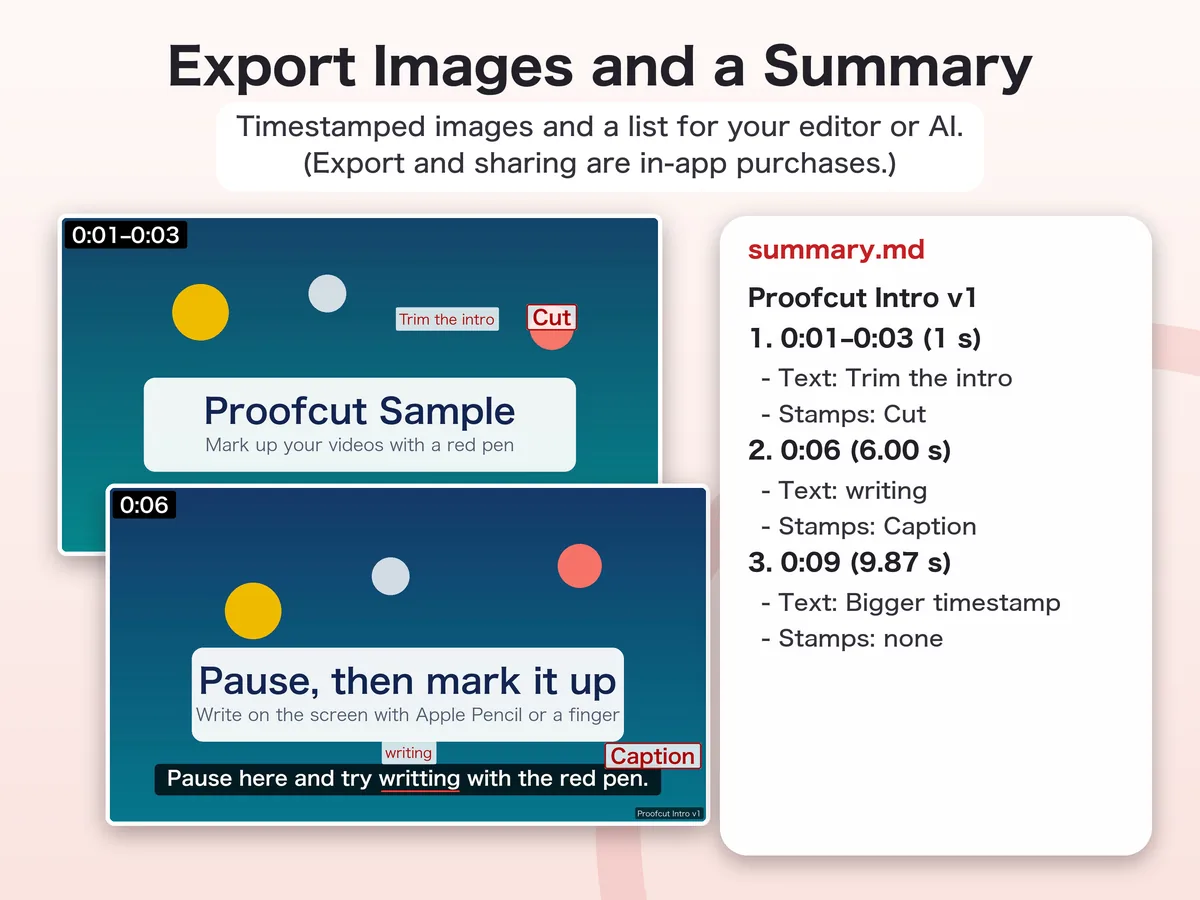
Tap Export at the top right. For each marked scene you get a timestamped image, plus a list of what to fix and when, ready for your editor or an AI like Claude Code. Exporting and sharing are In-App Purchases (see “Proofcut at a glance” below).
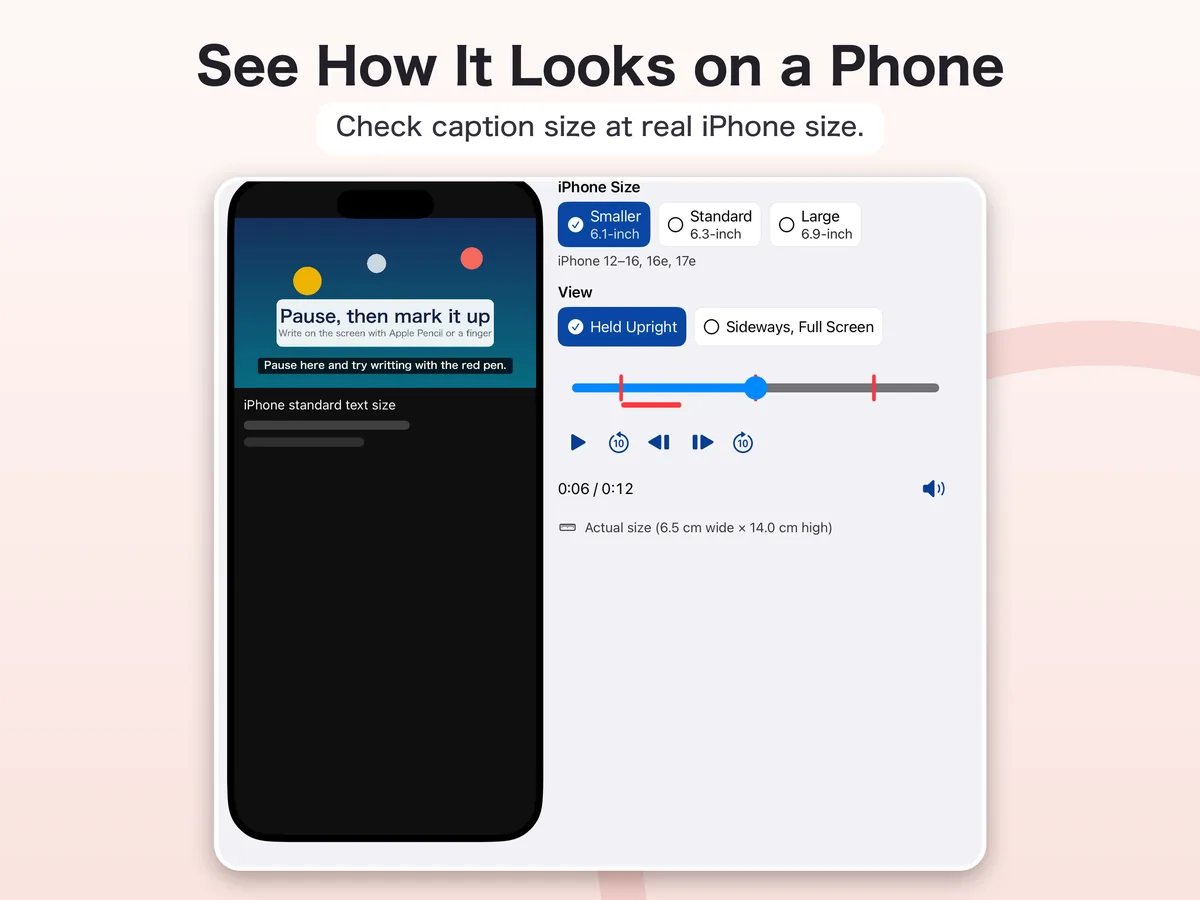
4. Check each fix, and see it at phone size
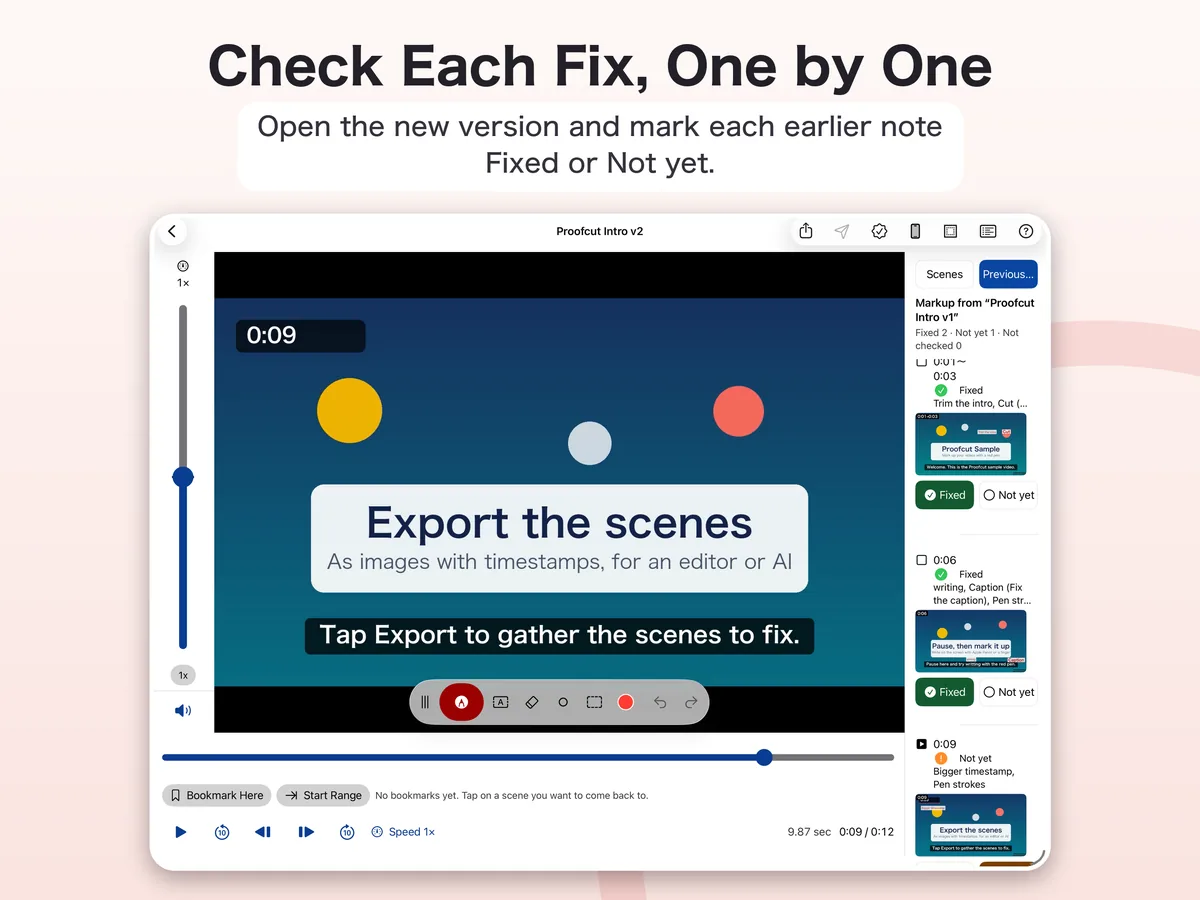
Open the new version of the video, and your earlier notes are listed. Mark each one Fixed or Not yet. On iPad, you can also see how big the captions will look on an iPhone, at real size.
What Proofcut can do
- Draw on the paused video with a red pen, type notes, and add stamps (Cut, Too fast, Too slow, Out of sync, Caption, Replace, Zoom in)
- Step one frame forward or back, and play from 0.25x to 3x
- Use Start Range and End Range to mark a stretch of time
- Export a timestamped image and a list for each marked scene
- Export markers that Premiere Pro, Final Cut Pro, and DaVinci Resolve can read
- Share as PDF or images by email or message
- Open the new version of a video and check each earlier note as Fixed or Not yet
- Mark up still images and audio, too
- Add bookmarks to jump back to any spot
- See where YouTube Shorts, Instagram Reels, and TikTok buttons and captions will cover a vertical video (safe zones)
- Play and pause with the buttons on AirPods or earphones
How to use it
- Open a video. Tap “Open from Files” in the list. No video at hand? Tap “…” at the top right, then “Try a Sample Video” to open a 12-second video built into the app.
- Pause and mark it up. Pause where something needs fixing and write on the screen. The scene goes into the scene list.
- Export. Tap “Export” at the top right to make the images and the list. They go into “4_Markup Records” in the “Proofcut” folder in iCloud Drive.
For more, see Help in the app (tap “…” at the top right, then “Help”).
Proofcut at a glance
- Requirements
- iPad with iPadOS 26.0 or later, and iPhone with iOS 26.0 or later. It does not work on earlier versions. It is not available for Android.
- Languages
- English and Japanese. The app follows your device language.
- Free
- Opening videos and marking them up.
- Paid
- Exporting and sharing. Choose a Monthly or Yearly subscription, or a one-time Lifetime purchase. New subscribers get a 2-week free trial of the Monthly or Yearly plan. Prices are shown in the App Store in your local currency. One purchase works on both your iPad and iPhone with the same Apple Account.
- Where your files go
- The “Proofcut” folder in your own iCloud Drive. We do not keep them. The app does not connect to our servers.
- Account
- None. There is no sign-in.
- Who provides it
- Wada Digital Lab develops the app and this page. The App Store (Apple) handles sales and payment.
Free to download. Opening videos and marking them up is free. Exporting and sharing need a Monthly or Yearly subscription (2-week free trial for new subscribers) or the one-time Lifetime purchase. Sales, payment, and restoring purchases are all handled by the App Store (Apple). We do not sell anything on this site.
Before you download
- Requires iPadOS 26.0 or later on iPad, and iOS 26.0 or later on iPhone. It does not work on earlier versions. You can check your device in Settings → General → About.
- Monthly and Yearly subscriptions renew automatically unless canceled at least 24 hours before the end of the current period. Cancel in Settings → your name → Subscriptions.
Questions
- Can I use my purchase on both iPad and iPhone?
- Yes, with the same Apple Account. In Proofcut on the other device, tap “…” at the top right, then “Proofcut Plans”, then “Restore Purchases”.
- I got a new device and can’t export.
- Tap “…” at the top right, then “Proofcut Plans”, then “Restore Purchases”. Subscriptions and the Lifetime purchase on the same Apple Account come back.
- How do I cancel a subscription?
- Open Settings on your iPhone or iPad, tap your name, then “Subscriptions”, then “Proofcut”. New subscribers who cancel during the 2-week free trial are not charged.
- How do I get videos from my Mac into Proofcut?
- In Finder on your Mac, put the video into “1_To Review” in the “Proofcut” folder in iCloud Drive. After a moment, it shows up in the list on your iPad and iPhone.
- Where are the exported images?
- In “4_Markup Records” in the “Proofcut” folder in iCloud Drive, in a folder named after the video. You can open them from Finder on a Mac, too.
- I don’t use iCloud Drive.
- Then the files stay on the device, in the “Proofcut” folder (“On My iPad” or “On My iPhone” in the Files app). In that case, your Mac can’t see them.
- Does Proofcut send my videos anywhere?
- No. The app does not connect to our servers, and there is no account. See the Proofcut Privacy Policy.
Contact
In the app, tap “…” at the top right, then “Send Feedback”. An email draft opens, so you can check it before sending.
If the app won’t open, email support@wadadigitallab.com. Please include your device model (for example, “iPad Pro 12.9-inch”) and your iPadOS or iOS version. You may write in English or Japanese.