How to Use Passkeys with 1Password on Mac — Save Them in 1Password, Then Sign In on iPhone and Windows Too
Published November 7, 2026 (updated November 9, 2026)
Steps checked November 8, 2026 (MacBook Air (M2), macOS Golden Gate 27.2)
By Wada Digital Lab
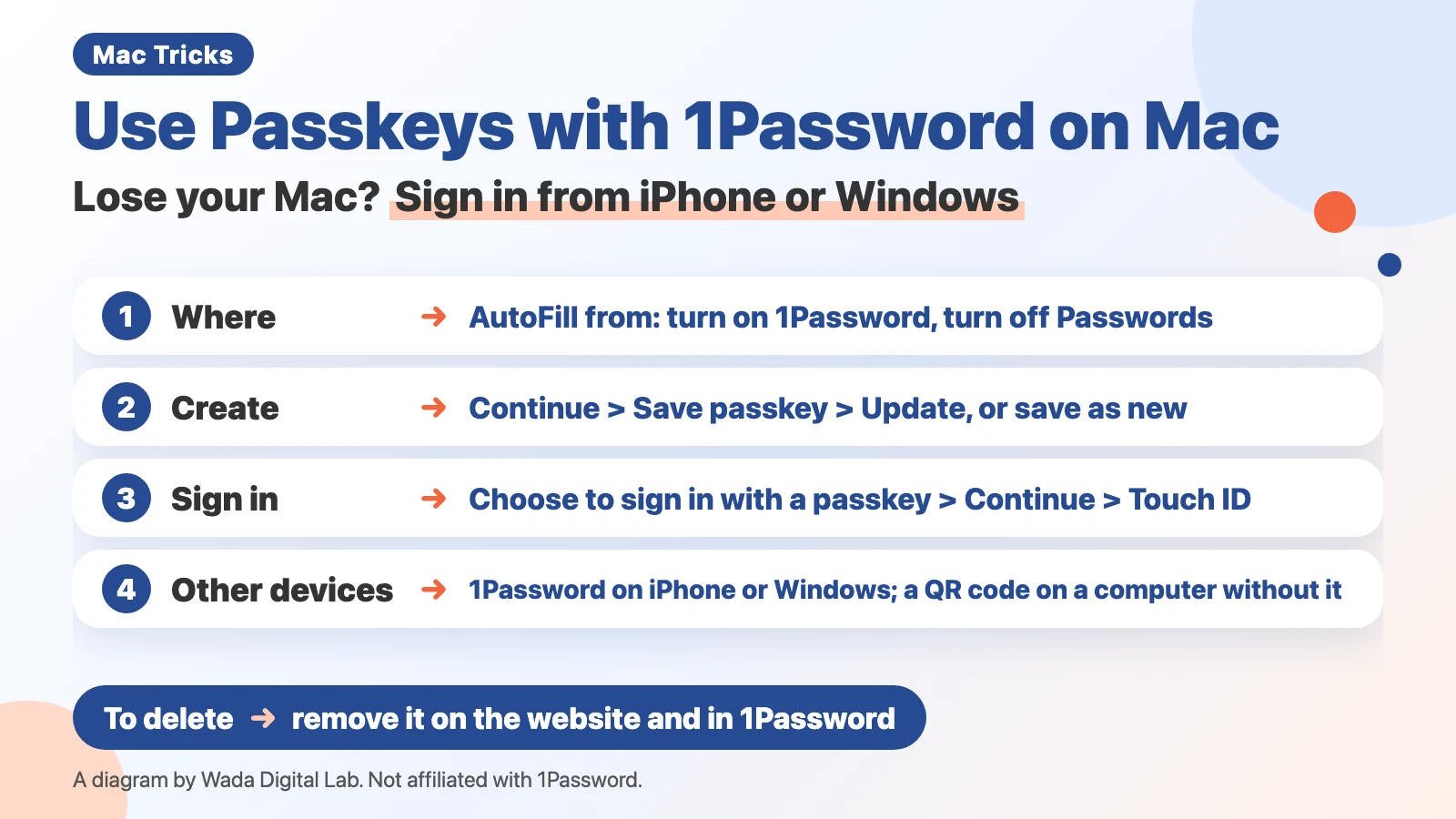
To use passkeys with 1Password on a Mac, you only need to make 1Password the place where passkeys are saved. In System Settings, turn on 1Password and turn off Passwords under AutoFill from. Then, when you create a passkey on a website, macOS asks first, and 1Password shows Save passkey. A passkey saved in 1Password also works on your iPhone or Windows PC, as long as you are signed in to the same 1Password account. Even if you lose your Mac, you can sign in from your iPhone. This article walks through the setting, creating a passkey, signing in, and deleting a passkey on the Mac we used for our recordings (macOS 27.2, 1Password for Mac 8.12.44, English (US)).
Key points
- Save passkeys only in 1Password: in System Settings > General > AutoFill & Passwords, under AutoFill from, turn on 1Password and turn off Passwords.
- Create a passkey: when you create a passkey on a website, macOS shows Save a passkey?. Check that Save In says 1Password, then click Continue. 1Password then shows Save passkey.
- If 1Password already has an item for the website (an entry in 1Password that keeps the username and password for one site), choose Update Existing, select the item, and click Update. In our recording, after Touch ID, a passkey field was added to the item.
- Sign in: choose to sign in with a passkey on the website. macOS shows Sign In. Click Continue (if you have two or more passkeys, choose the account first) and use Touch ID. You do not type a password.
- Other devices: the same passkey works in 1Password on iPhone and Windows. On a computer without 1Password, you can scan a QR code with your iPhone camera to sign in (with Bluetooth on for both devices).
- Deleting: deleting a passkey in 1Password does not remove it from your account on the website. Delete it in the website’s account settings and in 1Password.
The diagram below sums up how to create, use, and delete a passkey with 1Password.
This article was written by Wada Digital Lab, which is not affiliated with 1Password (AgileBits Inc.) or Apple. It is not a paid promotion. 1Password is a paid app. Check the 1Password website for pricing.
What is a passkey? A way to sign in with Touch ID instead of a password
A passkey is a way to sign in without a password. Instead of typing a password on a website, you confirm it is you with Touch ID on your Mac or Face ID on your iPhone. A passkey works only on the website it was made for. So a fake website that looks like the real one cannot trick you into handing it over.
The confusing part is where the passkey is saved. If you change nothing, a Mac may save it in Apple’s Passwords app (iCloud Keychain). When we started using passkeys, we often lost track of whether a passkey had gone into the Passwords app or into 1Password.
If you keep all your passkeys in 1Password, you can still sign in from 1Password on your iPhone after losing your Mac. According to 1Password’s support page, a Windows PC can use the same passkeys once you sign in to 1Password there. To save passkeys in iCloud Keychain instead, see How to Create, Use, and Delete a Passkey on Mac. If you are not sure which one to use, see 1Password vs Apple Passwords on Mac.
Save passkeys only in 1Password: turn off Passwords under AutoFill from
You only need to do this once, in your Mac’s settings. These steps are for using macOS AutoFill in Safari. If you use the 1Password browser extension in Safari (an add-on you install in Safari), 1Password’s support page says to follow the browser extension steps (Save and sign in with passkeys in your browser) instead.
- Choose Apple menu > System Settings.
- Select General in the sidebar, then open AutoFill & Passwords.
- Check that AutoFill Passwords and Passkeys is on.
- Under AutoFill from, turn on 1Password.
- In the same place, turn off Passwords.
The screenshot below shows AutoFill from with only 1Password turned on.
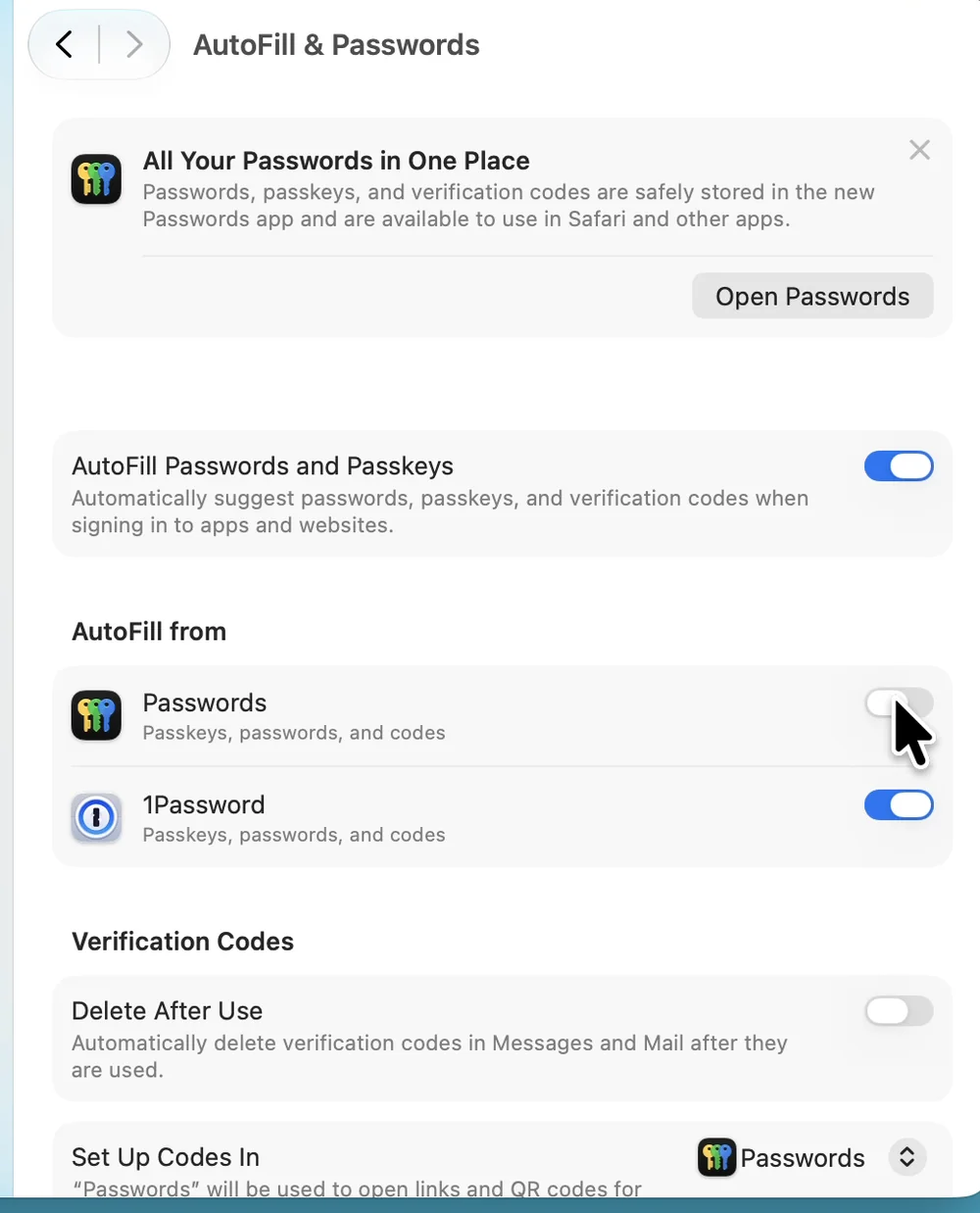
1Password’s support page also tells you to turn off Passwords under AutoFill from, so that passwords and passkeys are not saved in the Passwords app instead of 1Password. With only 1Password turned on here, you no longer have to wonder where a passkey went.
The setting inside 1Password (turning on macOS AutoFill under Autofill in 1Password’s settings) is covered in How to Use 1Password on Mac. If you have not done it yet, do that first. According to 1Password’s support page, saving and filling with 1Password for Mac needs macOS Sonoma 14 or later.
Create a passkey: click Continue, and 1Password shows Save passkey
In our recording, we signed in to a practice website for passkeys (not a real store) with a test account, then created a passkey. The button name depends on the website. It may say Create a Passkey, Add a passkey, or something similar.
- On the website, for example in your account settings, click the button to create a passkey.
- macOS shows Save a passkey?. Check that Save In says 1Password, then click Continue.
- 1Password shows Save passkey. If 1Password already has an item for this website, choose Update Existing, select the item, and click Update. For a new website, choose New Item, check the vault (the place in 1Password where items are kept) shown below, then click Save. If you use more than one 1Password account, the vault shown first may belong to another account. Choose the vault of the account you want before you click Save.
- Use Touch ID. The website now has your passkey.
The screenshot below shows Save passkey in 1Password with Update Existing selected.
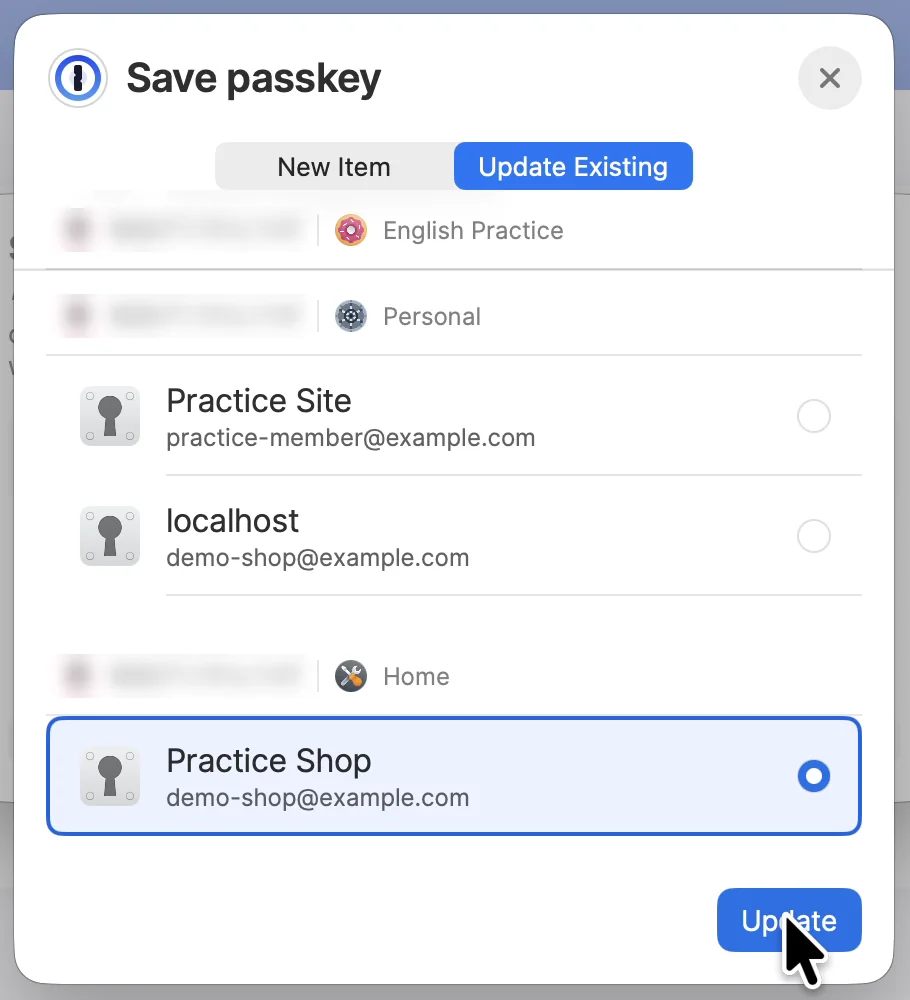
In our recording, Save a passkey? in macOS had three buttons: Cancel, More Options, and Continue. After Continue, 1Password’s Save passkey appeared. After Update, Touch ID was requested, and the website said Your passkey was created.
When we opened the item in 1Password, a new passkey field appeared between the username and the password, with the date it was created.
Your password stays in the item after you add a passkey
If you choose Update Existing, the password you already had stays in the item, and the passkey is added next to it. If the website lets you turn off signing in with a password, doing that is safer. But while the website still accepts your password, removing it from 1Password alone does not change how the website is protected. We still keep the password in 1Password for most sites, just in case.
Sign in with a passkey: click Continue, then use Touch ID
- On the website’s sign-in page, click the button to sign in with a passkey (Sign In with a Passkey on our practice website).
- macOS shows Sign In. Check that the passkey for your account is selected, then click Continue.
- Use Touch ID. You are signed in without typing a password.
The screenshot below shows the Sign In prompt from macOS.
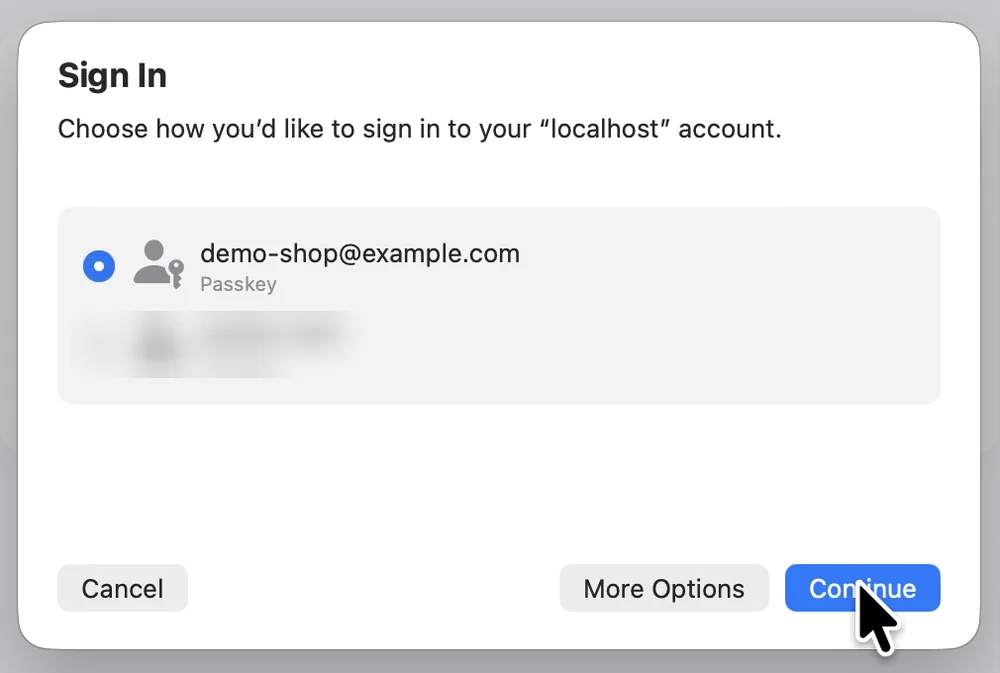
In our recording, after Continue, 1Password asked for Touch ID with the message “1Password is trying to use a passkey for “localhost”.” The website then said You’re signed in.
According to 1Password’s support page, if you have more than one passkey for the website, click More Options and make sure the one from 1Password is selected before you click Continue. Then choose the passkey you want to sign in with. We did not click More Options. In our test with Japanese menus on the same Mac on November 8, 2026, we had made two passkeys for the practice website, and Sign In showed a list of the two accounts instead of Passkey From. We chose an account, clicked Continue, and signed in after Touch ID. With English menus and one account, Sign In showed Passkey From 1Password.
iPhone, Windows, and QR codes: sign in with the same passkey without your Mac
A passkey saved in 1Password is an item like any other, so it reaches every device where you are signed in to the same 1Password account. If you lose your Mac, break it, or buy a new one, you do not need to make your passkeys again.
- iPhone and iPad: according to 1Password’s support page, turn on AutoFill Passwords and Passkeys and 1Password in Settings > General > AutoFill & Passwords. Then, when you choose to sign in with a passkey, 1Password uses your passkey.
- Windows PC: according to 1Password’s support page, 1Password for Windows can save passkeys and sign in with them. The same page says this needs an up-to-date version of Windows 11 and 1Password for Windows installed with the MSIX installer (one of the installer types 1Password offers for Windows). In 1Password’s settings, select Autofill, then Show passkey suggestions, and turn on 1Password as a passkey manager in Windows Settings. You can also use the 1Password browser extension.
- A computer without 1Password: according to 1Password’s support page for iPhone AutoFill, choose to sign in with a passkey, then choose to use another device. A QR code appears. Scan it with your iPhone camera, choose 1Password, and you are signed in. According to the FIDO Alliance, this uses Bluetooth to check that the two devices are close to each other, so turn on Bluetooth on both the computer and the iPhone and keep them near each other. On a family member’s computer, for example, you do not have to type a long, complex password by hand.
In everyday use (apart from the recordings for this article), we also sign in with 1Password passkeys on a Windows PC and on an iPhone. Since we started using 1Password, every new Mac we buy works exactly like the old one, and that makes switching easy.
To use your passkeys in 1Password on a new device, you need to sign in to 1Password there
Your passkeys are inside 1Password, so to use them on a new device, you need to sign in to 1Password on that device. To sign in to 1Password on a new device, you need your account password and your Secret Key (a long code made by 1Password that protects your data). 1Password’s support page for a forgotten account password says that unlocking with Touch ID will eventually expire too; if you forget your account password, you can get back in with a recovery code, if you created one beforehand. Print your Emergency Kit, which shows your Secret Key, and keep it somewhere safe. The Emergency Kit is covered in How to Install 1Password on Mac.
Delete a passkey: delete it on the website and in 1Password
Deleting a passkey in 1Password leaves it in your account on the website.1Password’s support page says the same thing: “Deleting a passkey saved in 1Password won’t remove it from your account on a website or service.” So also follow the steps to remove it on the website.
Delete it in the website’s account settings
Open the website’s account settings, find the passkey, and click its delete button. The button name and place depend on the website. On our practice website, Account Settings had a Delete button to the right of the passkey.
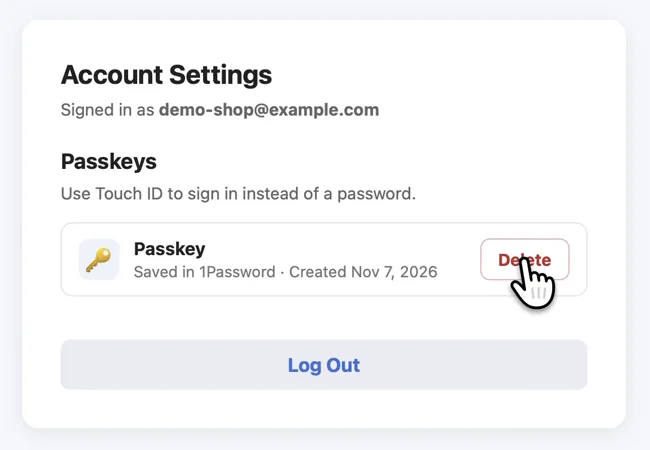
In our recording, after we clicked Delete, no confirmation appeared. The passkey row was replaced with No passkeys yet., and the page said Passkey deleted from this site.
Delete it in 1Password
- In 1Password, select the item for the website and click Edit at the top right. Editing appears at the top.
- Click the red minus button to the right of the passkey field. The passkey field disappears.
- Click Save at the top right.
The screenshot below shows the item after clicking Edit in 1Password.
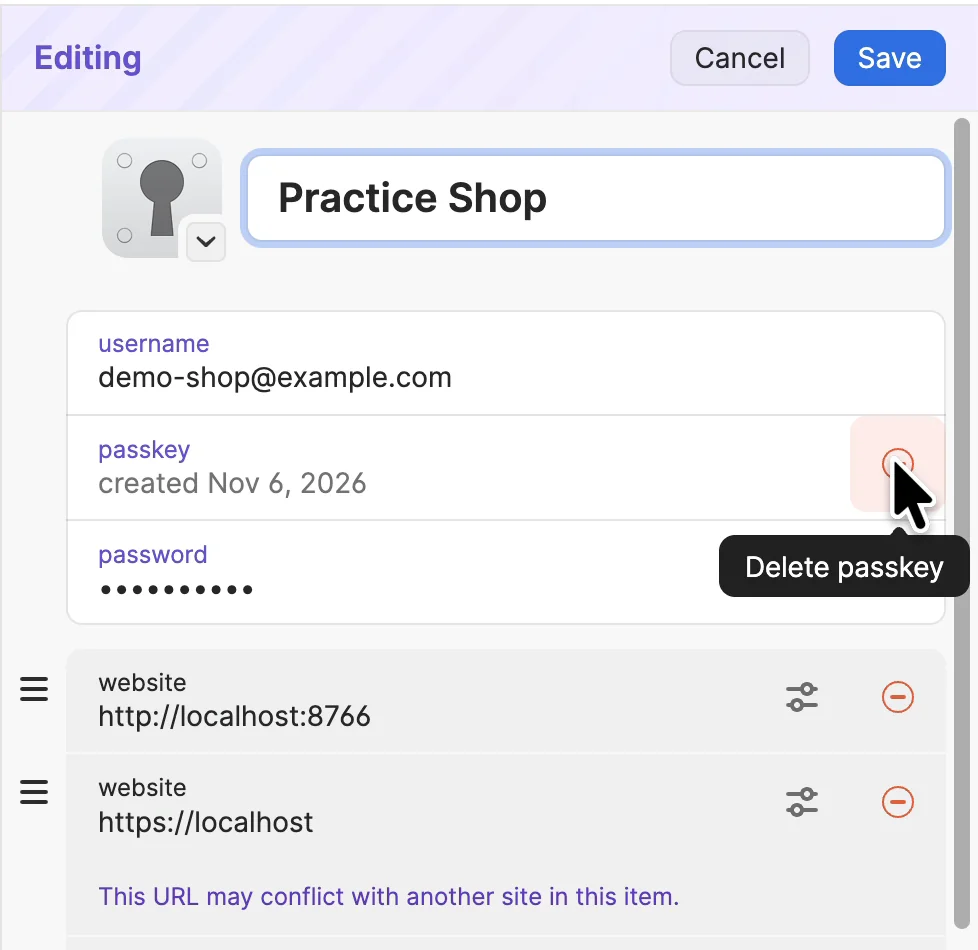
In our recording, when we clicked the red minus button, no confirmation appeared, and the passkey field disappeared right away. After we clicked Save, the item kept only the username and the password. According to 1Password’s support page, if the item has no password, you can delete the whole item instead.
Passkeys in 1Password at a glance
| What you want to do | Where to go | What to click |
|---|---|---|
| Save passkeys only in 1Password (once) | System Settings > General > AutoFill & Passwords | Under AutoFill from, turn on 1Password and turn off Passwords |
| Create a passkey | The website’s button to create a passkey | Continue > Save passkey > Update, or save as a new item > Touch ID |
| Sign in with a passkey | The website’s button to sign in with a passkey | Continue in Sign In (with two or more passkeys, choose the account first) > Touch ID |
| Use it on iPhone or iPad | Settings > General > AutoFill & Passwords | Sign in to the same 1Password account, then turn on AutoFill Passwords and Passkeys and 1Password |
| Use it on Windows (up-to-date Windows 11, 1Password installed with the MSIX installer) | 1Password’s settings and Windows Settings | Autofill > Show passkey suggestions, then turn on 1Password as a passkey manager |
| Sign in on a computer without 1Password | The website’s button to sign in with a passkey | Choose to use another device > scan the QR code with your iPhone camera (Bluetooth on for both) |
| Delete a passkey | The website’s account settings and the item in 1Password | Delete it on the website, plus Edit > red minus button > Save in 1Password |
Frequently asked questions
What if my passkeys go into the Passwords app instead of 1Password?
In System Settings > General > AutoFill & Passwords, check whether Passwords is still on under AutoFill from. Turn Passwords off, and passkeys go to 1Password. When you create a passkey, also check that Save In says 1Password in the macOS prompt.
Do I have to make my passkeys again when I get a new device?
Not if they are in 1Password. Sign in to 1Password on your new Mac or iPhone, and the same passkeys are there. To sign in, you need your account password and your Secret Key (shown on your Emergency Kit).
Should I delete my password after adding a passkey?
Think of it as two separate things. If the website lets you turn off signing in with a password, turning it off is safer. Removing the password from your 1Password item alone leaves the password working on the website. If you add a passkey with Update Existing, the password stays in the 1Password item. We keep our passwords, just in case.
If I delete a passkey in 1Password, is it removed from the website?
No. 1Password’s support page says deleting a passkey in 1Password does not remove it from your account on the website. Delete it in the website’s account settings too.
Can I use these passkeys on a Windows PC?
Yes. According to 1Password’s support page, 1Password for Windows installed with the MSIX installer on an up-to-date Windows 11 can save passkeys and sign in with them. We did not test this on a Windows screen for this article.
Does 1Password cost money?
1Password is a paid app. Check the 1Password website for pricing. This article is not a paid promotion.
What we tested, and sources
- Recording Mac: MacBook Air (M2), macOS Golden Gate 27.2, 1Password for Mac 8.12.44, Safari 27.2. We used a recording user account, a 1Password account with only dummy items, and a practice website for passkeys running on the Mac (not a real store), recorded November 6, 2026. We made one recording with English menus and one with Japanese menus.
- What we saw in the English recording: turning off Passwords and turning on 1Password under AutoFill from. Creating a passkey on the practice website, clicking Continue in Save a passkey?, choosing Update Existing > Update in 1Password’s Save passkey, and Touch ID, until a passkey field appeared in the item. Signing out, then signing in with Sign In with a Passkey > Continue in Sign In > Touch ID. Deleting the passkey in 1Password with Edit > the red minus button > Save.
- We added one more English recording on November 7, 2026, on the same Mac: deleting the passkey with the Delete button in the practice website’s Account Settings.
- The screenshots in this article come from recordings we made for our YouTube video.
- On November 8, 2026, on the same Mac (MacBook Air (M2), macOS Golden Gate 27.2) with English menus, the test 1Password account, and the practice website, we walked through all the numbered steps in this article again. Saving with both Update Existing and New Item worked, signing in with the passkey worked without a password, and Edit > the red minus button > Save removed the passkey field.
What we have not tried on screen: signing in on iPhone, iPad, or Windows, signing in with a QR code, and More Options when there are two or more passkeys for one website. For these, we followed the 1Password support pages.
1Password support pages:
- Use 1Password to sign in to apps and websites on your Mac
- Save and sign in with passkeys in your browser
- Use 1Password to save logins and sign in to apps and websites on your iPhone and iPad
- Save and sign in with passkeys on Windows
- If you forgot your 1Password account password
1Password is a trademark of AgileBits Inc. Mac, macOS, iPhone, Touch ID, and Face ID are trademarks of Apple Inc. Windows is a trademark of Microsoft Corporation. Wada Digital Lab is not affiliated with these companies.
November 8, 2026: We walked through all the numbered steps again on our test Mac, and added a note about checking the vault when you save as a new item.
November 9, 2026: The Create step in the diagram now ends with Update or saving a new item, and the section on signing in on a new device now matches what 1Password’s support page says.