1Password vs Apple Passwords on Mac — Three Questions to Decide Which One to Use
Published November 4, 2026
Official documentation reviewed November 4, 2026 (some steps not tested)
By Wada Digital Lab
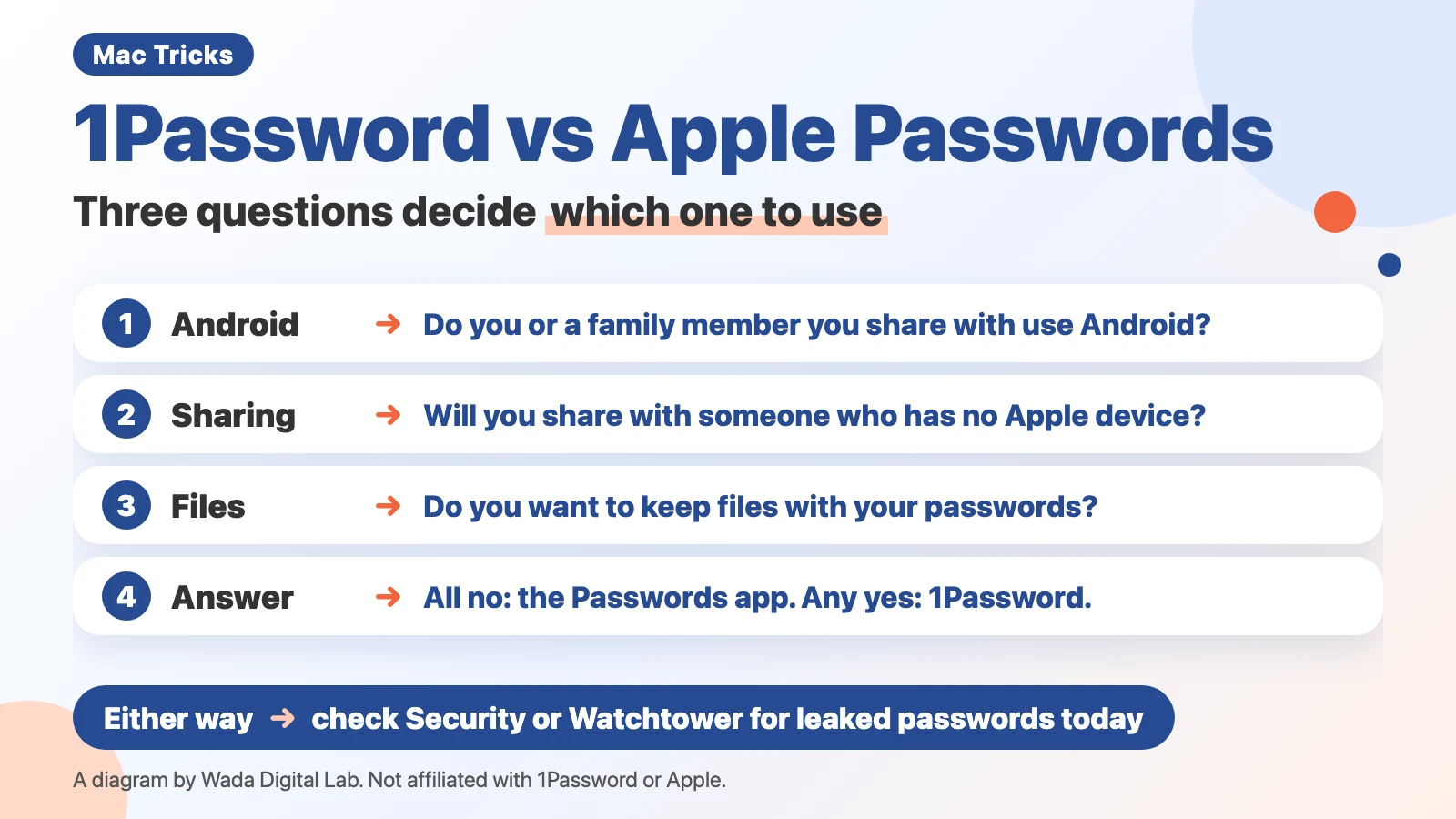
1Password and Apple’s Passwords app can both store passwords, passkeys, and two-factor verification codes, and both warn you about leaked and reused passwords. So the deciding factor is not safety but how you use them. Do you, or a family member you share passwords with, use an Android phone? Will you share passwords with someone who has no Apple device? Do you want to keep files together with your passwords? If all three answers are no, the Passwords app that comes with your Mac is enough. If any answer is yes, 1Password is worth a try. This article compares the two apps on the screens of the Mac we used for our recording (macOS 27.2).
Key points
- What both apps have: storing passwords, passkeys, and verification codes, and warnings about leaked and reused passwords (Security in the Passwords app, Watchtower in 1Password).
- Question 1, do you (or a family member you share with) also use Android? The Passwords app works on Mac, iPhone, and iPad, and on Windows through iCloud Passwords in iCloud for Windows. There is no Android app. 1Password has an Android app too.
- Question 2, will you share with someone who has no Apple device? New Shared Group in the Passwords app works only with people in your contacts who use an iPhone, iPad, or Mac with iOS 17, iPadOS 17, or macOS Sonoma 14, or a newer version. Share in 1Password gives a link to one item (one saved entry in 1Password), even to people who don’t use 1Password, and you choose how long the link can be opened.
- Question 3, do you want to keep files too? 1Password can attach files to an item and add a second or third password field. The Passwords app has Notes for each entry and View History, which shows when a password was saved or changed.
- Whichever you pick, open Security (Watchtower in 1Password) today to check for leaked and reused passwords. Keep your passwords in one place.
The diagram below sums up the three questions that decide which app to use.
This article was written by Wada Digital Lab, which has no connection with 1Password (AgileBits Inc.) or Apple. It is not a paid promotion. 1Password is a paid app. Check its official website for prices.
Comparing 1Password and Apple Passwords means choosing by how you use them, not by safety
1Password and Apple Passwords are both password managers: apps that save your passwords and fill them in on sign-in screens. When you compare them, look at how you use passwords, not at which one is safer. The Passwords app is made by Apple and comes with your Mac (it arrived in macOS Sequoia 15 as an app for what used to be iCloud Keychain in Settings). 1Password is a paid app made by AgileBits.
Many comparisons focus on which one is safer. But both apps warn you about leaked passwords, so that is not where the choice lies. The differences are which devices you can use, who you can share with, and what else you can keep with your passwords.
Each saved entry is called an entry in the Passwords app and an item in 1Password. This article uses the same words as each app.
For setting up 1Password, see How to Install 1Password on Mac. For signing in from Safari with AutoFill, see How to Use 1Password on Mac. This article is about the step before those: which one to use.
What both apps have: passwords, passkeys, verification codes, and leaked-password warnings
You can save these in either app:
- Passwords for websites and apps (with the user name)
- Passkeys (a way to sign in with Touch ID and similar, instead of a password)
- Two-factor verification codes (the six-digit numbers that change every 30 seconds)
Both apps also warn you about leaked passwords. In the Passwords app, it is Security in the sidebar. In 1Password, it is Watchtower in the sidebar. According to Apple, Security finds passwords that are easily guessed, used more than once, or found in known data leaks. Watchtower in 1Password also flags reused and weak passwords and websites that had a breach. Watchtower also shows a score for how secure your saved data is (in our Japanese recording, it showed a score of 1087).
Since both apps have leaked-password warnings, you don’t need to choose based on that feature.
Question 1, do you or your family also use Android? The Passwords app has no Android app
The first question is which devices you use.
The Passwords app works on Mac, iPhone, and iPad. On a Windows PC, you install iCloud for Windows, then use an app called iCloud Passwords and the extensions (small add-ons for your browser) for Chrome, Edge, and Firefox. Apple’s page “Set up iCloud Passwords on your Windows computer” says you need two-factor authentication on your Apple Account. It also says you need Advanced Data Protection turned on for iCloud, or an Apple device within Bluetooth range of the Windows computer. So a home with only Windows PCs and no Apple device can’t set it up. On Windows, the app is called iCloud Passwords, not Passwords, so look for that name.
However, Apple does not make an Android version of the Passwords app. Apple’s pages only cover Mac, iPhone, iPad, and Windows. 1Password has apps for Mac, Windows, Linux, iPhone, and Android, plus extensions for Chrome, Firefox, Edge, Brave, and Safari. In our recording, we saw a Download 1Password for Android button on 1Password’s official downloads page (we did not click it).
Here at Wada Digital Lab, we also use 1Password on a Windows PC, and it feels reassuring to have the same app as on the Mac.
If you also use an Android phone, or a family member you share passwords with uses Android, 1Password is easier. If someone in your family uses Android but you don’t share passwords with them, the answer to this question is no.
Question 2, will you share with someone who has no Apple device? 1Password shares a link that expires
The second question is who you share passwords with.
Passwords app: create a group with File > New Shared Group, for people in your contacts
In the Passwords app, choose File > New Shared Group to create a group for your family or others. Apple’s steps are:
- Choose File > New Shared Group.
- Enter a name for the group.
- Click Add People, enter the names of the people you want to share with, then click Add.
- Click Create.
- Select the passwords you want to share and move them into the group.
According to Apple, everyone in the group can use the passwords in it, and everyone can change them.
But you can only share with people in your contacts. Everyone needs a device with iOS 17, iPadOS 17, or macOS Sonoma 14, or a newer version. You can’t share with someone who has no Apple device through this group.
The recording user on our Mac was not signed in to an Apple Account. New Shared Group did not appear in the File menu, so we could not record that screen. It looks like you need to be signed in to iCloud to use shared groups.
1Password: use Share on an item to send a link, even to people who don’t use 1Password
In 1Password, select an item and click Share at the top. The “Share a link to this item” window opens. Choose “Link expires after” and “Available to” (anyone with the link, or only some people), then click Copy Link. The other person can open the link without 1Password and see just that one item.
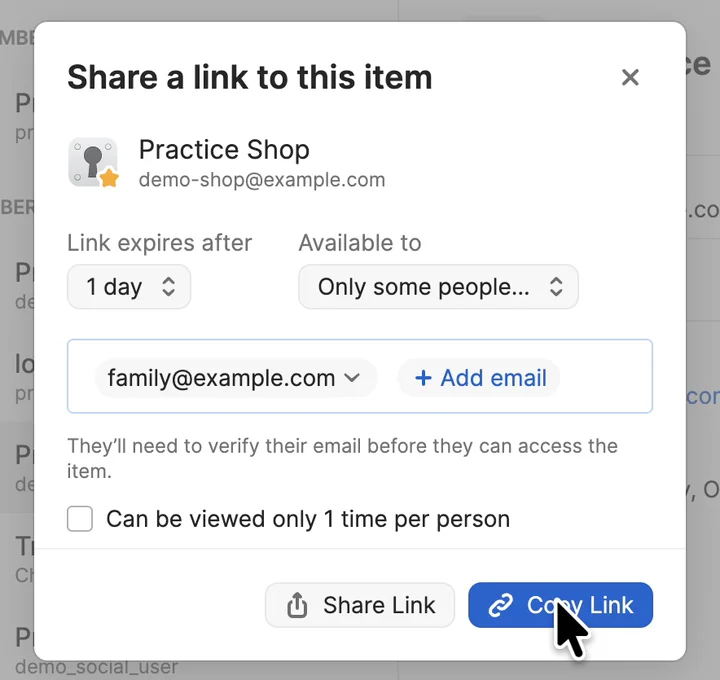
In our recording, we set “Link expires after” to 1 day and created a link. When you choose Only some people, a place for the other person’s email address appears, and the window says “They’ll need to verify their email before they can access the item.” This is handy when you hand a login to someone taking over your work, with a link that can be opened only for a set number of days. After the link expires it can’t be opened, but any password the other person wrote down still works. We chose 1 day in the recording, so we did not check the other choices on screen.
One thing to watch: according to 1Password’s support page, once the other person has seen a password, they may still have it after you stop sharing. Changing the original item does not change the copy you shared. When the work is done, change the password on that website.
Question 3, do you want to keep files too? 1Password can attach files and add a second password
The third question is what else you want to keep with your passwords.
The Passwords app lets you write a note for each entry. According to Apple, you click Edit and enter details such as the answers to security questions in the Notes field. In our recording, we also saw a practice entry with a dummy security-question answer in its note.
1Password can attach files to an item: select the item, then Edit > Add More > Attach a File. From the same Add More, you can choose Password to add a second or third password field to one item. Here at Wada Digital Lab, we find it handy to add two or three passwords to the same item and to keep attached files and notes with it.
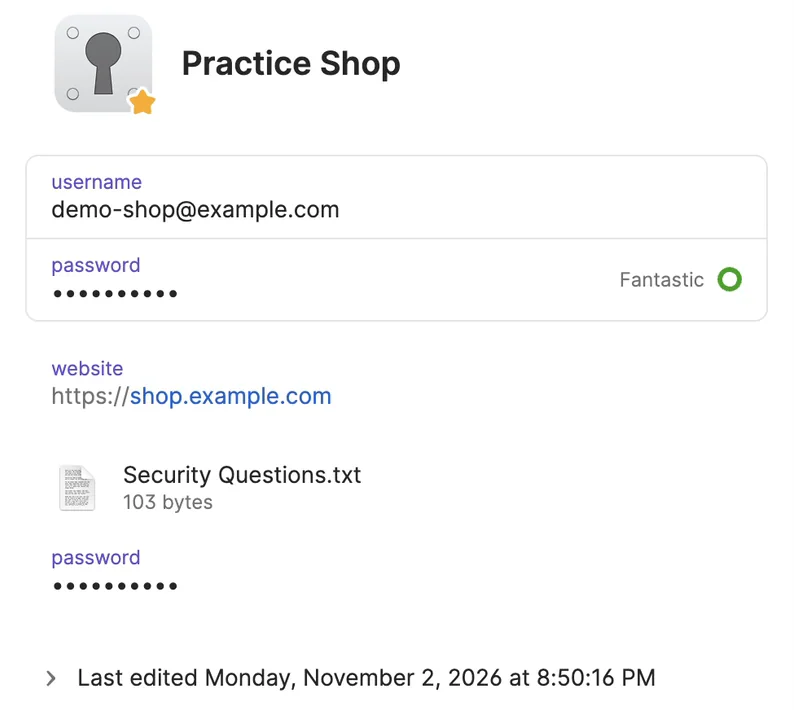
According to 1Password’s support page, an individual account includes 1 GB of file storage. Families plans include 1 GB per person. You can keep copies of a driver’s license or insurance papers next to the login.
The good points of the Passwords app: View History, and it comes with your Mac
The Passwords app has its own good points. Open an entry and click View History to see when the password was saved or changed. According to Apple, you can see previous versions of a password and the dates they were changed, and the history also shows whether you shared the password with AirDrop or with a shared group.
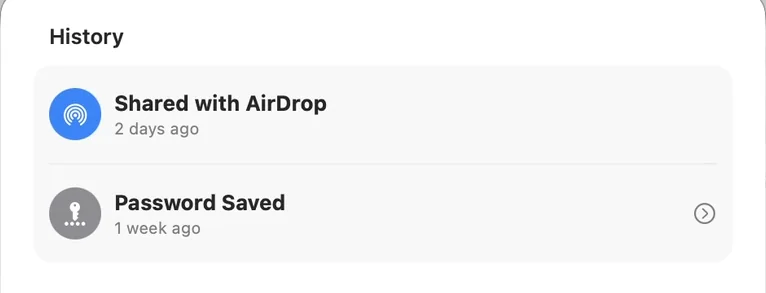
We did not open the old password itself in the recording. Note that 1Password also keeps a history for items, so it is not true that only the Passwords app has a history.
And the Passwords app comes with your Mac, ready to use. It costs nothing extra.
Cost, and the risk: don’t stay with reused passwords because of the price
1Password is a paid app. Check its official website for prices. The Passwords app comes with your Mac.
Here at Wada Digital Lab, we used to dislike paying for an app, so we managed passwords on our own. Then we noticed we were using almost the same password on many sites. That is a very risky state. Instead of staying with reused passwords while you worry about the price, save them in one of the apps and use a different password for each site. If you are unsure, starting with the Passwords app is fine.
What you can do today: check Security in the Passwords app for leaked and reused passwords
If you save passwords in the Passwords app, check in this order:
- Open the Passwords app.
- Click Security on the left.
- Passwords that may have leaked or that you reuse show up in a list. Click an entry to see the problem.
- Starting with the ones in the list, change the password on each website.
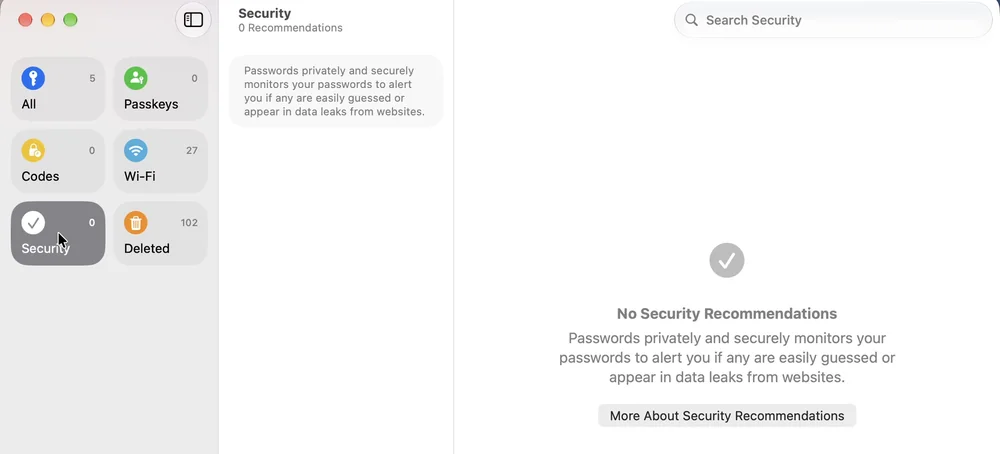
On the Mac we used for recording, every entry had a strong password made by the app, so it showed “0 Recommendations” and “No Security Recommendations.” If nothing shows up, that is good news. If you use 1Password, check Watchtower in the sidebar the same way.
According to Apple, you can turn the leaked-password check on or off with Detect Compromised Passwords in Passwords > Settings. If the list is empty, also make sure this is on.
If you choose 1Password: keep your passwords in one place
If you decide on 1Password, keep your passwords in one place. If you save them in both the Passwords app and 1Password, you can’t tell which one is newer. 1Password’s support page also explains turning off Passwords under AutoFill From in System Settings, so the two don’t overlap.
How to turn off saving to the Passwords app, and how to move the passwords you can export into 1Password with File > Import, is in How to Use 1Password on Mac — Set Up AutoFill and Touch ID, Then Sign In from Safari. If you stay with the Passwords app and Safari doesn’t show suggestions, see Password AutoFill not working on your Mac.
1Password vs the Passwords app at a glance
| What to compare | Passwords app | 1Password |
|---|---|---|
| Devices | Mac, iPhone, iPad. On Windows, iCloud Passwords in iCloud for Windows. No Android app | Apps for Mac, Windows, Linux, iPhone, and Android, plus browser extensions |
| Sharing | New Shared Group, only with people in your contacts who use an iPhone, iPad, or Mac with iOS 17, iPadOS 17, or macOS Sonoma 14, or a newer version | Share on an item creates a link, even for people who don’t use 1Password, and you choose Link expires after |
| What else you can keep | Notes for each entry | Attached files and a second password |
| Leaked-password warnings | Security | Watchtower (also shows a score) |
| When a password was saved or changed | View History on an entry | Item history |
| Cost | Comes with your Mac | Paid (check the official website for prices) |
FAQ
Which one is safer?
This article does not rank them on safety. Both warn you about leaked and reused passwords. 1Password protects your data with a Secret Key (a long code only you have) in addition to your account password. If you reuse the same password and one site leaks it, someone may get into your other accounts too.
Does 1Password cost money?
1Password is a paid app. Check its official website for prices. This article is not a paid promotion.
What is the difference between the Passwords app and iCloud Keychain?
iCloud Keychain is the name of the service that keeps your passwords in sync across your iPhone and Mac. The Passwords app is the app where you see and manage them. Starting with macOS Sequoia 15, the place to see passwords moved from System Settings to the Passwords app.
Can I move my passwords from the Passwords app to 1Password?
Yes. In the Passwords app, choose File > Export All Passwords to File, then import the file into 1Password. According to Apple, you can’t export Wi-Fi passwords, Sign in with Apple accounts, or passwords in a shared group that someone else created. Exported passwords are not encrypted, so anyone who can open the file can see them. Delete the exported file as soon as you finish. The steps are in How to Use 1Password on Mac.
Can I use both at the same time?
You can, but keeping your passwords in one place is better. If you save them in both, you can’t tell which one is newer.
What we tested, and sources
- Mac used for recording: MacBook Air (M2), macOS 27.2, Passwords 3.2, 1Password for Mac 8.12.42, Safari 27.2. We used a recording user and a recording 1Password account with only dummy data (recorded November 2, 2026). The Passwords app was shown in English by setting the language for that app only.
- What we saw in the recordings: an entry and its note in the Passwords app, Security (0 Recommendations), and View History. In 1Password, Watchtower, Share on an item with Link expires after set to 1 day up to Copy Link, and Attach a File and a second Password from Add More. The Download 1Password for Android button on the official downloads page (not clicked). The Watchtower score of 1087 is from our Japanese recording.
Not yet tested on screen: New Shared Group in the Passwords app (the recording user was not signed in to an Apple Account, so it did not appear in the menu), a list of leaked or reused passwords (every recording entry had a strong password), the other person opening a shared link, the other choices for Link expires after, moving passwords from the Passwords app to 1Password, and the Windows, Android, and iPhone screens. For these, we relied on Apple’s and 1Password’s support pages.
Apple’s Passwords User Guide (macOS 27) and support:
- Change weak or compromised passwords in Passwords on Mac
- Share passwords or passkeys with people you trust on Mac
- View your password history for a website or app on Mac
- Export passwords from your Mac to a file
- See your website or app passwords and related info on Mac
- Download iCloud for Windows (the setup steps for Windows are on Apple’s page “Set up iCloud Passwords on your Windows computer”)
1Password support pages and official website:
- 1Password system requirements
- Use Watchtower to find account vulnerabilities and security breaches
- Securely share 1Password items with anyone
- About the security of sharing items
- Save important files in 1Password
- Find your Secret Key or Setup Code
- Use 1Password to sign in to apps and websites on your Mac
- 1Password pricing
1Password is a trademark of AgileBits Inc. Mac, macOS, iPhone, iPad, Safari, iCloud, AirDrop, and Touch ID are trademarks of Apple Inc. Android and Chrome are trademarks of Google LLC. Windows and Edge are trademarks of Microsoft Corporation. Wada Digital Lab has no connection with these companies.